Page 2 - Wichtige Sicherheitshinweise; ACHTUNG; CAUTION
D iii D ii DIGITALER VIDEO RECORDER Wichtige Sicherheitshinweise 1. Bitte lesen Sie diese Bedienungsanleitung. 2. Bewahren Sie diese Bedienungsanleitung auf. 3. Beachten Sie alle Warnhinweise. 4. Folgen Sie allen Anweisungen. 5. Benutzen Sie dieses Gerät nicht in der Nähe von Wasser. 6. Reinigen Sie...
Page 3 - Inhalt
Inhalt iii v 1 2 3 1-1 1-2 1-3 1-7 1-8 1-9 2-1 2-2 2-3 2-4 3-1 3-3 4 4-1 4-6 4-7 4-10 4-14 4-15 4-17 iv iv v Wichtige Sicherheitshinweise Inhalt I. Zusammenfassung 1. Einleitung 2. Leistungsmerkmale 3. Bezeichnung der Teile und Funktionen 4. Funktionen der Fernbedienung 5. Überprüfung des Lieferumfa...
Page 5 - Einleitung
1-2 1-1 DIGITAL VIDEO RECORDER 1 Einleitung 2 Leistungsmerkmale Beim SCR-3000 handelt es sich um einen digitalen Videorecorder, der gleichzeitig mit Festplatte und Videokassette arbeitet. So kann das Fernsehprogramm auf Festplatte aufgezeichnet werden, während anschließend nur die gewünschte Sendung...
Page 6 - Bezeichnung der Teile und FunktionenZ; Vorderseite
D 1-3 1-4 DIGITALER VIDEO RECORDER D 3 Bezeichnung der Teile und FunktionenZ Vorderseite POWER ALARM LAN CHECK REC VCR SEARCH MENU REC LOCK ARCHIVE 1 2 3 4 8 5 9 7 10 11 12 13 14 15 16 17 18 6 No Bezeichnung Function SEARCH MENU LEFT/REW ENTER DOWN/ STOP RIGHT/ FF UP/ PLAY/ STILL EJECT VIDEOKAS- SET...
Page 7 - Rückseite
D 1-6 D 1-5 DIGITALER VIDEO RECORDER Rückseite 1 2 3 4 5 Nr. Bezeichnung Funktion AUDIO IN/OUT LAN Externe Ein- /Ausgangsansc hlüsse RCA-Buchsen für Audiosignal-Eingang/Ausgang. LAN-Kabelanschluss. ● ALARM IN : Im N.C.-Modus (Normally Closed) erkennt dasSystem einen Alarm, wenn ein High (5 V) Signal...
Page 8 - Überprüfung des Lieferumfangs
D Achtung Achtung Die Änderung des angegebenen Lieferumfangs zur Verbesserung der Leistung oderFunktion des Geräts bleibt ohne Ankündigung vorbehalten. 1-7 1-8 DIGITALER VIDEO RECORDER D 5 Überprüfung des Lieferumfangs 4 Funktionen der Fernbedienung Nach dem Erwerb des Geräts entfernen Sie zuerst di...
Page 9 - Festplatte einbauen/entfernen
D D 1-10 1-9 DIGITALER VIDEO RECORDER 6 Festplatte einbauen/entfernen Achtung Achtung Achten Sie darauf, dass für einen ordnungsgemäßen Betrieb des Systems dasFestplattengehäuse einrastet und der Wechselrahmen verriegelt ist. Das Gerät kann dieFestplatte erst erkennen, wenn der Wechselrahmen verrieg...
Page 12 - Systemanschluss für die Alarmaufnahme; Anschluss über RS-232C
2-3 2-4 DIGITALER VIDEO RECORDER 3 Systemanschluss für die Alarmaufnahme D D 4 Anschluss an einen PC <Rückseitige Anschlussklemmen des SCR-3000> <Fremdgerät> ■ Bei der Alarmaufnahme handelt es sich um eine Funktion zur Aufzeichnung des eingehen- den Bildes, wenn ein Alarmsignal ankommt; ...
Page 14 - Bedienung
Page 15 - System booten; Einschalten
3-2 3-1 DIGITAL VIDEO RECORDER 1 System booten Einschalten Der Netzschalter befindet sich auf der Geräterückseite oben links. Drücken Sie denNetzschalter nach oben, um das System zu booten. Die POWER-LED ( ) auf derGerätevorderseite leuchtet auf, ein blauer Bildschirm mit nachstehender Meldung ersch...
Page 16 - Grundlegende Bildschirmanzeigen; Die Sicht des ganzen Bildschirms
D 3-4 D 3-3 DIGITALER VIDEO RECORDER 2 Grundlegende Bildschirmanzeigen Wenn sich das System im Aufnahmebetrieb befindet, blinkt das SymbolEs blinkt nicht, wenn der Live-Bildschirm angezeigt wird. Wurde die Aufnahme von einem Alarm ausgelöst, erscheint das Symbol .Das Symbol blinkt kontinuierlich.Wen...
Page 17 - Der Bildschirm bei der Aufnahme
D Wenn sich das System im Aufnahmebetrieb befindet, blinkt das Symbol . Es blinkt nicht, wenn der Live-Bildschirm angezeigt wird. Dieses Symbol zeigt an, ob eine Festplatte installiert bzw. ob das Festplattengestell ver- riegelt ist. Zeigt die relative Speicherstelle der aufgezeichneten Daten auf de...
Page 18 - Der Bildschirm bei der Wiedergabe
D 3-7 DIGITALER VIDEO RECORDER Der Bildschirm bei der Wiedergabe Der normale Wiedergabebildschirm sieht folgendermaßen aus: Der obere Pfeil zeigt die relative Speicherstelle der auf der Festplatte gespeicherten Daten an, wohingegen der untere Pfeil die relative Speicherstelle der derzeit abgespiel- ...
Page 20 - Einen Menüpunkt wählen; Menüübersicht
4-1 4-2 Einstellungen ändern ① Gehen Sie mit der Taste UP ( ) oder DOWN ( ❷ ) zum gewünschten Menüpunkt. ➁ Drücken Sie die ENTER-Taste ( ), um Ihre Auswahl zu bestätigen. ➂ Drücken Sie die Taste UP ( ) oder DOWN ( ❷ ), um die Einstellungen zu ändern. ➃ Drücken Sie die ENTER-Taste ( ), um Ihre Auswah...
Page 21 - Beispiel einer Menüeinstellung (zur Änderung der Uhrzeit)
D 4-4 D 4-3 DIGITALER VIDEO RECORDER ➃ Drücken Sie entsprechend die Tasten UP ( ) oder DOWN ( ❷ ), um die aktuelle Minutenangabe anzuzeigen. Wenn Sie anschließend die Tasten LEFT ( ➛ ) oder RIGHT ( ❿ ) drücken, wechselt der Cursor zur Stunden- oder Sekundangabe. Zur Änderung der Sekunden drücken Sie...
Page 22 - Datum, Uhrzeit und Bildschirm einstellen; Übersicht über die einzelnen Menüpunkte
D 4-6 D 4-5 DIGITALER VIDEO RECORDER 2 Datum, Uhrzeit und Bildschirm einstellen Im Folgenden wird die Ersteinstellung des Menüs UHR/ANZEIGEMODUS EINSTELLENbeschrieben. ① DATUM Aktuelles Datum einstellen. ② UHRZEIT Die Uhrzeit kann im 24-Stunden-Format eingegeben werden. ➂ DATUMSANZEIGE-TYP Das Datum...
Page 23 - Aufnahme einstellen
D 4-8 D 4-7 DIGITALER VIDEO RECORDER 3 Aufnahme einstellen Im Folgenden wird die Ersteinstellung des Menüs AUFNAHMEMODUS EINSTELLENbeschrieben. ① DVR-EINGANG Die 3 Arten des am DVR eingehenden Videosignals einstellen. VIDEO-IN ist das Eingangssignal, das an der BNC-Videobuchse anliegt, S-VIDEO ist d...
Page 24 - Alarmaufnahme einstellen
D 4-10 D 4-9 DIGITALER VIDEO RECORDER 4 Alarmaufnahme einstellen Im Folgenden wird die Ersteinstellung des Menüs ALARMAUFNAHME EINSTELLENbeschrieben. ① ALARM SIGNAL ERKENNUNG Wählen Sie EIN, wenn beim Auftreten eines Alarms mit der Aufnahme begonnen werden soll,falls nicht – wählen Sie AUS. Wenn Sie...
Page 26 - Vorgemerkte Aufnahme einstellen
D 4-14 D 4-13 DIGITALER VIDEO RECORDER 5 Vorgemerkte Aufnahme einstellen Im Folgenden wird die Ersteinstellung des Menüs TIMERAUFNAHME EINSTELLENbeschrieben. ● Mittels Timer kann das System in Ihrer Abwesenheit automatisch Aufnahmen machen – Tag,Uhrzeit und Halbbildwiederholfrequenz lassen sich hier...
Page 27 - System einstellen
D 4-16 D 4-15 DIGITALER VIDEO RECORDER 6 Im Folgenden wird die Ersteinstellung des Menüs SYSTEM EINSTELLEN beschrieben. ① PASSWORT Legen Sie ein Systempasswort fest. Sie können eine 4-stellige Zahl eingeben. Der eingestellte Anfangswert ist 0000. ② PASSWORTSCHUTZ Wenn Sie diese Option einschalten, w...
Page 28 - Kommunikation einstellen
V. Übersicht über das VCR-Menü 5 D D 4-17 DIGITALER VIDEO RECORDER 7 Kommunikation einstellen Im Folgenden wird die Ersteinstellung des Menüs KOMMUNIKATION EINSTELLENbeschrieben. ① BAUDRATE Legt die Datenübertragungsgeschwindigkeit für die RS-232C-Kommunikation fest. [4,800/9,600/19,200/38,400/115,2...
Page 29 - VCR MAIN MENU aufrufen; Menüpunkte
5-1 5-2 DIGITAL VIDEO RECORDER 1 VCR-Menüs VCR MAIN MENU aufrufen Drücken Sie im Live-Bildschirmmodus einmal die VCR-Taste ( ). Das VCR-Lämpchen leuchtet auf. Drücken Sie nun die MENU-Taste ( ). Daraufhin wird der folgende Bildschirm eingeblendet. ARCHIV-MENÜ (VCR) MANUELL ARCHIVIERENTIMER-ARCHIVARC...
Page 37 - Grundlagen der Aufnahme
6-2 6-1 DIGITAL VIDEO RECORDER 1 Grundlagen der Aufnahme Grundlagen der Aufnahme ① CURRENT IMAGE AUFNAHME Drücken Sie die AUFNAHME-Taste ( ), um das aktuelle Bild aufzunehmen. Die LED der AUFNAHME-Taste ( ) leuchtet auf und die Aufnahme beginnt, während die nachstehende Meldung auf dem Bildschirm er...
Page 38 - Sicherheitsverriegelung; Sicherheitsverriegelung aufheben; Aufnahme bei Auftreten eines Alarmse
6-3 6-4 DIGITALER VIDEO RECORDER 2 Sicherheitsverriegelung D D 3 Alarmaufnahme Sicherheitsverriegelung Drücken Sie die Taste während der Aufnahme, um ein ungewolltes Ausschalten der Aufnahme zu verhindern. Die LOCK-Statusanzeige-LED und die Taste leuchten auf. Durch Drücken der STOP-Taste ( ■ ) kann...
Page 39 - Vorgemerkte Aufnahme
6-5 DIGITALER VIDEO RECORDER 4 Vorgemerkte Aufnahme D Vorgemerkte Aufnahme einstellen Im Menü TIMERAUFNAHME EINSTELLEN können Sie den Tag, die Uhrzeit und die Halbbildwiederholfrequenz eingeben, damit eine Aufnahme zum gewünschten Zeitpunkt stattfindet. Vorgemerkte Aufnahme abbrechen Findet keine Au...
Page 40 - und wiedergeben
Page 41 - Suchmenüs; DVR SUCHMENÜ aufrufen
7-2 7-1 DIGITAL VIDEO RECORDER 1 Suchmenüs DVR SUCHMENÜ aufrufen Um aufgezeichnete Daten zu suchen, drücken die SEARCH-Taste ( ). Daraufhin wird der folgende Bildschirm eingeblendet. Einen Menüpunkt auswählen Verwenden Sie die Taste UP ( ) oder DOWN ( ❷ ), um zum gewünschten Menüpunkt zu gelangen. D...
Page 42 - Nach Datum und Uhrzeit suchen; Liste der aufgezeichneten Daten
7-3 7-4 DIGITALER VIDEO RECORDER 2 Nach Datum und Uhrzeit suchen D D Geben Sie das gesuchte Datum und die Uhrzeit ein, platzieren Sie den Cursor auf SUCHESTARTEN und drücken Sie anschließend die ENTER-Taste ( ). Der folgende Bildschirmerscheint und das System beginnt mit der Suche der Daten. Wenn ke...
Page 43 - ALARM EREIGNIS SUCHEN; BEWEGUNG EREIGNIS SUCHEN
7-5 7-6 DIGITALER VIDEO RECORDER 4 ALARM EREIGNIS SUCHEN D D Die Daten auf der Festplatte, die aufgrund eines Alarms aufgezeichnet wurden, sind in einer Liste aufgeführt, die auf der Anfangszeit der Aufnahme beruht. Alle weiteren Informationen sind mit denen unter „3. Liste der aufgezeichneten Daten...
Page 44 - SYSTEMANZEIGE
D 7-7 7-8 DIGITALER VIDEO RECORDER D 6 PLAYBACK KANAL EINSTELLEN Bei Aufnahmen in Verbindung mit einem Multiplexer können Sie die Wiedergabe eines einzel- nen Kanals anzeigen oder ausblenden. Zur Anzeige den Kanal auf ON stellen, und zum Ausblenden auf OFF stellen. 7 SYSTEMANZEIGE Der folgende Bilds...
Page 46 - Grundlagen der Wiedergabe
D 7-12 D 7-11 DIGITALER VIDEO RECORDER 8 Grundlagen der Wiedergabe Um die auf der Festplatte aufgezeichneten Daten unverzüglich abzuspielen, drücken Sie die Taste PLAY/STILL ( ❿ II ). Der folgende Bildschirm erscheint und die aufgezeichneten Daten werden der Reihe nach wiedergegeben. Um die Wiederga...
Page 48 - Passage wiederholen
D D 7-15 DIGITALER VIDEO RECORDER 11 Passage wiederholen Die Funktion WIEDERHOLEN gestattet Ihnen die Wiederholung einer bestimmten Passage bei der DVR- oder VCR-Wiedergabe. Die Funktion WIEDERHOLEN kann nur von der Fernbedienung aus gesteuert werden. (1) A-B Wiedergabe-Wiederholung für DVR Drücken ...
Page 50 - Technische Daten; Gerätedarstellung
8-2 8-1 1 Technische Daten DIGITAL VIDEO RECORDER 2 Gerätedarstellung 350.7mm 98mm 430mm Nennspannung NTSC (AC 110 ~ 240V, 60 Hz), PAL (AC 220V, 50Hz) Leistungsaufnahme 34W Festplatte Entnehmbare Festplatte, 80 GB BACKUP VCR-VIDEOKASSETTE Videoeingang Composite-Video, BNC-Buchse - 1 CH (1,0 Vss, 75 ...
Page 51 - Anhänge
Page 52 - Kontrollpunkt bevor Sie den Kundendienst rufen
9-2 9-1 1 Kontrollpunkt bevor Sie den Kundendienst rufen DIGITAL VIDEO RECORDER Wenn das System nicht richtig funktioniert, bitte kontrollieren Sie die folgende Anweisung bevor Sie den Kundendienst oder den Geschäft, wo Sie das System gekauft haben, rufen. Probleme Kontrollpunkt • Kann kein Strom ve...
Page 54 - Manuel de l’utilisateur
Classe A (Business) Pour utiliser ce produit en toute sécurité, vous devez lire “Importantes introductionsen matière de sécurité”, et bien prendre alors connaissance de leur contenu. ENREGISTREUR VIDÉO NUMERIQUE SCR-3000N/SCR-3000P Manuel de l’utilisateur
Page 55 - Consignes de sécurité importantes; AVERTISSEMENT
iii ii ENREGISTREUR VIDÉO NUMERIQUE Consignes de sécurité importantes 1. Lire ces consignes. 2. Conserver ces consignes. 3. Tenir compte de tous les avertissements. 4. Suivre toutes les consignes. 5. Ne pas utiliser cet appareil près de l’eau. 6. Ne nettoyer qu’avec un tissu sec. 7. N’obstruer aucun...
Page 56 - Table des matières
Table des matières iii v 1 2 3 1-11-21-3 1-71-81-9 2-1 2-22-3 2-4 3-13-3 4 4-14-6 4-7 4-10 4-14 4-154-17 iv iv v Instructions de sécurité importantes Table des matières I. Sommaire 1. Introduction2. Caractéristiques3. Désignation et fonction de chaque pièce. 4. Introduction à la télécommande 5. Véri...
Page 58 - Introduction
1-2 1-1 DIGITAL VIDEO RECORDER 1 Introduction 2 Caractéristiques SCR-3000 est un système de magnétoscope numérique qui utilise à la fois le lecteur de disque dur et le magnétoscope à cassette. Enregistrez la réception du téléviseur sur le disque dur tout en enregistrant uniquement le programme que v...
Page 59 - Désignation et fonction de chaque pièce.; Visualisation avant
1-3 1-4 ENREGISTREUR VIDÉO NUMERIQUE 3 Désignation et fonction de chaque pièce. Visualisation avant POWER ALARM LAN CHECK REC VCR SEARCH MENU REC LOCK ARCHIVE 1 2 3 4 8 5 9 7 10 11 12 13 14 15 16 17 18 6 N° Désignation Fonction SEARCH MENU LEFT/REW ENTER DOWN/ STOP RIGHT/ FF UP/ PLAY STILL EJECT PLA...
Page 60 - Visualisation arrière
1-6 1-5 ENREGISTREUR VIDÉO NUMERIQUE Visualisation arrière 1 2 3 4 5 Nr. Bezeichnung Funktion AUDIO IN/OUT LAN EXTERNAL I/O PORT Connecteurs entrée/ sortie audio de type RCA. Connecteur pour la connexion du câble du réseau local. ● ALARM IN : En mode N.F. (Normalement fermé), le systèmereconnaît une...
Page 61 - Vérification du contenu de l’emballage
A A vertissement vertissement Les éléments ci-dessus peuvent être modifiés sans avertissement préalable afind’améliorer les performances ou les fonctionnalités du produit. 1-7 1-8 ENREGISTREUR VIDÉO NUMERIQUE 5 Vérification du contenu de l’emballage 4 Introduction à la télécommande Lors de l’achat d...
Page 62 - Connecter/ Déconnecter le lecteur de disque dur; Montage du HDD
1-10 1-9 ENREGISTREUR VIDÉO NUMERIQUE 6 Connecter/ Déconnecter le lecteur de disque dur A A vertissement vertissement Assurez-vous de verrouiller la baie du disque dur pour que le système fonctionne nor-malement. Si la baie du disque dur n’est pas verrouillée le système ne peut pas recon-naître votr...
Page 65 - Système de branchement pour l’en-; Branchement sur RS-232C
2-3 2-4 ENREGISTREUR VIDÉO NUMERIQUE 3 Système de branchement pour l’en- registrement de l’alarme 4 Branchement pour utilisation avec PC <Terminal de connexion côté arrière du SCR-3000> <Produit externe> ■ L’enregistrement de l’alarme est une fonction qui permet d’enregistrer l’entrée vi...
Page 66 - Branchement sur RS485
2-6 2-5 ENREGISTREUR VIDÉO NUMERIQUE Branchement sur RS485 Si vous contrôlez des caméras, la commande à distance fonctionne grâce à une connexion RS-485 (jusqu’à 1,2 km). A. Méthode de communication ● Méthode de transmission de données : Interface série Asynchronisé arythmique ● Protocole : 8 binair...
Page 67 - base à suivre
Page 68 - Démarrage du système; Mise sous tension; Reconnaissance du signal vidéo entrant; Mise à l’arràt
3-2 3-1 DIGITAL VIDEO RECORDER 1 Démarrage du système Mise sous tension Il y a un interrupteur d’alimentation sur le côté supérieur droit à l’arrière du système.Montez l’interrupteur d’alimentation pour démarrer le système. Ensuite, le VOYANT D’AL-IMENTATION ( ) à l’avant du système s’allume, un écr...
Page 69 - Ecran d’affichage de base; Visualisation Plein Ecran
3-4 3-3 ENREGISTREUR VIDÉO NUMERIQUE 2 Ecran d’affichage de base Si le système est en mode enregistrement, l’icône clignotera. Cependant, elle ne clignote pas dans l’écran d’affichage actif. Si le système est en mode enregistrement en raison d’une alarme, l’icône apparaît.Sur ce mode, l’icône cligno...
Page 70 - Ecran d’affichage actif
3-6 3-5 ENREGISTREUR VIDÉO NUMERIQUE Ecran d’affichage actif L’écran d’affichage normal ressemble à ceci. Image de l’enregistreur image normale a l’ecran montre Si le système exécute la fonction d’enregistrement, l’icône clignote. Si le système est en mode enregistrement en raison d’une alarme, l’ic...
Page 71 - Ecran d’affichage en lecture
3-7 ENREGISTREUR VIDÉO NUMERIQUE Ecran d’affichage en lecture L’écran de lecture normal ressemble à ceci. ❿ 2003-06-24 00:23:44 La flèche lumineuse supérieure indique la situation relative des données enregistrées sur le disque dur et la flèche inférieure indique la situation relative des données en...
Page 73 - Modification des paramètres; Accéder au menu parent ou à la fin du menu; Entrée dans le MENU PRINCIPAL DVR; Affichage du menu
F 4-1 4-2 Modification des paramètres ① Utilisez les touches UP ( ) et DOWN ( ❷ ) pour sélectionner le paramètre que vous souhaitez modifier. ➁ Appuyez sur la touche ENTER ( ) pour accepter le choix. ➂ Utilisez les touches UP ( ) et DOWN ( ❷ ) pour modifier la valeur. ➃ Appuyez sur la touche ENTER (...
Page 75 - Régler la date, l’heure et l’écran; Chaque élément du menu
4-6 4-5 ENREGISTREUR VIDÉO NUMERIQUE 2 Régler la date, l’heure et l’écran Ce qui suit illustre le réglage initial du menu PARAMETRES MODE HEURE/AFFICHAGE. ① DATUM Aktuelles Datum einstellen. ② UHRZEIT L’heure peut àtre saisie sur 24 heures. ➂ TYPE D’AFFICHAGE DATE La date peut àtre affichée sous 3 f...
Page 76 - Paramètres enregistrement
4-8 4-7 ENREGISTREUR VIDÉO NUMERIQUE 3 Paramètres enregistrement Ce qui suit illustre le paramétrage initial du menu PARAMETRES MODE ENREGISTREMENT. ① ENTRÉE DVR Paramétrez les 3 types de signaux d’entrée vidéo allant au magnétoscope numérique. VIDEO-IN est le signal d’entrée allant à la prise vidéo...
Page 77 - PARAMETRE ENREGISTREMENT ALARMHE
4-10 4-9 ENREGISTREUR VIDÉO NUMERIQUE 4 PARAMETRE ENREGISTREMENT ALARMHE Im Folgenden wird die Ersteinstellung des Menüs PARAMETRE ENREGISTREMENTALARME beschrieben. ① DÉTECTION SIGNAL ALARME Vous devez sélectionner MARCHE pour démarrer l’enregistrement dans le cas d’alarme etARRÊT pour empêcher l’en...
Page 79 - Paramètres de programmation
4-14 4-13 ENREGISTREUR VIDÉO NUMERIQUE 5 Paramètres de programmation d’enregistrement Ce qui suit illustre le paramétrage initial du menu PARAMETRES ENREGISTREMENTMINUTEUR. ● L’enregistrement minuteur permet au système d’enregistrer automatiquement lorsque vous n’àtespas là, si bien que l’enregistre...
Page 80 - Paramètres système
4-16 4-15 ENREGISTREUR VIDÉO NUMERIQUE 6 Ce qui suit illustre le paramétrage initial du menu PARAMETRES SYSTEME. ① MOT DE PASSE Définissez le mot de passe système. Vous pouvez entrer un numéro à 4 chiffres et la valeur initiale définie est 0000. ② VERROUILLAGE MOT DE PASSE Si vous paramétrez ce poin...
Page 81 - Paramètres Communication
V. Visualisation du menu du mag-nétoscope 5 4-17 ENREGISTREUR VIDÉO NUMERIQUE 7 Paramètres Communication Ce qui suit illustre le paramétrage initial du menu PARAMETRES COMMUNICATION. ① DEBIT EN BAUDS Fixe le débit de transmission des données en communication RS-232C. [4,800/9,600/19,200/38,400/115,2...
Page 82 - Menus du magnétoscope; Accéder au MENU PRINCIPAL DU MAGNETOSCOPE; Éléments du menu
F 5-1 5-2 DIGITAL VIDEO RECORDER 1 Menus du magnétoscope Accéder au MENU PRINCIPAL DU MAGNETOSCOPE En mode Live Screen, appuyez une fois sur la touche VCR( ). Le voyant VCR s’allume. Appuyez sur la touche MENU ( ). L’écran suivant apparaît. MENU ARCHIVE (MAGNÉTOSCOPE) ARCHIVE MANUELLEARCHIVE MINUTER...
Page 86 - ARCHIVE MINUTERIE
5-10 5-9 ENREGISTREUR VIDÉO NUMERIQUE 3 ARCHIVE MINUTERIE L’illustration suivante indique les paramètres initiaux du menu ARCHIVE MINUTERIE. La fonction Timer Backup vous permet de paramétrer le système afin qu’il sauvegarde automatiquement les données enregistrées sur le HDD sur une bande vidéo lor...
Page 87 - CONFIGURER ARCHIVE
5-12 5-11 ENREGISTREUR VIDÉO NUMERIQUE (3) SÉLECTION CASSETTE Paramétrez la durée de la cassette pour un calcul précis du temps restant sur la cassette et uncontrôle précis. ● SCR-3000N [T-120/T-160/T180] ● SCR-3000P [E-180/E-210/E-260] (4) AVERTISSEUR MAGNÉTOSCOPE Paramétrez l’avertisseur sonore de...
Page 90 - Enregistrement de base
6-2 6-1 DIGITAL VIDEO RECORDER 1 Enregistrement de base Enregistrement de base ① ENREGISTREMENT DÌMAGE EN COURS Appuyez sur la touche RECORD ( ) pour enregistrer l’image actuelle. En faisant cela, la touche RECORD ( ) s’allume et l’enregistrement démarre lorsque le mes- sage suivant apparaît à l’écr...
Page 91 - Verrouillage d’enregistrement; Relâcher le verrouillage enregistrement; Enregistrement en déclenchement d’alarme; Libération de l’enregistrement d’alarme
6-3 6-4 ENREGISTREUR VIDÉO NUMERIQUE 2 Verrouillage d’enregistrement 3 Enregistrement d’alarme Verrouillage d’enregistrement Appuyez sur la touche REC LOCK( ) pendant l’enregistrement pour verrouiller l’enreg- istrement. La LED de l’état du verrouillage et la touche REC LOCK( ) s’allumeront. A ce mo...
Page 92 - Programmation d’enregistrement; Paramètres de programmation d’enregistrement; Annulation de la programmation d’enregistrement
VII. Recherche automatique et lecture 7 6-5 ENREGISTREUR VIDÉO NUMERIQUE 4 Programmation d’enregistrement Paramètres de programmation d’enregistrement Vous pouvez saisir le jour, l’heure et la fréquence de zone pour l’enregistrement du minuteur dans le menu ENREGISRTEMENT PAR PROGRAMMATEUR afin que ...
Page 93 - Menus recherche; Entrée dans le MENU RECHERCHE; Retour au menu supérieur ou Quitter le menu actuel
7-2 7-1 DIGITAL VIDEO RECORDER 1 Menus recherche Entrée dans le MENU RECHERCHE Pour chercher des données enregistrées, appuyez sur la touche SEARCH ( ). L’écran suivant apparaît. Sélection d’un élément du menu Utilisez les touches UP ( ) DOWN ( ❷ ) pour accéder à l’élément du menu que vous souhaitez...
Page 94 - Recherche automatique par date; Affichage de liste de données
7-3 7-4 ENREGISTREUR VIDÉO NUMERIQUE 2 Recherche automatique par date et heure Saisissez la date et l’heure que vous souhaitez rechercher, placez le curseur sur DEMARRAGERECHERCHE et appuyez ensuite sur la touche ENTER ( ). L’écran suivant apparaît et lesystème démarre la recherche de données. Si le...
Page 95 - Recherche automatique; Affichage de liste de statut
7-5 7-6 ENREGISTREUR VIDÉO NUMERIQUE 4 Recherche automatique d’enregistrement d’alarme Parmi les données sur le HDD, celles enregistrées lors de l’activation d’une alarme sont affichées sous forme de liste basée sur l’heure de démarrage de l’enregistrement. Les autres informations sont identiques qu...
Page 96 - PARAMETRAGE DU CANAL DE LECTURE
7-7 7-8 ENREGISTREUR VIDÉO NUMERIQUE 6 PARAMETRAGE DU CANAL DE LECTURE Lors d’un enregistrement avec un multiplexeur, vous pouvez afficher ou cacher la lecture d’un canal en particulier. Paramétrez le canal sur ON pour l’afficher ou paramétrez-le sur OFF pour le cacher. 7 INDICATION DU SYSTÉME L’écr...
Page 98 - Lecture de base
7-12 7-11 ENREGISTREUR VIDÉO NUMERIQUE 8 Lecture de base Pour lire immédiatement les données enregistrées sur le HDD, appuyez sur la touche PLAY/ STILL ( ❿ II ). L’écran suivant apparaît et le début des données enregistrées est lu. Pour arrêter la lecture, appuyez sur la touche STOP ( ) Appuyez à no...
Page 99 - Lecture du magnétoscope
7-13 7-14 ENREGISTREUR VIDÉO NUMERIQUE 9 Lecture du magnétoscope Procédez comme indiqué ci-après pour lire une bande vidéo enregistrée. Insérez la bande vidéo dans la platine. Tournez le VOYANT VCR en appuyant une fois sur la touche VCR ( ) Appuyez ensuite sur la touche PLAY/STILL ( ❿ II ). . Appuye...
Page 100 - Lire une section de manière répétée
7-15 ENREGISTREUR VIDÉO NUMERIQUE 11 Lire une section de manière répétée La fonction RÉPÉTER vous permet de lire de manière répétée une certaine section lors de la lecture du magnétoscope numérique ou du magnétoscope. Il est possible d’enclencher la fonc- tion RÉPÉTER uniquement à partir de la téléc...
Page 102 - Normes produit; Dimensions
8-2 8-1 1 Normes produit DIGITAL VIDEO RECORDER 2 Dimensions 350.7mm 98mm 430mm Tension nominale NTSC (AC 110 ~ 240V, 60 Hz) PAL (AC 220V, 50Hz) Consommation électrique 34W HDD HDD extractible 80 Go BACKUP BANDE VIDEO MAGNÉTOSCOPE Entrée Vidéo Composite Vidéo, BNC Fiche - 1 CH (1.0 Vp-p, 75 Ω ) VIDÉ...
Page 103 - Appendices
Page 104 - Vérifications avant de Contacter le Centre de Service
F 9-2 9-1 1 Vérifications avant de Contacter le Centre de Service DIGITAL VIDEO RECORDER En cas de mauvais fonctionnement du système, veuillez suivre les instructions suivantes avant de contacter le centre de service ou le magasin dans lequel votre achat a été effectué. Problème Dépannage • Il est i...
Page 106 - Manuale Utente
REGISTRATORE DIGITALE DI VIDEO SCR-3000N/SCR-3000P Manuale Utente CLASSE A(Per Affari) Per usare questo prodotto in tutta sicurezza, leggere “Importanti istruzioni disicurezza” e seguirlescrupolosamente.
Page 107 - Importanti istruzioni di sicurezza; ATTENZIONE
iii ii REGISTRATORE DIGITALE DI VIDEO Importanti istruzioni di sicurezza 1. Leggere queste istruzioni. 2. Conservare queste istruzioni. 3. Prestare attenzione a tutti gli avvertimenti. 4. Seguire tutte le istruzioni. 5. Non usare questo dispositivo vicino all’acqua. 6. Pulirlo solo con un panno asci...
Page 108 - Indice
Indice iii v 1 2 3 1-1 1-2 1-3 1-7 1-8 1-9 2-1 2-2 2-3 2-4 3-1 3-3 4 4-1 4-6 4-7 4-10 4-14 4-15 4-17 iv iv v Importanti norme di sicurezza Indice I. Sommario 1. Introduzione 2. Caratteristiche 3. Nomenclatura e funzioni delle parti 4. Introduzione all’uso del telecomando 5. Controllo del contenuto d...
Page 110 - Introduzione
1-2 1-1 REGISTRATORE DIGITALE DI VIDEO 1 Introduzione 2 Caratteristiche L'unità SCR-3000 è un sistema DVR che utilizza contemporaneamente il disco rigido e il nastro VCR. Il contenuto della ricezione televisiva viene registrato nel disco rigido, mentre sul nastro del VCR viene registrato solo il pro...
Page 111 - Nomenclatura e funzioni delle parti; Vista frontale
1-3 1-4 REGISTRATORE DIGITALE DI VIDEO 3 Nomenclatura e funzioni delle parti Vista frontale POWER ALARM LAN CHECK REC VCR SEARCH MENU REC LOCK ARCHIVE 1 2 3 4 8 5 9 7 10 11 12 13 14 15 16 17 18 6 N. Nome Funzione SEARCH MENU LEFT/REW ENTER DOWN/STOP RIGHT/FF UP/PLAY/ STILL EJECT CASSETTO VIDEO Visua...
Page 112 - Vista posteriore
1-6 1-5 REGISTRATORE DIGITALE DI VIDEO Vista posteriore 1 2 3 4 5 N. Nome Funzione INGRESSO/US CITA AUDIO LAN Porte ingresso/uscita esterni Connettori per l’ingresso/uscita di audio del tipo RCA Connettore per la connessione del cavo LAN. ● ALARM IN : nella modalità N.C. (Normalmente chiusa), ilsist...
Page 113 - Controllo del contenuto della
A A vvertenza vvertenza Gli articoli sopra citati sono soggetti a modifica senza preavviso allo scopo dimigliorare le prestazioni o le funzionalità del prodotto. 1-7 1-8 REGISTRATORE DIGITALE DI VIDEO 5 Controllo del contenuto della confezione 4 Introduzione all’uso del telecomando Quando si acquist...
Page 114 - Inserimento e rimozione dell’HDD; Montaggio dell’HDD
1-10 1-9 REGISTRATORE DIGITALE DI VIDEO 6 Inserimento e rimozione dell’HDD A A vvertenza vvertenza Per garantire il normale funzionamento del sistema, accertarsi di aver bloccato il rack inposizione. Se il rack non è bloccato, il sistema non sarà in grado di riconoscere l’harddrive.Durante l’estrazi...
Page 117 - Collegamento al PC; Collegamento con l’RS-232C
2-3 2-4 REGISTRATORE DIGITALE DI VIDEO 3 Collegamento del sistema per la registrazione da allarme 4 Collegamento al PC <Terminal di collegamento del SCR-3000, lato posteriore> <Prodotto esterno> ALARM IN (INGRESSO ALLARME) ALARM RESET (RISETTAGGIO ALLARME) ALARM OUT (USCITA ALLARME) GND ...
Page 118 - Collegamento con l’RS-485
2-6 2-5 REGISTRATORE DIGITALE DI VIDEO Collegamento con l’RS-485 Per il controllo delle telecamere, l'uso del telecomando è consentito mediante connessione con la porta RS-485 (fino a 1,2 km). A. Metodo di comunicazione ● Metodo di trasmissione dati: Interfaccia seriale Non sincronizzato Start-Stop ...
Page 119 - principali
Page 120 - Avvio del sistema; Accensione
3-2 3-1 REGISTRATORE DIGITALE DI VIDEO 1 Avvio del sistema Accensione L’interruttore di accensione/spegnimento è situato sul retro del sistema, sul lato superioredestro. Per avviare il sistema, sollevare l’interruttore di accensione/spegnimento. Il LEDPOWER ( ) nella parte anteriore del sistema si a...
Page 121 - Visualizzazione schermate; Visione Schermo Pieno
l puntatore superiore mostra la posizione relativa dei dati registrati nel disco rigido, e il puntatore inferiore mostra la posizione relativa dei dati attualmente riprodotti. L’indicatore seguente può essere nascosto nello schermo generale vuoto e nello scher- mo mentre si sta registrando. Può camb...
Page 122 - Visualizzazione schermata Live
Se il sistema è in stato Registrazione, l’icona lampeggerà. Non lampeggerà, però, nello stato Schermata Live. Indica se è stato installato un HDD e se il rack dell’hard drive è bloccato. Mostra la posizione relativa dei dati registrati all’interno del disco rigido. Mostra la data e l’ora, secondo la...
Page 123 - Visualizzazione schermata in riproduzione
3-7 REGISTRATORE DIGITALE DI VIDEO Visualizzazione schermata in riproduzione La normale schermata in riproduzione ha questo aspetto. Il puntatore superiore mostra la posizione relativa dei dati registrati nel disco rigido, e il puntatore inferiore mostra la posizione relativa dei dati attualmente ri...
Page 125 - Modifica delle impostazioni; Portarsi sul menu principale o chiusura del menu; Vista dei menu
4-1 4-2 Modifica delle impostazioni ① Utilizzare i tasti UP( ) e DOWN ( ❷ ) per selezionare l’impostazione da modificare. ➁ Premere il tasto ENTER( ) per confermare la modifica. ➂ Utilizzare i tasti UP( ) e DOWN ( ❷ ) per modificare il valore. ➃ Premere il tasto ENTER( ) per confermare la modifica. ...
Page 126 - Esempio di impostazione nel menu (modifica dell’ora)
4-4 4-3 REGISTRATORE DIGITALE DI VIDEO ➃ Allo stesso modo, premere i tasti UP ( ) o DOWN ( ❷ ) per visualizzare i minuti attuali.Premendo poi i tasti LEFT ( ➛ ) o RIGHT ( ❿ ) vengono evidenziati l’ora o i secondi, che possono quindi essere modificati. Per esempio, premere il tasto RIGHT ( ❿ ) per mo...
Page 127 - Impostazione di data, ora e schermo; Tutti gli elementi del menu
4-6 4-5 REGISTRATORE DIGITALE DI VIDEO 2 Impostazione di data, ora e schermo Questa è l’impostazione iniziale del menu IMPOSTAZIONE MODO OROLOGIO/DISPLAY. ① DATE Impostare la data corrente ② ORA Si può immettere l’ora nel formato “24 ore”. ➂ FORMATO DATA La data può essere visualizzata in 3 formati....
Page 128 - Impostazione registrazione
4-8 4-7 REGISTRATORE DIGITALE DI VIDEO 3 Impostazione registrazione Questa è l’impostazione iniziale del menu IMPOSTAZIONE REGISTRAZIONE. ① INGRESSO DVR Impostare i 3 tipi di segnali di ingresso video che pervengono al DVR. VIDEO è il segnale di ingresso che perviene alla presa video BNC, S-VIDEO è ...
Page 129 - Impostazione registrazione allarme
4-10 4-9 REGISTRATORE DIGITALE DI VIDEO 4 Impostazione registrazione allarme Questa è l’impostazione iniziale del menu IMPOSTAZIONE REGISTRAZIONE ALLARME . ① RILEVAZIONE SEGNALE ALLARME Selezionare SI per avviare la registrazione in caso di allarme; selezionare NO per disattivarela registrazione in ...
Page 131 - Impostazioni registrazione programmata
4-14 4-13 REGISTRATORE DIGITALE DI VIDEO 5 Impostazioni registrazione programmata Questa è l’impostazione iniziale del menu IMPOSTAZIONE REGISTRAZIONE TIMER. ● Il timer permette al sistema di avviare automaticamente la registrazione anche in assenzadell’utente; la registrazione avverrà nel giorno e ...
Page 132 - Impostazioni del sistema
4-16 4-15 REGISTRATORE DIGITALE DI VIDEO 6 Questa è l’impostazione iniziale del menu IMPOSTAZIONE SISTEMA ① PASSWORD Imposta la password del sistema. Si può immettere un numero di 4 cifre; il valore iniziale è 0000. ② BLOCCO PASSWORD Se questa opzione è impostata su ON, il sistema richiederà una pas...
Page 133 - del menu VCR; IMPOSTAZIONI PORTE DI COMUNICAZIONE
V. Visualizzazione del menu VCR 5 4-17 REGISTRATORE DIGITALE DI VIDEO 7 IMPOSTAZIONI PORTE DI COMUNICAZIONE Questa è l’impostazione iniziale del menu IMPOSTAZIONI PORTE DI COMUNICAZIONE. ① BAUD RATE Imposta la rate della trasmissione dati nella comunicazione con RS-232C. [4,800/9,600/19,200/38,400/1...
Page 134 - Menu VCR; Voci dei menu
5-1 5-2 REGISTRATORE DIGITALE DI VIDEO 1 Menu VCR Attivazione del MENU ARCHIVIAZIONE (VCR) Nella modalità schermata Live, premere una volta il tasto VCR( ). Il LED VCR si accende. Premere il tasto MENU ( ). Dovrebbe apparire la schermata illustrata di seguito. MENU ARCHIVIAZIONE (VCR) ARCHIVIAZIONE ...
Page 139 - CONFIGURAZIONE ARCHIVIO
5-12 5-11 REGISTRATORE DIGITALE DI VIDEO (3) SELEZIONE NASTRO Impostare la lunghezza del nastro per un calcolo accurato del tempo rimasto e un controllopreciso. ● SCR-3000N [T-120/T-160/T180] ● SCR-3000P [E-180/E-210/E-260] (4) CICALINO VCR Impostare il segnale acustico in modo che avverta dello sta...
Page 142 - Registrazione di base
6-2 6-1 REGISTRATORE DIGITALE DI VIDEO 1 Registrazione di base Registrazione di base ① REGISTRAZIONE DELL’IMMAGINE CORRENTE Premere il tasto RECORD( ) per registrare l’immagine corrente. La spia del tasto RECORD( ) si accende e la registrazione ha inizio, mentre sullo schermo viene visu- alizzato il...
Page 143 - Blocco registrazione; Annullamento della registrazione da allarme
6-3 6-4 REGISTRATORE DIGITALE DI VIDEO 2 Blocco registrazione 3 Registrazione da allarme Blocco registrazione Premere il tasto REC LOCK ( ) durante la registrazione per attivare il blocco. Si accen- deranno il LED dell’indicatore LOCK e il tasto REC LOCK ( ) . In questo stato, pre- mere il tasto STO...
Page 144 - riproduzione; Registrazione programmata; Annullamento registrazione programmata
VII. Richiamo e riproduzione 7 6-5 REGISTRATORE DIGITALE DI VIDEO 4 Registrazione programmata Impostazioni registrazione programmata Immettere giorno, ora e field rate della registrazione programmata nel menu IMPOSTAZIONE REGISTRAZION TIMER; la registrazione sarà effettuata nel giorno corrispondente...
Page 145 - Menu RICERCA; Attivazione del menu DVR RICERCA; Ritorno al menu superiore o chiusura del menu corrente
7-2 7-1 REGISTRATORE DIGITALE DI VIDEO 1 Menu RICERCA Attivazione del menu DVR RICERCA Per effettuare una ricerca fra i dati registrati, premere il tasto SEARCH ( ). Dovrebbe apparire la schermata illustrata di seguito. Selezione di una voce di menu Utilizzare i tasti UP( ) p DOWN ( ❷ ) per portarsi...
Page 146 - Ricerca secondo data e ora; Visualizzazione elenco dati registratia
7-3 7-4 REGISTRATORE DIGITALE DI VIDEO 2 Ricerca secondo data e ora Immettere data e ora per la ricerca, portare il cursore su AVVIO RICERCA, quindi premere iltasto ENTER ( ). Verrà visualizzata la schermata seguente e il sistema avvierà la ricerca deidati. Se non sono disponibili dati corrispondent...
Page 147 - Ricerca registrazioni da allarme; Visualizzazione elenco stato Si/No
7-5 7-6 REGISTRATORE DIGITALE DI VIDEO 4 Ricerca registrazioni da allarme Fra i dati presenti nell’HDD, quelli registrati a causa dell’attivazione di un allarme verranno visualizzati sotto forma di elenco basato sull’ora di inizio della registrazione. Le altre informazioni sono identiche a quelle ri...
Page 150 - Riproduzione di base
7-12 7-11 REGISTRATORE DIGITALE DI VIDEO 8 Riproduzione di base Per riprodurre immediatamente i dati registrati sull’HDD, premere il tasto PLAY/STILL ( ❿ II ). Verrà visualizzata la seguente schermata e verrà riprodotto l’inizio dei dati registrati. Per interrompere il playback, premere il tasto STO...
Page 151 - Riproduzione con VCR
7-13 7-14 REGISTRATORE DIGITALE DI VIDEO 9 Riproduzione con VCR Per riprodurre la videocassetta registrata, eseguire le operazioni descritte di seguito. Inserire la videocassetta nel cassetto. Accendere il LED VCR premendo una volta il tasto VCR ( ). Premere quindi il tasto PLAY/STILL ( ❿ II ). Per ...
Page 152 - Riproduzione ripetuta di una sezione; Ricerca dei dati salvati in backup (VISS)
7-15 REGISTRATORE DIGITALE DI VIDEO 11 Riproduzione ripetuta di una sezione La funzione RIPETI consente di riprodurre ripetutamente una determinata sezione durante il playback con DVR o VCR. La funzione RIPETI può essere attivata esclusivamente dal teleco- mando. (1) Riproduzione ripetuta della sezi...
Page 154 - Standard del prodotto; Immagine dispositivo
8-2 8-1 1 Standard del prodotto Voltaggio AC 110 ~ 240V, 60 HzNTSC (AC 110 ~ 240V, 60 Hz) PAL (AC 220V, 50Hz) Consumo di energia 34W HDD HDD estraibile da 80 GB BACKUP VIDEOCASSETTA VCR Ingresso Video Video composito, presa BNC - 1 CANALE (1,0 V p-p, 75) VIDEO S-VHS Uscita Video Video composito, pre...
Page 155 - Appendice
Page 156 - Controlla questi punti prima di chiamare Centro Servizio
9-2 9-1 1 Controlla questi punti prima di chiamare Centro Servizio REGISTRATORE DIGITALE DI VIDEO Se il sistema ha delle disfunzioni, per favore controllare le seguenti istruzioni prima di chiamare il centro servizio o il negozio dove hai comperato il sistema. Problemi Controllo Punti • Incapace all...
Page 157 - D e R
www.securitysamsung.com AB68-00406A Printed in Korea 9-3 REGISTRATORE DIGITALE DI VIDEO 2 D e R Domanda Risposta • La registrazione continua dopo la mancanza di alimentazione. • Che cosa succede al sistema se scollegato con il segnale d’immagine input mentre è in registrazione. • Che cosa fare per f...
Page 158 - DVR COMBO
DIGITAL VIDEO RECORDER DVR COMBO User’s Manual CLASS A (For Business) To use this product safely, have to read “Important Safety Introductions”, and thenbe well aware of the contents.
Page 159 - Important Safety Instructions
iii ii DIGITAL VIDEO RECORDER Important Safety Instructions 1. Read these instructions. 2. Keep these instructions. 3. Heed all warnings. 4. Follow all instructions. 5. Do not use this apparatus near water. 6. Clean only with dry cloth. 7. Do not block any ventilation openings. Install in accordance...
Page 160 - Contents
Contents iii v 1 2 3 1-1 1-2 1-3 1-7 1-8 1-9 2-1 2-2 2-3 2-4 3-1 3-3 4 4-1 4-6 4-7 4-10 4-14 4-15 4-17 iv iv v Important Safety Instructions Contents I. Summary 1. Introduction 2. Features 3. Name and Function of Each Part 4. Introduction to the Remote Control 5. Checking the Package Contents 6. Att...
Page 163 - Name and Function of Each Part; Front View
1-3 1-4 DIGITAL VIDEO RECORDER 3 Name and Function of Each Part Front View POWER ALARM LAN CHECK REC VCR SEARCH MENU REC LOCK ARCHIVE 1 2 3 4 8 5 9 7 10 11 12 13 14 15 16 17 18 6 No Name Function SEARCH MENU LEFT/REW ENTER DOWN/STOP RIGHT/FF UP/PLAY/ STILL EJECT VIDEO DECK Displays a list of recorde...
Page 164 - Back View
1-6 1-5 DIGITAL VIDEO RECORDER Back View 1 2 3 4 5 No Name Function Audio In/Out LAN External Input/Output Ports RCA type audio input/output connectors. Connector for LAN cable connection. ● ALARM IN: In N.C. (Normally Closed) mode, the system recognizes an alarm condition when a high (5V) signal is...
Page 165 - Checking the Package Contents
Caution Caution The above items are subject to change without prior notice to improve productperformance or functionality. 1-7 1-8 DIGITAL VIDEO RECORDER 5 Checking the Package Contents 4 Introduction to the Remote Control When purchasing product, first remove packing and put it on a flat floor or a...
Page 166 - Attaching/Detaching HDD; Mounting HDD
1-10 1-9 DIGITAL VIDEO RECORDER 6 Attaching/Detaching HDD Caution Caution Be sure to lock the hard drive rack in place for normal operation of the system. Unlessthe hard drive rack is locked, the system cannot recognize your hard drive.When removing the hard drive rack, be sure to wait until your ha...
Page 167 - Other Devices
Page 169 - System Connection for Alarm Recording; Connection with RS-232C
2-3 2-4 DIGITAL VIDEO RECORDER 3 System Connection for Alarm Recording 4 Connection with PC for Use <Rear Side Connection Terminal of DVR COMBO> <Outside Product> ALARM IN ALARM RESET ALARM OUT GND TRIGGER OUT GND REC IN DISK END GND ■ Alarm recording is a function for recording the inpu...
Page 170 - Connection with RS-485
2-6 2-5 DIGITAL VIDEO RECORDER Connection with RS-485 If you control cameras, remote control is allowed through connection with RS-485 (up to 1.2km). A. Communication method ● Data transmission method: Start-Stop Asynchronized Serial Interface ● Protocol: 8 bit Data, 1 Stop bit, None Parity ● Transm...
Page 171 - to use
Page 172 - Booting the System; Power On; Recognizing incoming video signal
3-2 3-1 DIGITAL VIDEO RECORDER 1 Booting the System Power On There is a power switch on the upper right hand side behind the system. Pull the powerswitch up to boot the system. Then, the POWER LED ( ) on front of the system isturned on, a blue screen with the following message will appear and the sy...
Page 173 - Basic Screen Viewing; Viewing Full Screen
The upper pointer shows the relative location of the recorded data being stored inside the hard disk and the lower pointer shows the relative location of the data currently being played back. The following pointer will be hidden in the general live screen and recording screen. You can change the abo...
Page 174 - Live Screen Viewing
If system is in the recording state icon will blink. However, it does not blink in the Live Screen state. Indicates whether a HDD is installed or whether the hard drive rack is locked. It shows the relative location of the recorded data inside the hard disk. It shows the current date and time as con...
Page 175 - Playback screen Viewing
3-7 DIGITAL VIDEO RECORDER Playback screen Viewing The normal Playback screen looks like this. The upper pointer shows the relative location of the recorded data being stored inside the hard disk and the lower pointer shows the relative location of the data currently being played back. If the system...
Page 177 - Changing the Settings; Move to Parent Menu or Menu End; Menu View
4-1 4-2 Changing the Settings ① Use the UP( ) and DOWN( ❷ ) buttons to select the setting you want to change. ➁ Press the ENTER( ) button to accept the choice. ➂ Use the UP( ) and DOWN( ❷ ) buttons to change the value. ➃ Press the ENTER( ) button to accept the choice. ➄ When you press the ENTER butt...
Page 178 - Example of menu setting (in case of changing time)
4-4 4-3 DIGITAL VIDEO RECORDER ➃ Similarly, press the UP( ) or DOWN( ❷ ) button so current minute is displayed. Then if pressing the LEFT( ➛ ) or RIGHT( ❿ ) button, the cursor is changed so hour or second is changed. For example, press the RIGHT( ❿ ) button to change seconds and setup by pressing th...
Page 179 - Setting of Date, Time and Screen; Each menu item
4-6 4-5 DIGITAL VIDEO RECORDER 2 Setting of Date, Time and Screen The following illustrates the intial setting of the CLOCK/DISPLAY MODE SETUP menu. ① DATE Set the current date. ② TIME Time can be entered in the form of 24 hours. ➂ DATE DISPLAY TYPE There are 3 date forms to be displayed. You can se...
Page 180 - Record Setup
4-8 4-7 DIGITAL VIDEO RECORDER 3 Record Setup The following illustrates the intial setting of the RECORD MODE SETUP menu. ① DVR INPUT Set the 3 types of Video Input signals going into the DVR.VIDEO-IN is the input signal going into the BNC Video Jack, S-VIDEO is the signal going into the S-VHS Jack,...
Page 181 - Alarm Record Setup
4-10 4-9 DIGITAL VIDEO RECORDER 4 Alarm Record Setup The following illustrates the intial setting of the ALARM RECORD SETUP menu. ① ALARM SIGNAL DETECTION You shall select ON to start recording in the event of alarming and select OFF to preventrecording in the event of alarming. If you set the ALARM...
Page 183 - Reservation Timer Setup
4-14 4-13 DIGITAL VIDEO RECORDER 5 Reservation Timer Setup The following illustrates the intial setting of the TIMER RECORD SETUP menu. ● Timer recording enables the system to automatically record when you are not present so thatthe recording is performed on the desired day at the desired time with ...
Page 184 - System Setup
4-16 4-15 DIGITAL VIDEO RECORDER 6 The following illustrates the intial setting of the SYSTEM SETUP menu. ① PASSWORD Set the system password. You can enter a 4-digit number and the initial set value is 0000. ② PASSWORD LOCK If you set this to ON, the system will ask for a password, which was set in ...
Page 185 - VCR Menu; Communication Setup
V. Viewing the VCR Menu 5 4-17 DIGITAL VIDEO RECORDER 7 Communication Setup The following illustrates the intial setting of the COMMUNICATION SETUP menu. ① BAUD RATE Sets data transmission rate in RS-232C communication.[4,800/9,600/19,200/38,400/115,200] ② NETWORK ACCESS/IP ADDRESS/GATEWAY/SUBNET MA...
Page 186 - VCR Menus; Entering the VCR MAIN MENU; Menu Items
5-1 5-2 DIGITAL VIDEO RECORDER 1 VCR Menus Entering the VCR MAIN MENU Press the VCR ( ) button once. Then the VCR LED will light up. Now press the MENU ( ) button. Then the following screen should appear. ARCHIVE MENU(VCR) MANUAL ARCHIVETIMER ARCHIVEARCHIVE SETUP ARCHIVE CHECK MOVE=[ / ❷ ] SELECT=[ ...
Page 190 - TIMER ARCHIVE
5-10 5-9 DIGITAL VIDEO RECORDER 3 TIMER ARCHIVE The following illustration shows the initial settings of the TIMER ARCHIVE menu. The Timer Backup function allows you to set the system to automatically back up the data that is recorded on the HDD to a video tape while you are away from the system. Yo...
Page 191 - ARCHIVE SETUP
5-12 5-11 DIGITAL VIDEO RECORDER (3) TAPE SELECT Set the tape length for accurate calculation of remaining tape time and precise control. ● SCR-3000N/SSC-Dual [T-120/T-160/T180] ● SCR-3000P [E-180/E-210/E-260] (4) VCR BUZZER Set the buzzer so that the VCR's status could be known. If there is a probl...
Page 194 - Basic Record
6-2 6-1 DIGITAL VIDEO RECORDER 1 Basic Record Basic Record ① CURRENT IMAGE RECORD Press the RECORD( ) button to record current image. If doing so, the light of the RECORD( ) button turns on and record starts while following message appears on the screen. Settings related with record are done in the ...
Page 195 - Record Lock
6-3 6-4 DIGITAL VIDEO RECORDER 2 Record Lock 3 Alarm Record Record Lock Press the REC LOCK ( ) button during recording to lock the recording. Then, the REC LOCK ( ) button will light up. At this time, pressing the STOP ( ) button will not stop the recording. An icon appears on the top left of the sc...
Page 196 - and Playback; Reservation Record; Reservation Record Setup
VII. Retrieval and Playback 7 6-5 DIGITAL VIDEO RECORDER 4 Reservation Record Reservation Record Setup You can enter the day, time, and field rate for the timer recording in the TIMER RECORD SETUP menu so that the recording will be made on the set day for the set amount of time. Reservation Record C...
Page 197 - Search Menus; Entering the DVR SEARCH MENU; Returning to the Upper Menu or Exit the Current Menu
7-2 7-1 DIGITAL VIDEO RECORDER 1 Search Menus Entering the DVR SEARCH MENU To search the recorded data, press the SEARCH ( ) button. Then the following screen should appear. Selecting a Menu Item Use the UP( ) or DOWN( ❷ ) buttons to move to the menu item you want. A highlighted cursor should appear...
Page 198 - Retrieval by Date and Time; Recorded Data List View
7-3 7-4 DIGITAL VIDEO RECORDER 2 Retrieval by Date and Time Enter the date and time you want to search, place the cursor at SEARCH START, and then pressthe ENTER ( ) button. The following screen will appear and the system will start the datasearch. If the data corresponding to the date and time you ...
Page 199 - Alarm Record Retrieval; Searching Motion Detection Recordings
7-5 7-6 DIGITAL VIDEO RECORDER 4 Alarm Record Retrieval Among the data on the HDD, the ones that were recorded when an alarm was triggered will be displayed as a list based on the recording start time. Other information is same as in “3. Recorded Data List View” on p. 7-4. Note Note If the list of t...
Page 202 - Basic Playback
7-12 7-11 DIGITAL VIDEO RECORDER 8 Basic Playback To immediately play back the data recorded on the HDD, press the PLAY/STILL( ❿ II ) button. The following screen will appear and the beginning of the recorded data will be played back in turn. To stop playback, press the STOP ( ) button. Press the PL...
Page 203 - VCR Playback
7-13 7-14 DIGITAL VIDEO RECORDER 9 VCR Playback Take following steps to play recorded videotape. Insert the videotape into deck. Turn VCR LED by pressing VCR button ( ) once. Then press PLAY/STILL( ❿ II ) button. Press STOP ( ) button to stop play. Press PLAY/STILL( ❿ II ) button to pause and resume...
Page 204 - Playing Back a Section Repeatedly
7-15 DIGITAL VIDEO RECORDER 11 Playing Back a Section Repeatedly The REPEAT function allows you to repeatedly play back a certain section during DVR or VCR playback. The REPEAT function can be operated from the remote control only. (1) DVR A-B Repeat Playback During DVR playback, press the REPEAT bu...
Page 206 - Product Standards; Appearance Drawing
8-2 8-1 1 Product Standards Rated Voltage NTSC (AC 110 ~ 240V, 60 Hz), PAL (AC 220V, 50Hz) Power Consumption 34W HDD Removable HDD 80GB BACKUP VCR VIDEO TAPE Video Input Composite Video, BNC Jack - 1CH (1.0 Vp-p, 75 Ω ) S-VHS VIDEO Video Output Composite Video, BNC Jack - 1CH (1.0 Vp-p, 75 Ω ) S-VHS...
Page 207 - Appendix
Page 208 - Check Points before Call Service Center
9-2 9-1 1 Check Points before Call Service Center DIGITAL VIDEO RECORDER If the system malfunctions, please check the following instruction before you call the service center or the shop where you bought the system. Trouble Check Points • Unable to supply power. • The POWER LED in front of the syste...
Page 210 - Manual del usuario
GRABADOR DIGITAL DE VIDEO SCR-3000N/SCR-3000P Manual del usuario La CLASE A (Para el Negocio) Para utilizar este producto de manera segura, debe leer las “Instrucciones importantes de seguridad” y estar muy consciente de su contenido.
Page 211 - Instrucciones importantes de seguridad; ATENCIÓN
iii ii GRABADOR DIGITAL DE VIDEO Instrucciones importantes de seguridad 1. Lea estas instrucciones. 2. Guarde estas instrucciones. 3. Preste atención a todas las advertencias. 4. Siga todas las instrucciones. 5. No use este aparato cerca del agua. 6. Limpie sólo con un paño seco. 7. No obstruya ning...
Page 212 - Contenido
Contenido iii v 1 2 3 1-1 1-2 1-3 1-7 1-8 1-9 2-1 2-2 2-3 2-4 3-1 3-3 4 4-1 4-6 4-7 4-10 4-14 4-15 4-17 iv iv v Instrucciones importantes de seguridad Contenido I. Resumen 1. Introducción 2. Características 3. Nombre y función de cada pieza 4. Introducción al mando a distancia 5. Comprobación del co...
Page 214 - Introducción
1-2 1-1 DIGITAL VIDEO RECORDER 1 Introducción 2 Características SCR-3000 es el sistema DVR que utiliza unidad de disco duro y cinta de vídeo simultáneamente. Grabe la recepción de TV en la unidad de disco duro mientras graba sólo el programa que desee en una cinta de vídeo. La cinta de vídeo grabada...
Page 215 - Nombre y función de cada pieza; Vista frontal
1-3 1-4 GRABADOR DIGITAL DE VIDEO 3 Nombre y función de cada pieza Vista frontal POWER ALARM LAN CHECK REC VCR SEARCH MENU REC LOCK ARCHIVE 1 2 3 4 8 5 9 7 10 11 12 13 14 15 16 17 18 6 NO Nombre Función SEARCH MENU LEFT/ REW ENTER DOWN/ STOP RIGHT/ FF UP/ PLAY/ STILL EJECT PLETINA DE VÍDEO Muestra u...
Page 216 - Vista posterior
1-6 1-5 GRABADOR DIGITAL DE VIDEO Vista posterior 1 2 3 4 5 NO Nombre Función AUDIO IN/OUT LAN External Input/Output Ports Conectores de entrada o salida de audio RCA. Conector para el cable de LAN. ● ALARM IN : En el modo N.C. (Normalmente cerrado), el sis-tema reconoce un estado de alarma cuando e...
Page 217 - Introducción al mando a distancia
Precaución Precaución Los elementos mencionados están sujetos a cambio sin previo aviso para mejorarel rendimiento o la funcionalidad del producto. 1-7 1-8 GRABADOR DIGITAL DE VIDEO 5 Comprobación del contenido delpaquete 4 Introducción al mando a distancia Al comprar el producto, primero quite el e...
Page 218 - Acoplar y quitar la unidad de disco duro; Montaje de la unidad del disco duro (HDD)
1-10 1-9 GRABADOR DIGITAL DE VIDEO 6 Acoplar y quitar la unidad de disco duro Precaución Precaución Asegúrese de bloquear el bastidor de la unidad de disco duro para que el sistema fun-cione normalmente. A menos que esté bloqueado el bastidor de la unidad de disco duro,el sistema no podrá reconocerl...
Page 219 - otros dis positivos
Page 221 - Conexión del sistema para grabación
2-3 2-4 GRABADOR DIGITAL DE VIDEO 3 Conexión del sistema para grabación por alarmas 4 Conexión con PC <Terminales de conexión de la parte trasera del SCR-3000> <Unidad externa> ALARM IN [ENTRADA DE ALARMA] ALARM RESET [REAJUSTE DE ALARMA] ALARM OUT [SALIDA DE ALARMA] GND [TIERRA] TRIGGER...
Page 224 - Arrancar el sistema; Encendido; Apagado
3-2 3-1 GRABADOR DIGITAL DE VIDEO 1 Arrancar el sistema Encendido Existe un interruptor de encendido en el lateral superior derecho detrás del sistema. Suba elinterruptor de encendido para arrancar el sistema. A continuación, se encenderá el indicador( ) en la parte frontal del sistema, aparecerá un...
Page 225 - Visualización de las pantallas básicas; Visión de Pantalla Completa
El puntero superior muestra la ubicación relativa de los datos grabados que se han guardado en el disco duro y el puntero inferior muestra la ubicación relativa de los datos que se están reproduciendo en ese momento. El indicador siguiente será ocultado en la pantalla viva general y la pantalla de l...
Page 226 - Visualización de la pantalla en vivo
Si el sistema está en el estado de grabación, el icono destellará. Sin embargo, no destella en el estado de Pantalla en vivo. Indica si está instalada una unidad de disco duro o si su bastidor está bloqueado. Indica la ubicación relativa de los datos grabados en el disco duro. Indica la fecha y hora...
Page 227 - Visualización de la pantalla de reproducción
3-7 GRABADOR DIGITAL DE VIDEO Visualización de la pantalla de reproducción La pantalla de reproducción normal se ve así. El puntero superior muestra la ubicación relativa de los datos grabados que se han guardado en el disco duro y el puntero inferior muestra la ubicación relativa de los datos que s...
Page 229 - Cambio de ajustes; Ir al menú principal o finalizar del menú; Vista de menús
4-1 4-2 Cambio de ajustes ① Use los botones UP ( ) y DOWN ( ❷ ) para seleccionar el ajuste que desee cambiar. ➁ Pulse el botón ENTER ( ) para aceptar la elección. ➂ Use los botones UP ( ) y DOWN ( ❷ ) para cambiar el valor. ➃ Pulse el botón ENTER ( ) para aceptar la elección. ➄ Si pulsa el botón ENT...
Page 230 - Ejemplo de ajuste del menú (en el caso del cambio de hora)
4-4 4-3 GRABADOR DIGITAL DE VIDEO ➃ De igual manera, presione uno de los botones direccionales, UP( ) o DOWN( ❷ ) hasta que aparezca el valor de los minutos correspondientes a la hora actual. Luego, si presiona uno de los botones direccionales, LEFT( ➛ ) o RIGHT( ❿ ), el cursor cambia para que se aj...
Page 231 - Ajustes de fecha, hora y pantalla; Pantallas de menú
4-6 4-5 GRABADOR DIGITAL DE VIDEO 2 Ajustes de fecha, hora y pantalla A continuación, se ilustra el ajuste inicial del menú AJUSTE DEL RELO/MODO DE LAPANTALLA. ① FECHA Set the current date. ② HORA La hora se puede introducir en el formato de 24 horas ➂ TIPO DE FECHA Hay 3 formas de presentar la fech...
Page 232 - Configuración de la grabación
4-8 4-7 GRABADOR DIGITAL DE VIDEO 3 Configuración de la grabación A continuación, se ilustra el ajuste inicial del menú CONFIGURACIÓN DEL MODO DEGRABACIÓN. ① ENTRADA DVR Establece los 3 tipos de señales de entrada de vídeo que van al DVR. VIDEO-IN es la señal de entrada que va al conector de vídeo B...
Page 233 - Configuración de grabación por alarma
4-10 4-9 GRABADOR DIGITAL DE VIDEO 4 Configuración de grabación por alarma A continuación, se ilustra el ajuste inicial del menú CONFIGURACIÓN DE ALARMA DEGRABACIÓN. ① DETECCIÓN SEÑAL ALARMA Seleccione ON para empezar a grabar en caso de alarma y seleccione OFF para impedir lagrabación en caso de al...
Page 236 - Configuración del sistema
4-16 4-15 GRABADOR DIGITAL DE VIDEO 6 A continuación, se ilustra el ajuste inicial del menú CONFIGURACIÓN DEL SISTEMA. ① CONTRASEÑA Establezca la contraseña del sistema. Puede introducir un número de 4 dígitos, a partir del valor inicial de 0000. ② BLOQUEO DE CONTRASEÑA Si lo establece en ON, el sis...
Page 237 - Configuración de la comunicación
V. Vista delmenú del VCR 5 4-17 GRABADOR DIGITAL DE VIDEO 7 Configuración de la comunicación A continuación, se ilustra el ajuste inicial del menú CONFIGURACIÓN DE COMUNI-CACIÓN. ① VELOCIDAD DE BAUDIOS Establece la velocidad de transmisión de la comunicación RS-232C.[4,800/9,600/19,200/38,400/115,20...
Page 238 - Menús del VCR; Entrar en VCR MENÚ PRINCIPAL; Elementos de menú
5-1 5-2 DIGITAL VIDEO RECORDER 1 Menús del VCR Entrar en VCR MENÚ PRINCIPAL En el modo Live Screen, pulse el botón VCR ( ) una vez. Se iluminará el indicador VCR. Ahora pulse el botón MENÚ ( ). Aparecerá la siguiente pantalla. MENÚ ARCHIVO (VCR) ARCHIVO MANUALARCHIVO TEMPORIZADORCONFIGURACIÓN DE ARC...
Page 242 - ARCHIVO TEMPORIZADOR
5-10 5-9 GRABADOR DIGITAL DE VIDEO 3 ARCHIVO TEMPORIZADOR La siguiente ilustración muestra la configuración inicial del menú TIMER ARCHIVE. La función de copia de seguridad con temporizador permite configurar el sistema para que copie automáticamente los datos grabados en la unidad de disco duro en ...
Page 243 - ARCHIVO PARÁMETRO
5-12 5-11 GRABADOR DIGITAL DE VIDEO (3) SELECCIONAR CINTA Configure la longitud de la cinta para calcular con precisión su tiempo restante y conseguirmayor control. ● SCR-3000N [T-120/T-160/T180] ● SCR-3000P [E-180/E-210/E-260] (4) ZUMBADOR VCR Configure el zumbador para poder saber el estado del VC...
Page 246 - Grabación básica
6-2 6-1 DIGITAL VIDEO RECORDER 1 Grabación básica Grabación básica ① GRABACIÓN DE IMAGEN PRESENTE Pulse el botón RECORD( ) para grabar la imagen actual. A continuación, la luz del botón RECORD( ) se encenderá y empezará la grabación mientras aparece el sigu- iente mensaje en la pantalla. La configur...
Page 247 - Bloqueo de la grabación; Deshabilitación de la grabación por alarma
6-3 6-4 GRABADOR DIGITAL DE VIDEO 2 Bloqueo de la grabación 3 GRABACIÓN POR ALARMA Bloqueo de la grabación Presione el botón REC LOCK( ) durante la grabación para bloquearla. A continuación, se encenderá el indicador de estado LOCK y el botón REC LOCK( ). De esta forma, al presionar el botón STOP( )...
Page 248 - reproducción; Grabación sincronizada; Configuración de grabación sincronizada
VII. Búsqueda y reproducción 7 6-5 GRABADOR DIGITAL DE VIDEO 4 Grabación sincronizada Configuración de grabación sincronizada Usted puede introducir el día, hora, y velocidad de campo para la grabación sincronizada en el menú AJUSTE DEL TEMPORIZADOR DE GRABACIÓN de tal manera de que la grabación se ...
Page 249 - Menús de búsqueda
7-2 7-1 DIGITAL VIDEO RECORDER 1 Menús de búsqueda Entrar en MENU DE BÚSQUEDA Para buscar los datos grabados, pulse el botón SEARCH ( ). Aparecerá la siguiente pantalla. Selección de un elemento de menú Use los botones UP ( ) o DOWN ( ❷ ) para ir al elemento de menú que desee. Aparecerá un cursor re...
Page 250 - Búsqueda por fecha y hora; Vista de la lista de datos grabados
7-3 7-4 GRABADOR DIGITAL DE VIDEO 2 Búsqueda por fecha y hora Escriba la fecha y la hora que desee buscar, coloque el cursor en INICIO DE BÚSQUEDA ydespués pulse el botón ENTER ( ). Aparecerá la siguiente pantalla y el sistema iniciará labúsqueda de datos. Si no están disponibles los datos correspon...
Page 251 - Búsqueda de grabación por alarma; Vista de la lista de los eventos de
7-5 7-6 GRABADOR DIGITAL DE VIDEO 4 Búsqueda de grabación por alarma Entre los datos de la unidad de disco duro, aparecerán los que se grabaron cuando se desenca- denó la alarma como una lista basada en la hora de inicio de la grabación. El resto de la información es la misma que en “3. Vista de lis...
Page 252 - INDICACIÓN DE SISTEMA; CONFIGURACIÓN DE CANAL PB
7-8 7 INDICACIÓN DE SISTEMA La siguiente pantalla aparece cuando selecciona INDICACIÓN DE SISTEMA. (1) EVENTOS ENCENDIDO Las fechas y horas en que se encendió y apagó el sistema aparecerán en orden cronológico. EVENTOS ENCENDIDO [01/08] ID EVENTO FECHA HORA 01 ENCENDIDO 2003-09-24 00:00:52 02 APAGAD...
Page 254 - Reproducción básica
7-12 7-11 GRABADOR DIGITAL DE VIDEO Pulse ❿ II durante la reproducción. Aparecerá la siguiente pantalla y el sistema se pausará temporal- mente. Use el botón UP ( ▲ ), DOWN ( ▼ ), RIGHT ( ❿ ), LEFT ( ➛ ) para ver un cuadro a la vez hacia delante o hacia atrás. Puede reproducir de nuevo pulsando el b...
Page 255 - Reproducción del VCR
7-13 7-14 GRABADOR DIGITAL DE VIDEO 9 Reproducción del VCR Siga estos pasos para reproducir la cinta de vídeo grabada. Inserte la cinta de vídeo en la pletina. Encienda el indicador VCR pulsando el botón VCR ( ) una vez. Después pulse el botón PLAY/STILL ( ❿ II ). Pulse el botón STOP ( ) para detene...
Page 256 - Reproducir una sección repetidamente; Búsqueda de datos de copia de seguridad (VISS)
7-15 GRABADOR DIGITAL DE VIDEO 11 Reproducir una sección repetidamente La función REPEAT permite reproducir repetidamente una sección concreta durante la reproduc- ción del DVR o VCR. La función REPEAT puede manejarse sólo con el mando a distancia. (1) Repetición del DVR A-B Durante la reproducción ...
Page 258 - Especificaciones del producto
8-2 8-1 1 Especificaciones del producto Voltaje nominal NTSC (CA 110 ~ 240V, 60 Hz), PAL (CA 220V, 50Hz) Consumo 34W HDD Unidad de dis¸co duro extraíble de 80 GB Copia de seguridad VCR VIDEO CINTA Entrada de Video Video compuesto, Conetor- 1CH (1.0 Vp-p, 75 Ω ) S-VHS VIDEO Salida de Video Video comp...
Page 259 - Los apéndices


 Samsung HW-A650
User Manual
Samsung HW-A650
User Manual
 Samsung HW-B450
User Manual
Samsung HW-B450
User Manual
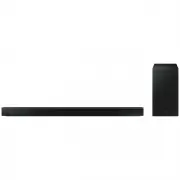 Samsung HW-B650-XY
User Manual
Samsung HW-B650-XY
User Manual
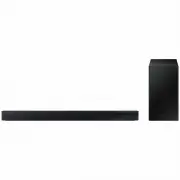 Samsung HW-C450-XY
User Manual
Samsung HW-C450-XY
User Manual
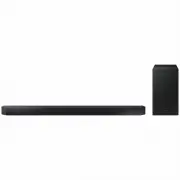 Samsung HW-Q600C-XY
User Manual
Samsung HW-Q600C-XY
User Manual
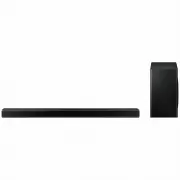 Samsung HW-Q700AXY
User Manual
Samsung HW-Q700AXY
User Manual
 Samsung HW-Q700C-XY
User Manual
Samsung HW-Q700C-XY
User Manual
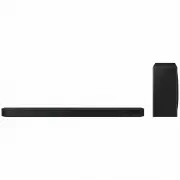 Samsung HW-Q800C-XY
User Manual
Samsung HW-Q800C-XY
User Manual
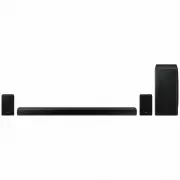 Samsung HW-Q870AXY
User Manual
Samsung HW-Q870AXY
User Manual
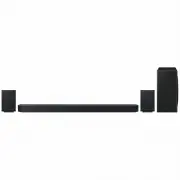 Samsung HW-Q930C-XY
User Manual
Samsung HW-Q930C-XY
User Manual
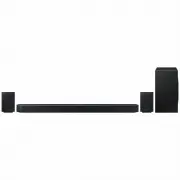 Samsung HW-Q990C-XY
User Manual
Samsung HW-Q990C-XY
User Manual
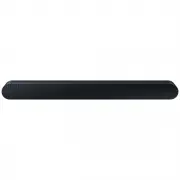 Samsung HW-S60B-XY
User Manual
Samsung HW-S60B-XY
User Manual
 Samsung HW-S61
User Manual
Samsung HW-S61
User Manual
 Samsung HW-S61B-XY
User Manual
Samsung HW-S61B-XY
User Manual
 Samsung HW-S800B-XY
User Manual
Samsung HW-S800B-XY
User Manual
 Samsung HW-S801B-XY
User Manual
Samsung HW-S801B-XY
User Manual
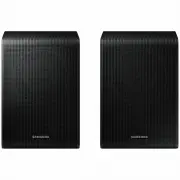 Samsung SWA-9200SXY
User Manual
Samsung SWA-9200SXY
User Manual
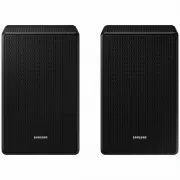 Samsung SWA-9500SXY
User Manual
Samsung SWA-9500SXY
User Manual
 Samsung HW-A430
User Manual
Samsung HW-A430
User Manual
 Samsung HW-A440
User Manual
Samsung HW-A440
User Manual