Page 2 - Warning; Be sure to use only the standard adapter which is specified in the
E Important Safety Instructions Safety Precautions The purpose of this information is to ensure proper use of this product toprevent danger or damage to property. Please be sure to observe allprecautions. * The precautions are divided into "Warnings" and "Cautions" as distinguished b...
Page 3 - Caution; power and then move or reinstall it.; FCC STATEMENT; that may cause undesired operation.
6. Do not place conductive objects (e.g., screwdrivers, coins, and metal things) or containers filled with water on top of the camera. (Doing so maycause personal injury due to fire, electrical shock, or falling objects.) 7. Do not install the unit in humid, dusty, or sooty locations. (Doing so may ...
Page 4 - Before Usage
1-2 E 1-1 Before Usage This is a basic instruction manual for the SCC-C6407(P) user. It contains all the instructions needed to use the SCC-C6407(P)from a simple introduction of the control locations and functions ofthe SCC-C6407(P) to installation methods in the set up menu. We recommend all users ...
Page 5 - Table of contents
1-4 E 1-3 4. ZONE SET ..................................................................................3-19 - PRIVACY ZONE .......................................................................3-19 - STYLE ....................................................................................3-19- BL...
Page 7 - BACK; Locations of Control; FRONT
Page 8 - INITIAL SETTING; CAMERA ADDRESS SETUP; ADAPTER CONNECTION; The factory default setting is set to 9600BPS.
1-10 E 1-9 INITIAL SETTING CAMERA ADDRESS SETUP Use SW701, SW702, or 703 for Camera Address setup. You may allocateup to 255 addresses by using SW701 to set the 3rd digit, SW702 the 2nddigit, and SW703 the 1st digit.EX) In case of Camera Address 1, see the following figure for setup. Setting communi...
Page 10 - Preparing the Cables; Before Installing; Checking Package Contents
To install and use the SCC-C6407(P), the following cables should beprepared. Power Adapter Cable The cable that plugs into the SCC-C6407(P) power input receptacle hasthe rated voltage of AC24V, 1.5A.Check the rated voltage before using the cable. Video Cable The SCC-C6407(P)'s cable is a BNC Cable f...
Page 11 - ) CEILING MOUNT BRACKET; Now connect the Power Adapter; Cable Connection
Installing SCC-C6407(P) Installation Precautions 1) Make sure that the installation site can sufficiently support a minimum of four times the net weight of the SCC-C6407(P) SmartDome Cameraand other accessories. 2) Install in an area where the space above the ceiling board is over 18 cm (7 in.) high...
Page 13 - Installing the Camera
2-9 E 2-8 7. [Figure 7] Match the 3 holes on the back of the CAMERA and theCONNECTOR and turn it left about15 degrees.(Check the sound of LOCKING and that the LEVER-LOCKING is in place) * Use the screws (BH M3 x L8) to connect the CAMERA and theADAPTER so they don't move. [Figure 7] 8. [Figure 8] As...
Page 14 - Structure of the Setup Menu; Chapter 3 Setup Menu Overview
3-2 E 3-1 Structure of the Setup Menu In this chapter, we will look over the Setup Menu of the SCC-C6407(P), First we'll look over the overall structure of the Setup Menu, and then we'll look at the functions of each menu. Chapter 3 Setup Menu Overview CAMERA SET CAMERA ID ON.../OFF V-SYNC INT/LINE....
Page 15 - CAMERA ID; In case of
3-3 3-4 E 1. CAMERA SET MENU CAMERA ID The CAMERA ID menu assigns an ID to the SCC-C6407(P) to be displayedon the connected monitor.On the CAMERA SET menu screen, selectCAMERA ID to ON and press [Enter]. You will see the sub screen fordeciding on the ID of the SCC-C6407(P). The Camera ID can have up...
Page 17 - Caution : If you use an infrared light source while in AUTO mode, AUTO; MOTION DET; ZOOM SPEED
3-8 E 3-7 ➜ Press [Enter] (CAMERA SET) CAMERA ID OFF V-SYNC INT COLOR/BW AUTO... MOTION DET OFF ZOOM SPEED 0 DIGITAL ZOOM 0 EXIT QUIT In AUTO mode, AGC will operates in high speed mode, and you cannotchange it manually, as it is indicated by "---". Caution : If you use an infrared light sour...
Page 18 - EXIT; : Ignores the changed information and restores the saved; DIGITAL ZOOM
3-10 E EXIT The EXIT menu is used to quit the CAMERA SET menu of the SCC-C6407(P) and return to the MAIN MENU.- QUIT : Ignores the changed information and restores the saved information. - SAVE : Saves the information of the setting condition of the menu. - PRESET : Ignores the changed information a...
Page 19 - MANU
3-12 E 3-11 SHUTTER You may designate both the fast electronic shutter speed and lowelectronic shutter speed in the SHUTTER menu. The fast electronicshutter supports 7 shutter speeds from 1/100(1/120) to 1/10K second tobe used for the bright and fast video image. The AUTO slow electronicshutter supp...
Page 20 - S.SLOW reduces the amount of AGC as much as possible to monitor
3-14 E 3-13 WHITE BAL Lights are generally denoted as color temperatures and expressed inKelvin (K) units. The general light color temperatures are shown below. Blue sky Rainy Cloudy Partly Cloudy Sunny Fluorescent lamp Tungsten lamp Candlelight Halogen lamp 1000K 2000K 3000K 4000K 5000K 6000K 7000K...
Page 21 - SPECIAL; DIS
3-16 E 3-15 FOCUS MODE In the FOCUS MODE MENU, the Focus method can be set to AF, MF, or ONEAF. - AF : With AUTO FOCUS MODE, you can monitor the screen continuously and it will focus automatically. While moving the zoom keys, it willautomatically focus so FOCUS key input is not necessary. - MF : In ...
Page 22 - Then returns to a higher menu.
3-18 E 3-17 POSITION SET From "POSITION SET..." press [ENTER] to get into the PAN/TILT,FOCUS/ZOOM SET screen to set the PAN/TILT location and FOCUS/ZOOM condition then press[ENTER] to return to a higher menu. PRESET ID This is the ID set up function for each PRESET. It can be set up to 12 ch...
Page 23 - BLANK ALL ABOVE
3-20 E 3-19 BLANK ALL BELOW The available angle for setup ranges from OFF/0/-10 to -90 and the areabelow a set angle will be regarded as the ZONE area. PRIVACY ZONE MAP Press [ENTER] to enter the PRIVACY ZONE MAP screen from“PRIVACY ZONE MAP ON..”. Select a privacy zone number and press [ENTER] from...
Page 24 - SET ZOOM; SET ZONE AREA; points of PRIVACY ZONE area are in the middle of the screen.
3-22 E 3-21 REVERSE The REVERSE function applies PRIVACY MASK to the other area thanset as a privacy zone. ON/OFF is available. ZONE DIR SET/ZONE AREA SET This function indicates the ID or direction depending on the set valuewhen PAN of SCC-C6407(P) is located in a specific area. If set to AREA,it i...
Page 25 - LOCATION; ZONE ID SET; This function turns on or off the ZONE AREA ID indication.; ZONE DIR SET; Press [ENTER] to enter the ZONE AREA MAP screen from “ZONE
3-24 E 3-23 LOCATION The “LOCATION...” menu designates the left/right LIMIT positions ofZONE AREA. Enter the setup screen to move PAN, then select a startposition and press [ENTER]. Move PAN again to select a end position and press [ENTER]. Now, ZONE AREA setup iscomplete. ➜ Press [Enter] After PAN ...
Page 26 - POSITION SET
3-26 E 3-25 DIRECTION This sets up the movement direction of the START to END location (PAN location standard) "RIGHT " : "LEFT " : ENDLESS This is a 360-degree rotation function that stops for the DWELL TIME only in theSTART and END positions without running between the START and EN...
Page 27 - This menu sets up the time during which AUTO PLAY repeats.; AUTO PLAY
3-28 E 3-27 AUTO PLAY AUTO PLAY executes SCAN, AUTO PAN, PATTERN, and PRESET when thereis no camera action after AUTO RETURN finishes. AUTO RETURN This menu sets up the time during which AUTO PLAY repeats. AUTO PLAY This function sets up the motion which will be repeatedly performed by SCC-C6407(P) ...
Page 28 - Each ALARM input corresponds to one of the 3 ALARM OUT.
3-30 E 3-29 7. OTHER SET PROPORTIONAL P/T This function controls the PAN/TILT speed to the ZOOM magnificationratio during the manual operation of PAN/TILT. If you setPROPORTIONAL P/T to ON, the PAN/TILT speed will increase in theZOOM WIDE mode and decrease in the ZOON TELE mode even in thesame manua...
Page 29 - AUTO CAL
3-32 E 3-31 ➜ Press [Enter] * * MAIN MENU * * CAMERA SET... VIDEO SET... PRESET... ZONE SET... AUTO SET... ALARM SET... OTHER SET... SYSTEM INFO... 8. SYSTEM INFO This menu allows you to check S/W version, communication protocol,baud rate, and address of SCC-C6407(P). Press UP/DOWN/LEFT/RIGHT key to...
Page 30 - SSC-1000 or SSC-2000 Controller supports the following short keys.
3-34 E 3-33 * SCC-C6407(P) has two FANs inside for preventing overheating. If FAN doesn't work properly, messages below will be displayed.In those case, replace the FAN. - CAMERA FAN ERROR ! : This message is displayed when the FAN which is connected with camera of SCC-C6407(P) does not work properl...
Page 31 - Product specifications
3-36 E 3-35 SCC-C6407P Contents - Zoom lens single body WDR SmartDome CAMERA - AC 24 ± 10% (50Hz ± 0.3Hz) - 22W - PAL STANDARD COLOR SYSTEM - 1/4 inch WDR compatible Exview HAD CCD - 752(H) x 582(V) - 625 Lines, 2:1 Interlace - Horizontal : 15, 625Hz(INT) / 15, 625 Hz(L/L)- Vertical : 50 Hz(INT) / 5...
Page 32 - Cautions; • The copyright of the manual belongs to Samsung Electronics Co., Ltd.
Cautions • The copyright of the manual belongs to Samsung Electronics Co., Ltd. • Without the permission of Samsung Electronics it cannot be reproduced electronically, mechanically, audibly, or by any other method. • This manual will be modified according to product enhancements. Correct Disposal of...
Page 33 - SmartDome Camera; Benutzerhandbuch
Page 34 - Sicherheitshinweise; Warnung; Achtung
D Sicherheitshinweise Ziel dieser Informationen ist es, den ordnungsgemäßen Gebrauch diesesGeräts sicherzustellen und dadurch Gefahren oder Sachbeschädigungen zuvermeiden. Bitte befolgen Sie alle Anweisungen. * Die Sicherheitshinweise sind mit “Warnung” und “Achtung” gekennzeichnet, wie nachfolgend ...
Page 35 - Vor Inbetriebnahme; enthält eine kurze
1-2 D 1-1 Vor Inbetriebnahme Dies ist ein grundlegendes Benutzerhandbuch für Nutzer derSpeed- Dome Kamera SCC-C6407(P). Es enthält alle notwendigenHinweise für den Betrieb der SCC-C6407(P) von der einfachenEinführung der Bedienungselemente der SCC-C6407(P) und derenFunktionen bis hin zu Installation...
Page 36 - Inhaltsverzeichnis
1-4 D 1-3 4. ZONE PROG ..............................................................................3-19 - PRIVAT ZONE ..........................................................................3-19 - STYLE ....................................................................................3-19- OBE...
Page 38 - Rückseite; Steuerungselemente; Vorderseite
Page 39 - ERSTEINSTELLUNG; KAMERA ADRESSE EINSTELLEN; Verwenden Sie PIN 5 und 6 von SW704.; ADAPTERANSCHLUSS; Die Werkseinstellung beträgt 9600 bps.
1-10 D 1-9 ERSTEINSTELLUNG KAMERA ADRESSE EINSTELLEN KAMERA ADRESSE einstellen mit SW701, SW702,SW703.ADRESSEN Einstellung von 0~255 ist möglich und die 100-stellige Zahlwird mit SW701, die 10-stellige Zahl mit SW702, 1-stellige Zahl mitSW703 eingestellt.Z.B) KAMERA ADDR: Wenn es Adresse 1 ist, wird...
Page 41 - Netzanschlusskabel; Vorbereitung der Kabel; Vor der Installation; Überprüfung des Verpackungsinhalt
Um die Speed-Dome Kamera SCC-C6407(P) zu installieren und inBetrieb zu nehmen, werden folgende Kabel benötigt: Netzanschlusskabel Das Kabel, das an den Netzeingang der SCC-C6407(P) angeschlossenwird, hat eine Nennspannung von 24 V Wechselstrom, 1,5 A. Vor Benutzung des Kabels sollte die Nennspannung...
Page 42 - Kabelanschlüsse
Sicherheitshinweise für die Installation 1) Vergewissern Sie sich, dass die Installationsstelle mindestens das vierfache Eigengewicht der SCC-C6407(P) SmartDome-Kameraeinschließlich Zubehör tragen kann. 2) Installieren Sie das Gerät an einer Stelle, an der der Abstand zwischen Deckenplatte und Decke...
Page 44 - Installation der Kamera
2-9 D 2-8 7. [Bild 7] Stecken Sie passend auf die 3 Löcher an der Rückseite derKamera das Verbindungsstück und drehen sie es um etwa 15Grad nach links. (Überprüfen Sie am Geräusch, ob das Verbindungsteil eingerastet ist und der Hebelverschluss hält.) * Verwenden Sie Schrauben (BH M3XL8), um die Kame...
Page 45 - Aufbau des Setup Menüs
KAMERA PROG KAMERA ID EIN.../AUS V-SYNC INT/LINE... FARBE/S/W FARBE.../S/W.../AUTO... AKTIVITAET EIN.../AUS ZOOM GESCH 1/2/3/4 DIGITAL ZOOM AUS/X2~X10 AUSGANG VERL/SICHERN/PRESET VIDEO PROG BLENDE ALC.../WDR.../MANU... SHUTTER AUS/1/100(1/120)~1/1OK/AUTOX2~X160 AGC AUS/BAS/HAUT BEWEGUNG S.LANGS/LANG...
Page 46 - KAMERA ID; Falls von
3-3 3-4 D 1. KAMERA PROG MENÜ KAMERA ID Das KAMERA ID-Menü legt eine Bezeichnung für die Speed-Dome KameraSCC-C6407(P) fest, die auf dem Monitor angezeigt wird. Stellen Sie aufdem KAMERA PROG- Menü-bildschirm KAMERA ID auf EIN und drückenSie die [Enter]-Taste. Jetzt sehen Sie das Untermenü zur Festl...
Page 47 - : Dieses Menu ändert automatisch den FARBE Mode auf S/W Mode oder
3-5 3-6 D FARBE/S/W Im Menü FARBE S/W (Farbe/Schwarzweiss) können Sie den IR- (Infrarot) Filterein- und ausschalten.In einerr Umgebung mit niedrigen Beleuchtungsstärke wird der S/W Modusaktiviert. Bei ausreichender Beleuchtung wird der Farb Modus aktiviert.Bei wechselnden Lichtverhältnissen wird die...
Page 48 - : Wenn Sie eine Infrarot Lichtquelle in der AUTO Mode verwenden,; AKTIVITÄT
3-8 D 3-7 ➜ [Enter] drücken (PROG KAMERA) KAMERA ID AUS V-SYNC INT FARBE S/W AUTO... AKTIVITÄT AUS ZOOM GESCH 3 DIGITAL ZOOM AUS AUSGANG VERL Im AUTO-Betrieb, arbeitet AGC im Hochgeschwindigkeitsmodus und kann nichtmanuell geändert werden, da es mit "---" angezeigt wird. Achtung : Wenn Sie e...
Page 49 - AUSGANG; : Ignoriert alle Einstellungsänderungen und stellt die; BLC
3-10 D AUSGANG Das AUSGANG-Menü wird zum Beenden des KAMERA SET-Menüs derSpeed-Dome Kamera SCC-C6407(P) und zum Zurückkehren in das Haupt-Menü verwendet. - VERL : Ignoriert alle Einstellungsänderungen und stellt die gespeicherten Daten wieder her. - SICHERN : Speichert alle Einstellungsänderungen- P...
Page 50 - Wenn IRIS MODUS als WDR bleibt, ist nur der folgende Modus erlaubt.; WDR; Verwenden Sie
3-12 D 3-11 SHUTTER Im SHUTTER Menü kann die Hochgeschwindigkeit Auto ShutterGeschwindigkeit und die AUTO Niedergeschwindigkeit ShutterGeschwindigkeit eingestellt werden. Hochgeschwindigkeit Auto Shutterunterstützt 7 Shutter Geschwindigkeiten von 1/100(1/120) Sek. bis zur1/10k Sek. Diese Funktion wi...
Page 52 - Wenn die Farbtemperatur außerhalb des Bereiches im ATW1
3-16 D 3-15 FOKUS MODE Im FOKUS MODE-Menü kann die Fokussierung auf AF, MF oder EINAFeingestellt werden. - AF : Mit dem AUTO FOKUS-Modus kann kontinuierlich aufgenommen und automatisch fokussiert werden. Eine manuelle Focks-Einstellung ist nichterforderlich. - MF : Im MANUAL FOKUS-Modus kann der Nut...
Page 54 - OBEN MASKIEREN
3-20 D 3-19 UNTEN MASKIEREN Es ist auf OFF/0/-10~-90 einzustellen, und der Bereich unterhalb deseingestellten Winkels wird alle als PRIVAT ZONE bestimmt. PRIVATZONE Betätigen Sie im "PRIVATZONE ON..." die [EINGABE] Taste, um imPRIVATZONE Schirm einzutreten. Wählen Sie im PRIVATZONE Schirm di...
Page 56 - Es stellt ZONE BEREICH ID Zeichen ON/OFF ein.; ZONE GESETZT
3-24 D 3-23 POSITION Das Menü "POSITION ..." stellt die links/rechts Limit Position von ZONEBEREICH ein. Im Einstellungsschirm stellen Sie mit PAN die gewünschte START ein,und dann betätigen Sie die [EINGABE] Taste. Stellen Sie wieder mit PANdie ENDE ein und betätigen Sie die [EINGABE] Taste...
Page 57 - POSITIONS PROG
3-26 D 3-25 RICHTUNG Diese Option bestimmt die Bewegungsrichtung vom START- zum ENDE-Punkt (PAN-Standardposition). "rechts " : "links" : ENDLOS Die 360°- Rotationsfunktion sorgt dafür, dass die Kamera für eine bestimmteVerweildauer, DWELL TIME genannt, an der START- und ENDE-Position...
Page 58 - Dieses Menü stell die Zeit ein, die AUTO MODUS Bewegung wiederholt.; AUTO MODUS
3-28 D 3-27 AUTO MODUS AUTO MODUS Funktion führt die Bewegung von SCAN, AUTO PAN,PATTERN, PRESET durch, wenn es keine Kamera Operation gibt,während der AUTO ZURÜCK Zeit. AUTO ZURÜCK Dieses Menü stell die Zeit ein, die AUTO MODUS Bewegung wiederholt. AUTO MODUS Diese Funktion stellt die Bewegung ein,...
Page 59 - Jeder Alarminput entspricht einem der 3 ALARM AUS.
3-30 D 3-29 7. WEITERE PROG PROPORTIONAL P/T Es ist eine Funktion, die bei der MANUELL PAN/TILT Operation je nachder ZOOM Vergrößerung automatisch die PAN/TILT Geschwindigkeitändert. Wenn PROPORTIONAL P/T als ON eingestellt wird, wird sich imZOOM WIDE schnell und im ZOOM TELE langsam bewegt, obwohl ...
Page 60 - AUTOKALIBRIERUNG
3-32 D 3-31 ➜ [Enter] drücken * * HAUPTEMENÜ * * KAMERA PROG... VIDEO PROG... PRESET... PROG ZONE... AUTO PROG... ALARM PROG... WEITERE PROG... SYSTEM INFO... ( SYSTEM INFO)FPGA VERSION V1.000ALARM VERSION V1.000MOTOR VERSION V1.000KAMERA VERSION V1.000EEPROM VERSION V1.000PROTOKOLL SAMSUNG KOMMUNIK...
Page 62 - Technische Daten
3-36 D 3-35 Technische Daten SCC-C6407 Nr. 1 2 3 4 5 6 7 8 9 10 11 12 13 14 15 16 17 18 19 20 21 22 23 24 25 Artikel Produkttyp Spannungsversorgung Leistungsaufnahme Signalsystem Bildwandler Effektive Bildelemente Abtastmodus Abtastrate Synchronisationsmodus Auflösung Signal/Rauschabstand Min. Licht...
Page 63 - • Das Urheberrecht dieses Handbuchs gehört Samsung Electronics; Korrekte Entsorgung dieses Produkts (Elektromüll)
D 3-37 Achtung • Das Urheberrecht dieses Handbuchs gehört Samsung Electronics Co., Ltd. • Ohne vorherige Genehmigung von Samsung Electronics darf es weder elektronisch, mechanisch, hörbar noch durch eine andere Methodevervielfältigt werden. • Dieses Handbuch wird bei Produktverbesserungen geändert. ...
Page 64 - Manuel d’instruction
F SmartDome Camera Manuel d’instruction SCC-C6407(P)
Page 65 - Précautions de sécurité; “Avertissements” et “Mises en garde”, comme indiqué ci-dessous:; Avertissement; Ne branchez jamais plus d’une camera sur un seul adaptateur.; Mise en garde; Installez le produit dans une aire bien ventilée.
F Précautions de sécurité L’objectif des précautions de sécurité est d’assurer l’utilisation correcte de ceproduit afin d’éloigner tout risque et tout dégât à la propriété. Assurez-vousde bien observer toutes les précautions. * La section des précautions de sécurité est répartie en deux volets, soit...
Page 66 - Avant l’utilisation; “Chapitre 1. Vue d’ensemble”; inclut une introduction brève de; “Chapitre 3. Vue d’ensemble de menu d’installation”; présente la
1-2 F 1-1 Avant l’utilisation C’est un mode d’emploi de base pour l’utilisateur de SCC-C6407(P). Il contient toutes les instructions nécessaires pour employer le SCC-C6407(P) d’une introduction simple de la location de contrôle etfonctions de SCC-C6407(P) pour méthodes d ‘installation dans lemenu d’...
Page 67 - Table des matières
1-4 F 1-3 4. PROG ZONE ...............................................................................3-19 - ZONE PRIVEE ..........................................................................3-19 - STYLE ....................................................................................3-20- MA...
Page 69 - Arrière; Connexion d’adaptateur; Avant
Page 70 - Arrangement de commutateur; Installation d’adresse de camera; Utilisez les BROCHES 5 et 6 du SW704.
1-10 F 1-9 Arrangement de commutateur Installation d’adresse de camera Utilisez les boutons SW701, SW702 et 703 pour configurer l’ADRESSE CAMERA.L’ADRESSE CAMERA est réglable de 0 à 255 : Utilisez le bouton SW701 pour lechiffre des centaines le SW702 pour le chiffre des dizaines et le SW703 pour lec...
Page 72 - Préparation des câbles; Avant l’installation; Vérification de contenu de paquet
Pour installer et utiliser le SCC-C6407(P), les câbles suivants doivent êtrepréparés. Câble d’adaptateur électrique Le câble convenant à la prise d’entrée de la SCC-C6407(P) doit posséderune tension nominale de 24 VAC, 1,5A.Vérifiez la tension nominale avant de brancher le câble. Câble vidéo Le câbl...
Page 73 - Précautions à observer lors de l’installation; ) Veillez à ce que personne ne s’approche de l’aire d’installation.; Des dispositifs de montage vendus séparément; ) SUPPORT DE FIXATION AU; Connexion de câble; Ajustez le commutateur ci-dessous à la tension appropriée.
Précautions à observer lors de l’installation 1) Assurez-vous que la zone d’installation puisse supporter au moins quatre fois le poids net de la camera SmartDôme SCC-C6407(P) et de sesaccessoires. 2) Installez la camera dans une zone où l’espace au-dessus du panneau de plafond mesure au moins 18 cm...
Page 75 - Installation de la Camera
2-9 F 2-8 7. [Figure 7] Correspondez les 3 trous sur le dos de la camera et leconnecteur et tournez-la à gaucheenvirons 15degrés. (Examinez le système de verrouillage(Locking) et le verrouillage de levier(Lever-Locking) est en place.) * Utilisez les tournevis (BH M3XLB) pour joindre la Camera etl’Ad...
Page 76 - Contenu de menu d’installation; Chapitre3 Vue d’ensemble de menu d’installation
PROG CAMERA CAMERA ID ON.../OFF V-SYNC INT/LIGNE... COULEUR/N&B COULEUR.../N&B/AUTO... DET MOUVE ON.../OFF ZOOM SPEED 1/2/3/4 VITE ZOOM OFF/X2~X10 SORTIE QUITTER/SAUVER/PRESET PROG VIDEO IRIS ALC.../WDR.../MANU... SHUTTER OFF/1/100(1/120)~1/1OK/AUTOX2~X160 AGC OFF/LOW/HIGH MOUVEMENT T.LENT/L...
Page 77 - En cas du numéro
3-3 3-4 F 1. PROG CAMERA CAMERA ID Le menu de CAMERA ID assigne l’ID au SCC-C6407(P) pour être montré sur lemoniteur connecté. Sur l’écran de menu de PROG CAMERA, sélectionnezCAMERA ID à ON et pressez [Enter] Vous verrez le sous-écran pour choisirfinalement l’ID du SCC-C6407(P). La CAMERA ID peut av...
Page 78 - COULEUR; : Le filtre IR est activé et l’écran affiche des images couleur. Vous; AUTO; : Le signal de luminosité de couleur est émis avec le signal
3-5 3-6 F COULEUR/N&B Le menu COULEUR/N&B vous permet d’ACTIVER et de DÉSACTIVER (ON/OFF) lefiltre IR (infrarouge).Dans un environnement à faible luminosité, le filtre IR du mode N&B est désactivé et lasensibilité augmente comme celle d’une caméra monochrome. En revanche, dans le modeCou...
Page 79 - Attention; : Si vous utilisez une source de lumière infrarouge en mode; DET MOUVE; ZOOM VITESSE
3-8 F 3-7 ➜ Pressez [Enter] (PROG CAMERA) CAMERA ID OFF V-SYNC INT COULEUR/N&B AUTO... DET MOUVE OFF ZOOM VITESSE 3 ZOOM DIGITAL OFF SORTIE QUITTER En mode AUTO, AGC fonctionne en mode vitesse élevée et vous ne pouvez pasle modifier manuellement étant donné que cela est indiqué par "---"...
Page 80 - SORTIE; initiaux d’usine du menu.; ZOOM DIGITAL; CJOUR
3-10 F SORTIE Le menu SORTIE est employé pour quitter le menu de jeu de camera deSCC-C6407(P) et retourner au MENU PRINCIPAL. - QUITTER : ignore l’information changée et reconstitue l’information gardée. - SAUVER : garde l’information de la condition d’arrangement du menu.- PRESET : ignore l’informa...
Page 84 - retourne au menu plus haut.
3-18 F 3-17 PROG POSITION De “PROG POSITION…” pressez [ENTER] pour entrer dans PAN/TILT,FOCUS/ZOOM SET écran pour mettre l’emplacement PAN/TILT et lacondition FOCUS/ZOOM, alors pressez [ENTER] pour retourner au menuplus haut. PRESET ID C’est la fonction d’installation d’ID pour chaque PRESET. Il peu...
Page 85 - MASQUE DESSOUS; MASQUE LE HAUT
3-20 F 3-19 MASQUE DESSOUS Le réglage est possible entre OFF/0/-10 et 90 et toutes les zones dontl’angle est inférieur à celui réglé sont traitées comme ZONE PRIVEE. LISTE Z. PRIV Dans le menu "LISTE Z. PRIV ON...", appuyez sur la touche [Entrée]pour accéder à l’écran LISTE Z. PRIV Sur l’écr...
Page 86 - REGLAGE ZONE
3-22 F 3-21 REGLAGE ZOOM En mettant le curseur sur "REGLAGE ZOOM " appuyez sur la touche[Entrée] pour accéder à l’écran de réglage ZOOM.Si vous sélectionnez ZOOM, la fonction ZONE PRIVEE ne fonctionnequ’avec le zoom supérieur à celui réglé. ➜ Pressez [Enter] REGALGE ZOOM PROG ZONE PRIVEE 0 R...
Page 87 - REG DIR ZONE
3-24 F 3-23 POSITION Le menu "POSITION..." permet de régler les limites gauche/droite de la ZONEAREA.Sur l’écran de réglage, réglez la DEM PROG avec le contrôle PAN et appuyezsur la touche [Entrée]. Réglez ensuite la PROG ENDE avec le contrôle PAN etappuyez sur la touche [Entrée] pour termin...
Page 88 - “Droite”:
3-26 F 3-25 DIRECTION Cette commande permet de définir l’orientation du mouvement depuis la positionDEM jusqu’à la position STOP (position PAN standard). “Droite”: “Gauche”: SANS FIN Il s’agit de la fonction de rotation à 360 degrés qui active le TEMPS DEMAINTIEN (VIT CYCLE) chaque fois que la camer...
Page 89 - Vous pouvez régler la durée de répétition de l’action LECTURE AUTO.; LECTURE AUTO
3-28 F 3-27 LECTURE AUTO La fonction LECTURE AUTO permet d’effectuer les actions BALAYAGE,PAN AUTO, RONDE ou PRESET lorsque aucun contrôle n’est effectuésur la caméra pendant la durée RET AUTO. RET AUTO Vous pouvez régler la durée de répétition de l’action LECTURE AUTO. LECTURE AUTO Vous pouvez séle...
Page 90 - Chaque entrée d’ALARME correspond à un de 3 d’SORT ALARME.
3-30 F 3-29 7. AUTRE PROG P/T PROPORTIONEL Cette fonction permet de changer la vitesse des mouvements PAN/TILTsuivant le changement de puissance du ZOOM lors d’un contrôle PAN/TILTmanuel. Lorsque vous la réglez sur ON, la vitesse augmente avec le ZOOMLARGE et diminue avec le ZOOM TELE. PROG AUTO Vou...
Page 91 - CALIBRATION AUTO
3-32 F 3-31 ➜ Pressez [Enter] * * MENU * * PROG CAMERA... PROG VIDEO... PRESET ... PROG ZONE... PROG AUTO... PROG ALARM... AUTER PROG... INFO SYSTEM... ( INFO SYSTEM)VER. FPGA V1.000VER. ALARM V1.000VER. MOTEUR V1.000VER. CAMERA V1.000VER. EEPROM V1.000PROTOCOLE SAMSUNGTYPE COMM. RS-485, DEMIVITESSE...
Page 93 - Spécification du produit
3-36 F 3-35 Spécification du produit Contenus - Lentille de Zoom à corps simple - AC 24± 10% (60Hz± 0.3Hz) - 22W - Système coloré standard NTSC - CCD Exview HAD 1/4 pouce compatible WDR - 768(H) x 494(V) - 525 lignes, Entrelacer 2:1 - Horizontal : 15, 734 Hz(INT) / 15, 750 Hz(L/L)- Vertical : 59.94 ...
Page 94 - Mises en garde
3-37 Mises en garde • Samsung Electronics Co., Ltd. est le propriétaire des droits d’auteur de ce guide d’utilisation. • Il est strictement interdit de copier ce guide sous forme électronique,mécanique, audio ou autre sans la permission explicite de la part deSamsung Electronics. • Le présent guide ...
Page 95 - Manual del usuario
SCC-C6407(P) Es SmartDome Camera Manual del usuario
Page 96 - Medidas de seguridad; Advertencia
Es Medidas de seguridad El propósito de esta información es garantizar el uso apropiado de esteproducto con el fin de prevenir cualquier peligro o daño a la propiedad.Sírvase tomar en cuenta todas las medidas de seguridad. * Estas medidas están divididas en avisos de "Advertencia" y avisos d...
Page 97 - Antes de Instalar el equipo; incluye una; “Capítulo 3 Menú de Ajustes”; presenta la estructura del menú de; “El apéndice de las Especificaciones del producto SCC-C6407(P)”
1-2 Es 1-1 Antes de Instalar el equipo Este es un manual básico de usuario del SCC-C6407(P). Contiene todas las instrucciones básicas de uso del SCC-C6407(P) desde una simple introducción de las funciones decontrol hasta métodos de instalación y menú de ajustes. Recomendamos leer este manual de inst...
Page 98 - INDICE
1-4 Es 1-3 4. PROG ZONA ...............................................................................3-19 - ZONA PRIVADA .......................................................................3-19 - ESTILO ..................................................................................3-19- BLAN...
Page 100 - Localización de controles - Posterior; Localización de controles; Frontal
1-8 Es 1-7 Localización de controles - Posterior Localización de controles Frontal
Page 101 - Ajustes Iniciales; Ajuste de la dirección de la cámara; Conexiones del adaptador; El ajuste predeterminado de fábrica está ajustado en 9600BPS.
1-10 Es 1-9 Ajustes Iniciales Ajuste de la dirección de la cámara Utilice SW701, SW702, o 703 para la configuración de la dirección de lacámara. Usted puede asignar hasta 255 direcciones usando SW701 parafijar el tercer dígito, el Segun dígito SW702, y el primer dígito SW703. E.J) In case of Camera ...
Page 103 - Antes de la instalación; Chequeo del contenido de la caja; han llegado en la caja del equipo:; Preparación del cable
Para instalar el SCC-C6407(P) debe tener preparados los siguientescables. Cable de alimentación El cable que se enchufa dentro del receptáculo de entrada de alimentación dela cámara SCC-C6407(P) tiene un voltaje nominal de 24 VCA, 1,5 A.Compruebe el voltaje nominal antes de utilizar el cable. Cable ...
Page 104 - Conexión del cableado
Medidas de precaución para la instalación 1) Asegúrese de que el sitio de instalación pueda soportar suficientemente un peso mínimo de cuatro veces el peso neto de la CÁMARASmartDome da tipo domo SCC-C6407(P) y otros accesorios. 2) Realice la instalación en un sitio en donde el espacio por encima de...
Page 106 - Instalación de la cámara
2-9 Es 2-8 7. [Figura 7] Inserte los tres espárragos del cuerpo del domo en el resultante dela figura 5 (adaptador de cámara másanclaje en U) y girelo unos 15.(Chequee el sonido que se produce alencajar una pieza con la otra y queestá en posición correcta) * Use los tornillos (BH M3XL8) para fijar e...
Page 107 - Estructura del menú de ajustes; Capítulo 3 Menú de ajustes
3-2 Es 3-1 Estructura del menú de ajustes En este capítulo se recorrerá el menú de ajustes del SCC-C6407(P).Primero se verá la estructura del menú de ajustes y luego seexplicarán cada uno de los menús. Capítulo 3 Menú de ajustes PROG CÁMARA CAMERA ID ON.../OFF V-SYNC INT/LÍNEA... COLOR/ByN COLOR.../...
Page 108 - CÁMARA ID; En caso de
3-3 3-4 Es 1. PROG CÁMARA CÁMARA ID El menú CÁMARA ID se asigna una identificación al SCC-C6407(P) que sevisualizará en el monitor conectado. Seleccionar CÁMARA ID a ON y presionar[Entrar ]. Se verá la sub-pantalla para escribir el nombre del SCC-C6407(P).La Cámara ID puede tener más de 20 caractere...
Page 110 - Si se utiliza una fuente de luz infrarroja mientras e stá el modo; DET MOVI; VEL ZOOM
3-8 Es 3-7 ➜ Preslone [Entrar] (PROG CÁMARA) CÁMARA ID OFF V-SYNC INT COLOR/ByN AUTO... DET MOVI OFF VEL ZOOM 2 DIGITAL ZOOM 0 SALIDA SALIR En el modo AUTO,el AGC funcionará en el modo de alta velocidad y no podrácambiarlo manualmente,como se indica con "---". Precaución: Si se utiliza una f...
Page 111 - SALIDA; -GUARDAR :Guarda la información de las condiciones de ajuste del
3-10 Es SALIDA Se usa para salir del menú PROG CÁMARA del SCC-C6407(P) y volveral menú MAIN MENU.-SALIR :Ignora el cambio de información y restaura la información grabada. -GUARDAR :Guarda la información de las condiciones de ajuste del menú. -PRESET : Ignora la información cambiada y restaura la pr...
Page 112 - Utilice
3-12 Es 3-11 OBTURADOR Usted puede ajustar la velocidad electrónica rápida del obturador y lavelocidad electrónica baja del obturador en el menú del OBTURADOR.El obturador electrónico rápido tiene 7 velocidades del obturador de1/100(1/120) a 1/10K segundo para ser utilizado p or una imagen brillante...
Page 114 - ESPECIAL
3-16 Es 3-15 FOCO MODO En el menú de FOCO MODO el método de l foco se puede fijar en AF, MF, oUNOAF.- AF : Es el modo automático de autoenfoque, usted puede vigilar la pantalla continuamente y se enfocará automáticamente.Mientrasque mueve las teclas del zoom, se enfocará automáticamente sinser neces...
Page 115 - -VELOCIDAD DE PRESET 8: Velocidad máxima móvil de PAN de; CICLO TIEMPO; IMAGE HOLD
3-18 Es 3-17 PROG POSICIÓN Desde “PROG POSICIÓN...” presione [ENTRAR] para entrar en elsubmenú PAN/TILT y ZUMBIDO/FOCO para fijar la localización dePAN/TILT y la condición de ZUMBIDO/FOCO, presione [ENTRAR] paravolver al menú anterior. PRESET ID (Identificación del preset) Esta es la identificación ...
Page 116 - BLANCO ARRIBA; - MOSAIC2: La zona de la intimidad se muestra con el mosaico de pixel; ZONA PRIVADA
3-20 Es 3-19 BLANCO ABAJO El ángulo disponible para gamas de configuración de OFF/0/-10 to-90 yel área debajo de ángulo fijado se considerarán como el área de ZONA. ZONA PRIVACIDAD Presione [ ENTER ] para entrar en la pantalla de MAPA de ZONA deINTIMIDAD de “ZONA PRIVACIDAD…”. Seleccione un número d...
Page 117 - : para salir de programación sin guardar los datos modificados.; FIJAR ZOOM; FIJAR AREA DE ZONA
3-22 Es 3-21 REVERSO La función REVERSO aplica PRIVACY MASK a la otra área que fijó comozona de intimidad. ON/OFF está disponible. FIJAR DIR ZONA/FIJAR AREA DE ZONA Esta función indica la identificación o la dirección dependiendo del valor fijadocuando PAN de SCC-C6407(P) está situado en un área esp...
Page 118 - ACTIVAR ZONA; Esta función se enciende o apaga la indicación de ZONE AREA ID.; FIJAR AREA ZONA
3-24 Es 3-23 POSICIÓN El menú de "POSICIÓN..." señala las posiciones de LÍMITEizquierdo/derecho del ÁREA de ZONA. Entre en la pantalla de laconfiguración para mover PAN, después seleccione una posiciónEMPEZAR y presione [ ENTER ]. Mueva PAN otra vez para seleccionaruna posición del TERMINAR ...
Page 119 - PROG POSICIÓN
3-26 Es 3-25 DIRECCION Este ajuste establece la dirección del movimiento de EMPEZAR a STOP(ubicación estándar de paneo) "a la derecha ": "a la lzquierda " : SIN FIN Esta es una función de rotación de 360 grados que se detiene sólo para el tiempode permanencia (CICLO TIEMPO) en las po...
Page 120 - Este menú fija el tiempo durante el cual AUTO PLAY repite.; AUTO REPRODU CCIÓN
3-28 Es 3-27 AUTO REPRODU CCIÓN AUTO PLAY(auto reproducción) ejecuta BARRIDO, AUTO PAN, RONDAy PRESET cuando no hay acción de la cámara después de que VUELTAAUTO acabe. VUELTA AUTO Este menú fija el tiempo durante el cual AUTO PLAY repite. AUTO REPRODU CCIÓN Esta función instala el movimiento que se...
Page 121 - Asigna las entradas de alarma a las 3 salidas de ALARMA.
3-30 Es 3-29 7. ALTRA PROG PROPORTIONAL P/T Esta funcion controla la velocidad de PAN/TILT de forma proporcional de laampliacion de ZOOM durante la operacion manual de PAN/TILT. Si ustedfija PROPORCIONAL P/T a ON, la velocidad de PAN/TILT aumentara en elmodo ZOOM WIDE y disminuira en el modo ZOON TE...
Page 123 - * 1) El uso de AUTO REPROUC. estará disponible sólo cuando la
3-34 Es 3-33 SCC-C6407(P) tiene dos ventiladores internos para prevenir elsobrecalentamiento. Si el ventlador no funciona, se mostrará elmensaje de abajo. En ese caso sustituir el ventilador. - CAMERA FAN ERROR ! Este mensaje es mostrado cuando el ventilador que estáconectado a la cámara SCC-C6407(P...
Page 124 - Especificaciones de producto
3-36 Es 3-35 Especificaciones de producto CONTENIDOS - WDR DOME combinando cámara y zoom - 24 VAC±10% (60Hz± 0.3Hz) - 22W - SISTEMA DE COLOR ESTÁNDAR NTSC - 1/4 inch Exview HAD CCD compatible WDR - 768(H) x 494(V) - 525 líneas, 2:1 Entrelazado - Horizontal : 15, 734 Hz(INT) / 15, 750 Hz(L/L)- Vertic...
Page 125 - Atención; audio o por cualquier otro método sin la autorización de Samsung
3-37 Atención • El copyright del manual es propiedad de Samsung Electronics Co., Ltd. • El manual no se podrá reproducir de forma electrónica, mecánica, por audio o por cualquier otro método sin la autorización de Samsung Electronics. • Este manual se modificará dependiendo de las mejoras del produc...
Page 126 - Istruzioni per l’uso
I Istruzioni per l’uso SCC-C6407(P) SmartDome Camera
Page 127 - Norme di sicurezza; Avvertenza
I Norme di sicurezza Scopo di queste informazioni è assicurare un uso corretto del prodotto perevitare pericoli o danni alla proprietà. Attenersi scrupolosamente a tutte lenorme di sicurezza. * Le norme si suddividono in “Avvertenze” e “Attenzione” in base alla seguente distinzione: Avvertenza: la m...
Page 128 - Prima dell’uso; “Capitolo 3 Descrizione del menù di Set-up”
1-2 I 1-1 Prima dell’uso Questo manuale fornisce le istruzioni di base per l’utente dellatelecamera modello SCC-C6407(P). Contiene tutte le istruzioninecessarie per l’utilizzo del modello SCC-C6407(P), a partire dauna semplice introduzione alla collocazione e alle funzioni deicomandi, fino alle moda...
Page 129 - Indice
1-4 I 1-3 4. PROG ZONE ..............................................................................3-19 - PRIVACY ZONE .......................................................................3-19 - STILE .....................................................................................3-19- CANC...
Page 131 - RETRO; Collocazione dei comandi; FRONTE
Page 132 - IMPOSTAZIONI PRELIMINARI; CONFIGURAZIONE SET-UP TELECAMERA; relay esterno; Il valore preimpostato in fabbrica è 9600BPS.
1-10 I 1-9 IMPOSTAZIONI PRELIMINARI CONFIGURAZIONE SET-UP TELECAMERA Utilizzare SW701, SW702, SW703 per configurare l'indirizzo telecameraper un valore compreso tra 0 e 255; imposta la cifra delposto di 100 al SW701, la cifra del posto di 10 al SW702, la cifra del posto1 al SW703.ES) INDIRIZZO CAMER...
Page 134 - Prima dell’installazione; Controllo del contenuto della scatola; Preparazione dei cavi
2-2 2-3 I SCC-C6407(P) Mensola di supporto Porta-telecamera Coperchio di rivestimento Manuale dell’utente Viti Prima dell’installazione Controllo del contenuto della scatola Controllare che tutte le componenti sotto elencate siano presenti nellascatola: Per installare SCC-C6407(P), occorre predispor...
Page 135 - Connessione del cavo
Precauzioni da adottare 1) Verificare che il sito d’installazione sia in grado di sostenere come minimo il quadruplo del peso netto della telecamera a cupola SmartSCC-C6407(P) e di altri accessori. 2) Installare in un’area in cui lo spazio sopra la tavola del soffitto sia superiore a 18 cm. 3) Per f...
Page 137 - Installazione della telecamera
2-9 I 2-8 7. [Figura 7] Incastrare i 3 fori sul retro della TELECAMERA con ilCONNETTORE e girare di circa 15gradi a sinistra. [Attendere disentire lo scatto che segnalal’avvenuto incastro e controllareche la leva di incastro (leverlocking) sia nella posizione diincastro] * Utilizzare le viti (BH M3X...
Page 138 - Struttura del menù di Setu; Capitolo 3: Descrizione del menù di Setup
3-2 I 3-1 Struttura del menù di Setu In questo capitolo, ci concentreremo sul menù di Setup di SCC-C6407(P). Per prima cosa, vedremo la struttura del menù nelsuo complesso, per poi soffermarci sulle funzioni di ogni singolo menù. Capitolo 3: Descrizione del menù di Setup PROG CAMERA ID CAMERA ON.../...
Page 139 - ID CAMERA; Nel caso di
3-3 3-4 I 1. MENU PROG CAMERA ID CAMERA Il menù ID CAMERA assegna a SCC-C6407(P) un numero di identificazioneche compare sul monitor in stato di connessione. Dal menù PROGCAMERA, posizionare il cursore su ID CAMERA, selezionare ON e premere[Enter ]. A questo punto, viene visualizzata una schermata p...
Page 140 - : il segnale colore BURST viene emesso assieme al segnale video
3-5 3-6 I COLORE B/N Nel menu “COLORE B/N ” è possibile attivare o disattivare il filtro a raggi infrarossi(IR). In un ambiente con scarsa illuminazione, nella modalità B/N il filtro IR è spentoe la sens ibilità aumenta come in una telecamera in bianco e nero. Al contrario, nellamodalità colore, il ...
Page 141 - ACTIVITY DET
3-8 I 3-7 ➜ premere [Enter] (PROG CAMERA) ID CAMERA OFF V-SYNC INT COLORE/B/N AUTO... ACTIVITY DET OFF VEL ZOOM 0 ZOOM DIGITALE 0 USCITA ESCI Nella modalità AUTO, il controllo automatico del guadagno (AGC)funzionerà nella modalità ad alta velocità e non potrà essere modificatomanualmente, come indic...
Page 142 - USCITA; : ignora le informazioni modificate e ripristina le informazioni; ZOOM DIGITALE
3-10 I USCITA Il menù USCITA si usa per uscire dal menù PROG CAMERA diSCC-C6407(P) e tornare al MAIN MENU (menù principale).- ESCI : ignora le informazioni modificate e ripristina le informazioni precedentemente salvate. - SALVA : salva le informazioni sulle impostazioni del menù. - PRESET : ignora ...
Page 143 - - FLICKERLESS : Questo e per imperdiendo tremolio sul schermo
3-12 I 3-11 SHUTTER Nel menu SHUTTER si può impostare lo shutter elettronico ad altavelocità, nonché lo shutter AUTO a bassa velocità. Lo shutter elettronicoad alta velocità supporta 7 velocità diverse, da 1/100(1/120) a 1/10 alsecondo e può essere usato per immagini video veloci e luminose. Loshutt...
Page 147 - STILE
3-20 I 3-19 MAPPA PRIV.ZONE Per entrare nella schermata delle premere il tasto [ENTER] dal menuSelezionare un numero di privacy zone dalla schermata e premere[ENTER] per accedere alla schermata di impostazione PRIVACY ZONE. ➜ premere [Enter] ➜ premere [Enter] (MAPPA PRIVACY ZONE) 0 1 2 3 4 56 7 8 9 ...
Page 148 - “ESCI”: Non salva le informazioni selezionate e ritorna al menù; IMPOSTA ZONA
3-22 I 3-21 IMPOSTA ZOOM Premere [ENTER] alla posizione IMPOSTA ZOOM per entrare nellaschermata IMPOSTAZIONE ZOOM. Dopo l'impostazione Zoom, lafunzione PRIVACY ZONE sarà attivata solo al grado di ingrandimento piùalto dello zoom impostato. ➜ premere [Enter] IMPOSTA ZOOM ZONA PRIVACY PROG 0 IMPOSTA S...
Page 149 - Questa funzione attiva o disattiva l'indicazione ID ZONA.
3-24 I 3-23 POSIZIONE Il menu POSIZIONE designa la posizione limite Destra/Sinistra dellazona. Inserire la schermata d'impostazione per muovere il PAN, quindiselezionare una posizione limite Sinistra e premere [ENTER]. Muoverenuovamente PAN per selezionare una posizione limite destra e premere[ENTER...
Page 150 - PROG POSIZIONE
3-26 I 3-25 DIREZIONE Questo comando imposta la direzione del movimento delle posizioniINIZIALE e FINALE (posizione PAN standard). "destra": "sinistra ": CONTINUA Si tratta di una funzione di rotazione a 360 gradi che interrompe laTEMPORIZZAZIONE solo nelle posizioni INIZIALE e FINAL...
Page 152 - Ad ogni input di ALLARM E corrisponde uno dei 3 ALLARMI OUT.
3-30 I 3-29 7. ALTRA PROG P/T PROPORZIONALE Questa funzione controlla la velocità PAN/TILT dell'ingrandimentoZOOM durante l'operzione manuale di PAN/TILT. Se si imposta il P/Tproporzio-nale su ON, la velocità PAN/TILT aumenterà nella modalitàZOOM WIDE e diminuirà nella modalità ZOOM TELE. PROG AUTO ...
Page 155 - Specifiche di prodotto
3-36 I 3-35 Specifiche di prodotto SCC-C6407 Contenuto - Telecamera WDR SmartDome con obiettivo focale variabile - AC 24± 10% (60Hz± 0.3Hz) - 22W - Sistema standard colore NTSC - WDR 1/4 police compatibile CCD Exview HAD - 768(H) x 494(V) - 525 linee, 2:1 interlace - Orizzontale: 15.734 Hz(INT) / 15...
Page 156 - Avvertenze; • Il copyright del manuale è di proprietà di Samsung Electronics
3-37 Avvertenze • Il copyright del manuale è di proprietà di Samsung Electronics Co., Ltd. • Il manuale non può essere riprodotto elettronicamente, meccanicamente, su supporto audio o con qualsiasi altro metodo senza l’autorizzazionescritta di Samsung Electronics. • Il presente manuale verrà modific...


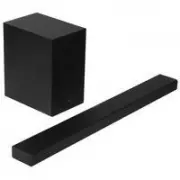 Samsung HW-A650
User Manual
Samsung HW-A650
User Manual
 Samsung HW-B450
User Manual
Samsung HW-B450
User Manual
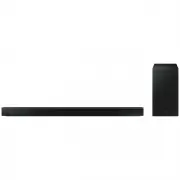 Samsung HW-B650-XY
User Manual
Samsung HW-B650-XY
User Manual
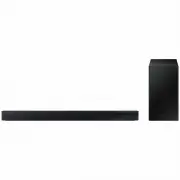 Samsung HW-C450-XY
User Manual
Samsung HW-C450-XY
User Manual
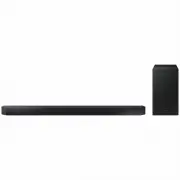 Samsung HW-Q600C-XY
User Manual
Samsung HW-Q600C-XY
User Manual
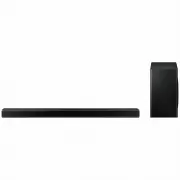 Samsung HW-Q700AXY
User Manual
Samsung HW-Q700AXY
User Manual
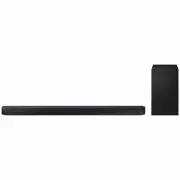 Samsung HW-Q700C-XY
User Manual
Samsung HW-Q700C-XY
User Manual
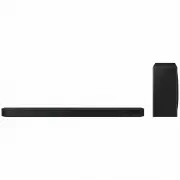 Samsung HW-Q800C-XY
User Manual
Samsung HW-Q800C-XY
User Manual
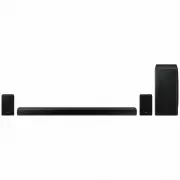 Samsung HW-Q870AXY
User Manual
Samsung HW-Q870AXY
User Manual
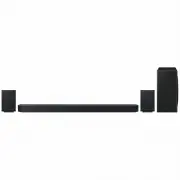 Samsung HW-Q930C-XY
User Manual
Samsung HW-Q930C-XY
User Manual
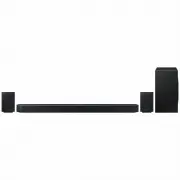 Samsung HW-Q990C-XY
User Manual
Samsung HW-Q990C-XY
User Manual
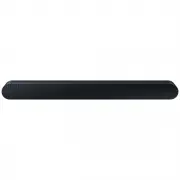 Samsung HW-S60B-XY
User Manual
Samsung HW-S60B-XY
User Manual
 Samsung HW-S61
User Manual
Samsung HW-S61
User Manual
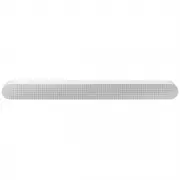 Samsung HW-S61B-XY
User Manual
Samsung HW-S61B-XY
User Manual
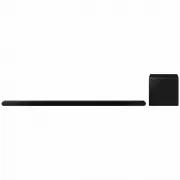 Samsung HW-S800B-XY
User Manual
Samsung HW-S800B-XY
User Manual
 Samsung HW-S801B-XY
User Manual
Samsung HW-S801B-XY
User Manual
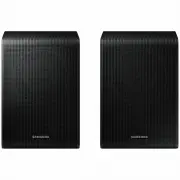 Samsung SWA-9200SXY
User Manual
Samsung SWA-9200SXY
User Manual
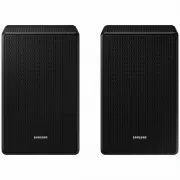 Samsung SWA-9500SXY
User Manual
Samsung SWA-9500SXY
User Manual
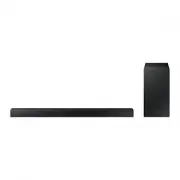 Samsung HW-A430
User Manual
Samsung HW-A430
User Manual
 Samsung HW-A440
User Manual
Samsung HW-A440
User Manual