Page 2 - Thank you for buying a Samsung Digital Camera.; Set up the camera driver
《 1 》 Instructions Getting to know your camera Thank you for buying a Samsung Digital Camera. ● Prior to using this camera, please read the user manual thoroughly. ● When you require After Sales service, please bring the camera and the cause ofthe camera malfunction (such as battery, Memory card etc...
Page 3 - There is the possibility of injury from the camera’s moving parts.
Danger 《 2 》 Warning WARNING indicates a potentially hazardous situation which, if not avoided, couldresult in death or serious injury. ■ Do not use the flash in close proximity to people or animals. Positioning the flashtoo close to your subject’s eyes may cause eyesight damage. ■ For safety reason...
Page 4 - READY
《 3 》 Caution Contents CAUTION indicates a potentially hazardous situation which, if not avoided, mayresult in a minor or moderate injury. ■ Leaking, overheating, or damaged battery could result in fire or injury. • Use battery with the correct specification for the camera. • Do not short circuit, h...
Page 5 - Contents; SETUP
《 4 》 Contents ■ E (Effect) button ………………… 27 ■ Special Effect : Colour …………… 27 ■ Special Effect : Preset focus frames ……………… 28 ■ Special Effect : Composite shooting ……………… 29 ■ Special Effect : Photo Frame …… 30 ■ Movie Clip frame stabiliser ……… 31 ■ +/ - button ………………………… 31 ● Using the LCD moni...
Page 6 - System chart; or
《 5 》 System chart Please check that you have the correct contents before using this product. The contents can vary depending on the sales region. To buy the optional equipment, contact yournearest Samsung dealer or Samsung service centre. Software CD (see p.74) Camera strap User manual, Product war...
Page 7 - Identification of features
《 6 》 Identification of features Shutter button Lens / Lens cover Mode dial Power button Speaker Microphone Flash Self-timer lamp /Auto focus lamp USB / AV connection terminal DC input connection port Front & Top
Page 8 - LCD monitor
《 7 》 Identification of features Back & Bottom LCD monitor Tripod socket 5 function button E (Effects) button Strap eyelet Play mode / Printer button Zoom T button (Digital zoom) Zoom W button (Thumbnail) Camera status lamp +/- button, Delete button
Page 9 - Transmitting Data with a PC
《 8 》 Identification of features Bottom / 5-function button Battery chamber Battery chamber cover Voice memo / Voice Recording / Up button Flash / Left button Menu / OK button Self-timer / Right button Macro / Down button Play & Pause button Memory card slot ■ Self-timer lamp Icon Status Descrip...
Page 10 - VOICE RECORDING; Using the batteries
《 9 》 Connecting to a Power Source Identification of features ● We recommend using batteries for a digital camera (Within a year from the dateof manufacture). The batteries are listed below. - Non rechargeable batteries : 2 X AA Alkaline (High Capacity) - Rechargeable batteries (Optional) : SNB-2512...
Page 11 - Connecting to a Power Source; Important information about battery usage; INFORMATION; Low battery; Inserting the memory card
《 10 》 Connecting to a Power Source Important information about battery usage ● When the camera is not used, turn off the camera power. ● Please remove the battery if the camera will not be used for long periods. Battery can lose power over time and are prone to leaking if kept inside thecamera. ● L...
Page 12 - Instructions on how to use the memory card; Please keep the memory card in its case when not in use.
《 11 》 Instructions on how to use the memory card ● Be sure to format the memory card (see p.63) if you are using a newlypurchased memory for the first time, if it contains data that the camera cannotrecognise, or if it contains images captured with a different camera. ● Turn off the camera power wh...
Page 14 - LCD monitor indicator; Aperture Value / Shutter Speed
《 13 》 LCD monitor indicator [Image & Full Status] ② ③ ⑤ ④ ⑥ ⑦ ⑧ ⑨ ⑯ ⑮ ⑬ ⑭ ⑱ ⑰ ⑳ ⑲ ⑫ ⑩ ⑪ ① ■ The LCD monitor displays information about the shooting functions andselections. No. Description Icons Page 2 Battery p.10 3 Aperture Value / Shutter Speed F2.8, 1/30 p.14~15 Recording mode p.14~18 1 No....
Page 15 - Starting the recording mode
《 14 》 Starting the recording mode ■ How to use the PROGRAM mode ( ) Selecting the automatic mode will configure thecamera with optimal settings. You can still manuallyconfigure all functions except the aperture value andshutter speed. 1. Select the PROGRAM mode by rotating the mode dial. 2. Press t...
Page 17 - Press the OK / Shutter button and the selected image will be saved.
《 16 》 Starting the recording mode [SCENE mode] ※ The scene modes are listed below. [Nightscene] ( ) : Use this for shooting still images at night or in other dark conditions. [Portrait] ( ) : To take a picture of a person. [Children] ( ) : To take a picture of fast moving objects, for example, chil...
Page 20 - Used for turning the camera’s power on / off.
《 19 》 Things to Watch Out for When Taking Pictures Using the camera buttons to set the camera ■ The recording mode function can be set up by using the camera buttons. ● Used for turning the camera’s power on / off. ● If there is no operation during the specified time,the camera's power will be turn...
Page 22 - The Voice memo can't be activated in Motion capture, Interval shots.
《 21 》 Voice recording( ) / Voice memo( ) / UP button ■ While the menu is showing, press the UP button to move up the sub menu.When the menu is not displayed on the LCD monitor, the UP button operates asthe voice recording or voice memo ( ) button. You can add your voice-over toa stored still image....
Page 24 - Focus lock; Manual focus
《 23 》 Macro( )/ Down button Focus lock ■ Available focusing method, by recording mode (O: Selectable , X: Not selectable, ∞ : Infinity focus range) O O O O O X O X O O O O X O O X X X X O X X O O O O X O X O O O O X X - - - - - - Mode Normal Macro Auto Macro Super Macro Manual focus Normal Macro Au...
Page 28 - Special Effect : Colour; Movie clip mode : You can select the colour and stabiliser menus.
● This button will not operate in the ASR, Voice recording and some scenemodes (Night, Text, Sunset, Dawn, Backlight, Firework, Beach & Snow). ● When or is selected, only menu of the Effect menus can beselected. ● If a special effect is selected, any previously selected special effects (presetfo...
Page 29 - Special Effect : Preset focus frames; to move the focus frame position.; Press the E button in the available camera
《 28 》 Special Effect : Preset focus frames Capture:SH Edit:+/- Capture:SH Edit:+/- Capture:SH Move : ● Moving and changing the focus frameYou can change the focus frame after selecting a Range menu. 1. Point the camera towards the subject and compose the image by using the LCD monitor. 2. Press the...
Page 30 - Special Effect : Composite shooting
《 29 》 Special Effect : Composite shooting ■ You can combine 2 - 4 different shots in a still image 1. Press the E button in the available camera modes(Not available: Movie clip, Voice, Auto,Manual, ASR, Scene). 2. Select the menu by pressing the Left/ Right button. 3. Select a desired sub menu by p...
Page 32 - Available camera mode
《 31 》 +/ - button Movie Clip frame stabiliser Special Effect : Photo Frame ■ You can use the +/ - button to adjust the values for the RGB, ISO, white balanceand exposure compensation. ■ This function helps stabilise images captured during movie recording. You can select this menu only in the MOVIE ...
Page 35 - Using the LCD monitor to set the camera settings; Menu tab Main menu
Using the LCD monitor to set the camera settings 《 34 》 ■ You can use the menu on the LCD monitor to set up recording functions. In anymode with the exception of VOICE RECORDING mode, pressing the MENUbutton displays the menu on the LCD monitor. ※ The menu will not be displayed on the LCD monitor in...
Page 37 - File Format; Size; Print angle Wide angle
《 36 》 Icon Sub menu Super Fine Fine Normal 30FPS 20FPS 15FPS File Format jpeg jpeg jpeg avi avi avi [ STILL IMAGE mode ] QUALITY Super Fine Fine Normal [ MOVIE CLIP mode ] FRAME RATE 30 FPS 20 FPS 15 FPS ■ You can select the compression ratio appropriate for your application of thecaptured images. ...
Page 38 - : This camera selects a AF point from
《 37 》 Auto Focus type Metering ■ If you cannot obtain suitable exposure conditions, you can change the meteringmethod to take brighter pictures. [Multi] : Exposure will be calculated based on an average of the available light in the imagearea. However, the calculation will be biasedtowards the cent...
Page 39 - Continuous shot
《 38 》 Continuous shot - [Single] : Take one picture only - [Continuous] : Images will be taken continuously until the shutterbutton is released. The shootingcapacity depends on thememory. - [Motion Capture] : This takes 30 shots per second, when the shutter is pressed andheld down. After completing...
Page 40 - Sharpness
《 39 》 OSD (On Screen Display) information Sharpness ■ You can adjust the sharpness of the picture youwant to take. You cannot check the sharpness effecton the LCD monitor before you take a picture,because this function is applied only when thecaptured image is stored on the memory. Sub menu Icon De...
Page 41 - Starting play mode; Manner mode : Pressing the play mode button for more than 3 seconds; Select an image that you want to play
《 40 》 Starting play mode ● Playing back a movie clip Steps from 1-2 are the same as those to play backa still image.3. Select the recorded movie clip and press the Play & Pause button to play back. - To pause a movie clip file while playing it back, press the play & pause button again. - Pr...
Page 44 - Using the camera buttons to set the camera
《 43 》 [ Thumbnail display mode ] Using the camera buttons to set the camera Thumbnail( )/ Enlargement ( ) button ■ In Play mode, you can use the buttons on the camera to conveniently set up thePlay mode functions. ● Image enlargement 1. Select an image that you want to enlarge and press the enlarge...
Page 45 - Maximum enlargement rate
《 44 》 Thumbnail ( )/ Enlargement ( ) button ■ When the menu is displayed on the LCD monitor, pressing the UP button makesthe menu cursor move up. ■ When the menu is not displayed on the LCD monitor, the UP button operates asthe voice memo button. You can add your voice to a stored still image. ● Ad...
Page 48 - Printer button; : While the menu is showing, press the LEFT button to select
《 47 》 Printer button Left/ Right/ Menu/ OK button ■ LEFT/ RIGHT/ MENU/ OK buttons activate the following. - LEFT button : While the menu is showing, press the LEFT button to select the menu tab to the left of the cursor. While the menu is notshowing, press the LEFT button to select the previous ima...
Page 49 - Setting up the play back function using the LCD monitor; OSD
《 48 》 ■ PLAY mode functions can be changed by using the LCD monitor. In the PLAYmode, pressing the MENU button displays the menu on the LCD monitor. Themenus you can set up in Play mode are as follows. To capture an image aftersetting up the play menu, press the PLAY mode button or shutter button. ...
Page 51 - Starting the slide show
《 50 》 Starting the slide show SLIDE ShowInterval Effect Music Back: Set:OK Off ● Configure slide show effects : Unique screen effects can be used for the slide show. 1. Select the [Effect] sub menu by pressing the UP/ DOWN button and press the RIGHT button. 2. Use the Up/ Down button to select the ...
Page 53 - Resize; Press the play mode button and press the menu
《 52 》 Resize ■ Change the resolution (size) of pictures taken. Select the [User Image] to savean image to be the start-up image. The resized image will have a new file name. 1. Press the play mode button and press the menu button. 2. Press the LEFT/ RIGHT button and select the [RESIZE] menu tab. 3....
Page 55 - Copy To Card; Copying to the Memory Card
《 54 》 Copy To Card ■ This enables you to copy image files, movie clips and voice recording files to thememory card. ● Copying to the Memory Card 1. Press the play mode button and press the menu button. 2. Select the [COPY TO CARD] menu tab by pressing the LEFT/ RIGHT button. 3. Select a desired sub...
Page 61 - PictBridge : DPOF Printing; Use the LEFT and RIGHT buttons to select the
《 60 》 PictBridge : DPOF Printing PictBridge : Reset 1. Use the LEFT and RIGHT buttons to select the [RESET] menu tab. 2. Use the UP and DOWN buttons to select the desired sub menu value, and then press the OKbutton. If [No] is selected : Settings will not be reset.If [Yes] is selected : All print a...
Page 62 - Setup menu; P”CCK»...
《 61 》 Setup menu Menu tab Main menu Sub menu Secondary menu Page Series - Reset - Power Off Off, 1, 3, 5, 10min - p.62 No - Yes - 07/01/01 13:00 - yy/mm/dd - mm/dd/yy - dd/mm/yy - Off - Cape Verde Okhotsk London Wellington, Auckland Rome, Paris, Berlin Samoa, Midway Athens, Helsinki Honolulu, Hawai...
Page 64 - Sub menus; Setting Date/ Time & Selecting Date Format
《 63 》 Setup menu [ Formatting a memory ] ■ This is used for formatting the memory. If you run [Format] on the memory, allimages, including the protected images, will be deleted. Be sure to downloadimportant images to your PC before formatting the memory. ● Sub menus [No] : The memory will not be fo...
Page 65 - There is an option to include DATE / TIME on still images.; You can turn on and off the Auto Focus lamp.
《 64 》 Setup menu [ Imprinting the recording date ] ■ There is an option to include DATE / TIME on still images. [ World Time ] ■ This menu enables you to display the local date and time on the LCD monitor. ● Sub menus [Off] : The DATE & TIME will not be imprinted on the image file. [Date] : Onl...
Page 66 - Connecting to an external monitor
《 65 》 Setup menu [ Connecting an External Device (USB) ] ■ You can select an external device to which you want to connect the camerausing the USB cable. ● Sub menus - [Computer] : Select this if you want to connect the camera to your PC. Refer to page 77for instructions on how to connect thecamera ...
Page 67 - AV channel of the TV.
《 66 》 Setup menu - NTSC : U.S.A, Canada, Japan, South Korea, Taiwan, Mexico. - PAL : Australia, Austria, Belgium, China, Denmark, Finland, Germany, U.K., Holland, Italy, Kuwait, Malaysia, New Zealand, Singapore,Spain, Sweden, Switzerland, Thailand, Norway. - When using a TV as an external monitor, ...
Page 68 - Setting up the Mycam menu
《 67 》 Start up sound Shutter sound ■ You can select the sound that is activated whenever the camera is turned on. ● Start up sound : [Off], [Sound 1], [Sound 2], [Sound 3] - If the start up image is set to [Off], the start up sound will not activate, even though you mayhave set these to on. ■ You c...
Page 69 - Important notes
《 68 》 Important notes ■ Extremes in temperature may cause problems. - If the camera is transferred from a cold to a warm and humid environment, condensation can form on the delicate electronic circuitry. If this occurs, turnthe camera off and wait for at least 1 hour until all moisture is dispersed...
Page 72 - Before contacting a service centre
《 71 》 Before contacting a service centre Colour of image is different to the original scene ㆍ White balance or effect setting is incorrect → Select appropriate White balance and effect Images are too bright ㆍ Exposure is excessive → Reset exposure compensation No image on external monitor ㆍ The ext...
Page 73 - Specifications
《 72 》 Specifications ■ Exposure - Control : Program AE, Shutter Priority AE, Aperture Priority AE or Manual Exposure - Metering : Multi, Spot- Compensation : ± 2EV (1/2EV steps) - ISO Equivalent : Auto, 50, 100, 200, 400, 800, 1600 ■ Flash - Modes : Auto, Auto & Red-eye reduction, Fill-in flash...
Page 75 - Installer; For Windows
《 74 》 Software Notes About the software System Requirements Please ensure that you read the instruction manual carefully before use. • The attached software is a camera driver and image editing software tool forWindows. • Under no circumstances should all or part of either the software or the userm...
Page 76 - Setting up the application software; You can visit the Samsung web-site through the internet.
《 75 》 Setting up the application software ■ To use this camera with a PC, install the application software first.After this has been done, the stored images in the camera can be moved to thePC and can be edited by an image editing program. ■ You can visit the Samsung web-site through the internet. ...
Page 78 - Starting PC mode
《 77 》 Starting PC mode ■ Connecting the camera to a PC ■ Disconnecting the camera and PC : Refer to page 79 (Removing the removable disk). ※ If you selected [Printer] in Step 4, when you connect the camera to your printer, the [Connecting Printer] message will display and the connection willnot be ...
Page 79 - CAUTION
《 78 》 ■ Downloading stored images You can download the still images stored on the camera to your PC's hard diskand print them or use a photo editing software to edit them. 1. Connect the camera to your PC with the USB cable. 2. On your computer's desktop display, select [My computer] and double cli...
Page 80 - Removing the removable disk; Check whether the camera and PC are transferring a file.
《 79 》 Removing the removable disk 6. A [Unplug or Eject Hardware] window will open. Click the [Close] button and theremovable disk will be removed safely. 7. Unplug the USB cable. ■ Windows 98/98SE 1. Check whether the camera and PC are transferring a file. If the camera status lamp blinks, please ...
Page 81 - To remove the USB driver, refer to the process shown below.; Setting up the USB Driver for MAC; A USB Driver for MAC is not included with the software CD as MAC OS; Using the USB Driver for MAC
《 80 》 ■ To remove the USB driver, refer to the process shown below. 1. Connect the camera to your PC and turn them on.2. Check whether the Removable Disk is on the [My Computer]. 3. Remove the [Samsung Digital Camera] on the Device manager. 6. Uninstallation is complete. Setting up the USB Driver f...
Page 82 - Digimax Master
《 81 》 Digimax Master 4. Select a destination and make a folder to save downloaded images and folders. - Folder names can be made in order of date and images will be downloaded. - Folder name will be made as you want and images will be downloaded. - After selecting a folder that was made before, ima...
Page 85 - FAQ
《 84 》 FAQ ■ When the movie clip doesn’t play back on the PC ※ When the movie clip recorded by the camera doesn’t play back on the PC,the causes are mostly due to the codec installed on the PC. ● When codec for play back the movie clip isn’t installed → Install the codec as listed below. [ Installin...
Page 86 - When the DirectX 9.0 or later is not installed
《 85 》 FAQ Correct Disposal of This Product Correct Disposal of This Product (Waste Electrical & ElectronicEquipment) (Applicable in the European Union and other European countries withseparate collection systems) This marking shown on the product or itsliterature, indicates that it should not b...
Page 87 - the receiver is connected.; Declaration of Conformity; Trade Name
《 86 》 FCC notice MEMO ■ ■ NOTE : This equipment has been tested and found to comply with the limits for aClass B digital device, pursuant to part 15 of the FCC Rules. These limits aredesigned to pro-vide reasonable protection against harmful interference in aresidential installation.This equipment ...


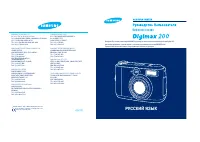 Samsung Digimax 200
Manual
Samsung Digimax 200
Manual
 Samsung GX-20
Manual
Samsung GX-20
Manual
 Samsung i100
Manual
Samsung i100
Manual
 Samsung i8
Manual
Samsung i8
Manual
 Samsung i85
Manual
Samsung i85
Manual
 Samsung L310W
Manual
Samsung L310W
Manual
 Samsung NX11
User Manual
Samsung NX11
User Manual
 Samsung NX200
User Manual
Samsung NX200
User Manual
 Samsung SPF-71EW
User Manual
Samsung SPF-71EW
User Manual
 Samsung SPF-86H
Manual
Samsung SPF-86H
Manual
 Samsung ST66
User Manual
Samsung ST66
User Manual
 Samsung ST75
User Manual
Samsung ST75
User Manual
 Samsung WB350F
Manual
Samsung WB350F
Manual
 Samsung WB351F
Manual
Samsung WB351F
Manual
 Samsung WB352F
Manual
Samsung WB352F
Manual
 Samsung Gear 360 (2017)
User Manual
Samsung Gear 360 (2017)
User Manual
 Samsung SM-C200
User Manual
Samsung SM-C200
User Manual
 Samsung ST500
Manual
Samsung ST500
Manual