Page 2 - Health and safety information; Warning; —situations that could cause injury to; Caution; —situations that could cause damage to; Note; information; Prevent damage to subjects’ eyesight
2 Health and safety information Always comply with the following precautions and usage tips to avoid dangerous situations and ensure peak performance of your camera. Warning —situations that could cause injury to yourself or others Caution —situations that could cause damage to your camera or other ...
Page 3 - Overcharging batteries may shorten battery life. After; Important usage information
3 Do not expose the camera to direct sunlight or high temperatures for an extended period of time. Prolonged exposure to sunlight or extreme temperatures can cause permanent damage to your camera’s internal components.Avoid using or storing your camera in dusty, dirty, humid, or poorly-ventilated ar...
Page 4 - Copyright information; and QuickTime; Organization of the user manual; Basic functions
4 charging is finished, disconnect the cable from your camera.Over time, unused batteries will discharge and must be recharged before use.Disconnect chargers from power sources when not in use.Use batteries only for their intended purpose. Exercise caution when using the camera in humid environments ...
Page 5 - Indications used in this manual; Shooting mode; Shooting mode explanation shown next to the title; mode, this corresponds to only part of; Directional Keys in the User's Manual; The user can check saved pictures and movies.; • Show most recently saved files.; Check the following pictures sequentially by; Currently
5 Indications used in this manual Shooting mode Marking Smart Auto Program Aperture Priority Shutter Speed Priority Manual Night Portrait Landscape Scene Movie Shooting mode explanation shown next to the title This shows that the functions explained can only be selected from within the shooting mode...
Page 6 - Menu display used in this manual; Menu display of the photo shooting mode; Shooting1; Select a desired image quality.; Icons used in this manual; Symbol; Abbreviations used in this manual; Abbreviations
6 Menu display used in this manual Menu display of the photo shooting mode Menu display of the movie shooting mode Ex) Setting the image quality of movie file 1 Set the mode dial to . 2 Press [MENU]. 3 Select Shooting1 ( 1 ) → Quality. 4 Select a desired image quality. Icons used in this manual Symbo...
Page 7 - Pressing the shutter; Subject; Expressions used in this manual
7 Pressing the shutter Half-press [ Shutter ]: press the shutter halfway down Press [ Shutter ]: press the shutter all the way down Half-press [ Shutter ] Press [ Shutter ] Subject, background, and composition Subject : the main object of a scene, such as a person, animal, or still life Background :...
Page 8 - Quick reference
8 Viewing files by category in Smart Album f 81 Deleting all files on the memory card f 83 Viewing files as a slide show f 84 Viewing files on a TV or HDTV f 92 Connecting your camera to a computer f 93 Adjusting sound and volume f 104 Adjusting the brightness of the display f 104 Changing the display l...
Page 9 - Contents
9 Contents Basic functions .................................................... 12 Unpacking ................................................................. 13Title and role of each part .......................................... 14 Diopter adjustment dial/eye-cup/Status lamp ........... 16Descrip...
Page 13 - Unpacking
13 Unpacking Check your product box for the following items. Camera (Body cap, eye-cup, Hot-shoe cover included) USB cable Battery Strap Software installation CD (including user's manual) Quick Start Manual Charger/AC power cable The actual components or optional parts may differ from the illustrati...
Page 14 - Title and role of each part; Lens mount index; Image Sensor
14 Title and role of each part Mode dial (p. 5) AF-assist light /timer lamp (p. 61) Power switch (p. 23) Lens mount index (p. 21) Hot-shoe cover (p. 58) Strap holder (p. 22) Built-in flash (p. 55) Dial (p. 26) Shutter button (p. 7) Lens removal button (p. 21) Lens mount (p. 21) Flash button (p. 55) ...
Page 15 - Display; MENU
15 Title and role of each part AEL button (p. 77) EV button (p. 43) Eye-cup (p. 16) Display Viewfinder Eye sensor* DISP button (p. 28)Function(Fn) button (p. 27) Direction key (p. 5) Delete/Picture wizard button (p. 82) Battery chamber cover (p. 19) Playback button (p. 79) Tripod mount * Use of eye ...
Page 16 - Use of Diopter adjustment dial; Status lamp
16 Title and role of each part Diopter adjustment dial/Eye-cup/Status lamp Use of Diopter adjustment dial It is possible to adjust the viewfinder appropriate for the eyesight of user. If the image is not shown clearly through the viewfinder, move the eyesight adjustment dial in the left/right direct...
Page 17 - Description for each part of the lens
17 Title and role of each part Description for each part of the lens When purchasing the lens separately, please contact a Samsung service center to verify the compatibility of the camera an lens. This information in this user manual is based on the SAMSUNG 18-55mm F3.5-5.6 OIS lens. Please refer to...
Page 18 - Preparations before shooting; Charging the battery; Color of charge lamp; AC power code; Charging lamp
18 Preparations before shooting Charging the battery Please charge the battery fully before using this product. Please make the connections as in the following figure. Color of charge lamp Charging status Red Charging Green Fully charged Turned off, or Yellow Charging error To remove the battery from...
Page 19 - Installing the battery
19 Preparations before shooting Installing the battery When taking out the battery, pull down slightly on the lock lever. You can then remove the battery. 2 Lock lever 1 Open by pushing in the direction of the arrow 3 Close by pushing down in the direction of the arrow.
Page 20 - Installing the memory card
20 Preparations before shooting Installing the memory card To remove the memory card, push the card slightly in the direction of insertion. Please do not remove the memory card or battery while the status indicator lamp is blinking. It may cause loss of data or product damage. • • 1 3 2 After checki...
Page 21 - Mounting/dismounting the lens; Before mounting the lens; Lens mount
21 Preparations before shooting Mounting/dismounting the lens Please remove the lens mount cover and body cap prior to the installation of lens. After matching the lens mount index (red) of camera body with the point (red) of lens mount, join the lens by turning the lens clockwise until it clicks. W...
Page 22 - Connecting the strap
22 Preparations before shooting Connecting the strap Connecting the strap to the camera body so you can carry the camera easily.
Page 23 - Turning on the power and initialization; • The screen appears in the language you; Date
23 Turning on the power and initialization When turning the power on/off, please set the power switch to ON/OFF . When you turn on the camera for the first time, the camera may ask you to set the language and date. 1 Press [ T ] to select Language, and then press [ ]. 2 Press [ S / T / W / X ] to sel...
Page 25 - Information display; ମGGଯ; Shooting option display; Shooting option display; Icons
25 Turning on the power and initialization A Information display Shooting mode Movie shooting mode Focus checking Flash 15 Shutter speed F3.5 Aperture value 3 - + 2 2 3 1 1 0 Adjusted value of exposure AEL/AFL setting 0001 Possible no. of shots Battery information Displays no-insertion of memory car...
Page 26 - Return to the previous screen.; Using the dial; Example. Using the dial in the S mode; • The camera sets aperture value; Option/menu selection method; AF MF; Selection AF
26 1 Press [MENU] in the Shooting mode. 2 You can select a desired option or menu by pressing [ S / T / W / X ] or [ ] . 3 To save a selected option or menu, press [ ] . Return to the previous screen. To return to the previous menu screen, press [MENU] . Using the dial The user may change the menu s...
Page 27 - Example. Flash setting in the P mode; • You can adjust the intensity of the flash by
27 Using [Fn] By pressing the [Fn] function button, you can easily access major functions such as Quality, Size, AF area, Flash, Color Space, Smart Range, and OIS. Example. Flash setting in the P mode 1 Set the Mode dial to P . 2 Press the [Fn] button on the body of camera. 3 Select Flash using the ...
Page 28 - Setting the display and sound; Changing the display type; Viewing the function descriptions of menu; In the Shooting mode, press; • Press and hold
28 Setting the display and sound Learn how to change basic display and sound settings according to your preferences. Changing the display type You can select the icons and options the camera displays in the Shooting and Play modes by selecting a Display Type. Press [DISP] repeatedly. Shooting mode D...
Page 29 - Setting user display; User setup; About histogram; Setting the sound; Sound; Off
29 Setting the display and sound Setting user display You can add or remove shooting information from the display. 1 Press [MENU] in the shooting mode. 2 Select User setup ( 1 ) → User Display → an option. About histogram A histogram is a graph that shows the brightness distribution of picture. This...
Page 30 - Setting the screen display; In Shooting or Playback mode, press; Convert between Main Display and EVF by; The screen will be shown only through; The screen will be shown only through EVF
30 MENU OK 3 1 2 1 1 2 Display Select Video OutAnynet+ (HDMI-CEC)HDMI SizeFirmware Update Auto NTSC On Auto 3 Auto SelectMain Display EVF B a c k S e t Setting the display and sound Setting the screen display The screen display can be set according to the user’s convenience. 1 In Shooting or Playbac...
Page 31 - Simple picture-taking method
31 1 Rotate the mode dial to . 2 Align your subject in the frame. All the details shown on the view finder will appear identically on the display. 3 Half-press [Shutter] to focus. 4 Press [Shutter] to take a photo. Simple picture-taking method Using the Smart Auto mode, you can take a picture easily ...
Page 32 - Tips; for getting a clearer photo; Focus frame
32 Holding your camera correctly Please make sure that your hand, hair, and strap do not inter fere with the lens or flash. Image stabilization Half-pressing the shutter button In order to check in advance whether the focus of composition is set appropriately, please use the half-shutter function. If...
Page 33 - Using the manual focus; Getting your subject in focus; Please try to use the focus lock function.
33 Under the following circumstances, it may be difficult to get your subject in focus when: When the color contrast is not clear (When someone is wearing clothes similar in color to the background)When the subject is in front of a strong backlightWhen the subject generates strong reflected lightWhen ...
Page 34 - AF; Set the AF/MF switch of the lens to; MF; Check the focus, and then turn the zoom ring
34 Setting the automatic/manual focus function You can set the camera to adjust focus automatically or manually by using the AF/MF switch on the side of the lens. 1 Using automatic focus Set the AF/MF switch of the lens to AF . The focus adjusts automatically when you press the shutter button half w...
Page 35 - Optical Image Stabilization (OIS); Using the OIS switch of lens; ON
35 Optical Image Stabilization (OIS) Use the optical image stabilization (OIS) function when taking pictures to minimize camera shake and improve focus. ▲ Before applying OIS ▲ After applying OIS Using the OIS switch of lens The OIS function can be used only in the case that the lens in use has the ...
Page 36 - Using the OIS in the menu option; In Shooting mode, press; Shooting3; The OIS function is always applied.
36 Using the OIS in the menu option After setting the OIS switch, select the OIS function in the menu option 1 In Shooting mode, press [MENU] . 2 Select Shooting3 ( 3 / 3 ) → OIS → an option. OIS Mode 1 The OIS function is applied only when pressing the shutter in full or half. OIS Mode 2 The OIS fu...
Page 37 - Depth preview; Press the
37 Depth preview When you are not using the depth preview function, you can only see the subject through the camera in the condition of the maximum aperture (minimum f-number) in the shooting mode. Use the Depth of Field Preview function before taking a picture to view the depth of field of the scene...
Page 38 - Basic shooting
Basic shooting Learn how to take a photo by selecting a mode and how to record a video. Using the Smart Auto mode ………………………… 39 Using the Program mode …………………………… 40 Using the Aperture Priority, Shutter Priority, or Manual mode ……………………………………… 41 Using the Night/Portrait/Landscapee mode ……… 45 Using...
Page 39 - Using the Smart Auto mode; Rotate the mode dial to; • The camera automatically detects the type
39 Using the Smart Auto mode The smart auto mode allows taking pictures under an optimized condition since the camera recognizes various photographing conditions automatically. Therefore, even a beginner can use the camera easily. 1 Rotate the mode dial to . 2 Align your subject in the frame. • The ...
Page 40 - Using the Program mode; • For a list of options, refer to “Extended; Align your subject in the frame and half-; Changing the exposure value; Left
40 Using the Program mode In the program mode, the camera automatically adjusts the shutter speed and aperture value to maintain the correct exposure. 1 Rotate the mode dial to P . 2 Set options. • For a list of options, refer to “Extended shooting functions.”(p. 50) 3 Align your subject in the fram...
Page 41 - Using the Aperture Priority, Shutter Priority, or Manual mode; Using the Aperture Priority mode; Rotate the Mode dial to; Aperture value
41 Using the Aperture Priority, Shutter Priority, or Manual mode By using the aperture value of adjusting light volume and shutter speed, you can take pictures of desired exposure. As for the shooting modes that allows adjusting the aperture value and shutter speed, there are the aperture priority m...
Page 42 - Using the Shutter Priority mode; Shutter speed
42 Using the Shutter Priority mode The Shutter Priority mode lets you set the shutter speed manually while the camera automatically selects an appropriate aperture value. 1 Rotate the Mode dial to S . 2 Rotate the dial to adjust the shutter speed. 3 Set options. • For a list of options, refer to “Ex...
Page 43 - Using the Manual mode; EV
43 Using the Manual mode In the manual mode, you can take pictures by setting various shot options directly including the shutter speed and aperture value. 1 Rotate the Mode dial to M . 2 Rotate the dial to adjust the shutter speed. 3 Rotate the dial to adjust the aperture value while press and hold...
Page 44 - Using the bulb exposure; Bulb
44 Using the bulb exposure By using the bulb exposure, you can set the shutter speed as long as you want. 1 Rotate the Mode dial to M . 2 Rotate the dial and set the shutter speed to Bulb . • Bulb exposure indication appears next to the shutter speed of 30"(seconds). 3 To adjust the aperture val...
Page 46 - Using the Scene mode
46 1 Rotate the Mode dial to . 2 Select a scene. x Press [MENU] to select a scene. You can select a desired scene. x For the Beauty Shot mode, see “Using the Beauty Shot mode.” 3 Align your subject in the frame and half- press [Shutter] to focus. 4 Press [Shutter] to take a photo. If you have the ca...
Page 47 - Using the Beauty Shot mode; Select a higher setting to make skin tone
47 Using the Beauty Shot mode In the beauty shot mode, you can take pictures with options that make faces appear smooth and blemish-free. 1 Rotate the Mode dial to . 2 Press [MENU] . 3 Select Shooting1 ( 1 ) → SCENE → Beauty Shot . 4 Select Shooting3 ( 3 ) → Face Tone . 5 Set options. x Select a hig...
Page 48 - Recording a Movie; Setting the aperture value; Program; To fade out the screen; In; Out
48 Recording a Movie In the movie shooting mode, you can shoot videos in High Definition quality (1280x720). You can continue recording movies up to 25 minutes. The recorded video is saved as an H.264 (MPEG-4.AVC) file. 1 Rotate the Mode dial to . 2 Press [MENU] . 3 Select Shooting1 ( 1 ) → Quality . ...
Page 49 - Using the Wind Cut; Pause while recording a movie
49 Recording a Movie Using the Wind Cut Use the wind noise removal function to remove some surrounding noise in addition to the wind noise. 1 In the Shooting mode, press [MENU] . 2 Select Shooting3 ( 3 ) → Wind Cut → an option. Pause while recording a movie By using the pause function, you can shoot...
Page 51 - Setting a resolution; Setting picture resolution; Proper use; Setting video resolution; Shooting 1; When outputting to HDTV; Setting the resolution and quality
51 Setting a resolution To capture the high level of detail and excellent image quality in your picture or video, it is a good idea to set the resolution to the highest setting. The main drawback is that the file size becomes relatively big. Setting picture resolution 1 In Shooting mode, press [MENU]...
Page 52 - Setting the image quality of a picture; Setting the quality of a movie
52 Setting the image quality of a picture The camera saves pictures in either in the JPEG or RAW format. The compression ratio is reduced as the image quality gets better. It is necessary to increase the file size to have a better quality picture. 1 In Shooting mode, press [MENU] . 2 Select Shooting ...
Page 53 - High ISO NR
53 Noise reduction This function can be set to reduce the noise in pictures. 1 In the Shooting mode, press [MENU] . 2 Select User setup ( 1 ) → Noise Reduction → an option. High ISO NR This function reduces noise that may occur when you set a high-speed ISO (3200). Long Term NR This function reduces...
Page 54 - Setting the timer function; Shooting 2; • You can select the timer setting pressing; Using the timer function
54 Setting the timer function 1 In the Shooting mode, press [MENU] . 2 Select Shooting 2 ( 2 ) → Drive . 3 Press [Fn] after selecting Timer. 4 Select the operation time by rotating the dial or pressing [ W / X ] . • You can select the timer setting pressing of 2 ~ 30 seconds. 5 The shot is taken aut...
Page 55 - Using the flash popup button; • Even if you have opened the flash using; Setting the flash option; The flash light operates automatically in the dark place.; Flash button; Taking a picture in a dark place
55 Using the flash popup button The flash operates when you pop-up the built-in flash by pressing the flash button. When the flash is closed, it will not burst out the light and the , , , and modes support automatic popup and flash light. 1 In the Shooting mode, press [ ]. 2 Align your subject in the fram...
Page 56 - st Curtain; Use of early 1st
56 Using the red-eye fix function When you take a portrait using the flash, the bright burst of light can cause the red-eye effect. To prevent the red eye effect, set the flash option to Auto+Red or Fill-in Red . 1st Curtain, 2nd Curtain The following images were obtained by taking the pictures of stra...
Page 57 - Adjusting the amount of flash light; • You can adjust flash brightness by ±2
57 Adjusting the amount of flash light When setting a flash option, you can adjust the brightness of the flash. 1 In the Shooting mode, press [MENU] . 2 Select Shooting 2 ( 2 ) → Flash . 3 Press the [Fn] button after selecting a desired item. 4 Adjust the brightness of the fl ash by rotating the dial or...
Page 59 - Adjusting the ISO sensitivity; In the Shooting mode,
59 Adjusting the ISO sensitivity The ISO sensitivity, as the film sensitivity established by the international standards organization (ISO), represents the degree of reaction when camera receives light. Since it reacts more sensitively with greater ISO value, a natural shot can be obtained in a dark ...
Page 60 - Focusing methods; Changing the Focusing methods; When you press; AF Priority
60 Focusing methods Changing the Focusing methods You can select a focusing method appropriate to the subject you are photographing. 1 In the Shooting mode, press [MENU] . 2 Select Shooting 2 ( 2 / 2 ) → AF Mode → an option. Single AF When you press [Shutter] half way down, the focus fixes in one pos...
Page 61 - Using the AF assist light; AF assist light not used; Changing the focus area; an
61 Focusing methods Using the AF assist light The auto focus functions more accurately in dark places when the AF assist light is on. 1 In the Shooting mode, press [MENU] . 2 Select User setup ( 1 ) → AF Lamp . Off AF assist light not used On AF assist light turns on when light is not sufficient. Cha...
Page 62 - Setting the focus of the selected area
62 Setting the focus of the selected area In the shooting composition, a shot may be taken by setting the focus to the area desired by user. 1 In the Shooting mode, press [MENU] . 2 Select Shooting 2 ( 2 ) → AF Area → Selection AF. 3 Press [MENU] to return to the previous mode. 4 In the Shooting mod...
Page 63 - Setting the MF Assist; Set the focus method to Manual Focus.
63 Focusing methods Setting the MF Assist When the lens’ focus method is set to Manual Focus (MF), this function helps focus the subject by expanding the screen automatically. 1 Set the focus method to Manual Focus. 2 Select Shooting 2 ( 2 ) → MF Assist 3 Select a desired option. Off Do not enlarge ...
Page 64 - Face detection; Face Detection AF; Face Detection AF
64 Face detection When you use the Face Detection AF function, you can set the focus around a person's face when taking a portrait shot. This function can also be useful when shooting a self-portrait. Normal face detection When you use the Face Detection AF option, the camera sets the auto focus bas...
Page 65 - Self-portrait face detection
65 Self-portrait face detection With Self-Portrait AF on, the camera chirps rapidly when your face is in focus. 1 In the Shooting mode, press [MENU] . 2 Select Shooting 2 ( 2 ) → AF Area → Self-Portrait AF . 3 Press [Shutter] if having an info sound of shooting. Check the focus of the subject in Sho...
Page 66 - Brightness and color adjustment of picture; • The adjustment value of exposure can be; Exposure adjustment
66 Brightness and color adjustment of picture Adjusting the exposure (brightness) The images can be taken bright or dark according to the amount of light. In this case, appropriate adjustment can be made by controlling the amount of light entered into the lens. S Applying - S 0 S Applying + 1 Check ...
Page 67 - Shooting 3; Spot
67 Changing the brightness measurement method If the composition of image is set, the camera measures the amount of light. At this time, the brightness and overall mood of the picture may vary depending on how the measurement is made. 1 In the Shooting mode, press [MENU] . 2 Select Shooting 3 ( 3 / ...
Page 68 - Setting the white balance; Auto
68 Setting the white balance Different light sources will affect the resulting color of your picture. To take a picture with colors close to what is seen with our own eyes, please select the white balance appropriate for the light source or manually adjust the color temperature desired. In case of a...
Page 69 - White paper
69 Fine adjustment of the white balance 1 In the Shooting mode, press [MENU] . 2 Select Shooting 1 ( 1 / 1 ) → White Balance. 3 Select a White Balance option, and then press [Fn] . 4 Adjust a desired white balance by using the dial or [ S / T / W / X ] . 5 Press [ ] to save. User setup method If the...
Page 70 - Adjusting the color temperature; What is color temperature?; Clear sky
70 Adjusting the color temperature You can change the white balance by adjusting the color temperature. 1 In the Shooting mode, press [MENU] . 2 Select Shooting 1 ( 1 / 1 ) → White Balance . 3 Select the Color Temp. option, and then press [Fn] . 4 Set desired color temperature by rotating the dial o...
Page 71 - Color space; sRGB; Adobe RGB
71 Color space You can set the color space the camera uses. 1 Press [MENU] in the shooting mode. 2 Select Shooting 1 ( 1 ) → Color Space → an option. RGB sRGB Set the color space to sRGB. RGB Adobe RGB Set the color space to Adobe RGB. What is color space? The image In/Output devices such as digital...
Page 72 - Smart range
72 Smart range Smart Range automatically corrects for the loss of bright detail that can occur due to shading differences in the picture. ▲ Canceling smart range ▲ Use of smart range 1 In the Shooting mode, press [MENU] . 2 Select Shooting 3 ( 3 ) → Smart Range → an option. • When you turn on Smart ...
Page 73 - Changing the shooting method; Drive mode button
73 Changing the shooting method It can be difficult to take a picture of a fast moving object, a quick facial expression, or the rapid motion of a person. In this case, please select the successive shooting option appropriate for the situation. Successive shooting method and timer setup You can selec...
Page 74 - Detailed bracket setup; Select the detailed options.; AE BKT Set
74 Detailed bracket setup The details for the exposure, white balance and picture wizard of bracket shot can be set. 1 Press [MENU] in the shooting mode. 2 Select Shooting 3 ( 3 ) → BKT Set → an option. 3 Select the detailed options. AE BKT Set When using the exposure BKT function, this allows setti...
Page 75 - Special effect/photo retouching; Picture wizard; Adjust the detailed items of picture wizard; • You can control the color, saturation,; Set to a desired value.
75 Special effect/photo retouching Picture wizard The Picture Wizard function lets you select various looks and emotional moods for your pictures. T Example Standard Vivid Portrait Landscape Forest Retro Cool Calm Classic 1 In the Shooting mode, press [MENU] . 2 Select Shooting 1 ( 1 ) → Picture Wiz...
Page 76 - Adjust the Picture Wizard value by using
76 Special effect/photo retouching Custom picture wizard setup You can choose the customize options and then save images in 3 different ways. 1 In the Shooting mode, press [MENU] . 2 Select Shooting 1 ( 1 ) → Picture Wizard → Custom → an option. 3 Adjust the Picture Wizard value by using [ S / T / W...
Page 77 - Setting Key Mapping; exposure lock function.; - Optical Preview which executes; What is AEL function?; Status of AEL setting
77 Key Mapping Setting Key Mapping The function of camera button can be changed. 1 In the Shooting mode, press [MENU] . 2 Select User setup ( 1 ) → Key Mapping → an option. AEL You can choose among three settings for the [AEL] button: - AEL, which executes the auto exposure lock function. - AFL, whi...
Page 78 - Printing photos with a photo printer (PictBridge) ............ 101
Playback/Editing Learn how to play back and edit photos/videos. Also, learn how to connect your camera to your computer, photo printer, TV, or HDTV. Play (picture/movie) …………………………………… 79 Picture editing ………………………………………… 87 Viewing files on a TV or HDTV ………………………… 91 Transferring files to your compute...
Page 79 - Viewing pictures in the play mode; • Shows most recently saved file.; View the pictures sequentially using; • When the playback screen is selected; DISP
79 Viewing pictures in the play mode You can view saved pictures and movies. 1 Press [ ] • Shows most recently saved file. 2 View the pictures sequentially using [ W / X ] . • When the playback screen is selected more than once, the last shown picture or movie is selected to be shown during playback....
Page 80 - Movie playback information screen
80 1 Shot image 2 RGB histogram 3 Shooting mode, metering, flash, white balance, picture wizard, focal length 4 Shutter speed, aperture value, ISO, selected file/total number of files/ battery information Movie playback information screen 1 Volume control display 2 Protected file 3 File no. 4 Meta value...
Page 81 - Classify by the saved file form; Classify by date recorded.; Classify by week recorded.; Converting to the thumbnail view
81 View files in the smart album by category The files can be classified and shown by the file, date (day), date (week), and type. 1 In Playback mode, press [ ] . 2 Press [MENU] . 3 Select a desired playback method. Type Classify by the saved file form Date Classify by date recorded. Week Classify by wee...
Page 82 - File protection; Deleting a file; Deleting one picture; Yes; Deleting selected file; Multiple
82 File protection You can protect files from accidental deletion. 1 Press [AEL] in the play mode. 2 appears on the display. 3 Press [AEL] to cancel. Deleting a file Files can be selected and deleted in the play mode.The function can be set by pressing [MENU] in the playback mode. Deleting one pictu...
Page 84 - Enlargement/reduction; Enlargement; In Playback mode, press; • To play without selecting an option, go to; Magnified part
84 Enlargement/reduction A picture can be enlarged when searching in play mode. Enlargement Press [ ] to enlarge. (Press [ ] to reduce) Move enlargement on screen Press [ / / / ]. Trim the enlarged image Press the [Fn] button to select a portion of the image to be cut. See the slide show Pic...
Page 85 - View a movie
85 3 Set to a desired option. 4 Select Slide Show → Play. • To play the slide show repeatedly, please select the repeat option. 5 Watch the slide show. • To stop slide show, press [ ] and then press [ / ]. Pause/Play Press the [ ] button. View a movie While a movie is being played back, you are ...
Page 86 - Capturing a picture; Cutting part of a movie; Select the start point to cut by pressing
86 Capturing a picture You can capture a frame of the movie as a picture while playing back the movie. 1 Press [ ] in the play mode. 2 Press [ ] while playing a movie. 3 Press [ T ] in the pause state. Cutting part of a movie 1 Press [ ] in the play mode. 2 Select the start point to cut by pressing ...
Page 87 - Picture editing; Changing the resolution; • The edited file is saved by using the; Rotating; Image Edit
87 Picture editing Pictures can be edited in various ways by using the edit menu. The function can be set directly by pressing [Fn] in the shooting mode. Changing the resolution 1 After selecting a desired picture in the play mode, press [MENU] . 2 Select Image Edit → Resize . 3 Select desired image...
Page 88 - • The level of face retouch gets better as the
88 Red-eye fix 1 After selecting a desired picture in the play mode, press [MENU] . 2 Select Playback [ ] → Image Edit → Red-eye Fix . Adjusting the backlight 1 After selecting a desired picture in the play mode, press [MENU] . 2 Select Playback [ ] → Image Edit → Backlight . Picture style Selecting ...
Page 89 - Printing selected pictures; Printing all; Initializing the standard print option; When having made the selections, press; • When having selected all, press
89 Setting the print info (DPOF) The size and number of copies to be printed can be designated for the picture.Since the designated information is saved in the MISC folder of memory card, it is convenient to print the designated size and number of copies while using the pictures of designated info s...
Page 90 - Initializing the print size option
90 4 Select [MENU] → DPOF → SIZE in the playback mode. 5 Select an option. Select Select desired print size according to the picture. All Select the print size of all the pictures saved in the memory card. Reset Initializing the print size option 6 When having selected the select option, select the ...
Page 91 - Viewing files on a TV or HDTV; Viewing files on a regular TV
91 Viewing files on a TV or HDTV Play back photos or videos by connecting your camera to a TV using the provided A / V cable. Viewing files on a regular TV 1 Select a video signal output according to your country or region. (p. 107) 2 Connect the TV and the camera using the A/V cable. 3 Make sure the...
Page 92 - Viewing files on an HDTV; HDMI Size; • The HDTV screen shows the same display
92 Viewing files on an HDTV 1 Select a video signal output according to your country or region. (p. 107) 2 In Shooting or Playback mode, select [MENU] → Setting 3 ( 3 ) → HDMI Size → an option. 3 Connect the HDTV and the camera using the HDMI cable. 4 Make sure the HDTV and camera are turned on and s...
Page 93 - Transferring files to your computer; For Windows users; Transfer files by connecting your camera to your PC.; Installing programs; Hardware and software requirements; Programs contained on the CD; Edit photos and videos.
93 Transferring files to your computer For Windows users Transfer files by connecting your camera to your PC. Installing programs Hardware and software requirements Item Requirements CPU Pentium III 500 MHz or better (Pentium III 800 MHz or better recommended) RAM 256 MB or more (512 MB or more reco...
Page 94 - Transferring files to your PC
94 1 Insert the installation CD in a compatible CD-ROM drive. 2 When the setup screen is displayed, click Samsung Digital Camera Installer to start installation. 3 Select programs to install, and follow the onscreen instructions. 4 Click Exit to complete the installation, and then restart your compu...
Page 95 - • In the popup window, select; Computer; Disconnecting the camera (for Windows XP); Click
95 2 Turn on the camera. • In the popup window, select Computer . 3 On your PC, select My Computer → Removable Disk → DCIM → " XXXPHOTO ," or select " XXX_MMDD " folder. 4 Select the files you want, and then drag or save them to your PC. Disconnecting the camera (for Windows XP) The w...
Page 96 - For Mac users; In the popup window, select; Transfer photos or videos to the computer.
96 For Mac users When you connect the camera to a Macintosh computer, the computer recognizes the camera automatically. You can transfer files directly from the camera to the computer without installing any programs. 1 Connect your camera to a Macintosh computer with the USB cable. 2 Turn on the came...
Page 97 - Using Samsung Master; Downloading files using Samsung Master; Using the Samsung Master Interface
97 Using Samsung Master You can download files or edit photos or videos stored on your PC. For details, see the Help menu. Downloading files using Samsung Master When you connect the camera to the PC, a window for downloading files automatically appears. 1 Select the files you want to download. 2 Click ...
Page 98 - Using the Samsung RAW Converter
98 Using the Samsung RAW Converter Using the Samsung RAW Converter, you can develop RAW files after editing them as you like. You can also edit JPEG or TIFF files in the same way you edit the RAW files. This software is only compatible with Windows XP and Vista. To start the program, click [Start → All...
Page 99 - Correcting the exposure; Original image
99 Using the Samsung RAW Converter Correcting the exposure The main feature of the Samsung RAW Converter is that you can keep the best quality of the images as you make changes to the RAW files while editing. After making changes to the brightness or contrast, you can still obtain the same result no ...
Page 101 - Printing photos with a photo printer (PictBridge); Configuring print settings
101 Printing photos with a photo printer (PictBridge) Print photos with a PictBridge-compatible printer by connecting your camera directly to the printer. 1 With the printer on, connect your camera to the printer with a USB cable. 2 Turn on your camera. Select Printer in the popup window. 3 Press [ ...
Page 102 - Camera settings menu; You can set the camera use environment using the setup menu.; Camera settings menu .................................... 103
Camera settings menu You can set the camera use environment using the setup menu. Camera settings menu ……………………………… 103
Page 105 - This sets the method of designating filename.; This sets the method of designating file number.
105 Normal setup 1( 1 ) Format This formats the memory card (deleting all the files including protected files). (Yes, No*) Error can occur if using a card formatted by another brand of camera, memory card reader or computer. Please use the card after formatting it from the camera. Reset This resets th...
Page 106 - This sets the date and time.
106 Power Save This sets the power turned off automatically if not being used for a while. (0.5 min, 1min*, 3min, 5min, 10min, 30min) • The camera retains the power-off time setting even if you replace the battery.• Power Save may not work if the camera is connected to a computer, TV, or printer, pl...
Page 107 - Convert between Main Display and EVF by eye sensor; : Removes the dust of sensor when executing this menu; external video device such as a monitor or TV.
107 * Default value Display Select Auto Select * : Convert between Main Display and EVF by eye sensor Main Display: The screen will be shown only through Main Display EVF: The screen will be shown only through EVF Sensor Cleaning Sensor Cleaning : Removes the dust of sensor when executing this menu ...
Page 108 - Body Firmware; : Upgrades the firmware of the camera body.; Lens Firmware
108 Camera settings menu HDMI Size The resolution on an HDTV can be changed when using an HDMI cable.(In case of NTSC method : Auto*, 1080i, 720p, 480p (In case of PAL method : Auto*, 1080i, 720p, 576p ) If the connected HDTV does not support the selected resolution, you select, the camera sets the ...
Page 109 - Appendixes; Refer to error messages, specifications, and maintenance tips.
Appendixes Refer to error messages, specifications, and maintenance tips. Error messages ……………………………………… 110 Camera maintenance ………………………………… 111 Before contacting a service center …………………… 115 Camera specifications ………………………………… 118 Lens specifications …………………………………… 122 Accessories (optional items) …...
Page 110 - Unlock the memory card.; Error messages; When the following error messages appear, try these remedies.
110 Error message Suggested remedies Card Error Turn off your camera, and then turn it on again.Remove your memory card, and then insert it again.Format your memory card. (p. 105) • • • Card Locked Unlock the memory card. DCF Full Error File names do not match the DCF standard. Transfer the files on ...
Page 111 - Cleaning your camera; Camera lens and display; Camera maintenance
111 Cleaning your camera Camera lens and display Use a blower brush to remove dust and wipe the lens gently with a soft cloth. If any dust remains, apply lens cleaning liquid to a piece of lens cleaning paper and wipe gently. About dust in the image sensor Depending on the different shooting conditi...
Page 112 - About memory cards; Memory cards you can use; Terminal; Memory card capacity
112 About memory cards Memory cards you can use You can use SD (Secure Digital) and SDHC (Secure Digital High Capacity) memory cards. Terminal Label (front) Write-protect switch You can prevent files from being deleted by using the write-protect switch on the SD or SDHC card. Slide the switch down to...
Page 113 - About the battery; Battery specifications
113 About the battery Use only Samsung-approved batteries. Battery specifications Mode BP1310 Type Lithium-ion battery Cell capacity 1300 mAh Voltage 7.4 V Charging time (When fully discharged) Approx. 150 min Battery life Shooting mode Number of photos Photos Approx. 200 min/Approx. 400 photos Video...
Page 115 - Before contacting a service center
115 Before contacting a service center If you are having trouble with your camera, try these troubleshooting procedures before contacting a service center. If you have attempted the troubleshooting solution and are still having problems with your device, contact your local dealer or authorized Samsu...
Page 116 - Setting2; Remove the battery, and then insert it again.
116 Before contacting a service center Situation Suggested remedies The date and time are incorrect Set the date and time in the Setting2 ( 2 ) menu. The display or buttons do not work Remove the battery, and then insert it again. The memory card has an error The memory card has not been reset. Form...
Page 117 - and then connect it again.
117 Before contacting a service center Situation Suggested remedies The TV does not display your photos Make sure that the camera is correctly connected to the TV with the A/V and HDMI cable.Make sure that your memory card contains photos. • • Your computer does not recognize your camera Make sure t...
Page 118 - Camera specifications; Specification
118 Camera specifications Specification Image Sensor Type CMOS Sensor size 23.4×15.6mm Effective Pixel Approx. 14.6 Mega-pixels Total Pixel Approx. 15.1 Mega-pixels Color Filter RGB primary color filter Lens Mount Samsung NX Mount Usable Lens Samsung Lenses Image Stabilization Type Lens Shift (depends...
Page 122 - Lens specifications; Lens Name
122 The lens provided may differ by the model. Lens specifications Lens Name SAMSUNG 30mm F2 SAMSUNG 18-55mm F3.5-5.6 OIS SAMSUNG 50-200mm F4-5.6 ED OIS Focal Length 30mm (equivalent to 46.2mm in 35mm format) 18 - 55mm (equivalent to 27.7-84.7mm in 35mm format) 50 - 200mm (equivalent to 77-308mm in ...
Page 125 - Index; Camera specifications 120
125 Index A Adjusting exposure 5Automatic focus 34Aperture priority mode 41Aperture value 41AF Priority 60AF assist light 61AE BKT 73AEL function 77AF Sound 104Anynet+ 107Appendixes 109Accessories (optional items) 123 B Background 7Bulb exposure 44Bracket setup 74Backlight adjustment 88Button sound ...


 Samsung Digimax 200
Manual
Samsung Digimax 200
Manual
 Samsung GX-20
Manual
Samsung GX-20
Manual
 Samsung i100
Manual
Samsung i100
Manual
 Samsung i8
Manual
Samsung i8
Manual
 Samsung i85
Manual
Samsung i85
Manual
 Samsung L310W
Manual
Samsung L310W
Manual
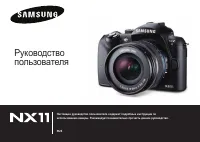 Samsung NX11
User Manual
Samsung NX11
User Manual
 Samsung NX200
User Manual
Samsung NX200
User Manual
 Samsung SPF-71EW
User Manual
Samsung SPF-71EW
User Manual
 Samsung SPF-86H
Manual
Samsung SPF-86H
Manual
 Samsung ST66
User Manual
Samsung ST66
User Manual
 Samsung ST75
User Manual
Samsung ST75
User Manual
 Samsung WB350F
Manual
Samsung WB350F
Manual
 Samsung WB351F
Manual
Samsung WB351F
Manual
 Samsung WB352F
Manual
Samsung WB352F
Manual
 Samsung Gear 360 (2017)
User Manual
Samsung Gear 360 (2017)
User Manual
 Samsung SM-C200
User Manual
Samsung SM-C200
User Manual
 Samsung ST500
Manual
Samsung ST500
Manual