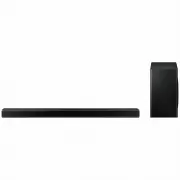
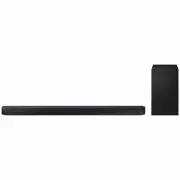
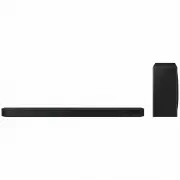
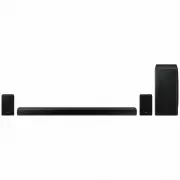
Page 2 - SAFETY INFORMATION; SAFETY WARNINGS; WARNING; • To reduce the risk of fire or electric shock, do; CAUTION; Do not expose this apparatus to dripping or; Wiring the Main Power Supply; IMPORTANT NOTICE
ENG - ii SAFETY INFORMATION SAFETY WARNINGS TO REDUCE THE RISK OF ELECTRIC SHOCK, DO NOT REMOVE THE COVER (OR BACK). NO USER-SERVICEABLE PARTS ARE INSIDE. REFER SERVICING TO QUALIFIED SERVICE PERSONNEL. CAUTION RISK OF ELECTRIC SHOCK. DO NOT OPEN. This symbol indicates that high voltage is present i...
Page 3 - bared flexible cord. Never attempt to insert bare; IMPORTANT; PRECAUTIONS; requirements listed on the identification
ENG - iii However, if there is no alternative to cutting off the plug, remove the fuse and then safely dispose of the plug. Do not connect the plug to a mains socket as there is a risk of shock hazard from the bared flexible cord. Never attempt to insert bare wires directly into a mains socket. A pl...
Page 4 - CONTENTS; Checking the Components; – Automatic connection between the Subwoofer and the Soundbar; Connecting to a TV; – Connecting a TV using an HDMI Cable; ABOUT THIS MANUAL; USER MANUAL
ENG - iv CONTENTS 01 Checking the Components 2 Inserting Batteries before using the Remote Control (AA batteries X 2) ------------------------- 2 02 Product Overview 3 Front Panel / Top Panel of the Soundbar ------------------------- 3 Bottom Panel of the Soundbar ------------------------- 4 03 Conn...
Page 5 - Specifications and Guide; Specifications
ENG - v Method 2. Connecting Wirelessly ------------------------- 12 – Connecting a TV via Bluetooth ------------------------- 12 – Connecting via Wi-Fi ------------------------- 14 05 Connecting an External Device 16 Connecting using an HDMI Cable (Dolby Atmos® supported) ------------------------- ...
Page 6 - 1 CHECKING THE COMPONENTS; The power components are labelled (
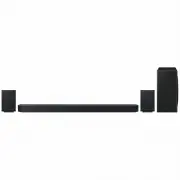
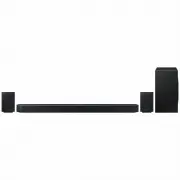
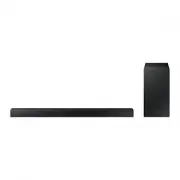
ENG - 2 01 CHECKING THE COMPONENTS VOL WOOFER SOUNDBAR SOUND MODE PAIR Soundbar Main Unit Remote Control / Batteries Subwoofer 1 2 x 2 Power Cord (Subwoofer) Power Cord (Main Unit) Bracket-Wall Mount x 2 x 2 (M4 x L10) Wall Mount Guide Holder-Screw Screw • For more information about the power supply...
Page 7 - 2 PRODUCT OVERVIEW; Front Panel / Top Panel of the Soundbar
ENG - 3 02 PRODUCT OVERVIEW Front Panel / Top Panel of the Soundbar Top Panel Position the product so that the "Samsung Harman Kardon" logo is located on the top. (Power) Button Turns the power on and off. ( Source) Button Selects the source input mode. Input mode Display Optical Digital inp...
Page 8 - Bottom Panel of the Soundbar
ENG - 4 Bottom Panel of the Soundbar POWER SERVICE NETWORK ID SET (WOOFER/REAR) DIGITAL AUDIO IN (OPTICAL) HDMI IN 1 HDMI IN 2 HDMI OUT (TV-ARC) POWER DIGITAL AUDIO IN (OPTICAL) HDMI IN 1 HDMI IN 2 HDMI OUT (TV-ARC) SERVICE NETWORK ID SET (WOOFER/REAR) POWER SERVICE NETWORK ID SET (WOOFER/REAR) DIGI...
Page 9 - 3 CONNECTING THE SOUNDBAR; Connecting Electrical Power
ENG - 5 03 CONNECTING THE SOUNDBAR Connecting Electrical Power Use the power components ( 1 , 2 ) to connect the Subwoofer and Soundbar to an electrical outlet in the following order: 1 Connect the power cord to the Subwoofer. 2 Connect the power cord to the Soundbar. See the illustrations below. • ...
Page 10 - Connecting the Soundbar to the Subwoofer; Automatic connection between the Subwoofer and the Soundbar; LED Indicator Lights on the Rear of Subwoofer; LED
ENG - 6 Connecting the Soundbar to the Subwoofer When the subwoofer is connected, you can enjoy rich bass sound. Automatic connection between the Subwoofer and the Soundbar When you turn the power on after connecting the power cables to the Soundbar and subwoofer, the subwoofer is automatically conn...
Page 11 - Before performing the manual connection procedure below:; Up; ID SET
ENG - 7 Manually connecting the Subwoofer if automatic connection fails Before performing the manual connection procedure below: • Check whether the power cables for the Soundbar and subwoofer are connected properly. • Make sure that the Soundbar is turned on. 1. Press and hold ID SET on the rear of...
Page 12 - Connect the Wireless Receiver Module to 2 Surround Speakers.
ENG - 8 NOTES • Do not connect the power cord of this product or your TV to a wall outlet until all connections between components are complete. • Before moving or installing this product, be sure to turn off the power and disconnect the power cord. • If the main unit is powered off, the wireless su...
Page 13 - stuttering from the woofer as the connection finalises.
ENG - 9 2. Check the standby status of the Wireless Receiver Module after plugging it into an electrical outlet. • The LINK LED indicator (blue LED) on the Wireless Receiver Module blinks. If the LED does not blink, press the ID SET button on the back of the Wireless Receiver Module with a pen tip f...
Page 14 - 4 CONNECTING TO A TV; Method 1. Connecting with a Cable; Connecting a TV using an HDMI Cable; TV ARC
ENG - 10 04 CONNECTING TO A TV Hear TV sound from your Soundbar through wired or wireless connections. • When the Soundbar is connected to selected Samsung TVs, the Soundbar can be controlled using the TV’s remote control. – This feature is available on 2017 and later Samsung Smart TVs that support ...
Page 15 - Connecting using an Optical Cable; Auto Power Link; Left
ENG - 11 • If “ TV ARC ” does not appear in the display window of the Soundbar main unit, confirm that the HDMI cable (not supplied) is connected to the correct port. • Use the volume buttons on the TV’s remote control to change the volume on the Soundbar. NOTES • HDMI is an interface that enables t...
Page 16 - Method 2. Connecting Wirelessly; Connecting a TV via Bluetooth; The initial connection
ENG - 12 Method 2. Connecting Wirelessly Connecting a TV via Bluetooth When a TV is connected using Bluetooth, you can hear stereo sound without the hassle of cabling. • Only one TV can be connected at a time. SOUN D MOD E PAIR OR Top of the Soundbar The initial connection 1. Press the PAIR button o...
Page 17 - If there is a strong electrical field around the Soundbar.
ENG - 13 Disconnecting the Soundbar from the TV Press the (Source) button on the top panel or on the remote control and switch to any mode but “ BT ”. • Disconnecting takes time because the TV must receive a response from the Soundbar. (The time required may differ, depending on the TV model.) • To ...
Page 18 - Pre-connection Checklist; Confirm that your; Samsung Smart TV was released after 2013; Step 1 : Connecting the Soundbar to Wi-Fi; WIFI; SmartThings
ENG - 14 Connecting via Wi-Fi Pre-connection Checklist 1. Confirm that your Samsung Smart TV was released after 2013 . This function is compatible only with Samsung Smart TVs released after 2013. 2. Make sure your Wireless router (Wi-Fi) is ready and working. 3. Make sure that the TV is connected to...
Page 19 - Step 2 : Configuring Settings on the TV; NOTES
ENG - 15 Step 2 : Configuring Settings on the TV • If the TV disconnects from your wireless network after you change the input source to the Soundbar, use the TV menu to connect the TV to the network again. For TVs released in 2018 Home ( ) Settings ( ) Sound Sound Output [AV] Samsung Soundb...
Page 20 - 5 CONNECTING AN EXTERNAL DEVICE; Connecting using an HDMI Cable (Dolby Atmos® supported); What is Dolby Atmos®?; HDMI 1; HDMI IN 1; or
ENG - 16 05 CONNECTING AN EXTERNAL DEVICE Connect to an external device via a wired or wireless network to play the external device’s sound through the Soundbar. Connecting using an HDMI Cable (Dolby Atmos® supported) • What is Dolby Atmos®? Atmos technology enhances existing 7.1 channel surround so...
Page 21 - Connecting using an HDMI Cable
ENG - 17 NOTE • When Dolby Atmos® is activated, “ DOLBY ATMOS ” appears in the front display. Configuring Dolby Atmos® on your BD player or other device. • Open the audio output options on the settings menu of your BD player or other device and make sure that “No Encoding” is selected for Bitstream....
Page 22 - Connect
ENG - 18 Connecting using an Optical Cable DIGITAL AUDIO IN (OPTICAL) OPTICAL OUT Bottom of the Soundbar Optical Cable (not supplied) Top of the Soundbar BD / DVD player / Set-top box / Game console D.IN 1. Connect DIGITAL AUDIO IN (OPTICAL) on the main unit to the OPTICAL OUT jack of the Source Dev...
Page 23 - 6 CONNECTING A MOBILE DEVICE; Connecting via Bluetooth; If the device fails to connect
ENG - 19 06 CONNECTING A MOBILE DEVICE Connecting via Bluetooth When a mobile device is connected using Bluetooth, you can hear stereo sound without the hassle of cabling. • You cannot connect more than one Bluetooth device at a time. SOUN D MOD E PAIR OR Top of the Soundbar Bluetooth device The ini...
Page 24 - What is the difference between BT READY and BT PAIRING?
ENG - 20 What is the difference between BT READY and BT PAIRING? • BT READY : In this mode, you can search for previously connected TVs or connect a previously connected mobile device to the Soundbar. • BT PAIRING : In this mode, you can connect a new device to the Soundbar. (Press the PAIR button o...
Page 25 - Disconnecting the Bluetooth device from a Soundbar; The Soundbar will be disconnected.; BT DISCONNECTED; Disconnecting the Soundbar from the Bluetooth device; Press the; BT; ” on the front display.; More About Bluetooth
ENG - 21 Disconnecting the Bluetooth device from a Soundbar You can disconnect a Bluetooth device from the Soundbar. For instructions, see the Bluetooth device’s user manual. • The Soundbar will be disconnected. • When the Soundbar is disconnected from the Bluetooth device, the Soundbar will display...
Page 27 - Add device; ” from the app menu . Your Soundbar is now; NOTE
ENG - 23 3. Launch the app, and then follow the instructions on the screen to register (add) your Soundbar in the app. • The automatic pop-up (the third illustration below) may not be available on some mobile devices. If this is the case, select and complete “ Add device ” from the app menu . Your S...
Page 28 - 7 CONNECTING AN AMAZON PRODUCT; Connect and use with an Amazon product (Amazon Echo); Edit
ENG - 24 07 CONNECTING AN AMAZON PRODUCT • This feature may not be available in some countries. • This service is provided by Amazon and can be terminated at any time. Samsung does not assume responsibility for service availability. Connect and use with an Amazon product (Amazon Echo) Use an Amazon ...
Page 30 - Use voice commands to control the Soundbar
ENG - 26 Use voice commands to control the Soundbar • The Amazon Echo service you can use with your Soundbar is limited to music. Other services provided by Amazon Echo, such as news and weather, can only be accessed through your Amazon Echo product. Trigger + Command + Speaker name Use the Speaker ...
Page 31 - 8 USING THE REMOTE CONTROL; How to Use the Remote Control
ENG - 27 08 USING THE REMOTE CONTROL How to Use the Remote Control VOL WOOFER SOUNDBAR SOUND MODE PAIR Power VOL WOOFER SOUND MODE PAIR Turns the Soundbar on and off. VOL WOOFER SOUND MODE PAIR Source Press to select a source connected to the Soundbar. • BT PAIRING mode To turn on “ BT PAIRING ” mod...
Page 34 - BYE; remote repeatedly for 5 seconds until; button for 5 seconds repeatedly; WOOFER; WOOFER
ENG - 30 Adjusting the Soundbar volume with a TV remote control If you have a Samsung TV, you can adjust the Soundbar’s volume using the IR remote control that came with your Samsung TV. First use the TV menu to set the TV audio on your Samsung TV to external speakers, then use your Samsung remote t...
Page 36 - Installation Precautions; Install on a vertical wall only.; Wallmount Components; Place the; Wall Mount Guide; against the wall; Wall Mount Guide
ENG - 32 09 INSTALLING THE WALL MOUNT Installation Precautions • Install on a vertical wall only. • Do not install in a place with high temperature or humidity. • Verify that the wall is strong enough to support the product’s weight. If not, reinforce the wall or choose another installation point. •...
Page 37 - Wall Mount Guide’s Centre Line; then fix the; firmly into a support screw hole.; Screws
ENG - 33 2. Align the Wall Mount Guide’s Centre Line with the centre of your TV (if you are mounting the Soundbar below your TV), and then fix the Wall Mount Guide to the wall using tape. • If you are not mounting below a TV, place the Centre Line in the centre of the installation area. Centre Line ...
Page 38 - UPDATE
ENG - 34 7. Install the Soundbar with the attached Bracket-Wall Mounts by hanging the Bracket-Wall Mounts on the Holder-Screws on the wall. 8. Slide the Soundbar down as shown below so that the Bracket-Wall Mounts rest securely on the Holder-Screws . • Insert the Holder-Screws into the wide (bottom)...
Page 39 - 1 TROUBLESHOOTING; The unit will not turn on.
ENG - 35 11 TROUBLESHOOTING Before seeking assistance, check the following. The unit will not turn on. Is the power cord plugged into the outlet? ; Connect the power plug to the outlet. A function does not work when the button is pressed. Is there static electricity in the air? ; Disconnect the powe...
Page 40 - Samsung Smart TVs; can find it in the list of speakers on; The terms HDMI and HDMI High-Definition
ENG - 36 ; Connected via Wi-Fi 1. Check if the TV is a compatible model. • Only Samsung Smart TVs released after 2013 are supported. 2. Check if the TV is connected to Wi-Fi. • If the TV is not connected to Wi-Fi, use the network menu on the TV to establish a connection. (See the TV user manual.) 3....
Page 41 - (b) you bring the unit to a repair centre and
ENG - 37 13 OPEN SOURCE LICENCE NOTICE For further information on Open Sources used in this product, please visit the website: http://opensource.samsung.com 14 IMPORTANT NOTES ABOUT SERVICE • Figures and illustrations in this User Manual are provided for reference only and may differ from actual pro...
Page 42 - 5 SPECIFICATIONS AND GUIDE
ENG - 38 15 SPECIFICATIONS AND GUIDE Specifications Model Name HW-N850 Weight 8.8 kg Dimensions (W x H x D) 1226.0 x 83.0 x 136.0 mm Operating Temperature Range +5°C to +35°C Operating Humidity Range 10 % ~ 75 % AMPLIFIER Rated Output power 18W x 10 + 10W x 3, 4ohm Supported play formats LPCM 2ch, D...
Page 43 - NETWORK; button on the bottom panel of the
ENG - 39 Precaution : The Soundbar will restart automatically if you turn on/turn off Wi-Fi. Overall Standby Power Consumption (W) 4.5W Wi-Fi Port deactivation method Press the ID SET button on the bottom panel of the Soundbar for 30 seconds to turn Wi-Fi On / Off. Bluetooth Port deactivation method...
Page 45 - United Kingdom
This Samsung product is warranted for the period of twelve (12) months from the original date of purchase, against defective materials and workmanship. In the event that warranty service is required, you should return the product to the retailer from whom it was purchased. However, Samsung Authorise...