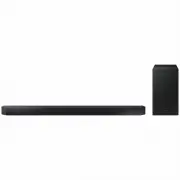
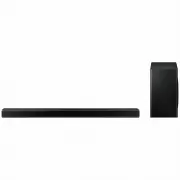
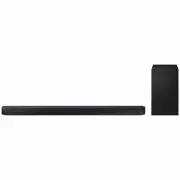
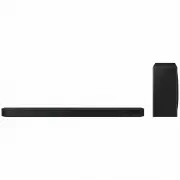
Page 2 - SAFETY INFORMATION; SAFETY WARNINGS; WARNING; CAUTION; Wiring the Main Power Supply; IMPORTANT NOTICE
ENG - ii SAFETY INFORMATION SAFETY WARNINGS TO REDUCE THE RISK OF ELECTRIC SHOCK, DO NOT REMOVE THE COVER (OR BACK). NO USER-SERVICEABLE PARTS ARE INSIDE. REFER SERVICING TO QUALIFIED SERVICE PERSONNEL. CAUTION RISK OF ELECTRIC SHOCK. DO NOT OPEN. This symbol indicates that high voltage is present i...
Page 3 - IMPORTANT; PRECAUTIONS
ENG - iii However, if there is no alternative to cutting off the plug, remove the fuse and then safely dispose of the plug. Do not connect the plug to a mains socket as there is a risk of shock hazard from the bared flexible cord. Never attempt to insert bare wires directly into a mains socket. A pl...
Page 4 - ABOUT THIS MANUAL; USER MANUAL; CONTENTS; Checking the Components; Connecting to your TV
ENG - iv ABOUT THIS MANUAL The user manual has two parts: this simple paper USER MANUAL and a detailed FULL MANUAL you can download. USER MANUAL See this manual for safety instructions, product installation, components, connections, and product specifications. FULL MANUAL You can access the Full Man...
Page 5 - Specifications and Guide
ENG - v Method 2. Connecting Wirelessly ------------------------- 12 – Connecting a TV via Bluetooth ------------------------- 12 05 Connecting an External Device 14 Connecting using an HDMI Cable ------------------------- 14 Connecting using an Optical or Analogue Audio (AUX) Cable ----------------...
Page 6 - 1 CHECKING THE COMPONENTS
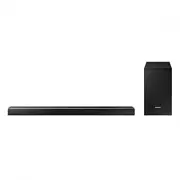
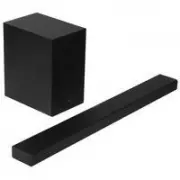
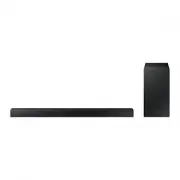
ENG - 2 01 CHECKING THE COMPONENTS VOL WOOFER SOUNDBAR SOUND MODE PAIR Soundbar Main Unit Subwoofer Remote Control / Batteries 1 2 3 Power Cord (Subwoofer) AC/DC Adapter (Main Unit) Power Cord (AC/DC Adapter) • For more information about the power supply and power consumption, refer to the label att...
Page 7 - 2 PRODUCT OVERVIEW; Front Panel / Right Side Panel of the Soundbar
ENG - 3 02 PRODUCT OVERVIEW Front Panel / Right Side Panel of the Soundbar Position the product so that the SAMSUNG logo is located on the top. Right Side of the Soundbar Display Displays the product’s status and current mode. +/- (Volume) Button Adjusts the volume. • When adjusted, the volume level...
Page 8 - Bottom Panel of the Soundbar
ENG - 4 Bottom Panel of the Soundbar HDMI IN USB (5V 0.5A) AUX IN DIGITAL AUDIO IN (OPTICAL) DC 24V HDMI OUT (TV-ARC) HDMI OUT (TV-ARC) HDMI IN DC 24V HDMI OUT (TV-ARC) USB (5V 0.5A) AUX IN HDMI IN DIGITAL AUDIO IN (OPTICAL) DIGITAL AUDIO IN (OPTICAL) Connect to the digital (optical) output of an ex...
Page 9 - 3 CONNECTING THE SOUNDBAR; Connecting Electrical Power
ENG - 5 03 CONNECTING THE SOUNDBAR Connecting Electrical Power Use the power components ( 1 , 2 , 3 ) to connect the Subwoofer and Soundbar to an electrical outlet in the following order: 1 Connect the power cord to the Subwoofer. 2 Connect the power output cable to the power adapter, and then to th...
Page 10 - Connecting the Soundbar to the Subwoofer; Automatic connection between the Subwoofer and the Soundbar; LED Indicator Lights on the Rear of Subwoofer; LED
ENG - 6 Connecting the Soundbar to the Subwoofer When the subwoofer is connected, you can enjoy rich bass sound. Automatic connection between the Subwoofer and the Soundbar When you turn the power on after connecting the power cables to the Soundbar and subwoofer, the subwoofer is automatically conn...
Page 11 - Before performing the manual connection procedure below:; Up; ID SET
ENG - 7 Manually connecting the Subwoofer if automatic connection fails Before performing the manual connection procedure below: • Check whether the power cables for the Soundbar and subwoofer are connected properly. • Make sure that the Soundbar is turned on. 1. Press and hold ID SET on the rear of...
Page 14 - 4 CONNECTING TO YOUR TV; Method 1. Connecting with a Cable; Connecting a TV using an HDMI Cable; TV ARC
ENG - 10 04 CONNECTING TO YOUR TV Hear TV sound from your Soundbar through wired or wireless connections. • When the Soundbar is connected to selected Samsung TVs, the Soundbar can be controlled using the TV’s remote control. – This feature is supported by 2017 and later Samsung Smart TVs that suppo...
Page 15 - Connecting using an Optical Cable
ENG - 11 2. “ TV ARC ” appears in the display window of the Soundbar main unit and the Soundbar plays TV sound. • If TV sound is inaudible, press the (Source) button on the remote control or on the right side of the Soundbar to switch to “ D.IN ” mode. The screen displays “ D.IN ” and “ TV ARC ” in ...
Page 16 - Auto Power Link; Method 2. Connecting Wirelessly; Connecting a TV via Bluetooth; The initial connection
ENG - 12 Auto Power Link Auto Power Link automatically turns on the Soundbar when the TV is turned on. 1. Connect the Soundbar and a TV with a digital optical cable (not supplied). 2. Press the (Source) button on the right side panel or on the remote control, and then select “ D.IN ”. 3. Press the L...
Page 18 - 5 CONNECTING AN EXTERNAL DEVICE; Connecting using an HDMI Cable; HDMI
ENG - 14 05 CONNECTING AN EXTERNAL DEVICE Connect to an external device via a wired or wireless network to play the external device’s sound through the Soundbar. Connecting using an HDMI Cable HDMI OUT HDMI OUT (TV-ARC) HDMI IN HDMI IN (ARC) HDMI Cable (not supplied) HDMI Cable (not supplied) Bottom...
Page 19 - Connecting using an Optical or Analogue Audio (AUX) Cable; Optical Cable
ENG - 15 Connecting using an Optical or Analogue Audio (AUX) Cable USB (5V 0.5A) AUX IN DIGITAL AUDIO IN (OPTICAL) OPTICAL OUT - AUDIO - R L Bottom of the Soundbar Optical Cable (not supplied) Audio (AUX) Cable (not supplied) BD / DVD player / Set-top box / Game console Right Side of the Soundbar 1 ...
Page 20 - 6 CONNECTING A USB STORAGE DEVICE; USB
ENG - 16 06 CONNECTING A USB STORAGE DEVICE You can play music files located on USB storage devices through the Soundbar. Display USB port HDMI IN HDMI OUT (TV-ARC) USB (5V 0.5A) AUX IN DIGITAL AUDIO IN (OPTICAL) DC 24V USB (5V 0.5A) Micro USB to USB adapter Cable (not supplied) USB 1. Connect a Mic...
Page 21 - File Format Type Compatibility list
ENG - 17 File Format Type Compatibility list Extension Codec Sampling Rate Bitrate *.mp3 MPEG 1 Layer2 16KHz ~ 48KHz 80kbps~320kbps MPEG 1 Layer3 16KHz ~ 48KHz 80kbps~320kbps MPEG 2 Layer3 16KHz ~ 48KHz 80kbps~320kbps MPEG 2.5 Layer3 16KHz ~ 48KHz 80kbps~320kbps *.wma Wave_Format_MSAudio1 16KHz ~ 48...
Page 22 - 7 CONNECTING A MOBILE DEVICE; Connecting via Bluetooth; If the device fails to connect
ENG - 18 07 CONNECTING A MOBILE DEVICE Connecting via Bluetooth When a mobile device is connected using Bluetooth, you can hear stereo sound without the hassle of cabling. • You cannot connect more than one Bluetooth device at a time. SOUN D MOD E PAIR OR Bluetooth device The initial connection 1. P...
Page 23 - What is the difference between BT READY and BT PAIRING?
ENG - 19 What is the difference between BT READY and BT PAIRING? • BT READY : In this mode, you can search for previously connected TVs or connect a previously connected mobile device to the Soundbar. • BT PAIRING : In this mode, you can connect a new device to the Soundbar. (Press the PAIR button o...
Page 24 - Disconnecting the Bluetooth device from a Soundbar; BT DISCONNECTED; Disconnecting the Soundbar from the Bluetooth device; BT; More About Bluetooth
ENG - 20 Disconnecting the Bluetooth device from a Soundbar You can disconnect a Bluetooth device from the Soundbar. For instructions, see the Bluetooth device’s user manual. • The Soundbar will be disconnected. • When the Soundbar is disconnected from the Bluetooth device, the Soundbar will display...
Page 25 - Using the Samsung Audio Remote App; Installing the Samsung Audio Remote App; Launching the Samsung Audio Remote App
ENG - 21 Using the Samsung Audio Remote App Installing the Samsung Audio Remote App To control the Soundbar with your smart device and the Samsung Audio Remote app, download the Samsung Audio Remote app from the Google Play store. Market search : Samsung Audio Remote Launching the Samsung Audio Remo...
Page 26 - 8 USING THE REMOTE CONTROL; How to Use the Remote Control
ENG - 22 08 USING THE REMOTE CONTROL How to Use the Remote Control VOL WOOFER SOUNDBAR SOUND MODE PAIR Power VOL WOOFER SOUND MODE PAIR Turns the Soundbar on and off. VOL WOOFER SOUND MODE PAIR Source Press to select a source connected to the Soundbar. • BT PAIRING mode To turn on “ BT PAIRING ” mod...
Page 29 - BYE; WOOFER; WOOFER
ENG - 25 Adjusting the Soundbar volume with a TV remote control If you have a Samsung TV, you can adjust the Soundbar’s volume using the IR remote control that came with your Samsung TV. First use the TV menu to set the TV audio on your Samsung TV to external speakers, then use your Samsung remote t...
Page 31 - Installation Precautions; Wallmount Components; Wall Mount Guide; Wall Mount Guide
ENG - 27 09 INSTALLING THE WALL MOUNT Installation Precautions • Install on a vertical wall only. • Do not install in a place with high temperature or humidity. • Verify whether the wall is strong enough to support the product’s weight. If not, reinforce the wall or choose another installation point...
Page 32 - Wall Mount Guide’s Centre Line; Screws
ENG - 28 2. Align the Wall Mount Guide’s Centre Line with the centre of your TV (if you are mounting the Soundbar below your TV), and then fix the Wall Mount Guide to the wall using tape. • If you are not mounting below a TV, place the Centre Line in the centre of the installation area. Centre Line ...
Page 33 - UPDATE; Samsung may offer updates for the Soundbar’s
ENG - 29 7. Install the Soundbar with the attached Bracket-Wall Mounts by hanging the Bracket-Wall Mounts on the Holder-Screws on the wall. 8. Slide the Soundbar down as shown below so that the Bracket-Wall Mounts rest securely on the Holder-Screws . • Insert the Holder-Screws into the wide (bottom)...
Page 34 - Updating Procedure; INIT; If UPDATE is not displayed
ENG - 30 Updating Procedure 1. Connect a Micro USB to USB adapter cable with a male USB 2.0 Micro USB plug (Type B) on one end and a standard female 2.0 USB jack (Type A) on the other end to the micro USB jack on your Soundbar. • The Micro USB to USB adapter cable is sold separately. To purchase, co...
Page 35 - 1 TROUBLESHOOTING
ENG - 31 11 TROUBLESHOOTING Before seeking assistance, check the following. The unit will not turn on. Is the power cord plugged into the outlet? ; Connect the power plug to the outlet. A function does not work when the button is pressed. Is there static electricity in the air? ; Disconnect the powe...
Page 36 - 3 OPEN SOURCE
ENG - 32 12 LICENCE Manufactured under license from Dolby Laboratories. Dolby, Dolby Audio, Pro Logic, and the double-D symbol are trademarks of Dolby Laboratories. For DTS patents, see http://patents.dts.com. Manufactured under license from DTS Licensing Limited. DTS, the Symbol, DTS in combination...
Page 37 - 5 SPECIFICATIONS AND GUIDE; SOUND MODE; NOTES
ENG - 33 15 SPECIFICATIONS AND GUIDE Specifications Model Name HW-N450 USB 5V/0.5A Weight 2.2 kg Dimensions(W x H x D) 904.0 x 55.0 x 80.0 mm Operating Temperature Range +5°C to +35°C Operating Humidity Range 10 % ~ 75 % AMPLIFIERRated Output power 40W x 4 Supported play formats(DTS 2.0 sound is pla...