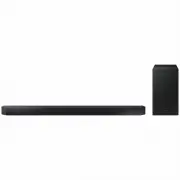
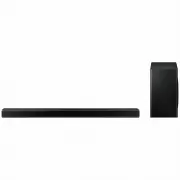
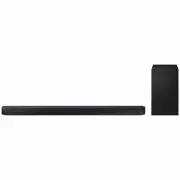
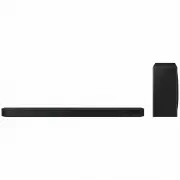
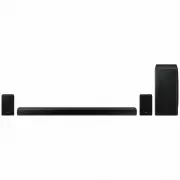
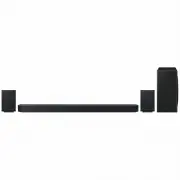
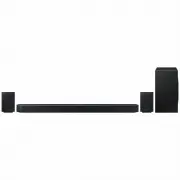
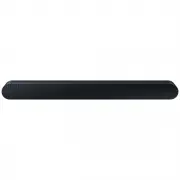
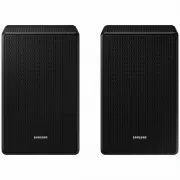
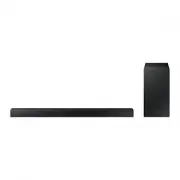
Page 2 - FEATURES; LICENSES
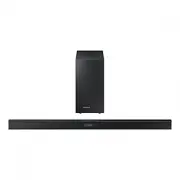
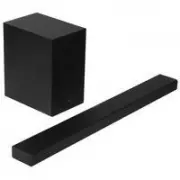
2 GETTING STARTED FEATURES GETTING STARTED Samsung Remote App Hold the control of your Soundbar in the palm of your hand with an Android smart device and the Samsung Audio Remote app. This convenient app lets you control all the Soundbar's basic functions such as power, volume, and the media control...
Page 3 - ENG; SAFETY INFORMATION; SAFETY WARNINGS; CAUTION
ENG 3 GETTING STARTED SAFETY INFORMATION SAFETY WARNINGS TO REDUCE THE RISK OF ELECTRIC SHOCK, DO NOT REMOVE THE COVER (OR BACK). NO USER-SERVICEABLE PARTS ARE INSIDE. REFER SERVICING TO QUALIFIED SERVICE PERSONNEL. CAUTION RISK OF ELECTRIC SHOCK. DO NOT OPEN. This symbol indicates that high voltage...
Page 4 - PRECAUTIONS
4 GETTING STARTED WARNING: DO NOT INGEST BATTERY. CHEMICAL BURN HAZARD. The remote control supplied with this product contains a coin/button cell battery. If the coin/button cell battery is swallowed, it can cause severe internal burns in just 2 hours and can lead to death. Keep new and used batteri...
Page 5 - CONTENTS; GETTING STARTED
ENG 5 GETTING STARTED CONTENTS 2 GETTING STARTED 2 Features3 Safety Information 6 What’s Included 7 DESCRIPTIONS 7 Front / Right Side Panel 8 Bottom Panel 9 Remote Control 12 INSTALLATION 12 Installing the Soundbar 12 Installing the Wall Mount 17 CONNECTIONS 17 Connecting the Subwoofer18 Connecting ...
Page 6 - WHAT’S INCLUDED; BEFORE READING THE USER’S MANUAL; Icons used in this manual
6 GETTING STARTED WHAT’S INCLUDED BEFORE READING THE USER’S MANUAL Note the following terms before reading the user manual. + Icons used in this manual Icon Term Definition Caution Indicates a situation where a function does not operate or settings may be canceled. Note Indicates tips or instruction...
Page 7 - FRONT / RIGHT SIDE PANEL; Right Side
ENG 7 DESCRIPTIONS FRONT / RIGHT SIDE PANEL 2 3 Right Side Display Displays the current mode. 1 Remote Control Sensor 1 / (Volume) Button Controls the volume level. The numeric value of the volume level appears in the front panel display. 2 (Source) Button Selects the D.IN, AUX, HDMI, BT, TV, or USB...
Page 8 - BOTTOM PANEL; DIGITAL AUDIO IN
8 DESCRIPTIONS BOTTOM PANEL DIGITAL AUDIO IN (OPTICAL) USB (5V 0.5A) AUX IN HDMI IN HDMI OUT (TV-ARC) DC 24V DC 24V HDMI IN HDMI OUT (TV-ARC) DIGITAL AUDIO IN (OPTICAL) USB (5V 0.5A) AUX IN DC 24V (Power Supply In) Connect the AC/DC power adaptor to the power supply jack, and then connect the AC/DC ...
Page 9 - REMOTE CONTROL
ENG 9 DESCRIPTIONS REMOTE CONTROL Repeat Press to set the Repeat function during music playback from a USB device. OFF - REPEAT : Cancels Repeat Playback. TRACK - REPEAT : Plays a track repeatedly. ALL - REPEAT : Plays all tracks repeatedly. RANDOM - REPEAT : Plays tracks in random order repeatedly....
Page 11 - Controlling the Soundbar using Your TV Remote Control; INSTALLING THE BATTERY IN THE REMOTE CONTROL
ENG 11 INSTALLATION + Controlling the Soundbar using Your TV Remote Control 1. Press and hold the SOUND button for more than 5 seconds while the Soundbar is turned on. 2. "ON - TV REMOTE" appears on the Soundbar's display. 3. In the TV's menu, set the TV speaker to external speaker. ● TV men...
Page 12 - INSTALLING THE SOUNDBAR; INSTALLING THE WALL MOUNT; Installation Precautions
12 INSTALLATION INSTALLING THE SOUNDBAR INSTALLING THE WALL MOUNT + Installation Precautions ● Install on a vertical wall only. ● For the installation, avoid a location with high temperature or humidity, or a wall that cannot sustain the weight of the set. ● Check the strength of the wall. If the wa...
Page 16 - DETACHING THE SOUNDBAR FROM THE WALL
16 INSTALLATION DETACHING THE SOUNDBAR FROM THE WALL 1. To separate the Soundbar from the wall mount, push it in the direction of arrow, tilt it up slightly, and then pull it away from the wall as shown. ● Do not hang onto the installed unit and avoid striking or dropping the unit. ● Secure the unit...
Page 17 - CONNECTING THE SUBWOOFER; CONNECTING TO THE SUBWOOFER AUTOMATICALLY
ENG 17 CONNECTIONS ● Do not connect the power cord of this product or your TV to a wall outlet until all connections between components are complete. ● Before moving or installing this product, be sure to turn off the power and disconnect the power cord. CONNECTING THE SUBWOOFER CONNECTING TO THE SU...
Page 18 - CONNECTING THE SUBWOOFER AND; CONNECTING THE SUBWOOFER AND THE SWA-8000S
18 CONNECTIONS ● Before moving or installing the product, be sure to turn off the power and disconnect the power cord. ● If you use a device that uses the same frequency (2.4GHz) as the Soundbar near the Soundbar, interference may cause some sound interruption. ● The maximum transmission distance of...
Page 19 - CONNECTING THE SURROUND SPEAKERS (SOLD
ENG 19 CONNECTIONS • The main unit, the subwoofer and the SWA-8000S should now be linked (connected). • The LINK indicators (Blue LEDs) on the subwoofer and the SWA-8000S should be glowing continuously and not blinking. • If the LINK indicators are not solid blue, the linking process has failed.Turn...
Page 20 - CONNECTING TO A TV; CONNECTING TO A TV USING A DIGITAL OPTICAL CABLE; Auto Power Link
20 CONNECTIONS CONNECTING TO A TV ● Important: Before you begin, put the battery into the remote. See page 11 for instructions. CONNECTING TO A TV USING A DIGITAL OPTICAL CABLE Wi-Fi SETUP SPK ADD DIGITAL AUDIO IN (OPTICAL) USB (5V 0.5A) AUX IN HDMI IN HDMI OUT (TV-ARC) DC 24V DIGITAL AUDIO IN (OPTI...
Page 21 - CONNECTING TO A TV USING AN HDMI (DIGITAL) CABLE; TV SOUNDCONNECT
ENG 21 CONNECTIONS CONNECTING TO A TV USING AN HDMI (DIGITAL) CABLE Wi-Fi SETUP SPK ADD DIGITAL AUDIO IN (OPTICAL) USB (5V 0.5A) AUX IN HDMI IN HDMI OUT (TV-ARC) DC 24V DIGITAL AUDIO IN (OPTICAL) HDMI IN HDMI OUT (TV-ARC) HDMI IN HDMI OUT (TV-ARC) HDMI Cable (not supplied) 1. Connect an HDMI cable (...
Page 22 - Using the Bluetooth POWER On function
22 CONNECTIONS ● Switching the Soundbar’s mode from TV to another mode automatically terminates TV SoundConnect. ● To connect the Soundbar to another TV, the existing connection must be terminated. ● To terminate the existing connection, press and hold the p button on the remote for 5 seconds or swi...
Page 23 - CONNECTING TO EXTERNAL DEVICES; OPTICAL OR ANALOG AUDIO CABLE; AUX Cable
ENG 23 CONNECTIONS CONNECTING TO EXTERNAL DEVICES OPTICAL OR ANALOG AUDIO CABLE This unit comes equipped with one digital optical in jack and one analog audio (AUX) in jack, giving you two ways to connect it to external devices. Wi-Fi SETUP SPK ADD DIGITAL AUDIO IN (OPTICAL) USB (5V 0.5A) AUX IN HDM...
Page 24 - HDMI CABLE; USB
24 CONNECTIONS HDMI CABLE HDMI is the standard digital interface for connecting to TVs, projectors, DVD players, Blu-ray players, set top boxes, and more. HDMI prevents any degradation to the signal due to conversion to analog and maintains the video and audio quality of the original digital source....
Page 25 - Before you connect a USB device
ENG 25 CONNECTIONS 4. USB appears on the display screen. • The Soundbar connection to the USB device is complete. • The Soundbar automatically turns off (Auto Power Off) if no USB device has been connected for more than 5 minutes. + Before you connect a USB device Be aware of the following: ● If the...
Page 26 - INPUT MODE; AUTO POWER DOWN FUNCTION
26 FUNCTIONS INPUT MODE Press the (Source) button on the main unit’s side panel or the SOURCE button on the remote control to select the mode you want. Input mode Display Optical Digital input ARC (HDMI OUT) input D.IN AUX input AUX HDMI input HDMI BLUETOOTH mode BT TV SoundConnect TV USB mode USB +...
Page 27 - BLUETOOTH; TO CONNECT THE SOUNDBAR TO A BLUETOOTH DEVICE
ENG 27 FUNCTIONS BLUETOOTH You can connect a Bluetooth device to the Soundbar and enjoy music with high quality stereo sound, all without wires! TO CONNECT THE SOUNDBAR TO A BLUETOOTH DEVICE Check if the Bluetooth device supports the Bluetooth compliant stereo headset function. Bluetooth device Conn...
Page 28 - TO DISCONNECT A BLUETOOTH DEVICE FROM THE; TO DISCONNECT THE SOUNDBAR FROM A BLUETOOTH
28 FUNCTIONS ● If asked for a PIN code when connecting a Bluetooth device, enter <0000>. ● Only one Bluetooth device can be paired at a time. ● The Bluetooth connection will be terminated when you turn the Soundbar off. ● The Soundbar may not perform Bluetooth search or connection correctly un...
Page 29 - More About Bluetooth; USING THE SAMSUNG AUDIO REMOTE APP; Installing the Samsung Audio Remote App; Launching the Samsung Audio Remote App
ENG 29 FUNCTIONS ● In Bluetooth connection mode, the Bluetooth connection will be lost if the distance between the Soundbar and the Bluetooth device exceeds 5 meters. ● The Soundbar automatically turns off after 5 minutes in the Ready state. + More About Bluetooth Bluetooth is a technology that enab...
Page 30 - SOFTWARE UPDATE
30 FUNCTIONS SOFTWARE UPDATE DIGITAL AUDIO IN (OPTICAL) USB (5V 0.5A) AUX IN HDMI IN HDMI OUT (TV-ARC) DC 24V DIGITAL AUDIO IN (OPTICAL) USB (5V 0.5A) AUX IN Samsung may offer updates for the Soundbar's system firmware in the future.If an update is offered, you can update the firmware by connecting ...
Page 31 - TROUBLESHOOTING
ENG 31 TROUBLESHOOTING TROUBLESHOOTING Before requesting service, please check the following. The unit will not turn on. • Is the power cord plugged into the outlet? ¼ Connect the power plug to the outlet. A function does not work when the button is pressed. • Is there static electricity in the air?...
Page 32 - SPECIFICATIONS
32 APPENDIX SPECIFICATIONS Model name HW-K450 GENERAL USB 5 V / 0.5 A Weight Main Unit 2.0 Kg Subwoofer (PS-WK450) 4.6 Kg Dimensions (W x H x D) Main Unit 908.5 x 53.5 x 70.5 mm Subwoofer (PS-WK450) 179.0 x 361.0 x 299.5 mm Operating Temperature Range +5°C to +35°C Operating Humidity Range 10 % to 7...