Page 2 - TABLE OF CONTENTS
TABLE OF CONTENTS FeaturesSafety precautionsIncluded with productPartsButton functionsDisplay statusBefore operating Overview 2 BEFORE USE 3 METHOD OF USE 4 HANDLING METHOD AFTER USE 36~3839 1 How to install the home stationHow to turn the Hom Bot power supply on & offHow to start and stop clean...
Page 4 - FEATURES
2 FEATURES Corner Master By having adopted a brand new concept design that prevents the Hom Bot from bumping into walls, the Hom Bot's cleaning performance is incredibly efficient. Learning Mode The Hom Bot is capable of memorizing the cleaning environment via its Smart Operation feature for smarter...
Page 5 - SAFETY PRECAUTIONS; Basic safety precautions; WARNING; CAUTION; cause cancer and birth defects or other reproductive harm.
3 SAFETY PRECAUTIONS This guide contains many important safety messages. Always read and obey all safety messages. Basic safety precautions After reading this manual, keep it in an easily accessible location. This is the safety alert symbol. This symbol alerts you to potential hazards that can resul...
Page 8 - Tip
6 SAFETY PRECAUTIONS CAUTION Check the following items before use: • Empty the dust bin after each operation or prior to it filling up. • Remove any cables or long strings from the floor. • Remove any moisture from the floor before cleaning. • Close the cover of the dust bin before cleaning. • Remov...
Page 9 - INCLUDED WITH PRODUCT
7 INCLUDED WITH PRODUCT s Not all accessories are available with every model. Dust bin filter (spare) (some models) Cleaning tool Cleaning brush (Located on the dust bin cover) Mop plate (some models) for cleaning sensors for cleaning the filter Ultra microfiber mop (2 pieces) (some models) Dry cell...
Page 10 - Top view
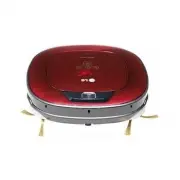
8 PARTS - Hom Bot s Images may vary by model. Top view Upper camera sensor Dust bin cover Display & Manipulation button Dust bin cover button Ultrasonic sensors Obstacle detecting sensor window, Detecting sensors of home station and Receiving sensors of remote control Power switch Ventilation po...
Page 11 - PARTS – HOME STATION / DUST BIN; Home station
9 PARTS – HOME STATION / DUST BIN s Images may vary by model. Home station Dust bin Remote control holder Charging terminal Sponge filter Dust bin handle Cleaning brush Dust bin cover Suction port flap HEPA filter Filter cover Dust bin cover opening button Power cord fixing hook
Page 12 - BUTTON FUNCTIONS – Hom Bot
10 BUTTON FUNCTIONS – Hom Bot • Press to activate Turbo Mode. • Press again (while in Turbo Mode) to deactivate Turbo Mode. • Press to change the mode. The mode icon will illuminate on the display when selected. • The Spot Clean mode is not available if the Hom Bot is at the home station. • The My S...
Page 13 - BUTTON FUNCTIONS – REMOTE CONTROL
11 BUTTON FUNCTIONS – REMOTE CONTROL • The Hom Bot cannot be powered ON or OFF by using the remote control. Flip the power switch to the ON or OFF position to power the Hom Bot ON or OFF. • The Hom Bot must be powered ON before using the remote control. • The Mode, My Space and Clock buttons can onl...
Page 14 - DISPLAY STATUS
12 DISPLAY STATUS • The Hom Bot will default to the last clean mode selected. Lock Mute Battery level AM/PM Turbo Home station My Space cleaning Spot cleaning Time display Repeat cleaning Zigzag cleaning Cell by Cell cleaning Schedule (One Time or Every Day setting) Tip
Page 15 - BEFORE OPERATING; Before cleaning
13 BEFORE OPERATING • Do not use this device in a room where a child is left alone. The child could be injured. • Remove fragile or unnecessary objects from the room to be cleaned. ; especially expensive ceramics and valuables in risk of being knocked over. • Close the cover of the dust bin before c...
Page 16 - OVERVIEW; Install the home station.
14 OVERVIEW 4.5 4.5 6 1 Install the home station. Insert the power cord plug into an outlet and locate the station against a wall. If power is not supplied to the home station, the Hom Bot will not charge. 2 Turn on the power supply of the Hom Bot. Turn on the power switch located on the re...
Page 17 - HOW TO INSTALL THE HOME STATION; How to Install the Home Station
15 HOW TO INSTALL THE HOME STATION 4.5 4.5 6 Fixing hook of power cord • Always keep the home station plugged in. If the home station is not plugged in, the Hom Bot will not return to the station to charge automatically. How to Install the Home Station WARNING Do not operate the Hom Bot if ...
Page 18 - HOW TO TURN THE Hom Bot POWER SUPPLY ON & OFF; Turning on the main power supply
16 HOW TO TURN THE Hom Bot POWER SUPPLY ON & OFF Flip the power switch to the ON position. ※ Do not press the Start/Stop button at the same time as flipping the power switch. Doing so may delay the operation. ※ Turn off the power switch if the Hom Bot will not be used for a long period of time, ...
Page 19 - HOW TO START AND STOP CLEANING; Using the buttons on the Hom Bot
17 HOW TO START AND STOP CLEANING After the Hom Bot is turned on, press the START/STOP button to begin cleaning. A melody will sound and cleaning will begin. Press the START/STOP button during the cleaning cycle to stop cleaning. ※ When the ‘START/STOP’ button is pressed while the Hom Bot is in stan...
Page 20 - HOW TO CHARGE THE BATTERY; Automatic charging
18 HOW TO CHARGE THE BATTERY The Hom Bot returns to the home station at the end of a cleaning cycle or when its battery is running low. ※ If 10 minutes elapse without the Hom Bot moving or the battery is too low, the Hom Bot will automatically go into standby mode. ※ The power switch has to be in th...
Page 21 - Battery Level Indicator
19 HOW TO CHARGE THE BATTERY Check 1: If the battery is not charging while the Hom Bot is on the home station, try the following: Turn the power switch OFF and then ON again. Check the power lamp of the home station. Wipe the terminal on the home station with a dry cloth. The battery life leve...
Page 22 - CLEANING MODES; Zigzag Cleaning
20 CLEANING MODES In Zigzag mode, the Hom Bot zigzags through each spot of the cleaning area. Select the Zigzag mode to quickly clean an area. To select Zigzag mode: Press the Mode button continuously, on either the Hom Bot or remote control, until the Zigzag icon illuminates. ※ The Hom Bot defaults...
Page 23 - My Space Cleaning
21 CLEANING MODES My Space cleaning allows you to manually select the area in which the Hom Bot will clean. To select My Space: 1. Press the My Space button. 2. Using the arrow buttons on the remote control, guide the Hom Bot around the perimeter of the space you would like cleaned. ※ Cleaning space...
Page 24 - AUXILIARY CLEANING MODES; Manual cleaning
22 AUXILIARY CLEANING MODES Manual mode allows you to move the Hom Bot manually to the front, back and either side using the arrow buttons on the remote control. While in Manual mode, the Hom Bot will run into obstacles placed behind it if the back arrow key on the remote control is held down. The S...
Page 25 - Turbo Mode
23 AUXILIARY CLEANING MODES In 'Turbo' mode, the Hom Bot cleans more powerfully.Activate this mode by pressing the 'Turbo' button on the remote control, or on main body. You can cancel by pressing the 'Turbo' button again. ※ <Turbo Mode (Floor Master Function)> ‘Turbo mode’ will automatically ...
Page 26 - TIME SETTING; You can set the current time on the Hom Bot.
24 TIME SETTING You can set the current time on the Hom Bot. Pressing ‘Clock' button on Remote control, when Hom Bot is waiting, will start the current time setting. • Any scheduled cleaning will be activated based on the time on the Hom Bot. You must set the clock before setting scheduled cleaning....
Page 27 - SCHEDULED CLEANING; the scheduled cleaning setting.
25 SCHEDULED CLEANING You can schedule a cleaning so that the Hom Bot starts cleaning at a scheduled time. Pressing 'Schedule' button on Remote control, when the battery is recharging, will start the scheduled cleaning setting. • When the scheduled time comes up, Hom Bot will start cleaning by itsel...
Page 28 - Caution
26 MOP CLEANING (OPTION) 1. Attach the ultra microfiber mop to the Velcro of the mop plate as shown in the figure. 2. Firmly push the Mop Plate into the furrows until you hear a 'click' sound. ※ Note that, if the Mop Plate is not secured correctly, it may separate during the cleaning. 3. It is essen...
Page 29 - LOCATION SEARCH FUNCTION; The Hom Bot remembers its location while cleaning.
27 LOCATION SEARCH FUNCTION ※ The navigating function will be activated after the Hom Bot adequately recognizes the cleaning environment. Manual Relocation. 1. Locate the Hom Bot near the location where it was originally moved from. ※ The location search is more effective when the Hom Bot is closer ...
Page 30 - SMART DIAGNOSIS; Hom Bot uses the Smart Diagnosis feature to run selfdiagnosis.
28 SMART DIAGNOSIS 1. Turn ON the Main Power Switch on the back after making sure the Hom Bot is attached to the Home Station. ※ Smart Diagnosis is only possible when the Hom Bot is attached to the Home Station. 2. Press 'Diagnosis' button on the Remote control, then the process will start with a vo...
Page 32 - CLEANING THE DUST BIN
30 CLEANING THE DUST BIN 1. Open the dust bin cover by pressing the PUSH button on the Hom Bot. 2. Grab the handle of the dust bin and pull it upward. 3. Pull the hook on the left of Filter Cover on the rear of Dust Bin to separate the filter and the sponge. ※ Note that separating the filter may res...
Page 33 - CLEANING THE DUST BIN FILTER
31 CLEANING THE DUST BIN FILTER The Dust Bin Filter consists of a HEPA Filter and Sponge Filter. Clean both the HEPA and Sponge filters as per the following sequence. 3. Use a cleaning brush to clean the Sponge Filter. If using water to clean it, allow it to dry it completely out of direct sunlight ...
Page 34 - CLEANING THE BRUSH
32 CLEANING THE BRUSH Fit the Fixing Hook (rectangular shape) on the side of the Brush into the slots, with the colors matching. While pushing the Brush to the arrow direction, fit the Fixing Hook (rectangular shape) on the opposite side into the slot. Press down and close the Cover until a 'crack' ...
Page 35 - CLEANING THE SENSOR/CHARGING TERMINAL
33 CLEANING THE SENSOR/CHARGING TERMINAL Upper camera sensor • Do not clean the Hom Bot by directly spraying it with water, thinner, benzene, or any other liquids. • Call the service center if the sensor or charging terminal is damaged. Sensor and terminal damage can cause the product to malfunction...
Page 36 - CLEANING THE SIDE BRUSH; Side Brush management
34 CLEANING THE SIDE BRUSH Foreign objects/materials such as hair can easily adhere to the side brush. Remove such materials at least once a week. If excessive amounts of foreign materials are stuck to the brush, there is the risk of damage to the brushes. If the floor is rough or walls are frequent...
Page 37 - CLEANING THE ULTRA MICROFIBER MOP (OPTION)
35 CLEANING THE ULTRA MICROFIBER MOP (OPTION) 1. Separate the ultra microfiber mop from the mop plate. 2. Carefully clean it with warm water. 3. Use the Mop after completely drying it in direct sunlight. ※ If the Mop is used in a damp or wet state, it will cause the Hom Bot to malfunction. To avoid ...
Page 38 - TROUBLESHOOTING
36 TROUBLESHOOTING A warning message will be given if a wheel does not contact the floor surface for any reason. • Is a wheel trapped in the front door, balcony, stairway, etc? s Move the Hom Bot on to the flat floor. • Is any foreign material wound around the wheel? s Lay smooth cloth on the floor,...
Page 41 - BEFORE YOU CALL FOR SERVICE
39 BEFORE YOU CALL FOR SERVICE Confirm before reporting the failure of Hom Bot. Problem Solutions (Reference page) The power supply cannot be turned on. Check that the power switch is turned on. (Page 16) The power supply automatically turns off. This is not a failure. Hom Bot has its own power savi...
Page 42 - PRODUCT SPECIFICATIONS
40 PRODUCT SPECIFICATIONS Item/Model LG Hom Bot LRV790R External Dimensions 13.3 in × 13.3 in × 3.5 in Weight 6.6 lb Power Consumption 18 W Battery (Fully Charging) DC 16.8 V Traveling Velocity 13.8 in/sec Use Time Approx. 100 minutes (Based on general wooden floor) Charging Time 3 hours Main Functi...
Page 43 - REFERENCE ITEMS; Open source software notice
41 REFERENCE ITEMS Open source software notice To obtain the source code under GPL, LGPL, MPL and other open source licenses, that is contained in this product, please visit http://opensource.lge.com. In addition to the source code, all referred license terms, warranty disclaimers and copyright noti...
Page 45 - MEMO