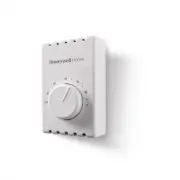
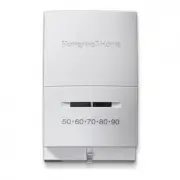
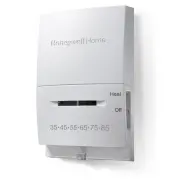
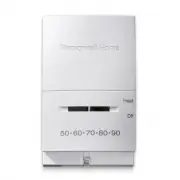
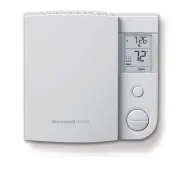
Page 2 - Quick Installation Guide; Removing your old thermostat; Check that your system is off.; Do you have thick black wires with; If you answered yes to either of
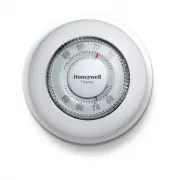
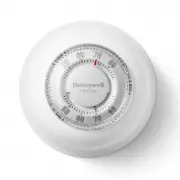
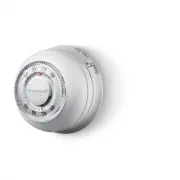
2 Quick Installation Guide Removing your old thermostat 2 Check that your system is off. Change the temperature on your old thermostat. If you don’t hear the system turn on within 5 minutes, the power is off. Note: If you have a digital thermostat that has a blank display, skip this step 1 Turn powe...
Page 4 - Disconnect the wires and remove the old wall plate.; the letter on the terminal.; Installing your RTH8500 thermostat; Bundle and insert wires through the UWP.; Pull open the UWP and insert the bundle of
4 Quick Installation Guide 8 Disconnect the wires and remove the old wall plate. Use a screwdriver to release wires from terminals. Then, use a wire label to identify each wire as it’s disconnected. The letter on the wire label should match the letter on the terminal. Tip: To prevent wires from fall...
Page 5 - or; up
5 RTH8500 Series 10 Insert the wall anchors. It is recommended that you use the wall anchors included in the box to mount your thermostat. You can use the UWP to mark where you want to place the wall anchors. a) Level the wall plate.b) Mark the location of the wall anchors using a pencil. c) Drill t...
Page 6 - Mount the UWP and close the door.; Attach your thermostat.; Align the thermostat onto the UWP; Connect wires from Step 7.
6 Quick Installation Guide 13 Mount the UWP and close the door. Mount the UWP using the provided screws. Install all three screws into the wall anchors for a secure fit on your wall. Close the door after you’re finished. 14 Confirm wiring matches snapshot. Please confirm wiring matches terminals fro...
Page 8 - Key features; Select system; of Menu button; Select Fan mode; Shows schedule; Displays desired; Cool On may flash; Displays current
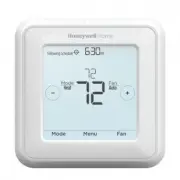
8 Quick Installation Guide Auto Chg. On AM Heat On Menu Fan Mode Fan Auto Mode Heat Wake A way Home Sleep Following Schedule Recover y M37368A Key features Mode Select system mode Auto/Heat/ Cool/Off/EM Heat (emergency heat). Menu Contains features: schedule, screen lock, clean screen, and other the...
Page 9 - System Setup options; To access all system options in the table below, press and hold; MENU; Touch; to scroll through the list.
9 RTH8500 Series System Setup options Number Description Options (factory default in bold) 120 Scheduling Options 0 = Non-Programmable 1 = 1-Week Programmable 2 = 5-2 Programmable 3 = 5-1-1 Programmable 4 = 7-Day Programmable Note: You can change default MO-FR, SA-SU schedule here. To edit periods d...
Page 10 - Number; Done
10 Quick Installation Guide Number Description Options (factory default in bold) 365 Cool 1 CPH (Cooling cycle rate stage 1) 1 - 6 CPH (3 CPH) Note: This ISU is only displayed when Cool /Compressor Stages is set to 1 or more stages. Cycle rate limits the maximum number of times the system can cycle ...
Page 11 - Fan operation settings; System operation settings
11 RTH8500 Series Fan operation settings 1 Press the Fan button to cycle to the next available Fan mode. 2 Cycle through the modes until the required Fan mode is displayed and leave it to activate. NOTE: Available Fan modes vary with system settings. Fan modes: ‒ Auto: Fan runs only when the heating...
Page 12 - Program Schedule
12 Quick Installation Guide Program Schedule To adjust program schedules You can program four time periods each day, with different settings for weekdays and weekends. We recommend the pre-set settings (shown in the table below), since they can reduce your heating/cooling expenses. Wake - Set to the...
Page 13 - Schedule overrides; Hold Until
13 RTH8500 Series Back Select Sched. On/Off Back Select Back Select Sched. On/Off AM Heat To Cancel Period Done 6 Edit the next period or use the until you see Done , then press Select to save changes and go to the home screen. NOTE: To temporarily cancel a schedule period (such as Saturday-Sunday A...
Page 14 - Wiring—conventional systems
14 Quick Installation Guide Wiring—conventional systems Alternate wiring (conventional systems) If labels do not match terminals, connect wires as shown below (see notes, below). NOTES: 1. If you must connect both R and Rc wires, set the R Slider Tab to the down position (2 wires). 2. If your old th...
Page 15 - Wiring—heat pump; NOT
15 RTH8500 Series Wiring—heat pump Connect wires: heat pump1 Match each labeled wire with same letter on new thermostat. 2 Insert the wires into the matching terminal. NOTE: If you have difficulty inserting wires, you may have to press down the terminal push button next to the corresponding terminal...
Page 16 - Smart Response® Technology
16 Quick Installation Guide Smart Response® Technology This feature allows the thermostat to “learn” how long the furnace and air conditioner take to reach programmed temperature settings, so the temperature is reached at the time you set. For example: Set the Wake time to 6 am, and the temperature ...
Page 17 - DATE; TEMP SCALE; Choosing Fahrenheit or Celsius; Alerts and maintenance reminders; ALERTS
17 RTH8500 Series Setting the date1 Touch Menu on the thermostat home screen. 2 Touch the or arrows until you see DATE , then touch Select . 3 Touch or to set the month, then touch Select to confirm. 4 Continue to set day and year in the same way. Touch Select to save your changes. Back Select Back ...
Page 18 - Most problems can be corrected quickly and easily.; Troubleshooting
18 Quick Installation Guide If you have difficulty with your thermostat, please try the following suggestions. Most problems can be corrected quickly and easily. Display is blank Make sure fresh AA alkaline batteries are properly installed (see page 6). If powered by common (C-wire), verify circuit ...
Page 19 - -year limited warranty
19 RTH8500 Series Resideo warrants this product, excluding battery, to be free from defects in workmanship or materials, under normal use and service, for a period of one (1) year from the date of first purchase by the original purchaser. If at any time during the warranty period the product is dete...
Page 20 - Customer assistance
33-00406-07 Resideo Inc., 1985 Douglas Drive North Golden Valley, MN 55422 www.resideo.com This product is manufactured by Resideo Technologies, Inc., Golden Valley, MN, 1-800-468-1502©2019 Resideo Technologies, Inc. The Honeywell Home trademark is used under license from Honeywell International Inc...