Epson S041727 - Manuals
Epson S041727 – User Manual, Manual, Troubleshooting Guide, Installation Manual in PDF format online.
User Manual Epson S041727


Summary
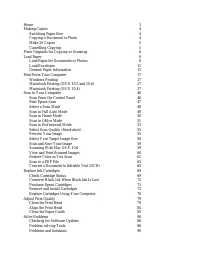
3 Home Welcome to the Epson Stylus ® TX120 User’s Guide .
4 Making Copies You can copy documents or photos in color or black and white on your Epson Stylus TX120 just like you would on a copy machine. You can also make quick draft copies. Note: Copies may not be exactly the same size as your original document. You can copy documents onto letter- or A4-size...
5 Make 20 Copies You can make 20 copies at a time of a document or photo on the scanner glass. Load 20 sheets of letter- or A4-size paper. Then press and hold either the B&W copy button or Color copy button for three seconds. Cancelling Copying If you need to cancel copying, press the stop butto...
Manual Epson S041727








Summary
2 Your WorkForce Pro WP-4530 Your WorkForce Pro WP-4530 After you set up your WorkForce ® Pro WP-4530 (see the Start Here sheet), turn to this Quick Guide and your online User’s Guide for instructions on using your product. Note: Your product may look different from the illustrations in this guide, ...
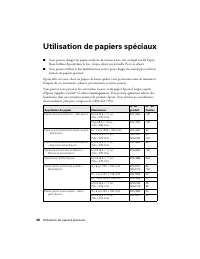
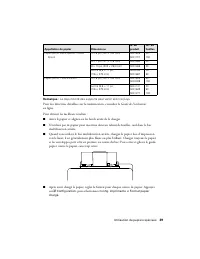
Using Special Papers 3 Using Special Papers ■ You can load letter-, A4-, or legal-size plain paper (or Epson Bright White paper) in the cassette, as described on the Start Here sheet. ■ You can use the rear multipurpose (MP) tray to load envelopes and various sizes of special papers. Epson offers a ...
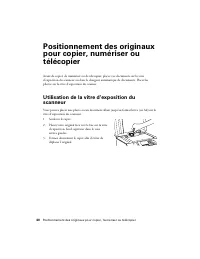
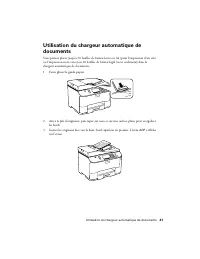
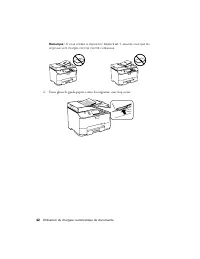
Placing Originals for Copying, Scanning, or Faxing 5 Placing Originals for Copying, Scanning, or Faxing Before you copy, scan, or fax, place your documents on the scanner glass or in the Automatic Document Feeder (ADF). Place photos on the scanner glass. Using the Scanner Glass You can place a photo...
Troubleshooting Guide Epson S041727


Summary
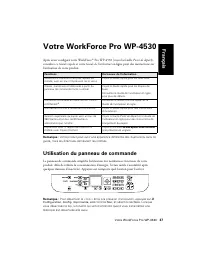
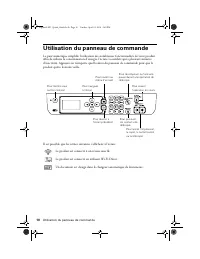
2 Using the Control Panel Using the Control Panel The keypad makes it easy to use all the features of your product. To save energy, the screen turns off after several minutes of inactivity. Press any button to wake it up. You may see the following icons on the screen: The product is connected to a w...
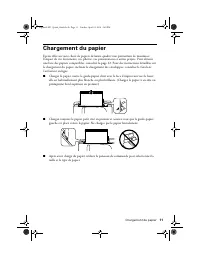
Loading Paper 3 Loading Paper Epson offers a wide array of high quality papers, making it easy to maximize the impact of your documents, photos, presentations, and other projects. For a list of compatible papers, see page 4. For detailed paper loading instructions, including loading envelopes, see t...
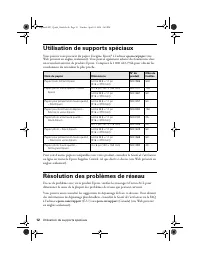
4 Using Special Papers Using Special Papers You can purchase genuine Epson ® paper at epson.com/paper (U.S. sales) or epson.ca/paper (Canadian sales). You can also purchase supplies from an Epson authorized reseller. To find the nearest one, call 800-GO-EPSON (800-463-7766). To view additional paper...
Installation Manual Epson S041727


Summary
3 Product Parts Use these illustrations to identify the parts on your product. Paper support Output tray extensions Edge guide Sheet feeder Output tray Printer cover Front cover Ink tank unit USB port Power inlet
4 Control Panel Buttons and Lights Control Panel Buttons Button Function Press to turn the printer on and off. Press to move the print head to its home position.When the ink light is off, press and hold for at least 3 seconds to clean the print head. Press to load or eject paper.Press to resume prin...
Epson Manuals
-
 Epson V11HB23020
User Manual
Epson V11HB23020
User Manual
-
Epson V11HB23020
Manual
-
 Epson C11CK75201
User Manual
Epson C11CK75201
User Manual
-
 Epson B11B272202
User Manual
Epson B11B272202
User Manual
-
 Epson V11HA52820
User Manual
Epson V11HA52820
User Manual
-
Epson V11HA67820
User Manual
-
 Epson V12H004UA3
Troubleshooting Guide
Epson V12H004UA3
Troubleshooting Guide
-
 Epson V12H004X0A
User Manual
Epson V12H004X0A
User Manual
-
 Epson A461H
Manual
Epson A461H
Manual
-
Epson A461H
User Manual
-
Epson A462E
Manual
-
Epson A462E
User Manual
-
 Epson C11CH25401
User Manual
Epson C11CH25401
User Manual
-
 Epson C11CH72401
User Manual
Epson C11CH72401
User Manual
-
 Epson B11B257201
Manual
Epson B11B257201
Manual
-
 Epson V11HA85020
Installation Manual
Epson V11HA85020
Installation Manual
-
 Epson C11CK61201
User Manual
Epson C11CK61201
User Manual
-
Epson C11CK65201
User Manual