Canon PowerShot G15- Manuals
Canon PowerShot G15– User Manual, Manual in PDF format online.
Manuals:
User Manual Canon PowerShot G15


Summary
doctors eyes .com the world of digital dental imaging doctors eyes .com the world of digital dental imaging 4) Reset all to factory settings In case you encounter any problems you can easily reset all adjustments to the factory setting.Resetting Settings to Their Default Values Select [Reset All]. 1...
doctors eyes .com the world of digital dental imaging doctors eyes .com the world of digital dental imaging 1 20 not recognize the camera, then click on the following statement on [yes]. The USB-Driver will then be installed automatically when connecting the camera to the computer.You can also view ...
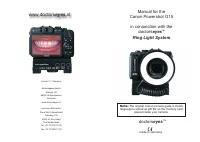
doctors eyes .com the world of digital dental imaging doctors eyes .com the world of digital dental imaging 19 2 Dear Dental Photographer,Congratulations and thank you for choosing the doctorseyes ring light System. This manual will give you instructions and tips on how to set up your Canon G15 to b...
Manual Canon PowerShot G15


Canon Manuals
-
 Canon 6130280
User Manual
Canon 6130280
User Manual
-
 Canon imageCLASS MF284dw
User Manual
Canon imageCLASS MF284dw
User Manual
-
Canon imageCLASS MF289dw
User Manual
-
 Canon imageCLASS LBP172dw
User Manual
Canon imageCLASS LBP172dw
User Manual
-
 Canon 248
User Manual
Canon 248
User Manual
-
 Canon 323
User Manual
Canon 323
User Manual
-
Canon 323
Installation Manual
-
Canon 323
Manual
-
 Canon 250
User Manual
Canon 250
User Manual
-
 Canon 251
User Manual
Canon 251
User Manual
-
Canon 251
Manual
-
Canon 251
Troubleshooting Guide
-
 Canon 6710C002
User Manual
Canon 6710C002
User Manual
-
 Canon K10605
User Manual
Canon K10605
User Manual
-
 Canon K10613
User Manual
Canon K10613
User Manual
-
 Canon K10608
User Manual
Canon K10608
User Manual
-
 Canon K10609
User Manual
Canon K10609
User Manual
-
 Canon imageRUNNER C3326i
User Manual
Canon imageRUNNER C3326i
User Manual
-
 Canon imageCLASS MF465dw
User Manual
Canon imageCLASS MF465dw
User Manual
-
 Canon K10617
User Manual
Canon K10617
User Manual