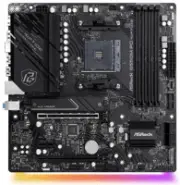
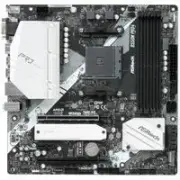
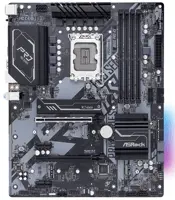
Page 2 - Contact Information; ASRock Incorporation; Scan the QR code to view more manuals and documents.
Contact Information If you need to contact ASRock or want to know more about ASRock, you’re welcome to visit ASRock’s website at http://www.asrock.com; or you may contact your dealer for further information. For technical questions, please submit a support request form at https://event.asrock.com/ts...
Page 3 - Contents; Chapter 1 Introduction
Contents Chapter 1 Introduction 1 1.1 Package Contents 1 1.2 Specifications 2 1.3 Motherboard Layout 6 1.4 I/O Panel 8 1.5 Block Diagram 10 Chapter 2 Installation 11 2.1 Installing the CPU 12 2.2 Installing the CPU Fan and Heatsink 15 2.3 Installing Memory Modules (DIMM) 24 2.4 Connecting the Front ...
Page 5 - Package Contents; ASRock B650M PG Riptide Motherboard (Micro ATX Form Factor)
1 B650M PG Riptide Chapter 1 Introduction Thank you for purchasing ASRock B650M PG Riptide motherboard, a reliable motherboard produced under ASRock’s consistently stringent quality control. It delivers excellent performance with robust design conforming to ASRock’s commitment to quality and enduran...
Page 7 - LAN; Supports Phantom Gaming LAN Software; USB; * All USB ports support ESD Protection; Storage
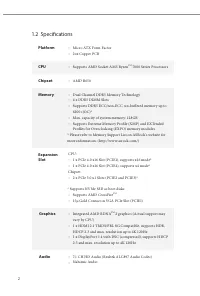
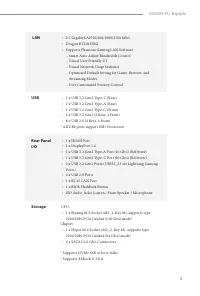
3 B650M PG Riptide LAN • 2.5 Gigabit LAN 10/100/1000/2500 Mb/s • Dragon RTL8125BG • Supports Phantom Gaming LAN Software - Smart Auto Adjust Bandwidth Control - Visual User Friendly UI - Visual Network Usage Statistics - Optimized Default Setting for Game, Browser, and Streaming Modes - User Customi...
Page 10 - Motherboard Layout
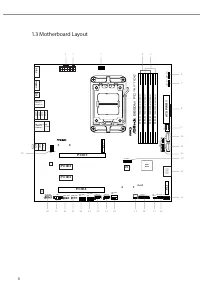
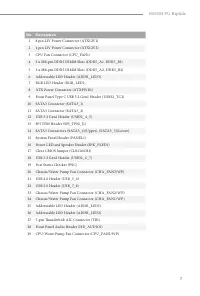
6 A T X P W R 1 To p :R J - 4 5 U S B 3 . 2 G e n 1T: U S B 3 2 _ 2B : U S B 3 2 _ 3 1 1 1 1 1 1 1 1 1 H D _ A U D I O 1 1 T B 1 A U D I O C O D E C C P U _ FA N 2/ W P C H A _ FA N 1/ W P 1 1 U S B 3 2 _ 4 _ 5 A D D R _ L E D 3 AT X 1 2 V 1 C P U _ FA N 1 H D L E D R E S E T P L E D P W R B T N PA ...
Page 15 - Pre-installation Precautions; Hold components by the edges and do not touch the ICs.; Chapter 2 Installation
11 B650M PG Riptide This is a Micro ATX form factor motherboard. Before you install the motherboard, study the configuration of your chassis to ensure that the motherboard fits into it. Pre-installation Precautions Take note of the following precautions before you install motherboard components or c...
Page 16 - Installing the CPU; Tutorial Video
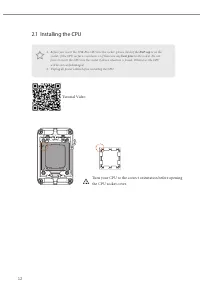
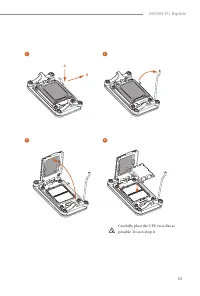
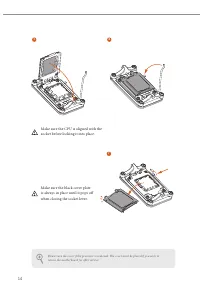
12 2.1 Installing the CPU 1. Before you insert the 1718-Pin CPU into the socket, please check if the PnP cap is on the socket, if the CPU surface is unclean, or if there are any bent pins in the socket. Do not force to insert the CPU into the socket if above situation is found. Otherwise, the CPU wi...
Page 19 - Installing the CPU Fan and Heatsink
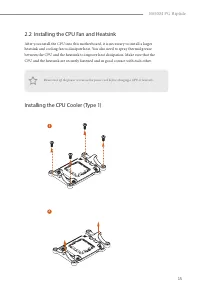
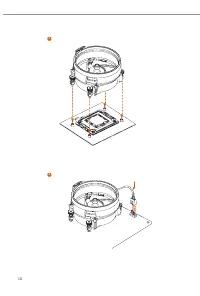
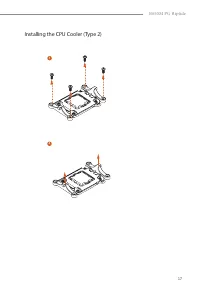
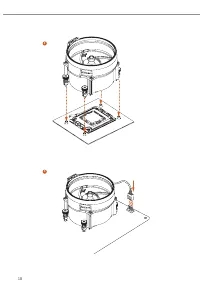
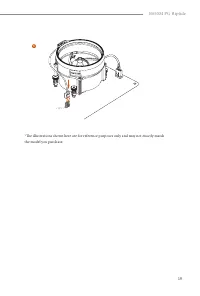
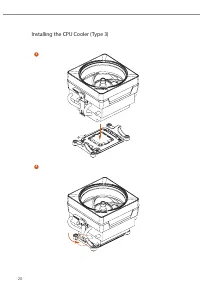
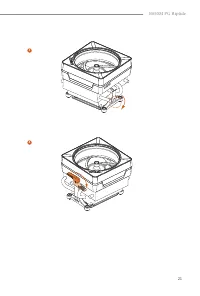
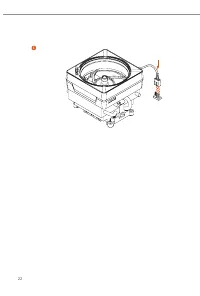
15 B650M PG Riptide 2.2 Installing the CPU Fan and Heatsink After you install the CPU into this motherboard, it is necessary to install a larger heatsink and cooling fan to dissipate heat. You also need to spray thermal grease between the CPU and the heatsink to improve heat dissipation. Make sure t...
Page 27 - or
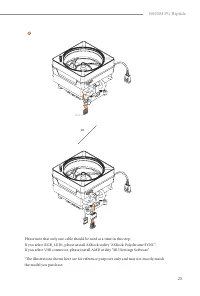
23 B650M PG Riptide 6 CPU_F AN1 RGB_LED1 CPU_F AN1 RGB_LED1 USB_1_2 Please note that only one cable should be used at a time in this step. If you select RGB_LED1 , please install ASRock utility "ASRock Polychrome SYNC". If you select USB connector, please install AMD utility "SR3 Setting...
Page 28 - Recommended Memory Configuration; DIMMs; Memory
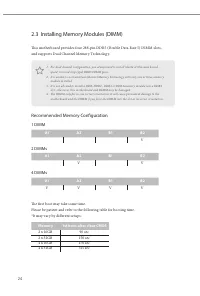
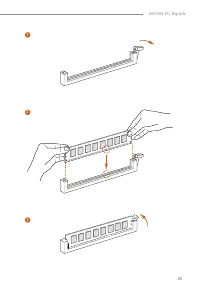
24 2.3 Installing Memory Modules (DIMM) This motherboard provides four 288-pin DDR5 (Double Data Rate 5) DIMM slots, and supports Dual Channel Memory Technology. Recommended Memory Configuration 1 DIMM 2 DIMMs 4 DIMMs The first boot may take some time. Please be patient and refer to the following ta...
Page 30 - Connecting the Front Panel Header; System Panel Header
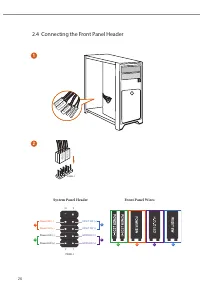
26 2.4 Connecting the Front Panel Header A B C D 1 2 32 :(56: 5( 6( 76 : 32 : (5/( ' 32 : (5 / (' + ' ' /(' 3$1(/ Power SW (-) RESET SW (+) HDD LED (-) HDD LED (+) 1 2 9 10 RESET SW (-) Power SW (+) Power LED (-) Power LED (+) A B C D PANEL1 HD D L ED RESE T SW System Panel Header Front Panel Wires
Page 31 - Installing the Motherboard
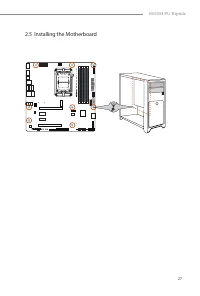
27 B650M PG Riptide 2.5 Installing the Motherboard B 6 5 0 M P G RIPTID E
Page 32 - Installing SATA Drives; Optical Drive
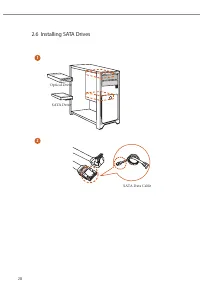
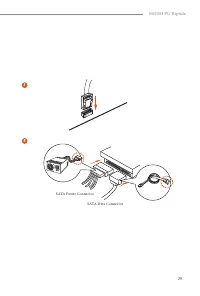
28 2.6 Installing SATA Drives 1 2 Optical Drive SATA Drive SATA Data Cable
Page 34 - Installing a Graphics Card
Page 35 - There are 4 PCI Express slots on the motherboard.; PCIe Slot Configurations; Single Graphics Card; Mode
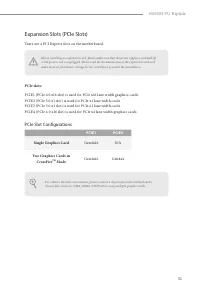
31 B650M PG Riptide Expansion Slots (PCIe Slots) There are 4 PCI Express slots on the motherboard. PCIe slots: PCIE1 (PCIe 4.0 x16 slot) is used for PCIe x16 lane width graphics cards. PCIE2 (PCIe 3.0 x1 slot) is used for PCIe x1 lane width cards. PCIE3 (PCIe 3.0 x1 slot) is used for PCIe x1 lane wi...
Page 36 - Connecting Peripheral Devices
Page 37 - Connecting the Power Connectors
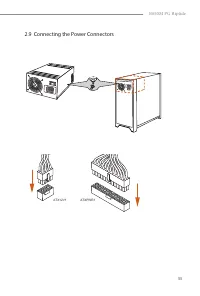
33 B650M PG Riptide 2.9 Connecting the Power Connectors $7;3:5 $7;9
Page 39 - CLRCMOS1
35 B650M PG Riptide 2.11 Jumpers Setup The illustration shows how jumpers are setup. When the jumper cap is placed on the pins, the jumper is “Short”. If no jumper cap is placed on the pins, the jumper is “Open”. Clear CMOS Jumper (CLRCMOS1) (see p.6, No. 17)CLRCMOS1 allows you to clear the data in ...
Page 40 - Onboard Headers and Connectors
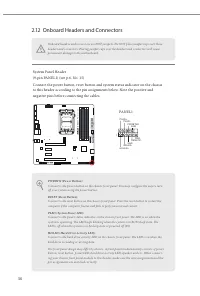
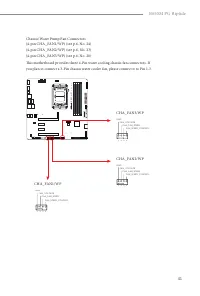
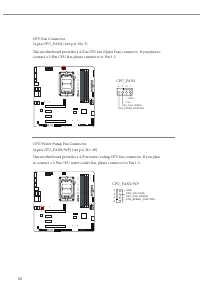
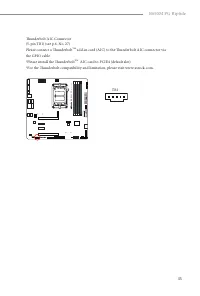
36 2.12 Onboard Headers and Connectors System Panel Header(9-pin PANEL1) (see p.6, No. 15)Connect the power button, reset button and system status indicator on the chassis to this header according to the pin assignments below. Note the positive and negative pins before connecting the cables. B 6 5 0...
Page 41 - SA
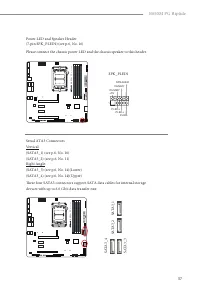
37 B650M PG Riptide Power LED and Speaker Header(7-pin SPK_PLED1) (see p.6, No. 16)Please connect the chassis power LED and the chassis speaker to this header. B 6 5 0 M P G RIPTID E Serial ATA3 ConnectorsVertical:(SATA3_1) (see p.6, No. 10) (SATA3_2) (see p.6, No. 11)Right Angle:(SATA3_3) (see p.6,...
Page 47 - ATXPWR1
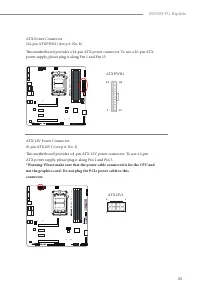
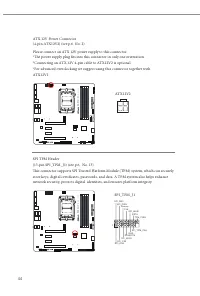
43 B650M PG Riptide ATX Power Connector(24-pin ATXPWR1) (see p.6, No. 8)This motherboard provides a 24-pin ATX power connector. To use a 20-pin ATX power supply, please plug it along Pin 1 and Pin 13. B 6 5 0 M P G RIPTID E ATX 12V Power Connector(8-pin ATX12V1) (see p.6, No. 1)This motherboard prov...
Page 50 - Connect your RGB LED strip to the; RGB LED; on the motherboard.
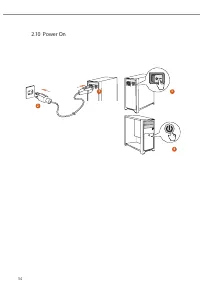
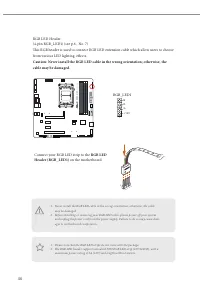
46 RGB LED Header(4-pin RGB_LED1) (see p.6, No. 7)This RGB header is used to connect RGB LED extension cable which allow users to choose from various LED lighting effects. Caution: Never install the RGB LED cable in the wrong orientation; otherwise, the cable may be damaged. B 6 5 0 M P G RIPTID E R...
Page 51 - the cable may be damaged.; on
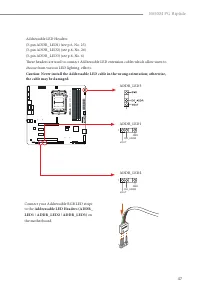
47 B650M PG Riptide Addressable LED Headers(3-pin ADDR_LED1) (see p.6, No. 25)(3-pin ADDR_LED2) (see p.6, No. 26)(3-pin ADDR_LED3) (see p.6, No. 6)These headers are used to connect Addressable LED extension cables which allow users to choose from various LED lighting effects. Caution: Never install ...
Page 53 - USB BIOS Flashback port
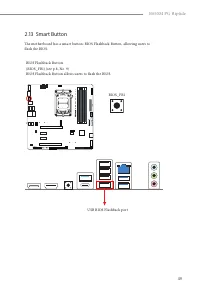
49 B650M PG Riptide 2.13 Smart Button The motherboard has a smart button: BIOS Flashback Button, allowing users to flash the BIOS. BIOS Flashback Button (BIOS_FB1) (see p.8, No. 9)BIOS Flashback Button allows users to flash the BIOS. B 6 5 0 M P G RIPTID E BIOS_FB1 USB BIOS Flashback port
Page 54 - ” and save it to the root directory of X: USB flash drive.
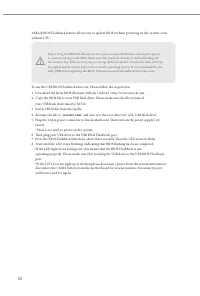
50 ASRock BIOS Flashback feature allows you to update BIOS without powering on the system, even without CPU. To use the USB BIOS Flashback function, Please follow the steps below.1. Download the latest BIOS file from ASRock 's website : http://www.asrock.com. 2. Copy the BIOS file to your USB flash ...
Page 55 - Post Status Checker
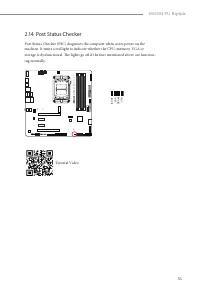
51 B650M PG Riptide 2.14 Post Status Checker Post Status Checker (PSC) diagnoses the computer when users power on the machine. It emits a red light to indicate whether the CPU, memory, VGA or storage is dysfunctional. The lights go off if the four mentioned above are function-ing normally. B 6 5 0 M...
Page 56 - Installing the M.2 SSD Module; Nut Location
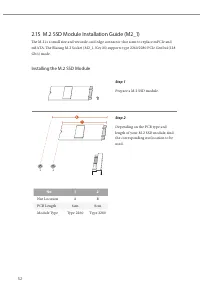
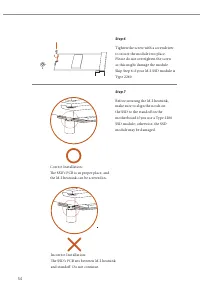
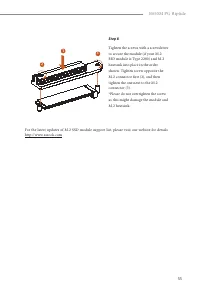
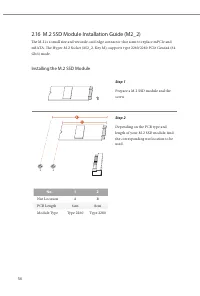
52 2.15 M.2 SSD Module Installation Guide (M2_1) The M.2 is a small size and versatile card edge connector that aims to replace mPCIe and mSATA. The Blazing M.2 Socket (M2_1, Key M) supports type 2260/2280 PCIe Gen5x4 (128 Gb/s) mode. Installing the M.2 SSD Module Step 1 Prepare a M.2 SSD module. 1 ...
Page 61 - if you are
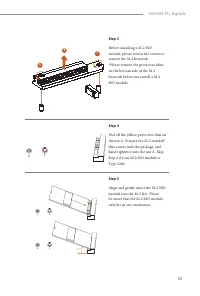
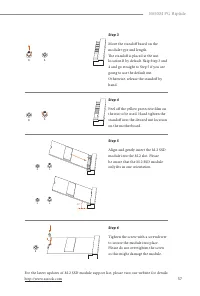
57 B650M PG Riptide B A Step 3 Move the standoff based on the module type and length. The standoff is placed at the nut location B by default. Skip Step 3 and 4 and go straight to Step 5 if you are going to use the default nut. Otherwise, release the standoff by hand. B A Step 4 Peel off the yellow ...
Page 63 - WARNING; THIS PRODUCT CONTAINS A BUTTOON BATTERY; AUSTRALIA ONLY; for disposal of electronic products.
WARNING THIS PRODUCT CONTAINS A BUTTOON BATTERY If swallowed, a button battery can cause serious injury or death. Please keep batteries out of sight or reach of children. CALIFORNIA, USA ONLY The Lithium battery adopted on this motherboard contains Perchlorate, a toxic substance controlled in Perchl...