Page 2 - Şİ
NOT: MAV İ ba ş lık, BT yöneticisi türü personel için, YE Şİ L son kullanıcılar içindir ve KIRMIZI makinede dikkat edilmesi gerekti ğ i anlamına gelmektedir. Makinenin yapılandırmasına ba ğ lı olarak bazı Kullanıcı Arayüzü ekranları farklılık gösterebilir. Microsoft, MS-DOS, W indows, W indows NT, M...
Page 3 - çindekiler Tablosu; Yapılandırma raporunun yazdırılması
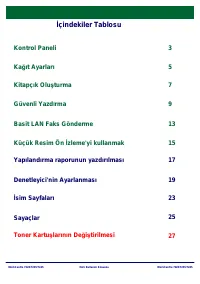
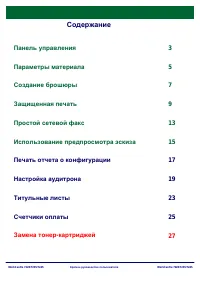
WorkCentre 7228/7235/7245 WorkCentre 7228/7235/7245 Hızlı Kullanım Kılavuzu İ çindekiler Tablosu Kontrol Paneli Yapılandırma raporunun yazdırılması 3 17 İ sim Sayfaları 23 5 Toner Kartu ş larının De ğ i ş tirilmesi 25 Ka ğ ıt Ayarları 7 Kitapçık Olu ş turma 9 Güvenli Yazd l rma 13 Denetleyici'nin Ay...
Page 4 - Kontrol Paneli; Servisler dü
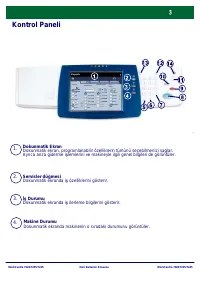
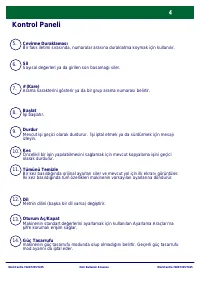
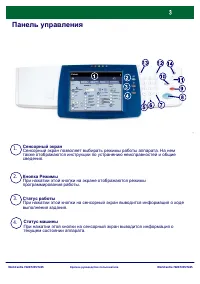
WorkCentre 7228/7235/7245 WorkCentre 7228/7235/7245 Hızlı Kullanım Kılavuzu Kontrol Paneli 1. 2. 3. Dokunmatik EkranDokunmatik ekran, programlanabilir özelliklerin tümünü seçebilmenizi sa ğ lar. Ayrıca arıza giderme i ş lemlerini ve makineyle ilgili genel bilgileri de görüntüler. Servisler dü ğ mesi...
Page 5 - Ba
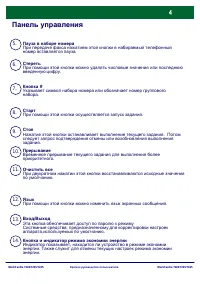
WorkCentre 7228/7235/7245 WorkCentre 7228/7235/7245 Hızlı Kullanım Kılavuzu Kontrol Paneli 5. 6. 10. 13. 12. 11. 9. 8. 7. Çevirme DuraklamasıBir faks iletimi sırasında, numaralar arasına duraklatma koymak için kullanılır. DilMetnin dilini (ba ş ka bir dil varsa) de ğ i ş tirir. # (Kare)Arama karakte...
Page 6 - ıt Ayarları
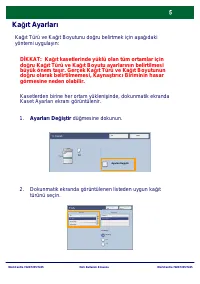
WorkCentre 7228/7235/7245 WorkCentre 7228/7235/7245 Hızlı Kullanım Kılavuzu Ka ğ ıt Ayarları Ka ğ ıt Türü ve Ka ğ ıt Boyutunu do ğ ru belirtmek için a ş a ğ ıdaki yöntemi uygulayın: Ayarları De ğ i ş tir dü ğ mesine dokunun. 1. Dokunmatik ekranda görüntülenen listeden uygun ka ğ ıt türünü seçin. 2. ...
Page 7 - Dokunmatik ekranda görüntülenen listeden uygun ka; Kaydet dü
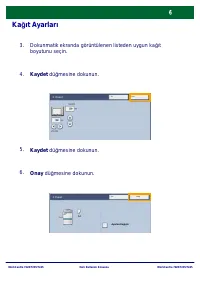
WorkCentre 7228/7235/7245 WorkCentre 7228/7235/7245 Hızlı Kullanım Kılavuzu Ka ğ ıt Ayarları Dokunmatik ekranda görüntülenen listeden uygun ka ğ ıt boyutunu seçin. 3. Kaydet dü ğ mesine dokunun. 4. Kaydet dü ğ mesine dokunun. 5. Onay dü ğ mesine dokunun. 6. Ayarları De ğ i ş tir İ ptal Onay 1. Kaset...
Page 8 - Kitapçık Olu; Özellikler dü; ıt boyutunu; Yazdır seçene; ini i
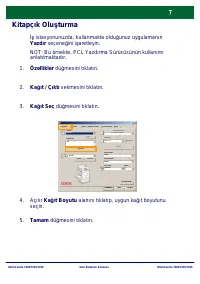
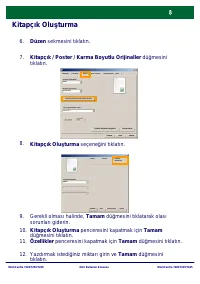
WorkCentre 7228/7235/7245 WorkCentre 7228/7235/7245 Hızlı Kullanım Kılavuzu Kitapçık Olu ş turma NOT: Bu örnekte, PCL Yazdırma Sürücüsünün kullanımı anlatılmaktadır. Özellikler dü ğ mesini tıklatın. 1. Ka ğ ıt / Çıktı sekmesini tıklatın. 2. Ka ğ ıt Seç dü ğ mesini tıklatın. 3. Tamam dü ğ mesini tıkl...
Page 11 - Ayarlar dugmesini tiklatin; Tamam dü
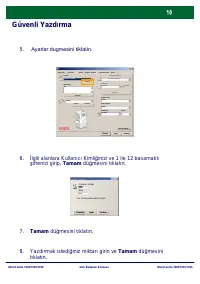
WorkCentre 7228/7235/7245 WorkCentre 7228/7235/7245 Hızlı Kullanım Kılavuzu Güvenli Yazd l rma 8. Yazdırmak istedi ğ iniz miktarı girin ve Tamam dü ğ mesin i tıklatın. Ka ğ ıt/Çıktı Görüntü Düzen Filigran / Formlar Ayrıntılı Ayarlar Faks İş Türü: 2 Taraflı Kopyalama Güvenli Yazd i rma 2 Taraflı Kopy...
Page 12 - Makinede, kontrol panelindeki; mesine; Saklanan Dokümanlar sekmesine dokunun.
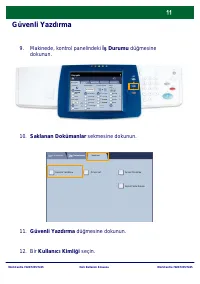
WorkCentre 7228/7235/7245 WorkCentre 7228/7235/7245 Hızlı Kullanım Kılavuzu Güvenli Yazd l rma Makinede, kontrol panelindeki İş Durumu dü ğ mesine dokunun. Saklanan Dokümanlar sekmesine dokunun. 9. Güvenli Yazdırma dü ğ mesine dokunun. 11. 10. Bir Kullanıcı Kimli ğ i seçin. 12. Genel Ayarlar Ka ğ ıt...
Page 13 - Doküman Listesi dü; Dokümanınız çıktı kasetine gönderilir.
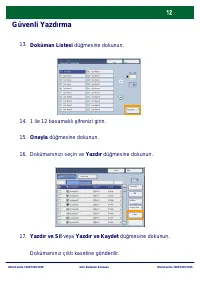
WorkCentre 7228/7235/7245 WorkCentre 7228/7235/7245 Hızlı Kullanım Kılavuzu Güvenli Yazd l rma Doküman Listesi dü ğ mesine dokunun. 13. 1 ile 12 basamaklı ş ifrenizi girin. 14. Onayla dü ğ mesine dokunun. 15. Dokümanınızı seçin ve Yazdır dü ğ mesine dokunun. 16. Yazdır ve Sil veya Yazdır ve Kaydet d...
Page 14 - Basit LAN Faks; Yazdırma Sürücüsü'nü Açma
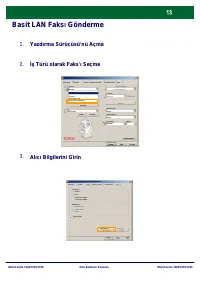
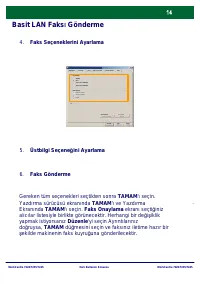
WorkCentre 7228/7235/7245 WorkCentre 7228/7235/7245 Hızlı Kullanım Kılavuzu Basit LAN Faks l Gönderme Yazdırma Sürücüsü'nü Açma 1. İş Türü olarak Faks'ı Seçme 2. Alıcı Bilgilerini Girin 3. Ka ğ ıt Seç Filigran / Formlar Ka ğ ıt/Çıktı Görüntü Düzen Ayrıntılı Ayarlar Faks Yardım Tamam İ ptal Varsayıla...
Page 16 - Küçük Resim Ön; e ba; belirleyin
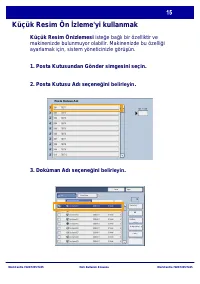
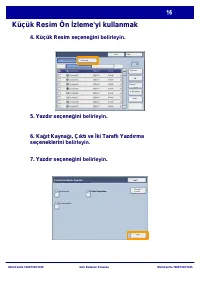
WorkCentre 7228/7235/7245 WorkCentre 7228/7235/7245 Hızlı Kullanım Kılavuzu Küçük Resim Ön İ zleme'yi kullanmak Yenile Kapat Yazdır Küçük Resim Sil Doküman Ýþ Akýþ Ayarlarý Tümünü Seç Liste Posta Kutusu Adi Küçük Resim Önizlemesi iste ğ e ba ğ lı bir özelliktir ve makinenizde bulunmuyor olabilir. Ma...
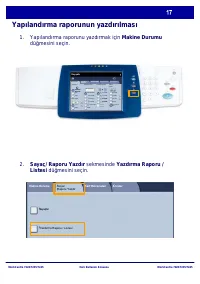
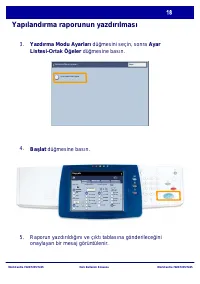
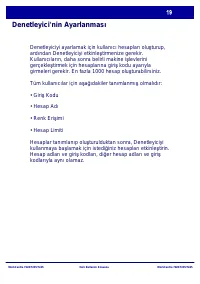
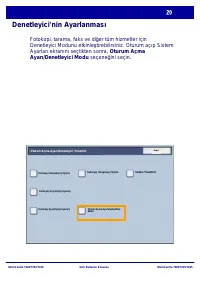
Page 19 - Yazdırma Modu Ayarları dü; Raporun yazdırıldı
WorkCentre 7228/7235/7245 WorkCentre 7228/7235/7245 Hızlı Kullanım Kılavuzu Yapılandırma raporunun yazdırılması Yazdırma Modu Ayarları dü ğ mesini seçin, sonra Ayar Listesi- Ortak Ö ğ eler dü ğ mesine basın. Ba ş lat dü ğ mesine basın. Raporun yazdırıldı ğ ını ve çıktı tablasına gönderilece ğ ini on...
Page 20 - Denetleyici'nin Ayarlanması
WorkCentre 7228/7235/7245 WorkCentre 7228/7235/7245 Hızlı Kullanım Kılavuzu Denetleyici'nin Ayarlanması Denetleyiciyi ayarlamak için kullanıcı hesapları olu ş turup, ardından Denetleyiciyi etkinle ş tirmenize gerekir. Kullanıcıların, daha sonra belirli makine i ş levlerini gerçekle ş tirmek için hes...
Page 21 - er tüm hizmetler için; Oturum Açma Ayarı/Denetleyici Yönetimi
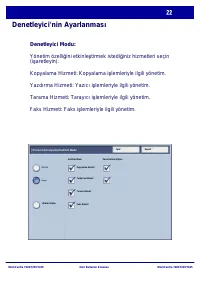
WorkCentre 7228/7235/7245 WorkCentre 7228/7235/7245 Hızlı Kullanım Kılavuzu Denetleyici'nin Ayarlanması Fotokopi, tarama, faks ve di ğ er tüm hizmetler için Denetleyici Modunu etkinle ş tirebilirsiniz. Oturum açıp Sistem Ayarları ekranını seçtikten sonra, Oturum Açma Ayarı/Denetleyici Modu seçene ğ ...
Page 22 - • Kapalı: Makineyi çalı; Oturum Açma Ayarlarý/Auditron Modu
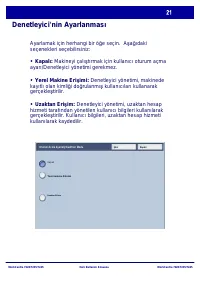
WorkCentre 7228/7235/7245 WorkCentre 7228/7235/7245 Hızlı Kullanım Kılavuzu Denetleyici'nin Ayarlanması Ayarlamak için herhangi bir ö ğ e seçin. A ş a ğ ıdaki seçenekleri seçebilirsiniz: • Kapalı: Makineyi çalı ş tırmak için kullanıcı oturum açma ayarı/Denetleyici yönetimi gerekmez. • Yerel Makine E...
Page 24 - sim Sayfaları; Kontrol panelindeki Oturum Aç / Kapat dü; Do; Sistem Ayarları dü; Sistem Ayarlar
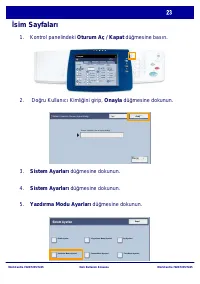
WorkCentre 7228/7235/7245 WorkCentre 7228/7235/7245 Hızlı Kullanım Kılavuzu İ sim Sayfaları Kontrol panelindeki Oturum Aç / Kapat dü ğ mesine basın. 1. Do ğ ru Kullanıcı Kimli ğ ini girip, Onayla dü ğ mesine dokunun. 2. Sistem Ayarları dü ğ mesine dokunun. 3. Sistem Ayarları dü ğ mesine dokunun. 4. ...
Page 25 - Isim Sayfasi; Baslangiç ve Bitis Sayfasi
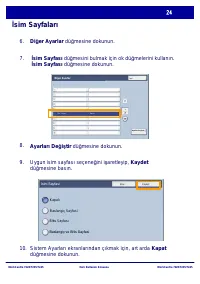
WorkCentre 7228/7235/7245 WorkCentre 7228/7235/7245 Hızlı Kullanım Kılavuzu İ sim Sayfaları Di ğ er Ayarlar dü ğ mesine dokunun. 6. İ sim Sayfası dü ğ mesini bulmak için ok dü ğ melerini kullanın. İ sim Sayfası dü ğ mesine dokunun. 7. Ayarları De ğ i ş tir dü ğ mesine dokunun. 8. 9. Uygun isim sayfa...
Page 26 - manızı sa
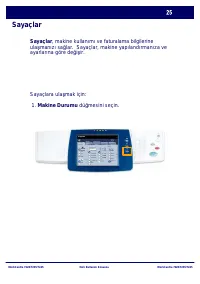
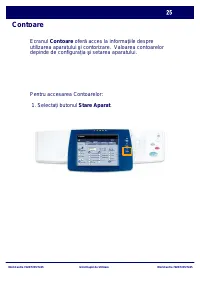
WorkCentre 7228/7235/7245 WorkCentre 7228/7235/7245 Hızlı Kullanım Kılavuzu Sayaçlar Sayaçlar, makine kullanımı ve faturalama bilgilerine ula ş manızı sa ğ lar. Sayaçlar, makine yapılandırmanıza ve ayarlarına göre de ğ i ş ir. Sayaçlara ula ş mak için: 1. Makine Durumu dü ğ mesini seçin. Genel Ayarl...
Page 27 - Sayaç/ Rapor Yazdır sekmesinin göründü; ünden emin; olun ve Sayaçlar dü
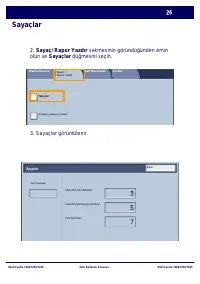
WorkCentre 7228/7235/7245 WorkCentre 7228/7235/7245 Hızlı Kullanım Kılavuzu Sayaçlar 3. Sayaçlar görüntülenir. 2. Sayaç/ Rapor Yazdır sekmesinin göründü ğ ünden emin olun ve Sayaçlar dü ğ mesini seçin. Toplam Renkli Baskılar Toplam Siyah-Beyaz Baskılar Tüm Baskılar Seri Numarasi Sayaçlar Kapat Sayaç...
Page 28 - Toner Kartu
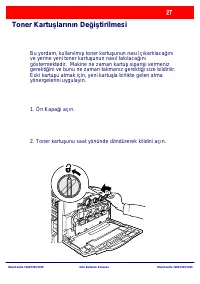
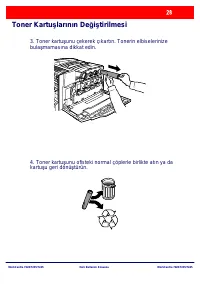
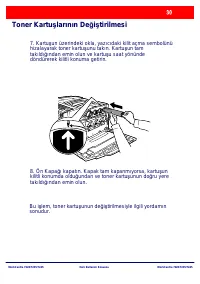
WorkCentre 7228/7235/7245 WorkCentre 7228/7235/7245 Hızlı Kullanım Kılavuzu Toner Kartu ş larının De ğ i ş tirilmesi Bu yordam, kullanılmı ş toner kartu ş unun nasıl çıkartılaca ğ ını ve yerine yeni toner kartu ş unun nasıl takılaca ğ ını göstermektedir. Makine ne zaman kartu ş sipari ş i vermeniz g...
Page 30 - unu ambalajından çıkartın.
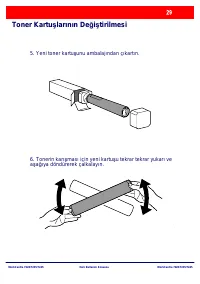
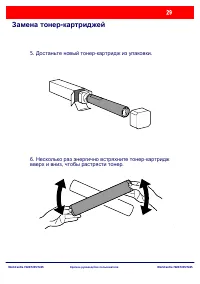
WorkCentre 7228/7235/7245 WorkCentre 7228/7235/7245 Hızlı Kullanım Kılavuzu Toner Kartu ş larının De ğ i ş tirilmesi 5. Yeni toner kartu ş unu ambalajından çıkartın. 6. Tonerin karı ş ması için yeni kartu ş u tekrar tekrar yukarı ve a ş a ğ ıya döndürerek çalkalayın.
Page 33 - Ghid Rapid de Utilizare
Ghid Rapid de Utilizare WorkCentre 7228/7235/7245 701P4 4887
Page 35 - Cuprins; Imprimarea unui raport al configura iei
WorkCentre 7228/7235/7245 WorkCentre 7228/7235/7245 Ghid Rapid de Utilizare Cuprins Panoul de Comand ă Imprimarea unui raport al configura iei 3 17 Pagini Identificare 23 5 Înlocuirea Cartu ş elor cu Toner 25 Set ă ri Hârtie 7 Creare Bro ş ur ă 9 Impr imare Securizat ă 13 Setare Auditron 19 Operare ...
Page 36 - Panoul de Comand
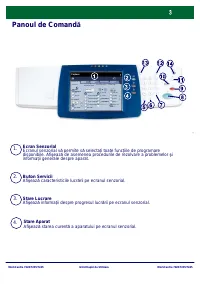
WorkCentre 7228/7235/7245 WorkCentre 7228/7235/7245 Ghid Rapid de Utilizare Panoul de Comand ă 1. 2. 3. Ecran SenzorialEcranul senzorial v ă permite s ă selecta ţ i toate func ţ iile de programare disponibile. Afi ş eaz ă de asemenea procedurile de rezolvare a problemelor ş i informa ţ ii generale d...
Page 37 - Pauz; mesajul pentru a anula sau relua; terge Tot
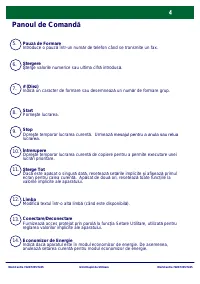
WorkCentre 7228/7235/7245 WorkCentre 7228/7235/7245 Ghid Rapid de Utilizare Panoul de Comand ă 5. 6. 10. 13. 12. 11. 9. 8. 7. Pauz ă de Formare Introduce o pauz ă într-un num ă r de telefon când se transmite un fax. LimbaModific ă textul într-o alt ă limb ă (când este disponibil ă ). # (Diez)Indic ă...
Page 38 - Set; ti
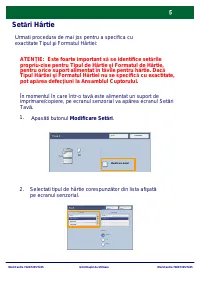
WorkCentre 7228/7235/7245 WorkCentre 7228/7235/7245 Ghid Rapid de Utilizare Set ă ri Hârtie U rma ti procedura de mai jos pentru a specifica cu exactitate Tipul ş i Formatul Hârtiei: 1. A pas ă ti butonul Modificare Set ă ri. Select ati tipul de hârtie corespunz ă tor din lista afi ş at ă pe ecranul...
Page 39 - ati
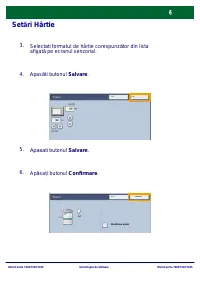
WorkCentre 7228/7235/7245 WorkCentre 7228/7235/7245 Ghid Rapid de Utilizare Set ă ri Hârtie 3. Select ati formatul de hârtie corespunz ă tor din lista afi ş at ă pe ecranul senzorial. 4. A pas ă ti butonul Salvare. 5. Apasati butonul Salvare. 6. Ap ă sa ţ i butonul Confirmare. Modificare Set ă ri An...
Page 40 - Creare Bro; NOT : Acest exemplu ilustreaz utilizarea
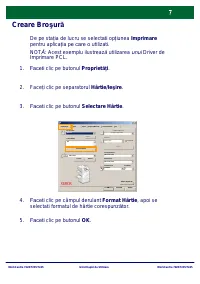
WorkCentre 7228/7235/7245 WorkCentre 7228/7235/7245 Ghid Rapid de Utilizare Creare Bro ş ur ă 1. Faceti clic pe butonul Propriet ă i. 2. Face ţ i clic pe separatorul Hârtie/Ie ş ire. 3. Faceti clic pe butonul Selectare Hârtie. 5. Faceti clic pe butonul OK. 4. Faceti clic pe câmpul derulant Format Hâ...
Page 41 - /Originale de Formate
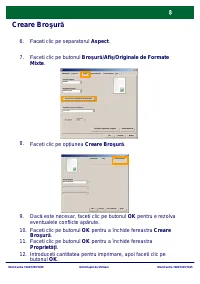
WorkCentre 7228/7235/7245 WorkCentre 7228/7235/7245 Ghid Rapid de Utilizare Creare Bro ş ur ă 6. Faceti clic pe separatorul Aspect. 7. F ace ti clic pe butonul Bro ş ur ă /Afi ş /Originale de Formate Mixte. 8. F ace ti clic pe op ţ iunea Creare Bro ş ur ă . 10. F ace ti clic pe butonul OK pentru a î...
Page 42 - Impr
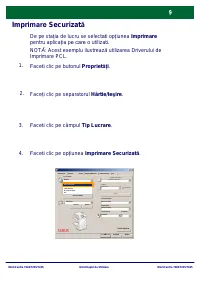
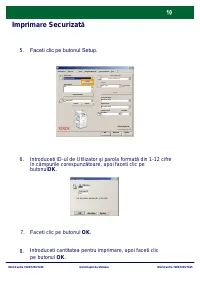
WorkCentre 7228/7235/7245 WorkCentre 7228/7235/7245 Ghid Rapid de Utilizare Impr imare Securizat ă De pe sta ţ ia de lucru se select ati op ţ iunea Imprimare pentru aplica ţ ia pe care o utilizat i . F ace ti clic pe butonul Propriet ă i. 1. Face ţ i clic pe separatorul Hârtie/Ie ş ire. 2. F ace ti ...
Page 45 - tergere sau butonul; Documentul dumneavoastra va
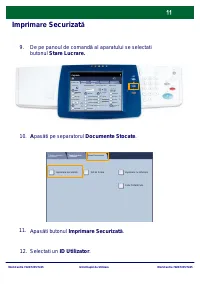
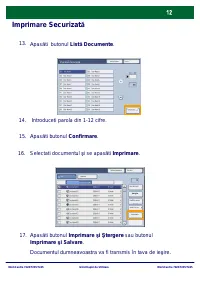
WorkCentre 7228/7235/7245 WorkCentre 7228/7235/7245 Ghid Rapid de Utilizare Impr imare Securizat ă A pas ă ti butonul List ă Documente. 13. I ntroduce ti parola din 1-12 cifre. 14. A pas ă ti butonul Confirmare. 15. Selecta ti documentul ş i se apas ă ti Imprimare. 16. A pas ă ti butonul Imprimare ş...
Page 46 - Operare Simpl
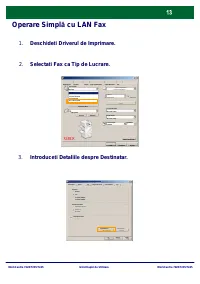
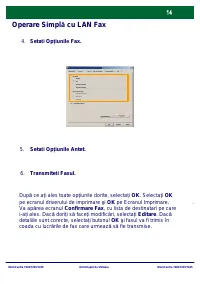
WorkCentre 7228/7235/7245 WorkCentre 7228/7235/7245 Ghid Rapid de Utilizare Operare Simpl ă cu LAN Fax Deschide ti Driverul de Imprimare . 1. Selecta ti Fax ca Tip de Lucrare . 2. Introduce ti Detaliil e despre Destinatar . 3. Selectare Hârtie Filigrane/Machete Hârtie/Ie ş ire Op iuni Aspec Set ă ri...
Page 48 - Utiliz; Nume Cutie Pootalã; Previzualizare Miniatur; functie la aparatul Dumneavoastra.; Selecta i Numele Cutiei Po
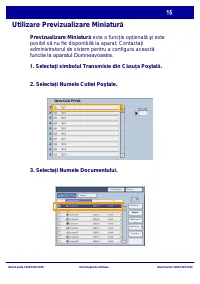
WorkCentre 7228/7235/7245 WorkCentre 7228/7235/7245 Ghid Rapid de Utilizare Utiliz are Previzualizare Miniatur ă Reîmprosp ă tare Închidere Imprimare Miniaturã Ş tergere Detalii Document Setãri Flux Lucr. Selectare toate Listã Nume Cutie Poºtalã Previzualizare Miniatur ă este o func ţ ie op ţ ional ...
Page 49 - Selecta i Miniatur
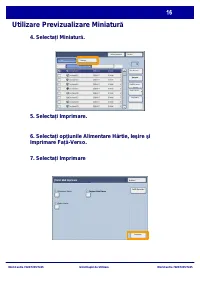
WorkCentre 7228/7235/7245 WorkCentre 7228/7235/7245 Ghid Rapid de Utilizare Utiliz are Previzualizare Miniatur ă 4. Selecta i Miniatur ă . 5. Selecta i Imprimare. 6. Selecta i op iunile Alimentare Hârtie, Ie ş ire ş i Imprimare Fa ă -Verso. 7. Selecta i Imprimare Reîmprosp ă tare Închidere Imprimare...
Page 50 - separatorul; Imprimare Raport / Listã; Imprimare
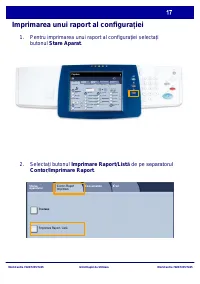
WorkCentre 7228/7235/7245 WorkCentre 7228/7235/7245 Ghid Rapid de Utilizare Imprimarea unui raport al configura iei Pentru imprimarea unui raport al configura ţ iei selecta ţ i butonul Stare Aparat. Selecta ţ i butonul Imprimare Raport/List ă de pe separatorul Contor/Imprimare Raport. 1. 2. Setãri G...
Page 51 - ri Mod Imprimare, apoi ap; co
WorkCentre 7228/7235/7245 WorkCentre 7228/7235/7245 Ghid Rapid de Utilizare Imprimarea unui raport al configura iei Selecta ţ i butonul Set ă ri Mod Imprimare, apoi ap ă sa ţ i butonul List ă Set ă ri-Articole Comune. Ap ă sa ţ i butonul Start. Un mesaj v ă va co nforma c ă raportul se imprim ă ş i ...
Page 52 - Setare Auditron
WorkCentre 7228/7235/7245 WorkCentre 7228/7235/7245 Ghid Rapid de Utilizare Setare Auditron Pentru setarea Auditronului, trebuie s ă crea ţ i mai întâi conturile Auditronului ş i apoi s ă activa ţ i Auditrounul. În continuare, utilizatorii vor fi solicita ţ i s ă introduc ă parola setat ă pentru con...
Page 53 - Setare Conectare/Administrare Auditron
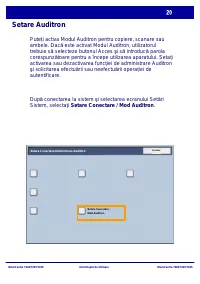
WorkCentre 7228/7235/7245 WorkCentre 7228/7235/7245 Ghid Rapid de Utilizare Setare Auditron Pute ţ i activa Modul Auditron pentru copiere, scanare sau ambele. Dac ă este activat Modul Auditron, utilizatorul trebuie s ă selecteze butonul Acces ş i s ă introduc ă parola corespunz ă toare pentru a înce...
Page 56 - Pagini Identificare
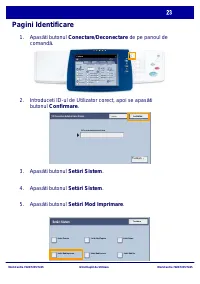
WorkCentre 7228/7235/7245 WorkCentre 7228/7235/7245 Ghid Rapid de Utilizare Pagini Identificare 1. A pas ă ti butonul Conectare/Deconectare de pe panoul de comand ă . 2. I ntroduce ti ID-ul de Utilizator corect, apoi se apas ă ti butonul Confirmare. 3. A pas ă ti butonul Set ă ri Sistem. 4. A pas ă ...
Page 57 - Pagina; Start Sheet and End Sheet
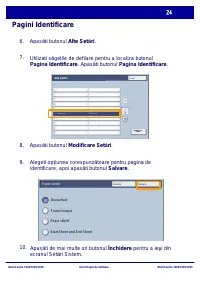
WorkCentre 7228/7235/7245 WorkCentre 7228/7235/7245 Ghid Rapid de Utilizare Pagini Identificare 6. A pas ă ti butonul Alte Set ă ri. 7. U tiliz ati s ă ge ţ ile de defilare pentru a localiza butonul Pagina Identificare. A pas ă ti butonul Pagina Identificare. 8. A pas ă ti butonul Modificare Set ă r...
Page 59 - Contoarele sunt afi; Contor/Imprimare Raport este vizibil; i selecta
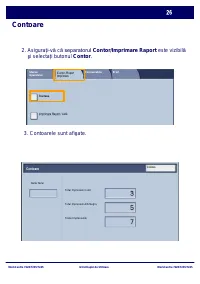
WorkCentre 7228/7235/7245 WorkCentre 7228/7235/7245 Ghid Rapid de Utilizare Contoare 3. Contoarele sunt afi ş ate. 2. Asigura ţ i-v ă c ă separatorul Contor/Imprimare Raport este vizibil ă ş i selecta ţ i butonul Contor. Total Impresiuni Color Total Impresiuni Alb-Negru Toate Impresiunile Numãr Seri...
Page 60 - Înlocuirea Cartu
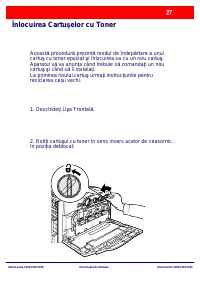
WorkCentre 7228/7235/7245 WorkCentre 7228/7235/7245 Ghid Rapid de Utilizare Înlocuirea Cartu ş elor cu Toner Aceast ă procedur ă prezint ă modul de îndep ă rtare a unui cartu ş cu toner epuizat ş i înlocuirea sa cu un nou cartu ş . Aparatul v ă va anun ţ a când trebuie s ă comanda ţ i un nou cartu ş...
Page 61 - precum
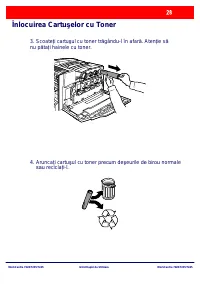
WorkCentre 7228/7235/7245 WorkCentre 7228/7235/7245 Ghid Rapid de Utilizare Înlocuirea Cartu ş elor cu Toner 3. Scoate ţ i cartu ş ul cu toner tr ă gându-l în afar ă . Aten ţ ie s ă nu p ă ta ţ i hainele cu toner. 4. Arunca ţ i cartu ş ul cu toner precum de ş eurile de birou normale sau r ecicla ţ i...
Page 62 - cu toner
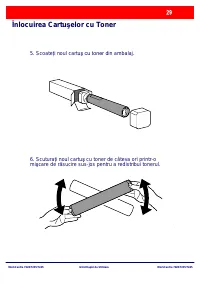
WorkCentre 7228/7235/7245 WorkCentre 7228/7235/7245 Ghid Rapid de Utilizare Înlocuirea Cartu ş elor cu Toner 5. Scoate ţ i noul cartu ş cu toner din ambalaj. 6. Scutura ţ i noul cartu ş cu toner de câteva ori printr-o mi ş care de r ă sucire sus-jos pentru a redistribui tonerul.
Page 63 - in
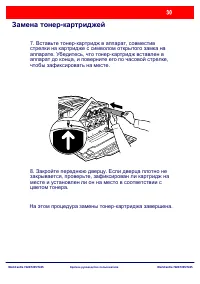
WorkCentre 7228/7235/7245 WorkCentre 7228/7235/7245 Ghid Rapid de Utilizare Înlocuirea Cartu ş elor cu Toner 7. Instala ţ i cartu ş ul cu toner aliniind s ă ge ţ ile de pe cartu ş cu simbolul de deblocare de pe imprimant ă . Cartu ş ul trebuie s ă fie complet instalat înainte de blocarea cartu ş ulu...
Page 70 - я я
WorkCentre 7228/7235/7245 WorkCentre 7228/7235/7245 К я П , . И . 1. . 2. ВНИ НИ ! ч . , . , я я я . И П 1 A4 1 я П ч я Copy Copy Copy Copy
Page 72 - ЕЧА; П ч
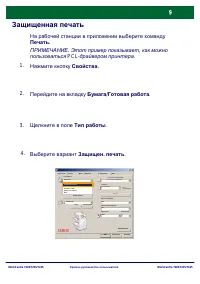
WorkCentre 7228/7235/7245 WorkCentre 7228/7235/7245 К я ЕЧА Е . Э , PCL- . . 1. / я . 2. В . 3. OK. 5. . 4. П ч . В В я / П OK ч я : И я 2- . : Ц К ч : . Н 2- я Н Н У A3 ч
Page 75 - Setup
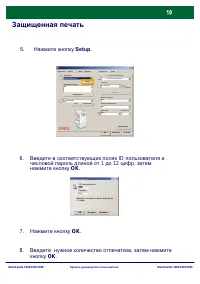
WorkCentre 7228/7235/7245 WorkCentre 7228/7235/7245 К я щ щ я ч 8. , OK. / В я П : 2- щ щ я ч 2- Setup И я я A3 В . У Н . : Н Ц К ч : ч я OK 6. я ID я 1 12 , OK. З я ID я : 12 . OK 7. OK. 5 . Setup .
Page 78 - Fax
WorkCentre 7228/7235/7245 WorkCentre 7228/7235/7245 К я П 1. В Fax ч 2. В ч я 3. В В я / П OK ч я : 2- . : Ц К ч : . 2- я Н Н У ч щ щ я ч ч П я Н ч . ящ : OK В я / П ч ч П ч К
Page 80 - Mailbox Name; И я
WorkCentre 7228/7235/7245 WorkCentre 7228/7235/7245 К я И З Thumbnail У Document Details Job Flow Settings Select All List Mailbox Name П я я я . Д я . 2. В И я ч ящ 3. В И я . 1. Н ч П ч ч ящ .
Page 86 - Д я; Login Setup / Auditron Mode
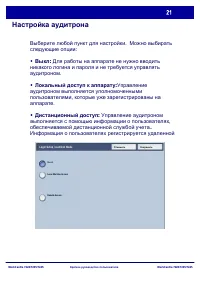
WorkCentre 7228/7235/7245 WorkCentre 7228/7235/7245 К я Н я . : • В : Д я я я я . • : я я я , . • : я я я , .. я я я Login Setup / Auditron Mode Local Machine Access . Remote Access
Page 97 - Quick Use Guide
Quick Use Guide WorkCentre 7228/7235/7245 701P4 4887
Page 98 - Xerox and Ethernet are registered trademarks.
NOTE: BLUE title is for IT administrator type personnel, GREEN for end users and RED means machine needs attention. Depending on the configuration of the machine, some User Interface screens may vary. Microsoft, MS-DOS, W indows, W indows NT, Microsoft Network, and W indows Server are either tradema...
Page 99 - Table of Contents; Printing a configuration report
WorkCentre 7228/7235/7245 WorkCentre 7228/7235/7245 Quick Use Guide Table of Contents Control Panel Printing a configuration report 3 17 Banner Sheets 23 5 Replacing the Toner Cartridges 25 Paper Settings 7 Booklet Creation 9 Secure Print 13 Auditron Setup 19 Simple LAN Faxing Using Thumbnail Previe...
Page 100 - Control Panel; information on how to make the button available.
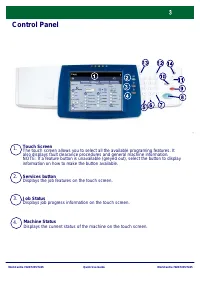
WorkCentre 7228/7235/7245 WorkCentre 7228/7235/7245 Quick Use Guide Control Panel 1. 2. 3. Touch ScreenThe touch screen allows you to select all the available programing features. It also displays fault clearance procedures and general machine information. NOTE: If a feature button is unavailable (g...
Page 101 - defaults of the machine.
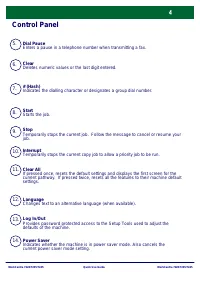
WorkCentre 7228/7235/7245 WorkCentre 7228/7235/7245 Quick Use Guide Control Panel 5. 6. 10. 13. 12. 11. 9. 8. 7. Dial PauseEnters a pause in a telephone number when transmitting a fax. LanguageChanges text to an alternative language (when available). # (Hash)Indicates the dialling character or desig...
Page 102 - Paper Settings; Touch the Change Settings button.
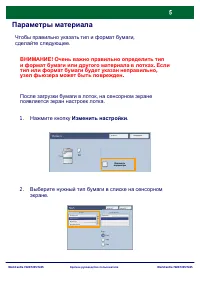
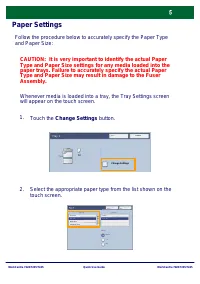
WorkCentre 7228/7235/7245 WorkCentre 7228/7235/7245 Quick Use Guide Paper Settings Follow the procedure below to accurately specify the Paper Type and Paper Size: Touch the Change Settings button. 1. Select the appropriate paper type from the list shown on the touch screen. 2. CAUTION: It is very im...
Page 103 - Touch the Save button.
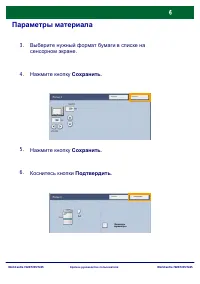
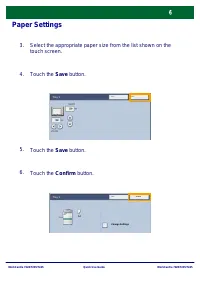
WorkCentre 7228/7235/7245 WorkCentre 7228/7235/7245 Quick Use Guide Paper Settings Select the appropriate paper size from the list shown on the touch screen. 3. Touch the Save button. 4. Touch the Save button. 5. Touch the Confirm button. 6. Change Settings Cancel Confirm Tray 1 A4 Cancel Save Tray ...
Page 104 - Booklet Creation; Click on the Properties button.
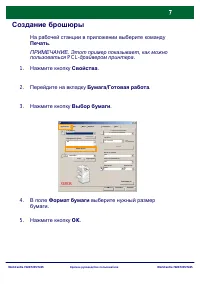
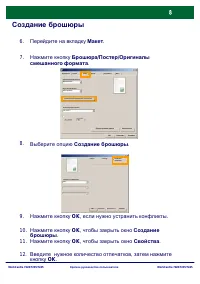
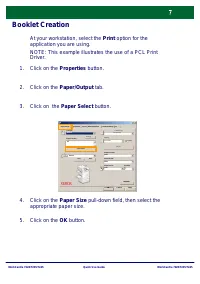
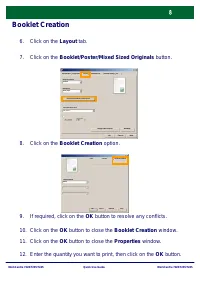
WorkCentre 7228/7235/7245 WorkCentre 7228/7235/7245 Quick Use Guide Booklet Creation NOTE: This example illustrates the use of a PCL Print Driver. Click on the Properties button. 1. Click on the Paper/Output tab. 2. Click on the Paper Select button. 3. Click on the OK button. 5. Click on the Paper S...
Page 107 - Click the Setup button.
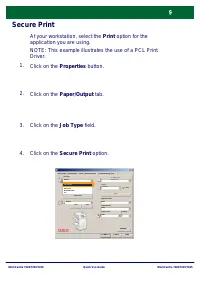
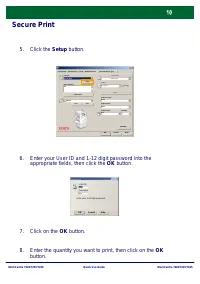
WorkCentre 7228/7235/7245 WorkCentre 7228/7235/7245 Quick Use Guide Secure Print Enter the quantity you want to print, then click on the OK button. 8. Paper Select Watermark/Forms Paper/Output Image Options Layout Detailed Settings Fax Help OK Cancel Defaults Job Type: Paper Summary 2 Sided Copy Sta...
Page 108 - Touch the Stored Documents tab.
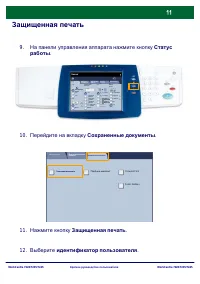
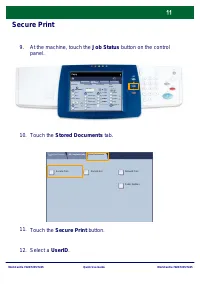
WorkCentre 7228/7235/7245 WorkCentre 7228/7235/7245 Quick Use Guide Secure Print At the machine, touch the Job Status button on the control panel. Touch the Stored Documents tab. 9. Touch the Secure Print button. 11. 10. Select a UserID. 12. General Settings Paper Supply 2 Sided Copying Output Color...
Page 109 - Touch the Document List button.; Your document will be delivered to the output tray.
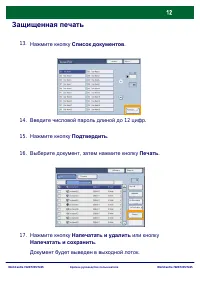
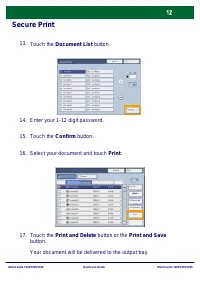
WorkCentre 7228/7235/7245 WorkCentre 7228/7235/7245 Quick Use Guide Secure Print Touch the Document List button. 13. Enter your 1-12 digit password. 14. Touch the Confirm button. 15. Select your document and touch Print. 16. Touch the Print and Delete button or the Print and Save button. 17. Your do...
Page 110 - Simple LAN Faxing; Open the Print Driver
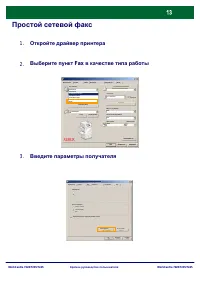
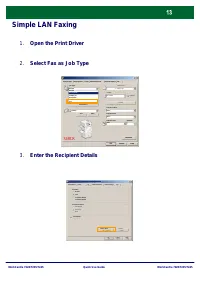
WorkCentre 7228/7235/7245 WorkCentre 7228/7235/7245 Quick Use Guide Simple LAN Faxing Open the Print Driver 1. Select Fax as Job Type 2. Enter the Recipient Details 3. Paper Select Watermark/Forms Paper/Output Image Options Layout Detailed Settings Fax Help OK Cancel Defaults Job Type: 2 Sided Copy ...
Page 111 - Set the Fax Options
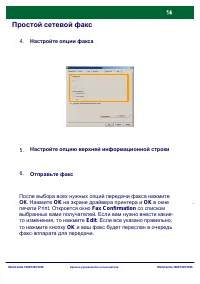
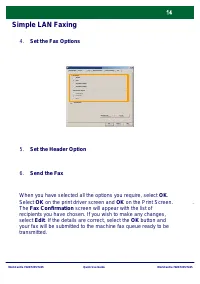
WorkCentre 7228/7235/7245 WorkCentre 7228/7235/7245 Quick Use Guide Simple LAN Faxing Set the Fax Options 4. Set the Header Option 5. When you have selected all the options you require, select OK. Select OK on the print driver screen and OK on the Print Screen. The Fax Confirmation screen will appea...
Page 112 - Using Thumbnail Preview
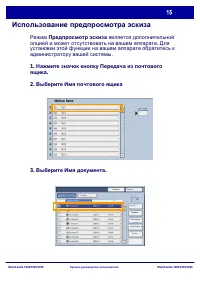
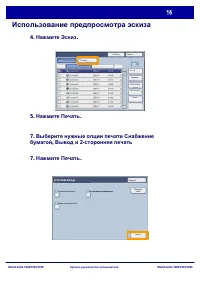
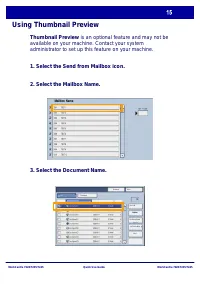
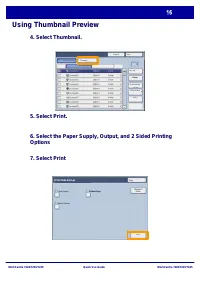
WorkCentre 7228/7235/7245 WorkCentre 7228/7235/7245 Quick Use Guide Using Thumbnail Preview Refresh Close Print Thumbnail Delete Document Details Job Flow Settings Select All List Mailbox Name Thumbnail Preview is an optional feature and may not be available on your machine. Contact your system admi...
Page 114 - Print Report
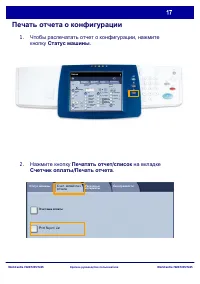
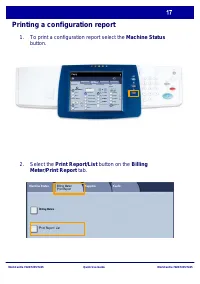
WorkCentre 7228/7235/7245 WorkCentre 7228/7235/7245 Quick Use Guide Printing a configuration report To print a configuration report select the Machine Status button. Select the Print Report/List button on the Billing Meter/Print Report tab. 1. 2. General Settings Paper Supply 2 Sided Copying Output ...
Page 115 - Press the Start button.
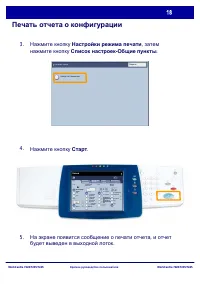
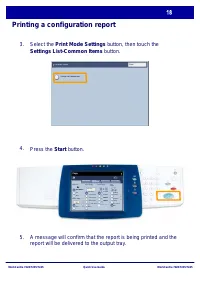
WorkCentre 7228/7235/7245 WorkCentre 7228/7235/7245 Quick Use Guide Printing a configuration report Select the Print Mode Settings button, then touch the Settings List-Common Items button. Press the Start button. A message will confirm that the report is being printed and the report will be delivere...
Page 116 - Auditron Setup; All user accounts must have the following defined:
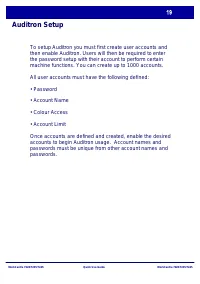
WorkCentre 7228/7235/7245 WorkCentre 7228/7235/7245 Quick Use Guide Auditron Setup To setup Auditron you must first create user accounts and then enable Auditron. Users will then be required to enter the password setup with their account to perform certain machine functions. You can create up to 100...
Page 117 - Login Setup/Auditron Administration
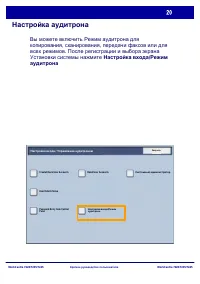
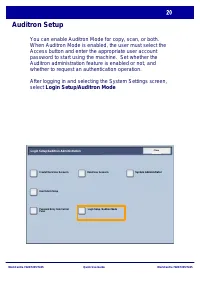
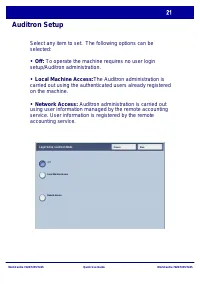
WorkCentre 7228/7235/7245 WorkCentre 7228/7235/7245 Quick Use Guide Auditron Setup You can enable Auditron Mode for copy, scan, or both. When Auditron Mode is enabled, the user must select the Access button and enter the appropriate user account password to start using the machine. Set whether the A...
Page 119 - Copy Service: Administration relating to copy operations.
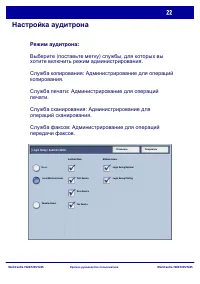
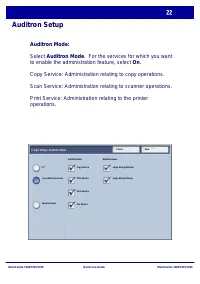
WorkCentre 7228/7235/7245 WorkCentre 7228/7235/7245 Quick Use Guide Auditron Setup Auditron Mode: Select Auditron Mode. For the services for which you want to enable the administration feature, select On. Copy Service: Administration relating to copy operations. Scan Service: Administration relating...
Page 120 - Banner Sheets; Press the Log In/Out button on the control panel.; System Settings
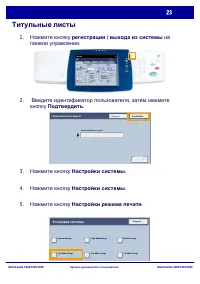
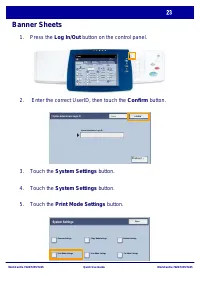
WorkCentre 7228/7235/7245 WorkCentre 7228/7235/7245 Quick Use Guide Banner Sheets Press the Log In/Out button on the control panel. 1. Enter the correct UserID, then touch the Confirm button. 2. Touch the System Settings button. 3. Touch the System Settings button. 4. Touch the Print Mode Settings b...
Page 121 - Touch the Other Settings button.
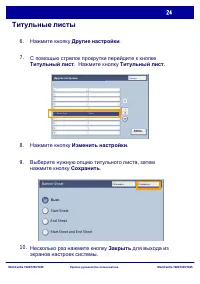
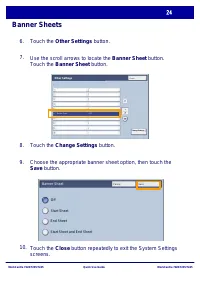
WorkCentre 7228/7235/7245 WorkCentre 7228/7235/7245 Quick Use Guide Banner Sheets Touch the Other Settings button. 6. Use the scroll arrows to locate the Banner Sheet button. Touch the Banner Sheet button. 7. Touch the Change Settings button. 8. Choose the appropriate banner sheet option, then touch...
Page 122 - To access the Billing Meters:
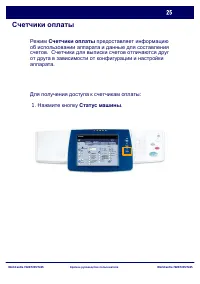
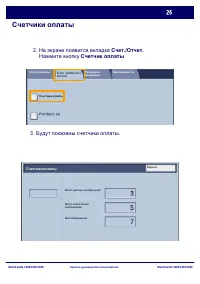
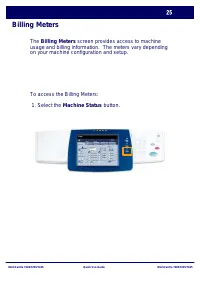
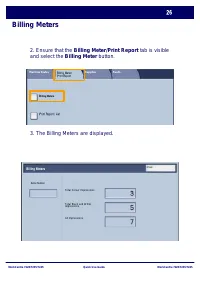
WorkCentre 7228/7235/7245 WorkCentre 7228/7235/7245 Quick Use Guide Billing Meters The Billing Meters screen provides access to machine usage and billing information. The meters vary depending on your machine configuration and setup. To access the Billing Meters: 1. Select the Machine Status button....
Page 124 - Replacing the Toner Cartridges
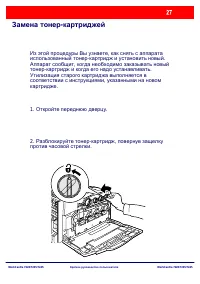
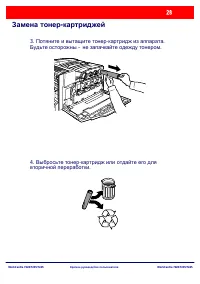
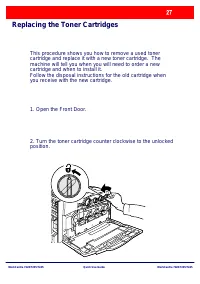
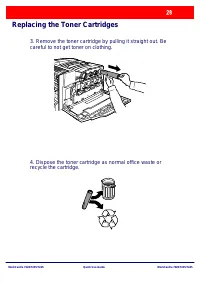
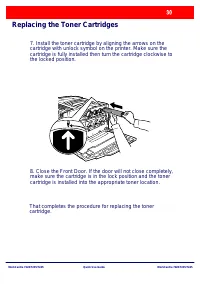
WorkCentre 7228/7235/7245 WorkCentre 7228/7235/7245 Quick Use Guide Replacing the Toner Cartridges This procedure shows you how to remove a used toner cartridge and replace it with a new toner cartridge. The machine will tell you when you will need to order a new cartridge and when to install it.Fol...
Page 126 - Remove the new toner cartridge from its packaging.
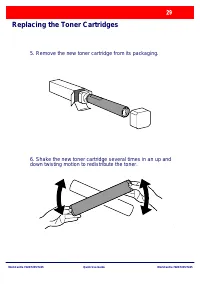
WorkCentre 7228/7235/7245 WorkCentre 7228/7235/7245 Quick Use Guide Replacing the Toner Cartridges 5. Remove the new toner cartridge from its packaging. 6. Shake the new toner cartridge several times in an up and down twisting motion to redistribute the toner.