Xerox 6204 - Manuals
Xerox 6204 Multifunction Printer – User Manual, Manual in PDF format online.
Manuals:
User Manual Xerox 6204
Summary
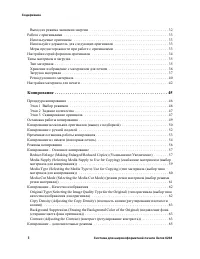
ii Xerox 6204 . . . . . . . . . . . . . . . . . . . . . . . . . . . . . . . . . . . . . . . . . . 32 . . . . . . . . . . . . . . . . . . . . . . . . . . . . . . . . . . . . . . . . . . . . . . . . . . . . . . . . 33 . . . . . . . . . . . . . . . . . . . . . . . . . . . . . . . . . . . . . . . . . . ...
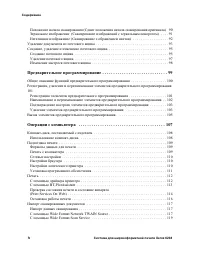
Xerox 6204 iii Image Location (Shifting the Image Copy Position) ( ( )) . . . . . . . . . . . . . . . . . . . . . . . . . . . . . . . . . . . . . . . . . . . . . . . . . . . . . 65 Edge Erase (Erasing the Edges and Margin Shadows of the Original) ( ( )) . . . . . . . . . . . . . . . . . . . . . . . ...
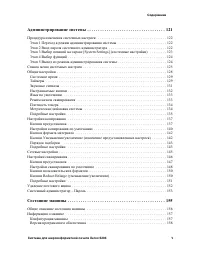
iv Xerox 6204 ( ) 90 ( ) . . . . 91 ( ) . . . . . . . . . . . . . . . . . . . 92 . . . . . . . . . . . . . . . . . . . . . . . . . . . . . . . . . . . . . . . 93 , . . . . . . . . . . . . . . . . . . . . . . . . . . . . . . . . 95 . . . . . . . . . . . . . . . . . . . . . . . . . . . . . . . . . . ....
Xerox 6204 1 1 1 , , . ” ........................................................................................................ 2 ” Xerox 6204 ......................................... 3 ” - ............................................................. 4 ” ..................................
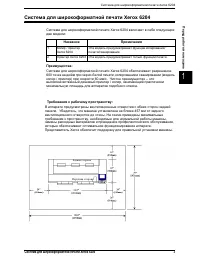
Xerox 6204 Xerox 6204 3 1 Xerox 6204 Xerox 6204 : : Xerox 6204 600 - , ( / ) 60 / . – / , . 1 / Xerox 6204 / / . 2 Xerox 6204 . : . , 457 . , , , . Xerox . .
1 4 Xerox 6204 1 - , . , . . , . . . ̈ ( ) / / , , , . - PDF. ̈ " " , . - PDF. ̈ - (Xerox 6204 WF Utilities) - , , : • . , Xerox 6204 . ” : , , . ” : , , , . ” Xerox 6204 WF Scan Service: , . ” Xerox 6204 WF Utilities: , . . ...
Xerox 6204 5 1 . , Xerox 6204 WF Solution. , , . , , , , . , , , , . : ̈ 1 , . ̈ 2 , , , , , , , , . ̈ 3 , [Copy]. ̈ 4 , [Scan]. ̈ 5 . ̈ 6 , , , , , Print Services on Web. ̈ 7 . ̈ 8 .
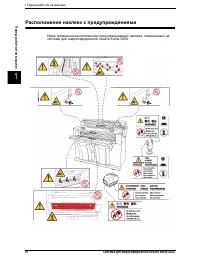
Xerox 6204 7 1 . Xerox . . , , . XEROX. : , , . . , . , . / , , . , . , . . , . . . , . .
Xerox 6204 9 1 Xerox . : ” . - . - , , . . . , . . ” , . ” . , , Xerox . ” , . . ” , Xerox. . ” . : ” . ” , . ” , . . ” . , . ” . ” . ” .
1 10 Xerox 6204 1 ” , . Xerox . , , / . ” . . ” . . ” . , . ” , , . , . , Xerox, . , Xerox Ozone , 1-800-828-6571 . . , . ” . ” , - . , , / : 15 . . ,
Xerox 6204 11 1 . , . , Xerox, . XEROX : TUV Rhineland of North America UL60950-1 1st(2003) (USA/Canada) NEMKO IEC60950-1 Edition 1 (2001)
Xerox 6204 13 1 Environmental Choice, Xerox , Environmental Choice . 1988 . Environmental Choice , . , , , . 1600 Environmental Choice 140 . Xerox EcoLogo.
1 14 Xerox 6204 1 . , . 1 , : , (FHA) . . ( .) . ( , , ) , . ( , - , 75% 150% ) . , . , , - . 2 . 3 , . 4 , , , , " " . Copyright Office, Library of Congress, Washington, D.C. 20559. R21. 5 . ( ) 6 . ( ) 7 . 8 .
Xerox 6204 15 1 9 , : : . 10 , , , , , , . . ( ). : - - . , . . , . 1 . 2 . 3 . 4 , . 5 , , , ( , ). 6 , , , , , , , , , . 7 , , . 8 , , , , . 9 , , . , . , .
Xerox 6204 17 1 , , , , . , . , Xerox. WEEE 2002/96/EC , . , . Xerox, . . , , . , . . , Xerox. 1. 120 50/60 2. 220-240 50/60 , . . , , , - . , . , , , , , . . Xerox. : : 10 - 32 : 15 - 85% ( ) 47,5% 32 , 85% – 28 ...
Xerox 6204 19 2 2 , . , , . ” ............................................................................................. 20 ” ................................................................... 28 ” ( ) ......................................................... 29 ” ............................
Xerox 6204 21 2 , . . № 1 . 2 . 3 . 4 , . " " . 5 . 6 . 7 . 20 : ” A3 ( ), A4, ANSI B ( ) Arch A ( ). ” A2 – ANSI D ( ) ( ). 8 . 20 , . 9 . , .
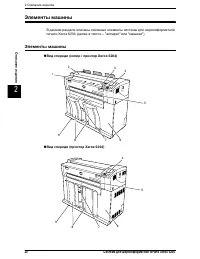
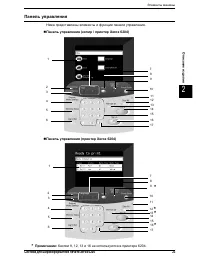
Xerox 6204 23 2 . ̈ ( / Xerox 6204) ̈ ( Xerox 6204) 1 8 23 5 6 10 12 13 14 16 4 17 7 15 11 9 Scan 1 8 2 3 5 6 10 12 1314 16 4 17 7 15 11 9 * * * * Language * : 9, 12, 13 16 6204.
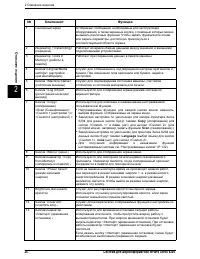
2 24 Xerox 6204 2 № 1 , , , . , , . 2 <Transmitting> ( ) . 3 <Jobs in Memory> ( ) . 4 <Original/Media settings> ( / ) . , . 5 <Machine Status> ( ) , . 6 <Log In/Out> ( / ) . 7 <Copy> ( ) <Scan ( )> <Custom 1 (...
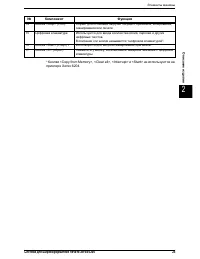
Xerox 6204 25 2 * <Copy from Memory>, <Clear all>, <Interrupt> <Start> Xerox 6204. 14 <Stop> ( ) , , . 15 , . " ". 16 <Start> ( ) * . 17 <C> ( ) , . №
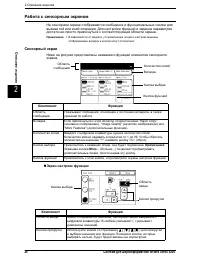
2 26 Xerox 6204 2 . . • , . . ̈ Э , , . , "Basic Copy" ( ), "Image Quality" ( ) "More Features" ( ). . 1 99. "1", <C> ( ). . . : More ... ( ...) , . , . , . ( ) . [ ] [ ][ ][ ] . , , .
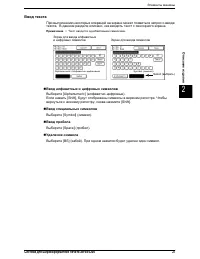
Xerox 6204 27 2 . , . • . ̈ [Alphanumeric] ( - ). [Shift], . , [Shift]. ̈ [Symbol] ( ). ̈ [Space] ( ). ̈ [BS] ( ). . Alphanumeric ( - ) Symbol ( ) Select ( )
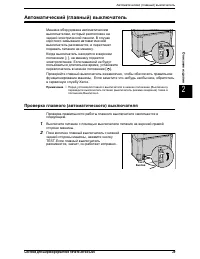
( ) Xerox 6204 29 2 ( ) , . , . [ | ], . , [ ]. , . - , Xerox. • ( ), ( ) . ( ) . 1 . 2 , TEST. , , . Test
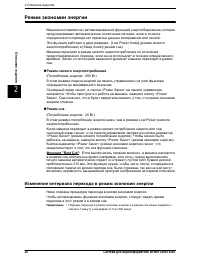
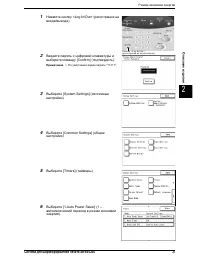
Xerox 6204 31 2 1 <Log In/Out> ( / ). 2 [Confirm] ( ). • "11111". 3 [System Settings] ( ). 4 [Common Settings] ( ). 5 [Timers] ( ). 6 [1.Auto Power Saver] (1 – ). Scan К <Log In/Out> ( / ) Save
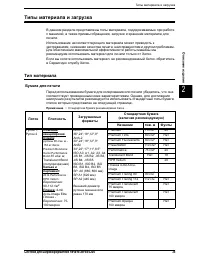
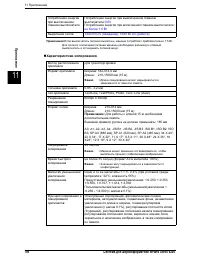
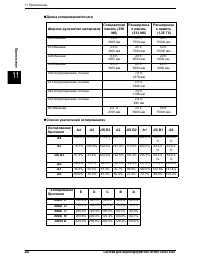
Xerox 6204 33 2 . : ” , , ” , ” , : ” , , , , . , , , . ” , , , . . ” , 40 . 40 . ” . Xerox 6204 . . (0,05-3,2 ) : 182-914,4 : 210-15000
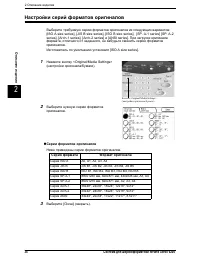
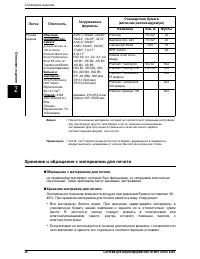
Xerox 6204 35 2 , , , . , , . Xerox. , Xerox, Xerox. , . , , . • Xerox. ( ) / . 1, 2 : у ы 80 / . - 150 : Xerox Premium Bond Xerox Performance Bond 65 / . : Translucent Bond ( ) : 20 lb Performance HPH Vellum Е е е : 90-112 / 2 : 4-mil Accu-Image Elite П е а - Е е е : 7...
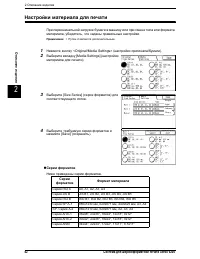
Xerox 6204 37 2 1 2. • . - . . " " (P.42). • 2 . 1 . 2 1 2. 3 . 4 . • , .
Xerox 6204 39 2 10 1 2 , . 11 . ( ) ( ). • . " " . 1 . 2 , , . , . • . - , , . - . , .
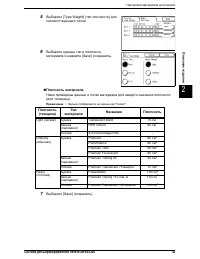
Xerox 6204 43 2 5 [Type Weight] ( ) . 6 [Save] ( ). ̈ ( ). • "Vellum". 7 [Save] ( ). ( ) Light ( ) Translucent Bond 70 / 2 ( ) HPH Vellum 80 / 2 4-mil AccuImage Elite - Ordinary ( ) Premium 80 / 2 Performance 80 / 2 Premium Tints 80 / 2 Premium Fluorescent 80 / 2 ( ) Premium Tr...
Xerox 6204 45 3 3 [Copy] ( ) . ” .................................................................................... 46 ” ........................................................................ 49 ” ( )............................ 50 ” .........................................................
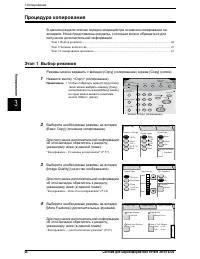
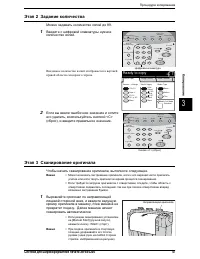
Xerox 6204 47 3 Э 2 99. 1 . . 2 , <C> ( ), . Э 3 , . • , . • , , , . 1 , , . . • [Manual Start] ( ), <Start> ( ). • ( , ) 4 7 2 5 8 0 3 6 9 Transmitting Machine Status Log In/Out Jobs in Memory Original/ Copy Scan Menu Power Saver Clear All Copy from Stop Start Inte...
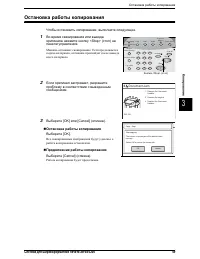
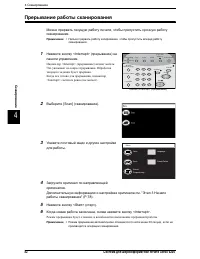
Xerox 6204 49 3 , . 1 <Stop> ( ) . . , . 2 , . 3 [OK] [Cancel] ( ). ̈ [OK]. , . ̈ [Cancel] ( ). . 4 7 2 5 8 0 3 6 9 Transmitting Machine Status Log In/Out Jobs in Memory Original/ Copy Scan Menu Power Saver Clear All Copy from Stop Start Interrupt Media Settings Memory . C 1 <Stop&g...
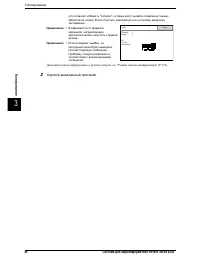
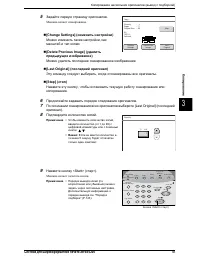
( ) Xerox 6204 51 3 5 . . ̈ [Change Settings] ( ) , . ̈ [Delete Previous Image] ( ) . ̈ [Last Original] ( ) , . ̈ [Stop] ( ) , . 6 . 7 [Last Original] ( ). 8 . • , ( 1 99) . • : 5 , . 9 <Start> ( ). . • ( ) . . " " (P.143). Copy Quantity : 3Pages : 2Original Size : A0 A...
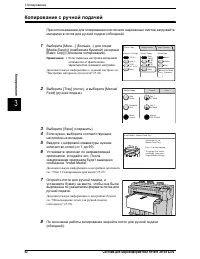
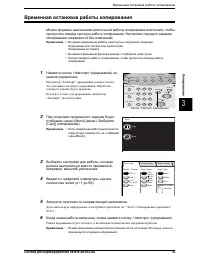
Xerox 6204 53 3 , . . • . • . • , . 1 <Interrupt> ( ) . <Interrupt> ( ) . Э . . К , <Interrupt> . 2 [Menu] ( ). [Copy] ( ). • , [Copy] , [Menu]. 3 , , , . 4 ( 1 99). 5 . . " Э 3 " (P.47). 6 , <Interrupt&...
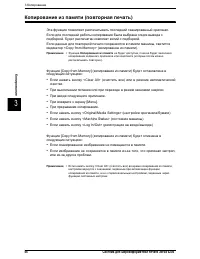
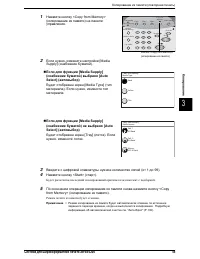
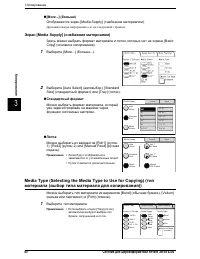
( ) Xerox 6204 55 3 1 <Copy from Memory> ( ) . 2 , [Media Supply] ( ). ̈ [Media Supply] ( ) [Auto Select] ( ) [Media Type] ( ). , . ̈ [Media Supply] ( ) [Auto Select] ( ) [Tray] ( ). , . 3 ( 1 99). 4 <Start> ( ). . 5 <Copy from Memory> ( ). . • , . . " &...
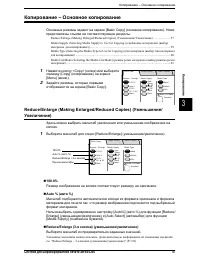
– Xerox 6204 57 3 – [Basic Copy] ( ). . Reduce/Enlarge (Making Enlarged/Reduced Copies) ( / ) ...................... 57 Media Supply (Selecting Media Supply to Use for Copying) ( ( )) ........................................................................................................ 59 Media Ty...
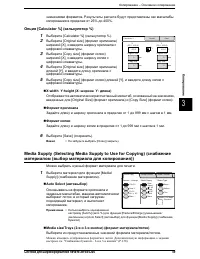
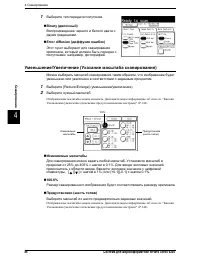
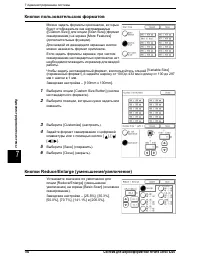
– Xerox 6204 59 3 . 25% 400%. [Calculator %] ( %) 1 [Calculator %] ( %). 2 [Original size] ( ) [X], . 3 [Copy size] ( ) [X], . 4 [Original size] ( ) [Y], . 5 [Copy size] ( ) [Y], . ̈ X:width Y:height (X: Y: ) , , [Original Size] ( ) [Copy Size] ( ). ̈ 1 999 1 . ̈ 1 999 1 . 6 [Save] ( ). ...
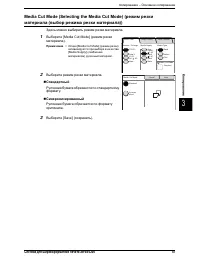
– Xerox 6204 61 3 Media Cut Mode (Selecting the Media Cut Mode) ( ( )) . 1 [Media Cut Mode] ( ). • [Media Cut Mode] ( ) [Media Supply] ( ) . 2 . ̈ . ̈ . 3 [Save] ( ). Basic Copy Image Quality More Features Media Supply Media Type Select 2 A1 Media Cut Mode Standard Bond Bond Vellum Film ...
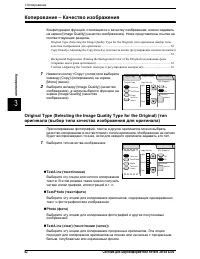
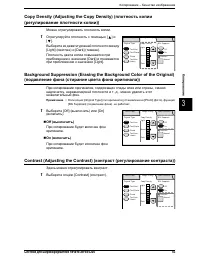
– Xerox 6204 63 3 Copy Density (Adjusting the Copy Density) ( ( )) . 1 [ ] [ ]. [Light] ( ) [Dark] ( ). [Dark] [Light]. Background Suppression (Erasing the Background Color of the Original) ( ( )) , , , . ., . • [Original Type] ( ) [Photo] ( ), [BG Suppress] ( ) . 1 [Off] ( ) [On] ( )....
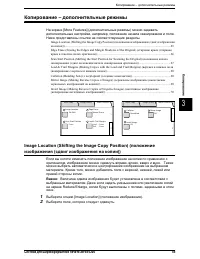
– Xerox 6204 65 3 – [More Features] ( ) , , . . Image Location (Shifting the Image Copy Position) ( ( )) ........................................................................................................................................ 65 Edge Erase (Erasing the Edges and Margin Shadows of...
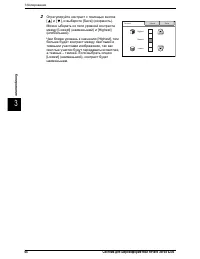
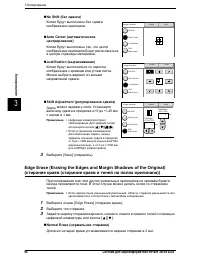
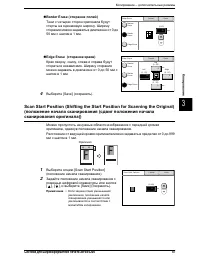
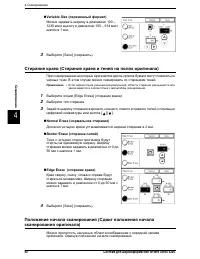
– Xerox 6204 67 3 ̈ Border Erase ( ) . 0 50 1 . ̈ Edge Erase ( ) , , . 0 50 1 . 4 [Save] ( ). Scan Start Position (Shifting the Start Position for Scanning the Original) ( ( )) , . 0 999 1 . 1 [Scan Start Position] ( ). 2 [ ], [ ], [Save] ( ). • / , . Edge Erase Edge ...
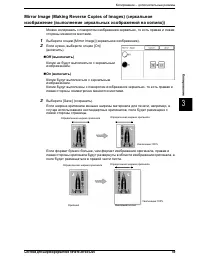
– Xerox 6204 69 3 Mirror Image (Making Reverse Copies of Images) ( ( )) , . 1 [Mirror Image] ( ). 2 , [On] ( ). ̈ Off ( ) . ̈ On ( ) . , . 3 [Save] ( ). , , , . , , , . :100% :100%
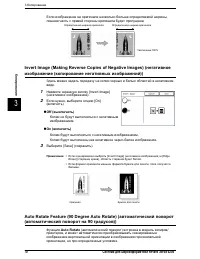
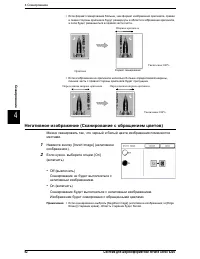
3 70 Xerox 6204 3 , . Invert Image (Making Reverse Copies of Negative Images) ( ( )) . 1 [Invert Image] ( ). 2 , [On] ( ). ̈ Off ( ) . ̈ On ( ) . - . 3 [Save] ( ). • [Invert Image] ( ) [Edge Erase] ( ), . • , . Auto Rotate Feature (90 Degree Auto Rotate) ( ( 90 )) Auto Rotate ...
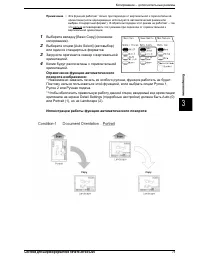
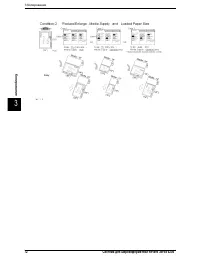
– Xerox 6204 71 3 • ( ). – e . 1 [Basic Copy] ( ). 2 [Auto Select] ( ) . 3 . 4 . : * , . , 1, 2 . * , Detail Settings ( ) Auto (0) Portrait (1), Landscape (2). :
Xerox 6204 73 4 4 / Xerox 6204. • . . Xerox. ” .................................................................................. 74 ” ........ 79 ” ...................................................................... 81 ” ................................................................
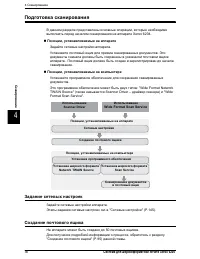
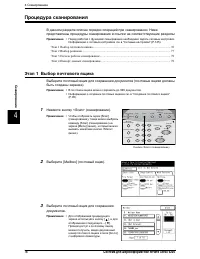
4 74 Xerox 6204 4 , Xerox 6204. ̈ , . . . . ̈ , . : "Wide Format Network TWAIN Source" ( Scanner Driver – ) "Wide Format Scan Service". . . " " (P.145). 50 . , " " (P.95) . Network TWAIN Source Scan Service , , Scanner Driver Wide Format Sc...
Xerox 6204 75 4 . 20 . • . " " (P.27). . ( 0 9). off ( ), . . / : , , . Off ( ), . On ( ), .
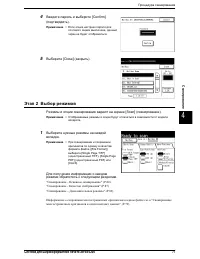
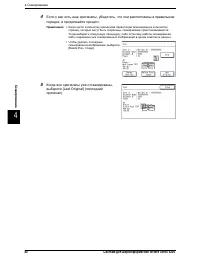
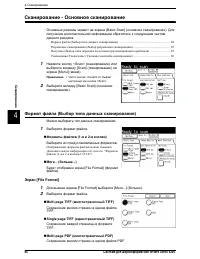
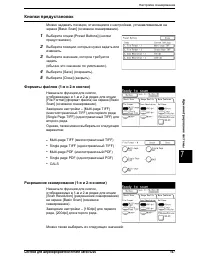
Xerox 6204 77 4 4 [Confirm] ( ). • , . 5 [Close] ( ). Э 2 [Scan] ( ). • . 1 . • ([File Format]) [Single Page TIFF] ( TIFF), [Single Page PDF] ( PDF) [CALS]. . " - " (P.84) " - К " (P.87) " – " (P.89) . " " (P.79).
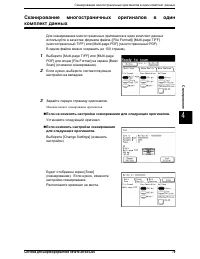
Xerox 6204 79 4 ([File Format]) [Multi-page TIFF] ( TIFF) [Multi-page PDF] ( PDF). 100 . 1 [Multi-page TIFF] [Multi-page PDF] [File Format] [Basic Scan] ( ). 2 , . 3 . . ̈ . . ̈ . [Change Settings] ( ). [Scan] ( ). , . .
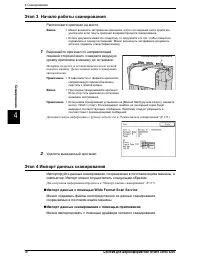
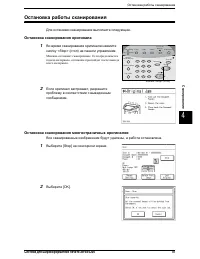
Xerox 6204 81 4 . 1 <Stop> ( ) . . , . 2 , . , . 1 [Stop] . 2 [OK]. 4 7 2 5 8 0 3 6 9 Transmitting Machine Status Log In/Out Jobs in Memory Original/ Copy Scan Menu Power Saver Clear All Copy from Stop Start Interrupt Media Settings Memory . C 1 <Stop> ( )
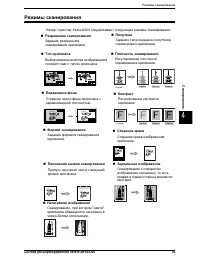
Xerox 6204 83 4 / Xerox 6204 : ̈ . ̈ . Original Normal Darken Lighten ̈ . ̈ . Original Normal Hightest Lowest ̈ . ̈ . ̈ , . ̈ , " " - . ̈ . ̈ . ̈ .
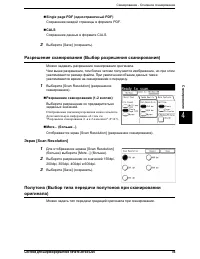
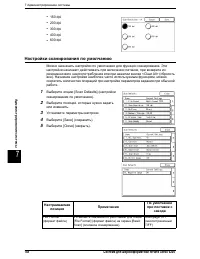
- Xerox 6204 85 4 ̈ Single page PDF ( PDF) PDF. ̈ CALS CALS. 3 [Save] ( ). ( ) . , , . . 1 [Scan Resolution] ( ). ̈ (1-2 ) . . . " (1- 2- )" (P.147). ̈ More... ( ...) [Scan Resolution] ( ). Э [Scan Resolution] 1 [Scan Resolution] ( ) [More...] ( ). 2 150dpi, 200dpi, 300dp...
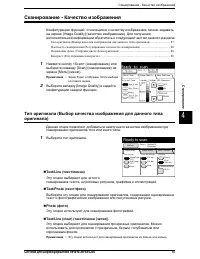
- Xerox 6204 87 4 - , , [Image Quality] ( ). : ( ).......................... 87 ( ) ....................................... 88 ( ) ................................................................. 88 К ( ) .................................................................................
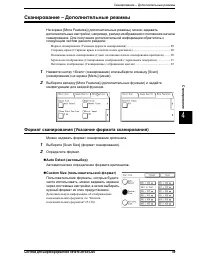
– Xerox 6204 89 4 – [More Features] ( ) , , . : ( ) ........................................................ 89 ( ) ................................................ 90 ( ) ........ 90 ( )................. 91 ( ) ............................................. 92 1 <Scan> ( ) [Scan] ( )...
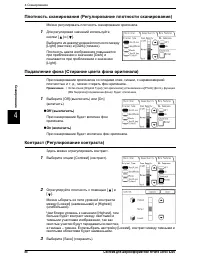
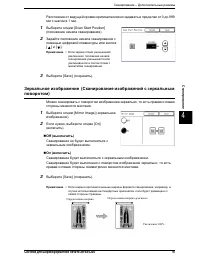
– Xerox 6204 91 4 0 999 1 . 1 [Scan Start Position] ( ). 2 [ ] [ ]. • / , . 3 [Save] ( ). ( ) , . 1 [Mirror Image] ( ). 2 , [On] ( ). ̈ Off ( ) . ̈ On ( ) . , . 3 [Save] ( ). • , , , . :100%
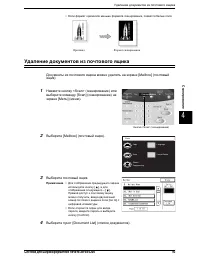
Xerox 6204 93 4 • , . [Mailbox] ( ). 1 <Scan> ( ) [Scan] ( ) [Menu] ( ). 2 [Mailbox] ( ). 3 . • [ ], – [ ]. , [Go to] . • , [Confirm]. 4 [Document List] ( ). <Scan> ( ) Menu Copy Scan Language Create/Delete StoredProgramming
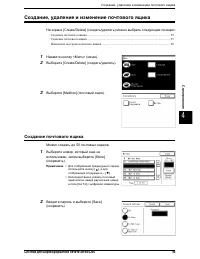
, Xerox 6204 95 4 , [Create/Delete] ( / ) : ............................................................................................................ 95 ........................................................................................................... 97 ..................................
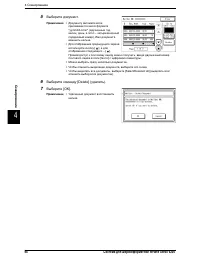
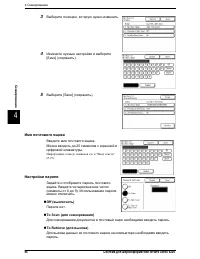
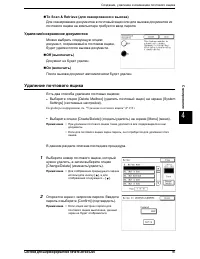
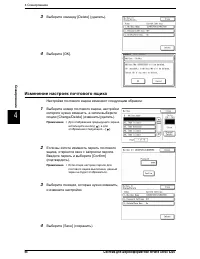
, Xerox 6204 97 4 ̈ To Scan & Retrieve ( ) . / : , , . ̈ Off ( ) . ̈ On ( ) . : ” [Delete Mailbox] ( ) [System Settings] ( ). . " " (P.152) ” [Create/Delete] ( / ) [Menu] ( ). • . • , . . 1 , , [Change/Delete] ( / ). • [ ], – [ ]...
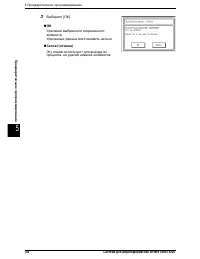
5 104 Xerox 6204 5 3 [OK]. ̈ OK . . ̈ Cancel ( ) , .
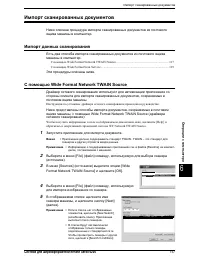
6 108 Xerox 6204 6 - , - : ̈ . ̈ Wide Format Network TWAIN Source The Wide Format Network TWAIN Source ( ) . ̈ Wide Format Scan Service The Wide Format Scan Service . ̈ , WF Network TWAIN Source ( ) . - - . 1 - . 2 .
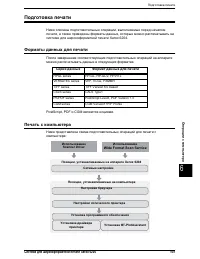
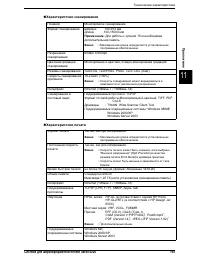
Xerox 6204 109 6 , , , Xerox 6204. . PostScript, PDF CGM . : HPGL series HP-GL, HP-GL/2, HP-RTL VERSATEC series VRF, VCGL, FXMMR TIFF series TIFF Version 6.0 based CALS series CALS Type1 PS/PDF series PostScript Level3, PDF Version 1.3 CGM series CGM Version1+PIP Profile , , Xerox 62...
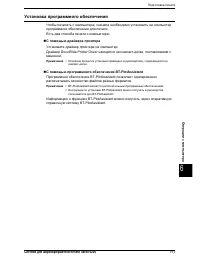
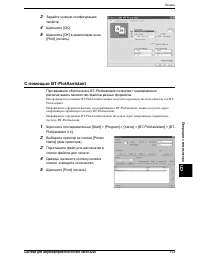
Xerox 6204 111 6 , . : ̈ . DocuWide Printer Driver - , . • , - . ̈ BT-PlotAssistant BT-PlotAssistant . • BT-PlotAssistant . • BT-PlotAssistant BT-PlotAssistant. BT-PlotAssistant BT-PlotAssistant.
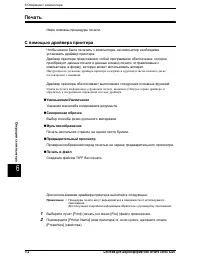
6 112 Xerox 6204 6 . , . , , , , . - , . : , [Help] , . ̈ / . ̈ . ̈ . ̈ . ̈ TIFF . : • . . 1 [Print] ( ) [File] ( ) . 2 [Printer Name] ( ) , , [Properties] ( ).
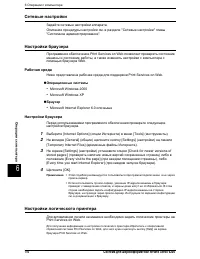
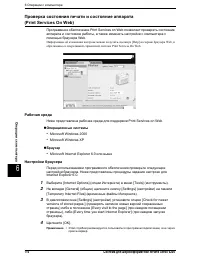
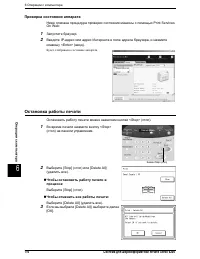
6 114 Xerox 6204 6 (Print Services On Web) Print Services on Web , Web. , [Help] Web, Print Services On Web. Print Services on Web. ̈ ” Microsoft Windows 2000 ” Microsoft Windows XP ̈ ” Microsoft Internet Explorer 6.0 . Internet Explorer 6.0. 1 [Internet Options] ( ) [Tools] ( )....
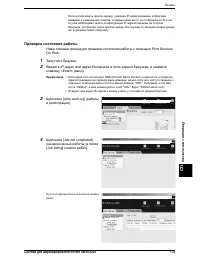
Xerox 6204 115 6 • - , IP- , . IP- , - . . . Print Services On Web: 1 . 2 IP- , <Enter> ( ). • DNS (Domain Name System) , , "URL". , "6204wf", [xerox.com], "URL" "6204wf.xerox.com". • IP- . 3 [Jobs and Log] ( ). 4 [Job not completed] ( ) [Job l...
Xerox 6204 117 6 . . Wide Format Network TWAIN Source .................................................................... 117 Wide Format Scan Service........................................................................................ 119 . Wide Format Network TWAIN Source , . ....
Manual Xerox 6204
Summary
Wide Format Scan Service User Guide i Table of contents Preface ..........................................................................................................................................................iii Using this Guide ................................................................
Wide Format Scan Service User Guide iii Preface Thank you for using the Xerox Wide Format Scan Service. This software is designed expressly for the Xerox 6204 Wide Format Copier/Printer. This User Guide describes the procedures and precautions involved in installing and operating the Xerox Wide Form...
iv Wide Format Scan Service User Guide Using this Guide This guide consists of the following chapters: 1 Installing Wide Format Scan Service Provides instructions for installing the Wide Format Scan Service software on a workstation. 2 Starting Wide Format Scan Service Explains how to start Wide For...
Wide Format Scan Service User Guide v Conventions This User Guide uses the following symbols and conventions: < > Indicates the keys on the keyboard. EXAMPLE Press the < Enter > key. [ ] Indicates the menus and display items on the screens. EXAMPLE Select either the [ On ] or [ Off ] but...
vi Wide Format Scan Service User Guide Operating Environment The following is the operating environment of the Wide Format Scan Service. Hardware Minimum PC hardware requirements: • PC/AT compatible machine (excluding NEC NX series) • Processor: Pentium III 850MHz • Memory (at 600 dpi, B/W binary da...
Wide Format Scan Service User Guide 1 1 Installing Wide Format Scan Service Instructions for installing Wide Format Scan Service follow. Before beginning the installation, log on to Print Services on Web as Administrator, select the Properties tab, and perform the following: 1. Confirm that the sett...
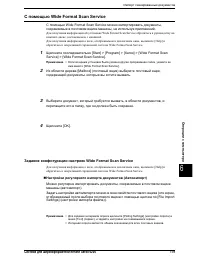
Wide Format Scan Service User Guide 7 2 Starting Wide Format Scan Service Wide Format Scan Service enables a user to retrieve to a workstation the documents which were previously scanned and stored on the Xerox 6204 Wide Format Copier/Printer. Once the image information is retrieved, it can be edite...
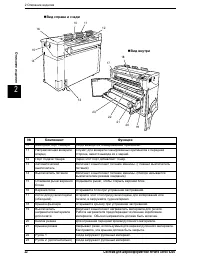
8 Wide Format Scan Service User Guide Starting the Application NOTE You cannot use Wide Format Scan Service and Wide Format Network TWAIN Source at the same time. To start Wide Format Scan Service: Either select the [Wide Format Scan Service] shortcut on the Desktop or select [Start] > [All Progr...
Wide Format Scan Service User Guide 9 Overview of the [Wide Format Scan Service] Window The [Wide Format Scan Service] window (Fig. 2) contains these features: Menu Bar The Menu Bar provides access to the File, Edit, View, Tools, and Help menus and submenus. Tool Buttons Tool Buttons provide conveni...
Wide Format Scan Service User Guide 11 Tool Button Functions The tables below define the functions of the tool buttons on the [Wide Format Scan Service] window. Common Tool Buttons Icon Function Description New Adds a Windows folder, a Mailbox, or an Edit Images icon (for Skew Correction, Despeckle,...
12 Wide Format Scan Service User Guide Edit Images Tool Buttons Icon Function Description Store File Stores multiple files so they can be batch processed. Execute Stored File Executes the editing of the stored files. Move Up Moves the selected file up. Move Down Moves the selected file down. Move to...
Wide Format Scan Service User Guide 13 Wide Format Scan Service Menus This section describes each of the items in the menus on the Wide Format Scan Service Menu Bar. File Menu Item Description New Adds Windows folders, mailboxes, and Edit Images icons to the [Service Area]. The submenu consists of t...
14 Wide Format Scan Service User Guide View Menu The selections displayed on the View Menu differ based on which folder or service is selected in the [Service Area]. Item Description Toolbar Shows or hides the Toolbar. Status Bar Shows or hides the Status Bar. The status bar is displayed by default....
Wide Format Scan Service User Guide 15 Tools Menu The selections displayed on the Tools Menu differ based on which folder or service is selected in the [Service Area]. Item Description Retrieve Displays in the Tools Menu when a Wide Format Scan Service mailbox is selected. Retrieves file(s) from a C...
Wide Format Scan Service User Guide 17 3 Setting Up the Program Defaults The Wide Format Scan Service [Detailed Settings] dialog box (Fig. 1) allows you to specify default settings which govern some aspects of program operation and the appearance of the display, including: • the polling frequency fo...
18 Wide Format Scan Service User Guide Polling The Wide Format Scan Service allows you to either manually or automatically retrieve documents from the mailbox on the Xerox 6204 Wide Format Copier/Printer. If you choose to retrieve documents automatically, you may either accept the default setting of...
Wide Format Scan Service User Guide 19 File Formats The Wide Format Scan Service and the Wide Format Scan Service Viewer are compatible with TIFF, PDF, and CALS file formats. To associate one or more of these file formats with the Wide Format Scan Service Viewer: 1. Select the [File Format] tab. 2. ...
20 Wide Format Scan Service User Guide Media Size List The [Media Size List Settings] tab (Fig. 4) enables you to specify the media series and sizes which will be displayed in Wide Format Scan Service and Wide Format Scan Service Viewer. By default, all media sizes will display (setting = [Yes]) whe...
Wide Format Scan Service User Guide 21 Display Units The [Millimeters/Inches] tab (Fig. 5) enables you to set up the units of measurement which will display in Wide Format Scan Service and Wide Format Scan Service Viewer. To change the default units of measurement: 1. Select the [Millimeters/Inches]...
22 Wide Format Scan Service User Guide Saving Custom Settings The [Export Setup File…] and [Import Setup File…] selections in the [File] menu enable users to save their customized program settings (Edit Image icons and Detailed Settings) and then reload them as needed, for example, after upgrading w...
Wide Format Scan Service User Guide 23 Importing Custom Settings Perform the steps below to reestablish your custom settings by importing a setup data file that was saved earlier. 1. Select [File] > [Import Setup File]. An [Open] popup will display (Fig. 7). 2. Select the previously saved setup d...
Wide Format Scan Service User Guide 25 4 Setting Up a Wide Format Scan Service Mailbox The purpose of a Wide Format Scan Service mailbox is to retrieve and display information about the scanned images which are stored in a mailbox on the Copier/Printer. Whenever you select the mailbox that you creat...
26 Wide Format Scan Service User Guide Creating a Wide Format Scan Service Mailbox 1. Launch Wide Format Scan Service. 2. A new mailbox may be set up from the [Wide Format Scan Service] window in any one of the following ways: a. Select [File] > [New] > [Mailbox], or b. Select the [New] ( ) bu...
30 Wide Format Scan Service User Guide Deleting a Wide Format Scan Service Mailbox Deleting a mailbox from the [Service Area] removes the link between the Wide Format Scan Service and the mailbox on the Xerox 6204 Wide Format; it does not remove the mailbox from the Copier/Printer. Perform the steps...
Wide Format Scan Service User Guide 31 5 Setting Up a Windows Folder When you retrieve scanned documents from the Copier/Printer you will be prompted to select a folder in which to store them. This folder may be located in [My Documents], on the [Desktop], or elsewhere on the workstation’s hard driv...
Wide Format Scan Service User Guide 33 Creating a Shortcut to the New Folder The process described below creates a shortcut to the folder that you just created to receive imported documents. This shortcut looks like a folder and will appear at the same level as the Desktop, My Documents, etc., in th...
Wide Format Scan Service User Guide 35 Deleting a Windows Folder 1. To delete a Windows shortcut folder from the [Service Area]: a. Right click on the shortcut folder you wish to delete and then select [Delete] from the menu that appears (Fig. 6), or b. Select the Windows folder shortcut that you wi...
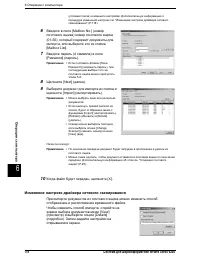
Wide Format Scan Service User Guide 37 6 Importing Stored Documents from a Mailbox Image files (in TIFF, PDF, and CALS formats) which are stored as documents in a Copier/Printer mailbox must be retrieved (imported) to a workstation to be edited using Wide Format Scan Service. This section of the gui...
38 Wide Format Scan Service User Guide Manual Import 1. Start the Wide Format Scan Service. 2. Click the [+] character at the left side of the Mailbox folder in the [Service Area]. The item will expand and show all of the mailboxes that have been set up (Fig. 1). Figure 1 3. Select the appropriate m...
Wide Format Scan Service User Guide 41 Auto Import Documents may be automatically retrieved from a mailbox on the Copier/Printer at an interval of your choice. Auto Import is enabled as follows: 1. Right click on the mailbox and then select [Properties]. The [Mailbox Properties] dialog box (Fig. 6) ...
Wide Format Scan Service User Guide 43 7 Displaying the Contents of the Windows Folder You display the contents of a folder that contains retrieved documents by selecting the folder shortcut in the [Service Area]. The documents stored within the folder will display in List View by default but you ca...
Wide Format Scan Service User Guide 45 Creating the Title Block View Settings If you choose to display retrieved files in Title Block View (Fig. 3), you must set up the correct orientation and dimensions in the Title Block View Settings. Figure 3 1. Select [Tools] > [Title Block View Settings…]. ...
Wide Format Scan Service User Guide 47 8 Editing a Retrieved Document The Wide Format Scan Service provides three editing features: • Despeckle • Image Rotation • Skew Correction Each of these features and its use is explained in this chapter. The Wide Format Scan Service also allows you to create c...
48 Wide Format Scan Service User Guide Despeckle NOTE Despeckle works with bitmap images only. The Despeckle feature helps remove unwanted noise (small black dots) from monochrome images and background from scanned color images, enhancing the appearance of the print. The feature can be changed to me...
Wide Format Scan Service User Guide 49 Image Rotation The Image Rotation feature allows you to rotate a retrieved document 90 ° Counterclockwise, 180 ° , or 90 ° Clockwise. The direction of rotation is selected by right clicking the [Image Rotation] item in the [Service Area], selecting [Properties]...
Wide Format Scan Service User Guide 51 Skew Correction NOTE Skew correction is designed to be used with line drawings or other documents which have clearly defined axes. Grayscale images may not respond to Skew Correction. The skew in the retrieved image should be 5 ° or less. The Skew Correction fe...
52 Wide Format Scan Service User Guide Creating Customized Edit Image Icons By creating customized Edit Image icons you increase your productivity by reducing the need to change the Despeckle, Image Rotation, and/or Skew Correction properties. For example, you may find that a Skew Correction of one ...
54 Wide Format Scan Service User Guide Editing the Document To edit a document, select it in the [File Area] and then drag and drop it on the desired Edit Image icon in the [Service Area]. When a document is edited in Wide Format Scan Service, the original file remains unchanged but the edited image...
Wide Format Scan Service User Guide 57 9 Using Wide Format Scan Service Viewer The [Wide Format Scan Service Vierwer] window displays images one by one. You can use this window to edit and print images. Starting Wide Format Scan Service Viewer NOTE Although you cannot run Wide Format Scan Service an...
Wide Format Scan Service User Guide 59 Overview of the [Wide Format Scan Service Viewer] Window The image below (Fig. 2) shows the [Wide Format Scan Service Viewer] window as it appears when a multi-page document is open. • The Page Tool buttons appear when a multi-page document is open, enabling yo...
60 Wide Format Scan Service User Guide Tool Button Functions The tables below define the functions of the Wide Format Scan Service Viewer tool buttons. Standard Tool Buttons Icon Function Description Open Opens the folder which contains the imported documents. Save Overwrites the edited file. Print ...
Wide Format Scan Service User Guide 61 Zoom Tool Buttons Icon Function Description Reduce Zooms out of a displayed image. Fit Page Resizes a displayed image to fit completely within the display area. Fit Width Resizes a displayed image, fitting the image width in the display area. Fit Height Resizes...
62 Wide Format Scan Service User Guide File Tool Buttons Icon Function Description Open Opens the folder which contains the imported documents, allowing you to select a file to open. First File Displays the first file in the folder. Previous File Displays the previous file in the folder. Next File D...
Wide Format Scan Service User Guide 63 Wide Format Scan Service Viewer Menus This section describes each of the items in the menus on the Wide Format Scan Service Viewer Menu Bar. File Menu Item Description Open Opens the most recently opened Windows folder which contains the retrieved documents Sav...
Wide Format Scan Service User Guide 65 Opening a File Perform the following steps to open a file immediately after starting Wide Format Scan Service Viewer: 1. Select [File] > [Open] or click either one of the [Open] ( ) buttons. The contents of the most recently opened folder will display. 2. Se...
68 Wide Format Scan Service User Guide Editing: Area Mode The Area Mode feature permits you to select an area of a displayed image and then either delete the selected area or save it as a new file. The delete function is a useful tool for eliminating unwanted detail from an image. Delete Selected Ar...
Wide Format Scan Service User Guide 69 Save Selected Area To save a portion of an displayed image as a new image: 1. Select the [Area Mode] ( ) button. 2. Drag the cursor over the portion of the image that you wish to save. A dotted line will appear around the selected area (Fig. 5). Figure 5 3. Res...
Wide Format Scan Service User Guide 71 10 Uninstalling Wide Format Scan Service NOTE Log on as Administrator. There are five steps involved in uninstalling Wide Format Scan Service. 1. Click [Start] > [Control Panel] > [Add/Remove Programs]. The [Add/Remove Programs] window appears. 2. Select ...
Wide Format Scan Service User Guide 73 Index A Add to Do Not Rotate List… button, 50 Area Mode buttons, 59 Auto Correction mode, 51 Auto Import, 41 B Background, 48 Button Add to Do Not Rotate List…, 50 Mailbox Service Tool, 11 Search Conditions, 27 Reduce/Enlarge, 59 Buttons Wide Format Scan Servic...
Xerox Multifunction Printers Manuals
-
Xerox C315
User Manual
-
Xerox DocuColor 242 / 252 / 260
User Manual
-
Xerox Phaser 3100MFP_S
User Manual
-
Xerox Phaser 3100MFP_X
User Manual
-
Xerox Phaser 3200MFP
User Manual
-
Xerox Phaser 3300MFP
User Manual
-
Xerox Phaser 6110MFP
User Manual
-
Xerox Phaser 6121MFP
User Manual
-
Xerox Phaser 6128MFP
User Manual
-
Xerox WorkCentre 3119
User Manual
-
Xerox WorkCentre 3210 / 3220
User Manual
-
Xerox WorkCentre 4118
User Manual
-
Xerox WorkCentre 5222 / 5225 / 5230
User Manual
-
Xerox WorkCentre 5325 / 5330 / 5335
User Manual
-
Xerox WorkCentre 5632 / 5638 / 5645
User Manual
-
Xerox WorkCentre 5655 / 5665 / 5675 / 5687
User Manual
-
Xerox WorkCentre 6400
User Manual
-
Xerox WorkCentre 6505
User Manual
-
Xerox WorkCentre 7120
User Manual
-
Xerox WorkCentre 7228 / 7235 / 7245
User Manual