Page 2 - About the User’s Guides
About the User’s Guides Your machine comes with the three user’s guides: This Laser MFP User’s Guide provides information you need for setting up your machine and installing the supplied software. It also provides all of the detailed instructions for using your machine as a printer, a scanner and a ...
Page 3 - ONTENTS; ETTING
ii C ONTENTS Chapter 1: G ETTING S TARTED Unpacking .......................................................... 1.2Understanding the Component Location .................. 1.5 Front View ..................................................... 1.5 Rear View ..................................................
Page 4 - APER
iii Chapter 3: P APER H ANDLING Selecting Print Materials ....................................... 3.2 Size, Input Sources and Capacities .................... 3.2 Guidelines for Paper and Special Materials .......... 3.3 Selecting an Output Location ................................. 3.4 Printing to t...
Page 5 - RINTING
iv Chapter 5: P RINTING Printing a Document ............................................ 5.2 Cancelling a Print Job ...................................... 5.5 Using a Favorite Setting .................................. 5.6 Using Help ..................................................... 5.6 Setting ...
Page 7 - PECIFICATIONS
vi Chapter A: S PECIFICATIONS General Specifications .......................................... A.2Scanner and Copier Specifications .......................... A.3Printer Specifications ............................................ A.4Facsimile Specifications ........................................ ...
Page 8 - Important Precautions and Safety Information
vii Important Precautions and Safety Information When using this machine, these basic safety precautions should always be followed to reduce risk of fire, electric shock, and injury to people: 1. Read and understand all instructions. 2. Use common sense whenever operating electrical appliances. 3. F...
Page 9 - Laser Safety Statement
viii • If the machine has been exposed to rain or water. • If the machine does not operate properly after instructions have been followed. • If the machine has been dropped, or the cabinet appears damaged. • If the machine exhibits a sudden and distinct change in performance. 15. Adjust only those c...
Page 10 - Ozone Safety
ix Ozone Safety During normal operation, this machine produces ozone. The ozone produced does not present a hazard to the operator. However, it is advisable that the machine be operated in a well ventilated area. If you need additional information about ozone, please request your nearest Xerox deale...
Page 11 - Radio Frequency Emissions; FCC Information to the User; Canadian Radio Interference Regulations
x Radio Frequency Emissions FCC Information to the User This equipment has been tested and found to comply with the limits for a Class B digital device, pursuant to Part 15 of the FCC Rules. These limits are designed to provide reasonable protection against harmful interference in a residential inst...
Page 12 - Ringer Equivalence Number
xi Refer to the Facsimile User’s Guide for instructions on how to enter this information into your machine’s memory. The Telephone Company may make changes in its communications facilities, equipment operations, or procedures where such action is reasonably required in the operation of its business ...
Page 14 - Declaration of Conformity (European Countries); Approvals and Certifications; EC Certification
xiii Declaration of Conformity (European Countries) Approvals and Certifications The CE marking applied to this product symbolises Xerox Electronics Co., Ltd. Declaration of Conformity with the following applicable 93/68/EEC Directives of the European Union as of the dates indicated: January 1, 1995...
Page 17 - Differences Between British and American English
xvi Differences Between British and American English British English American English (Re)dialling (Re)dialing Colour Color Emphasise Emphasize Recognise Recognize Organise Organize Authorise Authorize Cancelling Canceling Customise Customize
Page 19 - Unpacking
G ETTING S TARTED 1 . 2 Unpacking 1 Remove the machine and all accessories from the packing carton. Make sure that the machine has been packed with the following items: N OTES : • The appearance of the power cord and the telephone line cord may differ according to your country’s specifications. • Th...
Page 21 - Clearance Space
G ETTING S TARTED 1 . 4 Selecting a Location Select a level, stable place with adequate space for air circulation. Allow extra space for opening covers and trays. The area should be well-ventilated and away from direct sunlight or sources of heat, cold and humidity. Do not set the printer close to t...
Page 22 - Front View
G ETTING S TARTED 1 . 5 1 Understanding the Component Location These are the main components of your machine: Front View Document Guides Document Input Tray Document Output Tray Control Panel (see page 1.7 Paper Tray Front Cover Paper Level Indicator Bypass Tray Automatic Document Feeder Document Co...
Page 23 - Rear View
G ETTING S TARTED 1 . 6 Rear View AC Power Cord Connector Parallel Connector Power Switch USB Connector Telephone Connector Rear Output Slot (Face up) Rear Cover
Page 24 - Control Panel Functions; WorkCentre PE16
G ETTING S TARTED 1 . 7 1 Control Panel Functions WorkCentre PE16 1 4 6 5 2 3 1 C O PY Adjusts the brightness of the documents for the current copy job. Selects the document type for the current copy job. Allows you to use special copy features, such as Clone, Collation, Auto fit, 2-side, N-up (mult...
Page 26 - Installing the Toner Cartridge
G ETTING S TARTED 1 . 9 1 Installing the Toner Cartridge 1 Open the front cover. 2 Remove the starter toner cartridge from its bag. Gently roll the cartridge to distribute the toner. Thoroughly rolling the cartridge will assure the maximum copies per cartridge. 3 Slide the toner cartridge into the m...
Page 28 - Loading Paper
G ETTING S TARTED 1 . 11 1 Loading Paper The paper tray can hold a maximum of 250 sheets of 20 lb plain paper. For copying or faxing, you can use A4-, Letter-, or Legal-sized paper only. For printing a PC file, you can use many different sizes of paper. The paper tray is preset for using Letter-size...
Page 30 - Changing the Paper Size in the Paper Tray
G ETTING S TARTED 1 . 13 1 Changing the Paper Size in the Paper Tray To load longer sizes of paper, such as A4 or Legal-sized paper, you need to adjust the paper guides to extend the paper tray. 1 Pressing and unlatching the guide lock, slide the paper length guide out completely to extend the paper...
Page 31 - Making Connections
G ETTING S TARTED 1 . 14 N OTES : • Do not push the paper width guide far enough to cause the materials to warp. • If you do not adjust the paper width guide, it may cause paper jams. Making Connections 1 Plug the supplied telephone line cord into the LINE jack and the other end into the wall jack.
Page 33 - Turning the Machine On
G ETTING S TARTED 1 . 16 Turning the Machine On 1 Plug one end of the supplied three-pronged electrical type cord into the AC socket on the machine and the other end into a properly grounded AC outlet. 2 Press the power switch to turn the machine on. “Warming Up Please Wait” appears on the display i...
Page 34 - Setting Language
G ETTING S TARTED 1 . 17 1 Changing the Display Language and Country Setting Language To change the language that displays on the display of the control panel, follow these steps: 1 Press Menu until “Machine Setup” appears on the top line of the display. 2 Press the scroll button ( ¦ or ) until “L...
Page 35 - Setting the Paper Type and Size
G ETTING S TARTED 1 . 18 Setting the Paper Type and Size After loading paper in the paper tray, you need to set the paper type and size using the control panel buttons. These settings will apply to copy mode. For PC-printing, you need to select the paper type and size in the application program you ...
Page 36 - Using the Save Modes; Toner Save Mode; Power Save Mode
G ETTING S TARTED 1 . 19 1 Using the Save Modes Toner Save Mode The toner save mode allows your machine to use less toner on each page. Activating this mode extends the life of the toner cartridge longer than the normal mode, but it reduces the print quality. To turn the toner save mode on or off, p...
Page 37 - CCD Power Save Mode
G ETTING S TARTED 1 . 20 CCD Power Save Mode The scan lamp under the document glass automatically turns off when it is not in actual use to reduce power consumption and extend the lamp life. The lamp automatically wakes up after some warm-up time when you start scanning. You can set the length of ti...
Page 39 - Printer Driver Features
I NSTALLING S OFTWARE 2 . 2 Printer Driver Features Your printer drivers will support the following standard features: • Paper source selection • Paper size, orientation and media type • number of copies Table below lists a general overview of features supported by your printer drivers. Feature Prin...
Page 40 - System Requirements; Supported Operating System
I NSTALLING S OFTWARE 2 . 3 2 System Requirements Before you begin, ensure that your system meets the minimum requirements. Supported Operating System • Windows 95 OSR2 • Windows 98/Windows 98 SE • Windows Me • Windows NT 4 Workstation or Server with Service Pack 3 • Windows 2000 Professional or Adv...
Page 41 - Installing Software
I NSTALLING S OFTWARE 2 . 4 Installing Software Installing the drivers and other software will enable PC printing. Ensure the WorkCentre PE16 is plugged in and connected to the computer’s parallel or USB port before installing software from the CD. N OTE : Windows 95 and Windows NT 4.0 do not suppor...
Page 45 - Selecting Print Materials; Size, Input Sources and Capacities
P APER H ANDLING 3 . 2 Selecting Print Materials Always use print materials that meet the guidelines for use with this machine. Using print materials that are not recommended may cause paper jams or print quality problems. Size, Input Sources and Capacities Size (mm/in.) Input Source/Capacity * Pape...
Page 46 - Guidelines for Paper and Special Materials
P APER H ANDLING 3 . 3 3 Guidelines for Paper and Special Materials When selecting or loading paper, envelopes, or other special materials, keep these guidelines in mind: • Attempting to print on damp, curled, wrinkled, or torn paper can cause paper jams and the poor print quality. • Use only high q...
Page 47 - Selecting an Output Location
P APER H ANDLING 3 . 4 • Make sure that there is no exposed adhesive material between labels. Exposed areas can cause labels to peel off during printing, which can cause paper jams. Exposed adhesive can also cause damage to machine components. • Do not load a sheet of labels through the machine more...
Page 48 - Printing to the Front Output Tray
P APER H ANDLING 3 . 5 3 Printing to the Front Output Tray (Face down) The front output tray collects printed paper face-down, in correct order. The tray should be used for most print jobs. Printing to the Rear Output Slot (Face up) Using the rear output slot, paper comes out of the machine face up....
Page 49 - To use the rear output slot:; Loading Paper in the Paper Tray
P APER H ANDLING 3 . 6 To use the rear output slot: 1 Open the rear cover by pulling it upward. C AUTION : The fusing area at the rear part of the inside of your machine is hot when powered. Be careful not to be burned when you access this area. 2 If you do not want to stack the printed pages on the...
Page 51 - Using the Bypass Tray
P APER H ANDLING 3 . 8 N OTES : • If you experience problems with paper feed, place the paper in the Bypass tray. • You can load up to 150 sheets of previously printed paper. The printed side should be facing up with an uncurled edge at the top side. If you experience problems with paper feed, turn ...
Page 54 - OPYING
4 C OPYING This chapter gives you step-by-step instructions for copying documents. This chapter includes: • Loading Paper for Copying • Making Copies on the Document Glass • Making Copies from the Automatic Document Feeder • Setting Copy Options • Using Special Copy Features • Changing the Default S...
Page 55 - Loading Paper for Copying
C OPYING 4 . 2 Loading Paper for Copying You can copy a document to A4-, Letter- or Legal-sized paper. The instructions for loading print materials are the same whether you are printing, faxing or copying. For further details, see page 1.11 for loading in the paper tray and page 3.8 for loading in t...
Page 59 - Setting Copy Options; Contrast; Image
C OPYING 4 . 6 Setting Copy Options The buttons on the control panel let you make all the basic copy options; contrast, image type, copy size and number of copies. Set the following options for the current copy job before pressing Start Copy/Fax to make copies. N OTE : If you press Stop/Clear while ...
Page 60 - Reduced/Enlarged Copy; To select from the predefined copy sizes:
C OPYING 4 . 7 4 Reduced/Enlarged Copy Using the Reduce/Enlarge button, you can reduce or enlarge the size of a copied image, from 25% to 400% when you copy original documents from the document glass or from 25% to 100% from the ADF. Note that the zoom rate available is different depending on the do...
Page 61 - Number of Copies; Using Special Copy Features
C OPYING 4 . 8 Number of Copies Using the No. of Copies button, you can select the number of copies from 1 to 99. 1 Press No. of Copies . 2 Press the scroll button ( ¦ or ) until the number you want appears on the display. Pressing and holding the button allows you to quickly scroll to the number ...
Page 62 - Auto Fit Copying; Clone Copying
C OPYING 4 . 9 4 Auto Fit Copying This special copy mode can be applied when you load document only using the document glass. If a document is detected in the ADF, the Auto Fit does not work. 1 Load the document to be copied on the document glass, and close the cover. 2 Press Special . 3 Press Speci...
Page 63 - Collation Copying
C OPYING 4 . 10 N OTE : You cannot adjust the copy size using the Reduce/ Enlarge button while making a clone copy. 6 Press Start Copy or Start Copy/Fax to begin copying. Collation Copying The Collation copying feature is available only when you load documents in the ADF. 1 Load the documents to be ...
Page 65 - Poster Copying
C OPYING 4 . 12 2-up or 4-up Copying The 2 or 4-up copying feature is available only when you load documents in the ADF. 1 Load the documents to be copied in the ADF. 2 Press Special . 3 Press Special or the scroll button ( ¦ or ) until “2-Up” or “4-Up” displays on the bottom line. 4 Press Enter t...
Page 66 - Changing the Default Settings
C OPYING 4 . 13 4 5 If necessary, customise the copy settings including number of copies, contrast and image type by using the control panel buttons. See “Setting Copy Options” on page 4.6. N OTE : You cannot adjust the copy size using the Reduce/ Enlarge button for making a poster. 6 Press Start Co...
Page 67 - Setting the Time Out Option
C OPYING 4 . 14 6 Press Enter to save the selection. 7 Repeat steps 3 through 6, as needed. 8 To return to Standby Mode, press Stop/Clear . N OTES : While you set copy options, pressing Stop/Clear cancels the changed settings and restores their default status. Setting the Time Out Option You can set...
Page 69 - Printing a Document
P RINTING 5 . 2 Printing a Document The following procedure describes the general steps required for printing from various Windows applications. The exact steps for printing a document may vary depending on the application program you are using. Refer to your software application’s user’s guide for ...
Page 72 - Cancelling a Print Job
P RINTING 5 . 5 5 Cancelling a Print Job There are two ways to cancel a print job: To stop a print job from the control panel: Press the Stop/Clear button. Your machine finishes printing the page that is moving through the machine and delete the rest of the print job. Pressing the button cancels onl...
Page 73 - Using a Favorite Setting
P RINTING 5 . 6 Using a Favorite Setting The Favorites option, which is visible on each properties tab, allows you to save the current properties settings for future use. To save a Favorites item: 1 Change the settings on each tab, as needed. 2 Enter a name for the item in the Favorites input box. 3...
Page 74 - Setting Paper Properties
P RINTING 5 . 7 5 Setting Paper Properties Use the following options to set the paper handling needs when you access the printer properties. See page 5.2 for more information about accessing printer properties. Click the Paper tab to access many paper properties. Property Description Copies Copies a...
Page 79 - Printing Posters
P RINTING 5 . 12 Printing Posters You can print a single-page document onto 4, 9 or 16 sheets of paper, for the purpose of pasting the sheets together to form one poster-size document. 1 When you change the print settings from your software application, access the printer properties. See page 5.2. 2...
Page 80 - Using Watermarks; Using an Existing Watermark
P RINTING 5 . 13 5 Specify an overlap in millimeters or inches to make it easier to reconstruct the resulting poster. 4 Click the Paper tab and select the paper source, size and type. 5 Click OK and print the document. You can complete the poster by reconstructing the results. Using Watermarks The W...
Page 81 - Creating a Watermark
P RINTING 5 . 14 Creating a Watermark 1 When you change the print settings from your software application, access the printer properties. See page 5.2. 2 Click the Extras tab and click the Edit button in the Watermark section. The Edit Watermarks window appears. 3 Enter the text message you want to ...
Page 82 - Editing a Watermark
P RINTING 5 . 15 5 Editing a Watermark 1 When you change the print settings from your software application, access the printer properties. See page 5.2. 2 Click the Extras tab and click the Edit button in the Watermark section. The Edit Watermarks window appears. 3 Select the watermark you want to e...
Page 83 - Using Overlays; Creating a New Page Overlay
P RINTING 5 . 16 Using Overlays What is an Overlay? An overlay is text and/or images stored in the computer hard disk drive (HDD) as a special file format that can be printed on any document. Overlays are often used to take the place of preprinted forms and letterhead paper. Rather than using prepri...
Page 85 - Using a Page Overlay
P RINTING 5 . 18 Using a Page Overlay After an overlay has been created, it is ready to be printed with your document. To print an overlay with a document: 1 Create or open the document you want to print. 2 When you change the print settings from your software application, access the printer propert...
Page 86 - Deleting a Page Overlay
P RINTING 5 . 19 5 6 If necessary, click Confirm Page Overlay When Printing . When this box is checked, a message window appears each time you submit a document for printing, asking you to confirm your wish to print an overlay on your document. Answering Yes to the window means that the selected ove...
Page 87 - Setting Graphic Properties
P RINTING 5 . 20 Setting Graphic Properties Use the following graphic options to adjust the print quality for your specific printing needs. See page 5.2 for more information about accessing printer properties. Click the Graphics tab to display the properties shown below. Property Description Resolut...
Page 89 - Setting Up the Locally Shared Printer; Setting Up the Host Computer
P RINTING 5 . 22 Setting Up the Locally Shared Printer You can connect the machine directly to a selected computer, which is called “host computer,” on the network. Your machine can be shared by other users on the network through a Windows 9x, Me, 2000, XP or NT 4.0 network printer connection. In Wi...
Page 90 - Setting Up the Client Computer
P RINTING 5 . 23 5 4 Click Start and select Printers from Settings . Double- click your printer name. 5 Select Properties in the Printer menu. 6 Click the Sharing tab and check the Shared As box. Fill in the Shared Name field and then click OK . Setting Up the Client Computer 1 Right-click Start and...
Page 92 - CANNING
6 S CANNING This chapter includes: • TWAIN Scanner Program • Scanning Procedure
Page 93 - TWAIN Scanner Program
S CANNING 6 . 2 TWAIN Scanner Program The WorkCentre PE16 TWAIN Scanner program is used to scan images, graphics, photographs, and printed text. Documents can be fed from the Automatic Document Feeder(ADF) or placed on the Document Glass. There are two methods for scanning images from a PC, both of ...
Page 94 - Scanning Procedure; Load the Originals
S CANNING 6 . 3 6 Scanning Procedure These instructions explain advanced scanning with a TWAIN compliant application program. N OTES : Refer to the documentation provided by the application manufacturer to learn how to scan and access an image. Load the Originals Automatic Document Feeder (ADF): 1 R...
Page 95 - Run the Scan Application Program
S CANNING 6 . 4 Document Glass: N OTES : When using the Document Glass, ensure there are no documents in the ADF. On completion of the job, ensure the Document Feeder is closed. 1 Raise the ADF or cover and position the original face down on the Document Glass. Align with the registration arrow in t...
Page 96 - AINTENANCE
7 M AINTENANCE This chapter provides information for maintaining your machine and the toner cartridge. This chapter includes: • Clearing the Memory • Cleaning Your Machine • Maintaining the Toner Cartridge • Consumables and Replacement Parts
Page 97 - Clearing the Memory
M AINTENANCE 7 . 2 Clearing the Memory You can selectively clear information stored in your machine’s memory. 1 Press Menu on the control panel until “Maintenance” appears on the top line of the display. 2 Press the scroll button ( ¦ or ) until you see “Clear Memory” on the bottom line and press E...
Page 98 - Cleaning Your Machine; Cleaning the Outside
M AINTENANCE 7 . 3 7 OR To return to Standby Mode, press Stop/Clear . Cleaning Your Machine To maintain the print quality, follow the cleaning procedures below each time the toner cartridge is replaced or if print quality problems occur. N OTE : While cleaning the inside of the printer, be careful n...
Page 100 - Cleaning the Scan Unit
M AINTENANCE 7 . 5 7 Cleaning the Scan Unit Keeping the scan unit clean helps ensure the best possible copies. We suggest that you clean the scan unit at the start of each day and during the day, as needed. 1 Slightly dampen a soft lint-free cloth or paper towel with water. 2 Open the document cover...
Page 101 - Maintaining the Toner Cartridge; Toner cartridge storage; Saving toner; Expected Cartridge Life
M AINTENANCE 7 . 6 Maintaining the Toner Cartridge Toner cartridge storage To get the most from the toner cartridge, keep the following guidelines in mind: • Do not remove the toner cartridge from its package until ready for use. • Do not refill the toner cartridge. The machine warranty does not cov...
Page 102 - Redistributing Toner
M AINTENANCE 7 . 7 7 Redistributing Toner When the toner cartridge is near the end of its life, white streaks or light print occurs. The LCD displays the warning message, “Toner Low.” You can temporarily reestablish the print quality by redistributing the remaining toner in the cartridge. 1 Open the...
Page 103 - Replacing the Toner Cartridge
M AINTENANCE 7 . 8 Replacing the Toner Cartridge When the toner eventually runs out, only blank pages print when a print job is sent or when a fax is received. At this stage, the toner cartridge needs to be replaced. The display shows the warning message, “Toner Empty,” and the indicator on the cont...
Page 105 - Setting the Notify Toner Option; Cleaning the Drum
M AINTENANCE 7 . 10 Setting the Notify Toner Option If you have set the Notify Toner menu option to “On”, your machine automatically sends a fax to your service company or the dealer to notify them that your machine requires a new toner cartridge when the toner cartridge needs to be replaced. The fa...
Page 107 - EMO
Page 108 - ROUBLESHOOTING
8 T ROUBLESHOOTING This chapter gives helpful information for what to do if you encounter an error. This chapter includes: • Clearing Document Jams • Clearing Paper Jams • Clearing LCD Error Messages • Solving Problems
Page 109 - Clearing Document Jams; Input Misfeed
T ROUBLESHOOTING 8 . 2 Clearing Document Jams When a document jams while it passes through the ADF (Automatic Document Feeder), “Document Jam” appears on the display. Input Misfeed 1 Remove the remaining documents from the ADF. 2 Open the ADF cover. 3 Rotate the bushing on one end of the ADF roller ...
Page 110 - Exit Misfeed; Roller Misfeed
T ROUBLESHOOTING 8 . 3 8 Exit Misfeed 1 Remove the remaining documents from the ADF. 2 Open the document cover and turn the release knob to remove the misfed documents from the document output tray. 3 Close the document cover. Then load the documents back into the ADF. Roller Misfeed 1 Remove the re...
Page 111 - Clearing Paper Jams; In the Paper Feed Area
T ROUBLESHOOTING 8 . 4 Clearing Paper Jams When a paper jam occurs, “Paper Jam” appears on the display. Refer to the table below to locate and clear the paper jam. To avoid tearing the paper, pull the jammed paper out gently and slowly. Follow the steps below to clear the jam. In the Paper Feed Area...
Page 112 - In the Paper Exit Area
T ROUBLESHOOTING 8 . 5 8 3 Remove the jammed paper by gently pulling it straight out. If there is any resistance and the paper does not move when you pull or if you cannot see the paper in this area, skip to the fuser area around the toner cartridge. See page 8.7. 4 Insert the paper tray into the ma...
Page 115 - In the Bypass Tray
T ROUBLESHOOTING 8 . 8 3 Replace the toner cartridge and close the front cover. Printing automatically resumes. In the Bypass Tray “Paper Jam 0” , “Paper Jam 1” appears on the display when you try to print using the Bypass tray and the machine does not detect paper, due to no paper or improper paper...
Page 117 - Tips for Avoiding Paper Jams
T ROUBLESHOOTING 8 . 10 Tips for Avoiding Paper Jams By selecting the correct paper types, most paper jams can be avoided. When a paper jam occurs, follow the steps outlined in “Clearing Paper Jams” on page 8.4. • Follow the procedures in “Loading Paper” on page 1.11. Ensure that the adjustable guid...
Page 118 - Clearing LCD Error Messages
T ROUBLESHOOTING 8 . 11 8 Clearing LCD Error Messages Display Meaning Suggested solutions Cancel ?1:Yes 2:No Your machine’s memory is full during the machine stores the document into the memory. To cancel the fax job, press the 1 button to accept “Yes.” If you want to send the pages were stored, pre...
Page 121 - Solving Problems; Paper Feeding Problems
T ROUBLESHOOTING 8 . 14 Solving Problems The following chart lists some conditions that may occur and the recommended solutions. Follow the suggested solutions until the problem is corrected. If the problem persists, please call for service. Paper Feeding Problems Condition Suggested solutions Paper...
Page 122 - Printing Problems
T ROUBLESHOOTING 8 . 15 8 Printing Problems Condition Possible cause Suggested solutions The machine does not print. The machine is not receiving power. Check the power cord connections. Check the power switch and the power source. The machine is not selected as the default printer. Select Xerox Wor...
Page 125 - Printing Quality Problems; Bb
T ROUBLESHOOTING 8 . 18 Printing Quality Problems The dirty inside of the machine or improper paper loading may reduce the print quality. See the table below to clear the problem. Condition Suggested solutions Light or faded print If a vertical white streak or faded area appears on the page:• The to...
Page 127 - AaBbCc
T ROUBLESHOOTING 8 . 20 Background scatter Background scatter results from bits of toner distributed on the printed page. • The paper may be too damp. Try printing with a different batch of paper. Do not open packages of paper until necessary so that the paper does not absorb too much moisture. • If...
Page 129 - Fax Problems
T ROUBLESHOOTING 8 . 22 Fax Problems Horizontal stripes If horizontally aligned black streaks or smears appear:• The toner cartridge may be installed improperly. Remove the cartridge and reinsert. • The toner cartridge may be defective. Install a new toner cartridge. See “Installing the Toner Cartri...
Page 131 - Copying Problems
T ROUBLESHOOTING 8 . 24 Copying Problems Condition Suggested solutions Copies are too light or too dark. Use the Contrast button to darken or lighten the background of the copies. Smears, lines, marks or spots appears on copies. • If defects are on the original, press the Contrast button to lighten ...
Page 132 - Scanning Problems
T ROUBLESHOOTING 8 . 25 8 Scanning Problems Fewer copies from the toner cartridge than expected prints out. • Your originals may contain pictures, solids or heavy lines. For example, your originals may be forms, newsletters, books or other documents that use more toner. • The machine may be turned f...
Page 135 - General Specifications
S PECIFICATIONS A . 2 General Specifications Item Description Automatic document feeder Up to 30 sheets (20 lb, 75 g/m 2 ) ADF Document size Width: 142 to 216 mm (5.6 to 8.5 inches) Length: 148 to 356 mm (5.8 to 14 inches) Paper input capacity Paper tray: 250 sheets (weight: 75 g/m 2 , 20 lb) Bypass...
Page 136 - Scanner and Copier Specifications
S PECIFICATIONS A . 3 A Scanner and Copier Specifications Weight Net: 13 Kg (including consumables) Gross: 17 Kg (including consumables, accessories and package) Package Weight Paper: 2.7 Kg Plastic: 0.7 Kg Item Description Compatibility TWAIN standard Scanning method ADF and Flat-bed CCD (Charge Co...
Page 137 - Printer Specifications
S PECIFICATIONS A . 4 Printer Specifications Multiple copies 99 pages Gray scale 256 levels Item Description Printing method Laser Beam Printing Printing speed Letter: 17 copies per minute A4: 16 copies per minute Paper size Paper tray: Letter, A4, Legal, Folio, A5, A6 Bypass tray: Letter, Legal, A4...
Page 138 - Facsimile Specifications
S PECIFICATIONS A . 5 A Facsimile Specifications Item Description Compatibility ITU-T Group 3, ECM Applicable line Public Switched Telephone Network (PSTN) or behind PABX Data coding MH/MR/MMR (ECM Mode) and JPEG for colour fax transmission Modem speed 33600/31200/28800/26400/24000/21600/19200/16800...
Page 139 - Paper Specifications; Overview; Supported Sizes of Paper
S PECIFICATIONS A . 6 Paper Specifications Overview Your machine accepts a variety of print materials, such as cut-sheet paper (including up to 100% recycled fiber content paper), envelopes, labels, transparencies and custom-size paper. Properties, such as weight, composition, grain and moisture con...
Page 140 - Guidelines for Using Paper
S PECIFICATIONS A . 7 A N OTE : You may experience jams when using print materials with a length of less than 127 mm (5 in.). For optimum performance, ensure that you are storing and handling the paper correctly. Please refer to “Printer and Paper Storage Environment” on page A.9. Guidelines for Usi...
Page 142 - Printer and Paper Storage Environment
S PECIFICATIONS A . 9 A Printer and Paper Storage Environment Paper storage environmental conditions directly affect the feed operation. Ideally, the machine and paper storage environment should be at or near room temperature, and not too dry or humid. Remember that paper is hygroscopic; it absorbs ...
Page 143 - NDEX; Numerics
I NDEX Numerics 2/4-up, special copy 4.12 2-side, special copy 4.11 A ADF, load 4.4 auto fit, special copy 4.9 B bypass tray, use 3.8 C cancel copy 4.3 print 5.5 CCD power save mode, use 1.20 clone, special copy 4.9 collation, special copy 4.10 connection AC power 1.16 parallel 1.15 telephone line c...
Page 146 - FAX User’s Guide
WorkCentre PE16 LASER MULTIFUNCTION (4 IN 1) FAX User’s Guide
Page 152 - Setting the Machine ID
G ETTING S TARTED 1 . 4 Setting the Machine ID In some countries, you are required by law to indicate your fax number on any fax you send. The Machine ID, containing your telephone number and name (or company name), will be printed at the top of each page sent from your machine. 1 Press Menu until “...
Page 154 - Keypad Letters and Numbers
G ETTING S TARTED 1 . 6 Keypad Letters and Numbers Changing Numbers or Names If you make a mistake while entering a number or name, press the ¦ button to delete the last digit or character. Then enter the correct numbers or characters. Inserting a Pause With some telephone systems, you must dial an ...
Page 155 - Setting the Date and Time
G ETTING S TARTED 1 . 7 1 Setting the Date and Time All of your faxes will have the date and time printed on them. N OTE : If power to the machine is cut off, you need to reset the correct time and date once the power is restored. 1 Press Menu until “Machine Setup” appears on the top line of the dis...
Page 156 - Changing the Clock Mode; Setting Sounds; On Hook Dial
G ETTING S TARTED 1 . 8 5 Press Enter when the time and date on the display is correct. When you enter a wrong number, the machine beeps and does not proceed to the next step. If this happens, just reenter the correct number. Changing the Clock Mode You can set your machine to display the current ti...
Page 157 - Speaker Volume
G ETTING S TARTED 1 . 9 1 Speaker, Ringer, Key Sound andAlarm Sound 1 Press Menu until “Sound/Volume” appears on the top line of the display. 2 Press the scroll button ( ¦ or ) to scroll through the options. Press Enter when you see the desired sound option. 3 Press the scroll button ( ¦ or ) to...
Page 158 - Setting the Dial Mode; Using the Toll Save Mode
G ETTING S TARTED 1 . 10 Setting the Dial Mode You can select the type of the telephone dial system where your machine is connected. N OTE : The Dial Mode setting may be unavailable depending on your country. 1 Press Menu until “Machine Setup” appears on the top line of the display. 2 Press the scro...
Page 160 - Setting up the Fax System; Changing the Fax Setup options
G ETTING S TARTED 1 . 12 Setting up the Fax System From the Fax Setup menu, you can configure many settings for the fax system. Changing the Fax Setup options 1 Press Menu until “Fax Setup” appears on the top line of the display. The first available menu item, “Receive Mode,” displays on the bottom ...
Page 164 - Sending a Fax; Preparing Documents for Faxing
G ENERAL F AX F UNCTIONS 2 . 2 Sending a Fax Preparing Documents for Faxing Use the following guidelines to prepare your documents for faxing: • Do not load documents smaller than 142 x 148 mm or larger than 216 x 356 mm in the Automatic Document Feeder (ADF). • Do not attempt to load the following ...
Page 165 - To fax a document from the document glass:
G ENERAL F AX F UNCTIONS 2 . 3 2 2 Adjust the document guide on the ADF to match the width of the document. To fax a document from the document glass: 1 Open the document cover. 2 Place the document face down on the document glass and align it with the registration guide on the top left corner of th...
Page 166 - Adjusting the Document Resolution
G ENERAL F AX F UNCTIONS 2 . 4 N OTES : • If you are copying a page from a book or magazine, lift the cover until its hinges are caught by the stopper and then close the cover. If the book or magazine is thicker than 30 mm, start copying with the cover open. • Make sure that no document is in the AD...
Page 167 - Sending a Fax Automatically
G ENERAL F AX F UNCTIONS 2 . 5 2 N OTES : • For the memory transmission, the super fine mode is not available. The resolution setting is automatically changed to Fine. • When your machine is set to Super Fine resolution and the remote fax machine does not support the Super Fine resolution, the machi...
Page 168 - Sending a Fax Manually; Confirming Transmission
G ENERAL F AX F UNCTIONS 2 . 6 6 The number is dialed and then the machine begins sending the fax when the remote fax machine is ready. N OTE : When you want to cancel the fax job, press Stop/Clear at any time while sending the fax. Sending a Fax Manually 1 Load the document(s) face up into the ADF....
Page 169 - Automatic Redialling; Receiving a Fax; About Receiving Modes; Loading Paper for Receiving Faxes
G ENERAL F AX F UNCTIONS 2 . 7 2 Automatic Redialling If the number you have dialed is busy or there is no answer when you send a fax, the machine will automatically redial the number every three minutes up to seven times by the factory default settings. When the display shows “Retry Redial ?,” pres...
Page 170 - Receiving Automatically in the Fax Mode; Receiving Manually in the Tel Mode; Receiving Faxes in the Memory
G ENERAL F AX F UNCTIONS 2 . 8 details about loading paper and setting the paper size in the tray, refer to the MFP User’s Guide. Receiving Automatically in the Fax Mode Your machine is preset to the fax mode at the factory. When you receive a fax, the machine answers the call on a specified number ...
Page 174 - Speed Dialling; Storing a Number for Speed Dialling
A UTOMATIC D IALLING 3 . 2 Speed Dialling You can store up to 100 frequently dialed numbers in one or two-digit speed dial locations (0-99). Storing a Number for Speed Dialling 1 Press Phonebook on the control panel. 2 Press Phonebook or the scroll button ( ¦ or ) to display “Store/Edit” on the bo...
Page 175 - Sending a Fax using a Speed Number
A UTOMATIC D IALLING 3 . 3 3 Sending a Fax using a Speed Number 1 Feed the document(s) face up into the ADF. Or Place a single document face down on the document glass. For details about loading a document, see page 2.2. 2 Adjust the document resolution to suit your fax needs (see page 2.4). If you ...
Page 176 - Group Dialling; Setting Group Dial
A UTOMATIC D IALLING 3 . 4 Group Dialling If you frequently send the same document to several destinations, you can create a group of these destinations and set them under a one or two-digit group dial location. This enables you to use a group dial number setting to send the same document to all the...
Page 177 - Editing Group Dial Numbers
A UTOMATIC D IALLING 3 . 5 3 10 Press Enter when the name appears correctly or without entering a name. 11 If you want to assign another group, repeat from Step 4. OR To return to Standby Mode, press Stop/Clear . N OTE : You cannot include one group dial number in another group dial number. Editing ...
Page 179 - Searching Sequentially through the Memory
A UTOMATIC D IALLING 3 . 7 3 Searching for a Number in the Memory There are two ways to search for a number in the memory. You can either scan from A to Z sequentially, or you can search using the first letter of the name associated with the number. Searching Sequentially through the Memory 1 Press ...
Page 180 - Printing a Phonebook List
A UTOMATIC D IALLING 3 . 8 Printing a Phonebook List You can check your automatic dial setting by printing a Phonebook list. 1 Press Phonebook . 2 Press Phonebook or the scroll button ( ¦ or ) until “Print” appears on the bottom line and press Enter . A list showing your speed dial and group dial ...
Page 182 - Redialling
O THER W AYS TO F AX 4 . 2 Redialling To redial the number you last called: Press Redial/Pause . When a document is loaded in the ADF (Automatic Document Feeder; see page 2.2), the machine automatically begins to send. For the document loaded on the document glass, the display asks if you want to lo...
Page 183 - Sending a Delayed Fax
O THER W AYS TO F AX 4 . 3 4 5 Press Enter to confirm the number. The display asks you to enter another fax number to send the document. N OTE : Your machine can send one broadcasting fax to multiple destinations. The “Enter Number” prompt does not appear if a broadcast is set up and not completed. ...
Page 185 - Sending a Priority Fax
O THER W AYS TO F AX 4 . 5 4 12 The machine returns to Standby Mode. The display reminds you that you are in Standby Mode and that a delayed fax is set. N OTE : If you want to cancel the delayed transmission, see “Cancelling a Scheduled Fax” on page 4.8. Sending a Priority Fax Using the Priority Fax...
Page 188 - Cancelling a Scheduled Fax
O THER W AYS TO F AX 4 . 8 Cancelling a Scheduled Fax 1 Press Menu until “Fax Feature” appears on the top line of the display. 2 Press the scroll button ( ¦ or ) to display “Add/Cancel” on the bottom line and press Enter . 3 Press the scroll button ( ¦ or ) to display “Cancel Job” and press Ente...
Page 190 - Using the Secure Receiving Mode
A DDITIONAL F EATURES 5 . 2 Using the Secure Receiving Mode You may need to prevent your received faxes from being accessed by unauthorised people. You can turn on the secure fax mode using the Secure Receive option to restrict printing out all of the received faxes when the machine is unattended. I...
Page 191 - Printing Reports; Phonebook List; Sent Fax Report
A DDITIONAL F EATURES 5 . 3 5 To turn the secure receiving mode off: 1 Access the Secure Receive menu by following steps 1 and 2 in “To turn the secure receiving mode on:” on page 5.2. 2 Press the scroll button ( ¦ or ) to display “Off” on the bottom line and press Enter . 3 Enter the four-digit p...
Page 193 - Using Advanced Fax Settings; Changing Setting Options
A DDITIONAL F EATURES 5 . 5 5 • Sent Report: Sent fax report • RCV Report: Received fax report • System Data: System data list • Scheduled Jobs: Scheduled job information • MSG Confirm: Message confirmation • Junk Fax List: Junk fax number list 3 Press Enter . The selected information prints out. Us...
Page 194 - Advanced Fax Setting Options
A DDITIONAL F EATURES 5 . 6 Advanced Fax Setting Options Option Description Send Forward You can set the machine to always forward all of the outgoing faxes to the specified destination besides the fax numbers you entered. Select Off to turn this feature off. Select On to turn this feature on. You c...
Page 195 - Using the ControlCentre
A DDITIONAL F EATURES 5 . 7 5 Using the ControlCentre Using the ControlCentre, you can set up fax system data options, create and edit Phonebook entries or view information of your machine on the desktop window of your computer. When you install the Xerox software, the ControlCentre program is autom...
Page 196 - The Settings Tab
A DDITIONAL F EATURES 5 . 8 3 From Programs , select Xerox WorkCentre PE16 and then ControlCentre . Then the ControlCentre program opens. 4 The WorkCentre PE16 ControlCentre window provides five tabs; Settings , Advanced , Phonebook , Information , and Firmware Update . To exit, click the Exit butto...
Page 197 - The Advanced Tab; The Phonebook Tab
A DDITIONAL F EATURES 5 . 9 5 The Advanced Tab Click the Advanced tab to configure advanced fax system settings. The Phonebook Tab Click the Phonebook tab to create and edit Phonebook entries. Reads the current settings in your machine and refreshes the ControlCentre with them. Downloads the setting...
Page 198 - The Information Tab; The Firmware Update Tab
A DDITIONAL F EATURES 5 . 10 The Information Tab Click the Information tab to view the software version information and many counters which allow you to check how many scanning, printing, and jamming are made in your machine. The Firmware Update Tab Click the Firmware Update tab to update the firmwa...


 Xerox 6204 Manual
 Xerox C315 User Manual
 Xerox Phaser 3200MFP User Manual
 Xerox Phaser 3300MFP User Manual
 Xerox Phaser 6110MFP User Manual
 Xerox Phaser 6121MFP User Manual
 Xerox Phaser 6128MFP User Manual
 Xerox WorkCentre 3119 User Manual
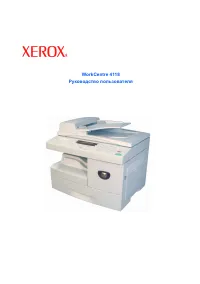 Xerox WorkCentre 4118 User Manual
 Xerox WorkCentre 6400 User Manual
 Xerox WorkCentre 6505 User Manual
 Xerox WorkCentre 7120 User Manual
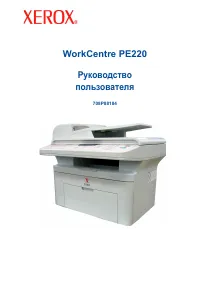 Xerox WorkCentre PE220 User Manual


