Page 2 - · 1 · English; SAFETY INFORMATION; SAFETY WARNINGS; CAUTION; WARNING
· 1 · English SAFETY INFORMATION SAFETY WARNINGS TO REDUCE THE RISK OF ELECTRIC SHOCK, DO NOT REMOVE THE COVER (OR BACK). NO USER-SERVICEABLE PARTS ARE INSIDE. REFER SERVICING TO QUALIFIED SERVICE PERSONNEL. CAUTION RISK OF ELECTRIC SHOCK DO NOT OPEN This symbol indicates that high voltage is presen...
Page 3 - · 2 · English; Wiring the Main Power Supply Plug (UK Only); IMPORTANT NOTICE; THE LETTER E OR BY THE EARTH SYMBOL; PRECAUTIONS
· 2 · English Wiring the Main Power Supply Plug (UK Only) IMPORTANT NOTICE The mains lead on this equipment is supplied with a moulded plug incorporating a fuse. The value of the fuse is indicated on the pin face of the plug and if it requires replacing, a fuse approved to BS1362 of the same rating ...
Page 4 - CHECKING THE COMPONENTS; Subwoofer; * Shielded Twist Pair; CONNECTING ELECTRICAL POWER; Use the power components (; Rear of Subwoofer
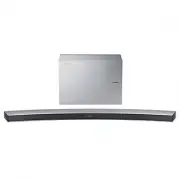
· 3 · English CHECKING THE COMPONENTS Subwoofer 1 Power Cord Soundbar Main Unit 2 AC/DC Adapter 3 Power Cord Remote Control / Battery c Use Cat 7 (*STP Type) cable for the connection. * Shielded Twist Pair CONNECTING ELECTRICAL POWER Use the power components ( 1 , 2 , 3 ) to connect the power suppli...
Page 5 - · 4 · English; ID SET
· 4 · English Y CONNECTING THE SUBWOOFER TO THE SOUNDBAR MAIN UNIT You can enjoy rich bass tones and better sound quality by linking the subwoofer to the Soundbar main unit. Subwoofer Soundbar Main Unit Sou So Unit Unit The Soundbar main unit and subwoofer should link (connect wirelessly) automatica...
Page 6 - CONNECTING TO YOUR TV; Method 1. Connecting with a Cable; TV ARC
· 5 · English CONNECTING TO YOUR TV You can enjoy TV sound after connecting the Soundbar to your TV with or without a cable. c Important: Before you begin, put the battery into the remote. See page 15 for instructions. Method 1. Connecting with a Cable HDMI OUT (TV-ARC) Bottom of Soundbar HDMI IN (T...
Page 7 - Method 2. TV SoundConnect (Linking to a Samsung TV with Bluetooth); Yes
· 6 · English T Method 2. TV SoundConnect (Linking to a Samsung TV with Bluetooth) 1. Turn on your Samsung TV and the Soundbar. 2. Select TV mode in your Soundbar display by pressing the button on the top of the Soundbar or the SOURCE button on your remote control. (Modes are displayed in the follow...
Page 8 - Method 3. Connecting to a Wireless Network; Installing the Samsung Multiroom App and Connecting Wirelessly; Speaker connection
· 7 · English Method 3. Connecting to a Wireless Network Installing the Samsung Multiroom App and Connecting Wirelessly To install Samsung Multiroom app for the first time, follow the steps shown below. 1. Press and hold the SPK ADD button on the rear of the Soundbar for more than 1 second. • There ...
Page 9 - Adding the Soundbar to an Existing Multiroom Audio System; Speaker addition
· 8 · English Y Adding the Soundbar to an Existing Multiroom Audio System If the Samsung Multiroom app is already installed for use with another multiroom audio device, follow these steps to add the Soundbar. 1. Press and hold the SPK ADD button on the rear of the Soundbar for more than 1 second. • ...
Page 10 - Speaker Settings
· 9 · English Connecting the Soundbar to your Samsung Smart TV You can connect your TV to the Soundbar through a wireless network and enjoy the TV sound. c Important: Make sure that the TV and Soundbar are connected to the same network.(How to check your Samsung TV network : Home menu Network Ne...
Page 11 - · 10 · English; Connecting Samsung Multiroom Audio System to the Surround; Surround Setup; Soundbar
· 10 · English Connecting Samsung Multiroom Audio System to the Surround You can enjoy three-dimensional sound in surround mode after connecting two Multiroom Audios and a Soundbar. c Surround connection between a Multiroom Audio and a Soundbar is unavailable. 1. Touch to go to the list of all speak...
Page 12 - CONNECTION VIA BLUETOOTH; Disconnecting the Soundbar from the Bluetooth device
· 11 · English CONNECTION VIA BLUETOOTH You can connect a Bluetooth device to the Soundbar and enjoy music with stereo sound, all without wires! c It is not possible to connect multiple Bluetooth devices at the same time. Connect Bluetooth device 1. Press the button on the top of the Soundbar or the...
Page 13 - CONNECTING TO AN EXTERNAL DEVICE; Connect the HDMI cable (not supplied) as in the picture above.
· 12 · English CONNECTING TO AN EXTERNAL DEVICE You can enjoy sound from separate external devices such as a BD player/game console/set-top box, etc. by connecting them to your Soundbar. HDMI IN HDMI OUT (TV-ARC) HDMI Cable (not supplied) HDMI Cable (not supplied) External Device Soundbar HDMI OUT H...
Page 14 - · 13 · English; SOFTWARE UPDATE; Auto Update; AUX IN; search for the model name; I nstallation Precautions; Install on a vertical wall only.
· 13 · English SOFTWARE UPDATE Samsung may offer updates for the Soundbar's system firmware in the future. Auto Update The automatic update function is enabled on the Soundbar by default. Automatic firmware updates are searched for and performed if the Soundbar is connected to the Internet, irrespec...
Page 15 - · 14 · English; Mount
· 14 · English 1. Place the installation guide against the wall surface. ● The installation guide must be level. ● If the TV is mounted on the wall, install the Soundbar at least 5 cm below the TV. 5 cm or more 2. Mark the location where the screws will go through on the wall, and then remove the in...
Page 16 - Inserting Battery before using the Remote Control; REMOTE CONTROL BUTTONS & FEATURES
· 15 · English Power Turns the Soundbar on and off. SOURCE Press to select a source connected to the Soundbar. Mute Sets the volume temporarily to 0. Press again to cancel. Volume Adjusts the volume level of the unit. Inserting Battery before using the Remote Control 1. Use a suitable coin to turn t...
Page 18 - · 17 · English; TROUBLESHOOTING; The unit will not turn on.; LICENCE
· 17 · English TROUBLESHOOTING Before seeking assistance, check the following. The unit will not turn on. Is the power cord plugged into the outlet? Connect the power plug to the outlet. A function does not work when the button is pressed. Is there static electricity in the air? Disconnect the power...
Page 19 - • An administration fee may be charged if either:; SPECIFICATIONS; • Nominal specification
· 18 · English OPEN SOURCE LICENCE NOTICE For further information on Open Sources used in this product, please visit the website: http://opensource.samsung.com IMPORTANT NOTE ABOUT SERVICE • Figures and illustrations in this User Manual are provided for reference only and may differ from actual prod...
Page 21 - UNITED KINGDOM
This Samsung product is warranted for the period of twelve (12) months from the original date of purchase, against defective materials and workmanship. In the event that warranty service is required, you should return the product to the retailer from whom it was purchased. However, Samsung Authorise...
Page 22 - Correct Disposal of This Product
Contact SAMSUNG WORLD WIDE If you have any questions or comments relating to Samsung products, please contact the SAMSUNG customer care Centre. © 2016 Samsung Electronics Co., Ltd. All rights reserved. [Correct disposal of batteries in this product] (Applicable in countries with separate collection ...