Philips WACS7000/05 - Quick Guide
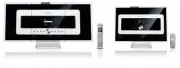
Philips WACS7000/05 – Quick Guide, read for free online in PDF format. We hope this helps you resolve any issues you may have. If you have further questions, please contact us through the contact form.


A
B
C
WACS7000
Wireless Music
Center + Station
User manual
Manuel d'utilisation
Manual del usuario
A
B
C
p
u
t
e
S
/
t
c
e
n
n
o
C
y
o
j
n
E
s
n
o
i
t
s
e
u
Q
d
e
k
s
A
y
l
t
n
e
u
q
e
r
F
Wireless Music
Center + Station
WACS7000
e
d
i
u
g
t
r
a
t
s
k
c
i
u
Q
Read Me First!
3
2
1
Wireless Music Center + Station
WACS7000
WACS7005
Connect to your PC
Connect Philips Wireless Music Center to your PC if you want to do the following:
•
Access
music files stored on your PC from Philips Music Center/ Station’s
UPnP
source
•
Manage
the music content stored on Philips Music Center from your PC
•
Update
Center’s Gracenote® music recognition service database for the latest disc
information
•
Upgrade
firmware of Philips Music Center + Station
To connect to Philips Music Center, you minimum PC requirements
must be:
•
Windows 2000 SP4 or above / XP (Home or Professional)
•
Pentium III 500MHz processor or higher
•
256MB RAM
•
CD-ROM Drive
•
Ethernet Adapter (for wired connection)/ Wireless Network Adaptor 802.11 b/g
(for wireless connection)
•
Free hard disk space of 500MB
•
Windows Media Player
®
9.0 or later installed
1
3
2
A
1
2
4
5
6
B
3
1
Connect/Setup
Enjoy
FAQ
Quick star t guide
Wireless Music Center WAC7000
Setting up connection between the Center and Station
The first time you set up a Wi-Fi connection, place the
Center and Station side by side on a flat and firm surface
Play Harddisk (HD)
You can centrally store up to 1500 audio CDs in the 80GB hard disk on the Center
What’s in the box
Wireless Music Station WAS7000
User manual
Quick start guide
1-way remote control
2 x AA batteries
2-way remote control
4 x AAA batteries
1 x Ethernet cable
2 x Mounting kit
for center & station
for Center
for Station
2 x FM wire antennas
PC Suite CD
Connect/Setup
Center
Station
AC
AC
Enjoy
Connect to your PC
Read Me First!
* Available storage space for music is around 75GB, due to capacity reserved for system purpose
Eng
• Insert batteries into the remote control as shown
2-way remote control
1-way remote control
Before using the remote control:
Wireless Music
Center + Station
Connect WACS7000 to a power supply – connect the Center
first followed by the Station
Center/Station:
• The screen lights up in a few seconds
Auto installation/connection starts
• The
HD
screen appears if the Station is connected to the
Center (it takes about 1-2 minutes).
Relocate the Center and Station as desired:
a.
Press and hold the
STANDBY-ON/ECO POWER
y
button
for 5 seconds to switch the Center to power-saving mode.
b.
Unplug the Center or Station and power them up in your
preferred rooms
• You will be able to stream* the hard disk music between the
Center and Station
IMPORTANT!
• Avoid installing in between thick walls. Separating the Center and
Station by 2 or more walls may cause poor streaming connection.
• For better Wi-Fi reception, you can adjust the Wi-Fi antenna, or adjust
the location of the Center and Station (e.g. shorten the distance
between the Center and Station).
:
indicates maximum reception;
:
indicates minimum reception
• For wall mounting, please refer to the
User Manual 16. 1 How to
mount your Center and Station onto walls.
You may need
assistance from a qualified service personnel.
* Streaming is the process in which data (music in this case) is
transferred from one device to another device or many other
devices.
Press
ÉÅ
/
OK
to start playback
To change your playback option,
a.
Press
1
once or more to enter previous option lists
b.
Use the navigation controls
3 4 1 2
to select
c.
Press
OK
or
2
to confirm
To stop playback, press
STOP /
9
Press
SOURCE
once or more times to select
HD
source
(or press
HARDDISK
on the remote control)
Use the navigation controls
3 4 1 2
to select your playback
options
(Demo tracks are stored under
All tracks
)
To switch on the Center, press
STANDBY-ON/ECO
POWER
y
Tips:
By default, the 2-way remote control works with the Center only.
To operate the Station using the 2-way remote control,
•
Press and hold
REFRESH
until the
Select Device
screen appears on the display of the remote
control for the Center
•
Press the navigation controls
3
or
4
and
2
to select the
Station
checkbox, and then press
OK
For more information, see User Manual,
4.2 Using the remote control
.
1
2
3
4
CD(RW)
P
r
in t
e d
S i
d
e
OK
B
2
Build your music library on the hard disk in the Center by Recording from CDs,
Importing MP3/WMA files from PC or Recording from Radio or external source.
Recording from CDs
Insert a CD into the CD loader on the Center, with the graphic
printed side of the CD facing you
• Display shows
Reading CD
• List of CD tracks appears
(For CD recorded with MP3/WMA music files:
To enter a track list, press
2
on a highlighted file folder
)
In the track list screen, press
RECORD
• List of tracks with checkboxes
appears
To start recording the whole CD, press
RECORD
. (To rip
part of the CD, press
2
or
MARK•UNMARK
to select/deselect
the tracks to be recorded
, and then press
RECORD
.
To select/deselect all tracks, press and hold
MARK•UNMARK
)
•
CD-Rec
appears. Display shows the album name of the track
being recorded
• Center will return to
CD
mode when recording is complete
To record from another CD, repeat
Steps
1
to
3
above
IMPORTANT!
• It takes some time to convert the recorded CD music to MP3 files.
• Always press and hold
STANDBY-ON
y
to switch the set to
ECO POWER
(power-saving mode)
before removing its power plug.
• To record from Radio or external source, see
User Manual 6.5 Building music library on
Center
.
• You can edit the track information and import MP3/WMA files from PC using the supplied
Wireless
Audio Device Manager(WADM)
. For details, see the manual
Connect to your PC
.
• WAC7000 Center allows you to check if the current CD information can be found in the latest
Gracenote
®
music recognition service database via the Internet. For details, see
User Manual
12 Gracenote CD Information
1
3
2
4
PORTABLE
PORTABLE
SEARCH
SEARCH
SAME ARTIST
SAME ARTIST
SMART EQ
SMART EQ
DBB
SEARCH
SEARCH
B
3
Search for your desired tracks/albums
Search by keywords
The keyword should be the first letter or first word of the title of the track you
wish to search for. By inputting a keyword, you can quickly find all the items
containing the word.
Use the navigation controls
3 4 1 2
to enter the desired
option list under tracks, albums, artists or playlists
Press
SEARCH
on the remote control
• A text box appears
a.
Press the
alphanumeric keys
repeatedly
to input the
keywords (maximum 8 characters)
b.
To delete the entry before cursor, press
4
c.
Press
1
or
2
to move the cursor backward / forward
Press
OK
to start searching
• Display shows:
Searching ...
.
Searching starts from the
beginning of the current option list
• The matched items appear at the front of the list
Building a music library on the Center
WACS7000/WACS7005
WACS7000_QSG_05 2007.1.29 6:09 PM Page 1
"Loading the manual" means you need to wait until the file loads and becomes available for online reading. Some manuals are very large, and the time they take to appear depends on your internet speed.
Was this manual helpful?
About this manual
- Brand
- Philips
- Model
- WACS7000/05
- Document type
- Quick Guide
- Language(s)
- English
- Pages
- 2
- File size
- 1.3 MB
- Format
Ask a question
Related manuals
Popular Philips Other


More Philips Other models
 Philips VSS2286/00T Manual
 Philips WAC700 Manual
 Philips WAC7500/05 User Manual
 Philips WACS700 Manual
 Philips WACS700/05 User Manual
 Philips WACS7000, WACS7005 Manual
 Philips WACS7500 Manual
 Philips WAS7000/05 Quick Guide
 Philips WAS7500/05 Quick Guide
 Philips Wireless Equipment Box Manual
 Philips wk10295 Manual
 Philips WP3811 Manual