Page 2 - Before using the remote control:; What’s in the box
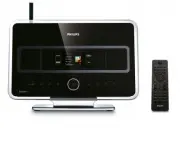
ii EN Before using the remote control: Insert batteries as shown. 2-way remote control (only for WACS7500) 1-way remote control 3 2 1 What’s in the box 2-way remote control(for Center ) 4 x AAAbatteries(only included inWACS7500 set) Remote control, 1-way,incl. 2x AAA batteries Quick start guide User...
Page 3 - How to use this guide; transfer music from a PC to the Center
How to use this guide I want to ... See page(s): Connect: ... connect the Center to a home network / PC 4 / ... add a Station to the network of the Center 5 ... relocate a connected Center or Station 5 ... set up the Center and Station without a network 5 Record / rip / copy: ... build an HD library...
Page 4 - Benefits; Enjoy all your music in every room; Total music enjoyment and freedom; All your music on one wireless system; • Extend your system by adding up to 5 Wi-Fi Stations
iv Benefits Enjoy all your music in every room Total music enjoyment and freedom All your music on one wireless system • Wireless streaming between Music Center, Station(s) and PC• 80GB hard disk to store up to 1500 CDs• CD and USB Direct playback• Enjoy Internet radio • Docking cradle for iPod (opt...
Page 5 - Controls on Center & Station
1 EN Prepare 1 1 Antenna 2 USB jack 3 Disc slot (loader) Insert discs with graphics facing you 4 / Disk eject 5 LCD 6 MUSIC FOLLOWS ME 7 DBB ( D ynamic B ass B oost) 8 SMART EQ 9 VOLUME + 10 VOLUME - 11 9 Stop 12 )K Skip forward 13 OK / 2; OK/ Play/pause 14 1 / 2 / 3 / 4 Navigation left / right / up...
Page 6 - Controls on the remote controls
2 Controls on the remote controls B 2-way remote control (Only supplied with WACS7500Center + Station set.) 1 234 5 67 8 9 11131517 10 1416 31 30 29 2827262524232221 18 1920 12 1 y On, Standby, Eco Standby 2 HOME 3 HD (Hard Disk) 4 1 / 2 / 3 / 4 Navigation controls 5 OK , 2 / ; 6 VOL + , - 7 MENU 8 ...
Page 8 - Connect
4 Connect the Center to the power supply A Connect the Center to your home network / PC This section describes the simplest way to set up a wireless connection between the Center andyour home network / PC. You can add up to 5 Stations to the connection. For more advancedsetups, see section Connect t...
Page 9 - Add a Station to the network of the Center:; Relocate a connected device
5 EN C D Add a Station to the network of the Center: On the Center:1 Press HOME . 2 Press 3 or 4 , then 2 to select HD (Harddisk) mode. 3 Press MENU to enter the menu display. 4 Press 3 or 4 , then 2 to select Station Management (Mgnt). 5 Press 3 or 4 , then 2 to select Add New Station . > The Ce...
Page 10 - Enjoy
6 Play HD (Harddisk) music from the Center 1 Ensure that the device is turned on. 2 Press HOME . 3 Press HD on the remote control. 4 Press 3 4 1 2 to select your playback options. Demo tracks are stored under All tracks. 5 Press OK / 2; to start play. 6 Press STOP 9 to stop play. Change your playbac...
Page 11 - Play CDs on the Center
7 EN Play CDs on the Center D Important! For reasons of CD copyright protection, during CD play the features Music Broadcast and Music Follows Me are not supported. You can play• all prerecorded audio CDs• all finalized audio CDR and CDRW discs• MP3/WMA/m4a-CDs (CD-R/CD-RW with MP3/WMA/m4a files) 1 ...
Page 13 - Listen to FM Radio
9 EN Listen to FM Radio 1 Ensure that the device is switched on. 2 Press HOME . 3 Press FM TUNER on the remote control. 4 Press MENU . 5 Press 3 or 4 , then 2 to select Autostore radio . > When all available stations are stored, the first auto stored preset station plays. You can store up to 60 p...
Page 14 - Transfer music from my PC to the Center
10 Minimum PC requirements: • Windows XP SP2 or Vista• Pentium III 500MHz processor or higher• 256MB RAM• CD-ROM drive• Ethernet adapter, enabled (for wired connection) - or Wireless Network adapter 802.11 b/g (for wireless connection) • 500MB free hard disk space Install PC Software1 Insert the PC ...
Page 16 - Stream music from a PC
12 Stream music from a PC You can stream music without transferring audio files. When you use UPnP (Universal Plug andPlay), you can stream music from a PC or another content server to the Center / Station. For Windows XP / Vista:1 Ensure that your administrator rights are enabled on the PC. 2 Inser...
Page 17 - Internet radio
13 EN Internet radio You have to register your product with a valid email address when using the Internet feature forthe first time: 1 Ensure that the Center / Station is turned on. 2 Ensure that the Center / Station is connected to the Internet. 3 Ensure you have a valid email address. 4 Ensure tha...
Page 18 - Broadcast music; Let the music follow me to another location
14 Broadcast music When the Center and Station(s) are switched on and the Center is in HD play mode, you canbroadcast the music form the Center to all connected Stations. 1 When in HD play on the Center, press MUSIC BROADCAST . > The display shows the icon and the HD music is broadcast to all con...
Page 19 - Play portable USB devices; Record music to USB devices
15 EN M Play portable USB devices You can play USB flash memory devices (USB 2.0 or USB 1.1) and USB flash players (USB 2.0 orUSB 1.1) with the Center or Station. 1 Insert the USB plug of the USB device into the socket on the Center / Station. 2 Ensure that the Center /Station and the USB device are...
Page 20 - FAQ - Frequently asked questions
16 FAQ - Frequently asked questions About the Environment About Recording from CDs/ Track Information Q : What does ‘Ripping from CDs’ mean and what functions can I usewhile the recording is in progress? A : ‘Ripping from CDs’ is the process by which a CD track is converted into the much smaller MP3...
Page 21 - Compatibility
17 EN About Music Management Compatibility Philips Streamium Wireless MusicProducts The Philips Wireless Music Centers (WAC700/7000/7500,WAC3500D) are compatible with any Philips Wireless MusicStations (WAS700/7000/7500) Flash Player Philips KEY007, KEY010, KEY013, HDD1XX (HDD100 /HDD120), SA16X (SA...
Page 22 - User Manual; Online; Disposal of your old product
18 Need help? User Manual See the User manual that came with your player. Online Go to www.philips.com/welcome Disposal of your old product Your product is designed and manufactured with high quality materials and components, which can be recycled and reused. When this crossed-out wheeled bin symbol...