Page 2 - Contents
3 English EN 7 Setup 20 General setup 20 Video Setup 21 Audio Setup 21 Preference setup 21 8 Other features 22 Set alarm timer 22 Set sleep timer 23 Listen through headphone 23 Listen to external audio device 23 9 Product information 23 Region Code 23 Specifications 23 Suppor ted disc formats 24 Sup...
Page 3 - Hearing safety; Important; Know these safety symbols; Important Safety Instructions
4 • Where the mains plug or an appliance coupler is used as the disconnect device, the disconnect device shall remain readily operable. Warning • Never remove the casing of this unit. • Never lubricate any par t of this unit. • Place this unit on a flat, hard and stable sur face. • Never place this ...
Page 4 - Notice
5 English When this crossed-out wheeled bin symbol is attached to a product it means that the product is covered by the European Directive 2002/96/EC. Please inform yourself about the local separate collection system for electrical and electronic products. Please act according to your local rules an...
Page 5 - Copyright notice
6 Note • The type plate is located on the bottom of the unit. Norge Typeskilt finnes på apparatens underside. Observer: Nettbryteren er sekunder t innkoplet. Den innebygde netdelen er derfor ikke frakoplet nettet så lenge apparatet er tilsluttet nettkontakten. For å redusere faren for brann eller el...
Page 6 - What’s in the box; Congratulations; Feature introduction
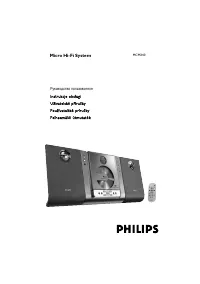
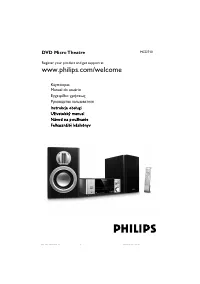
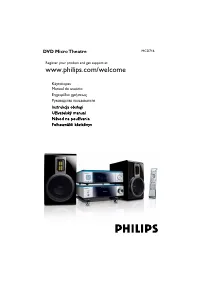
7 English What’s in the box Check and identify the contents of your package: • Main unit • 2 X speakers • Remote control • Video cable • FM antenna aerial • User manual 2 Congratulations Congratulations on your purchase, and welcome to Philips! To fully benefit from the suppor t that Philips offers,...
Page 7 - Overview of the main unit
8 g SOURCE • Select a source. h TUNING • Rotate a photo. • Fast backward or forward. i • Star t or pause play. j • Stop play. • Erase a program. k PRESET • Skip to the previous/next track, title, or file. • Select a programmed radio station. Overview of the main unit Overview of the main unit a Disc...
Page 8 - Back view
9 English f AUDIO OUT L/R • Audio output jack. g COAXIAL • Coaxial jack. l Display panel • Show current status. m • Open or close the disc tray. n VOLUME • Adjust volume. • Adjust time. Back view a SPEAKER OUT • Connect the speakers. b AUX-IN • Connect an external audio device. c AC MAIN~ • Connecte...
Page 9 - Overview of remote control
10 e AUDIO / SUBTITLE • For menus: navigate up/down. • Inver t a picture. • AUDIO : Toggle between stereo and mono. • SUBTITLE : Select a subtitle language for a video. f OK • Confirm a selection. g / • Search in a track or disc. • Fast backward or forward. • For menus, navigate left/right. • Rotate...
Page 10 - Before use; Place the unit
11 English 3 Before use Place the unit Note • Risk of overheating! Never install this apparatus in a confined space. Always leave a space of at least 4 inches around this apparatus for ventilation. Ensure cur tains or other objects never cover the ventilation slots on this apparatus. • Place this un...
Page 11 - Connect
12 Option 2: Connect through component video cables Connect a progressive scan TV through component video cables for higher quality video. Connect power Caution • Risk of product damage! Ensure that the power supply voltage corresponds to the voltage printed on the back or the underside of the unit....
Page 12 - Install/replace the battery of; You can route audio from an external
13 English Install/replace the battery of remote control Caution • Risk of explosion! Keep batteries away from heat, sunshine or fire. Never discard batteries in fire. • Do not mix batteries (old and new or carbon and alkaline, etc). • Remove the battery if the remote control is not to be used for a...
Page 13 - Store radio stations; Find the correct video input; Get started; Demonstrate the unit’s features; Set the clock
14 4 Press PROG/CLOCK SET to confirm the setup. Note • The number key on the remote control is deactivated in this mode. Store radio stations automatically If no radio stations are stored, the unit can store radio stations automatically. 1 Turn on the unit. 2 Press FM . » [AUTO INSTALL -- PRESS PLAY...
Page 14 - Basic operation; Select a subtitle language; Select the correct TV system
15 English 5 Play disc/USB Caution • Risk of damage to the unit! During play, never move the unit. • Never put any object other than a disc into the disc compar tment. • Never look at the laser beam inside the unit. • Never play discs with accessories such as disc stabilizer rings or disc treatment ...
Page 15 - Access a folder; Control the play; Display play information; Connect a USB storage device
16 » The user interface is displayed. • On the left: the information source. • In the middle: the folder and file list. • On the right: the detailed file information, time elapsed, total time for the audio/video. Access a folder 1 Press / to highlight the selected folder name. 2 Highlight [Previous]...
Page 16 - number; Picture view options; Image playback control; Slow forward/backwoard play; Slow Forward
17 English 3 Press , and use / to select the right ratio. 4 Press OK button to confirm the selection. Search by time or title/chapter/track number 1 During play, press OPTIONS to access PBC menu. 2 Use / to highlight [Goto] . 3 Press to access menu. 4 Use / to highlight the title number, chapter num...
Page 17 - Adjust sound; Rotate picture; Play slideshow and music
18 Adjust sound During play, you can adjust volume through following operations. Key Function VOL +/- To increase/decrease the volume.To mute/restore sound. DBB / DSC To select your desired sound effect: [ POP ] (pop) [ JAZZ ] (jazz) [ ROCK ] (rock) [ CLASSIC ] (classic) [ DBB ] (DBB) [FLAT] (flat) ...
Page 18 - Listen to FM
19 English Program radio stations manually Note • You can program a maximum of 20 preset radio stations. 1 Tune to a radio station. 2 Press PROG/CLOCK SET to activate programming mode. 3 Press / to select a number from 1–20 for this radio station, then press PROG/CLOCK SET to program the current rad...
Page 19 - Setup; Synchronize clock with RDS station
20 7 Setup 1 After you press the button . » The home menu appears. 2 Select to access the system menu. Note • You cannot change a menu option that is grayed out. • To return to the previous menu, press . To exit the menu, press again. General setup1 Press button. 2 Select to access the setup menu. 3...
Page 21 - Other features; Set alarm timer
22 Set sleep timer1 When the unit is turned on, press SLEEP / TIMER repeatedly to select a time period (in minutes). » When sleep timer is activated, is displayed. » To deactivate sleep timer, press SLEEP / TIMER again until disappears. Listen through headphone Plug a headphone into the socket. List...
Page 22 - Speakers; Product; Region Code; Amplifier
23 English Audio DAC 24 Bits / 96 kHz Total Harmonic Distor tion < 1% (1 kHz) Frequency Response 4 Hz - 20 kHz (44.1 kHz) 4 Hz - 22 kHz (48 kHz) 4 Hz - 24 kHz (96 kHz) S/N Ratio > 82 dBA Tuner (FM) Tuning Range 87.5 - 108MHz Tuning grid 50KHz Sensitivity - Mono, 26dB S/N Ratio <22 dBf Sensi...
Page 23 - USB playability information; Supported disc formats; Supported audio
24 • *.PLS, *.WAV • Discs recorded in Joliet format • MP3 Pro USB playability information Compatible USB devices: • USB flash memory (USB 2.0 or USB1.1) • USB flash players (USB 2.0 or USB1.1) • memory cards is not compatible with this set. Supported formats: • USB host shall suppor t FAT16 and FAT ...
Page 24 - 0 Troubleshooting
25 English The aspect ratio of the TV screen cannot be changed even though you have set the TV display format. • The aspect ratio is fixed on the loaded DVD disc. • The aspect ratio may not be changed for some TV systems. No sound or poor sound • Adjust the volume. • Disconnect the headphones. • Che...