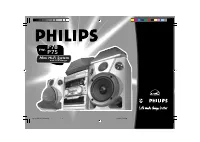
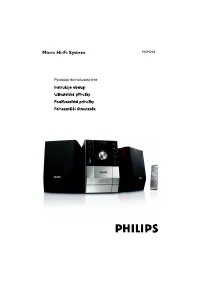
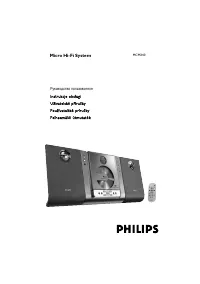
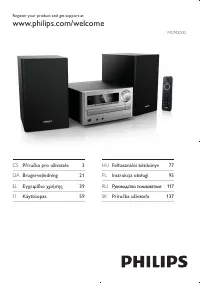
Philips MCM275 - Manual

Philips MCM275 Sound System – Manual, read for free online in PDF format. We hope this helps you resolve any issues you may have. If you have further questions, please contact us through the contact form.


Table of Contents:
- Page 4 – IMPORTANT SAFETY INSTRUCTIONS; Class II equipment symbol; This symbol indicates that the unit has; Clean only with a piece of dry cloth.; materials
- Page 5 – Know these; safety; symbols; To prevent electric shock,; C A U T I O N; For Customer Use; TO PREVENT FIRE OR
- Page 6 – Dear PHILIPS product owner:
- Page 7 – English; rançais; Español; Index; Canada
- Page 8 – Contents; Using AC power
- Page 9 – General Information; Supplied accessories; – mounting kit; Environmental Information; All unnecessar y packaging has been omitted. We; Safety Information
- Page 10 – Controls; Controls on the set; In standby or Eco Power mode:
- Page 11 – Remote control
- Page 12 – ÉÅ; OPEN • CLOSE; Controls Installation; on desktops with stand; Appendix: How to mount your; Mounting MCM275 onto walls
- Page 13 – Installation; Rear connections; Never make or change connections with; Speaker connections; Connect the cable of the left speaker to; LEFT; Assemble the loop antenna as shown:
- Page 14 – FM antenna; Or; If you are using a cable antenna system or; for the devices with USB cable:; or; for the memor y card:
- Page 15 – Using AC power; To disconnect the; CAUTION; AUX; Connecting a USB; AUX IN
- Page 16 – Preparation; Setting the clock; SET CLOCK; Using the remote control
- Page 17 – Basic Functions; – You can also switch on the set by pressing
- Page 18 – Volume control; Volume adjustment; Sound control; DSC; Displaying the clock; CLOCK
- Page 19 – CD; Discs for playback; Playing discs; SOURCE; OPEN; CD OPEN•CLOSE; READING
- Page 20 – ” will be; STOP; Selecting and searching; Selecting a different track
- Page 21 – Programming tracks; PROG; PROGRAM; FULL; Erasing the program; CLEAR
- Page 22 – REPEAT TRACK; REPEAT; – In the shuffle mode, press
- Page 23 – Tuner; Tuning to radio stations; SEARCH; Programming radio stations; Autostore: Automatic programming; If no tuner preset number is selected, default is; Manual programming
- Page 24 – Using a USB mass storage device; Playing a USB mass storage device; In some USB flash players (or memor y; Root; – Make sure that the file names of MP3 files end
- Page 25 – USB AUX; NO AUDIO
- Page 26 – Timer SLEEP; Setting the timer; The
- Page 27 – Maintenance; wire
- Page 28 – Troubleshooting; NO DISC; Radio reception is poor.; Replace or clean the disc, see “Maintenance”.
- Page 30 – Appendix; What else you’ll need
- Page 31 – PHILIPS LIMITED WARRANTY
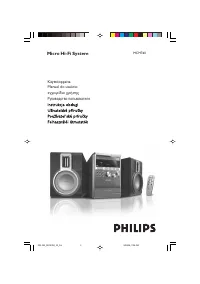
Micro Hi-Fi System
MCM275
Thank you for choosing Philips.
Need help fast?
Read your Quick Use Guide and/or
Owner's Manual first for quick tips
that make using your Philips product
more enjoyable.
If you have read your instructions
and still need assistance,
you may access our online help at
www.philips.com/support
or call
1-888-PHILIPS (744-5477)
while with your product.
Philips vous remercie de
votre confiance.
Besoin d'une aide
rapide?
Les Guide d'utilisation rapide et Manuel de
l'utilisateur regorgent d'astuces destinées à
simplifier l'utilisation de votre produit Philips.
Toutefois, si vous ne parvenez pas à résoudre
votre probléme, vous pouvez accéder à
notre aide en ligne à l'adresse
www.philips.com/support
ou formez le
1-800-661-6162 (Francophone)
1-888-PHILIPS (744-5477) (English speaking)
Veillez à avoir votre produit à
portée de main.
Gracias por escoger Philips
Necesita ayuda
inmediata?
Lea primero la Guía de uso rápido o el
Manual del usuario, en donde encontrará
consejos que le ayudarán a disfrutar
plenamente de su producto Philips.
Si después de leerlo aún necesita ayuda,
consulte nuestro servicio de
asistencia en línea en
www.philips.com/support
o llame al teléfono
1-888-PHILIPS (744-5477)
y tenga a mano el producto.
P001-P031_MCM275_37_Eng
12/20/2005, 09:39
1
"Loading the manual" means you need to wait until the file loads and becomes available for online reading. Some manuals are very large, and the time they take to appear depends on your internet speed.
Was this manual helpful?
About this manual
- Brand
- Philips
- Model
- MCM275
- Document type
- Manual
- Category
- Sound System
- Language(s)
- English
- Pages
- 31
- File size
- 2 MB
- Format
Summary
3140 115 xxxxx 4 IMPORTANT SAFETY INSTRUCTIONS Class II equipment symbol This symbol indicates that the unit has a double insulation system Clean only with a piece of dry cloth. materials P001-P031_MCM275_37_Eng 12/20/2005, 09:39 4
Return your Product Registration Card today to get the very most from your purchase. Registering your model with PHILIPS makes you eligible for all of the valuable benefits listed below, sodon't miss out. Complete and return your Product Registration Card at once to ensure: *Proof of Purchase Return...
3140 115 xxxxx Visit our World Wide Web Site at http://www.usasupport.philips.com Congratulations on your purchase, and welcome to the “family!” Dear PHILIPS product owner: Thank you for your confidence in PHILIPS. You’ve selected one ofthe best-built, best-backed products available today. We’ll do ...