Page 2 - ENGLISH; TABLE OF CONTENTS
1 About this user guide Thank you for choosing this LG product. Please carefully read this user guide before using the device for the first time to ensure safe and proper use. • Always use genuine LG accessories. The supplied items are designed only for this device and may not be compatible with oth...
Page 3 - PRODUCT FEATURES
2 Instructional notices WARNING : Situations that could cause injury to the user and third parties. CAUTION : Situations that may cause minor injury or damage to the device. NOTE : Notices or additional information.
Page 4 - IMPORTANT SAFETY INSTRUCTIONS; READ ALL INSTRUCTIONS BEFORE USING THE APPLIANCE.; read and obey; WARNING; Power; Installation
3 Table of contents Table of contents 42 Memory card encryption 43 Taking screenshots 43 Entering text 52 Do not disturb 03 Useful Apps 54 Installing and uninstalling apps 56 App Shortcuts 57 Phone 61 Messaging 62 Camera 71 Gallery 77 Chrome 78 Google apps 80 QuickMemo+ 82 Contacts 85 Clock 86 Calen...
Page 6 - Maintenance; SAVE THESE INSTUCTIONS
Page 7 - COMPONENTS; Refrigerator Exterior; Freezer
Custom-designed Features 6 Multi-tasking feature Recent Uses Screen You can view the app screens that you used recently by using the preview function.To view the list of apps that you used recently, tap on the navigation bar.If you change to Gestures navigation in Settings Display Navigation bar Ges...
Page 8 - Refrigerator Interior
Custom-designed Features 7 3 The app appears in the form of a pop-up window on the screen. • This feature may not be available in some apps or screens. Using the pop-up window • : Minimizes the pop-up window. The pop-up window is minimized into the app icon floating on the screen, which can be moved...
Page 9 - INSTALLATION; Installation Overview
Custom-designed Features 8 • To move the pop-up window : Drag the top of the pop-up window. • To adjust the size of the pop-up window : Drag the left, right or bottom edge of the pop-up window. • You can open up to 5 apps using the pop-up windows. • To select an app from the opened apps, tap one of ...
Page 10 - Specifications; Dimensions
Custom-designed Features 9 Using the app folder for pop-up windows If you tap on the pop-up window, the pop-up window is minimized into the app icon.You can move the app icon anywhere you want by dragging it. If two or more pop-up windows are minimized, the app folder is created to contain the app i...
Page 11 - Choosing the Proper Location; Unpacking Your Refrigerator; Flooring
Custom-designed Features 10 Pop-up windows apps folder • If you touch and hold the app folder for pop-up windows and drag the app folder into Remove , the app folder will be removed. • To remove one of the apps from the app folder, open the app folder and drag the app icon out of the app folder. Mul...
Page 12 - Ambient Temperature; Removing/Assembling the; Removing the Handles
Custom-designed Features 11 3 Tap the other app to be displayed in the multi window. • To adjust the size of the split screen, drag the bar on the center of the screen. • To deactivate the multi window feature, drag the center bar up or down to the end of the screen. • The multi window feature is no...
Page 13 - Assembling the Handles
Custom-designed Features 12 Google Assistant Google Assistant overview Your device has the built-in Google Assistant feature. Find answers and get things done while on-the-go. • To use this feature, first connect to the network and sign in to your Google Account. Sign in 1 Press the Google Assistant...
Page 14 - Removing the Left Refrigerator Door; CAUTION
Custom-designed Features 13 Accessing by Voice 1 When the home screen is turned off or locked, say “OK Google” or “Hey Google” . 2 When the Google Assistant screen appears, say a command or ask a question. Accessing from Home Screen or Any Other Screen 1 Press the Google Assistant key on the left si...
Page 15 - Removing the Right Refrigerator
Custom-designed Features 14 Precautions for fingerprint recognition Fingerprint recognition accuracy may decrease due to a number of reasons. To maximize the recognition accuracy, check the following before using the device. • Ensure that the fingerprint sensor is not damaged by a metallic object, s...
Page 16 - Assembling the Right Refrigerator
Custom-designed Features 15 2 Locate the fingerprint sensor on the back of the device and gently put your finger on it to register the fingerprint. • Ensure that your fingertip covers the entire surface of the sensor. 3 Follow the on-screen instructions. • Repeat scanning the fingerprint by moving y...
Page 17 - Assembling the Left Refrigerator
Custom-designed Features 16 Unlocking the screen with a fingerprint You can unlock the screen or view the locked content by using your fingerprint. 1 On the home screen, tap Settings General Lock screen & security Fingerprints . 2 Unlock according to the specified lock method. 3 On the fingerpri...
Page 18 - Removing the Freezer Drawers
Page 19 - Top Freezer Drawer
Basic Functions 18 Product components and accessories The following items are included with your device. • Device • USB cable • Charger • Quick Start Guide • Ejection pin • The items supplied with the device and any available accessories may vary depending on the area and service provider. • Do not ...
Page 20 - Bottom Freezer Drawer
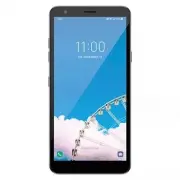
Basic Functions 19 Parts overview Earpiece Front camera lens Touch screen Proximity/Ambient light sensor Volume keys (+/-) Google Assistant keys Stereo headset jack Charger/USB cable port Power/Lock key Nano-SIM/Memory card tray Microphone Flash Fingerprint sensor Speaker Rear camera lens NFC area •...
Page 21 - Assembling the Freezer Drawers
Basic Functions 20 Do NOT attempt to remove the back cover. This device has a non-removable battery. Do not attempt to remove the back cover. Doing so may severely damage the battery and device, which could cause overheating, fire, and injury. • Proximity/Ambient light sensor - Proximity sensor: Dur...
Page 22 - Connecting the Water Line; Before You Begin; What You Will Need
Basic Functions 21 • Some functions may be restricted for access, depending on the device specifications. • Do not put heavy objects on the device or sit on it. Failure to do so may damage the touch screen. • Screen-protective film or accessories may interfere with the proximity sensor. • If your de...
Page 23 - adapter; Water Line Installation Instructions
Basic Functions 22 Power control options Press and hold the Power/Lock key, then select an option. • Power off : Turn the device off. • Restart : Restart the device. Installing the SIM card Insert the SIM card provided by your mobile service provider to start using your device. • Be careful with the...
Page 24 - Before making the connection
Basic Functions 23 3 Put the SIM card on the card tray with the gold-colored contacts facing downwards. Memory card (optional-sold separately) SIM card 4 Insert the card tray back into the slot.
Page 25 - ON; Turning On The Power
Basic Functions 24 • When you insert the card tray back into the device, insert it horizontally in the direction of arrow as shown in the figure. Make sure that the card placed on the card tray does not move out of its position. Correct Wrong • This device supports only Nano SIM cards. • For problem...
Page 26 - Leveling and Door Alignment; Leveling; Door Alignment
Basic Functions 25 Inserting the memory card The device supports up to a 32 GB microSD card. (Not included)Depending on the memory card manufacturer and type, some memory cards may not be compatible with your device. • It is recommended to use an exFAT file system when using an external memory card ...
Page 27 - HOW TO USE; Before use
Basic Functions 26 Removing the memory card Unmount the memory card before removing it for safety. 1 On the home screen, tap Settings Storage . 2 Insert the ejection pin into the hole in the card tray and then pull out the card tray from the device. 3 Remove the memory card from the card tray. 4 Ins...
Page 28 - Control Panel; Control Panel Features; Ice Selection
Basic Functions 27 • Do not charge while the device or charging cable is wet or contains moisture. This can cause fire, electric shock, injury or damage to device. If there is moisture, stop using the device immediately and remove the moisture completely. • Do not use unapproved USB cables or charge...
Page 30 - Detaching the In-Door Ice Bin; Assembling the In-Door Ice Bin
Basic Functions 29 Pinching and spreading Pinch two fingers to zoom out such as on a photo or map. To zoom in, spread your fingers apart. • Do not expose the touch screen to excessive physical shock. You might damage the touch sensor. • A touch screen failure may occur if you use the device near a m...
Page 31 - Automatic Icemaker; Turning the Automatic Icekamer
Basic Functions 30 Home screen Home screen overview The Home screen is the starting point for accessing various functions and apps on your device. Tap on any screen to directly go to the Home screen.You can manage all apps and widgets on the Home screen. Swipe the screen left or right to view all in...
Page 32 - When You Should Turn the; Normal Sounds You May Hear; Preparing For Vacation; OFF
Basic Functions 31 • Google Search widget : Type or speak to open Google Search. • Folder : You can create folders to classify the app based on desired criteria. • Page icon : Display the total number of Home screen canvases. You can tap the desired page icon to go to the page. The icon reflecting t...
Page 33 - Ice and Water Dispenser; Dispenser; Using the Dispenser; cold; Incorrect Way; Locking the Dispenser
Basic Functions 32 Status icons When there is a notification for an unread message, calendar event or alarm, the status bar displays the corresponding notification icon. Check your device’s status by viewing notification icons displayed on the status bar. No signalData is being transmitted over the ...
Page 34 - Storing Food; Food Preservation Location
Basic Functions 33 Notifications panel You can open the notifications panel by dragging the status bar downward on the main screen. • You can drag down the notice window or tap to open the list of quick setting icons. • You can tap to add, delete or arrange icons in the notice window. • If you touch...
Page 35 - Food Storage Tips; Food; Storing Frozen Food; Freezing
Basic Functions 34 Switching the screen orientation You can set the screen orientation to automatically switch according to the device’s physical orientation.On the notification panel, tap Rotation from the quick access icon list. You can also tap Settings on the home screen, tap Display and activat...
Page 36 - Humidity Controlled Crisper; HIGH; Glide’N’Serve; Select; Packaging
Basic Functions 35 • To configure the Home screen settings, touch and hold on a blank area of the Home screen, then select Home screen settings . See Home screen settings for details. • To view or reinstall the uninstalled apps, touch and hold on a blank area of the Home screen, then select App tras...
Page 37 - Detaching and Assembling the; Glide’N’Serve and Humidity
Basic Functions 36 Viewing the background theme You can view only the background image by hiding the apps and widgets on the Home screen.Spread two fingers apart on the Home screen. • To return to the original screen, which displays apps and widgets, pinch your fingers on the Home screen or swipe up...
Page 38 - Adjusting the Refrigerator; Detaching the Shelf
Basic Functions 37 Using folders from the Home screen Creating folders On the Home screen, touch and hold an app, then drag it over another app. • A new folder is created and the apps are added to the folder. Editing folders On the Home screen, tap a folder and do one of the following actions. • To ...
Page 39 - MAINTENANCE; Cleaning; General Cleaning Tips; Exterior
Basic Functions 38 • Google feed : Select whether to display Google feed on the screen located left to the main Home screen. • Sort apps by : Set how apps are sorted on the Home screen. • Grid : Change the app arrangement mode for the Home screen. • Hide apps : Select apps you want to hide from the ...
Page 40 - Install a New Air Filter.; Replacing the Fresh Air Filter; Remove the Old Filter
Basic Functions 39 Setting a screen lock There are several options available for configuring the screen lock settings. 1 On the home screen, tap Settings Lock screen & security Select screen lock and then select the method you prefer. 2 Customize the following settings: • None : Deactivate the s...
Page 41 - Replacing the Water Filter; Replacing the water filter causes a small
Basic Functions 40 Secure lock settings You can set secure lock settings. 1 On the home screen, tap Settings Lock screen & security Secure lock settings . 2 Select a function you want to set. • Make pattern visible (shown only when Pattern is set as a screen lock): Turn on to make pattern visibl...
Page 42 - Performance Data Sheet
Basic Functions 41 KnockON You can turn the screen on or off by double-tapping the screen.On the home screen, tap Settings Extensions KnockON to enable the option. • This option is available only on the Home screen provided by LG. It may not function properly on a custom launcher or on the Home scre...
Page 43 - Application Guidelines/Water Supply Parameters
Basic Functions 42 Memory card encryption You can encrypt and protect data saved on the memory card. The encrypted data in the memory card cannot be accessed from another device. 1 On the home screen, tap Settings Lock screen & security Encryption & credentials Encrypt SD card . 2 Read the o...
Page 45 - Using Smart Diagnosis; SMART DIAGNOSIS
Basic Functions 44 Smart Tool Tap to hide the smart tools.Tap to add emojis.Tap to enter text by using voice. • To maximize the voice command recognition, speak clearly. • To enter text with your voice, make sure that your device is connected to a network. • To select the language for voice recognit...
Page 46 - TROUBLESHOOTING; Problem
Basic Functions 45 Moving the cursor With the Smart keyboard, you can move the cursor to the exact position you want. When typing text, touch and hold on the space bar and then drag left or right. • This option is available only on the QWERTY keyboard. Suggesting words Smart keyboard automatically a...
Page 56 - WARRANTY PERIOD
Useful Apps 55 Uninstalling apps from the app store To uninstall an app, access the app store from which you downloaded the app and uninstall it. Installing and uninstalling apps during the setup When you turn on the device for the first time, you can download recommended apps.You can skip to the ne...
Page 57 - THIS LIMITED WARRANTY DOES NOT COVER:
Useful Apps 56 App Shortcuts On the Home screen, touch and hold an app icon such as Phone, Messaging, Camera, Gallery and Settings to display a quick access menu. Use apps more easily through App Shortcuts. • Tap to set a widget for the app. • Tap to check the app information. • This feature is avai...
Page 58 - WARRANTY
Useful Apps 57 Phone Voice call Make a phone call by using one of the available methods, such as manually entering a phone number and making a call from the contact list or the list of recent calls. Making a call from the keypad 1 On the home screen, tap Dial . 2 Make a call by using a method of you...
Page 59 - All costs associated with the above excluded circumstances
Useful Apps 58 Answering/Ending a call To answer a call, drag on the incoming call screen. • When the stereo headset is connected, you can make calls by using the call/end button on the headset. • To end a call with the Power key, tap Settings Network & internet Call Answer and end calls , then ...
Page 61 - For inquires or comments,; Register your product Online!
Useful Apps 60 Making a three-way calling You can make a call to another contact during a call. 1 During a call, tap Add call . 2 Enter a phone number and tap . • The two calls are displayed on the screen at the same time, and the first call is put on hold. 3 To start a conference call, tap Merge ca...