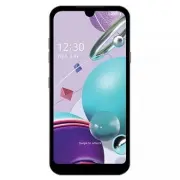
Page 2 - About this user guide
1 About this user guide Thank you for choosing this LG product. Please carefully read this user guide before using the device for the first time to ensure safe and proper use. • Always use genuine LG accessories. The supplied items are designed only for this device and may not be compatible with oth...
Page 3 - Instructional notices
2 Instructional notices WARNING : Situations that could cause injury to the user and third parties. CAUTION : Situations that may cause minor injury or damage to the device. NOTE : Notices or additional information.
Page 4 - Table of contents; Features
3 Table of contents Table of contents 01 Custom-designed Features 6 Camera features 7 Gallery features 10 Google Assistant 11 Fingerprint recognition 15 Multi-tasking feature 02 Basic Functions 21 Product components and accessories 22 Parts overview 25 Turning the power on or off 26 Installing the S...
Page 5 - Settings
4 Table of contents 89 LG Mobile Switch 90 LG SmartWorld 90 Game Launcher 04 Settings 92 Settings 92 Network & internet 99 Connected devices 102 Sound 103 Notifications 103 Display 105 Wallpaper & theme 105 Lock screen & security 106 Privacy 107 Location 107 Extensions 110 Apps 110 Batte...
Page 7 - Camera features
Custom-designed Features 6 Camera features Portrait You can create an artistic portrait photo, whereby the subject is in focus and the background is blurred. You can also edit the image by applying lighting or color effect to the background. • While taking a photo, keep the distance to your subject ...
Page 8 - Gallery features; Creating a movie
Custom-designed Features 7 Gallery features Creating a movie You can create a new movie by putting images and videos together. 1 On the home screen, tap , select an album, then tap Create movie . 2 Select images or videos for your movie and tap Next . 3 Edit the selected images and videos and then t...
Page 10 - Making a GIF
Custom-designed Features 9 Making a GIF You can easily make a GIF file using recorded video. 1 At the desired starting point while watching a video, tap . 2 Select the length of the GIF you want to create. • GIF is generated for the time selected from the current time. • For videos less than 5 secon...
Page 11 - Google Assistant overview
Custom-designed Features 10 Google Assistant Google Assistant overview Your device has the built-in Google Assistant feature. Find answers and get things done while on-the-go. • To use this feature, first connect to the network and sign in to your Google Account. Sign in 1 Press the Google Assistant...
Page 12 - Accessing by Voice; Accessing from Home Screen or Any Other; Fingerprint recognition; Fingerprint recognition overview
Custom-designed Features 11 Accessing by Voice 1 When the home screen is turned off or locked, say “OK Google” or “Hey Google” . 2 When the Google Assistant screen appears, say a command or ask a question. Accessing from Home Screen or Any Other Screen 1 Press the Google Assistant key on the left si...
Page 13 - Precautions for fingerprint recognition
Custom-designed Features 12 • Your fingerprint can be used by the device for user identification. Very similar fingerprints from different users may be recognized by the fingerprint sensor as the same fingerprint. For added security, set the screen lock using a pattern, PIN or Password. • If the dev...
Page 14 - Registering fingerprints
Custom-designed Features 13 Registering fingerprints You can register and save your fingerprint on the device to use fingerprint identification. 1 On the home screen, tap Settings Lock screen & security Fingerprints . • This feature is available only when the screen lock is set. - Lock the devic...
Page 15 - Managing fingerprints
Custom-designed Features 14 Managing fingerprints You can edit or delete registered fingerprints. 1 On the home screen, tap Settings Lock screen & security Fingerprints . 2 Unlock according to the specified lock method. 3 From the fingerprint list, tap a fingerprint to rename it. To delete it, t...
Page 16 - Multi-tasking feature; Recent Uses Screen
Custom-designed Features 15 Multi-tasking feature Recent Uses Screen Swipe the Home button upward and hold to view the recent use history. Pop-up window You can open multiple apps on the screen and easily switch between them at any time. 1 Swipe up and hold from the bottom of the screen. 2 Tap the a...
Page 17 - Using the pop-up window
Custom-designed Features 16 Using the pop-up window • : Minimizes the pop-up window. The pop-up window is minimized into the app icon floating on the screen, which can be moved anywhere you want. • : Expands the app to full screen. • : Closes the app. • To move the pop-up window : Drag the top of th...
Page 18 - Using the app folder for pop-up windows
Custom-designed Features 17 Using the app folder for pop-up windows If you tap on the pop-up window, the pop-up window is minimized into the app icon.You can move the app icon anywhere you want by dragging it. If two or more pop-up windows are minimized, the app folder is created to contain the app ...
Page 20 - Multi window; When using Gestures navigation (by default)
Custom-designed Features 19 Multi window When using Gestures navigation (by default) 1 Swipe up and hold from the bottom of the screen. • Recently-used apps appear. • If you tap the app icon, the App info , Multi window , Pop-up window and Pin app options appear. 2 Tap the app icon on the top left o...
Page 21 - Basic Functions
Page 23 - Parts overview
Basic Functions 22 Parts overview Front camera lens Earpice Touch screen Proximity/Ambient light sensor Volume keys (+/-) Google Assistant key Microphone Power/Lock key SIM/Memory card tray Charger/USB cable port Stereo headset jack Rear camera lenses Speaker Flash Fingerprint sensor
Page 26 - Turning the power on or off; Turning the power on; Restarting the device
Basic Functions 25 Turning the power on or off Turning the power on When the power is turned off, press and hold the Power/Lock key. • When the device is turned on for the first time, initial configuration takes place. The first booting time for the smart phone may be longer than usual. Turning the ...
Page 27 - Installing the SIM card and
Basic Functions 26 Installing the SIM card and memory card Insert the SIM card provided by your mobile service provider to start using your device. • Be careful with the ejection pin since it has a sharp edge. 1 Insert the ejection pin into the hole on the card tray. 2 Pull out the card tray.
Page 29 - Removing the memory card
Basic Functions 28 • This device supports only Nano SIM cards. • For problem-free performance, it is recommended to use the device with the correct type of SIM card. Always use a factory-made SIM card supplied by the service provider. • Do not lose your SIM card. LG is not responsible for damage and...
Page 30 - Charging the battery
Basic Functions 29 Charging the battery Before using the device, fully charge the battery.Connect one end of the charging cable to the charger, insert the other end of the cable into the cable port, and then plug the charger into a power socket. Charging cable terminal • Do not charge while the devi...
Page 31 - Using the battery efficiently
Basic Functions 30 • Remove the charger from the power socket after the device is fully charged. This prevents unnecessary power consumption. • Another way to charge the battery is by connecting a USB cable between the device and a desktop or laptop computer. This may take a longer time than pluggin...
Page 32 - Touch screen; Tapping
Basic Functions 31 Touch screen You can familiarize yourself with how to control your device by using touch screen gestures. Tapping Lightly tap with your fingertip to select or run an app or option. Touching and holding Touch and hold for several seconds to display a menu with available options. Do...
Page 33 - Pinching and spreading
Basic Functions 32 Pinching and spreading Pinch two fingers to zoom out such as on a photo or map. To zoom in, spread your fingers apart. • Do not expose the touch screen to excessive physical shock. You might damage the touch sensor. • A touch screen failure may occur if you use the device near a m...
Page 34 - Home screen; Home screen overview; Home screen layout
Basic Functions 33 Home screen Home screen overview The Home screen is the starting point for accessing various functions and apps on your device. Swipe up from the bottom edge of any screen to directly go to the Home screen.You can manage all apps and widgets on the Home screen. Swipe the screen le...
Page 35 - Using Navigation bar
Basic Functions 34 • Status bar : View status icons, the time and the battery level. • Weather widget : View the information of weather and time for a specific area. • Google Search widget : Type or speak to open Google Search. • Folder : You can create folders to classify the app based on desired c...
Page 36 - Status icons
Basic Functions 35 Status icons When there is a notification for an unread message, calendar event or alarm, the status bar displays the corresponding notification icon. Check your device’s status by viewing notification icons displayed on the status bar. No signalData is being transmitted over the ...
Page 37 - Notifications panel
Basic Functions 36 Notifications panel You can open the notifications panel by dragging the status bar downward on the main screen. • You can drag down the notice window or tap to open the list of quick setting icons. • You can tap to add, delete or arrange icons in the notice window. • If you touch...
Page 38 - Switching the screen orientation
Basic Functions 37 Switching the screen orientation You can set the screen orientation to automatically switch according to the device’s physical orientation.On the notification panel, tap Rotation from the quick access icon list. You can also tap Settings on the home screen, tap Display and activat...
Page 40 - Viewing the background theme; Moving apps on the Home screen
Basic Functions 39 Viewing the background theme You can view only the background image by hiding the apps and widgets on the Home screen.Spread two fingers apart on the Home screen. • To return to the original screen, which displays apps and widgets, pinch your fingers on the Home screen or tap . Mo...
Page 41 - Using folders from the Home screen; Creating folders; Home screen settings
Basic Functions 40 Using folders from the Home screen Creating folders On the Home screen, touch and hold an app, then drag it over another app. • A new folder is created and the apps are added to the folder. Editing folders On the Home screen, tap a folder and do one of the following actions. • To ...
Page 42 - Screen lock; Screen lock overview
Basic Functions 41 • Hide apps : Select apps you want to hide from the Home screen. • Loop Home screen : Enable to allow continuous Home screen scrolling (loop back to the first screen after the last screen). • This function is not available when Google feed is selected for Left Home screen. • Searc...
Page 44 - Secure lock settings
Basic Functions 43 Secure lock settings You can set secure lock settings. 1 On the home screen, tap Settings Lock screen & security Secure lock settings . 2 Select a function you want to set. • Make pattern visible (shown only when Pattern is set as a screen lock): Turn on to make pattern visibl...
Page 45 - KnockON; Turning the screen on
Basic Functions 44 KnockON You can turn the screen on or off by double-tapping the screen.On the home screen, tap Settings Extensions KnockON to enable the option. • This option is available only on the Home screen provided by LG. It may not function properly on a custom launcher or on the Home scre...
Page 46 - Memory card encryption
Basic Functions 45 Memory card encryption You can encrypt and protect data saved on the memory card. The encrypted data in the memory card cannot be accessed from another device. 1 On the home screen, tap Settings Lock screen & security Encryption & credentials Encrypt SD card . 2 Read the o...
Page 47 - Taking screenshots; Via a shortcut; Via Screenshot; Entering text; Using the Smart toolbar
Basic Functions 46 Taking screenshots You can take screenshots of the current screen you are viewing. Via a shortcut Press and hold the Power/Lock key and the Volume Down key at the same time for at least two seconds. • Screenshots can be viewed from the Screenshots folder in Gallery . Via Screensho...
Page 48 - Smart Tool; Using the Smart keyboard
Basic Functions 47 Smart Tool Tap to hide the smart tools.Tap to add emoticons.Tap to enter text by using voice. • To maximize the voice command recognition, speak clearly. • To enter text with your voice, make sure that your device is connected to a network. • To select the language for voice recog...
Page 49 - Moving the cursor; Suggesting words
Basic Functions 48 Moving the cursor With the Smart keyboard, you can move the cursor to the exact position you want. When typing text, touch and hold on the space bar and then drag left or right. • This option is available only on the QWERTY keyboard. Suggesting words Smart keyboard automatically a...
Page 50 - Changing the QWERTY keyboard layout
Basic Functions 49 Changing the QWERTY keyboard layout You can add, delete or rearrange keys on the bottom row of the keyboard. 1 On the home screen, tap Settings System Language & keyboard Manage keyboards LG Keyboard Keyboard height and layout QWERTY keyboard layout . You can also tap on the k...
Page 51 - Extended keyboard mode; Showing symbols on keys
Basic Functions 50 Extended keyboard mode You can set to display number keys on the top row of the keyboard.On the home screen, tap Settings System Language & keyboard Manage keyboards LG Keyboard Keyboard height and layout Extended keyboard . You can also tap on the keyboard and tap Keyboard he...
Page 52 - Customizing the keyboard height
Basic Functions 51 Customizing the keyboard height You can customize the keyboard height to maximize hand comfort when typing. 1 On the home screen, tap Settings System Language & keyboard Manage keyboards LG Keyboard Keyboard height and layout Keyboard height . You can also tap on the keyboard ...
Page 53 - Splitting the keyboard; One-handed operation mode
Basic Functions 52 Splitting the keyboard You can split the keyboard in half and place each piece on either side of the screen when the screen is in landscape mode.To split the keyboard, turn the device horizontally and spread it apart on both sides with holding the keyboard with two fingers. To att...
Page 54 - Adding languages to the keyboard; Clip Tray
Basic Functions 53 Adding languages to the keyboard You can make additional languages available for keyboard input. 1 On the home screen, tap Settings System Language & keyboard Manage keyboards LG Keyboard Language & keyboard layout Select languages . You can also tap on the keyboard and ta...
Page 55 - Do not disturb
Basic Functions 54 • Tap to lock saved items in order not to delete them, even when the maximum quantity is exceeded. A maximum of ten items can be locked. To delete locked items, unlock them first. • Tap to delete the items saved to the clip tray. • The clip tray may not be supported by some downlo...
Page 56 - Useful Apps
Page 57 - Installing and uninstalling apps; Installing apps; Uninstalling with the touch and hold gesture; Uninstalling by using the settings menu
Useful Apps 56 Installing and uninstalling apps Installing apps Access an app store to search and download apps. • You can use SmartWorld, Play Store or the app store provided by your service provider. • Some app stores may require you to create an account and sign in. • Some apps may charge fees. •...
Page 58 - Uninstalling apps from the app store; Installing and uninstalling apps during the
Useful Apps 57 Uninstalling apps from the app store To uninstall an app, access the app store from which you downloaded the app and uninstall it. Installing and uninstalling apps during the setup When you turn on the device for the first time, you can download recommended apps.You can skip to the ne...
Page 59 - App Shortcuts
Useful Apps 58 App Shortcuts On the Home screen, touch and hold an app icon such as Phone, Messaging, Camera, Gallery and Settings to display a quick access menu. Use apps more easily through App Shortcuts. • Tap to set a widget for the app. • Tap to check the app information. • This feature is avai...
Page 60 - Phone; Voice call; Making a call from the keypad; Making Calls from Contacts
Useful Apps 59 Phone Voice call Make a phone call by using one of the available methods, such as manually entering a phone number and making a call from the contact list or the list of recent calls. Making a call from the keypad 1 On the home screen, tap Dial . 2 Make a call by using a method of you...
Page 61 - Answering/Ending a call
Useful Apps 60 Answering/Ending a call To answer a call, drag on the incoming call screen. • When the stereo headset is connected, you can make calls by using the call/end button on the headset. • To end a call with the Power key, tap Settings on the home screen and tap Network & internet Call A...
Page 62 - Viewing missed calls; Functions accessible during a call
Useful Apps 61 Viewing missed calls If there is a missed call, the status bar at the top of the screen displays .To view missed call details, drag the status bar downwards. You can also tap on the home screen and tap Call logs . Functions accessible during a call During a call, you can access a vari...
Page 64 - Messaging; Sending a message; Reading a message
Useful Apps 63 Messaging Sending a message You can create and send messages to your contacts using the Messaging app. • Sending messages abroad may incur additional charges. Consult with your service provider for more information. 1 On the home screen, tap . 2 Tap . 3 Specify a recipient and create ...
Page 65 - Camera; Starting the camera; Changing the camera mode
Useful Apps 64 Camera You can use the Camera app to take and share photos and videos.It has many state-of-the-art features such as Portrait, Flash Jump-Cut, and YouTube Live.These features will allow you to easily and creatively capture your world. Starting the camera On the home screen, tap . • Bef...
Page 66 - Auto mode; Taking a photo
Useful Apps 65 Auto mode You can take photos or record videos by selecting a variety of camera options. 1 On the home screen, tap . 2 To take a photo, tap Photo , and tap . To record a video, tap Video , and tap . Switch between front and rear cameras. Open Google Lens. Switch between standard angle...
Page 67 - Recording a video
Useful Apps 66 Recording a video 1 Select a camera mode and tap the subject to focus the camera on. 2 Tap to start recording. • To take a photo while recording a video, tap . • To pause the video recording, tap . To resume the video recording, tap . • While recording a video, you may spread or pinch...
Page 68 - Additional options on the front camera; Various camera modes
Useful Apps 67 Additional options on the front camera Selfie shot Take a selfie by selecting its option between Gesture shot and Auto shot . Save as flipped Save as flipped images after taking selfies. • When using the front camera, you can adjust the makeup, filter, and stickers. Various camera mod...
Page 69 - YouTube Live; Burst shot
Useful Apps 68 YouTube Live You can record a video and directly upload to YouTube. 1 On the home screen, tap . 2 Select More by swiping camera mode, then tap . To use this feature, you need to verify your phone number. • YouTube Live is available only when your device is connected to the Internet. I...
Page 70 - Other useful features in the Camera app; Focus peaking
Useful Apps 69 Other useful features in the Camera app Auto-Exposure/Auto-Focus lock You can fix the current exposure level and focus position by touching and holding the screen in the Photo mode. To turn off the feature, tap a blank area on the screen. Focus peaking You can adjust the focus on the ...
Page 71 - Switching between cameras; Zoom in or out
Useful Apps 70 Switching between cameras You can switch between the front and rear cameras to suit your environment.On the camera screen, tap to switch between the front and rear cameras. • Use the front camera to take selfies. See Selfie shot for details. Zoom in or out You can use zoom in or out o...
Page 72 - Gesture shot
Useful Apps 71 Selfie shot You can use the front camera to view your face on the screen and take selfies. Gesture shot You can take selfies by using gestures.Show your palm to the front camera and then clench your fist.You can also clench your fist and then open it towards the front camera. • In thr...
Page 73 - Auto shot; Interval shot
Useful Apps 72 Auto shot You can use the face detection feature to take selfies easily and conveniently. You can set the device so that, when you look at the screen, the front camera detects your face and takes a selfie automatically. • The white colored guide frame appears when the front camera det...
Page 74 - Save as flipped; quick share
Useful Apps 73 Save as flipped Before taking a photo with the front camera, tap Save as flipped . The image is flipped horizontally. • When using the front camera, you can change the selfie shot settings in the camera options. See Customizing the camera options for details. quick share You can share...
Page 75 - Gallery; Gallery overview
Useful Apps 74 • The app displayed by the quick share icon may vary, depending on the type and frequency of access to the apps installed on the device. • This feature is available only in specific modes. Gallery Gallery overview You can view and manage photos and videos saved on your device. 1 On th...
Page 76 - Viewing photos; Editing photos; Playing a video
Useful Apps 75 Viewing photos Access additional options. Open Google Lens. Delete images. Share images. Add to or remove from your favorites. Edit images. Back to the previous screen. • To display the menu items, gently tap the screen. To hide the menu items, tap the screen again. Editing photos 1 W...
Page 77 - Editing videos; Creating a video
Useful Apps 76 • To adjust the sound volume, drag the right side of the video screen up or down. • To adjust the screen brightness, drag the left side of the video screen up or down. Editing videos 1 While viewing a video, tap . 2 Use a variety of effects and edit tools to edit the video. Automatica...
Page 78 - Deleting files; Sharing files; Chrome
Useful Apps 77 Deleting files You can delete files by using one of the following options: • Touch and hold a file from the file list, then tap Delete . • Tap in an album, select files to delete, then tap DELETE . • Deleted files are automatically moved to Trash and they can be restored to Gallery wi...
Page 79 - Google apps
Useful Apps 78 Google apps You can use Google apps by setting a Google account. The Google account registration window appears automatically when you use a Google app for the first time. If you do not have a Google account, create one from your device. For details on how to use an app, see the Help ...
Page 81 - Creating a note; Writing notes on a screenshot
Useful Apps 80 QuickMemo+ QuickMemo+ overview You can make creative notes by using a variety of options on this advanced notepad feature, such as image management and screenshots, which are not supported by the conventional notepad. Creating a note 1 On the home screen, tap QuickMemo+ . 2 Tap to cre...
Page 82 - Additional features after capturing a screenshot
Useful Apps 81 2 To write notes on the screen, tap . 3 Write notes using the tools. • : Zoom in or out, or adjust the area to capture. • : Write notes by hand. • : Erase handwritten notes. • : Undo the previous edit. • : Redo the recently deleted edits. • : Crop the screen as you desire. 4 Tap and s...
Page 83 - Managing folders
Useful Apps 82 • You can capture the entire screen by using the scroll capture feature. • While using an app such as Messaging and Chrome, drag the notifications panel downwards and then tap . Then, tap to capture the entire screen you are currently viewing as a single file. • This feature is availa...
Page 84 - Contacts overview; Adding new contacts
Useful Apps 83 Contacts Contacts overview You can save and manage contacts.On the home screen, tap Essentials Contacts . Adding contacts Adding new contacts 1 On the contact list screen, tap . • A pop-up appears for selecting the saving location for contact. Select the desired location. 2 Enter cont...
Page 85 - Searching for contacts; Contact list; Editing contacts; Deleting contacts
Useful Apps 84 Searching for contacts You can search for contacts by using one of the following options: • Tap the search bar at the top of the Contacts screen and enter the contact or phone number you want to search for. • Scroll the contact list up or down. • From the index of the contact list scr...
Page 86 - Adding favorites; Clock; Alarm; World clock
Useful Apps 85 Adding favorites You can register frequently used contacts as favorites. 1 On the contact list screen, select a contact. 2 On the contact detail screen, tap . Creating groups 1 On the contacts group list, tap . 2 Enter a new group name. 3 Tap Add members , select contacts, then tap AD...
Page 87 - Timer
Useful Apps 86 Timer You can set the timer to trigger an alarm after a specified period of time. 1 On the home screen, tap Essentials Clock Timer . 2 Set the time and tap Start . • To suspend the timer, tap Pause . To resume the timer, tap Resume . 3 Tap Stop to stop the timer alarm. Stopwatch You c...
Page 88 - Music
Useful Apps 87 Music You can play and manage songs or music albums. 1 On the home screen, tap Essentials Music . 2 Select a category. 3 Select a music file. Turn on/off Flash Light. Play in random order. Pause or play. Select a repeat mode. Tap to play the next file / Touch and hold to fast forward....
Page 89 - Calculator; Audio Recorder
Useful Apps 88 Calculator You can use two types of calculators: the simple calculator and the scientific calculator. 1 On the home screen, tap Essentials Calculator . 2 Use the keypad to make a calculation. • To restart a calculation, touch and hold the button. ThinQ You can easily connect the devic...
Page 90 - FM Radio; Smart cleaning
Useful Apps 89 • Tap to view the recorded files. You can play a recorded voice file from the list. FM Radio You can listen to FM Radio.On the home screen, tap Essentials FM Radio . • To use this app, first connect earphones to the device. The earphones function as the radio antenna. • This function ...
Page 91 - LG SmartWorld
Useful Apps 90 • Data in a Google account will not be backed up. When you synchronize your Google account, Google apps, Google contacts, Google calendar, Google memo app data and apps downloaded from Play Store are stored on the Drive app automatically. • Fully charge the battery before transferring...
Page 93 - Connecting to a Wi-Fi network
Settings 92 Settings You can customize the device settings in accordance with your preferences.On the home screen, tap Settings . • If you enter a keyword on the search window at the top of the screen, you can conveniently access the option that needs to be set. Network & internet Wi-Fi You can ...
Page 95 - Turning on mobile data; Customizing mobile data settings; Call
Settings 94 Mobile data You can turn mobile data on and off. You can also manage mobile data usage. Turning on mobile data 1 On the settings screen, tap Network & internet Mobile data . 2 Tap to activate it. Customizing mobile data settings 1 On the settings screen, tap Network & internet Mo...
Page 96 - Tethering; USB tethering
Settings 95 Tethering USB tethering You can connect the device to another device via USB and share mobile data. 1 Connect your device and other devices via USB cable. 2 On the settings screen, tap Network & internet Tethering USB tethering and then tap to activate it. • This option uses mobile d...
Page 97 - Mobile HotSpot; Mobile HotSpot turn off timer
Settings 96 Mobile HotSpot You can set the device as a wireless router so that other devices can connect to the Internet by using your device’s mobile data. 1 On the settings screen, tap Network & internet Tethering Mobile HotSpot and then tap to activate it. 2 Tap Configure Mobile HotSpot , and...
Page 98 - Allowed devices; Help; Airplane mode
Settings 97 Allowed devices View a list of devices permitted to access contents on your device. Help You can view help on using tethering and hotspots.On the settings screen, tap Network & internet Tethering Help . Airplane mode You can turn off the call and mobile data functions. When this mode...
Page 99 - Mobile networks; Adding VPN; Configuring VPN settings
Settings 98 Mobile networks You can customize mobile data settings. 1 On the settings screen, tap Network & internet Mobile networks . 2 Customize the following settings: • Data roaming : Turn data roaming on or off. • Network mode : Select your preferred network mode. • Access Point Names : Vie...
Page 100 - Wireless Emergency Alerts; Connected devices; Pairing with another device
Settings 99 Wireless Emergency Alerts You can view emergency alerts and customize your emergency alert settings. On the settings screen, tap Network & internet Wireless Emergency Alerts . Private DNS You can configure the Private DNS (Domain Name System) options. 1 On the settings screen, tap Ne...
Page 101 - Sending data via Bluetooth; Sharing panel
Settings 100 Sending data via Bluetooth 1 Select a file. • You can send multimedia files or contacts. 2 Tap Bluetooth . 3 Select a target device for the file. • The file is sent as soon as the target device accepts it. • File sharing processes may differ, depending on the file. Sharing panel You can...
Page 102 - Printing
Settings 101 Printing You can connect your device to a Bluetooth printer and print photos or documents saved on the device. 1 On the settings screen, tap Connected devices Printing . • If the desired printer is not in the list, install the printer driver from the app store. 2 Select a printer from t...
Page 103 - Sound
Settings 102 Sound You can customize sound, vibration and notification settings.On the settings screen, tap Sound and customize the following settings: • Sound profile : Change the sound mode to Sound , Vibrate only , or Silent . • Volume : Adjust the sound volume for various items. • Ringtone : Sel...
Page 104 - Notifications
Settings 103 Notifications You can check a list of installed apps, and configure the settings for notifications. 1 On the settings screen, tap Notifications . 2 Customize the settings as desired. Display The Display category allows you to manage various display settings.On the settings screen, tap D...
Page 106 - Lock screen & security
Settings 105 Wallpaper & theme You can select wallpaper, screen theme or icon style for your device. 1 On the settings screen, tap Wallpaper & theme . 2 Tap Wallpaper , Theme or Icon to customize the settings. Lock screen & security You can customize lock screen and security settings. On...
Page 107 - Privacy
Settings 106 - Trusted credentials : View your system’s root CA certificates and user-installed CA certificates. - User credentials : View and change secure certificate information stored on your device. - Install from storage : Install a secure certificate from a storage. - Clear credentials : Dele...
Page 108 - Location
Settings 107 • Google location history : Allows you to enable or disable Location History. When enabled, Google periodically stores and uses your phone’s most recent location data in connection with your Google Account. From the Location History screen, tap to view and/or manage your location data. ...
Page 109 - Gaming; Dual App
Settings 108 Gaming You can configure settings for game tools, graphics and battery saving feature.On the settings screen, tap Extensions Gaming . • Game Launcher : Tap to use the game launcher. • Game tools : Tap to activate this feature. You can launch this feature by tapping the game tool icon at...
Page 110 - Shortcuts; KnockOn
Settings 109 Shortcuts You can use buttons such as the Lock/Power, Volume, and Google Assistant to run certain apps or functions right away. 1 On the settings screen, tap Extensions Shortcuts . 2 Customize the following settings. • View notification panel : Swipe down or up on the fingerprint sensor...
Page 111 - Apps
Settings 110 Apps You can check a list of installed apps, app permissions, and more. 1 On the settings screen, tap Apps . 2 Customize the settings. Battery You can view the current battery information or turn on power-saving mode. 1 On the settings screen, tap Battery . 2 Customize the following set...
Page 112 - Accounts; Digital Wellbeing & parental
Settings 111 Storage You can view and manage internal storage on the device or storage space of the memory card. 1 On the settings screen, tap Storage . 2 Customize the following settings: • Internal storage : View the total storage space and free space in the device’s internal storage. View a list ...
Page 113 - Google; Update center
Settings 112 Google You can use Google settings to manage your Google apps and account settings.On the settings screen, tap Google . System Update center You can check and install the latest version of the app or software provided by LG. 1 On the settings screen, tap System Update center . 2 Customi...
Page 114 - Memory
Settings 113 • Physical keyboard : Select to use the physical keyboard, or check keyboard shortcut keys. • Spell checker : Allows you to set various options for Google Spell Checker. • Autofill service : Enable this option to enter your information saved in your account such as password, address, or...
Page 115 - Backup
Settings 114 Backup You can back up data saved on your device to another device or account. 1 On the settings screen, tap System Backup . 2 Customize the following settings: • LG Mobile Switch : Allows you to transfer data from an old LG device to your new LG device. See LG Mobile Switch for details...
Page 116 - About phone
Settings 115 • You can set the device to restart itself once a week. The device automatically restarts in an hour from the preset time. • Once the device restarts, notifications and badges are erased. Save important data before the preset time. • The Auto-restart feature is not activated in the foll...
Page 117 - Accessibility
Settings 116 Accessibility You can manage accessibility plug-ins installed on your device. 1 On the settings screen, tap Accessibility . 2 Customize the following settings: • Vision TalkBack : Set the device to notify screen status or actions via voice. • Vision Message/call voice notifications : Se...
Page 119 - Appendix
Page 120 - LG Language Settings; LG Bridge; LG Bridge overview; LG Bridge functions
Appendix 119 LG Language Settings Select a language to use on your device. • On the home screen, tap Settings System Language & keyboard Language Add language , and select a language. - Touch and hold and drag it to the top of the language list to set it as a default language. LG Bridge LG Bridg...
Page 121 - Installing LG Bridge on a computer; Phone software update; LG Mobile phone software update from the
Appendix 120 Installing LG Bridge on a computer 1 Go to www.lg.com/us from your computer. 2 In the search bar, enter the name of your device. 3 Click Support Manuals and Downloads . 4 Click the Software & Firmware tab, then click LG BRIDGE - COPY FILES, AND BACKUP YOUR DEVICE and download the se...
Page 122 - LG Mobile Phone software update via
Appendix 121 LG Mobile Phone software update via Over-the-Air (OTA) This feature allows you to conveniently update your phone’s software to a newer version via OTA, without connecting a USB cable. This feature will only be available if and when LG makes a newer firmware version available for your de...
Page 124 - Open Source Software Notice; Regulatory information
Appendix 123 Open Source Software Notice Information To obtain the source code under GPL, LGPL, MPL, and other open source licenses, that is contained in this product, please visit http://opensource.lge.com.In addition to the source code, all referred license terms, warranty disclaimers and copyrigh...
Page 125 - Trademarks
Appendix 124 Trademarks • For DTS patents, see http://patents.dts.com. Manufactured under license from DTS Licensing Limited. DTS, the Symbol, & DTS and the Symbol together, DTS:X, and the DTS:X logo are registered trademarks or trademarks of DTS, Inc. in the United States and/or other countries...
Page 126 - Laser Safety Statement; FDA Notice
Appendix 125 Laser Safety Statement FDA Notice Complies with 21 CFR 1040.10 and 1040.11 except for deviations pursuant to Laser Notice No. 50, dated June 24, 2007 Caution! This product employs a Laser system. To ensure proper use of this product, please read this owner’s manual carefully and retain ...
Page 127 - Guide to data transfers
Appendix 126 Guide to data transfers For the data that can be exchange between LG devices or between the LG device and a third party device, see the following table. Type Item details LG device → LG device Third party Android device → LG device iOS device → LG device Personal data Contacts, messages...
Page 128 - FAQ; Device overheats; Device overheats while it is in use.
Appendix 127 FAQ This chapter lists some problems you might encounter when using your device. Some problems require you to call your service provider, but most are easy to fix yourself. Device overheats Device overheats while it is in use. In the following cases, the battery consumption increases an...
Page 129 - Device overheats while charging.
Appendix 128 Device overheats while charging. • The device and the charger may become hot while charging. During wireless charging or fast charging (if supported), the device may become even hotter. If the battery temperature rises above a certain level, the device may stop charging. - Disconnect th...
Page 131 - Error messages appear when launching the camera; The photo quality is poor
Appendix 130 Error messages appear when launching the camera Charge the battery.Free some memory by transferring files to a computer or deleting files from your device.Restart the device.If you are still having trouble with the camera app after trying these tips, contact the LG Authorized Service Ce...
Page 132 - Hangs or freezes; Restart the device; Bluetooth device is not located
Appendix 131 Hangs or freezes Restart the device • If your device freezes or hangs, you may need to close apps or turn the device off and then on again. Perform a boot-up • Press and hold the Power/Lock key and the Volume Down key until the device restarts. Reset the device • If the methods above do...
Page 133 - A connection is not established when you connect the
Appendix 132 A connection is not established when you connect the device to a computer Make sure the USB cable you are using is compatible with your device.Make sure you have the proper driver installed and updated on your computer. Downloaded application causes a lot of errors Application has probl...
Page 134 - For Your Safety
Page 135 - Important Information; HAC Statement; FCC RF Exposure Information; WARNING! Read this information before operating the device.
For Your Safety 134 Important Information This user guide contains important information on the use and operation of this device. Please read all the information carefully for optimal performance and to prevent any damage to or misuse of the device. Any changes or modifications not expressly approve...
Page 136 - Consumer Information about Radio Frequency; Are wireless devices safe?
For Your Safety 135 Body-worn Operation This device was tested for typical use with the back of the device kept 0.39 inches (1.0 cm) from the body. To comply with FCC RF exposure requirements, a minimum separation distance of 0.39 inches (1.0 cm) must be maintained between the user’s body and the ba...
Page 137 - What does “SAR” mean?; Can I minimize my RF exposure?
For Your Safety 136 What does “SAR” mean? In 1996, the FCC, working with the FDA, the U.S. Environmental Protection Agency, and other agencies, established RF exposure safety guidelines for wireless devices in the United States. Before a wireless device model is available for sale to the public, it ...
Page 138 - Do wireless devices pose any special risks to children?; Where can I get further information about RF emissions?
For Your Safety 137 Do wireless devices pose any special risks to children? The FDA/FCC website states that “the scientific evidence does not show a danger to users of wireless communication devices, including children.” The FDA/ FCC website further states that “some groups sponsored by other nation...
Page 139 - Consumer Information on SAR
For Your Safety 138 National Council on Radiation Protection and Measurements http://www.ncrponline.org Engineering in Medicine and Biology Society, Committee on Man and Radiation (COMAR) of the Institute of Electrical and Electronics Engineers http://ewh.ieee.org/soc/embs/comar/(websites current as...
Page 140 - Regulations for Wireless Devices
For Your Safety 139 The FCC has granted an Equipment Authorization for this model device with all reported SAR levels evaluated as in compliance with the FCC RF emission guidelines. SAR information on this model device is on file with the FCC and can be found under the Display Grant section of http:...
Page 142 - Caution! Avoid Potential Hearing Loss
For Your Safety 141 The Hearing Aid Compatibility FCC Order http://hraunfoss.fcc.gov/edocs_public/attachmatch/FCC-03-168A1.pdfHearing Loss Association of America [HLAA] http://hearingloss.org/content/telephones-and-mobile-devices Caution! Avoid Potential Hearing Loss Prolonged exposure to loud sound...
Page 143 - TIA Safety Information; Electronic Devices
For Your Safety 142 TIA Safety Information The following is the complete TIA Safety Information for wireless handheld devices. Exposure to Radio Frequency Signal Your wireless handheld portable device is a low power radio transmitter and receiver. When ON, it receives and sends out Radio Frequency (...
Page 145 - Blasting Areas; For Vehicles Equipped with an Air Bag
For Your Safety 144 Blasting Areas To avoid interfering with blasting operations, turn your device OFF when in a “blasting area” or in areas posted: “Turn off two-way radio”. Obey all signs and instructions. Potentially Explosive Atmosphere Turn your device OFF when in any area with a potentially ex...
Page 146 - Safety Information
For Your Safety 145 Part 15.105 Statement This equipment has been tested and found to comply with the limits for a class B digital device, pursuant to Part 15 of the FCC rules. These limits are designed to provide reasonable protection against harmful interference in a residential installation. This...
Page 147 - Charger and Adapter Safety
For Your Safety 146 • The entire device should be recycled in compliance with Lithium-Ion battery recycling standards because of the internal battery. To dispose of properly, call (800) 822-8837 or visit www.call2recycle.org. • Always unplug the charger from the wall socket after the device is fully...
Page 148 - WARNING! Notice for Battery Replacement
For Your Safety 147 • Unplug the power cord prior to cleaning your device, and wipe the power plug pin with a clean dry cloth when it’s dirty. When using the power plug, ensure that it’s firmly connected. If not, it may cause excessive heat or fire. If you put your device in a pocket or bag without ...
Page 149 - General Notice
For Your Safety 148 Explosion, Shock, and Fire Hazards • Do not put your device in a place subject to excessive dust and keep the minimum required distance between the power cord and heat sources. • Unplug the power cord prior to cleaning your device, and clean the power plug pin when it’s dirty. • ...
Page 150 - FDA Consumer Update; Do wireless devices pose a health hazard?
For Your Safety 149 • Do not turn your device on or off when putting it to your ear. • Use accessories, such as earphones and headsets, with caution. Ensure that cables are tucked away safely. • Please ensure that the product does not get in contact with liquid. Do not use or recharge the product if...
Page 152 - What kinds of devices are the subject of this update?; What are the results of the research done already?
For Your Safety 151 3. What kinds of devices are the subject of this update? The term “wireless device” refers here to handheld wireless devices with built-in antennas, often called “cell”, “mobile”, or “PCS” devices. These types of wireless devices can expose the user to measurable Radio Frequency ...
Page 153 - What research is needed to decide whether RF exposure
For Your Safety 152 5. What research is needed to decide whether RF exposure from wireless devices poses a health risk? A combination of laboratory studies and epidemiological studies of people actually using wireless devices would provide some of the data that are needed. Lifetime animal exposure s...
Page 154 - How can I find out how much Radio Frequency energy; What has the FDA done to measure the Radio Frequency
For Your Safety 153 7. How can I find out how much Radio Frequency energy exposure I can get by using my wireless device? All devices sold in the United States must comply with Federal Communications Commission (FCC) guidelines that limit Radio Frequency (RF) energy exposures. The FCC established th...
Page 155 - What steps can I take to reduce my exposure to Radio; What about children using wireless devices?
For Your Safety 154 9. What steps can I take to reduce my exposure to Radio Frequency energy from my wireless device? If there is a risk from these products — and at this point we do not know that there is — it is probably very small. But if you are concerned about avoiding even potential risks, you...
Page 156 - What about wireless device interference with medical
For Your Safety 155 11. What about wireless device interference with medical equipment? Radio Frequency (RF) energy from wireless devices can interact with some electronic devices. For this reason, the FDA helped develop a detailed test method to measure Electro Magnetic Interference (EMI) of implan...
Page 157 - Driving
For Your Safety 156 Driving Check the laws and regulations on the use of wireless devices in the areas where you drive and always obey them. Also, if using your device while driving, please observe the following: • Give full attention to driving -- driving safely is your first responsibility; • Use ...
Page 160 - Limited Warranty – USA
LIMITED WARRANTY USA 159 Limited Warranty – USA ARBITRATION NOTICE: THIS LIMITED WARRANTY CONTAINS AN ARBITRATION PROVISION THAT REQUIRES YOU AND LG (as defined hereinafter in the Definitions) TO RESOLVE DISPUTES BY BINDING ARBITRATION INSTEAD OF IN COURT, UNLESS YOU CHOOSE TO OPT OUT. IN ARBITRATIO...
Page 161 - HOW SERVICE IS HANDLED:
LIMITED WARRANTY USA 160 EXCEPT TO THE EXTENT PROHIBITED BY APPLICABLE LAW, ANY IMPLIED WARRANTY OF MERCHANTABILITY OR FITNESS FOR A PARTICULAR PURPOSE ON THE PRODUCT IS LIMITED IN DURATION TO THE DURATION OF THE ABOVE LIMITED WARRANTY. UNDER NO CIRCUMSTANCES SHALL LG OR ITS U.S. DISTRIBUTORS/DEALER...