Page 5 - Long battery standby and talk time.
7 VX4500 6 VX4500 Port Speed . . . . . . . . . . . . . . . . . . . . . . . . . . . . . . . . . . . . 107 Location . . . . . . . . . . . . . . . . . . . . . . . . . . . . . . . . . . . . . . . . . . 108Phone Info . . . . . . . . . . . . . . . . . . . . . . . . . . . . . . . . . . . . . . . . 108 My P...
Page 6 - CDMA Standard; Designator
9 VX4500 8 VX4500 FCC Part 15 Class B Compliance This device and its accessories comply with part 15 of FCCrules. Operation is subject to the following two conditions: (1)This device and its accessories may not cause harmfulinterference, and (2) this device and its accessories must acceptany interfe...
Page 7 - FCC RF Exposure Information; WARNING! Read this information before operating the phone.
11 VX4500 10 VX4500 Vehicle-Mounted External Antenna (Optional, if available.) A minimum distance of 8 inches (20 cm) must be maintainedbetween the user / bystander and the vehicle-mounted externalantenna to satisfy FCC RF exposure requirements. For moreinformation about RF exposure, visit the FCC w...
Page 8 - Keypad
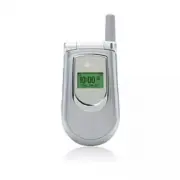
12 13 VX4500 VX4500 P h o n e O v e r P h o n e O v e r v i e w v i e w 1. Earpiece 2. Flip Flip open the case to answer an incoming call and close to end the call. 3. LCD Screen Displays messages and indicator icons. 4. Headset Jack 5. Left Soft Key Use to display the function setting menu. 6. Side...
Page 9 - Press Left Soft Key
15 VX4500 14 VX4500 M e n u s O v e r M e n u s O v e r v i e w v i e w 4. Sounds5. My Melodies6. Animations7. My Animations V V oice oice 1. Start Commands2. Voice Memos3. Voice Settings 1. Voice Commands2. Sound Modes3. Announce Alerts4. Best Match5. Train Words 4. Help T T ools ools 1. Alarm Cloc...
Page 10 - The Battery; LOW BATTERY; Turning the Phone On and Off; NOTE: Like any other radio device, avoid any unnecessary contact; Getting Y
17 VX4500 16 VX4500 The Battery The phone comes with a rechargeable battery. Keep the batterycharged while not in use in order to maximize talk and standbytime. The battery charge level is shown at the top of the LCDscreen. Installing the Battery To install the battery, insert the bottom of the batt...
Page 11 - Making Calls; Call Failed; Redialing Calls; NOTE: If you press or the side keys while the phone is; Description; Digital indicator. Digital service is available.; Icon
Making Calls 1. Make sure the phone is turned on. If not, press . 2. Enter the phone number (include the area code if needed).3. Press . lf the phone is locked, enter the lock code. Call Failed - indicates the call did not go through. Restricted - indicates outgoing calls are in restricted mode. 4. ...
Page 12 - Lock Mode; Unlock; Mute Function; Mute; Volume Quick Adjustment; NOTE: Key beep volume is adjusted through the Menu.; Manner Mode; for three seconds to set Manner mode.
20 21 VX4500 VX4500 Quick Access to Convenient Featur Quick Access to Convenient Featur es es Lock Mode Use Lock Mode to prevent others from using your phone.When Lock Mode is set, and your 4-digit password is requiredto use the phone. Lock Mode Quick Activation 1. From standby mode, press for 3 sec...
Page 13 - Speed Dialing; Dialing Speed Dials from 2 to 9; Voice Command; NOTE: Another way to activate Voice Command is to set; Quick Access to Convenient Featur; Call Waiting
23 VX4500 22 VX4500 Speed Dialing Speed dialing is a convenient feature that allows you to makephone calls quickly and easily with a few keystrokes. Your phonerecalls the number from your Contacts, displays it briefly, andthen dials it. Speed Dial number 1 is always for Voice mail. Dialing Speed Dia...
Page 14 - Text Input Modes; Symbols Mode; Changing Letter Case; NOTE: It reads out the letter or the number, when the Announce; Entering and Editing Infor; Text Input; Key Functions
25 VX4500 24 VX4500 Text Input Modes There are five modes for entering text, numbers, special characters,and punctuation. In a text entry field, pressing Right Soft Key(or Left Soft Key ) displays a pop-up list of text modes. T9Word (T9) Mode Use to type text using one keystroke per letter. The phon...
Page 15 - Text Input Examples; Using T9 Mode Text Input
27 VX4500 26 VX4500 Using the NEXT Key After you have finished entering a word, if the word displayedis not the one you want, press to display additional choices of words from the database. 1. Press . Good is displayed. 2. Press . The display gives you additional choices such as: Home , Gone , Hood ...
Page 16 - Contacts Entries; The Basics of Storing Contacts Entries
29 VX4500 28 VX4500 6. Continue saving the entry as a Speed Dial, press to select Speed Dial. 7. Enter a Speed Dial digit (e.g., 2) Use the keypad and press or Use to highlight the Speed Dial location and press . NOTE: To further customize the Contact entry, press Left Soft Key Done. NOTE: If the in...
Page 17 - Changing the Call Ringer; Default Ringer; Changing the Message Ringer; Default Text Msg Ringer; Contacts in Y; Options to Customize Your Contacts; Adding or Changing the Group; No Group; NOTE: You can change the name of the group, add groups, and
31 VX4500 30 VX4500 Changing the Call Ringer Allows you to identify who is calling by setting different ringersfor different phone numbers in your Contacts. It is automaticallyset to the default ringer when the Contact is saved. 1. Access your Contacts and use to highlight an entry, then press . 2. ...
Page 18 - Changing the Secret Setting; Not Secret; Adding or Changing the URL; URL; Adding or Changing the Memo; Memo; Adding or Changing the Picture ID; Default
33 VX4500 32 VX4500 Changing the Secret Setting Allows you to hide certain entries from being displayed whenthe Contacts are searched. 1. Access your Contacts and use to highlight an entry, then press . 2. Press Left Soft Key Edit . 3. Use to highlight Not Secret and press . 4. Use to select the Sec...
Page 19 - Editing Contacts Entries; Adding Another Phone Number; From the Main Menu Screen; Existing; Through Contacts; Add Number; Adding Speed Dial; Speed Dial
35 VX4500 34 VX4500 Editing Contacts Entries Adding Another Phone Number From the Main Menu Screen 1. From standby mode, enter the phone number you want tosave (up to 48 digits). 2. Press Left Soft Key Save . 3. Use to highlight a Label and press . Home / Home2 / Office / Office2 / Mobile / Mobile2 ...
Page 20 - Default Numbers; Changing the Default Number; Contacts; Editing Stored Phone Numbers; NOTE: The Default Number cannot be deleted by itself. The entire
37 VX4500 36 VX4500 5. Edit the phone number as necessary and press . Editing Stored Names 1. From standby mode, press Right Soft Key Contacts. Your Contacts display alphabetically. 2. Use to highlight the Contact entry you want to edit, then press . 3. Press Left Soft Key Edit. 4. Use to highlight ...
Page 21 - Deleting a Speed Dial; Deleting; Deleting a Phone Number from a Contact
39 VX4500 38 VX4500 Deleting a Speed Dial 1. Press Right Soft Key Contacts . 2. Use to highlight the Contact entry, then press . 3. Use to highlight the Speed Dial number. 4. Press Left Soft Key Edit . 5. Use to highlight the Speed Dial number and press . 6. Use to highlight the Speed Dial entry and...
Page 22 - Adding a Pause to an Existing Number; Phone Numbers With Pauses; Storing a Number With Pauses
41 VX4500 40 VX4500 Adding a Pause to an Existing Number 1. Press Right Soft Key Contacts . 2. Use to highlight the Contact entry to edit, then press . 3. Press Left Soft Key Edit . 4. Use to highlight the number then press . 5. Press Right Soft Key Pause . 6. Press Hard pause or 2-sec pause . 7. En...
Page 23 - Searching Options; Searching Your Phone’s Memory; Scrolling Through Your Contacts
43 VX4500 42 VX4500 Searching Options 1. Press Right Soft Key Contacts . 2. Press Right Soft Key Options . 3. Select the search criteria using (or press the corresponding number on the keypad): Find Name - Enter the character(s) to search for (such as the first letters of the name). Find Number - En...
Page 24 - Making a Call From Your Phone’s Memory; From Contacts
45 VX4500 44 VX4500 Voice Command Call Someone is a convenient feature that allows you to makephone calls quickly and easily by saying a voice command thatyou have recorded in your Contacts. To make a Voice Command: 1. From standby mode, press the Voice Command key ( ). 2. When prompted, say "Ca...
Page 25 - Access and Options; U s i n g P h o n e M e n u s; Menu Access; NOTE: Press to cancel without saving.
47 VX4500 46 VX4500 Contacts (Menu ) The Contacts Menu allows you to store names, phone numbersand other information in your phone’s memory. When youaccess your Contacts, the number in parenthesis represents thenumber of entries you have stored (up to 500 ). Access and Options 1. Press Left Soft Key...
Page 27 - NOTE: To view a quick list of all your recent calls, press from
51 VX4500 50 VX4500 Recent Calls (Menu ) The Recent Calls Menu is a list of the last phone numbers orContact entries for calls you placed, accepted, or missed. It iscontinually updated as new numbers are added to thebeginning of the list and the oldest entries are removed fromthe bottom of the list....
Page 28 - Received Calls (Menu
53 VX4500 52 VX4500 Missed Calls (Menu ) Allows you to view the list of missed calls; up to 30 entries. 1. Press Left Soft Key Menu . 2. Press Recent Calls . 3. Press Missed Calls . 4. Use to highlight an entry, then ● Press to view the entry. ● Press to place a call to the number. ● Press Right Sof...
Page 29 - New Message Alert; Urgent; x Packet Counter (Menu
55 VX4500 54 VX4500 Messages (Menu ) Text messages, pages, and the voice mail box become availableas soon as the phone is powered on. ● Check types of messages by pressing the message key . ● Make a call to the callback number by pressing during a message check. ● Read and edit messages saved in the...
Page 30 - Checking Your Voice Mail Box; Clear; The Basics of Sending a Message
57 VX4500 56 VX4500 Voice Mail (Menu ) Allows you to view new voice messages recorded in the voicemail box. Once you exceed the storage limit, old messages areoverwritten. When you have a new voice message, your phonealerts you. Checking Your Voice Mail Box 1. Press Left Soft Key Menu . 2. Press Mes...
Page 31 - Delivery Notice Enhanced; Using Contacts to Send a Message; Customizing the Message Using Options
59 VX4500 58 VX4500 Validity Validates delivery to the Short MessageCenter (SMC) without being transmitted tothe destination address for certain periodsof time. Those messages will be deletedwithin the programmed time frame. Default / 3 days / 2 days / 1 day / 12 hours / 2 hours / 1 hour / 30 minute...
Page 32 - Message Icon Reference; Text Options; Insert Signature; Icons
61 VX4500 60 VX4500 Message Icon Reference Inbox (Menu ) The phone alerts you in 3 ways when you receive a new message: ● By displaying a message notification on the screen. ● By sounding a beep or vibrating, if set. ● By blinking . (Only when you get a urgent message) Received text messages, page m...
Page 33 - Out of Memory Warning
63 VX4500 62 VX4500 Save Message Saves Inbox message into the Saved Folder. Lock/Unlock Locks or unlocks the selected message.Locked messages can not be deleted by theErase Inbox and Erase All functions. Outbox (Menu ) Up to 50 sent messages can be stored in the Outbox. View listsand contents of sen...
Page 34 - Message Settings Sub-Menu Descriptions
65 VX4500 64 VX4500 Message Settings Sub-Menu Descriptions Auto Save (Menu ) With this feature on, messages are automatically saved in theOutbox when transmitted. Auto Delete (Menu ) With this feature on, read messages are automatically deletedwhen you exceed the storage limit. Callback # (Menu ) Al...
Page 36 - NOTE: Pressing the right arrow key will start Get It Now.
69 VX4500 68 VX4500 Get Info (Menu ) Gives you information about the Get It Now selection key. 1. Press Left Soft Key Menu . 2. Press Get It Now . 3. Select Get Info . 4. Press . Managing Your Get It Now Applications Add new applications and remove old ones at any time. Disabling Applications If you...
Page 37 - to highlight the application to be disabled, then; Removing Applications; to highlight Manage Apps, then press
71 VX4500 70 VX4500 Mobile Web (Menu ) The MiniBrowser feature allows you to view internet content,via VZW with MSN, especially designed for your mobile phone.Access and selections within this feature are dependent uponyour service provider. For specific information on MiniBrowseraccess through your...
Page 38 - Soft Keys; Menu; Ending a MiniBrowser Session; Numbered options
73 VX4500 72 VX4500 Fast Scrolling Press and hold to quickly move the cursor up and down on the current screen. Scrolling by Page Press the Side Keys to move up and down a page at a time. Home Page To go to the Home Page, press and hold . View Browser Menu Press Voice Command ( ) Key to use the Brow...
Page 39 - Clearing Out Text/Number Entered; Initiating a Phone Call From Minibrowser
75 VX4500 74 VX4500 Web Messages (Menu ) Allows you to view Web messages. If there are any browsermessages, the list is displayed from newest to oldest. 1. Press Left Soft Key Menu . 2. Press Mobile Web . 3. Press Web Messages . A message Charges will apply. Start MiniBrowser? is displayed. 4. Press...
Page 40 - Message Objects (Menu
77 VX4500 76 VX4500 Music (Menu ) Allows you to choose the ring tones heard for incoming calls. 1. Press Left Soft Key Menu . 2. Press My Media . 3. Press Music . 4. Use to highlight your selection then press to select. Message Objects (Menu ) Allows you to set objects to correspond with your messag...
Page 41 - NOTE: When entering names in your Contacts list, avoid symbols; Start Commands (Menu; NOTE: Voice function is recognized only in English, Spanish is not
79 VX4500 Voice (Menu ) Voice Menu allows you to use your voice to activate certainfeatures of your phone such as the Memo and Driving Mode. Access and Options 1. Press Left Soft Key Menu . 2. Press Voice . 3. Select a sub-menu. ● Start Commands ● Voice Memos ● Voice Settings ● Help NOTE: Pronounce ...
Page 42 - Voice Settings (Menu; Voice Commands (Menu; NOTE: You should select the phone label, if the phone numbers
81 VX4500 80 VX4500 Voice Settings (Menu ) Allows you to select options for voice activation, announcealerts and recognition results; and enables you to adapt thephone to recognize your way of saying numbers. Voice Commands (Menu ) Allows you to set how you activate voice recognition. 1. Press Left ...
Page 43 - Announce Alerts (Menu
83 VX4500 82 VX4500 5. Select an option and press . ● 1 Result : Displays the name or number that best matches the one you said. ● 4 Results : Displays the four names or numbers that best match the one you said and asks you if the firstone is correct. If you say "Yes," the phone makes thecal...
Page 45 - NOTE: Scheduler will not alert you during a call or during SMS
87 VX4500 86 VX4500 Ez Tip Calc (Menu ) Allows you to quickly and easily calculate the amounts for a billwith the amount of the bill, the amount of the tip and thenumber of people as variables. 1. Press Left Soft Key Menu . 2. Press Tools . 3. Press Ez Tip Calc . Calculator (Menu ) Allows you to cal...
Page 47 - Display; Service Change (Menu
91 VX4500 90 VX4500 Power On/Off Tone (Menu ) Allows you to set the phone to sound a tone when the phone ispowered on, powered off, or both. 1. Press Left Soft Key Menu . 2. Press Settings . 3. Press Sounds . 4. Press Power On / Off Tone . 5. Set your selection with . 6. Press to save the setting. D...
Page 48 - Key Light Timer (Menu; Timer Options
93 VX4500 92 VX4500 Key Light Timer (Menu ) ● 7 seconds ● 15 seconds ● Always on means that the backlight is always on while flip (cellcase) is open. ● Always off means that the backlight is never on. Screens (Menu ) Allows you to choose the kind of background to be displayedon the phone. 1. Press L...
Page 49 - Status LED Colors (Menu
95 VX4500 94 VX4500 Status LED Colors (Menu ) Allows you to choose the color of the LED Status. 1. Press Left Soft Key Menu . 2. Press Settings . 3. Press Display . 4. Press Status LED Colors . 5. Choose a sub-menu and press . Incoming Calls New SMS Alerts Reminders Roaming Calls Battery Low 6. Sele...
Page 50 - Calling Digits (Menu
97 VX4500 96 VX4500 System (Menu ) The System menu allows you to designate specific systemnetwork settings. Select System (Menu ) Allows you to set up the phone producer’s managementenvironment. Leave this setting as the default unless you wantto alter system selection as instructed by your service ...
Page 51 - Serving System (Menu
99 VX4500 98 VX4500 Security (Menu ) The Security menu allows you to secure the phone electronically. Lock Phone (Menu ) Keeps your phone from unauthorized use. Once the phone islocked, it is in restricted mode until the lock code is entered.You can receive phone calls and still make emergency calls...
Page 52 - Erase Contacts (Menu; On
101 VX4500 100 VX4500 Change Code (Menu ) Allows you to enter a new four-digit lock code. 1. Press Left Soft Key Menu . 2. Press Settings . 3. Press Security . 4. Enter the four-digit lock code. 5. Press Change Code . 6. For confirmation, it will ask you to enter the new lock codeagain. Erase Contac...
Page 54 - Disable
105 VX4500 104 VX4500 Auto Volume (Menu ) Provides a better audio experience by enabling the AutoVolume feature to control the dynamic range and volume of thesending and receiving voice across different levels of speakerand environments. 1. Press Left Soft Key Menu . 2. Press Settings . 3. Press Cal...
Page 55 - NOTE: When using the 1X HSPD data service via an RS-232C data; NOTE: The Data Connection Kit allows you to connect your PC or
107 VX4500 106 VX4500 Select Port (Menu ) Allows you to select the data port. 1. Press Left Soft Key Menu . 2. Press Settings . 3. Press 1x Data . 4. Press Select Port . 5. Select RS-232C(COM Port) / Closed then press . Port Speed (Menu ) Allows you to set the port speed. Set the port speed based on...
Page 56 - My Phone Number (Menu
109 VX4500 108 VX4500 S/W Version (Menu ) Allows you to view the software, PRL, ERI, and browser version. 1. Press Left Soft Key Menu . 2. Press Settings . 3. Press Phone Info . 4. Press S/W Version . Icon Glossary (Menu ) Allows you to view all the icons and their meanings. 1. Press Left Soft Key M...
Page 57 - TIA Safety Information
111 VX4500 110 VX4500 Phone Operation NORMAL POSITION: Hold the phone as you would any othertelephone with the antenna pointed up and over your shoulder. Tips on Efficient Operation For your phone to operate most efficiently:Do not touch the antenna unnecessarily when the phone is in use.Contact wit...
Page 59 - Safety Information; S a f e t y; Charger and Adapter Safety; The charger and adapter are intended for indoor use only.; Battery Information and Care; Do not disassemble or short-circuit the battery.
115 VX4500 114 VX4500 Safety Information Please read and observe the following information for safe andproper use of your phone and to prevent damage. Also, keepthe user’s guide in an accessible place at all the times afterreading it. Explosion, Shock, and Fire Hazards ● Make sure that no sharp-edge...
Page 60 - Do not disassemble the phone.
117 VX4500 116 VX4500 ● Do not place items containing magnetic components suchas a credit card, phone card, bank book or subway ticketnear your phone. The magnetism of the phone maydamage the data stored in the magnetic strip. ● Do not hold or let the antenna come in contact with yourbody during a c...
Page 61 - FDA Consumer Update; Do wireless phones pose a health hazard?
119 VX4500 118 VX4500 ● Support needed research into possible biological effects ofRF of the type emitted by wireless phones; ● Design wireless phones in a way that minimizes any RFexposure to the user that is not necessary for devicefunction; and ● Cooperate in providing users of wireless phones wi...
Page 62 - What kinds of phones are the subject of this update?
121 VX4500 120 VX4500 possible association between the use of wireless phones andprimary brain cancer, glioma, meningioma, or acousticneuroma, tumors of the brain or salivary gland, leukemia, orother cancers. None of the studies demonstrated the existenceof any harmful health effects from wireless p...
Page 64 - Where can I find additional information?; What about children using wireless phones?
125 VX4500 124 VX4500 defibrillators from wireless telephones. This test method is nowpart of a standard sponsored by the Association for theAdvancement of Medical instrumentation (AAMI). The finaldraft, a joint effort by the FDA, medical device manufacturers,and many other groups, was completed in ...
Page 65 - Consumer Information on SAR
127 VX4500 126 VX4500 phone when tested for use at the ear is 1.17 W/kg and whenworn on the body, as described in this user guide, is 0.914 W/kg(body-worn measurements differ among phone models,depending upon available accessories and FCC requirements).While there may be differences between SAR leve...
Page 66 - 0 Driver Safety Tips
129 VX4500 128 VX4500 5. Do not take notes or look up phone numbers while driving. If you are reading an address book or business card, orwriting a “to-do” list while driving a car, you are notwatching where you are going. It is common sense. Don’tget caught in a dangerous situation because you arer...
Page 67 - Travel Charger; Call roadside assistance or a special wireless non-
131 VX4500 A c c e s s o r i e s A c c e s s o r i e s 130 VX4500 There are a variety of accessories available for your mobilephone. Consult your local dealer for availability. Travel Charger The travel charger allows you to chargethe battery while away from your homeor office. It supports standard ...
Page 68 - Headset; NOTE: It operates in vibration/no sound mode on Manner
133 VX4500 W W a r a r r a n t y I n f o r r a n t y I n f o r m a t i o n m a t i o n 132 VX4500 1. WHAT THIS WARRANTY COVERS: LG offers you a limited warranty that the enclosed subscriberunit and its enclosed accessories will be free from defects inmaterial and workmanship, according to the follow...
Page 69 - Damage resulting from use of non-LG approved accessories.
135 VX4500 134 VX4500 Some states do not allow the exclusive of limitation ofincidental or consequential damages or limitations on how longan implied warranty lasts; so these limitations or exclusionsmay not apply to you. This warranty gives you specific legalrights and you may also have other right...