Page 4 - Table of Contents
2 Important Customer Information...............................................1 Table of Contents .......................................................................2 The Basics ...................................................................................5 Phone Overview ....................
Page 7 - The Basics; Phone Overview; Front View; Proximity Sensor; Quick Keys
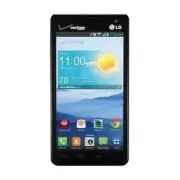
5 The Basics Phone Overview Front View Proximity Sensor Quick Keys Back Key Home Key Menu Key Recent Apps Key Home Screen Earpiece Front Camera Lens NOTES • All screen shots in this guide are simulated. Actual displays may vary. • Instructions to perform tasks in this guide are based on the Standard...
Page 9 - Volume Keys; Top and Bottom Views; Microphone
7 The Basics Side Views Volume Keys Power/ Lock Key 14. Power/Lock Key Press to lock/unlock the screen. Press and hold to turn the phone on/off, restart it, activate/deactivate airplane mode, and change the sound settings. 15. Volume Keys Allow you to adjust the ringer, the media volumes, or the in-...
Page 10 - Help; The; Setting Up Your Phone; Step 1. Remove the Back Cover; Slide the SIM Card into the SIM Card slot.
8 The Basics Help The Help application allows you to quickly and conveniently view information about your phone, including how-to videos, My Verizon video, and additional guides. To access Help, from the Home screen, tap the Apps Key > Help . Setting Up Your Phone Step 1. Remove the Back Cover Pl...
Page 11 - Step 3. Insert the Battery
9 The Basics Step 3. Insert the Battery Insert the battery, making sure to align the gold contacts. Press down gently to secure the battery. Step 4. Replace the Back Cover Place the cover over the back of the phone, then press down along the edges to secure the cover. Step 5. Charge the Phone Before...
Page 12 - Installing the Battery, SIM Card and microSD Card; Installing the battery; Place your fingernail; Removing the battery; bottom of the phone and gently lift off the back cover to remove it.
10 The Basics Installing the Battery, SIM Card and microSD Card NOTE It is important to fully charge the battery before initial use of the phone. WARNING! Your device includes a heat sensor activated by the battery temperature. A pop-up message will be displayed if the device will turn itself off or...
Page 13 - Removing the SIM card; Inserting a microSD card
11 The Basics 2. Use the fingertip cutout at the bottom of the battery compartment to lift the battery out. Installing a SIM card NOTE If not already inserted, follow the instructions below to install your SIM Card. 1. Turn the power off and remove the back cover and the battery (as demonstrated in t...
Page 14 - To remove the microSD card; Apps Key; Charging the Phone
12 The Basics 2. Position the microSD card (sold separately) with the label side facing up and slide it into place until it is fully inserted and locked in place. NOTE The microSD card can be easily damaged by improper operation. Please be careful when inserting, removing or handling it. To remove t...
Page 15 - Optimizing Battery Life; Tips to extend the life of your battery
13 The Basics Charging with USB NOTE Make sure that the USB logo on the cable is facing upward before inserting the USB Cable into the phone. USB Cable You can use your computer to charge your phone. To be able to charge with the USB Cable, you need to have the necessary USB drivers installed on you...
Page 17 - Turning the Phone On and Off; Turning the phone on; Power off; To unlock the phone
15 The Basics the switch at the top of the screen from off to on. 㻌 You can set the phone to activate Power saver mode immediately, when the charge drops to 10%, 20%, 30%, or 50%. If you turn off Power saver mode, when the battery charge becomes low, a notification prompts you to turn it on. 㻌 You ca...
Page 18 - OR; Setting Up Your Device; To set up your device, follow the steps below:
16 The Basics Shortcuts on the Lock screen There are four icons at the bottom of the default lock screen that you can use for quick, direct access to the Phone application , the Messaging application , the Google application , and the Camera application . Drag any of these icons upward to immediatel...
Page 20 - Starter mode
18 The Basics * During the on-screen instructions for setup, you have the option to select from two different modes. If you did not make a selection, the default mode is Standard. Starter mode Simplified and easier experience for the first time smartphone user. If selected, your Home Screen will show ...
Page 21 - At the Google Account setup screen, tap; Choose to join Google+ which makes sharing on the web more like
19 The Basics Setting up your Google Account 1. At the Google Account setup screen, tap Existing if you already have a Google Account, or New if you want to create a new account. 2. Enter your username and password or any other necessary information (if creating an account), then tap . NOTE Tap the ...
Page 23 - Phone’s Status Icons; Call icons
21 The Basics Phone’s Status Icons The Status Bar appears at the top of every screen. It displays icons indicating that you’ve received notifications (on the left) and icons indicating the phone’s status (on the right), along with the current time. Notification icons Status icons If you have more noti...
Page 26 - Getting to Know the Home Screen; Phone
24 The Basics Getting to Know the Home Screen The Home screen is your starting point to access all of the features on your phone. It displays application shortcuts, icons, widgets, and other features. Status Bar Shows device status information, including the time, signal strength, battery status, an...
Page 27 - Tap the; To view other Home screen canvases; Swipe (or flick) your finger left or right across the Home screen. The; Mini canvas view; To go directly to any canvas, simply tap the one you want.
25 The Basics To return to the Home screen 㻌 Tap the Home Key at the bottom of the device at any time, from any application. To view other Home screen canvases 㻌 Swipe (or flick) your finger left or right across the Home screen. The Home screen spans up to seven screen widths, allowing more space for ...
Page 28 - Set; Hiding items on the Home screen; Back Key; Touchscreen; Touch or tap
26 The Basics 㻌 To add another canvas, tap . 㻌 To delete a canvas, touch and hold the canvas to delete, drag it to the Remove bar at the top of the screen, then lift your finger. 㻌 To rearrange your canvases, touch and hold the canvas to move, drag it on top of the canvas position where you want it, ...
Page 29 - Drag; Volume Key
27 The Basics Drag Touch and hold an item for a moment and then, without lifting your finger, move your finger on the screen until you reach the target position. You can drag items on the Home screen to reposition them. Swipe, slide, or flick Move your finger quickly across the surface of the screen, wi...
Page 30 - Text Input Methods
28 The Basics Text Input Methods On-screen Keyboard The on-screen keyboard displays automatically on the screen when you need to enter text. To manually display the keyboard, simply tap a text field where you want to enter text. Toggles between different languages (only available when multiple input ...
Page 31 - Text input settings
29 The Basics Delete a character Tap the Delete Key Language toggle Tap and hold the Language Key to open a dialog box to set the languages to toggle between. NOTE This key is only available when multiple languages have been enabled for text entry. Text input settings To change your text entry setti...
Page 33 - Applications: How to View, Open and Switch; Opening and Closing the Applications screen; Home Key; Closing the Applications screen; To manually close the Applications screen, tap the
31 The Basics Applications: How to View, Open and Switch All of the applications on your phone, including any applications that you downloaded and installed from Play Store or other sources, are grouped together on the Applications screen, which you access from your Home screen. If you have more app...
Page 35 - Checking application information; Opening and Switching Applications; Open an application simply by touching its icon on the screen.
33 The Basics NOTE If you drag the application icon onto another application icon, it creates a folder with both of the applications in it. Checking application information To check on an application’s detail information from the Applications screen: 1. From the Home screen, tap the Apps Key . 2. Ta...
Page 36 - Recent Apps Key; Adding application icons to the Home screen
34 The Basics Switching between multiple applications 1. Tap the Recent Apps Key . A screen opens and displays a vertically scrolling list of all of the applications that are currently open. 2. Tap the application preview of the application you want to use or tap the Back Key to return to the curren...
Page 37 - Moving applications to other Home screen canvases
35 The Basics Customizing an application icon on your Home screen You can create your own custom application icon(s) using the images in your Gallery. 1. Touch and hold the icon you want to customize until the canvas grid is displayed, then release the icon. An editing icon appears at the upper righ...
Page 38 - Working with Menus; Options menus; Menu Key
36 The Basics NOTE To be able to use the Tilt method, the Move home screen items checkbox needs to be checkmarked. From the Home screen, tap the Menu Key > Settings > Gestures > Move Home screen items checkbox. Working with Menus There are two kinds of Android menus: Options menus and Conte...
Page 39 - Managing Notifications
37 The Basics Context menus Context menus contain options that apply to a specific item on the screen. To open a Context menu, touch and hold an item on the screen. Not all items have Context menus. If you touch and hold an item that has no Context menu, nothing will happen. When you touch and hold c...
Page 40 - To respond to a notification; Clear; To close the Notifications panel
38 The Basics To open the Notifications panel Touch and drag the Status Bar to the bottom of the screen. The Notifications panel displays a list of your current notifications, organized into ongoing and event-based notifications. Clear button Tap here to clear your list of event-based notifications. Tap ...
Page 41 - Quick settings on the Notifications panel; Customizing the Quick settings bar icons; Edit
39 The Basics NOTE The Notifications Bar handle at the bottom of screen is sensitive to the drag motion so just beginning the upward drag will close the panel. Quick settings on the Notifications panel The top of the Notifications panel includes a Quick settings bar. The icons in this bar provide a qui...
Page 42 - Searching Your Phone and the Web; Phone and Web search using text entry; Search Widget; Enter the text you’re searching for in the Quick Search box.
40 The Basics Searching Your Phone and the Web You can search for information on your phone and on the web by using the Google search application. Some applications, such as Gmail, Contacts, and Chrome have the ability to search for contents within those specific applications. You can conduct the sea...
Page 43 - Locking the Screen; Setting an Unlock Requirement for the First Time
41 The Basics 3. Tap the Search Key on the keyboard to use the Google application to search for the text you entered in the Quick Search box. Search preference settings You can use the Search preference settings to configure some aspects of web search (for example, whether it makes suggestions below ...
Page 44 - Disabling the lock sequence
42 The Basics captures your image to identify you. Keep in mind that Face Unlock is less secure than a pattern, PIN or password because it uses generalized shape and dimension to verify your face. Pattern : Unlocks the screen using a pattern you draw with your finger. The first time you set an unlock ...
Page 48 - Customizing the Home Screen; To add an item to the Home screen; Go to the Home screen canvas where you want to add the item.; Apps; To move an item on the Home screen; Drag the item to a new location on the screen.
46 The Basics Customizing the Home Screen You can personalize your Home screen by adding application icons, shortcuts, widgets, and other items to any Home screen canvas. You can also change the wallpaper. To add an item to the Home screen 1. Go to the Home screen canvas where you want to add the it...
Page 49 - To remove an item from the Home screen
47 The Basics 3. When the item is where you want it, lift your finger. NOTE If Move Home screen items is enabled in the Gesture settings, simply tilt the device in the direction you want to move the item and it will slide to the canvases in that direction. Lift your finger when it arrives at the canva...
Page 50 - QuickMemoTM; Using the QuickMemo options
48 The Basics QuickMemo™ The QuickMemo ™ feature allows you to create memos and capture screen shots. You can use QuickMemo to easily and efficiently create memos during a call, with a saved picture or on the current phone screen. 2. Tap an option at the top of the screen (e.g., Pen type and color) t...
Page 51 - Share; Viewing saved QuickMemos; Connecting Quickly With Your Contacts
49 The Basics Share - Tap to share the memo with others via any of the available applications. Save - Tap to save the memo you’ve created to your Gallery. Viewing saved QuickMemos QuickMemos are saved in the Gallery application. From the Home screen, tap the Apps Key > Gallery , then tap the Quic...
Page 52 - Tap a Quick Contact icon to communicate with the contact.
50 The Basics Tap a Quick Contact icon to communicate with the contact. Depending on the icon you’ve tapped, a different application will open. TIP Adding a shortcut for a contact to your Home screen allows you to open Quick Contact for that contact without opening the Contacts application. You can ...
Page 53 - Connecting to Networks and Devices; Connecting to Mobile Networks; To disable data when roaming; to remove the checkmark from the box. You
51 Connecting to Networks and Devices Connecting to Mobile Networks When you buy your phone and sign up for service, your phone is configured to use your provider’s mobile networks for voice calls and for transmitting data. Different locations may have different mobile networks available. Initially, ...
Page 54 - Connecting to Wi-Fi Networks; To automatically connect to known Wi-Fi networks
52 Connecting to Networks and Devices Connecting to Wi-Fi Networks Wi-Fi is a wireless networking technology that can provide Internet access at distances of up to 100 meters, depending on the Wi-Fi router and your surroundings. To use Wi-Fi on your phone, you must connect to a wireless access point...
Page 55 - ADD NETWORK; To forget a Wi-Fi network; Forget network
53 Connecting to Networks and Devices O If the network is secured, you will be prompted to enter a password (Ask your network administrator for details). O When you’re connected to a network, you can tap the network name in the Wi-Fi settings screen for details about the speed, security, address, an...
Page 56 - USB connection; To select a USB mode for a connection; or; Prompt for connection mode; is checkmarked, the USB selection window is; Using the Status Bar to change the connection mode settings
54 Connecting to Networks and Devices USB connection USB connection is a feature that allows your device to connect to a PC using a USB Cable. Allows the phone to be used as mass storage when a microSD card is present in the device. It also allows you to transfer unprotected content from the phone t...
Page 57 - microSD Card; Viewing Memory in the microSD Card; The storage capacity page is divided into two sections: Internal; Formatting the microSD Card; to confirm and release the microSD
55 microSD Card microSD Card Viewing Memory in the microSD Card 1. From the Home screen, tap the Apps Key > Settings > Storage . 2. Review the available information. O The storage capacity page is divided into two sections: Internal Storage and SD Card. Formatting the microSD Card Formatting a...
Page 58 - Use the USB Cable that came with your phone to connect the phone to
56 microSD Card Connecting Your Device to Your Computer Before using your device’s mass storage capabilities, you need to prepare your device’s data services to synchronize with your desktop or laptop computer. Once you have connected the device to the computer, you can transfer your data to or from...
Page 59 - Sending data from your phone using Bluetooth; Sending data using Bluetooth
57 microSD Card Sending data from your phone using Bluetooth Sending data using Bluetooth You can use Bluetooth to send data by opening a corresponding application, not from the Bluetooth menu as on most other mobile phones. Sending pictures : Open the Gallery application, then open the picture. Tap...
Page 60 - Calls; Placing and Ending Calls; Phone application tabs
58 Calls Placing and Ending Calls You can place calls using the Phone application. Manually dial calls using the Dial tab. Dial from your phone’s memory using the Recent calls tab, the Contacts tab, the Favorites tab, or the Groups tab. Phone application tabs You can change the tabs ( Dial , Recent ...
Page 62 - Answering or Rejecting Calls; To answer a call
60 Calls Airplane mode Some locations may require you to turn off your phone’s wireless connections by placing your phone in Airplane mode. 1. Press and hold the Power/Lock Key . 2. Tap Turn on Airplane mode in the dialog box that appears. NOTE The Wireless & networks settings menu also has a sw...
Page 63 - To ignore a call and send a text message
61 Calls To ignore a call and divert it to voicemail If the screen is unlocked, simply tap the Ignore Key . If the screen is locked, swipe the Ignore icon in any direction to ignore the call. The caller is sent directly to your voicemail box to leave a message. Tap the Ignore with message Key to sen...
Page 64 - Working With the Recent tab; To open the Recent tab
62 Calls Working With the Recent tab The Recent tab lists of all of the calls you’ve dialed, received, or missed. It offers a convenient way to redial a number, return a call, or add a number to your Contacts. To open the Recent tab From the Home screen, tap the Phone Key (in the Quick Keys bar), th...
Page 65 - Calling Your Contacts; To call a contact
63 Calls Clearing your Recent calls You can delete the entire list of Recent calls at once or selectively delete entries. 1. Open the Recent tab. 2. Tap the Menu Key . Tap Clear to select entries to remove from the list. Checkmark the entries to delete, tap Clear , then Yes . Tap Clear all to remove...
Page 66 - Voice Dialer; To place a call by speaking
64 Calls Instant List Instant list is displayed on the Dial tab to help you use the information stored in your phone without needing to search for it first. Once you enter three or more numbers, Instant list displays entries from your Contacts list or Recent calls that match the sequence you entered....
Page 67 - Options During a Call; To mute the microphone during a call
65 Calls Options During a Call Bluetooth Button Tap here to switch between a Bluetooth device and the phone. The light bar illuminates blue to indicate that the call is using a Bluetooth device. The button is greyed out when there is no Bluetooth device available. Mute Button Tap here to mute the mi...
Page 68 - Bluetooth; Managing Multiple Calls; To switch between current calls; Swap; To set up a conference call; Add call
66 Calls To switch between a Bluetooth headset and the phone When a Bluetooth headset is paired and connected to your phone, you can conduct calls on the headset for hands-free conversation. During a call, you can opt to use the Bluetooth headset or just the phone. When using the Bluetooth headset d...
Page 69 - Listening to Your Voicemail; Voicemail notification; To listen to your Voicemail; New voicemail
67 Calls Merge calls Button Tap here to merge the separate calls into a conference call. Speaker Button Tap here to turn the speakerphone on (or off). The light bar illuminates blue to indicate that the speakerphone is on. Dialpad Button Tap here to dial another number to participate in the conferen...
Page 70 - Phone Key
68 Calls To set up your Voicemail 1. From the Home screen, tap the Phone Key in the Quick Keys bar. (The Phone application can also be accessed from the Applications screen.) 2. Tap the Voicemail Key to dial your voice mailbox. 3. If you hear a system greeting, tap the Pound Key to interrupt it, if ...
Page 71 - Web; Chrome; Browse web pages; Search the web
69 Web Chrome The Chrome application allows you to access the internet from your device. Access and selections within this feature are dependent upon your service provider. For specific information on internet access through your phone, contact your service provider. NOTES • You may incur additional ...
Page 72 - Browse with tabs; Create a new tab
70 Web The Globe icon appears next to related sites. You can configure the default search engine for the address bar by tapping the Menu Key > Settings > Search engine . Search within a webpage 1. Tap the Menu Key > Find in page . 2. Type the text you’re looking for. Matches are highlighted ...
Page 73 - Most Visited; Working with tabs; Open an Incognito tab (browse in private); Switch in and out of Incognito mode
71 Web The New Tab page The following options are available when you create new tabs to help you open the page that you want quickly. Most Visited Snapshots of the webpages that you visit the most are shown here. Just tap a snapshot to visit the site. Bookmarks Icons for sites that you’ve bookmarked...
Page 74 - Download files; To view downloaded files:
72 Web You can also swipe to switch tabs: Swipe from the right-hand edge of the screen to the left to go to the next tab in the list. Swipe from the left-hand edge of the screen to the right to go to the previous tab in the list. Close your tabs Close a single tab: Tap the Tabs swap icon and tap the...
Page 75 - Use bookmarks; Create a bookmark; Edit or delete bookmark
73 Web Use bookmarks Bookmarks let you revisit your favorite webpages with one touch. Create a bookmark 1. While viewing the page you want to set as a Favorite, tap the Menu Key , then tap the Favorites icon at the top of the Options menu. 2. Edit the bookmark’s name and address, if necessary. 3. By...
Page 76 - Chrome Settings; Preload webpages
74 Web 2. Touch and hold the bookmark until a Context menu appears. 3. Tap Add to home screen . Chrome Settings Preload webpages Chrome helps you open webpages faster by predicting where you might go next on the page. The browser preloads the page’s data in the background, so the page can open immed...
Page 80 - Maps; To search for a location
78 Maps Maps Layers Icon Tap here to select the type of map you want to view. Local Icon Tap here to find types of places near your location. Maps Menu Tap here to access Map , Local , Navigation , Offers , My Places , Latitude , and Location history . Directions Icon Tap here to get directions to a ...
Page 81 - Switching between common features
79 Maps The starting point pop-up menu includes My current location , Contacts , Point on map , and My Places . The destination pop-up menu includes Contacts , Point on map , and My Places . NOTE When you search for a location in the Maps application, your current location is automatically entered a...
Page 82 - Directions; Maps settings
80 Maps Tap the Directions icon icon in the Maps toolbar at the bottom of the screen to get directions. Tap the Search icon in the Maps toolbar at the bottom left of the screen to conduct a new search. Tap the My Location icon in the top right corner of the screen to display your current location on...
Page 83 - Weather; Checking the Weather; To get details about the weather
81 Weather Checking the Weather The Weather application provides weather forecasts and other weather information. You can place a Weather widget on your Home screen for a summary of your local weather. Access the Weather application for more detailed weather information. NOTE The Weather widget on y...
Page 84 - Changing Weather Settings; List Settings
82 Weather Managing your City list The City list screen allows you to manage a list of cities that you want to monitor. From the Weather application, tap the Menu Key > Settings > Edit city list . Tap the Add icon to add another location. Tap the Delete icon at the top of the screen to delete ...
Page 85 - Communication; Contacts; Using Your Contacts; To open your Contacts application; Contacts list display
83 Communication Contacts The Contacts application allows you to store names, phone numbers and other information in your phone’s memory. Using Your Contacts Use the Contacts application to add, view, and communicate with your friends and acquaintances. To open your Contacts application From the Hom...
Page 86 - Adding Contacts
84 Communication To view details about a contact 1. Open your Contacts application. 2. Tap the contact whose details you want to view. 3. The Contact’s information will be displayed. The following options are available. The Dial icon places a call to the number. The Message icon starts a message. Th...
Page 87 - Importing, Exporting, and Sharing Contacts; To import contacts from your microSD card
85 Communication To add a new contact 1. Open the Contacts application. 2. Tap the New contact icon to the right of the Search box. 3. If you have more than one account with contacts, select the account where you want to save the contact. You can change this later by tapping at the top of the screen...
Page 88 - Adding a Contact to Your Favorites; To add a contact to your Favorites list
86 Communication 5. If you have more than one account on your phone, tap the account into which you want to import the contacts. 6. Tap the contacts you want to import from the microSD card. Then tap Import . To export contacts to your microSD card You can export all of the contacts on your phone to...
Page 89 - Communicating with Your Contacts; To connect by using Quick Contact for Android
87 Communication 2. Tap a contact to view its details. 3. Tap the star to the right of the contact’s name. When the contact is added to your Favorites list, the star will be gold-colored. To remove a contact from your Favorites list 1. Open the Contacts application and touch the Favorites tab. 2. Ta...
Page 90 - To call a contact’s default number; Selecting Which Contacts are Displayed; To change which groups are displayed
88 Communication 2. Tap the icon corresponding to the type of communication you want to start. The communication icons displayed depend on the types of information you saved in the contact information. To communicate with a contact 1. Open the Contacts application. 2. Tap the contact with whom you w...
Page 91 - Joining Contacts; application attempts to avoid duplication by; To join contacts; Tap the contact whose information you want to join with the first; Separating Contact Information; To separate contact information; Tap the contact entry whose information you want to separate.
89 Communication Joining Contacts When you add an account or add contacts in other ways, such as by exchanging emails, the Contacts application attempts to avoid duplication by joining contact information automatically. You can also join contacts manually. To join contacts 1. Open the Contacts appli...
Page 92 - Email; Email icons; To open the Email application
90 Communication Email The Email application allows you to read email from services other than Gmail™. The following account types are supported: Microsoft Exchange, Windows Live Hotmail, Yahoo! Mail, Gmail, AOL Mail, Verizon and other accounts. Email icons New Exchange mail message received or send...
Page 93 - Reading Your Email; To read an email; Email settings
91 Communication The Accounts list The Accounts list displays all of your email accounts. Open the Email application. If you’re not in the Accounts list, tap the Accounts drop-down list icon in the upper-left corner of the screen. Each account in the Accounts list displays the number of unread mail....
Page 95 - Voicemail; To be able to use Voicemail
93 Communication Notification Tap Notifications to checkmark this setting to that you are notified of new email notifications. Tap Notification sound to set the sound when you receive new email notifications. Tap Vibrate to set a vibration to alert you to a new notification. Server settings Tap Incoming se...
Page 96 - Gmail; Opening Gmail and Your Inbox; To open the Gmail application
94 Communication While viewing the voicemail list, you can select an entry (see step 5). For additional options, tap the Menu Key .The following options are available: Search , Delete , Save as , Mark as heard , Sort by , Saved voicemails , Refresh , Settings , Logout , Unsubscribe . 5. Tap a voicem...
Page 97 - To switch accounts; From your Gmail Inbox, tap the Accounts icon
95 Communication Adding another Google Account 1. From your Gmail Inbox, tap the Menu Key > Settings . 2. Tap ADD ACCOUNT at the top right corner of the screen. 3. Tap Existing or New , then enter the necessary information. Tap here to add an account. To switch accounts Gmail displays conversatio...
Page 98 - Reading Your Messages; To read a message
96 Communication Navigating in the Gmail application If you are viewing a message or another label, tap the Back Key until you return to your Inbox. You can also tap and select Inbox . The icons at the bottom of the screen allow you to navigate within the Gmail application. While viewing your Inbox,...
Page 99 - Undo; To reread a message
97 Communication Tap the Contact's picture to open Quick Contact. The Google Talk online status will appear next to the name of the sender of each message if the sender has a Google Account. Tap the contact’s picture to open Quick Contact. While reading messages in a conversation, you can use the ic...
Page 100 - Composing and Sending a Message; To compose and send a message; Replying to or Forwarding a Message; To reply to or forward a message
98 Communication While reading a message you can tap to return a read message to the unread state. For example, to remind yourself to read it again later. Composing and Sending a Message You can compose and send a message to people or groups with Gmail addresses or other email addresses. To compose ...
Page 101 - Google Account settings
99 Communication 2. On the message header, tap or , then tap Reply all or Forward . Replying to or forwarding messages without changing the subject adds your reply to the current conversation. Changing the subject starts a new conversation. The message will open in a new screen where you can add or ...
Page 102 - Quote text; Messaging; Opening the Messaging Application; To open Messaging; Messaging Key; New message
100 Communication Hide checkboxes: Mark the checkbox to hide checkboxes and allow touch and hold to select an item. Message actions: Allows you to set when to show message actions. Responding with quoted text When you respond to a Gmail message you can choose to type within the previous text. For ex...
Page 104 - To send a group message
102 Communication To create and send a multimedia message 1. On the Messaging screen, tap the New message icon at the top right corner of the screen. 2. Enter a mobile phone number, email address, or Contact name in the To field. As you type, matching contacts appear. You can tap a suggested contact ...
Page 105 - To respond to messages you receive; Changing Messaging Settings; Storage
103 Communication Tap the Group Conversation button to allow all of the recipients to be viewed by each other so they can respond to you and the group. The message is sent as a multimedia message (MMS). Tap the Individual Message button so that none of the recipients can see the other recipients (si...
Page 106 - Multimedia message limit:; Text message; Manage SIM card messages:; Multimedia message; Delivery report allow:
104 Communication Text message limit: Tap to set the number of text messages to save per thread. Multimedia message limit: Tap to set the number of multimedia messages to save per thread. Signature: Allows you to enter a signature to automatically send with your messages. Checkmark appears after a s...
Page 107 - Select; Notification
105 Communication Group Conversation Group Conversation: Checkmark to allow everyone to reply to everyone in the group conversation. Help: Information for group conversation settings. Conversation skin Allows you to change how each segment of your conversations are displayed. Slide the screen right ...
Page 108 - Talk; To open Google Talk and sign in; To sign out of Google Talk
106 Communication Severe alert: Checkmark this setting so that you will always be notified of a Severe alert. AMBER alert: Checkmark this setting so that you will always be notified of an AMBER alert. Alert reminder: Allows you to to select how often you want to be reminded when notified of an alert. T...
Page 109 - Chatting with Friends; To chat with a friend; Options while chatting
107 Communication Chatting with Friends To chat with a friend 1. From the Home screen, tap the Apps Key > Talk . 2. From your Friends list, tap the friend you want to chat with. 3. Enter your message then tap the Send icon . Options from your Friends list From the Friends list, tap the Menu Key t...
Page 110 - Changing and Monitoring Online Status; Status Icons; Changing Google Talk Settings
108 Communication Changing and Monitoring Online Status Tap here to change your status. Displays your current account. Your current status. Tap here to change the status message. Tap here to access previously used status text. Tap here to delete all previously used status. Previously used status. Yo...
Page 111 - Call a Contact by Voice Dialing
109 Communication Voice Dialer Call a Contact by Voice Dialing You can call numbers directly by saying the contact’s name or number. 1. From the Home screen, tap the Apps Key > Voice Dialer . 2. Say “ Call ” or “ Dial ” then a name or a phone number. Or you can say “ Redial ” to redial the last n...
Page 112 - Entertainment; Camera; Getting to know the viewfinder
110 Entertainment Camera To open the Camera application, from the Home screen tap the Apps Key > Camera . This can also be accessed by tapping Camera from the Home screen. TIP If you’ve set your phone to use the Swipe unlock method, from the Locked screen, simply press the Power/Lock Key , then d...
Page 115 - Viewing your saved photos
113 Entertainment Taking a quick photo 1. Open the Camera application. 2. Hold the phone horizontally and point the lens toward the subject you want to photograph. 3. Touch the subject on the screen and a focus box will appear in the viewfinder. 4. When the focus box turns green, the camera has focus...
Page 117 - Video Camera
115 Entertainment Video Camera To open the Video Camera, from the Home screen tap the Apps Key > Camera . Then tap the Mode Switch icon to toggle from Camera to Video camera mode. Getting to know the viewfinder Live effect – Tap to add various visual effects when recording a video. Video size – Ta...
Page 119 - Watching your saved videos; Your Photos and Videos; Adjusting the volume when viewing a video; Gallery; Opening Gallery and Viewing Your Albums; To open Gallery and view your albums
117 Entertainment The following options are available: Play Tap to play the video you just recorded. Share Tap to open a dialog box to select which application to use to share your video. NOTE Additional charges may apply when multimedia messages are downloaded while roaming. Tap to delete the video...
Page 120 - To share an album; Working with photos; To view and browse photos
118 Entertainment OR Open Gallery from the Camera application by tapping the thumbnail image at the bottom corner of the screen. The Gallery application presents the pictures and videos saved in your phone, including those you’ve taken with the Camera application and those you downloaded from the we...
Page 121 - Working with Videos; Use the; To play videos; Open a Gallery album then tap a video.
119 Entertainment Tap here to share. Tap here to delete. Tap here to go to camera mode. To edit pictures Tap here to redo the step. Tap here to go to previous step. Tap here to save. Tap here to access the editing tools. Working with Videos Use the Gallery application to play videos that you’ve take...
Page 122 - To share a video
120 Entertainment Tap here to lock the screen. Tap here to change viewing from its original size to full screen. Tap here to access SmartShare. Tap here to adjust the volume. Tap the screen while the video is playing to view the playback controls. To share a video You can share your videos in a vari...
Page 123 - Video Editor; Project list screen; Project edit screen
121 Entertainment Video Editor You can edit the photos or videos stored on the phone. From the Home screen, tap the Apps Key > Video Editor . NOTE The Video Editor app supports only photos or videos which were recorded using this device. Project list screen Help Project list area Project options ...
Page 124 - Video Wiz
122 Entertainment Add : Adds additional video, images, or audio clips. Undo : Undo the last action. Redo : Redo the previously removed action. Add text : Adds text to a video or image clip. Video Wiz You can make your own movie using your images, video and music. 1. From the Home screen, tap the App...
Page 125 - Play Store; To open the Play Store application; To get help with Play Store
123 Entertainment After editing the video, tap the Done icon . 8. Tap the Save icon to save the video. 9. Tap the Revert icon to remove all of the edits previously applied to the images. NOTE Tap the Help icon if you want to see Help information about Video Wiz. Play Store Play Store allows you to b...
Page 126 - Downloading and Installing Applications; To download and install an application; Price
124 Entertainment To return to the Play Store home screen You can return directly to the Play Store home screen from most other screens in Play Store. Tap the Play Store icon at the top left corner the screen. Downloading and Installing Applications When you find an application you want, you can inst...
Page 127 - ACCEPT; To create a Google Checkout account
125 Entertainment 3. If you agree to the application’s access requirements, tap ACCEPT . If you selected a paid application, you’re redirected to the Google™ Checkout screen to pay for the application before it’s downloaded to your phone. After accepting the application’s access requirements, you re...
Page 128 - Music; Transferring Music Files to Your Phone; To copy music files onto the phone’s microSD card
126 Entertainment Music Transferring Music Files to Your Phone The Music application plays audio files that are stored on your phone’s microSD card. Copy audio files from your computer onto the microSD card before you open the Music application. NOTE The LG USB driver needs to be installed on your PC ...
Page 129 - Opening Music and Working with Your Library; To open Music and view your music library
127 Entertainment Opening Music and Working with Your Library After you’ve copied some music onto your microSD card you can open the Music application and view your library of music files. Your music files are sorted and displayed based on the Music tab you select. To open Music and view your music li...
Page 130 - Playing Music; To play music
128 Entertainment To delete a song from the microSD card Touch and hold a song in a Library list. In the Context menu that opens, tap Delete , then tap Yes . OR On the Playback screen, tap the Menu Key > Delete > Yes . You can also delete music files from the microSD card when your phone is con...
Page 131 - To control playback
129 Entertainment You can return to the Playback screen from most other screens in the Music application by tapping the currently playing song at the bottom of the screen. You can return to the Playback screen from any other application by opening the Notifications panel and tapping the ongoing music...
Page 132 - Working with Playlists; To create a playlist
130 Entertainment To control playback volume In addition to the techniques for setting media volume, you can control the volume of music in the Music application. Press the phone’s up/down Volume Keys . A panel opens to show the current media volume. To customize settings in the Playback or a Librar...
Page 134 - Videos; To open the Videos application; Videos options
132 Entertainment Videos You can play a wide variety of videos using the Videos. NOTE Supported file formats are dependent on the software version of the phone. To open the Videos application 1. From the Home screen, tap the Apps Key > Videos . 2. Tap the video you want to play. Playback controls ...
Page 135 - YouTubeTM; Opening YouTube and Watching Videos; To open the YouTube application
133 Entertainment delete, tap the Delete button at the bottom of the screen, then the Yes button to confirm. DivX ® VOD: Tap to display a pop-up window with the DivX registration code. Register your device with DivX before using this video on demand feature. YouTube™ Opening YouTube and Watching Vide...
Page 137 - FileShare; To turn SmartShare on and allow sharing contents
135 Entertainment FileShare The FileShare application allows you to share files from your phone. It allows you to share multimedia files and documents to other devices via Wi-Fi Direct. 1. To access this application, from the Home screen, tap the Apps Key > FileShare . 2. Choose the types of conten...
Page 138 - To control your renderer devices
136 Entertainment NOTE Make sure that the microSD card is correctly mounted and the Receive files option in the Settings menu is checkmarked. 4. Under the Shared contents section, tap to checkmark the types of content you would like to share. Choose from Photos , Videos , and Music . 5. SmartShare is...
Page 139 - To upload contents to the remote content library; Voice Recorder; Record a Voice Memo
137 Entertainment To download contents from the remote content library 1. From the Home screen, tap the Apps Key > SmartShare . 2. Tap the From icon at the top left of the screen, then tap the device that has your remote content library. 3. You can browse through the content library to find the co...
Page 140 - Stop; Play a Voice Memo
138 Entertainment 4. When you’re finished, tap the Stop button . The recording is automatically saved to your recordings list. Tap here to change the recording mode. Tap here to record a new voice recording. Tap here to view a list of your recordings. Tap here to record a new voice memo. Tap here to ...
Page 142 - Tools; Calendar; Viewing Your Calendar and Events; To open the Calendar application
140 Tools Calendar Viewing Your Calendar and Events Open the Calendar application to view events you’ve created or that others have invited you to. When you first set up your phone, you configured it to use an existing Google Account or you created a new account. The first time you open the Calendar ap...
Page 143 - Working in Day View; To switch to Day view; Day; To learn more about events in Day view; New event
141 Tools Working in Day View Day view displays a list of the events of one day, in a table of one-hour rows. The current time will be designated as a horizontal black line. If it’s a day of commemoration (e.g., a holiday) it is displayed in blue at the top of the calendar. All-day and multi-day eve...
Page 144 - Working in Week View; To switch to Week view; Week; To learn more about events in Week view
142 Tools Working in Week View Week view displays a chart of the events of one week. All-day and multi-day events are displayed at the top of the calendar. To view other weeks, simply swipe left to see future weeks and right to see past weeks. To switch to Week view Tap the date in the top left corn...
Page 145 - Working in Month View; To switch to Month view; To view more information about events in Month view
143 Tools Working in Month View Month view displays a chart of the events of the month. Segments of each day with scheduled events are blue in the day’s vertical bar. To view other months, simply swipe upward to see future months and downward to see past months. To switch to Month view Tap the date ...
Page 146 - Working in Agenda View; Touch to view events before; To switch to Agenda view; Tap the date in the top left corner above the calendar, then tap; To learn more about events in Agenda view; Tap an event to view its details.
144 Tools Working in Agenda View Agenda view is a list of your events in chronological order by day. A month’s worth of events is displayed. To show earlier Agenda events, tap Touch to view events before at the top of your Agenda list. To show later Agenda events tap Touch to view events after at th...
Page 147 - Viewing Event Details; To view information about an event
145 Tools Viewing Event Details You can view more information about an event in a number of ways, depending on the current view. To view information about an event In Agenda, Day, or Week view, tap an event to view its details. In Month view, tap a day to display the event(s) at the bottom of the sc...
Page 148 - Setting an Event Reminder; To set an event reminder; Add reminder; To delete an event reminder; Remove reminder
146 Tools Setting an Event Reminder You can set one or more reminders for an event, whether or not you created the event or have permission to edit its other details. To set an event reminder 1. Tap an event to view its details. 2. Tap Add reminder to automatically add a reminder for 10 minutes befo...
Page 149 - Calculator; To open and use the Calculator
147 Tools Calculator The Calculator application allows you to perform simple mathematical calculations. To open and use the Calculator From the Home screen, tap the Apps Key > Calculator . Enter numbers and arithmetic operators on the Basic panel. Drag the Basic panel to the left to open the Adva...
Page 150 - Setting Alarms; To set an alarm
148 Tools Alarm/Clock You use the Alarm/Clock application to access the Alarms, Timer, World clock, and Stopwatch functions. These functions are accessed by tapping the tabs across the top of the screen. To open the Alarm/Clock application From the Home screen, tap the Apps Key > Alarm/Clock . Se...
Page 152 - Setting the Timer
150 Tools Setting the Timer The Timer tab can be used to alert you with an audible signal when a set amount of time has passed. 1. Open the Alarm/Clock application and tap the Timer tab . 2. Set the time on the digital timer. Tap the Hour , Minute and/or Second field(s) and enter the numbers as neces...
Page 153 - Using the Stopwatch; Polaris Office 4; Create a New Document
151 Tools Using the Stopwatch The Stopwatch tab allows you to use your phone as a Stopwatch. 1. Open the Alarm/Clock application and tap the Stopwatch tab . 2. Tap Start at the bottom of the screen to start timing and tap Stop to stop the time. You can use the Lap function by tapping Lap to record l...
Page 154 - Polaris Office 4 toolbar
152 Tools View and edit a document on your device 1. From the Home screen, tap the Apps Key > Polaris Office 4 . 2. Tap List view , Grid view , or Favorites to search for documents on your microSD card. 3. Tap the document that you want to view or edit. NOTE You can also open an attachment in an e...
Page 155 - File Manager; To open the File Manager application
153 Tools File Manager The File Manager application allows you to manage files in your internal/ external storage. To open the File Manager application From the Home screen, tap the Apps Key > File Manager . File Manager Options : Allows you to create a new folder. : Allows you to move files and fo...
Page 156 - Tasks; To open the Tasks application
154 Tools Tasks The Tasks application can be synchronized with MS Exchange account. You can create task, revise it and delete it in MS Outlook or MS Office Outlook Web Access. To open the Tasks application From the Home screen, tap the Apps Key > Tasks . Tasks options : Tap to view All tasks, Over...
Page 157 - Allows you to set the reminder notification
155 Tools • Notification sound: Allows you to set the reminder notification sound. • Vibrate: Allows you to set the vibrate setting for reminder notifications. • Pop-up notification: Checkmark to display a pop-up reminder notification. The following options are available when you touch and hold a task in...
Page 158 - Settings; To open the Settings application; To switch to tab view; Airplane mode
156 Settings Settings The Settings application contains most of the tools for customizing and configuring your phone. All of the settings in the Settings application are described in this section. For settings specific to the Chrome application, see the Chrome section and for settings specific to the G...
Page 160 - Mobile data
158 Settings VS870 4G: Checkmark to allow other Bluetooth devices to see your phone for pairing and connection. AVAILABLE DEVICES The list of all of the available in-range Bluetooth devices. Tap the Menu Key in the Bluetooth menu to access the following options. Rename phone: Changes your phone name...
Page 163 - DEVICE; Mode change
161 Settings DEVICE The Device section allow you to configure and manage the general device functions such as sound and display options. Mode change Changes the mode used to operate the phone. Starter mode helps new smartphone users become accustomed to using the device. Standard mode is recommended ...
Page 164 - Display
162 Settings Vibrate strength: Sets the vibration strength for Incoming calls, Notifications, and Vibrate on touch. Incoming call vibration: Sets the the type of vibration for incoming calls. Choose from Long lasting , Rapid , Short repeated , Standard , or Ticktock . Dial pad touch tones: Checkmark ...
Page 166 - Gestures
164 Settings Clocks & shortcuts: Sets the clock widget displayed on the Lock screen. Also allows you to change the shortcuts on the Lock screen when the unlock method is set to Swipe or Pattern . NOTE To display the shortcuts from the Pattern Lock screen, pause at the final dot in your unlock pat...
Page 169 - PERSONAL; ACCOUNTS; Backup Assistant Plus; Location access
167 Settings PERSONAL The Personal section allow you to configure and manage your accounts. Accounts & sync Use the Accounts & sync settings to manage your Google™ and other supported accounts. You also use these settings to control data synchronization. You can set how and whether each appli...
Page 174 - SYSTEM; Accessibility
172 Settings Backup & reset This menu allows you to back up and erase your data. BACKUP & RESTORE Back up my data: Checkmark to backup application data, Wi-Fi passwords, and other settings to Google servers. Backup account: Sets the account to backup. Automatic restore: Checkmark to allow th...
Page 178 - APPS; About phone; Hardware information:
176 Settings APPS Don't keep activities: Checkmark to force stop every activity as soon as the user leaves it. Background process limit: Allows you to set the background process limit. Show all ANRs: Checkmark to show a dialog box when applications running in the background are not responding. About...
Page 179 - Safety; This product contains chemicals known to the State of; HAC
177 Safety WARNING: This product contains chemicals known to the State of California to cause cancer and birth defects or reproductive harm. Wash hands after handling. HAC This phone has been tested and rated for use with hearing aids for some of the wireless technologies that it uses. However, ther...
Page 181 - - Reorient or relocate the receiving antenna.
179 Safety Part 15.19 statement This device complies with part15 of FCC rules. Operation is subject to the following two conditions: (1) This device may not cause harmful interference. (2) This device must accept any interference received, including interference that may cause undesired operation. P...
Page 182 - Your wireless phone; Are wireless phones safe?
180 Safety Now you can connect easily at high speeds to the Internet, your corporate Intranet, and your email while you’re away from the office. * Service not available everywhere. Visit website (verizonwireless.com/4G) for a complete list of available areas. * Information subject to change. Wi-Fi Ca...
Page 185 - FDA Consumer magazine November-December 2000
183 Safety Where can I get further information about RF emissions? For further information, see the following additional resources (websites current as of April 2005): U.S. Food and Drug Administration FDA Consumer magazine November-December 2000 Telephone: (888) INFO-FDA http://www.fda.gov (Under “...
Page 186 - American National Standards Institute; Consumer Information on SAR
184 Safety Telephone: 011 49 1888 333 2156 http://www.icnirp.de American National Standards Institute 1819 L Street, N.W., 6th Floor Washington, D.C. 20036 Telephone: (202) 293-8020 http://www.ansi.org National Council on Radiation Protection and Measurements 7910 Woodmont Avenue, Suite 800 Bethesda...
Page 190 - For information about hearing aids and digital wireless phones
188 Safety For information about hearing aids and digital wireless phones Wireless Phones and Hearing Aid Accessibility http://www.accesswireless.org/hearingaid/ FCC Hearing Aid Compatibility and Volume Control http://www.fcc.gov/cgb/consumerfacts/hac_wireless.html Caution: Avoid potential hearing l...
Page 191 - TIA Safety Information; Exposure to Radio Frequency Signal
189 Safety • Limit the amount of time you listen. As the volume increases, less time is required before your hearing could be affected. • Avoid using headphones after exposure to extremely loud noises, such as concerts, that might cause temporary hearing loss. Temporary hearing loss might cause unsa...
Page 192 - For your phone to operate most efficiently:; Electronic Devices; Should not carry the phone in a breast pocket
190 Safety The design of your phone complies with the FCC guidelines (and those standards). Antenna Care Use only the supplied or an approved replacement antenna. Unauthorized antennas, modifications, or attachments could damage the phone and may violate FCC regulations. Phone Operation NORMAL POSITI...
Page 194 - Safety Information; Caution; Do not disassemble or open crush, bend or deform, puncture or shred.
192 Safety Potentially Explosive Atmosphere Turn your phone OFF when in any area with a potentially explosive atmosphere and obey all signs and instructions. Sparks in such areas could cause an explosion or fire resulting in bodily injury or even death. Areas with a potentially explosive atmosphere a...
Page 195 - Battery usage by children should be supervised.; Charger and Adapter Safety; The charger and adapter are intended for indoor use only.; Battery Information and Care; Please read the manual of specified charger about charging method.
193 Safety and non-approved battery or charger may present a risk of fire, explosion, leakage, or other hazard. • Do not short circuit a battery or allow metallic conductive objects to contact battery terminals. • Replace the battery only with another battery that has been approved and qualified with ...
Page 199 - may cause interference to the phone.; FDA Consumer Update; Do wireless phones pose a health hazard?
197 Safety may cause interference to the phone. • Do not use the phone if the antenna is damaged. If a damaged antenna contacts skin, it may cause a slight burn. Please contact an LG Authorized Service Center to replace the damaged antenna. • Do not immerse your phone in water, liquid, or expose to ...
Page 200 - What is the FDA's role concerning the safety of wireless phones?
198 Safety health effects. Many studies of low level RF exposures have not found any biological effects. Some studies have suggested that some biological effects may occur, but such findings have not been confirmed by additional research. In some cases, other researchers have had difficulty in reproduc...
Page 201 - National Telecommunications and Information Administration
199 Safety • National Telecommunications and Information Administration The National Institutes of Health participates in some interagency working group activities, as well. The FDA shares regulatory responsibilities for wireless phones with the Federal Communications Commission (FCC). All phones th...
Page 202 - What research is needed to decide whether RF exposure from
200 Safety exposures characteristic of wireless phones have yielded conflicting results that often cannot be repeated in other laboratories. A few animal studies, however, have suggested that low levels of RF could accelerate the development of cancer in laboratory animals. However, many of the studi...
Page 203 - What is the FDA doing to find out more about the possible health
201 Safety 6. What is the FDA doing to find out more about the possible health effects of wireless phone RF? The FDA is working with the U.S. National Toxicology Program and with groups of investigators around the world to ensure that high priority animal studies are conducted to address important qu...
Page 204 - What has the FDA done to measure the Radio Frequency energy
202 Safety energy from the wireless phone and is set well below levels known to have effects. Manufacturers of wireless phones must report the RF exposure level for each model of phone to the FCC. The FCC website (http://www.fcc.gov/oet/rfsafety) gives directions for locating the FCC identification n...
Page 205 - What about children using wireless phones?
203 Safety level drops off dramatically with distance. For example, you could use a headset and carry the wireless phone away from your body or use a wireless phone connected to a remote antenna. Again, the scientific data does not demonstrate that wireless phones are harmful. But if you are concerne...
Page 206 - Where can I find additional information?; Driving
204 Safety The FDA has tested hearing aids for interference from handheld wireless phones and helped develop a voluntary standard sponsored by the Institute of Electrical and Electronic Engineers (IEEE). This standard specifies test methods and performance requirements for hearing aids and wireless p...
Page 207 - 0 Driver Safety Tips; Don’t take notes or look up phone numbers while driving. If you are
205 Safety • Pull off the road and park before making or answering a call if driving conditions or the law require it. 10 Driver Safety Tips Your wireless phone gives you the powerful ability to communicate by voice almost anywhere, anytime. An important responsibility accompanies the benefits of wir...
Page 209 - Cautions; The user interface of Google applications (Google Search, Google
207 Safety otherwise restrict the manner in which a driver may use his or her phone while operating a vehicle. Cautions The user interface of Google applications (Google Search, Google Maps, Navigation, etc.) can vary depending on its software version. Locations are inaccurate when GPS and Wi-Fi are...
Page 210 - Specifications; DivX Mobile
208 Specifications DivX Mobile ABOUT DIVX VIDEO: DivX ® is a digital video format created by DivX, LLC, a subsidiary of Rovi Corporation. This is an official DivX Certified ® device that plays DivX video. Visit divx.com for more information and software tools to convert your files into DivX videos. ABOU...
Page 211 - FAQ
209 FAQ Please check to see if any problems you have encountered with your phone are described in this section, before taking the phone in for service or calling a service representative. CATEGORY SUB-CATEGORY QUESTION ANSWER Bluetooth Bluetooth Devices What are the functions available via Bluetooth...
Page 217 - LIMITED WARRANTY STATEMENT
215 LIMITED WARRANTY STATEMENT 1. WHAT THIS WARRANTY COVERS: LG offers you a limited warranty that the enclosed subscriber unit and its enclosed accessories will be free from defects in material and workmanship, according to the following terms and conditions: (1) The limited warranty for the produc...
Page 218 - (7) Damage resulting from use of non LG approved accessories.
216 LIMITED WARRANTY STATEMENT (5) Products which have had the serial number removed or made illegible. (6) This limited warranty is in lieu of all other warranties, express or implied either in fact or by operations of law, statutory or otherwise, including, but not limited to any implied warranty ...
Page 219 - DO NOT RETURN YOUR PRODUCT TO THE ABOVE ADDRESS.
217 LIMITED WARRANTY STATEMENT Some states do not allow the exclusive limitation of incidental or consequential damages or limitations on how long an implied warranty lasts; so these limitations or exclusions may not apply to you. This warranty gives you specific legal rights and you may also have ot...
Page 221 - Index; Numbers
219 Index Numbers 10 Driver Safety Tips 205 A About phone 176 Adding a Contact to Your Favorites 86 Adding Contacts 84 Alarm/Clock 148 Answering or Rejecting Calls 60 Applications: How to View, Open and Switch 31 Avoid potential hearing loss. 188 B Browse with tabs 70 C Calculator 147 Calendar 140 C...