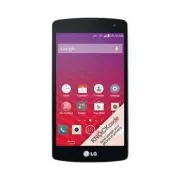
Page 2 - All rights reserved; is a trademark of Verizon
Copyright©2010 LG Electronics, Inc. All rights reserved . LG and the LG logo are registered trademarks of LG Groupand its related entities. VORTEX TM is a trademark of Verizon Wireless. All other trademarks are the property of theirrespective owners.
Page 3 - Use the correct external power source; I m p o r ta nt H ea l t h I nfo r m at i o n a n d Sa fet y P re c a u t i o n s
When using this product, the safety precautions below must betaken to avoid possible legal liabilities and damages.Retain and follow all product safety and operating instructions.Observe all warnings in the product operating instructions. Toreduce the risk of bodily injury, electric shock, fire, and...
Page 5 - leakage or other hazard.; SAFETY PRECAUTIONS FOR DIRECT SUNLIGHT; s navigation system and its communications network, using
leakage or other hazard. ● Avoid dropping the phone or battery. If the phone or battery isdropped, especially on a hard surface, and the user suspectsdamage, take it to a service center for inspection. ● If the battery leaks:Do not allow the leaking fluid to come in contact with skin orclothing. If ...
Page 6 - ROAD SAFETY; SAFETY PRECAUTIONS FOR RF EXPOSURE
ENVIRONMENT RESTRICTIONS Do not use this product in gas stations, fuel depots, chemical plants orwhere blasting operations are in progress, or in potentially explosiveatmospheres such as fueling areas, fuel storehouses, below deck onboats, chemical plants, fuel or chemical transfer or storage facili...
Page 9 - Ta b l e of Co nte nt s
Important Health Information and Safety Precautions . . . .1 Important Customer Information . . . . . . . . . . . . . . . . . . . .14 Technical Details . . . . . . . . . . . . . . . . . . . . . . . . . . . . . . . . . .15 The Basics . . . . . . . . . . . . . . . . . . . . . . . . . . . . . . . . . ....
Page 16 - I m p o r ta nt Cu sto m e r I nfo r m at i o n
14 I m p o r ta nt Cu sto m e r I nfo r m at i o n Please be advised that many services and applications offeredthrough this unique device are provided by various device, operatingsystem, software and application developers (e.g., Google TM , Motorola, Microsoft, Palm). If you use, link to or downlo...
Page 17 - Important Information; This user; Technical Details; The LG Vortex; is an all digital phone that operates on both Code; Te c h n i c a l D eta i l s
Important Information This user ’ s guide provides important information on the use and operation of your phone. Please read this guide carefully prior tousing the phone to be able to use your phone to its greatestadvantage and to prevent any accidental damage or misuse. Anyunapproved changes or mod...
Page 18 - FCC RF Exposure Information
16 Te c h n i c a l D eta i l s FCC RF Exposure Information WARNING! Read this information before operating the phone. In August 1996, the Federal Communications Commission (FCC) ofthe United States, with its action in Report and Order FCC 96-326,adopted an updated safety standard for human exposure...
Page 21 - T h e Ba s i c s; Phone Overview; Front View
19 T h e Ba s i c s 1. Proximity Sensors senses proximity towards other objects (such as your head) so that touch commands are not accidentally activated during a call. Note *Do not block the sensor or near sensor area with film cover or phone case. * The use of a film cover produced by other manufa...
Page 23 - Left Side
21 T h e Ba s i c s 16. Volume Keys allow you to adjust the ringer, media volumes, or the in-call volume during a call. 17. microSD Slot accommodates the pre-installed 2GB microSD TM card (expandable up to 16GB) NOTE Insert a microSD card to use the camera and other multimedia features.Multimedia co...
Page 24 - Installing the Battery and microSD Card; Installing the battery
22 Installing the Battery and microSD Card NOTE It is important to fully charge the battery before initial use of the phone. The phone comes with a rechargeable battery. Keep the batterycharged while not in use in order to maximize talk, use, and standbytime. The battery charge level is shown at the...
Page 25 - Inserting a microSD card; To remove the microSD card; the microSD slot located on the left side of the phone.; To unmount the microSD card
Inserting a microSD card Gently uncover the microSD slot located on the left side of thephone. Position the microSD card facing up and slide it into placeuntil it is fully inserted and locked in place. NOTE The microSD card can be easily damaged by improper operation. Please becareful when inserting...
Page 26 - Charging the Phone; Your LG Vortex; device comes with a Wall/USB charger and a USB
24 Charging the Phone Your LG Vortex TM device comes with a Wall/USB charger and a USB data cable which connect together to charge your phone. To chargeyour phone: NOTICE Please use only an approved charging accessory to charge your LG phone. Improper handling of the charging port, as well as the us...
Page 27 - Using the phone without battery
25 Battery temperature protection Though extremely rare, if the battery becomes overheated, thephone will automatically turn off. Battery charge level You can find the battery charge level at the top right part of thescreen. When the battery level becomes low, the phone will notifyyou. Once the batt...
Page 28 - Optimizing Battery Life; Tips to extend the life of your battery; Turn off radio communications that you aren't using.; To check the battery charge level; Press the
26 T h e Ba s i c s Optimizing Battery Life You can extend your battery's life between charges by turning offfeatures that run in the background. You can also monitor howapplications and system resources consume battery power. Tips to extend the life of your battery © Turn off radio communications t...
Page 29 - . The screen will display battery usage time. Either how
27 T h e Ba s i c s To monitor and control what uses the battery The Battery use screen allows you to see which applications areconsuming the most battery power. Information on this screenallows you to identify downloaded applications you may want toturn off when not being used, so you can get the m...
Page 30 - Turning the Phone On and Off; Turning the phone on; Turning the phone off; To unlock the phone
Turning the Phone On and Off Turning the phone on © Press and hold the Power/Lock Key for a couple of seconds until the display lights up. NOTE When you turn on your phone for the first time, follow the instructions onthe screen to activate your device. Turning the phone off 1. Press and hold the Po...
Page 31 - To turn the phone sounds off; SETTING UP YOUR DEVICE; To set up your device, follow the steps below :
To turn the phone sounds off If you're in a place where your phone sounds may disturb others,you can quickly silence your phone from the Lock Screen. 1. Press the Power/Lock Key . 2. Drag the Sounds off icon to the left. To turn the phone sounds back on, drag the Sounds on icon to the left. SETTING ...
Page 32 - For more information on how to set up your email, visit; Setting up your Google Account; or; Your Google Account
30 T h e Ba s i c s For more information on how to set up your email, visit smartphones.verizonwireless. com/. Click on the Smartphone Support tab and select your phone. Setting up your Google Account 1. At the setup screen, touch Create or Sign in . 2. Enter your username and password. 3. Touch Sig...
Page 33 - below the sign-in box, and then follow the instructions; Additional accounts
31 ● If you don’t sign into a Google Account during setup, you areprompted to sign in or to create a Google Account the firsttime you start an application that requires one, such as Gmailor Android Market. ● When you sign in, you’re prompted to enter your usernameand password, using the onscreen key...
Page 34 - Phone’s Status Icons; ve received notifications (on the left) and icons; Status icons; The following icons indicate the status of your phone.
32 Phone’s Status Icons The Status bar appears at the top of every screen. It displays iconsindicating that you ’ ve received notifications (on the left) and icons indicating the phone ’ s status (on the right), along with the current time. If you have more notifications than can fit in the Status b...
Page 35 - The following icons indicate that you've received a notification.
33 Notification icons The following icons indicate that you've received a notification. T h e Ba s i c s New Gmail message 3 more notifications notdisplayed New text or multimediamessage Call in progress Problem with text ormultimedia message delivery Call in progress usingBluetooth headset New Goog...
Page 36 - Quick Keys; application, which displays the dialpad so; Getting to Know the Home Screen
Status Bar Shows device status informationincluding the time, signal strength,battery status, and notificationicons. Application Icon Touch an icon (application, folder,etc.) to open an application anduse it. Applications Launcher Key Touch to open the Launch screento view installed applications. Qu...
Page 37 - To return to the Home screen; To view other Home screen panes; Touchscreen; Touch; A single finger touch selects items. For example, touch an; Touch and hold; Touch and hold an item on the screen by
35 To return to the Home screen © Press the Home Key at any time, from any application. To view other Home screen panes © Slide your finger left or right across the Home screen. TheHome screen spans five panels, allowing more space foricons, widgets, shortcuts, etc. Touchscreen Your touchscreen prov...
Page 38 - Drag; Touch and hold an item for a moment and then, without; Swipe or slide; To swipe or slide, quickly move your finger across; Rotate the screen; From many applications, the orientation of the
36 Drag Touch and hold an item for a moment and then, without lifting your finger, move your finger on the screen until you reachthe target position. You can drag items on the Home screen toreposition them. Swipe or slide To swipe or slide, quickly move your finger across the surface of the screen, ...
Page 39 - Text Input Methods; Using the Swype Keyboard
37 T h e Ba s i c s Text Input Methods Swype (default): Swype ™ is a text input method that allows you to enter a word by sliding your finger or stylus from letter to letter,lifting your finger between words. Android keyboard: The Android keyboard can also be used to enter text. To switch to the And...
Page 40 - Swype Settings; To configure Swype settings
38 T h e Ba s i c s © Double-touch on the word you want to change to correct amisspelled word. © Touch the delete key to erase one character. Touch and hold the delete key to erase an entire word. Swype Settings To configure Swype settings 1. From the Home screen, touch the Applications Launcher Key...
Page 42 - Using the Android keyboard; To enter text
40 Using the Android keyboard You enter text using the onscreen keyboard. Some applicationsopen the keyboard automatically. In others, you touch a text fieldwhere you want to enter text to open the keyboard. You can also enter text by speaking instead of by typing. To enter text 1. Touch a text fiel...
Page 43 - To enter numbers, symbols, and other characters; To change the keyboard orientation
41 T h e Ba s i c s © Touch the Delete Key to erase characters to the left of the cursor. NOTE Words that do not appear in the predictive word box before you enter it completely are automatically added to your dictionary for future use. Tomanually add a word, touch and hold the word to open a dialog...
Page 44 - Entering text by speaking; To enter text by speaking; on the keyboard (if you set; When prompted to “Speak now,” speak what you want to; to erase the underlined text. If you start
Entering text by speaking You can use voice input to enter text by speaking. Voice input is anexperimental feature that uses Google’s speech-recognition service,so you must have a data connection on a mobile or Wi-Fi networkto use it. To enter text by speaking You can enter text by speaking in most ...
Page 45 - Editing text; To edit text; To select text
Editing text You can edit the text you enter in text fields and use menucommands to cut, copy, and paste text, within or acrossapplications. Some applications don’t support editing some or all ofthe text they display; others may offer their own way to select textyou want to work with. To edit text 1...
Page 46 - To cut or copy text; To paste text
To cut or copy text 1. Select the text to cut or copy. 2. Touch and hold the text field, then touch Cut or Copy in the menu that opens. If you touch Cut, the selected text is removed from the textfield. In either case, the text is temporarily stored in thephone memory so that you can paste it into a...
Page 47 - Applications: How to View, Open and Switch; or other; Overview
Applications: How to View, Open and Switch All of the applications on your phone, including any applications thatyou downloaded and installed from Android Market TM or other sources, are grouped together on one Launch screen that youaccess from your Home screen. You can slide the screen up ordown to...
Page 48 - Opening and Closing the Launch screen; Opening the Launch screen; To manually close the Launch screen, press the; Customizing the Launch screen; Moving application positions; and touch
46 Opening and Closing the Launch screen Opening the Launch screen With your LG Vortex, it's easy to access the Launch screen nomatter what feature you're currently using. Simply press the Home Key , then touch the Applications Launcher Key . Closing the Launch screen To manually close the Launch sc...
Page 49 - Adding a category; Opening and Switching Applications; Multi-tasking is easy with Android; because open applications; Opening an application; Touch the icon for the other application you want to open.
47 Adding a category 1. From the Home screen, touch Applications Launcher Key . 2. Press the Menu Key and touch Add category . 3. Enter the category name, then touch OK . Opening and Switching Applications Multi-tasking is easy with Android TM because open applications keep running even when you ope...
Page 50 - Switching between multiple applications; Adding application icons to the Home screen
48 Switching between multiple applications 1. Press and hold the Home Key . A window opens with icons of applications that you’ve usedrecently. 2. Touch the application icon you want to open. Or touch the Back Key to return to the current application. Adding application icons to the Home screen Cust...
Page 51 - Working with Menus; Options menus; . Not all applications have Options menus if you press the; on a screen that has no Options menu, nothing; to open the additional items.
49 T h e Ba s i c s Touch to open more menu items. Options menus contain items thatapply to the current screen or to the application as a whole. Working with Menus There are two kinds of Android menus: Options menus and Contextmenus. Options menus Options menus contain tools that apply to the activi...
Page 52 - Context menus; Managing Notifications
Context menus Context menus contain options that apply to a specific item onthe screen. To open a Context menu, touch and hold an item onthe screen. Not all items have Context menus. If you touch andhold an item that has no Context menu, nothing will happen. Managing Notifications Notification icons...
Page 53 - Touch and drag the Status bar to the bottom of the screen.; From the Home screen, press the; To respond to a notification; Open the Notifications panel. Your current notifications are
51 T h e Ba s i c s To open the Notifications panel © Touch and drag the Status bar to the bottom of the screen. OR © From the Home screen, press the Menu Key and touch Notifications . The Notifications panel displays your wireless provider and alist of your current notifications, organized into ong...
Page 54 - Searching Your Phone and the Web; Phone and Web search using text entry
52 To clear all notifications 1. Open the Notifications panel. 2. Touch the Clear button at the top right of the panel. All event-based notifications will be cleared; ongoingnotifications will remain in the list. To close the notifications panel Touch and drag the tab at the bottom of the Notificati...
Page 56 - Locking the Screen; Setting a Lock Pattern for the First Time; Scroll down and touch; Changing Your Lock Pattern
54 Locking the Screen You can lock your screen so that only you can unlock it to makecalls, access your data, buy applications, and so on. Setting a Lock Pattern for the First Time 1. Press the Home Key , then touch the Applications Launcher Key . 2. Scroll down and touch Settings > Location &...
Page 57 - Using a PIN or Password to Lock the Screen
55 2. Scroll down and touch Settings > Location & security . 3. Touch Change screen lock (under Screen unlock section). 4. Draw your current lock pattern. 5. Touch Pattern to change it (or touch None to remove it). 6. You're prompted to draw and redraw your new pattern. Using a PIN or Passwor...
Page 58 - Customizing the Home Screen; To add an item to the Home screen
56 Customizing the Home Screen You can personalize your Home screen by adding application icons,shortcuts, widgets, and other items to any Home screen pane. Youcan also change the wallpaper. To add an item to the Home screen 1. Go to the Home screen pane where you want to add the item. 2. Press the ...
Page 60 - To rename a folder; Connecting Quickly With Your Contacts; Touch a Quick Contact icon to communicate with the; icon will be available; icon, the Bing Maps application will open and the
58 To rename a folder 1. Touch the folder icon to open it. 2. Touch and hold the folder window's title bar. 3. Edit the current folder name. 4. Touch OK . Connecting Quickly With Your Contacts As you build up your list of contacts on your phone, you can useQuick Contact for Android to quickly chat, ...
Page 61 - Connecting to Mobile Networks; To disable data when roaming; Co n n e c t i n g to N et wo r k s a n d D ev i c es
59 Connecting to Mobile Networks When you buy your phone and sign up for service, your phone isconfigured to use your provider's mobile networks for voice callsand for transmitting data.Different locations may have different mobile networks available.Initially, your phone is configured to use the fa...
Page 62 - To limit your data connection to 2G networks; Connecting to Wi-Fi Networks; Some access points are open and you can
60 3. Touch Data roaming to remove the checkmark from the box. With Data roaming unchecked, you can still transmit data with a Wi-Fi connection. To limit your data connection to 2G networks You can extend your battery life by limiting your data connectionsto 2G networks. When you are connected to a ...
Page 63 - To turn Wi-Fi on and connect to a Wi-Fi network
61 When you connect to a Wi-Fi network, the phone obtains a networkaddress and other information it needs from the network, using theDHCP protocol. To configure the phone with a static IP address andother advanced settings, from Wi-Fi settings press the Menu Key and touch Advanced . To turn Wi-Fi on...
Page 64 - To receive notifications when open networks are in range; To add a Wi-Fi network; Touch the drop-down menu arrow in the; touch the type of security used on the network.
62 To receive notifications when open networks are in range By default, when Wi-Fi is on, you receive notifications in theStatus bar when your phone detects an open Wi-Fi network. 1. Turn on Wi-Fi, if it's not already on. 2. From the Wi-Fi settings screen, touch Network notification to checkmark the...
Page 65 - To forget a Wi-Fi network; In the Wi-Fi settings screen, touch and hold the name of the; ActiveSync
63 To forget a Wi-Fi network You can make the phone forget about the details of a Wi-Finetwork that you added. For example, if you don't want the phoneto connect to it automatically or if it is a network that you nolonger use. 1. Turn on Wi-Fi, if it's not already on. 2. In the Wi-Fi settings screen...
Page 66 - Windows Media Sync; Follow the process below to Connect.; Co n n e c t i n g to n et wo r k s a n d d ev i c es
© Select which types of information are synchronized andspecify how much information is synchronized. For example,you can choose how many weeks of past Calendarappointments to synchronize. Before you can synchronize information with a PC, first, installActiveSync on your PC, then create a synchroniz...
Page 67 - Open the Notifications panel and touch
Follow the process below to Disconnect. 1. Open the Notifications panel and touch USB Connection Mode > Modem Mode or Mass Storage Mode > Ok . OR Open the Notifications panel and touch Windows media sync . When the pop-up appears, touch OK for disconnection. 2. Disconnect the USB Cable. NOTE A...
Page 68 - USB Autorun; USB Autorun is a feature that allows a LG Vortex; to connect to a; of unprotected content from phone to PC and vice versa.; To select USB mode for Autorun; to connect PC for Autorun.
USB Autorun USB Autorun is a feature that allows a LG Vortex TM to connect to a PC using a USB cable and sets up the on a PC without a physicalCD-ROM. © Automatically installs the LG USB Modem Driver. © Allows the phone to be used as a Mass Storage when amicroSD card is present in the LG Vortex TM ....
Page 69 - Modem Mode with Autorun; Even if the option; Autorun is not available when:; For Autorun in Windows Vista; and Windows 7, open the Control; To change the setting while Autorun is running :; You can change the settings while Autorun is running. Press the
Modem Mode with Autorun Autorun may automatically use Modem mode in certaincircumstances. © If no microSD card is inserted in device, Autorunautomatically switches to Modem mode even if the mode isset to Window Media Sync or Mass Storage mode. © Even if the option Always ask is checkmarked, Autorun ...
Page 70 - Using the Status bar to change the settings; . Connecting Phone to PC
NOTE Be sure to checkmark the box Always ask if you want to be asked to confirm the USB mode connection when the phone is connected to a computer. Using the Status bar to change the settings The Status bars shows the current USB connection mode so youcan easily open the the Status bar and change the...
Page 71 - Downloading LG USB Modem Driver.; Installing LG USB Modem Driver.
● The ‘USB Autorun’ feature works only under an Administrator account.The installer has insufficient privileges under a Non-Administrator account.Log on as Administrator. The device is switched back to the user setmode with 30 seconds. Step 2. Downloading LG USB Modem Driver. NOTES ● If previous ver...
Page 72 - Enable DUN; Before you proceed; To connect your device to a computer via USB, you must first
Enable DUN While traveling, you can use your phone as a modem for yournotebook. Use either VZAccess Manager or the Modem Linkprogram to use your phone as a USB or Bluetooth modem. Before you proceed © To connect your device to a computer via USB, you must first install the LG USB driver on the compu...
Page 73 - Touch 3G Mobile Hotspot
Sharing your phone’s mobile data connection You can share your phone’s data connection with up to eightdevices at once, by turning your phone into a portable Wi-Fi hotspot. When your phone is sharing its data connection, an icon appears inthe Status bar and as an ongoing notification in the Notifica...
Page 74 - checkbox to enable this; to set up and manage the
2. Touch 3G Mobile Hotspot . 3. Touch the 3G Mobile Hotspot checkbox to enable this feature. 4. Touch 3G Mobile Hotspot settings to set up and manage the 3G Mobile Hotspot. 72 Co n n e c t i n g to n et wo r k s a n d d ev i c es
Page 75 - from menu to view the SSID, Security, and
5. Touch Configure from menu to view the SSID, Security, and Password. 6. You are allowed to configure the SSID and Password on this screen. 73 Co n n e c t i n g to n et wo r k s a n d d ev i c es Portable Wi-Fi hotspot is active Portable hotspot are active
Page 76 - from the pop; Your portable hotspot is now created.
74 7. If you want to change the security protocol, touch the Security menu and choose Open or WPA2 PSK from the pop up menu. If you select WPA2 PSK, input a password for the connection andthen touch Save . Your portable hotspot is now created. You will use the Portable Wi-Fi hotspot checkbox from ab...
Page 77 - Connecting to Bluetooth Devices; connections between the two devices.; To turn Bluetooth on or off
75 Connecting to Bluetooth Devices Bluetooth is a short-range wireless communications technology thatdevices can use to exchange information over a distance of about30 feet. The most common Bluetooth devices are headphones formaking calls or listening to music, hands-free kits for cars, and otherpor...
Page 80 - Connecting to Virtual Private Networks; To add a VPN
78 To disconnect from a Bluetooth device 1. Touch the device in the Bluetooth settings screen. 2. Touch OK to confirm that you want to disconnect. To unpair a Bluetooth device You can unpair a Bluetooth device and erase all pairing informationabout it. 1. Touch and hold the device listed in the Blue...
Page 82 - Working With Secure Certificates; To install a secure certificate from the microSD card; Copy the certificate from your computer to the root (that is,
80 Working With Secure Certificates If your organization's VPN or Wi-Fi network relies on securecertificates, you must obtain the certificates and store them in yourphone's secure credential storage before you can configure accessto that VPN or Wi-Fi network on your phone.For specific instructions, ...
Page 83 - microSD Card; Your Device's microSD Card and Adapter; The microSD Card; Removing the microSD Card; m i c ro S D C a rd
microSD Card © Your Device's microSD Card and Adapter © microSD Card Settings © Connecting Your Device to Your Computer Your Device's microSD Card and Adapter The microSD Card Your phone is equipped with a preinstalled microSD TM memory card to expand the phone’s available memory space. It allows yo...
Page 84 - microSD Icon Indicators; microSD Adapter; To insert the microSD card into the microSD adapter:
Inserting the microSD Card 1. Gently uncover the microSD slot located on the left side of the device. 2. Position the microSD card with the label side facing up and slide it into place until it is fully inserted and locked in place. NOTE Be sure to use only recommended microSD cards (up to 32GB). Us...
Page 85 - Write Protection; microSD Card Settings; Viewing Memory in the microSD Card
Write Protection The microSD adapter has a built-in Write Protection lock to preventaccidental over writing or removal of your data when the microSDcard and adapter are inserted in another device. © Slide the Write Protection lock tab down into the “Lock”position to prevent over writing of data. To ...
Page 86 - Connecting Your Device to Your Computer; To connect your device to a computer via USB:
● Once completely formatted, the card is automatically re-mounted (reconnected for use by the device). NOTE The formatting procedure erases all the data on the microSD card, after which the files CANNOT be retrieved. To prevent the loss of importantdata, please check the contents before you format t...
Page 87 - Carefully remove the USB cable from the phone.; Important Connection Information; To avoid loss of data, DO NOT remove the USB cable, the
To remove the connection: WARNING! Carefully follow your computer's instructions to unmount, remove, ordisconnect any removable USB devices or disks, to avoid losing informationon the microSD card when disconnecting your phone from your computer. 1. On your computer, complete the process to safely S...
Page 88 - P l a c i n g a n d Re c e i v i n g C a l l s; Placing and Ending Calls; To open the Phone application
86 P l a c i n g a n d Re c e i v i n g C a l l s Placing and Ending Calls You can place calls using the Phone application on any of the four tabs across the top of the screen. You can dial calls manually usingthe Phone tab. You can dial using your phone's memory, using the Call log tab; the Contact...
Page 89 - You can use other phone features while the call is; to adjust the call volume.; Press and hold the
87 ● You can use other phone features while the call is under way. If you open another application, the Call iconappears in the Status bar for the duration of the call. ● Press the Up/Down Volume Keys to adjust the call volume. ● Use the onscreen buttons to enter additional numbers,place the call on...
Page 90 - Answering or Rejecting Calls; To answer a call; Use the; to answer a call. If your screen is; When unlocked
88 P l a c i n g a n d Re c e i v i n g C a l l s Answering or Rejecting Calls When you receive a phone call, the Incoming Call screen openswith the caller ID and any additional information about the caller thatyou have saved in the Contacts list. All incoming calls are recorded in the Call log. To ...
Page 91 - To decline a call and divert it to voicemail; Working with the Call Log; To open the Call log
89 To decline a call and divert it to voicemail © Drag the Decline Key to the left. The caller is sent directly to your voicemail box to leave a message. © To silence the ringer, press the Down Volume Key . Working with the Call Log The Call log is a list of all the calls you’ve placed, received, or...
Page 93 - Calling Your Contacts; To call a contact; Touch the desired phone number to call the contact.; To call a favorite contact; then the; Voice Dialer; To place a call by speaking; in the
91 Calling Your Contacts Instead of manually dialing phone numbers using the dialpad, youcan use your Contacts list to dial quickly and easily.You can also quickly call a contact by using Quick Contact.If you have contacts on the web, they're synchronized with yourphone when you first connect to you...
Page 94 - Say “Call” followed by the name of the contact to call.; Options During a Call; To mute the microphone during a call; Touch the; The; lights up to indicate that the microphone is; will appear in the Status bar to
The Voice Dialer application opens, listening for your spokeninstructions, and displaying some hints for how to use it. 2. Say “Call” followed by the name of the contact to call. Or follow one of the suggestions for dialing a number orcontrolling your phone in other ways. Options During a Call When ...
Page 95 - To turn the speakerphone on or off; To switch between a Bluetooth headset and the phone; Managing Multiple Calls; To switch between current calls
To turn the speakerphone on or off © Touch the Speaker Key . The Speaker Key lights up to indicate that the speakerphone is on. The Speaker icon will appear in the Status bar and the sound from your call is played through the phone'sspeaker.When viewing the current call screen, you can turn thespeak...
Page 96 - To set up a conference call; Place a call to the first participant.; to search for a contact to call. Touch; The participant is added to the conference call.
94 To set up a conference call Contact your wireless service provider to learn whether theysupport conference calls and how many participants you caninclude. 1. Place a call to the first participant. 2. When you're connected, touch Contacts or Dialpad . Touch Contacts to search for a contact to call...
Page 97 - Listening to Your Voicemail; on the Home screen. If you have not set up; To listen to your Voicemail; Open the Notifications panel then touch; and then
95 Listening to Your Voicemail When you have a new Voicemail message, you will receive anotification in the Status bar. To listen to your Voicemail messages,touch Voicemail on the Home screen. If you have not set up your Voicemail number, or if you need to change it, you can do thatwith the Call set...
Page 99 - We b; Search; Bing Search
97 We b Search Bing Search You get one-touch access to Bing's search, maps, news, images,and videos, all in one package. The image search, for example,features endless scrolling--no more clicking through multiple pagesof images to find what you want.The quick tab for movie show allthe movies playing...
Page 100 - Browser; Internet
98 We b Searching the Web and Your Phone Using the QuickSearch Box 1. Press the Home Key ,then press the Search Key . 2. Enter the search item in the Quick Search Box. As you type, matching items on your phone and suggestions from Bingweb search are shown as a list. The suggested items that appear w...
Page 103 - Bookmark your favorite web pages; To open the web page in the current window, touch
101 Bookmark your favorite web pages If you know the web address of the web page, you can manuallyadd a bookmark. To add a bookmark, 1. Press the Home Key , then touch the Applications Launcher Key > Browser . TIP The Browser icon is one of the Quick Keys located on the Home screen and Launch scr...
Page 104 - To search for a location; Getting Directions; To get directions
102 We b Bing Maps Searching For Locations and Places You can search for a location and view it on a map. You can alsosearch for places on the map that you ' re viewing. To search for a location 1. While viewing a map, touch the search box at the top of the screen. 2. In the search box, enter the pl...
Page 105 - VZ Navigator; Access
103 4. Touch Go . 5. Choose to view directions on Bing from the Directions pop- up menu that is displayed. Your route is displayed on a map. 6. To view a list of your directions, press the Menu Key and touch List view . To switch back to your map route from List view, press the Menu Key and touch Ma...
Page 107 - To view turn-by-turn directions in a list
105 You can control the volume of the spoken directions with theVolume Keys. To view turn-by-turn directions in a list You can view each turn in your route as a list of written directions. © While in Navigation View, press the Menu Key and touch List . A screen opens with a list of turn-by-turn dire...
Page 108 - To preview your route
106 We b To preview your route To preview your route, from Navigation View, press the Menu Key and touch Trip Summary . To view traffic conditions on your route To view traffic, you must be in the Trip Summary screen. Once youare there, press the Menu Key and touch Show Traffic . To get an alternate...
Page 109 - Checking the news and weather; To open News and Weather
107 Checking the news and weather The News and Weather application offers weather forecasts and news stories about common topics.You can also customize the news topics that are displayed. The News and Weather widget that you can place on your Homescreen provides quick, summarized information. Open t...
Page 110 - Changing News and Weather Settings
108 We b © Swipe left or right to change news categories. © While viewing the weather or news headlines, press the Menu Key and touch Refresh to get the latest information. Changing News and Weather Settings You can configure a number of settings for News and Weather. The location and related settin...
Page 113 - RSS Reader; Using RSS Reader; City ID
111 RSS Reader Using RSS Reader RSS (Really Simple Syndication) is a family of web feed formatsused to publish frequently updated content such as blog entries,news headlines or podcasts. An RSS document, which is called afeed, web feed, or channel, contains either a summary of contentfrom an associa...
Page 114 - Slacker
112 We b After the free trial period, subscribers will receive a message topurchase the application. Subscribers are then presented with theavailable purchase options. If after purchasing City ID a subscriberdecides to cancel the application, the subscriber can follow thestandard process to cancel a...
Page 115 - To access the Slacker application:; Skype mobile; Call landlines and mobiles.; To use the Skype mobile:; Create your account for the first visit and sign in to connect
113 With a Radio Plus subscription, you can listen even when you arenot connected. To access the Slacker application: 1. Press the Home Key , then touch the Applications Launcher Key > Slacker . 2. Create your account for the first visit and sign in to connect to Slacker. Skype mobile © Free Skyp...
Page 116 - Backup Assistant; How to Access and Register Backup Assistant; Follow the instructions on the screen to sign in to Backup
114 We b Backup Assistant How to Access and Register Backup Assistant If you didn't set up Backup Assistant when you first turn on yourphone, you can enable it in Settings. 1. Press the Home Key , then touch the Applications Launcher Key > Settings > Accounts & sync . 2. Touch Backup Assis...
Page 117 - Using Backup Assistant; On the schedule you selected, the; Manually backing up your contacts; on the setting or the last backup status screen.
115 Backup Assistant can be accessed directly from the Contactsapplication. 1. Press the Home Key , then touch Contact . 2. Press the Menu Key , then touch Backup now . If you've already registered your Backup Assistant account,background backup will be performed. If not, the BackupAssistant registr...
Page 118 - and touch the timeframe you want. For; Change your PIN code; Press the
116 We b Changing the backup schedule 1. Press the Home Key , then touch the Applications Launcher Key > Settings > Accounts & sync . 2. Touch Backup Assistant . 3. Touch Backup time and touch the timeframe you want. For example, Every late night (12am-6am) . Change your PIN code 1 Press t...
Page 119 - Kindle; Shop for books in the Kindle Store; application
117 Kindle Shop for books in the Kindle Store © Buy a book from the Kindle Store. © Experience Kindle Editions with Audio/Video. © Search and browse more than 630,000 books, includingmore than 96 of 112 New York Times bestsellers. If you are anon-U.S. customer, book availability may vary. © Get free...
Page 120 - Video; V CAST Video on Demand
118 We b Video Get videos on demand right from your phone. Go to verizonwireless.com/video . V CAST Video on Demand Catch your favorite shows and live sports from anywhere in the VCAST coverage area. View more than 100 channels, with additionalshows added every day in on-demand, full-length episodes...
Page 121 - The video clip will be automatically saved in My Videos.; Music and Tones; Verizon Wireless Media Store; V CAST Media Manager
119 9. Touch Yes to view video. 10. The video clip will be automatically saved in My Videos. * Not all Video Clips have the ability to be downloaded. ** This option will not be available for clips that are streaming only. Music and Tones Get tuned in with Verizon Wireless Media Store and V CAST Musi...
Page 122 - Purchase songs on your phone
120 We b V CAST Music with Rhapsody ® Buy and download individual tracks or subscribe to get unlimitedaccess to millions of songs. System requirements: Windows ® XP , Windows Vista ® or Windows 7. Purchase songs on your phone 1. Browse the catalog and select the track o 1. r album you wish to purcha...
Page 124 - Using Your Contacts; Co m m u n i c at i o n
Mobile IM Allows you to send and receive an Instant Message at any time. 1. Press the Home Key , then touch the Applications Launcher Key . 2. Touch Mobile IM . 3. Choose a Mobile IM community to sign in to. 4. Enter your user name and password and touch Sign In . Contacts The Contacts application a...
Page 125 - To open your Contacts application; application will display hints on how to start adding
To open your Contacts application © Press the Home Key , then touch the Applications Launcher Key > Contacts . OR Press the Home Key , then touch the Contacts in the Quick Keys bar. NOTE You can also access your contacts by using Quick Contact. All of your contacts are displayed alphabetically in...
Page 126 - Contact Multiselect; to access the Multiselect; To Use the Multiselect Feature
Contact Multiselect You can work with multiple contacts at once. While viewing yourcontacts, press the Menu Key to access the Multiselect feature that allows you to send, share, or delete. To Use the Multiselect Feature 1. Press the Home Key , then touch the Contacts in the Quick Keys bar. 2. Press ...
Page 127 - To open a list of your favorite contacts; To view details about a contact
To open a list of your favorite contacts © Open your Contacts application then touch the Favorites tab at the top of the screen.The Favorites tab lists the contacts you've added to the list, followed by a list of your most frequently called contacts. To view details about a contact 1. Open your Cont...
Page 128 - Adding Contacts; To add a new contact
Adding Contacts You can add contacts on your phone and synchronize them with thecontacts in your Google TM Account, Microsoft Exchange ActiveSync account, or other accounts that support syncing contacts.The Contacts application tries to join new addresses with existing contacts, to create a single e...
Page 129 - Importing, Exporting, and Sharing Contacts; To import contacts from your microSD card
Importing, Exporting, and Sharing Contacts If you have contacts stored in vCard format on a microSD card youcan import them into your Contacts application on your phone. You can also export contacts in vCard format onto a microSD card.Export to back them up to a computer or other device or so you ca...
Page 131 - Adding a Contact to Your Favorites; To add a contact to your favorites list; Searching for a Contact; To search for a contact
Adding a Contact to Your Favorites The Favorites tab contains a short list of the contacts you communicate with most often. To add a contact to your favorites list 1. Press the Home Key , then touch Contacts in the Quick Keys bar. 2. Touch a contact to view its details. 3. Touch the gold star to the...
Page 132 - Editing Contact Details; To edit contact details
Editing Contact Details You can change or add details saved in your contact entries. You canalso set specific ringtones to specific contacts or determinewhether calls from specific contacts are diverted to your voicemail.Some contact entries contain information from multiple sources:information that...
Page 134 - To delete a contact; Communicating with Your Contacts
To delete a contact 1. Open your Contacts list or Favorites list. 2. Touch the name of a contact in the list to view its details. 3. Press the Menu Key , then touch Delete contact . If you delete a contact from Google Contacts (or another accountwith editable contacts), the contact is also deleted f...
Page 135 - To connect by using Quick Contact for Android; To communicate with a contact
To connect by using Quick Contact for Android TM 1. Touch a contact's picture to open Quick Contact for Android. 2. In the Quick Contact menu that opens, touch the icon that indicates how you want to communicate. The iconsdisplayed are dependent on the type of information you'vesaved into the contac...
Page 136 - To call a contact’s default number; Selecting Which Contacts are Displayed; To set whether contacts without phone numbers are displayed
NOTE Anytime you see the Dial Key next to a number, such as in your Favorites or Call log, just touch it to call that number. To call a contact’s default number 1. Press the Home Key , then touch Contacts in the Quick Keys bar. 2. Touch and hold the entry for the contact to call. 3. Touch Call conta...
Page 137 - to select or deselect this; To change which groups are displayed; Touch an account to open its list of available groups.
3. Touch Only contacts with phones to select or deselect this option. When selected, a green checkmark will appear. NOTE ● You can sort the Contact list by First name or Last name using Displayoptions ● You can also view contact names as First name first or Last name firstusing Display options 4. Af...
Page 138 - Joining Contacts; application attempts to avoid; To join contacts
Joining Contacts When you add an account or add contacts in other ways, such as byexchanging emails, the Contacts application attempts to avoid duplication by joining contact information automatically. You can alsojoin contacts manually. To join contacts 1. Press the Home Key , then touch Contacts i...
Page 139 - Separating Contact Information; To separate contact information; Adding and Removing Accounts
Separating Contact Information Each contact entry on your phone may contain ‘ joined ’ information from a variety of sources.If contact information from different sources was joined in error, youcan separate the information back into individual contact entries onyour phone. To separate contact infor...
Page 140 - To add an account; You can do this from the
To add an account To add some accounts, you may need to obtain details from an ITsupport representative about the service to which the accountconnects. For example, you may need to know the account’sdomain or server address. 1. Open the Accounts & Sync settings screen. You can do this from the C...
Page 142 - Configuring Account Sync and Display Options; To configure general sync settings; application. Press the; access it from the
Configuring Account Sync and Display Options You can configure background data use and synchronization optionsfor all of the applications on your phone. You can also configurewhat kinds of data you synchronize for each account. Someapplications, such as Gmail and Calendar, have their ownsynchronizat...
Page 143 - to place a checkmark to control
2. Touch Background data to place a checkmark to control application and services data transmission when you are notworking with them directly, but they are running in thebackground. If you remove the checkmark, Gmail stops receiving newmail, Calendar stops syncing events, and so on, until youmanual...
Page 145 - Email; Opening Email and the Accounts Screen; To open the Email application; The Accounts screen
Email Opening Email and the Accounts Screen You can use the Email application to read email from services other than Gmail TM . The Email application supports the following account types: POP3, IMAP and Exchange. To open the Email application © Press the Home Key , touch the Applications Launcher Ke...
Page 146 - To open your Combined Inbox; If you have multiple email accounts, touch
Each folder and account on the Accounts screen displays thenumber of unread messages in green, or will display thenumber of messages in Starred, Drafts and Outbox in gray.You can touch an account to view its Inbox, or an account'sfolder icon to view a list of that account's folders. The account from...
Page 147 - Reading Your Messages; To read a message; The Google Talk; online status will be shown (if available) to
Reading Your Messages You can read messages from your Combined Inbox, from the Inbox,or from other folders from the individual accounts. To read a message 1. Press the Home Key , then touch Applications Launcher Key > Email . 2. Touch the message you want to read. The message opens in a screen th...
Page 148 - Responding to a Message; To reply to or forward a message; To mark a message as unread
Responding to a Message There are many options how you can respond to a received emailmessage. You can reply to it, for ward it or even just delete it. To reply to or forward a message © While reading a message, touch Reply or Reply all (available at the bottom of the screen). OR © Press the Menu Ke...
Page 149 - Starring Messages; To star a message; While reading a message, touch the star; To unstar a message; Touch the star again.; To view your starred messages; then touch; A folder opens with your starred messages.
Starring Messages You can add stars to important messages to make it easy to keeptrack of them. When you star a message, a Starred folder will beadded to the Accounts screen. To star a message © While reading a message, touch the star in its header. OR © From an account's Inbox or a folder, touch a ...
Page 150 - Composing and Sending Email; To compose and send a message
Composing and Sending Email You can send email to your contacts or to other people or groups. To compose and send a message 1. While in the Email application, press the Menu Key , then touch Compose . 2. Enter an address for the message's intended recipient. As you enter text, matching addresses are...
Page 151 - Working with Account Folders; To view an account’s folders
Please note that messages sent using an Exchange account will notbe located on the phone; they will, however, be located on theExchange server itself.If you want to see your sent messages in the Sent folder (or withthe Sent label), you will often need to open the Sent folder/label,press the Menu Key...
Page 152 - Adding and Editing Email Accounts; To add an email account
Adding and Editing Email Accounts The first time you open the Email application, you will be prompted to set up an email account. After that, you can configure Email to send and receive email from additional accounts. The accounts thatyou configure will be displayed in the Accounts screen.The Email ...
Page 154 - To delete an email account; To change an account’s settings; Changing Email Account Settings; Email account settings
To delete an email account 1. Open the Email application , press the Menu Key , then touch Accounts . 2. Touch and hold the account you want to delete. 3. Touch Remove account in the menu that opens. 4. Touch OK in the dialog box to confirm that you want to delete the account. To change an account’s...
Page 156 - Incoming server settings; Password; Server; Username; IMAP server
Incoming server settings Your account's incoming settings are different, depending on thekind of email service for the account: POP3, IMAP, ExchangeActiveSync. 154 Co m m u n i c at i o n Domain\Username If your Exchange ActiveSync server requires that youspecify a domain, enter it before the backsl...
Page 157 - Settings for POP3 accounts:
155 Co m m u n i c at i o n Port Set the Security type (following item) first for theserver port number to be entered automatically, if it isavailable. Or, enter a different port number if your emailservice provider requires it. Security type Select the security type required by your email servicepr...
Page 158 - Outgoing server settings; SMTP server
Outgoing server settings If you use an IMAP or POP3 account for receiving email, youtypically use an SMTP server to send email from that account.Microsoft Exchange ActiveSync accounts do not have separateoutgoing server settings. 156 Co m m u n i c at i o n SMTP server The domain name of your email ...
Page 159 - Facebook; Facebook for LG Application; With the Facebook application you can:
Facebook Facebook for LG Application The Facebook for LG application on your phone lets you keep upand stay close with your friends in Facebook. It offers most of thefeatures that you are familiar with when using Facebook on yourcomputer. NOTE If you have more than one Facebook account, you can sign...
Page 160 - Adding a Facebook widget; My Status; touch
Adding a Facebook widget Add the My Status Facebook widget to a Home screen pane to letyou quickly share your thoughts and view your friends’ statusupdates. NOTE The widget will only link to the Facebook account that you logged intoon the Facebook application as the main account. 1. Press and hold a...
Page 162 - Sending a facebook message; Setting Facebook options; Visual Voice Mail
Sending a facebook message You can only send a facebook message to your friends. 1. Make sure you are on the Home screen. If you are not, press the Menu Key , then touch Home . 2. Touch Inbox > New message . You can also send a facebook message from your friendsprofile screen. Press the Menu Key ...
Page 163 - To use Visual Voice Mail
To use Visual Voice Mail 1. Press the Home Key , then touch the Applications Launcher Key > Voicemail . 2. If it is the first visit, subscribe from the subscription page. 3. After the subscription, you are required to enter the pin code. You are only allowed to change the pin code by callingvoice...
Page 164 - Gmail is Different
Gmail Gmail is Different Gmail is web-based : Your messages are stored on-line, on Google TM servers; but you can read, write, and organize messages by using the Gmail application on your phone, or by using a web browser on a computer. Because your mail is stored on Googleservers, you can search you...
Page 165 - Of course you can use Gmail to send email to; Opening Gmail and Your Inbox; To open the Gmail application
filters that you use to organize your messages, but you can label amessage. Gmail on the web offers complete information about theservice, so it's the best place to learn about all of the features ofGmail. Gmail is for Gmail: Of course you can use Gmail to send email to any email address, and anyone...
Page 166 - To open your Inbox when Gmail is running; To switch accounts
: indicates that this message was sent directly to you. : indicates that this message was that you were CC'd on. (No indicator): indicates that this message was sent to a group that includes you. To open your Inbox when Gmail is running © Touch the Back Key until you return to your Inbox. OR © When ...
Page 167 - Touch the account that contains the email you want to read.; Touch a conversation that contains the message you want to; in the yellow bar that appears at the top
2. Touch the account that contains the email you want to read. Reading Your Messages When viewing a list of conversations in your Inbox or in any list oflabeled conversations, you can open a conversation to read itsmessages. To read a message © Touch a conversation that contains the message you want...
Page 168 - To reread a message; . Then touch the conversation you
To reread a message When you open a conversation, messages that you've alreadyread are minimized into a tab that indicates the number of hiddenmessages. 1. Press the Home Key , then touch the Applications Launcher Key > Gmail . Then touch the conversation you want to view and the tab indicating m...
Page 169 - Composing and Sending a Message
Composing and Sending a Message You can compose and send a message to people or groups withGmail addresses or other email addresses. To compose and send a message 1. Press the Home Key , touch the Applications Launcher Key > Gmail , then press the Menu Key and touch Compose . 2. Enter a recipient...
Page 170 - Replying to or Forwarding a Message
Replying to or Forwarding a Message You can continue an email conversation by replying to a message orby for warding it. To reply to or forward a message 1. Scroll to the bottom of a message. 2. Touch Reply , Reply to all , or Forward . Replying to or for warding messages without changing thesubject...
Page 171 - Working with Conversations in Batches
Working with Conversations in Batches You can archive, label, delete, or perform other actions on a batch ofconversations at once, in your Inbox or in another label views. 1. From the Inbox or a folder with another label, touch the checkmark for all the messages you want to include in thebatch.When ...
Page 172 - Labeling a Conversation; To label a conversation
Labeling a Conversation As mentioned previously, conversations are organized by labels.Gmail has several default labels, but you can also add your ownthrough Gmail on the web. To label a conversation 1. When reading a conversation's messages, press the Menu Key , then touch Change labels . 2. In the...
Page 173 - Starring a Message; Viewing Conversations by Label
Starring a Message You can star an important message or conversation to make it easyto locate again. To star a message © When reading a message, touch the star in its header. OR © When viewing a list of conversations, touch its star to star the newest message in the conversation. To unstar a message...
Page 174 - Touch a label to view a list of conversations with that label.; Reporting Spam; To report a conversation as spam; When reading the email, press the; Searching for Messages; Or from the Inbox, press the
2. Touch a label to view a list of conversations with that label. Note that the conversation list will resemble your Inbox.Most of the options available while using your Inbox will alsobe available while viewing these lists of labeled messages. Reporting Spam The Gmail webmail service is quite effec...
Page 175 - Archiving Conversations; To Archive a conversation:; Synchronizing Your Messages
2. Enter the word or words to search for, then touch Search to the right of the text field or touch Go . A list of results will appear, displaying all of theconversations with emails that contain the words yousearched for.You can open these emails as you would any email in yourInbox; you also have t...
Page 176 - To select which conversations to synchronize; Touch a conversation label whose synchronization settings; To set how many days of conversations to synchronize; Enter the number of days then touch
To select which conversations to synchronize 1. Press the Home Key , touch the Applications Launcher Key > Gmail . 2. Press the Menu Key , then touch More > Settings > Labels . The Synchronization settings screen opens, displaying a listof your Gmail labels. Below each label is its currents...
Page 177 - Appending a Signature to Your Messages; Sent from my Android; phone; Changing Gmail Settings
Appending a Signature to Your Messages You add information to every email you send, such as your name,contact information, or even “ Sent from my Android TM phone ”. 1. Press the Home Key , touch the Applications Launcher Key > Gmail . 2. Press the Menu Key , then touch More > Settings > Si...
Page 179 - Opening Messaging; To open Messaging; To delete a message thread from the Messaging window
Messaging Opening Messaging To open Messaging © Press the Home Key , then touch Messaging in the Quick Keys bar. The Messaging window will open, where you can create anew message or open an ongoing message thread. © Touch New message to start a new text or multimedia message. © Touch an existing mes...
Page 180 - Exchanging Messages; To send a text message
Exchanging Messages You can send text (SMS) messages of up to 160 characters toanother mobile phone. If you keep typing after the limit, yourmessage is delivered as a series of messages.Multimedia (MMS) messages can contain text and a picture, arecorded voice, an audio file, a video, or a picture sl...
Page 181 - To create and send a multimedia message
4. Touch Send to send the message. The Message window opens, with your message displayed.Responses appear in the same window, creating a messagethread with that contact. To create and send a multimedia message 1. On the Messaging screen, touch New message. 2. Enter a mobile phone number or email add...
Page 182 - Changing Messaging Settings
● If you touch Slideshow , a menu opens and allows you to assemble photos into a slideshow (up to 10 slides) toattach to the message. Use the buttons in the ComposeMessage screen to preview the message, replace thepicture, or remove the slide. 6. Touch Send to send the message. To respond to message...
Page 183 - Storage settings
Storage settings Delete old messages Checkmark to allow the phone to delete older messages in a thread when the Text message limit or Multimedia message limit is reached. Remove checkmark to keep all messages. Text message limit Sets the number of messages to save per thread of text messages. Multim...
Page 184 - Notification settings; Touch to checkmark and allow your phone to display; Sets the ringtone to sound when you receive; Sets the phone to vibrate (or not) when you receive a; How to select the type of keyboard you want
Notification settings Notifications Touch to checkmark and allow your phone to display notifications in the status bar whenever you receive a new message. Select ringtone Sets the ringtone to sound when you receive new message notifications. Vibrate Sets the phone to vibrate (or not) when you receiv...
Page 185 - Talk; Signing in and Opening your Friends List; To open Google Talk and sign in; To return to your friends list
Talk Signing in and Opening your Friends List You sign into Google Talk to chat with your friends.You remain signed in, even when you're using other applications,until you deliberately sign out. To open Google Talk and sign in © Press the Home Key , then touch the Applications Launcher Key > Talk...
Page 186 - To sign out of Google Talk; From your Friends list, press the; Chatting with Friends; To chat with a friend; If you're already chatting with someone, you can press the
To sign out of Google Talk You can sign out of Google Talk. For example, if you want to limitGoogle Talk conversations to your computer. Also, signing out canalso extend your battery life. © From your Friends list, press the Menu Key , then touch Sign out . You will no longer receive chat notificati...
Page 187 - to open a list of; To accept an invitation to chat; Touch the friend in your Friends list.; To switch between active chats; From a chat screen, press the; , then touch the friend you want to chat with.; While chatting with a friend, swipe left or right across the
To enter an emoticon (smiley), just press the Menu Key , then touch More > Insert smiley to open a list of emoticons. Your chat session will remain open until you end it.Friends you're chatting with are displayed at the top of yourFriends list, with the most recent message displayed in ablack-on-...
Page 188 - To invite a friend to join a group chat; Touch the name of the friend to invite.; To chat on or off the record; While chatting, press the; To end a chat
To invite a friend to join a group chat When you're chatting, you can invite additional friends to join agroup chat. 1. On a chat screen, press the Menu Key , then touch Add to chat . 2. Touch the name of the friend to invite. The friend you invited and the current participants willreceive an invita...
Page 189 - Changing and Monitoring Online Status; To change your online status; Touch the Status icon at the top right of your Friends list.; Status Icons
Changing and Monitoring Online Status Google Talk allows you to change how you appear to others; you canchange your online status and status messages, as well as thepicture that appears next to your name on your friend's Friends list. To change your online status 1. Press the Home Key , then touch t...
Page 190 - To change your status message; Touch the status message field, at the top of your Friends; To change your picture; Touch your status at the top of your Friends list, then touch; Managing Your Friends List
To change your status message 1. Press the Home Key , then touch the Applications Launcher Key > Talk . 2. Touch the status message field, at the top of your Friends list. 3. Enter a new status message. 4. Touch Done . To change your picture 1. Touch your status at the top of your Friends list, t...
Page 191 - Touch the invitation from either the Status bar or the Friends; To view a list of pending invitations to friends; From the Friends list, press the; To view all friends or only those most popular with you; In the Friends list, press the
To add a friend to your Friends list You can invite anyone with a Google Account to become yourfriend in Google Talk, so you can chat with each other and stay up-to-date with each others' online status. 1. From the Friends list, press the Menu Key , then touch Add friend . 2. Enter your friend's Gma...
Page 192 - Changing Google Talk Settings
To add a friend to the 'Most popular' group You can set a friend to always appear in your Most popular Friendslist. 1. From the Friends list, touch and hold a friend's name. If you don't see the friend's name, press the Menu Key , then touch All friends . 2. Touch Always show friend in the menu that...
Page 193 - To set whether you sign into Google Talk automatically; To set Google Talk to change your status
To configure notifications for new Google Talk messages 1. From the Friends list, press the Menu Key , then touch Settings . 2. Checkmark IM notifications to receive a notification in the Status bar when a new chat message arrives. 3. Touch Select ringtone to open a list of the ringtones that will r...
Page 194 - Twitter; Twitter for LG application; Tweeting on your phone; If you did not sign in to your Twitter account when you first; Twitter home screen
Twitter Twitter for LG application Tweeting on your phone Use the Twitter application to send out tweets, read and receivetweets from people, search for new Twitter users to follow and more. 1. If you did not sign in to your Twitter account when you first turned on the phone, follow the onscreen ins...
Page 195 - Sending a tweet
1. Shows all tweets from people you follow. Press and hold a tweet to open an options menu to let you retweet.Touch the username to view its profile. You can also tap thethumbnail image to open a Quick Contact menu. 2. Shows all tweets that mention your username using the “@[your username]” conventi...
Page 196 - Searching for Twitter users to follow; While on the Twitter home screen, touch; Sending a direct message; Setting Twitter for LG options; General settings
Searching for Twitter users to follow 1. While on the Twitter home screen, touch People you follow . 2. Press the Menu Key , then touch New . 3. Enter key words in the Search Contacts text field, then touch Done . 4. On the Search result screen, touch Add next to the one(s) you want to follow. Sendi...
Page 197 - Notification; The Phone application; Call log
Notification After setting the auto refresh frequency, you can set the Twitter application to notify you when you receive a direct message or a message mentioned you (@me message) bycheckmarking the corresponding boxes. The Phone application The phone features of your device include many ways to mak...
Page 198 - Favorites; To add a Contact to your list of favorites:
© New contact to add a new contact to your list. © Multiselect to be able to select multiple entries to manage them as a group. © Display options to set how your list is displayed. © Backup now to back up your Contacts list. © More to access Accounts, Import/Export, My profile. Favorites This tab di...
Page 199 - Call a Contact by Voice Dialling
Voice Dialer Learn to dial a number or open an application by voice. © This feature may be unavailable depending on your region. © Your device can recognize only American English commands. © Recognized languages may vary depending on your region. Call a Contact by Voice Dialling You can call numbers...
Page 200 - You can search by voice with just a simple touch of
Voice Search You can search by voice with just a simple touch of Voice Search . 1. Press the Home Key , then touch the Applications Launcher Key > Voice Search . 2. Wait for the "Speak now" prompt, then say your query. The search results will be displayed and formatted for theAndroid brow...
Page 201 - Camera; Getting to know the viewfinder; Ente r ta i n m e nt
199 Camera Press the Home Key , then touch the Applications Launcher Key > Camera . Getting to know the viewfinder NOTE A memory card needs to be inserted and mounted to be able to use theCamera application. TIP! You can close all the setting icons to give a clearer viewfinder screen.Just touch t...
Page 203 - Once you’ve taken the photo; Using the advanced settings
201 Once you’ve taken the photo Your captured photo will appear on the screen until you touch anoption or icon to proceed. NOTE Simply touch the screen to redisplay photo options if they recede fromthe screen. Share Touch to share your photo using Bluetooth , Email , Facebook for LG , Gmail , Messag...
Page 205 - Viewing your saved photos
203 Reset – Restores all the settings back the the defaults. Provides a quick guide to the Camera application. Touch whenever you want to find out how a feature or option operates. TIP! When you exit the Camera application, all settings will return to their defaults, except image size and image qual...
Page 206 - Video Camera
204 Ente r ta i n m e nt Video Camera Press the Home Key , then touch the Applications Launcher Key > Camera . Getting to know the viewfinder Shooting a quick video 1. Open the Camera application. Press the Home Key , then touch the Applications Launcher Key > Camera . 2. Slide the Camera mode...
Page 207 - After shooting a video
205 After shooting a video A still image representing your video will appear on the screenuntil you touch an option or icon to proceed. NOTE Simply touch the screen to redisplay video options if they recede fromthe screen. Share Touch to share your video using Bluetooth, Email, Gmail, Messaging, or ...
Page 208 - Your Photos and Videos; Adjusting the volume when viewing a video
206 Ente r ta i n m e nt TIP! If you set the video for MMS, the video size is automatically set toQVGA. You can lower it to QCIF, but you cannot increase it to VGA. Video quality – Choose from Super fine , Fine and Normal . The finer the quality, the sharper the video. However, the file size willinc...
Page 209 - Gallery; Opening Gallery and Viewing Your Albums; To open Gallery and view your albums
207 3. Touch More > Set as > Set Wallpaper . 4. Adjust the cropping box, if necessary, then touch Save . Gallery Opening Gallery and Viewing Your Albums Open the Gallery application to view albums of your pictures and videos. To open Gallery and view your albums © Touch Gallery on the Home scr...
Page 210 - Working with Albums; To open an album and view its contents
208 Ente r ta i n m e nt © Touch an album to open it and view its contents. The pictures and videos in the album are displayed inchronological order. © Touch a picture or video in an album to view it. © Return to the main Gallery screen at any time by touching at the top left of the screen. Working ...
Page 211 - To change how the contents of an album are displayed; Pinch peek
209 To change how the contents of an album are displayed You can view the images and videos in your albums in achronological grid or in stacks, sorted by the date and the locationwhere they were taken. You switch album views with the AlbumView switch at the top right of the screen. © Drag the Album ...
Page 212 - To Work with Batches of Pictures or Videos; To share an album
210 Ente r ta i n m e nt To Work with Batches of Pictures or Videos In addition to working with whole albums and with individualpictures, you can select one or more pictures or videos in an albumto work on them in batches. For example, to send a few picturesfrom an album to a friend. 1. Press the Ho...
Page 213 - To get details about an album; at the bottom right of the screen, then; To delete an album; You can delete an album and its contents from your microSD card.
211 To get details about an album 1. Press the Home Key , then touch the Applications Launcher Key > Gallery . 2. Press the Menu Key twice. 3. Checkmark or uncheckmark the album(s) you want to see details about. 4. Touch More at the bottom right of the screen, then touch Details from the pop-up m...
Page 214 - Working with Pictures; To view and browse pictures
212 Ente r ta i n m e nt Working with Pictures Use Gallery to view pictures that you ' ve taken with the Camera application, downloaded, copied onto your microSD card, or that arestored in Picasa web albums. To view and browse pictures 1. Press the Home Key , then touch the Applications Launcher Key...
Page 216 - To crop a picture
214 Ente r ta i n m e nt To crop a picture You can crop and save pictures that are stored on your microSDcard. 1. Touch the picture you want to crop, then touch Menu . 2. Touch More . 3. Touch Crop . The cropping box appears on top of the picture. 4. Use the cropping box to select the portion of the...
Page 218 - Working with Videos; To play videos
216 Ente r ta i n m e nt Working with Videos Use the Gallery application to play videos that you ' ve taken with the Camera application and to share them with friends. To play videos © Open a Gallery album then touch a video.(To open the Gallery application, press the Home Key , then touch the Appli...
Page 219 - To share a video; In the menu that opens, touch the application you would like; To delete a video; Touch to checkmark the videos you want to delete.
217 To share a video You can share your videos in a variety of ways including sending itby email or multimedia (MMS) message, or via a Bluetooth device.Or, you even have the option to share your videos publicly byuploading it to the YouTube TM website. 1. Press the Home Key , touch the Applications ...
Page 220 - Opening Android Market and Finding Applications; To open Android Market application; To get help with Android Market
218 Ente r ta i n m e nt Market Opening Android Market and Finding Applications Open Android Market to browse and search for free and paidapplications. To open Android Market application © Touch Market on the Home screen or on the Launch screen. When you open Android Market application for the first...
Page 221 - To browse for applications; and; Scroll to view subcategories and touch the one you want to
219 To browse for applications You can browse applications by category and sort them in differentways. 1. On Android Market home page, touch a top-level category. These are displayed as tab buttons near the top of thescreen and include Apps, Games, and Verizon . 2. Scroll to view subcategories and t...
Page 222 - To open a screen with details about an application
220 Ente r ta i n m e nt To open a screen with details about an application © At any time while browsing Android Market, touch anapplication to open its details screen.The Application details screens include a description, ratings,comments, and related information about the application.From this scr...
Page 223 - Downloading and Installing Applications; To download and install an application; Find an application you want and open its details screen.; to preview
221 Downloading and Installing Applications When you find an application you want, you can install it on yourphone. To download and install an application Before you can download a paid application, you must set up abilling arrangement. 1. Find an application you want and open its details screen. In...
Page 225 - To create a Google Checkout account; The first time you use your phone to buy an item from; Managing Your Downloads; To view your downloaded applications; On Android Market home screen, press the
223 To create a Google Checkout account You must have a Google Checkout account associated with yourGoogle Account to purchase items from Android Market. © On your computer, go to http://checkout.google.com toestablish a Google Checkout account. OR © The first time you use your phone to buy an item ...
Page 226 - To uninstall an application
224 Ente r ta i n m e nt To uninstall an application 1. On Android Market home screen, press the Menu Key , then touch Downloads . 2. Touch the application you want to uninstall. 3. Touch Uninstall . 4. Touch OK in the confirmation dialog box. 5. Touch the explanation that best matches why you’re un...
Page 228 - Music; Transferring Music Files to Your Phone; To copy music files onto the phone's microSD card
226 Ente r ta i n m e nt Music Transferring Music Files to Your Phone The Music application plays audio files that are stored on your phone ' s microSD card. Copy audio files from your computer onto the microSDcard before you open the Music application. The Music application supports audio files in ...
Page 229 - Opening Music and Working with Your Library; To open Music and view your music library
227 Opening Music and Working with Your Library After you ' ve copied some music onto your microSD card you can open the Music application and see your library of music files, sorted in one of four ways. To open Music and view your music library © Touch Music on the Home screen or on the Launch scre...
Page 230 - To search for music in your library; To delete a song from the microSD card
228 Ente r ta i n m e nt To search for music in your library 1. Open the main Library screen, then press the Search Key . 2. Start typing the name of the artist, album, or track you ' re looking for. Matching songs are displayed in the list belowthe search box. 3. Touch a matching song to play it or...
Page 231 - Playing Music; You can listen to music using the phone; To play music; Touch a song in your library to listen to it.; While viewing a list of tracks in an album, press the; application by touching the currently
229 Playing Music You can listen to music using the phone ' s built-in speaker, through a wired headset, or through a wireless Bluetooth stereo headset thatsupports the A2DP profile. To play music © Touch a song in your library to listen to it. OR © While viewing a list of tracks in an album, press ...
Page 232 - To control playback
230 Ente r ta i n m e nt To control playback The Playback screen contains several icons that you can touch tocontrol the playback of songs, albums, and playlists: To control playback volume In addition to the techniques for setting media volume, you cancontrol the volume of music in the Music applic...
Page 233 - To use a song as a ringtone; Working with Playlists; To create a playlist
231 © View the current playlist that Party Shuffle is playing by touching the Playlist icon on the Playback screen. © Add a track to the end of the Party Shuffle playlist bytouching and holding the name of a track in your library. Inthe menu that opens, touch Add to playlist , then touch Current pla...
Page 234 - To add a song to a playlist; To sync from your phone
232 Ente r ta i n m e nt Key , then touching Add to playlist or touching Save as playlist to save all the songs in an album that you ' re playing as a playlist. To add a song to a playlist 1. While viewing a list of tracks in the Library, touch and hold a song to display an options menu. 2. Touch Ad...
Page 235 - Video Player; Playback controls
233 Video Player You can play a wide variety of videos using the Video player. Thevideo player supports the following file formats: 3gp, mp4, avi,wmv, flv, mkv (Codec: MPEG4, H.263, Sorenson H.263, H.264, VC-1, DivX/XviD). • Supported file formats are dependent on the software version ofthe phone. •...
Page 236 - Opening YouTube and Watching Videos; To open the YouTube application; on the Home screen or on the Launch
234 Ente r ta i n m e nt YouTube TM Opening YouTube and Watching Videos You can browse, search for, view, upload, and rank YouTube videoson your phone with the YouTube application. To open the YouTube application © Touch YouTube on the Home screen or on the Launch screen. YouTube presents the videos...
Page 237 - To watch and interact with YouTube videos; To search for videos
235 To watch and interact with YouTube videos © Touch a video to play it. © Touch the screen to view the Playback controls. You can pause, skip for ward or backward, or drag the slider to thepoint in the video you want to watch. © Press the Back Key to stop playback and return to the videos list. © ...
Page 238 - To share your videos on YouTube; Voice Recorder
236 Ente r ta i n m e nt To share your videos on YouTube You can record and share a video using YouTube. First, you mustcreate a YouTube account and sign into it on your phone.You can also share the videos you record with the Camera application by uploading them to YouTube. 1. Touch Camera at the to...
Page 239 - Managing your Voice Memos
237 Record a Voice Memo 1. Press the Home Key , then touch the Applications Launcher Key > Voice Recorder . 2. Tap Record to start recording. 3. Speak into the microphone. 4. When you're finished, touch Stop . The recording is automatically saved to your recordings list. © Touch Play to listen to...
Page 240 - Voice Recorder Context Menu; Scrabble; To access Scrabble
238 Ente r ta i n m e nt © Touch Share to send via Bluetooth, Email, Gmail, or Messaging. © Touch Sort by to choose how to display the list, either by date or by name. Voice Recorder Context Menu To access the Voice Recorder context memo, touch and hold thefile name. The pop-up menu that appears inc...
Page 241 - Tetris; To access Tetris
239 Tetris Tetris lets you spin, flick and move the Minos in three challengingmodes. Clear lines and rows as fast as you can to rack up a bigscore in thrilling Forty Lines mode. Race against the clock to earnpoints in action packed Ultra mode. See how long you can surviveas the Minos rain down faste...
Page 242 - To o l; Calendar; Viewing Your Calendar and Events; To open the Calendar application
240 To o l Calendar Viewing Your Calendar and Events Open the Calendar application to view events you’ve created or that others have invited you to. When you first set up your phone, you configured it to use anexisting Google Account, or you created a new account. The firsttime you open the Calendar...
Page 243 - To change your calendar view; To view the events of a day in Month view, touch a day.
241 To change your calendar view © Press the Menu Key , then touch Agenda , Day , Week , or Month . Each view displays the events in your calendar for the periodof time specified. © To view more information about an event in Agenda, Day, orWeek view, touch the event. © To view the events of a day in...
Page 244 - Working in Agenda View; To switch to Agenda view; To learn more about events in Agenda view; A screen with details about the event opens.
242 To o l Working in Agenda View Agenda view is a list of your events in chronological order. All-dayand multiday events are listed at the start of each day. To switch to Agenda view © Press the Menu Key , then touch Agenda . To learn more about events in Agenda view © Touch an event. A screen with...
Page 245 - Working in Day View; To switch to Day view; To learn more about events in Day view
243 Working in Day View Day view displays a chart of the events of one day, in a table of one-hour rows. The current time will be highlighted. All-day and multidayevents are displayed at the top. Part of the title of each event isdisplayed in the rows that correspond to when it occurs. To switch to ...
Page 246 - Working in Week View; To switch to Week view; To learn more about events in Week view
244 To o l Working in Week View Week view displays a chart of the events of one week. All-day andmultiday events are displayed at the top. To switch to Week view © Press the Menu Key , then touch Week . To learn more about events in Week view © Touch an event to view its details. © Touch and hold an...
Page 247 - Working in Month View; To switch to Month view; To view more information about events in Month view; Touch a day to view its events in Agenda view.
245 Working in Month View Month view displays a chart of the events of the month. Segmentsof each day with scheduled events are blue in the day’s vertical bar. To switch to Month view © Press the Menu Key , then touch Month . To view more information about events in Month view © Touch a day to view ...
Page 248 - Viewing Event Details; To view information about an event
246 To o l Viewing Event Details You can view more information about an event in a number of ways,depending on the current view. To view information about an event © In Agenda, Day, or Week view, touch an event to view itsdetails. © In Month view, touch a day to switch to Agenda view. Thentouch an e...
Page 249 - Creating an Event; To create an event
247 Creating an Event You can use the Calendar application on your phone to create events that appear on your phone and in Google Calendar on theweb. To create an event 1. In any Calendar view, press the Menu Key , then touch More > New event to open an Event details screen for a new event. You c...
Page 250 - Editing or deleting an event; To edit an event
248 To o l Editing or deleting an event You can an edit or delete an event that you created on the phone oron the web. You can also edit or delete events created by others, ifthey have given you permission. To edit an event 1. Open the View Event summary screen: Press the Home Key , touch the Applic...
Page 251 - Setting an Event Reminder; To set an event reminder; To delete an event reminder
249 Setting an Event Reminder You can set one or more reminders for an event, whether or notyou created the event or have permission to edit its other details. To set an event reminder 1. Open the View Event summary screen: Press the Home Key , touch the Applications Launcher Key > Calendar and t...
Page 252 - Responding to an Event Reminder; To respond to an event reminder
250 To o l Responding to an Event Reminder If you set a reminder for an event, the Upcoming Event iconappears in the Notifications area of the Status bar when thereminder time arrives. To respond to an event reminder © If you receive notifications in the Status bar, drag the Statusbar down to open t...
Page 253 - Synchronizing and Displaying Calendars; application on the phone.; To set whether calendars are stored on the phone or visible; From the Calendar application, press the; Touch the account name to show or hide its calendars on
251 Synchronizing and Displaying Calendars When you add a Google Account or Microsoft Exchange ActiveSyncaccount to your phone that includes a calendar service, and youconfigure that account to synchronize calendar events to the phone,the events from that calendar are added and kept up to date in th...
Page 254 - Changing Calendar Settings
252 To o l You remain subscribed to Calendars that you configure notto store on the phone and you can still work with them withGoogle Calendar on the web, or in other calendaringservices. 3. Touch OK . Changing Calendar Settings You can change the following settings for how Calendar displaysevents a...
Page 255 - Calculator; To open and use the Calculator
253 Calculator Allows you to perform simple mathematical calculations. To open and use the Calculator © Press the Home Key , then touch the Applications Launcher Key > Calculator . © Enter numbers and arithmetic operators on the basic screen. © Drag the basic screen to the left to open the advanc...
Page 256 - Clock; Viewing the Date, Time, and Other Information; To open the Clock application
254 To o l Clock Viewing the Date, Time, and Other Information You use the Clock application to monitor several kinds of information at once, in addition to the current date and time. To open the Clock application © Press the Home Key , then touch the Applications Launcher Key > Clock . The Clock...
Page 257 - Setting Alarms; To set an alarm
255 To play music You can play music while the Clock is displayed. © Touch the Music icon at the bottom of the Clock screen. The Music application opens, where you can select music to play. You can return to the Clock application or use another application while the music is playing. To dim the Cloc...
Page 258 - Changing Clock Alarm Settings
256 To o l 3. Touch Time to set the alarm time, change the time as necessary, then touch Set . © Adjust the alarm time using the + or - buttons. © Enter the alarm time manually by touching the hour (orminutes) field, then use the keypad. © Touch AM or PM to set for morning or afternoon. 4. Touch Rep...
Page 259 - ThinkFree Office; Create a New Document
257 Side button behavior Sets how the up/down Volume Keys react when pressed during an alarm alert. ThinkFree Office Learn to view and edit document files on a memory card inserted inyour device. The ThinkFree Office application supports the following file formats: txt, doc, docx, xls, xlsx, ppt, pp...
Page 262 - S et t i n g s; Opening Settings; To open Settings; Changing Browser settings; Page content settings
260 S et t i n g s Settings Opening Settings The Settings application contains most of the tools for customizing and configuring your phone. All of the settings in the Settings application are described in this section. To open Settings © From the Home screen, press the Menu Key and touch Settings ....
Page 264 - Wi-Fi settings screen
262 S et t i n g s Set home page Opens a dialog where you can enter the URL of a page that you want to access whenever you open a new Browserwindow. If you prefer to open new Browser windows morequickly, by not opening any page by default, leave the dialog blank. Wireless & networks Wireless &am...
Page 266 - G Mobile Hotspot settings screen
264 S et t i n g s 3G Mobile Hotspot You can share your phone’s data connection with several other devices at once, by turning your phone into aportable Wi-Fi hotspot. © 3G Mobile Hotspot settings screen 3G Mobile Hotspot Check to share your phone’s mobile network data connection as a portable Wi-Fi...
Page 267 - Call settings; Assisted Dial
265 Data roaming Uncheck to prevent your phone from transmitting data on other carriers’ mobile networks when youcan’t access your own carrier’s mobile networks. Network Mode Allows you to select the preferred network mode. System select Allows you to change CDMA roaming mode between Home only/ Auto...
Page 268 - Other call settings; Sound; General
266 S et t i n g s Other call settings Excuse Message Shows you the Excuse Message List. Auto Retry Allows you to enable or disable Auto Retry mode. You can configure the phone to automatically redial a number after acertain amount of time. TTY mode Allows you to set TTY mode to communicate with oth...
Page 270 - Display; Opens a dialog for adjusting the brightness of the; Opens a dialog where you can set whether you want; Opens a dialog where you can set how long to
268 S et t i n g s Display Use the Display settings to configure brightness and other screensettings. Brightness Opens a dialog for adjusting the brightness of the screen. For the best battery performance, use the dimmestcomfortable brightness. Auto-rotate screen Check to automatically switch the or...
Page 271 - Location Settings; Screen unlock; Passwords
269 Location Settings E911 E911 Location cannot be turned off on any mobile phone that you are not allowed to change any settings and it would only beused as urgent situation. Verizon Location Services By selecting VZW Location Services, you are enabling Verizon Wireless and third party authenticate...
Page 272 - Device administration; Applications
270 S et t i n g s Device administration Select device administrators Add or remove device administrators. Credential storage Use secure credentials Check to allow applications to access your phone’s encrypted store of secure certificates and relatedpasswords and other credentials. You use credentia...
Page 273 - Development screen
271 Manage applications Opens a list of all the applications and other software installed on your phone, along with their sizes. Touch thetabs at the top of the screen to view applications by type. Pressthe Menu Key and touch Sort by size to display applications in order by size. Touch an applicatio...
Page 274 - General sync settings; Manage accounts
272 S et t i n g s Accounts & sync Use the Accounts & sync settings to add, remove, and manage yourGoogle TM and other supported accounts. You also use these settings to control how and whether all applications send, receive, and syncdata on their own schedules and whether all applications c...
Page 275 - to synchronize data. Touch; to remove the account along with all its data; Privacy; Personal data; Erases all of your personal data from internal; SD card & phone storage; SD card; Lists the amount of space on
273 For Google Accounts, it lists the kinds of data you cansynchronize to the phone, with checkboxes so you can turnsynchronizing on and off for each kind. You can also press the Menu Key and touch Sync now to synchronize data. Touch Remove Account to remove the account along with all its data (cont...
Page 276 - Internal phone storage
274 S et t i n g s Unmount SD card Unmounts the microSD card from your phone so that you can format the card or safely remove it when thephone is on. This setting is dimmed if there is no microSD cardinstalled, if you have already unmounted it, or if you have mountedthe microSD card on your computer...
Page 278 - Voice Recognition settings screen
276 S et t i n g s Voice input & output Voice input Voice recognizer settings © Voice Recognition settings screen Language Opens a screen where you can set the language you use when entering text by speaking. SafeSearch Opens a dialog where you can set whether you want SafeSearch filtering to bl...
Page 280 - About phone
278 S et t i n g s Date & time Use Date & time settings to set your preferences for how dates aredisplayed. You can also use these settings to set your own time andtime zone, rather than obtaining the current time from the mobilenetwork. Use 24-hour format Check to display the time using 24-...
Page 281 - TIA Safety Information; Exposure to Radio Frequency Signal; Sa fet y
279 TIA Safety Information The following is the complete TIA Safety Information for wirelesshandheld phones. Exposure to Radio Frequency Signal Your wireless handheld portable phone is a low power radiotransmitter and receiver. When ON, it receives and sends out RadioFrequency (RF) signals. In Augus...
Page 285 - Safety Information; Only use the battery for the system for which it is specified.; Caution
283 Safety Information Please read and observe the following information for safe andproper use of your phone and to prevent damage. Also, keep theuser guide in an accessible place at all times after reading it. Violation of the instructions may cause minor orserious damage to the product. ● Do not ...
Page 289 - Do not turn your phone on or off when putting it to your ear.
287 ● Do not turn your phone on or off when putting it to your ear. ● Use accessories, such as earphones and headsets, with caution.Ensure that cables are tucked away safely and do not touch theantenna unnecessarily. Caution: Avoid potential hearing loss. Prolonged exposure to loud sounds (including...
Page 290 - American Academy of Audiology
288 ● Do not turn the volume up to block out noisy surroundings. If youchoose to listen to your portable device in a noisy environment,use noise-cancelling headphones to block out backgroundenvironmental noise. ● Limit the amount of time you listen. As the volume increases,less time is required befo...
Page 291 - National Institute for Occupational Safety and Health; FDA Consumer Update; Do wireless phones pose a health hazard?
289 National Institute for Occupational Safety and Health Hubert H. Humphrey Bldg.200 Independence Ave., SWWashington, DC 20201Voice: 1-800-35-NIOSH (1-800-356-4674)Internet:http://www.cdc.gov/niosh/topics/noise/default.html FDA Consumer Update The U.S. Food and Drug Administration’s Center forDevic...
Page 297 - What about children using wireless phones?
295 9. What steps can I take to reduce my exposure to Radio Frequencyenergy from my wireless phone? If there is a risk from these products - and at this point we do notknow that there is - it is probably very small. But if you areconcerned about avoiding even potential risks, you can take a fewsimpl...
Page 298 - Where can I find additional information?
296 wireless phone use by children was strictly precautionary; it wasnot based on scientific evidence that any health hazard exists. 11. What about wireless phone interference with medicalequipment? Radio Frequency (RF) energy from wireless phones can interactwith some electronic devices. For this r...
Page 299 - 0 Driver Safety Tips; Get to know your wireless phone and its features such as speed
297 Federal Communications Commission (FCC) RF Safety Program(http://www.fcc.gov/oet/rfsafety/) International Commission on Nonlonizing Radiation Protection(http://www.icnirp.de) World Health Organization (WHO) International EMF Project(http://www.who.int/emf) Health Protection Agency (http://www.hp...
Page 301 - Consumer Information on SAR; Your wireless phone is a radio transmitter
299 9. Use your wireless phone to help others in emergencies. Your wireless phone provides you a perfect opportunity to be a “GoodSamaritan” in your community. If you see an auto accident, crimein progress or other serious emergency where lives are in danger,call 911 or other local emergency number,...
Page 305 - FCC Hearing Aid Compatibility and Volume Control
303 rating values are then added together. A sum of 5 is consideredacceptable for normal use. A sum of 6 is considered for best use. In the example to the left, if a hearing aid meetsthe M2 level rating and the wireless phone meetsthe M3 level rating, the sum of the two valuesequal M5. This should p...
Page 306 - S p e c i f i c at i o n s
304 The LG Vortex TM phone and Android TM 2.2 mobile platform feature the following specifications. S p e c i f i c at i o n s Physical dimensions Height: 4.56 inchesWidth: 2.22 inches Depth: 0.62 inches Weight: 5.57 oz. Storage Internal Memory: 102MBmicroSD card: 2GB microSD card included(expandabl...
Page 307 - DivX Mobile; and audio
DivX Mobile ABOUT DIVX VIDEO: DivX ® is a digital video format created by DivX, Inc. This is an official DivX Certified ® device that plays DivX video. Visit www.divx.com for more information and software tools to convert your files into DivX video. ABOUT DIVX VIDEO-ON-DEMAND: This DivX Certified ® ...
Page 308 - FAQ
306 Please check to see if any problems you have encountered withyour phone are described in this section, before taking the phone infor service or calling a service representative. FAQ Category Sub- Category Question Answer BT Bluetooth Devices What are thefunctionsavailable viaBluetooth? Connectin...
Page 320 - Can I import contacts to my Vortex
Can I import contacts to my Vortex TM ? Yes. If you have .vcf files stored on a microSD card, you can importthose to your phone. 1. From the Home screen, touch Contacts . 2. Press the Menu Key > touch More and touch Import/Export . 3. Touch Import from SD card . 4. If you have more than one accou...
Page 321 - How can I separate the grouped contacts?
I added contacts to the Contacts list, but they’re not displayed.Why? 1. From the Home screen, touch Contacts . 2. Press the Menu Key and touch Display options . 3. Check whether Only contacts with phones is selected. (When selected, a Green checkmark will appear.)If Only contacts with phones is che...
Page 322 - How can I sync contacts?; How can I check that my data is synchronizing?
How can I sync contacts? 1. From the Home screen, press the Menu Key and touch Settings . 2. Touch Accounts & sync . OR 1. From the Home screen, touch Contacts . 2. Press the Menu Key and touch Accounts . 3. Touch the Add account button and touch an account to add. 4. Follow the on-screen steps ...
Page 323 - Email Information; Unable to access your Email on the VortexTM?; Other Email-Related Issues
Email Information Unable to access your Email on the Vortex™? You may need to manually set up your account as a POP3 or IMAP4account. Why can’t I open email attachments? To view some file types, you must first download the applications(from the Android Market) that can access those file types. Initi...
Page 326 - Enter your Email address and Password, then touch; If you want to import your Facebook or Twitter contacts now,; type of synchronization you want to use.
4. Enter your Email address and Password, then touch Log in . 5. If you want to import your Facebook or Twitter contacts now, touch Select Friends , other wise touch Skip . Then select the type of synchronization you want to use. 6. If necessary, select your friends/followings to import into Contact...
Page 327 - L I M I T E D WA R R A N T Y STAT E M E N T
1. WHAT THIS WARRANTY COVERS: LG offers you a limited warranty that the enclosed subscriber unitand its enclosed accessories will be free from defects in materialand workmanship, according to the following terms and conditions: (1) The limited warranty for the product extends for TWELVE (12) MONTHS ...
Page 331 - I n d e x
123 10 Driver Safety Tips 297 A Adding a category 47 Adding application icons to the Home screen 48 Answering or Rejecting Calls 88 Applications: How to View, Open and Switch 45 B Backup Assistant 114 Battery charge level 25 Battery temperature protection 25 Browser 98 C Calculator 253 Calendar 240 ...
Page 334 - M E M O
Page 336 - SEGURIDAD ELÉCTRICA
Al usar este producto, debe seguir las siguientes precauciones deseguridad para evitar posibles responsabilidades legales y daños.Conserve y siga todas las instrucciones de seguridad y defuncionamiento del producto. Observe todas las advertencias en lasinstrucciones de funcionamiento del producto. T...
Page 338 - Precauciones adicionales
Precauciones adicionales ● Mantenga la batería o el dispositivo secos y alejados del agua ocualquier líquido, dado que puede ocasionar un cortocircuito. ● Mantenga los objetos de metal alejados para que no entren encontacto con la batería o sus conectores, dado que se puedeproducir un cortocircuito ...
Page 341 - SEGURIDAD EN LA RUTA; PRECAUCIONES DE SEGURIDAD PARA LA EXPOSICIÓN A RF
SEGURIDAD EN LA RUTA Los conductores de vehículos en movimiento no pueden usarservicios de comunicación mediante dispositivos portátiles, exceptoen caso de emergencia. En algunos países, se permite el uso dedispositivos manos libres como una alternativa. PRECAUCIONES DE SEGURIDAD PARA LA EXPOSICIÓN ...
Page 351 - I nfo r m a c i ó n i m p o r ta nte p a ra e l c l i e nte
16 I nfo r m a c i ó n i m p o r ta nte p a ra e l c l i e nte Tenga en cuenta que muchos de los servicios y las aplicaciones queofrece este exclusivo dispositivo las proporcionan variosdesarrolladores de dispositivos, sistemas operativos y aplicaciones(por ejemplo, Google, Motorola, Microsoft, Palm...
Page 352 - El LG Vortex; es un teléfono totalmente digital que funciona las dos; D eta l l es té c n i c os
Información importante Esta guía del usuario proporciona información importante sobre eluso y funcionamiento del teléfono. Lea esta guía con atención antesde utilizar el teléfono para poder aprovechar sus ventajas al máximoy para evitar cualquier tipo de daño accidental o uso incorrecto.Cualquier ca...
Page 353 - Información sobre la exposición a radiofrecuencias de la FCC
18 D eta l l es té c n i c os Información sobre la exposición a radiofrecuencias de la FCC ¡ADVERTENCIA! Lea esta información antes de hacer funcionar el teléfono. En agosto de 1996, la Comisión federal de comunicaciones (FCC) deEstados Unidos, con su acción en el informe y orden FCC 96-326,adoptó u...
Page 355 - Declaración del artículo 15.21
20 D eta l l es té c n i c os No use el teléfono con una antena dañada. Una antena dañadapuede producir una leve quemadura en la piel. Comuníquese con sudistribuidor local para obtener una antena de reemplazo. Declaración del artículo 15.21 Los cambios o las modificaciones que no estén expresamentea...
Page 356 - As p e c tos b á s i c os; Descripción general del teléfono; Vista frontal
21 As p e c tos b á s i c os 1. Sensores de proximidad detectan la proximidad de otros objetos (por ejemplo, la cabeza) para que los comandos táctiles no se activen accidentalmente durante una llamada. Nota * No bloquee el sensor ni el área cercana al sensor con una cobertora o un estuche para teléf...
Page 358 - Lado izquierdo
23 As p e c tos b á s i c os 16. Teclas de volumen le permiten ajustar el volumen del tono de timbre o el volumen durante una llamada. 17. Ranura para tarjeta microSD permite incorporar una tarjeta microSD TM preinstalada de 2 GB (expansible hasta 16 GB) NOTA inserte una tarjeta microSD para usar la...
Page 359 - Instalar la batería y la tarjeta SIM; Instalación de la batería; . Vuelva a colocar la
24 Instalar la batería y la tarjeta SIM NOTA Es importante cargar la batería por completo antes de usar el teléfono por primera vez. El teléfono viene con una batería recargable. Mantenga la bateríacargada mientras no usa el teléfono para maximizar el tiempo deconversación, uso y espera. El nivel de...
Page 360 - Instalación de la tarjeta microSD; Para retirar la tarjeta microSD; Desmonte la tarjeta microSD (consulte los pasos a; Para desmontar la tarjeta microSD
Instalación de la tarjeta microSD Destape la ranura de microSD ubicada en el lado izquierdo del teléfonocon cuidado. Coloque la tarjeta microSD orientada hacia arriba ydeslícela hasta que quede bien insertada y trabada en su lugar. NOTA Si se utiliza de manera inadecuada, la tarjeta microSD puede da...
Page 361 - Carga del teléfono; El teléfono LG Vortex; viene con un cargador de pared/USB y un; Conecte el cable de datos USB al cargador de pared/USB. Al; Protección de temperatura de la batería
26 Carga del teléfono El teléfono LG Vortex TM viene con un cargador de pared/USB y un cable de datos USB que se conectan en conjunto para cargar elteléfono. Para cargar el teléfono: AVISO Solamente use un accesorio de carga aprobado para cargar su teléfono LG.La manipulación inadecuada del puerto d...
Page 362 - Carga con USB; Uso del teléfono sin batería; Optimización de la vida útil de la batería; Sugerencias para prolongar la vida útil de la batería
27 Carga con USB Puede usar la computadora para cargar el teléfono. Para podercargar con el cable de datos USB, primero debe tener loscontroladores USB adecuados instalados en su PC. Conecte unextremo del cable de datos USB al puerto de carga de su teléfonoy el otro extremo a un puerto USB de su PC....
Page 363 - Para supervisar y controlar las aplicaciones que usan la batería; Presione la
28 As p e c tos b á s i c os © Si no necesita la sincronización automática de Gmail,Calendario, Contactos y otras aplicaciones, desactívela. © Use el control de energía para controlar las conexionesinalámbricas, la conexión de GPS, la energía de Bluetooth, elbrillo de la pantalla y la sincronización...
Page 364 - Encender y apagar el teléfono; Encender el teléfono; Apagar el teléfono; Para desactivar los sonidos del teléfono
29 As p e c tos b á s i c os Encender y apagar el teléfono Encender el teléfono © Mantenga presionada la tecla de encender/bloquear durante unos segundos hasta que se ilumine la pantalla. NOTA Cuando encienda el teléfono por primera vez, siga las instrucciones en lapantalla para activar el teléfono....
Page 365 - CONFIGURACIÓN DEL TELÉFONO
sonidos del teléfono pueden molestar a otras personas, puedesilenciarlo rápidamente desde la pantalla de bloqueo. 1. Presione la tecla de encender/bloquear . 2. Arrastre el icono Sonido apagado hacia la izquierda. Para volver a activar los sonidos, arrastre el icono Sonido encendido hacia la izquier...
Page 366 - Configuración de la cuenta de Google; En la pantalla de configuración, toque; Cuenta de Google
6. Seleccione el Consentimiento de ubicación. ( Servicios de ubicación de Verizon/ Servicios de GPS convencional/Servicios de ubicación de Google ) 7. Toque Inicio para comenzar a utilizar el teléfono. Para obtener más información acerca de cómo configurar el correoelectrónico, visite smartphones.ve...
Page 367 - haga clic en; debajo del cuadro de inicio de
32 As p e c tos b á s i c os ● Si no tiene una cuenta de Google, se le pedirá que cree una. ● Si tiene una cuenta corporativa a través de su empresa u otraorganización, el departamento de tecnología de su empresarecibirá instrucciones especiales sobre cómo iniciar sesión enesa cuenta. ● Cuando inici...
Page 369 - Iconos de estado del teléfono; Iconos de estado; Los siguientes iconos indican el estado del teléfono.
34 Iconos de estado del teléfono La barra de estado aparece en la parte superior de cada pantalla.Muestra iconos que indican que recibió notificaciones (a la izquierda) eiconos que indican el estado del teléfono (a la derecha), junto con lahora actual. Si tiene más notificaciones de las que pueden a...
Page 370 - Los siguientes iconos indican que recibió una notificación.
35 Iconos de notificación Los siguientes iconos indican que recibió una notificación. As p e c tos b á s i c os Nuevo mensaje de Gmail Otras tres notificaciones sinmostrar Nuevo mensaje de texto omultimedia Llamada en curso Problema con la entrega delmensaje de texto o multimedia Llamada en curso us...
Page 371 - Características de la pantalla principal
Características de la pantalla principal La pantalla principal es el punto de partida para acceder a todas lasfunciones del teléfono. Muestra accesos directos de aplicaciones,iconos, controles y otras funciones. 36 As p e c tos b á s i c os Barra de estado Muestra información sobre elestado del telé...
Page 372 - Teclas rápidas; Para volver a la pantalla principal; Para ver otros paneles de la pantalla principal
37 Teclas rápidas En la pantalla de inicio, las teclas rápidas se encuentran en unabarra a lo largo de la parte inferior de la pantalla principal y lapantalla de inicio. : abre la aplicación Teléfono que muestra el teclado de marcación para marcar un número no guardado. Tambiénpuede acceder al regis...
Page 373 - Pantalla táctil; Tocar; Un solo toque con el dedo selecciona elementos. Por; Tocar y mantener presionado; Toque y mantenga presionado un; Arrastrar; Toque y mantenga presionado un elemento por un
38 Indicador de ubicación Los puntos indican qué panel de la pantalla principal está viendo. Pantalla táctil La pantalla táctil ofrece una excelente forma para interactuar con elteléfono Android y usarlo fácilmente. Con sólo tocarla, puededescargar y usar las aplicaciones disponibles, hacer seleccio...
Page 374 - Desplazar o deslizar; Para desplazar o deslizar, mueva el dedo; Tocar dos veces; Toque dos veces para acercar a una página web; Pellizcar para acercar; Junte el dedo índice y el pulgar y; Girar la pantalla; En muchas aplicaciones, la orientación de la
39 As p e c tos b á s i c os Desplazar o deslizar Para desplazar o deslizar, mueva el dedo por la superficie de la pantalla con rapidez, sin detenerse cuandotoca la pantalla por primera vez (de lo contrario, arrastrará elelemento en vez de desplazarlo o deslizarlo). Por ejemplo, puededeslizar la pan...
Page 375 - Métodos de entrada de texto; es un método de entrada de; Uso del teclado Swype
Métodos de entrada de texto Swype (predeterminado): Swype ™ es un método de entrada de texto que le permite escribir una palabra deslizando el dedo o ellápiz de una letra a otra, levantando el dedo entre las palabras. Teclado de Android: El Teclado de Android también se puede utilizar para introduci...
Page 376 - Configuración de Swype; Para configurar las opciones de Swype
© Toque y mantenga presionada una tecla para introducir una letra o símbolo alternativo ubicado en la esquina superiorderecha de la tecla. © Mueva el dedo o el lápiz sobre el apóstrofo para introducircontracciones. © Toque dos veces la palabra que desea modificar para corregir palabras con errores o...
Page 378 - Uso del Teclado de Android
43 As p e c tos b á s i c os Uso del Teclado de Android Puede introducir texto usando el teclado en pantalla. Algunasaplicaciones abren el teclado de forma automática. En otras, debetocar el campo de texto donde desea introducir texto para abrir elteclado. También puede introducir texto usando la vo...
Page 379 - Para introducir texto
44 Para introducir texto 1. Toque un campo de texto. Se abrirá el teclado en pantalla. 2. Toque las teclas en el teclado para escribir. Los caracteres que haya introducido aparecen en un cuadrode texto predictivo arriba del teclado, con sugerencias parala palabra que está escribiendo. Toque la flech...
Page 380 - Para cambiar la orientación del teclado
45 As p e c tos b á s i c os Para introducir números, símbolos y otros caracteres © Toque la tecla de símbolos para cambiar al teclado de números y símbolos.Toque la tecla Alt en el teclado de símbolos para acceder a símbolos adicionales; tóquela nuevamente para volver almodo anterior. © Toque y man...
Page 381 - Introducción de texto usando la voz; Para introducir texto usando la voz; en el teclado (si configuró la
Introducción de texto usando la voz Puede utilizar la entrada de voz para introducir texto usando la voz.La entrada de voz es una función experimental que utiliza el serviciode reconocimiento de voz de Google, por lo tanto, debe tener unaconexión de datos en una red móvil o Wi-Fi para usarla. Para i...
Page 382 - para borrar el texto
Cuando hace una pausa, lo que dijo se transcribe usando el serviciode reconocimiento de voz y se introduce en el campo de texto,subrayado. Puede tocar la tecla Borrar para borrar el texto subrayado. Si comienza a escribir o a introducir más texto usando lavoz, el subrayado desaparece. Puede editar e...
Page 383 - Editar texto; Para editar texto
Editar texto Puede editar lo que escribe en los campos de texto y usarcomandos de menú para cortar y pegar texto, dentro o a través deaplicaciones. Algunas aplicaciones no admiten la edición del parte otodo el texto que muestran; otras pueden ofrecer su propia formade seleccionar el texto que desea ...
Page 384 - Para cortar o copiar texto; Para pegar texto
Para cortar o copiar texto 1. Seleccione el texto que desea cortar o copiar. 2. Toque y mantenga presionado el campo de texto y luego toque Cortar o Copiar en el menú que aparece. Si toca Cortar, el texto seleccionado se borra del campo detexto. En ambos casos, el texto se almacena temporalmenteen l...
Page 385 - Descripción general
Aplicaciones: cómo ver, abrir y alternar Todas las aplicaciones de su teléfono, incluso las que hayadescargado o instalado de Android Market TM u otras fuentes, se agrupan en una pantalla de inicio a la que puede acceder desde lapantalla principal. Puede deslizar la pantalla hacia arriba o abajo par...
Page 386 - Abrir y cerrar la pantalla de inicio; Abrir la pantalla de inicio; y luego toque la; Cerrar la pantalla de inicio; Para cerrar manualmente la pantalla de inicio, presione la; Personalización de la pantalla de inicio; Cambiar de lugar las aplicaciones; y luego toque
Abrir y cerrar la pantalla de inicio Abrir la pantalla de inicio Con el LG Vortex, es sencillo acceder a la pantalla de inicioindependientemente de la función que esté utilizando.Simplemente presione la tecla de inicio y luego toque la tecla de inicio de aplicaciones . Cerrar la pantalla de inicio P...
Page 387 - Agregar una categoría; Abrir y alternar aplicaciones; Abrir una aplicación
52 Agregar una categoría 1. En la pantalla principal, toque la tecla de inicio de aplicaciones . 2. Presione la tecla de menú y luego toque Agregar categoría . 3. Escriba el nombre de la categoría y luego toque Aceptar . Abrir y alternar aplicaciones Es fácil realizar varias tareas con Android ™ por...
Page 388 - Alternar entre varias aplicaciones; Agregar iconos de aplicaciones a la pantalla principal
53 As p e c tos b á s i c os Alternar entre varias aplicaciones 1. Mantenga presionada la tecla de inicio . Se abrirá una pequeña ventana con iconos de aplicacionesque usó recientemente. 2. Toque el icono de la aplicación que desea abrir. O bien, toque la tecla Atrás para volver a la aplicación actu...
Page 389 - Usar los menús; Menús con opciones; aplicaciones tienen este tipo de menú si presiona la; en una pantalla que no tiene menú con opciones, no; para abrir los elementos adicionales.
54 As p e c tos b á s i c os Usar los menús Hay dos tipos de menús de Android: menús con opciones y menúscontextuales. Menús con opciones Los menús con opciones contienen herramientas que se aplican alas actividades de la pantalla o aplicación actual. No se aplican aningún elemento específico en la ...
Page 390 - Administrar notificaciones; y Google Talk, tienen su propia configuración, lo que le
55 As p e c tos b á s i c os Menús contextuales Los menús contextuales contienen opciones que se aplican a unelemento específico en la pantalla. Para abrir un menú contextual,toque y mantenga presionado un elemento en la pantalla. Notodos los elementos tienen menús contextuales. Si toca ymantiene pr...
Page 391 - Para abrir el panel de notificaciones; Toque y arrastre la barra de estado hacia la parte inferior de la; toque; Para responder una notificación; Abra el panel de notificaciones. Se mostrarán las
56 Para abrir el panel de notificaciones © Toque y arrastre la barra de estado hacia la parte inferior de la pantalla. O © En la pantalla principal, presione la tecla de menú y toque Notificaciones . El panel de notificaciones muestra el proveedor de serviciosinalámbricos y una lista de las notifica...
Page 392 - en la parte superior derecha del panel.; Para cerrar el panel de notificaciones; También se cerrará el panel cuando toque una notificación.; Buscar en el teléfono y la Web; Algunas aplicaciones como,; Buscar en el teléfono y la Web a través de la entrada de texto; Al presionar la
57 As p e c tos b á s i c os Para borrar todas las notificaciones 1. Abra el panel de notificaciones. 2. Toque el botón Borrar en la parte superior derecha del panel. Se borrarán las notificaciones basadas en eventos; lasnotificaciones en curso permanecerán en la lista. Para cerrar el panel de notif...
Page 393 - y toque el icono de; Toque el icono de; para buscar los elementos
58 En algunas aplicaciones como Gmail, Contactos yNavegador, se abre el cuadro de búsqueda de la aplicacióncuando presiona la tecla de búsqueda . Esto se indica mediante el icono de la aplicación a la izquierda del cuadrode búsqueda. O Presione la tecla de menú y toque el icono de búsqueda . Introdu...
Page 394 - Bloquear la pantalla; Establecer un patrón de bloqueo por primera vez
59 As p e c tos b á s i c os Bloquear la pantalla Puede bloquear la pantalla con el objetivo de que sólo usted puedadesbloquearla para realizar llamadas, acceder a sus datos, compraraplicaciones, etc. Establecer un patrón de bloqueo por primera vez 1. Presione la tecla de inicio , luego toque la tec...
Page 396 - Personalizar la pantalla principal; Para agregar un elemento a la pantalla principal; Vaya hasta el panel de la pantalla principal donde desea; En el menú que se abre, toque el tipo de elemento que
61 As p e c tos b á s i c os ● Si no puede recordar su patrón, PIN o contraseña de desbloqueo: - Si ha creado una cuenta de Google en el teléfono, toque la tecla ¿Olvidaste el patrón? Luego, debe iniciar la sesión con su cuenta deGoogle para desbloquear su teléfono. - Si no ha creado una cuenta de G...
Page 397 - Para mover un elemento en la pantalla principal
62 Puede agregar los siguientes tipos de elementos a la pantallaprincipal: Accesos directos Agregue accesos directos a aplicaciones, una página web marcada, un contacto favorito, un destino en BingMaps, una etiqueta de Gmail, una lista de reproducción de músicay muchos otros elementos. Los accesos d...
Page 399 - Conectarse rápidamente con los contactos; Toque un icono de contacto rápido para comunicarse con el; estará disponible; , se abrirá la aplicación; y se
Conectarse rápidamente con los contactos A medida que genera la lista de contactos en el teléfono, puedeusar Contacto rápido de Android para chatear, enviar correoselectrónicos, mensajes de texto, hacer llamadas o ubicar a loscontactos rápidamente. Contacto rápido de Android incluye unconjunto espec...
Page 400 - Conectarse a redes de celulares; Para deshabilitar datos en roaming; Co n e c ta rs e a re d e s y d i s p os i t i vos
65 Conectarse a redes de celulares Al adquirir el teléfono e inscribirse en el servicio, el teléfono estáconfigurado para usar las redes de celulares de su proveedor parallamadas de voz y transmisión de datos.Es posible que las redes de celulares disponibles varíen según lalocalidad. Al principio, e...
Page 401 - Para limitar la conexión de datos a redes 2G; Conectarse a redes Wi-Fi
66 2. Desplácese hacia abajo y toque Configuración > Redes inalám. y redes > Redes de celulares . 3. Toque Roaming de datos para anular la selección del cuadro. Si la opción Roaming de datos no está seleccionada, aún puede transmitir datos con una conexión Wi-Fi. Para limitar la conexión de da...
Page 402 - Para activar la tecnología Wi-Fi y conectarse a una red Wi-Fi; Desplácese hacia abajo y toque
67 Cuando se conecta a una red Wi-Fi, el teléfono obtiene unadirección de red y otro tipo de información que necesita de la redmediante el protocolo DHCP. Para configurar el teléfono con unadirección IP estática y otras opciones de configuración avanzadas,en Configuración Wi-Fi presione la tecla de ...
Page 403 - para seleccionar el cuadro.; Para agregar una red Wi-Fi; Toque la flecha del menú desplegable en cuadro
68 Para recibir notificaciones cuando las redes disponibles seencuentren dentro del rango En forma predeterminada, si la conexión Wi-Fi está activada, ustedrecibe notificaciones en la barra de estado cuando el teléfonodetecta una red Wi-Fi disponible. 1. Active la conexión Wi-Fi si no está activada....
Page 404 - Para borrar los datos de una red Wi-Fi; En la pantalla de configuración de Wi-Fi, toque y mantenga
69 El teléfono se conectará a la red inalámbrica. Cualquiercredencial que introduzca se guardará y usted se conectaráde forma automática la próxima vez que se encuentre dentrode la cobertura de esta red. Para borrar los datos de una red Wi-Fi Puede configurar el teléfono para que no recuerde los det...
Page 405 - Siga el proceso que se indica a continuación para conectarse.
© Intercambiar archivos entre su teléfono y su PC sinsincronizar. © Seleccionar qué tipo de información se sincroniza yespecificar cuánta información se sincroniza. Por ejemplo,puede elegir cuántas semanas de citas de calendariopasadas sincronizar. Antes de poder sincronizar la información con una P...
Page 406 - Ejecución automática USB
Siga el proceso que se indica a continuación para desconectarse. 1. Abra el panel de notificaciones y toque Modo de conexión USB > Modo de módem o Modo almacen. masivo > Ok . O Abra el panel de notificaciones y toque Windows media sync . Cuando aparezca el menú emergente, toque OK para descone...
Page 407 - Para seleccionar la ejecución automática del modo USB; para conectar la PC con la; Modo de módem con Ejecución automática; Aunque la opción
Para seleccionar la ejecución automática del modo USB 1. Presione la tecla de inicio , luego toque la tecla de inicio de aplicaciones > Configuración > Conectividad > Modo de conexión predeterm . 2. Toque Modo almacen. masivo para conectar la PC con la Ejecución automática. NOTAS ● La Ejecu...
Page 408 - La Ejecución automática no se encuentra disponible cuando:; toque la
La Ejecución automática no se encuentra disponible cuando: © El teléfono se está iniciando (encendiendo). © El sistema operativo de PC no está configurado en Ejecuciónautomática (comando de ejecución automática). Para configurar la Ejecución automática en el sistemaoperativo de su PC: Inserte el dis...
Page 409 - Usar la barra de estado para cambiar la configuración; . Conectar el teléfono a la PC
Usar la barra de estado para cambiar la configuración Las barras de estado muestran el modo de conexión USB actualpara que pueda abrir fácilmente la barra de estado y cambiar laconfiguración según sea necesario. Cuando se conecta el USB, el modo de conexión USB actualaparece en el panel de notificac...
Page 410 - Descargar el controlador de módem USB de LG; Instalar el controlador de módem USB de LG.
● La función "Ejecución automática de USB" sólo funciona en una cuenta deadministrador. El instalador tiene privilegios insuficientes en una cuentade no administrador. Inicie la sesión como Administrador. El teléfonovuelve al modo configurado por el usuario a los 30 segundos. Paso 2. Descarg...
Page 411 - Activar DUN; Antes de continuar
Activar DUN Mientras viaja, puede utilizar su teléfono como un módem para sucomputadora portátil. Utilice el programa VZAccess Manager oModem Link para utilizar su teléfono como un módem USB oBluetooth. Antes de continuar © Para conectar su teléfono a una computadora por USB,primero debe instalar el...
Page 412 - Desplácese hacia abajo y toque
Compartir la conexión de datos móvil de suteléfono Puede compartir la conexión de datos de su teléfono con unmáximo de ocho dispositivos a la vez, convirtiendo su teléfono enuna zona activa portátil de Wi-Fi. Cuando su teléfono comparte la conexión de datos, aparece unicono en la barra de estado y c...
Page 413 - Toque la casilla de verificación; para activar esta función.; para configurar y administrar la zona activa móvil 3G.
5. Toque Zona activa portáil. 6. Toque la casilla de verificación Zona activa Wi-Fi portátil para activar esta función. 7. Toque Parámetros de configuración de la zona activa Wi-Fi portátil para configurar y administrar la zona activa móvil 3G. 78 Co n e c ta rs e a re d e s y d i s p os i t i vos
Page 414 - en el menú para ver el
8. Toque Configurar zona activa Wi-Fi en el menú para ver el SSID, Seguridad y Contraseña. 9. En esta pantalla, puede configurar el SSID y la contraseña. 79 Co n e c ta rs e a re d e s y d i s p os i t i vos La zona activa Wi-Fi portátil está activa La zona activa portátil está activa
Page 415 - en el; Ya se ha creado la zona activa portátil.
80 10. Si desea cambiar el protocolo de seguridad, toque el menú Seguridad y seleccione Open (Abierta) o GPA2 PSK en el menú emergente. Si selecciona WPA2 PSK, introduzca una contraseña para laconexión y luego toque Guardar . Ya se ha creado la zona activa portátil. Puede utilizar la casilla de veri...
Page 416 - Conectarse a dispositivos Bluetooth; Para activar o desactivar Bluetooth
81 Conectarse a dispositivos Bluetooth Bluetooth es una tecnología de comunicaciones inalámbricas decorto alcance que los dispositivos pueden usar para intercambiarinformación a una distancia aproximada de 10 metros. Losdispositivos Bluetooth más comunes son los auriculares que sirvenpara realizar l...
Page 419 - Para desconectarse de un dispositivo Bluetooth; Toque el dispositivo en la pantalla; Para desvincular un dispositivo Bluetooth; Toque y mantenga presionado el dispositivo que aparece en; Conectarse a redes privadas virtuales; Para agregar una VPN
84 Para desconectarse de un dispositivo Bluetooth 1. Toque el dispositivo en la pantalla Config. de Bluetooth . 2. Toque Aceptar para confirmar que desea desconectarse. Para desvincular un dispositivo Bluetooth Puede desvincular un dispositivo Bluetooth y borrar toda lainformación de vinculación rel...
Page 421 - Usar certificados seguros; Para instalar un certificado seguro desde la tarjeta microSD
86 Usar certificados seguros Si la VPN de su organización o la red de Wi-Fi dependen decertificados seguros, debe obtenerlos y conservarlos en elalmacenamiento de la credencial del teléfono antes de configurar elacceso a esa VPN o red de Wi-Fi en el teléfono. Para obtenerinstrucciones específicas, c...
Page 422 - Tarjeta microSD; La tarjeta microSD de su teléfono y el adaptador; La tarjeta microSD; Retirar la tarjeta microSD; Ta r j eta m i c ro S D
Tarjeta microSD © La tarjeta microSD de su teléfono y el adaptador © Configuración de la tarjeta microSD © Conectar el teléfono a la computadora La tarjeta microSD de su teléfono y el adaptador La tarjeta microSD El teléfono está equipado con una tarjeta microSD™ preinstalada paraexpandir el espacio...
Page 423 - Iconos indicadores de microSD; Adaptador microSD; Para insertar la tarjeta microSD en el adaptador microSD:
Insertar la tarjeta microSD 1. Destape con cuidado la ranura de microSD ubicada en el lado izquierdo del teléfono. 2. Coloque la tarjeta microSD con el lado de la etiqueta orientado hacia arriba y deslícela hasta que quede bieninsertada y trabada en su lugar. NOTA Asegúrese de usar sólo tarjetas mic...
Page 424 - Configuración de la tarjeta microSD; Ver la memoria en la tarjeta microSD; para volver a la página anterior.
Para retirar la tarjeta microSD del adaptador microSD: © Tome el extremo frontal de la tarjeta microSD y tire con suavidad hacia afuera para quitarla del adaptador. Protección de escritura El adaptador microSD tiene una traba de protección de escrituraincorporada para evitar que se sobrescriban o el...
Page 425 - Formatear la tarjeta microSD; para que el teléfono la libere; Conectar el teléfono a la computadora; Para conectar el teléfono a una computadora vía USB:
Formatear la tarjeta microSD Al formatear una tarjeta microSD, se eliminan en forma permanentetodos los archivos almacenados en ella. 1. Toque la tecla de inicio de aplicaciones > Configuración > Tarjeta SD y almac. 2. Toque Desmontar la tarjeta SD para que el teléfono la libere del uso. Toque...
Page 426 - Para quitar la conexión:
3. Toque el modo de conexión que desea utilizar para conectarse a la PC. Elija entre las opciones siguientes: Windows Media Sync, Modo de módem o Modo almacen. masivo . ● Si el teléfono está conectado como almacenamiento USB,recibirá una notificación. ● La tarjeta microSD del teléfono está montada e...
Page 427 - Información importante sobre la conexión
Información importante sobre la conexión © Para evitar la pérdida de datos, NO extraiga el cable de datosUSB, la tarjeta microSD ni la batería mientras accede otransfiere archivos. © NO use la computadora para cambiar o editar nombres decarpetas o archivos en la tarjeta microSD y tampoco intentetran...
Page 428 - H a c e r y re c i b i r l l a m a d a s; Realizar y finalizar llamadas; Para abrir la aplicación de teléfono
93 H a c e r y re c i b i r l l a m a d a s Realizar y finalizar llamadas Puede realizar llamadas utilizando la aplicación Teléfono encualquiera de las cuatro fichas de la parte superior de la pantalla.Puede marcar números de teléfono con la ficha Teléfono. Puedemarcar números con la memoria del tel...
Page 429 - para marcar el número; Arriba/Abajo para ajustar el; Modo avión; Mantenga presionada la
94 H a c e r y re c i b i r l l a m a d a s 3. Toque la tecla de llamada para marcar el número introducido. ● Puede utilizar otras funciones del teléfono mientras lallamada está en curso. Si abre otra aplicación, aparece elicono Llamar en la barra de estado durante el transcurso dela llamada. ● Pres...
Page 430 - Responder o rechazar llamadas; Para responder una llamada
95 H a c e r y re c i b i r l l a m a d a s Responder o rechazar llamadas Cuando recibe una llamada, la pantalla Llamada entrante se abre ymuestra el ID de la persona que llama y cualquier tipo deinformación sobre ella que haya guardado en la lista de contactos.Todas las llamadas entrantes se graban...
Page 431 - Usar el registro de llamadas; Para abrir el registro de llamadas
96 H a c e r y re c i b i r l l a m a d a s Para rechazar una llamada y desviarla al correo de voz © Arrastre la tecla Decline (Rechazar) hacia la izquierda. La llamada se enviará directamente al buzón de correo de vozpara que le deje un mensaje. © Para silenciar el timbre, presione la tecla para ba...
Page 432 - Para marcar un número en el registro de llamadas; En Llamadas, toque la; a la derecha de la; Para agregar el número de una entrada a los contactos; Toque y mantenga presionada la entrada.; En la lista de contactos que se abre, toque; en la parte superior o bien, toque un contacto
97 Para marcar un número en el registro de llamadas © En Llamadas, toque la tecla Llamar a la derecha de la entrada.También puede tocar y mantener presionada la entrada paraabrir un menú con más opciones para poder comunicarsecon ese contacto de otra manera. Para agregar el número de una entrada a l...
Page 433 - Para borrar el registro de llamadas; Llamar a los contactos
98 Para realizar otras acciones en una entrada del registro dellamadas © Toque una entrada del registro de llamadas para abrir unapantalla desde la que puede llamar al contacto, enviarle unmensaje, agregar el número a la lista de contactos y obtenermás información sobre la llamada original. © Toque ...
Page 434 - Marcado por voz; Para realizar una llamada con la voz
Para llamar a un contacto 1. Presione la tecla de inicio , luego toque el icono Contactos . 2. Toque el contacto para llamarlo. 3. Toque el número de teléfono deseado para llamar al contacto. Para llamar a un contacto favorito 1. Presione la tecla de inicio , luego toque el icono Contactos y luego l...
Page 435 - Opciones durante una llamada; Para silenciar el micrófono durante una llamada
2. Diga "Llamar" seguido del nombre del contacto al que desea llamar. O, siga una de las sugerencias para marcar un número ocontrolar su teléfono de otras formas. Opciones durante una llamada Mientras una llamada está en curso, dispone de varias funcionesútiles, como silenciar el micrófono, ...
Page 436 - Para activar o desactivar el altavoz; Para alternar entre un auricular Bluetooth y el teléfono
101 Para activar o desactivar el altavoz © Toque la tecla Altavoces . La tecla Altavoces se enciende para indicar que esta función está activada. El icono Altavoz aparecerá en la barra de estado y el sonido de la llamada se reproduce con el altavozdel teléfono.Al visualizar la pantalla de llamada en...
Page 437 - Administrar varias llamadas; Para alternar entre llamadas en curso; Para establecer una llamada en conferencia; para buscar el contacto que
Administrar varias llamadas Si acepta una nueva llamada cuando está en otra llamada, puedealternar entre las dos o unirlas en una sola llamada en conferencia.Además, puede establecer una llamada en conferencia con variaspersonas en línea. Para alternar entre llamadas en curso © Toque la tecla Cambia...
Page 438 - El participante se agrega a la llamada en conferencia.; Escuchar el correo de voz; en la pantalla; Para escuchar el correo de voz; Abra el panel de notificaciones y toque
3. Una vez conectado, toque el botón Combinar llamadas . El participante se agrega a la llamada en conferencia. Escuchar el correo de voz Si tiene un nuevo mensaje de correo de voz, recibirá unanotificación en la barra de estado. Para escuchar sus mensajes deCorreo de voz, toque Correo de Voz Visual...
Page 440 - Búsqueda Bing; Desplace la pantalla hacia arriba y luego toque
105 We b Buscar Búsqueda Bing Le ofrece acceso con una tecla a la búsqueda, mapas, noticias,imágenes y videos de Bing, todo en el mismo paquete. La búsquedade imágenes, por ejemplo, ofrece desplazamiento infinito. No másclics para desplazarse entre varias páginas de imágenes paraencontrar lo que des...
Page 441 - Introduzca el elemento de búsqueda en el cuadro de; Navegador
106 We b Buscar en la Web y en el teléfono usando el cuadro debúsqueda rápida 1. Presione la tecla de inicio , luego presione la tecla de búsqueda . 2. Introduzca el elemento de búsqueda en el cuadro de búsqueda rápida. A medida que escriba, se agregaránelementos que coincidan en el teléfono y suger...
Page 444 - Marcar sus páginas web como favoritas
109 © Para ver los detalles del historial de descargas, presione la tecla de menú , luego toque Más > Descargas . © Para personalizar la configuración del navegador, presione la tecla de menú , luego toque Más > Config . Marcar sus páginas web como favoritas Si conoce la dirección de la página...
Page 445 - Para buscar una ubicación; Obtener indicaciones; Para obtener indicaciones
110 We b © Para borrar el marcador, toque Eliminar marcador . © Para usar la página web como página de inicio de sunavegador, toque Definir como página principal . Bing Maps Buscar ubicaciones y lugares Puede buscar una ubicación y verla en el mapa. Además puedebuscar lugares en el mapa que está vie...
Page 446 - Acceso
111 2. Introduzca un punto de partida en el primer cuadro de texto y el destino en el segundo cuadro de texto. También puedeseleccionar una dirección de Favoritos, Contactos o lugaresrecientes. Para obtener indicaciones para ir en el sentido contrario,toque el icono Invertir . 3. Toque el icono para...
Page 447 - Navegar con indicaciones detalladas por voz; Para navegar con indicaciones detalladas
112 We b Navegar con indicaciones detalladas por voz Puede usar la navegación de Bing Maps para obtener indicacionesde manejo detalladas, ya sea por voz o en pantalla. Para navegar con indicaciones detalladas © Obtenga indicaciones para llegar a una ubicación, luegotoque VZNavigator en el menú emerg...
Page 448 - Para ver las indicaciones detalladas en una lista; En la Vista de navegación, presione la; y vuelva a la
113 Puede controlar el volumen de las indicaciones por voz conlas teclas de volumen. Para ver las indicaciones detalladas en una lista Puede ver cada giro de la ruta como una lista de indicaciones porescrito. © En la Vista de navegación, presione la tecla de menú y toque Lista . Se abre una pantalla...
Page 449 - Para obtener una vista previa de la ruta; Para ver las condiciones del tráfico de la ruta; y toque; Para obtener una ruta alternativa hacia su destino; y toque
114 We b Para obtener una vista previa de la ruta Para obtener una vista previa de la ruta, en la Vista de navegación,presione la tecla de menú y toque Resumen ruta . Para ver las condiciones del tráfico de la ruta Para ver el tráfico, tiene que estar en la pantalla de resumen delviaje. Una vez que ...
Page 450 - La aplicación; ofrece pronósticos meteorológicos; para ver la información completa con más detalle.; Para abrir Noticias y tiempo; Toque el título de las noticias o el icono tiempo en el control
115 Consultar las noticias y la información detiempo La aplicación Noticias y tiempo ofrece pronósticos meteorológicos y noticias sobre temas cotidianos.También puede personalizar los temas de las noticias que sevisualizan. El control Noticias y tiempo que puede colocar en su pantalla deinicio propo...
Page 451 - Cambiar la configuración de Noticias y tiempo; Ajustes de Tiempo
116 We b © Toque un titular para leer el artículo completo. © Desplace el dedo hacia la izquierda o hacia la derecha paracambiar las categorías de noticias. © Mientras visualiza los titulares de noticias o tiempo, presionela tecla de menú y toque Actualizar para obtener la información más reciente. ...
Page 453 - seleccione esta opción para actualizar; y toca; abre un cuadro de diálogo en el que; muestra la fecha y hora de la última actualización
118 We b Actualizar configuración Esta configuración controla la frecuencia con la que se actualiza lainformación en el control Noticias y tiempo. Además de usar estaconfiguración, agregando o quitando el control Noticias y tiempo dela pantalla principal, también activa o desactiva la actualizacióna...
Page 454 - Lector de RSS; Uso del lector de RSS
119 Lector de RSS Uso del lector de RSS RSS (por su sigla en inglés, Really Simple Syndication) denomina auna familia de formatos de fuentes web utilizada para publicarfrecuentemente contenidos actualizados como entradas en blogs,titulares o podcasts (archivos digitales de audio). Un documentoRSS, t...
Page 455 - luego toque
120 We b City ID es una función con una prueba gratuita que funcionaautomáticamente, mostrando la cuidad y el estado con la primerade todas las llamadas telefónicas entrantes. Una vez finalizado el período de prueba gratuita, los suscriptoresrecibirán un mensaje para comprar la aplicación. Luego, lo...
Page 456 - Para acceder a la aplicación Slacker:
121 Slacker Escuche la radio de forma personalizada y gratuita en su teléfonointeligente Android. Con millones de canciones y miles de artistas,Slacker Radio es la mejor forma de descubrir nuevos artistas yescuchar sus canciones favoritas. Escuche gratuitamente más de100 estaciones de radio programa...
Page 457 - Llamadas gratuitas de Skype a Skype.; Para usar Skype mobile:; Cree su cuenta en la primera visita e inicie sesión para
122 We b Skype mobile © Llamadas gratuitas de Skype a Skype. Hable con cualquier persona en el mundo de forma gratuita.Invite a amigos a unirse a Skype y podrá conversar con ellosdurante el tiempo que desee, en donde sea que seencuentren y de forma gratuita. Dígale adiós a lasconversaciones apuradas...
Page 458 - Cómo acceder y registrar Backup Assistant; Siga las instrucciones en pantalla para iniciar la sesión en
123 Backup Assistant Cómo acceder y registrar Backup Assistant Si no configuró Backup Assistant cuando encendió por primera vezel teléfono, puede activarlo en Configuración. 1. Presione la tecla de inicio , toque la tecla de inicio de aplicaciones > Configuración > Cuentas y sincronización. 2....
Page 459 - , y toque el icono de; Usar Backup Assistant; En el plan que seleccionó, la aplicación; Copia de seguridad manual de los contactos; en la pantalla de configuración o de
124 We b Se puede acceder a Backup Assistant directamente desde laaplicación Contactos. 1. Presione la tecla de inicio , y toque el icono de Contacto . 2. Presione la tecla de menú , y luego toque Copia resp. ahora . Si ya ha registrado su cuenta de Backup Assistant, se realizaráuna copia de segurid...
Page 460 - Presione la
125 We b Cambiar el plan de copias de seguridad 1 Presione la tecla de inicio , toque la tecla de inicio de aplicaciones > Configuración > Cuentas y sincronización . 2. Toque Backup Assistant . 3. Toque Tiempo de copia de seg y toque el período de tiempo que desee. Por ejemplo, La madrugada (1...
Page 461 - Cambiar el código PIN
Cambiar el código PIN 1 Presione la tecla de inicio , toque la tecla de inicio de aplicaciones > Configuración > Cuentas y sincronización . 2. Toque Backup Assistant . 3. Toque Cambiar código PIN en la pantalla de configuración de copias de seguridad. 4. Introduzca su PIN actual, toque Siguien...
Page 462 - Comprar libros en la tienda de Kindle
127 We b Kindle Comprar libros en la tienda de Kindle © Compre un libro en la tienda de Kindle. © Pruebe la experiencia de las ediciones de Kindle con audio yvideo. © Busque y explore más de 630,000 libros, que incluyen másde 96 de los 112 éxitos de ventas según el New York Times.Si es un cliente qu...
Page 463 - V CAST Video EN DEMANDA; Busca videos
Video Obtén videos en demanda directamente desde tu teléfono. Visita verizonwireless.com/video V CAST Video EN DEMANDA Mira tus programas favoritos y deportes en vivo desde cualquierlugar en el área de cobertura de V CAST. Disfruta de más de 100canales, con programas adicionales agregados diariament...
Page 464 - Cuando el video se haya descargado, un mensaje; aparece el el teléfono.; Música y tonos; Tienda multimedia de Verizon Wireless
129 8. Cuando el video se haya descargado, un mensaje Download Complete. Play video now? (Descarga completa.¿Reproducir video ahora?) aparece el el teléfono. 9. Toque Yes (Sí) para ver el video. 10. El video se almacena en My Videos (Mis videos) automáticamente. * No todos los videos tienen la habil...
Page 465 - Música V CAST con Rhapsody®; Compra canciones desde tu teléfono; Busca en el catálogo y seleccione la canción o el álbum que; Las canciones disponibles para ser descargadas aparecerán
130 We b V CAST Media Manager Transfiere fotos, videos y música entre tu teléfono y tucomputadora con sólo una conexión de cable de datos USB.Requiere teléfono compatible. Para descargar tu copia gratuita,visita verizonwireless.com/vmm. Música V CAST con Rhapsody® Compra y descarga canciones individ...
Page 466 - Reproduce canciones
131 Compra canciones o álbumes desde tu PC 1. Busca en el catálogo y selecciona la canción o el álbum que desea comprar. 2. Ingresa otra vez tu contraseña. 3. Confirma la compra y la descarga comenzará en unos momentos. Agrega una suscripción musical a tu biblioteca musical Agrega música a tu colecc...
Page 467 - Cuando finalice la sincronización, haga click su aparato con el; Escucha canciones con tu aparato móvil.; Desde la pantalla principal, toque la
132 We b 6. Cuando finalice la sincronización, haga click su aparato con el botón derecho y seleccione Disconnect (Desconectar) . Luego desconecte el cable de datos USB. 7. Si borras música que has comprado antes, simplemente puedes volver a sincronizar con tu PC para agregar de nuevola canción a la...
Page 468 - Co m u n i c a c i ó n; Mensajería instantánea móvil; Usar contactos
133 Co m u n i c a c i ó n Mensajería instantánea móvil Le permite enviar y recibir mensajes instantáneos en cualquiermomento. 1. Presione la tecla de inicio , toque la tecla de inicio de aplicaciones . 2. Toque Mobile IM . 3. Elija una comunidad de mensajería instantánea móvil para iniciar sesión. ...
Page 469 - Para abrir la aplicación Contactos; Selección múltiple de contactos; Para usar la función de selección múltiple
Para abrir la aplicación Contactos © Presione la tecla de inicio , toque la tecla de inicio de aplicaciones > Contactos . O Presione la tecla de inicio , y luego toque Contactos en la barra de Teclas rápidas. NOTA También puede acceder a los contactos con Contacto rápido. Todos los contactos apar...
Page 470 - Toque la casilla de verificación junto a cada entrada que
135 Co m u n i c a c i ó n 3. Toque la casilla de verificación junto a cada entrada que desee utilizar. Luego, toque un botón en la parte inferior dela pantalla para aplicar la función a todos los contactosseleccionados. Toque Enviar, Compartir, Eliminar, o Cancelar. Toque Enviar para enviarun mensa...
Page 471 - Para abrir una lista de los contactos favoritos; Para ver los detalles de un contacto
Para abrir una lista de los contactos favoritos © Abra la aplicación Contactos y luego toque la ficha Favoritosen la parte superior de la pantalla.La ficha Favoritos muestra una lista de los contactosagregados, seguida de una lista de los contactos a los quellama con más frecuencia. Para ver los det...
Page 472 - Agregar contactos; Para agregar un nuevo contacto
137 Co m u n i c a c i ó n Agregar contactos Puede agregar contactos en el teléfono y sincronizarlos con loscontactos de su cuenta de Google™, su cuenta de MicrosoftExchange ActiveSync u otras cuentas que admitan la sincronizaciónde contactos.La aplicación Contactos trata de unir las direcciones nue...
Page 473 - Importar, exportar y compartir contactos; Para importar contactos desde la tarjeta microSD
Importar, exportar y compartir contactos Si tiene contactos almacenados en una tarjeta microSD en formatovCard, puede importarlos a la aplicación Contactos del teléfono.También puede exportar contactos en formato de vCard a unatarjeta microSD. Expórtelos para respaldarlos en una computadora uotro di...
Page 474 - Para exportar contactos a la tarjeta microSD; Agregar un contacto a los favoritos; Para agregar un contacto a la lista de favoritos
139 Co m u n i c a c i ó n Para exportar contactos a la tarjeta microSD Puede exportar todos los contactos del teléfono a la tarjetamicroSD, como archivos vCard. A continuación, puede copiar estearchivo a una computadora u otro dispositivo compatible con esteformato, como una aplicación de libreta d...
Page 475 - Para eliminar a un contacto de la lista de favoritos; Buscar un contacto; Para buscar un contacto
2. Toque un contacto para ver sus detalles. 3. La estrella se vuelve dorada cuando el contacto se agrega a la lista de favoritos. Para eliminar a un contacto de la lista de favoritos 1. Presione la tecla de inicio , luego toque el icono Contactos en la barra de teclas rápidas y luego toque la ficha ...
Page 476 - Editar detalles de contacto; Para editar detalles de contacto; , luego toque el icono; en la barra de teclas rápidas.
141 Co m u n i c a c i ó n Editar detalles de contacto Puede cambiar o agregar detalles guardados en las entradas decontacto. También puede establecer tonos de timbre específicospara contactos específicos o determinar si las llamadas de dichoscontactos se desvían al correo de voz. Algunas entradas d...
Page 477 - Para desviar llamadas de un contacto al correo de voz
Para cambiar el número de teléfono predeterminado de uncontacto El número de teléfono predeterminado se usa cuando inicia unallamada o envía un mensaje de texto a través del menú contextual(al tocar y mantener presionado un contacto). 1. Presione la tecla de inicio , luego toque el icono Contactos e...
Page 478 - Para establecer un tono de timbre para un contacto.
143 Co m u n i c a c i ó n Para establecer un tono de timbre para un contacto. 1. Presione la tecla de inicio , luego toque el icono Contactos en la barra de teclas rápidas. 2. Toque el nombre de un contacto de la lista para ver sus detalles. 3. Presione la tecla de menú , luego toque Opciones . 4. ...
Page 479 - Comunicarse con los contactos; Para comunicar usando Contacto rápido de AndroidTM
Comunicarse con los contactos En la ficha Contactos o Favoritos, puede llamar o enviar un mensajede texto (SMS) o mensaje multimedia (MMS) a un número deteléfono predeterminado del contacto rápidamente. También puedeabrir la lista de todas las formas en la que se puede comunicar conel contacto.Esta ...
Page 480 - Para llamar al número predeterminado de un contacto
145 Co m u n i c a c i ó n que desea iniciar la comunicación con el contacto. ● Toque el icono Marcar junto al número al que quiere llamar automáticamente. ● Toque el icono Mensaje para iniciar un mensaje para ese destinatario. ● Toque el icono Correo para iniciar un correo electrónico para esa dire...
Page 481 - Seleccionar qué contactos se muestran; Cuando ya terminado de seleccionar, toque; Para cambiar los grupos que se deben mostrar
Seleccionar qué contactos se muestran Puede ocultar los contactos que no tengan números telefónicos.También puede configurar los grupos de contactos que deseamostrar en la lista de contactos. Para configurar si los contactos sin número telefónico sedeben mostrar Si usa la lista de contactos únicamen...
Page 482 - Unir contactos; Para unir contactos
147 Co m u n i c a c i ó n 1. Abra la aplicación Contactos . 2. Presione la tecla de menú , luego toque Mostrar opciones . 3. Toque una cuenta para abrir la lista de grupos disponibles. 4. Toque cada uno de los grupos cuyos contactos desea ver en la aplicación Contactos. Los tipos de contactos apare...
Page 483 - Separar información de contactos; Para separar información de contactos
5. Toque el contacto cuya información desea unir con el primer contacto. 6. Toque el botón Listo. La información de los dos contactos se fusionará y aparecerá debajo del nombre del primercontacto. Separar información de contactos Cada entrada de contacto que figura en el teléfono puede contenerinfor...
Page 484 - Agregar y eliminar cuentas; Para agregar una cuenta; Abra la pantalla de configuración de cuentas y sincronización.; acceder desde la aplicación Configuración.
149 Co m u n i c a c i ó n Agregar y eliminar cuentas Puede agregar varias cuentas de Google y de Microsoft ExchangeActiveSync. También puede agregar otros tipos de cuentas,dependiendo de las aplicaciones. Algunas las puede agregar a laconfiguración de cuentas y sincronización, como se describe enes...
Page 486 - Confirme que quiere eliminar la cuenta.
151 Co m u n i c a c i ó n 5. Configure la cuenta. Según el tipo de cuenta, es posible que se le soliciteconfigurar los tipos de datos que desea sincronizar con elteléfono, el nombre de la cuenta y otros detalles. Cuando haya terminado, la cuenta se agrega a la lista en lapantalla de configuración d...
Page 487 - Para ajustar la configuración general de sincronización
Configurar opciones de sincronización yvisualización de cuentas Puede configurar las opciones de uso de datos de fondo ysincronización para las aplicaciones del teléfono. También puedeconfigurar qué tipos de datos sincronizar para cada cuenta. Algunasaplicaciones, como Gmail y Calendario, tienen su ...
Page 489 - Para cambiar la configuración de sincronización de una cuenta; Correo electrónico; Abrir el correo electrónico y la pantalla de cuentas; Para abrir la aplicación Correo electrónico
Para cambiar la configuración de sincronización de una cuenta 1. Abra la pantalla de configuración de cuentas y sincronización. Desde la aplicación Contactos, presione la tecla de menú , toque Más > Cuentas . También puede acceder desde la aplicación Configuración. 2. Toque la cuenta cuya configu...
Page 490 - La pantalla Cuentas
155 Co m u n i c a c i ó n La primera vez que abra la aplicación Correo electrónico , se abriráun asistente de configuración para ayudarlo a agregar una cuentade correo electrónico.Una vez finalizada la configuración inicial, el Correo electrónicomostrará el contenido de la Bandeja de entrada (si ti...
Page 491 - Para abrir la Bandeja de entrada combinada; Si tiene varias cuentas de correo electrónico, toque; Leer mensajes; Para leer un mensaje
Para abrir la Bandeja de entrada combinada Si configuró la aplicación Correo electrónico para enviar y recibircorreos electrónicos de más de una cuenta, puede ver todos losmensajes enviados a todas las cuentas en la Bandeja de entradacombinada. 1. Presione la tecla de inicio , toque la tecla de inic...
Page 493 - Responder un mensaje; Para responder o reenviar un mensaje
Responder un mensaje Dispone de muchas opciones para responder a un mensaje decorreo electrónico recibido. Puede responderlo, reenviarlo osimplemente borrarlo. Para responder o reenviar un mensaje © Mientras lee un mensaje, toque Responder o Responder a todos (que se encuentran al final del correo e...
Page 494 - Mensajes destacados; Para destacar un mensaje; Mientras lee un mensaje, toque la estrella; Para no destacar un mensaje; Vuelva a tocar la estrella.; Para ver los mensajes destacados; Inicie la aplicación Correo electrónico; Se abre una carpeta con sus mensajes destacados.
Mensajes destacados Puede destacar los mensajes importantes con estrellas para facilitarsu seguimiento. Al destacar un mensaje, se agrega la carpetaDestacados a la pantalla Cuentas. Para destacar un mensaje © Mientras lee un mensaje, toque la estrella que figura en el encabezado. O © De una lista de...
Page 495 - Redactar y enviar correos electrónicos; Para redactar y enviar un mensaje
Redactar y enviar correos electrónicos Puede enviar correos electrónicos a sus contactos, o a otraspersonas o grupos. Para redactar y enviar un mensaje 1. Mientras está en la aplicación Correo electrónico, presione la tecla de menú , luego toque Redactar . 2. Introduzca una dirección para el destina...
Page 496 - Usar las carpetas de las Cuentas; Para ver las carpetas de una cuenta
Observe que los mensajes enviados usando una cuenta Exchangeno se encontrarán en el teléfono; en cambio, se encontrarán en elpropio servidor de Exchange. Si desea ver sus mensajes enviadosen la carpeta Enviados (o con etiqueta de Enviados), con frecuenciadeberá abrir la carpeta o etiqueta Enviados: ...
Page 497 - Agregar y editar cuentas de correo electrónico
Agregar y editar cuentas de correo electrónico La primera vez que inicie la aplicación Correo electrónico , se lepedirá que configure una cuenta de correo electrónico. Luego,puede configurar la aplicación Correo electrónico para enviar yrecibir correos electrónicos de otras cuentas. Las cuentas quec...
Page 499 - Para borrar una cuenta de correo electrónico; Para cambiar la configuración de una cuenta; Configuración de la cuenta de correo electrónico
Para borrar una cuenta de correo electrónico 1. Inicie la aplicación Correo electrónico , presione la tecla de Menú , luego toque Cuentas . 2. Toque y mantenga presionada la cuenta que desea borrar. 3. Toque Eliminar cuenta en el menú que se abre. 4. Toque Aceptar en el cuadro de diálogo para confir...
Page 501 - Configuración entrante de servidor; Contraseña; Servidor; Servidor IMAP
Configuración entrante de servidor La configuración entrante de su cuenta varía según el tipo deservicio de correo electrónico de la cuenta: POP3, IMAP, ExchangeActiveSync. 166 Co m u n i c a c i ó n Dominio/Nombrede usuario Si su servidor de Exchange ActiveSync requiere queespecifique un dominio, i...
Page 502 - Configuración para las cuentas POP3:
167 Co m u n i c a c i ó n Puerto Establezca el tipo de seguridad (punto siguiente)primero para que el número de puerto de servidor secomplete automáticamente, si está disponible. O bien,si su proveedor de servicio de correo electrónico lorequiere, introduzca un número de puerto diferente. Tipo de s...
Page 503 - Configuración saliente de servidor
Configuración saliente de servidor Si usa una cuenta IMAP o POP3 para recibir correo electrónico,por lo general, se usa un servidor SMTP para enviar correoelectrónico de esa cuenta. Las cuentas de Microsoft ExchangeActiveSync no poseen una configuración saliente de servidordiferente. 168 Co m u n i ...
Page 504 - Aplicación Facebook for LG; Con la aplicación Facebook puede:
Facebook Aplicación Facebook for LG La aplicación Facebook for LG de su teléfono le permitemantenerse en contacto y sentirse cerca de sus amigos enFacebook. Ofrece la mayoría de las características que ya conoce deusar Facebook en la computadora. NOTA Si tiene más de una cuenta de Facebook, puede in...
Page 505 - Para agregar un control de Facebook; Mi estado
Para agregar un control de Facebook Agregue el control Mi estado de Facebook a un panel de lapantalla principal para poder compartir sus pensamientos y ver lasactualizaciones de estado de sus amigos rápidamente. NOTA El control sólo se vinculará con la cuenta de Facebook en la que iniciósesión en la...
Page 506 - Comparta un mensaje de estado; Buscar usuarios de Facebook para agregarlos a sus amigos
1. Muestra todas las noticias de sus amigos. Presione y mantenga la presión sobre una noticia, luego toque Lesgusta en el cuadro de diálogo que aparece si así lo desea.Toque el nombre del usuario para ver su perfil. Toque laimagen en miniatura para abrir rápidamente una ventanaemergente para servici...
Page 508 - Correo de Voz Visual; Para poder usar el correo de voz visual
Correo de Voz Visual Correo de Voz Visual le permite administrar el correo de vozdirectamente desde el dispositivo en lugar de tener que acceder alcorreo de voz por los métodos tradicionales. Correo de Voz Visualmuestra una lista de mensajes y le permite al usuario elegir quémensaje escuchar o elimi...
Page 509 - Gmail es diferente; : los mensajes se almacenan en; : cada mensaje y todas sus
Gmail Gmail es diferente Gmail está basado en la web : los mensajes se almacenan en línea, en servidores de Google™; pero el usuario puede leer,escribir y organizar los mensajes mediante el uso de la aplicaciónGmail del teléfono o el navegador web de una computadora. Dadoque el correo se almacena en...
Page 510 - por supuesto que puede usar Gmail para; Abrir Gmail y Recibidos; Para abrir la aplicación Gmail
Gmail para el teléfono está optimizado para la tecnología móvil : Sólo se puede acceder a algunas funciones en el navegador de lacomputadora. El mejor lugar para organizar y obtener informaciónacerca de Gmail es la web. Por ejemplo, no puede usar laaplicación Gmail del teléfono para crear las etique...
Page 512 - Toque la cuenta que contiene el correo electrónico que; Toque una conversación que contenga el mensaje que desea
2. Toque la cuenta que contiene el correo electrónico que desea leer. Leer mensajes Durante la visualización de una lista de conversaciones en Recibidoso en cualquier lista de conversaciones etiquetadas, puede abrir unaconversación para leer los mensajes. Para leer un mensaje © Toque una conversació...
Page 513 - Para volver a leer un mensaje
El estado en línea de Google Talk aparecerá al lado delnombre del remitente de cada mensaje si el remitente tieneuna cuenta de Google. Toque el indicador de estado paraabrir Contacto rápido. Al leer mensajes en una conversación,puede usar los botones que se encuentran en la parteinferior de la panta...
Page 514 - Toque el nombre del contacto para abrir ese mensaje.; Redactar y enviar un mensaje
2. Toque el nombre del contacto para abrir ese mensaje. Cuando se lee un mensaje o se selecciona su ficha, puedepresionar la tecla de menú , y toque Marcar como no leída para que el estado de un mensaje leído vuelva a ser no leído. Porejemplo, para recordar volver a leerlo posteriormente. Redactar y...
Page 515 - Responder o reenviar un mensaje
5. Continúe en el campo siguiente para escribir el mensaje de correo electrónico. 6. Presione la tecla de menú , luego toque Adjuntar para agregar un adjunto al correo electrónico. 7. Toque Enviar . Si no está listo para enviar el mensaje, toque en su lugar Guardar como borrador . Puede leer los bor...
Page 516 - Usar las conversaciones en lotes; En Recibidos o en los mensajes con otra etiqueta, toque la; en la parte inferior de la
Al responder o reenviar mensajes sin cambiar el asunto seagrega la respuesta a la conversación actual.Al cambiar el asunto se inicia una nueva conversación.El mensaje se abrirá en una nueva pantalla en la que podráagregar o eliminar direcciones, editar el asunto y agregar oborrar texto o archivos ad...
Page 517 - Etiquetar una conversación; Para etiquetar una conversación; Al leer los mensajes de una conversación, presione la
2. Toque Archivar , Suprimir y Etiquetas . O presione la tecla de menú , y toque Añadir estrella, Marcar como spam, Silenciar, Marcar como leída, Desmarcar todas . Su acción afecta el lote seleccionado de mensajes. Si poraccidente borra un lote de conversaciones, puede tocar Deshacer en la barra ama...
Page 518 - Destacar un mensaje
Para etiquetar un lote de conversaciones de una sola vez Puede asignar o cambiar las etiquetas de una o másconversaciones a la vez. 1. En Recibidos o en los mensajes con otra etiqueta, seleccione las conversaciones para elegir un lote. 2. Toque Etiquetas en la parte inferior de la pantalla. 3. En el...
Page 519 - Ver conversaciones por etiqueta; Cuando vea los Recibidos o mensajes con otra etiqueta,; Toque una etiqueta para ver una lista de conversaciones con
Para no destacar un mensaje © Vuelva a tocar la estrella. Ver conversaciones por etiqueta Puede ver una lista de las conversaciones que tienen la mismaetiqueta, incluidas las conversaciones con mensajes destacados. 1. Cuando vea los Recibidos o mensajes con otra etiqueta, presiona la tecla de menú ,...
Page 520 - Marcar como spam; Para marcar una conversación como spam; Al leer el correo electrónico, presione la; Buscar mensajes
Marcar como spam El servicio de correo en línea de Gmail es bastante efectivo paraevitar que ingrese spam o correo no deseado (correo basura) aRecibidos. Pero cuando los correos no deseados lo hacen, puedeayudar a mejorar el servicio de Gmail al marcar la conversacióncomo spam. Para marcar una conve...
Page 521 - Archivar conversaciones; Para archivar una conversación:; Sincronizar mensajes
2. Escriba la o las palabras que desea buscar y luego toque la tecla Búsqueda a la derecha del campo de texto. Aparecerá una lista de resultados en la que se mostrarántodas las conversaciones con correos electrónicos quecontienen las palabras de la búsqueda.Puede abrir estos correos electrónicos com...
Page 522 - Para seleccionar las conversaciones que desea sincronizar
Para seleccionar las conversaciones que desea sincronizar 1. Presione la tecla de Inicio , toque la tecla de Inicio de aplicaciones > Gmail . 2. Presione la tecla de menú , luego toque Más > Ajustes > Etiquetas . Se abrirá la pantalla de configuración de sincronización quemostrará una lista...
Page 523 - Agregar una firma a los mensajes; Introduzca una firma u otra información.; Cambiar la configuración de Gmail
Agregar una firma a los mensajes Puede agregar información a cada correo electrónico que envíe,como el nombre, información de contacto o incluso el mensaje"Enviado desde mi teléfono Android"™. 1. Presione la tecla de Inicio , toque la tecla de Inicio de aplicaciones > Gmail . 2. Presione ...
Page 525 - Mensajería; Abrir la mensajería; Para abrir la mensajería
Mensajería Abrir la mensajería Para abrir la mensajería © Presione la tecla de inicio , luego toque el icono de Mensajería en la barra de Teclas rápidas. Aparece la ventana Mensajería, en la que podrá crear unnuevo mensaje o abrir una cadena de mensajes existente. © Toque Mensaje nuevo para iniciar ...
Page 526 - Intercambiar mensajes; Para enviar un mensaje de texto; Introduzca un número de teléfono celular en el campo; Toque el campo de texto para comenzar a introducir el
191 Co m u n i c a c i ó n Intercambiar mensajes Puede enviar mensajes de texto (SMS) de hasta 160 caracteres aotro teléfono celular. Si excede el límite y continúa escribiendo, elmensaje se enviará como una serie de mensajes. Los mensajesmultimedia (MMS) pueden incluir texto y una imagen, una vozgr...
Page 527 - Para crear y enviar un mensaje multimedia
A medida que escribe el texto, aparece un contador en laesquina superior derecha del campo de texto para indicarlecuántos caracteres quedan y el número de la página actual.Si presiona la tecla Atrás mientras redacta el mensaje, se guarda como borrador en el menú Mensajería. Toque elmensaje para cont...
Page 528 - Para responder un mensaje que recibió
193 Co m u n i c a c i ó n ● Si toca Audio , se le solicitará que seleccione un archivo de audio de los archivos de audio incrustados. ● Si toca Grabar audio , se abre la función de grabación de voz que le permite grabar un mensaje de voz y adjuntarlo asu mensaje. ● Si toca Presentación de diapositi...
Page 529 - Cambiar la configuración de mensajes; Configuración de almacenamiento
Cambiar la configuración de mensajes Puede cambiar varias opciones de configuración de mensajes. © Para cambiar la configuración de mensajería, presione la tecla de menú y toque Configuración . Configuración de almacenamiento Borrar mjs. viejos Seleccione esta opción para permitir que el teléfono el...
Page 530 - Configuración de mensajes multimedia (MMS); Configuración de notificación
195 Co m u n i c a c i ó n Configuración de mensajes de texto (SMS) Informes de entrega Seleccione esta opción para permitir que su teléfono reciba informes de entrega de los mensajes que envía. Configuración de mensajes multimedia (MMS) Informes de entrega Toque para seleccionar la opción y permiti...
Page 531 - Cómo seleccionar el tipo de teclado que desea; Google Talk; Iniciar sesión y abrir la lista de amigos; Para abrir Google Talk e iniciar sesión
Cómo seleccionar el tipo de teclado que desea Google Talk Iniciar sesión y abrir la lista de amigos Inicie sesión en Google Talk para chatear con amigos. Permaneceráconectado, incluso cuando esté usando otras aplicaciones, hastaque expresamente cierre la sesión. Para abrir Google Talk e iniciar sesi...
Page 532 - Para volver a la lista de amigos; Para cerrar sesión en Google Talk; En la lista de amigos, presione la
197 Co m u n i c a c i ó n Para volver a la lista de amigos Puede volver a la lista de amigos mientras chatea con un amigopara invitar a otras personas a chatear, agregar un amigo, etc. © Presione la tecla de menú , luego toque Lista de amigos . Para cerrar sesión en Google Talk Puede cerrar sesión ...
Page 533 - Chatear con amigos; Para chatear con un amigo
Chatear con amigos Para chatear con un amigo 1. Presione la tecla de inicio , toque la tecla de inicio de aplicaciones > Google Talk . Si ya está chateando con una persona, puede presionar la tecla de menú y tocar Lista de amigos para volver a la lista de amigos. 2. Toque el amigo con el que dese...
Page 534 - Para aceptar una invitación para chatear; Toque el amigo en la lista de amigos.; Para alternar entre conversaciones de chat activas; En una pantalla de chat o en la lista de amigos, presione la; toque el amigo con el que desea chatear.
199 Co m u n i c a c i ó n Para aceptar una invitación para chatear Cuando un amigo le envíe un mensaje por Google Talk, recibiráuna notificación. El nombre del amigo que se encuentra en la listade amigos se vuelve de color blanco y se muestra el mensaje. © Toque el amigo en la lista de amigos. O © ...
Page 536 - Cambiar y controlar el estado en línea; Para cambiar el estado en línea; Toque el icono de estado que aparece en la parte superior
201 Co m u n i c a c i ó n Cambiar y controlar el estado en línea Google Talk le permite cambiar la manera en que aparece ante losdemás; puede cambiar su estado en línea y los mensajes deestado, así como la foto que aparece al lado de su nombre en lalista de amigos de sus amigos. Para cambiar el est...
Page 537 - Para cambiar el mensaje de estado; Toque el campo del mensaje de estado ubicado en la parte; Para cambiar la foto; Toque la foto que aparece en la parte superior izquierda de la; Administrar la lista de amigos
Para cambiar el mensaje de estado 1. Presione la tecla de inicio , toque la tecla de inicio de aplicaciones > Google Talk . 2. Toque el campo del mensaje de estado ubicado en la parte superior de la lista de amigos. 3. Escriba un nuevo mensaje de estado. 4. Toque Listo . Para cambiar la foto 1. T...
Page 538 - Para agregar un amigo a la lista de amigos
203 Co m u n i c a c i ó n Para agregar un amigo a la lista de amigos Puede invitar a cualquier persona que tenga una cuenta de Googlepara que se convierta en su amigo en Google Talk con el fin dechatear y mantenerse actualizados acerca del estado en línea decada uno. 1. En la lista de amigos, presi...
Page 540 - Cambiar la configuración de Google Talk; Para mostrar u ocultar el indicador móvil a los amigos
205 Co m u n i c a c i ó n Cambiar la configuración de Google Talk Puede configurar Google Talk para que suene un tono de timbre ovibre el teléfono cada vez que reciba un mensaje de unaconversación de conversación de y para recibir una notificación conel contenido de cada mensaje.También puede confi...
Page 541 - Configurar Google Talk para que cambie su estado; Aplicación Twitter for LG; Tweets en su teléfono
Para configurar si desea iniciar sesión en Google Talkautomáticamente 1. En la lista de amigos, presione la tecla de menú , luego toque Ajustes . 2. Seleccione o anule la selección de Acceso automático . Cuando la opción Acceso automático está seleccionada, iniciará sesión en Google Talk al encender...
Page 542 - Pantalla de inicio de Twitter; Muestra todos los tweets de las personas que sigue.
207 Co m u n i c a c i ó n 2. Presione la tecla de menú , luego toque Registrarse . NOTA No se puede utilizar Twitter for LG para crear una cuenta de Twitter. Creesu cuenta de Twitter desde su PC antes de iniciar sesión en el teléfono. Pantalla de inicio de Twitter La pantalla de inicio de Twitter m...
Page 543 - Para enviar un tweet
3. Toque para ver su perfil de Twitter. Aparecerán todos los tweets de su cuenta. 4. Contiene una lista de las personas que eligió como sus favoritos para seguirlos. 5. Contiene una lista de todas las personas que sigue y los tweets que han actualizado. 6. Contiene una lista de todos los mensajes di...
Page 544 - En la pantalla de inicio de Twitter, toque; Enviar un mensaje directo; Configuración de las opciones de Twitter para LG; Configuración general
209 Co m u n i c a c i ó n Buscar usuarios de Twitter para seguir 1. En la pantalla de inicio de Twitter, toque Personas a las que sigue . 2. Presione la tecla de menú , luego toque Nuevo . 3. Introduzca las palabras clave en el campo de texto Buscar contactos luego toque Hecho . 4. En la pantalla c...
Page 545 - La aplicación Teléfono; Llamadas
Actualizar automáticamente establece la frecuencia para recibir información actualizada. Subscripciones actualizadas Después de establecer la frecuencia de las actualizaciones automáticas, puede configurar la aplicaciónTwitter para que le notifique cuando recibe un mensaje directonuevo o cuando un m...
Page 547 - Para agregar un contacto a la lista de favoritos:; Marcador de voz; Llamar a un contacto usando el Marcador de voz
212 Co m u n i c a c i ó n Para agregar un contacto a la lista de favoritos: 1. Toque la ficha Contactos, luego toque la entrada de contacto que quiere agregar a sus favoritos. 2. Toque la estrella gris al lado del nombre del contacto. La estrella se vuelve dorada cuando la entrada se agrega a lalis...
Page 548 - para confirmar la aplicación a abrir.; Toque los resultados que desee o continúe buscando.
213 Co m u n i c a c i ó n Si tiene auriculares Bluetooth que admitan "reconocimientode voz" o "marcado por voz" puede abrir el marcado por vozpresionando el botón principal del auricular o de algún otromodo, y marcar por medio de la voz utilizando susauriculares. Consulte los detall...
Page 549 - Cámara; Uso del visor; Ent rete n i m i e nto
Cámara Presione la tecla de Inicio , toque la tecla de Inicio de aplicaciones > Cámara . Uso del visor NOTA Se necesita tener una tarjeta de memoria insertada y montada paraactivar la aplicación Cámara. SUGERENCIA Puede cerrar todos los iconos de configuración para proporcionar una pantalla delvi...
Page 551 - Opciones de configuración avanzada
216 Ent rete n i m i e nto Después de que haya tomado la foto La foto que ha capturado aparece en la pantalla hasta que toqueuna opción o icono para continuar. NOTA Simplemente toque la pantalla para mostrar nuevamente las opciones defoto si ya no aparecen en pantalla, los iconos no desaparecen. Adj...
Page 553 - Ver las fotos guardadas
Provee una guía rápida para la aplicación Cámara. Toque cuando desee saber cómo funciona una característica u opción. SUGERENCIA Al salir de la aplicación Cámara, todos los cambios realizados ala configuración volverán a los valores predeterminados, salvoel tamaño y la calidad de la imagen. Cualquie...
Page 554 - Videocámara
219 Ent rete n i m i e nto Videocámara Presione la tecla de inicio , toque la tecla de inicio de aplicaciones > Cámara . Getting to know the viewfinder Filmar un video rápido 1. Abra la aplicación Cámara. Presione la tecla de inicio , toque la tecla de inicio de aplicaciones > Camera . 2. Desl...
Page 555 - Después de grabar un video
Después de grabar un video Una foto que representa a su video aparece en la pantalla hastaque toque una opción o icono para continuar. NOTA Simplemente toque la pantalla para mostrar nuevamente las opciones devideo si ya no aparecen en pantalla, los iconos no desaparecen. Adjuntar toque para compart...
Page 556 - Ver los videos guardados
221 Ent rete n i m i e nto Efectos de color – permite elegir una tonalidad para la nueva foto. Elija entre Desconectado, Monocromático, Negativo, Solarizar,Sepia, Sepia negativo, o Azul. Duración – determine un límite de duración para el video. Elija entre Normal y MMS para restringir el tamaño máxi...
Page 557 - Fotos y videos; Ajustar el volumen durante la visualización de un video; Galería; Abrir la galería y ver los álbumes; Para abrir la galería y ver los álbumes
Fotos y videos Ajustar el volumen durante la visualización de un video Para ajustar el volumen de un video mientras se está reproduciendo,utilice las teclas de volumen ubicadas en el lado izquierdo del teléfono. Establecer una foto como papel tapiz 1. Toque la foto que desea establecer como papel ta...
Page 558 - Usar los álbumes; Para abrir un álbum y ver su contenido
223 Ent rete n i m i e nto Si tiene una cuenta de Picasa TM asociada a una de las cuentas de Google TM del teléfono configurada para sincronizar con Picasa, también verá los álbumes web dePicasa en la Galería. © Toque un álbum para abrirlo y ver su contenido. Las fotos y los videos en el álbum se mu...
Page 559 - Para cambiar la visualización del contenido de un álbum
© Use la barra deslizante en la parte inferior de la pantalla para desplazarse horizontalmente por las fotos y losvideos. © Se muestra la fecha de las fotos exhibidas para que puedadesplazarse por fecha. © También puede desplazarse por un álbum al pasar el dedo por la pantalla hacia la izquierda o l...
Page 560 - Para usar lotes de fotos o videos
225 Ent rete n i m i e nto © Arrastre el botón Vista de Álbum hacia la izquierda para ver el contenido del álbum en una cuadrícula cronológicanuevamente. Vistazo con los dedos Cuando navegue por las imágenes en el visorpredeterminado de la galería, puede usar un gestode separación de los dedos para ...
Page 562 - Usar las fotos; Para ver y examinar fotos
227 Ent rete n i m i e nto 4. Toque Eliminar en la parte inferior de la pantalla. Toque Confirmar supresión en el menú emergente. Usar las fotos Use la galería para ver las fotos que tomó con la aplicación Cámara,las que descargó, las que copió en la tarjeta microSD o las queestán almacenadas en los...
Page 564 - Para recortar una foto
229 Ent rete n i m i e nto 5. Redimensione y/o vuelva a ubicar el cuadro de recortes, si es necesario, luego toque Guardar . Para recortar una foto Puede recortar y guardar fotos almacenadas en la tarjeta microSD. 1. Toque la foto que desee recortar, luego toque Menú . 2. Toque Más . 3. Toque Cortar...
Page 566 - Usar los videos; Para reproducir videos; Toque el video para ver los controles de reproducción.
231 Ent rete n i m i e nto Usar los videos Use la aplicación Galería para reproducir videos que grabó con laaplicación Cámara y para compartirlos con amigos. Para reproducir videos © Abra un álbum de la galería y, a continuación, toque un video.(Para abrir la aplicación Galería, presione la tecla de...
Page 567 - Para compartir un video; Para borrar un video
Para compartir un video Puede compartir videos de diferentes maneras, entre otras,enviándolos por correo electrónico o mensajes multimedia (MMS),o a través de un dispositivo Bluetooth. O bien, tiene la opción decompartir los videos en forma pública, cargándolos en el sitio webde YouTube TM . 1. Pres...
Page 568 - Abrir Android Market y buscar aplicaciones; Para abrir la aplicación Android Market; Toque; en la pantalla principal o en la pantalla de; Para obtener ayuda con Android Market
233 Ent rete n i m i e nto Market Abrir Android Market y buscar aplicaciones Abra Android Market para examinar y buscar aplicaciones gratuitas ypagas. Para abrir la aplicación Android Market © Toque Market en la pantalla principal o en la pantalla de inicio. Cuando abre la aplicación Android Market ...
Page 569 - Para examinar aplicaciones; En la página principal de Android Market, toque una
234 Ent rete n i m i e nto Para examinar aplicaciones Puede examinar aplicaciones por categoría y ordenarlas endiferentes formas. 1. En la página principal de Android Market, toque una categoría de nivel superior.Se muestran como botones de las fichas cerca de la partesuperior de la pantalla, e incl...
Page 570 - Para buscar aplicaciones; Para volver a la pantalla principal de Android Market
235 Ent rete n i m i e nto Para abrir una pantalla con detalles acerca de unaaplicación © Mientras examina Android Market, toque una aplicación encualquier momento para abrir su pantalla de detalles.La pantalla de detalles de la aplicación incluye unadescripción, calificaciones, comentarios e inform...
Page 571 - Descargar e instalar aplicaciones; Para descargar e instalar una aplicación; Encuentre una aplicación que desea usar y abra su pantalla; para
Descargar e instalar aplicaciones Cuando encuentra una aplicación que desea usar, puede instalarlaen el teléfono. Para descargar e instalar una aplicación Antes de descargar una aplicación paga, debe configurar unacuerdo de facturación. 1. Encuentre una aplicación que desea usar y abra su pantalla d...
Page 572 - Para crear una cuenta de Google Checkout
237 Ent rete n i m i e nto 3. Toque Instalar (para aplicaciones gratuitas) o Comprar (para aplicaciones pagas).Si la aplicación requiere acceso a sus datos o control dealguna función del teléfono, Market le notificará a qué puedetener acceso la aplicación. ¡ADVERTENCIA! Lea atentamente esta pantalla...
Page 573 - Administrar descargas; Para ver las aplicaciones descargadas
O © La primera vez que use el teléfono para comprar unelemento de Android Market, se le solicitará que introduzcasu información de facturación para configurar una cuenta deGoogle Checkout. ¡ADVERTENCIA! Cuando use Google Checkout por primera vez para adquirir una aplicación deAndroid Market, el telé...
Page 574 - Para solicitar un reembolso de una aplicación
239 Ent rete n i m i e nto Se desinstalará la aplicación. Podrá instalar la aplicaciónnuevamente en cualquier momento sin costo adicional si erauna aplicación paga. Para solicitar un reembolso de una aplicación Si no está satisfecho con una aplicación, puede solicitar sureembolso dentro de las 24 ho...
Page 576 - Música; Transferir archivos de música al teléfono; Para copiar archivos de música en la tarjeta microSD del teléfono
241 Música Transferir archivos de música al teléfono La aplicación Música reproduce archivos de audio almacenados en latarjeta microSD del teléfono. Copie los archivos de audio de lacomputadora en la tarjeta microSD antes de abrir la aplicación Música. Laaplicación Música admite archivos de audio en...
Page 577 - Abrir la música y usar la biblioteca; Para abrir la música y ver la biblioteca de música
242 Ent rete n i m i e nto Abrir la música y usar la biblioteca Después de copiar algo de música en la tarjeta microSD, puedeabrir la aplicación Música y ver la biblioteca de archivos de música,ordenada en una de cuatro formas. Para abrir la música y ver la biblioteca de música © Toque Música en la ...
Page 578 - Para buscar música en la biblioteca; Para borrar una canción de la tarjeta microSD
243 Para buscar música en la biblioteca 1. Abra la pantalla principal de la biblioteca, y presione la tecla Búsqueda . 2. Escriba el nombre del artista, del álbum o de la pista que desea buscar. Se mostrarán las canciones que coincidan enla lista debajo del cuadro de búsqueda. 3. Toque una canción q...
Page 579 - Reproducir música; Para reproducir música; Toque una canción en la biblioteca para escucharla.
244 Ent rete n i m i e nto Reproducir música Puede escuchar música con el altavoz integrado del teléfono, pormedio de auriculares con cable o auriculares estéreo Bluetoothinalámbricos que admiten el perfil A2DP. Para reproducir música © Toque una canción en la biblioteca para escucharla. O © Mientra...
Page 581 - Para reproducir canciones en Party Shuffle
246 Ent rete n i m i e nto Para reproducir canciones en Party Shuffle Al activar Party Shuffle, la aplicación Música reproduce cancionesde la tarjeta microSD en forma aleatoria hasta que se desactiveParty Shuffle. © En las pantallas Reproducir o Biblioteca, presione la tecla de menú , luego toque Se...
Page 582 - Usar las listas de reproducción; Para crear una lista de reproducción
247 Usar las listas de reproducción Puede crear listas de reproducción para organizar los archivos demúsica en grupos de canciones. Puede reproducirlas en el ordenque establezca o en orden aleatorio. Para crear una lista de reproducción 1. Al ver una lista de canciones en la biblioteca, mantenga pre...
Page 583 - Para eliminar una canción de la lista de reproducción; Para sincronizar desde el teléfono
248 Ent rete n i m i e nto Para eliminar una canción de la lista de reproducción 1. Abra una lista de reproducción. 2. Toque y mantenga presionada la canción que desea borrar, luego toque Suprimir de lista de reproducción o presione la tecla de menú , y luego toque Borrar lista de reproducción para ...
Page 584 - Reproductor de video; Controles de reproducción
249 Reproductor de video Puede reproducir una gran variedad de video con el reproductor devideo. El reproductor de video admite los siguientes formatos dearchivo: 3gp, mp4, avi, wmv, flv, mkv (Codec: MPEG4, H.263,Sorenson H.263, H.264, VC-1, DivX/XviD). • Los formatos de archivo admitidos dependen d...
Page 585 - Abrir YouTube y mirar videos; Para abrir la aplicación YouTube
250 Ent rete n i m i e nto YouTube TM Abrir YouTube y mirar videos Puede examinar, buscar, ver, cargar y calificar los videos de YouTubeen el teléfono con la aplicación YouTube. Para abrir la aplicación YouTube © Toque YouTube en la pantalla principal o en la pantalla de inicio. YouTube presenta los...
Page 586 - Para mirar e interactuar con los videos de YouTube; Para buscar videos
251 Para mirar e interactuar con los videos de YouTube © En una pantalla de YouTube, toque un video parareproducirlo. © Toque el video para ver los controles de reproducción. Puede pausar, adelantar o retroceder, o arrastrar la barra deslizantehasta el punto que desea mirar en el video. © Toque la t...
Page 587 - Para compartir videos en YouTube; Grabador de voz
252 Ent rete n i m i e nto Para compartir videos en YouTube Puede grabar y compartir un video usando YouTube. Primero, debecrear una cuenta en YouTube e iniciar sesión en el teléfono.También puede compartir los videos que grabe con la aplicaciónCámara al cargarlos en YouTube. 1. Toque Cámara en la p...
Page 588 - Administrar memorandos de voz
253 Grabar un memorando de voz 1. Presione la tecla de inicio , toque la tecla de inicio de aplicaciones > Grabador de voz . 2. Toque Grabar para iniciar la grabación. 3. Hable hacia el micrófono. 4. Cuando termine, toque Detener . La grabación se guarda automáticamente en su lista degrabaciones....
Page 589 - Para acceder Scrabble
254 Ent rete n i m i e nto © Toque Compartir para enviarlos por Bluetooth, Correo electrónico, Gmail o Mensajería. © Toque Clasificar por para elegir cómo mostrar la lista, ya sea por fecha o por nombre. Menú contextual del Grabador de voz Para acceder al menú contextual del Grabador de voz, toque y...
Page 590 - CARACTERÍSTICAS DE LOS JUEGOS:
255 Tetris Una pantalla táctil le permite girar, impulsar y mover los minos entres modos estimulantes. Elimine líneas y filas lo más rápido quepueda y acumule un gran puntaje en el fascinante modo 40 Líneas.Compita contra el reloj y gane puntos en el modo Ultra, cargado deacción. Veo cuánto tiempo l...
Page 591 - Calendario; Ver calendario y eventos; Para abrir la aplicación Calendario
256 To o l Calendario Ver calendario y eventos Inicie la aplicación Calendario para ver los eventos que creó oaquellos a los que otras personas lo invitaron. Cuando configuró el teléfono por primera vez, lo hizo de maneraque usara una cuenta de Google existente o creó una cuenta nueva.La primera vez...
Page 592 - Para cambiar la vista del calendario; , luego toque el botón para
257 Para cambiar la vista del calendario © Presione la tecla de menú , luego toque el botón para establecer en qué forma desea ver el calendario: agenda,día, semana o mes. Cada vista muestra los eventos en el calendario para elperíodo especificado. © Para ver más información acerca de un evento de l...
Page 593 - Usar la vista de agenda; Para cambiar a la vista de agenda; Se abrirá una pantalla con detalles acerca del evento.
258 To o l Usar la vista de agenda La vista de agenda es una lista de eventos en orden cronológico.Los eventos de todo el día y de varios días aparecen al comienzo decada día. Para cambiar a la vista de agenda © Presione la tecla de menú , luego toque la Agenda . Para obtener más información acerca ...
Page 594 - Usar la vista por día; Para cambiar a la vista por día; Para agregar un evento en la vista por día; para crear un nuevo evento a esa hora.
259 Usar la vista por día La vista por día muestra los eventos de un día, en una tabla de filasde una hora. Una línea horizontal indica la hora actual. Los eventosde todo el día y de varios días aparecen en la parte superior. Partedel título de cada evento aparece en las filas que coinciden con lafe...
Page 595 - Usar la vista por semana; Para cambiar a la vista por semana; , luego toque Semana; Para agregar un evento en la vista por semana
260 To o l Usar la vista por semana La vista por semana muestra un cuadro de los eventos de unasemana. Los eventos de todo el día y de varios días aparecen en laparte superior. Para cambiar a la vista por semana © Presione la tecla de menú , luego toque Semana . Para obtener más información acerca d...
Page 596 - Usar la vista por mes; Para cambiar a la vista por mes; Toque un día para ver sus eventos en la vista Agenda.
261 Usar la vista por mes La vista por mes muestra un cuadro de los eventos del mes. Lossegmentos de cada día con eventos programados están en colorazul en la barra vertical del día. Para cambiar a la vista por mes © Presione la tecla de menú , luego toque Mes . Para ver más información acerca de lo...
Page 597 - Ver detalles del evento; Para ver información acerca de un evento
262 To o l Ver detalles del evento Puede ver más información acerca de un evento de varias maneras,según la vista actual. Para ver información acerca de un evento © En la vista de agenda, por día o por semana, toque unevento para ver sus detalles. © En la vista por mes, toque un día para cambiar a l...
Page 598 - Crear un evento; Para crear un evento
263 Crear un evento Puede usar la aplicación Calendario del teléfono para crear eventosque aparecen en el teléfono y en el calendario de Google en la web. Para crear un evento 1. En cualquier vista del calendario, presione la tecla de menú , toque Más , luego toque Evento nuevo para abrir una pantal...
Page 599 - Editar o borrar un evento; Para editar un evento
264 To o l Editar o borrar un evento Puede editar o borrar un evento que creó en el teléfono o en laweb. También puede editar o borrar eventos creados por otraspersonas, si le dieron permiso. Para editar un evento 1. Abra la pantalla de resumen Ver evento: Presione la tecla de inicio , toque la tecl...
Page 600 - Configurar un recordatorio de evento; Para configurar un recordatorio de evento
265 Configurar un recordatorio de evento Puede configurar uno o varios recordatorios para un evento,independientemente de que lo haya creado o de que tenga permisopara editar sus detalles adicionales. Para configurar un recordatorio de evento 1. Abrir la pantalla Ver resumen del evento: Presione la ...
Page 601 - Responder a un recordatorio de evento; Para responder a un recordatorio de evento
266 To o l Responder a un recordatorio de evento Si configura un recordatorio de evento, el icono Próximo eventoaparecerá en el área de notificaciones del panel de notificaciones ala hora del recordatorio. Para responder a un recordatorio de evento © Si recibe notificaciones en el panel de notificac...
Page 602 - Sincronizar y mostrar calendarios; En la aplicación Calendario, presione la; y luego; Toque el nombre de la cuenta para mostrar u ocultar los
267 Sincronizar y mostrar calendarios Cuando agrega al teléfono una cuenta de Google o una cuentaMicrosoft Exchange ActiveSync que incluye un servicio decalendario y configura esa cuenta para que sincronice los eventosdel calendario al teléfono, los eventos de ese calendario se agregany se mantienen...
Page 603 - Cambiar la configuración del calendario
268 To o l El usuario permanece suscrito a los calendarios queconfigura para que no estén almacenados en el teléfono ypuede continuar trabajando con ellos con Google Calendaren la web, o en otros servicios de calendario. 3. Toque Aceptar . Cambiar la configuración del calendario Puede cambiar las si...
Page 604 - Calculadora; Para abrir y usar la calculadora
269 Calculadora Le permite realizar cálculos matemáticos simples. Puede introducirnúmeros de hasta ocho dígitos. Para abrir y usar la calculadora © Presione la tecla de inicio , toque la tecla de inicio de aplicaciones > Calculadora . © Introduzca números y operadores aritméticos en el panelbásic...
Page 605 - Reloj; Ver la fecha, la hora y otra información; Para abrir la aplicación Reloj; Para volver a la pantalla principal, toque el icono Inicio
270 To o l Reloj Ver la fecha, la hora y otra información Se usa la aplicación Reloj para supervisar varios tipos deinformación a la vez, además de la fecha y la hora actuales. Para abrir la aplicación Reloj © Presione la tecla de inicio , toque la tecla de inicio de aplicaciones > Reloj . Se abr...
Page 606 - Para atenuar la pantalla del reloj; Establecer alarmas; Para establecer una alarma
271 Para reproducir una presentación de diapositivas Puede reproducir una presentación de diapositivas de las fotos enlos álbumes de la galería desde la aplicación Reloj. © Toque el icono Presentación de diapositivas en la parte inferior de la pantalla Reloj. © Presione la tecla Atrás para finalizar...
Page 608 - Cambiar la configuración de alarma del reloj
273 9. Presione la tecla Atrás para volver a la pantalla principal del reloj. Cambiar la configuración de alarma del reloj Se accede directamente a la configuración de la alarma desde laaplicación Reloj. Para cambiar la forma en que se muestra la fecha yla hora, abra el menú Configuración (al que se...
Page 609 - Crear un documento nuevo
274 To o l ThinkFree Office Descubra cómo ver y editar archivos de documentos en una tarjetade memoria insertada en su dispositivo. La aplicaciónThinkFreeOffice admite los siguientes formatos de archivos: txt,doc, docx, xls, xlsx, ppt, pptx, pdf. Crear un documento nuevo 1. Presione la tecla de inic...
Page 611 - para copiar el
276 To o l Herramientas de los documentos de ThinkFree La aplicación ThinkFree tiene una barra de herramientas queaparece automáticamente cuando se crea un documento. Paramostrar la barra de herramientas en un documento existente,presione la tecla de menú , luego toque Editar . Toque un icono de la ...
Page 612 - Administración de documentos en línea
277 Las herramientas de la barra varían de acuerdo al tipo dedocumento.Para documentos .docx incluyen: Toque para guardar los cambios. Toque para abrir el teclado e ingresar texto. Toque para insertar una imagen. Toque para seleccionar texto. Toque para cambiar el aspecto del texto. Toque para cambi...
Page 613 - Co nf i g u ra c i ó n; Abrir la configuración; Para abrir la configuración; Cambiar la configuración del navegador; Configuración del contenido de la página
278 Co nf i g u ra c i ó n Configuración Abrir la configuración La aplicación Configuración contiene la mayoría de las herramientas para personalizar y configurar el teléfono. Todas las opciones de laaplicación Configuración se describen en esta sección. Para abrir la configuración © En la pantalla ...
Page 615 - Redes inalámbricas y redes; Pantalla de configuración de Wi-Fi
280 Co nf i g u ra c i ó n Abrir en modo subord. marque esta opción para abrir ventanas nuevas en el fondo cuando mantiene pulsado un vínculo y toca Abrir en una ventana nueva Esto es útil cuando trabaja con ventanas que demoran en cargar y visualizarse. Presione Menú , toque Windows , y toque la nu...
Page 617 - Pantalla de configuración de la zona activa portátil
282 Co nf i g u ra c i ó n Explorar dispositivos toque esta opción para buscar y mostrar información acerca de los dispositivos Bluetooth cercanos. Dispositivos de Bluetooth muestra una lista de los dispositivos Bluetooth que configuró anteriormente y losdetectados cuando el teléfono buscó dispositi...
Page 618 - Pantalla de configuración de redes de celulares; Configuración de llamadas; Marcación asistida
283 Redes de celulares © Pantalla de configuración de redes de celulares Datos habilitados desmarque esta opción para impedir que el teléfono transmita datos a las redes celulares. Es útil cuandoviaja por áreas en las que no tiene un plan de datos y quiereevitar cargos por el uso de datos en las red...
Page 619 - Correo de voz; Otras configuraciones de llamada
284 Co nf i g u ra c i ó n Correo de voz Servicio de correo de voz permite seleccionar el servicio de correo de voz de su proveedor u otro servicio como GoogleVoice TM . Configuración de correo de voz si está usando el servicio de correo de voz de su proveedor, esta opción le permite introducir elnú...
Page 620 - Sonido; permite silenciar todos los sonidos (incluidos los; abre un cuadro de diálogo en el que se puede; abre un cuadro de diálogo en el que se puede configurar; abre un cuadro de diálogo en el que podrá
285 Sonido Utilice la configuración de sonido para determinar cómo y a quévolumen suena y vibra el teléfono cuando recibe una llamada, unanotificación, suena la alarma o cuando reproduce música u otrosmedios con audio, así como otros ajustes relacionados. General Modo silencioso permite silenciar to...
Page 621 - Comentarios; Mostrar
286 Co nf i g u ra c i ó n Comentarios Tonos audibles marque esta opción para escuchar tonos cuando usa el teléfono para marcar un número. Selección audible marque esta opción para reproducir un sonido cuando toque los botones, iconos y otros elementos en pantallaque reaccionan al tocarlos. Sonidos ...
Page 622 - Seguridad y ubicación; Configuración de la ubicación; si selecciona los servicios de
287 Animación abre un cuadro de diálogo en el que se puede configurar si quiere disfrutar las transiciones animadas de ciertosefectos (como apertura de menús), para todos los efectosadmitidos (incluida la navegación de una pantalla a otra) o paradisfrutar un teléfono sin efectos de animación opciona...
Page 623 - Desbloqueo de pantalla
288 Co nf i g u ra c i ó n Servicios de GPS convencional permite utilizar el receptor satelital del sistema de posicionamiento global (GPS, por sussiglas en inglés) del teléfono para localizar su ubicación con unaexactitud de varios metros (“nivel de calle"). La exactitud real delGPS depende de ...
Page 624 - Aplicaciones
289 Instalar de la tarjeta SD toque para instalar un certificado seguro desde una tarjeta SD. Establecer contraseña abre un cuadro de dialogo en el que se puede establecer o cambiar la contraseña para el almacenamientoseguro de credenciales. La contraseña debe tener 8 caracterescomo mínimo. Borrar a...
Page 625 - permite ver y controlar los servicios y las; permite configurar opciones para el desarrollo de; permite que las herramientas de; permite configurar el teléfono para evitar la; permite que una herramienta de
290 Co nf i g u ra c i ó n Servicios en ejecución permite ver y controlar los servicios y las aplicaciones que se están ejecutando en ese momento. Estaopción muestra qué procesos necesita cada servicio en ejecucióny cuánta memoria está usando. Desarrollo permite configurar opciones para el desarroll...
Page 626 - Cuentas y sincronización; Configuración general de la sincronización; Administrar cuentas
291 Cuentas y sincronización Utilice la Configuración de cuentas y sincronización para agregar,quitar y administrar sus cuentas de Google TM y otras cuentas admitidas. También puede usar esta opción de configuración paracontrolar si desea que todas las aplicaciones envían, reciban ysincronicen datos...
Page 627 - Pantalla de la cuenta; y tocar; para sincronizar datos.; para eliminar la cuenta junto; Privacidad; Datos personales; borra todos los datos personales del
292 Co nf i g u ra c i ó n © Pantalla de la cuenta Esta pantalla contiene diferentes opciones, según el tipo decuenta. En el caso de las cuentas de Google, indica los tipos de datosque puede sincronizar con el teléfono, con casillas deverificación para que pueda activar y desactivar lasincronización...
Page 628 - Tarjeta SD
293 Tarjeta SD Espacio total y Espacio disponible indica la cantidad de espacio de la tarjeta microSD instalada en el teléfono y la cantidad que hautilizado para almacenar fotos, videos, música y otros archivos. Desmontar la tarjeta SD desmonta la tarjeta microSD del teléfono para poder formatear la...
Page 629 - Idioma y del teclado; Configuración de texto
294 Co nf i g u ra c i ó n Idioma y del teclado Utilice la configuración de idioma y teclado para seleccionar elidioma del texto del teléfono y configurar el teclado en pantalla,incluidas las palabras que haya agregado al diccionario. Seleccionar idioma permite elegir un idioma para usar en el teléf...
Page 630 - Configuración de la sugerencia de palabra; Entrada y salida por voz; Pantalla Ajustes de reconocimiento de voz de Google
295 la que se pueden seleccionar los idiomas que se quieren tenerdisponibles al usar el teclado de la pantalla. © Configuración de la sugerencia de palabra Correcciones rápidas permite que el teléfono corrija automáticamente algunos errores ortográficos comunes amedida que escribe. Mostrar sugerenci...
Page 631 - Salida de voz
296 Co nf i g u ra c i ó n Palabras ofensivas cuando esta opción no está seleccionada, el reconocimiento de voz reconoce y transcribe las palabrasque muchas personas consideran ofensivas, cuando entra untexto por medio de la voz. Cuando la opción está seleccionada,el reconocimiento de voz sustituye ...
Page 633 - Acerca del teléfono
298 Co nf i g u ra c i ó n Acerca del teléfono Acerca del teléfono incluye información acerca del teléfono. Actualiz. del sistema permite verificar las actualizaciones de software del sistema Android. Estado permite ver una lista con información acerca de la batería, la conexión de red de celulares ...
Page 634 - Información de seguridad de TÍA; Exposición a las señales de radiofrecuencia
299 Información de seguridad de TÍA A continuación se incluye información de seguridad de la Asociaciónde la Industria de las Telecomunicaciones (TÍA) para teléfonosinalámbricos de mano. Exposición a las señales de radiofrecuencia El teléfono inalámbrico de mano portátil es un transmisor y receptord...
Page 638 - Para vehículos equipados con bolsas de aire; Información de seguridad; Sólo use la batería para el sistema especificado.; Precaución
303 Por lo general, las áreas con una atmósfera potencialmenteexplosiva están claramente marcadas, pero no siempre. Las áreaspotenciales pueden incluir: áreas de abastecimiento de combustible(como las estaciones de gasolina); áreas bajo la cubierta enembarcaciones; instalaciones de transferencia o a...
Page 639 - Si los niños usan la batería, se los debe supervisar.
304 ● Sólo use la batería con un sistema de carga que haya sidocalificado con el sistema según esta norma. El uso de una bateríao un cargador no calificado puede presentar peligro de incendio,explosión, escape u otro riesgo. ● No le provoque un cortocircuito a la batería ni permita queobjetos metáli...
Page 641 - Peligros de explosión, descargas eléctricas e incendio
306 ● Cargue la batería después de períodos prolongados sin usar elteléfono para maximizar la vida útil de la misma. ● La vida útil de la batería será distinta en función de los patronesde uso y las condiciones medioambientales. ● El uso extendido de la luz de fondo, el navegador y los kits deconect...
Page 643 - No apague ni encienda el teléfono cuando se lo ponga al oído.
308 ● Al usar el teléfono en lugares públicos, establezca el tono detimbre en vibración para no molestar a otras personas. ● No apague ni encienda el teléfono cuando se lo ponga al oído. ● Use los accesorios, como audífonos y auriculares, conprecaución. Cerciórese de que los cables estén bienresguar...
Page 645 - Actualización de la FDA para los consumidores; ¿Los teléfonos inalámbricos representan un riesgo para la salud?
310 National Institute on Deafness and Other Communication Disorders(Instituto nacional de sordera y otros trastornos de comunicación) Institutos Nacionales de la Salud31 Center Drive, MSC 2320Bethesda, MD USA 20892-2320Voz: (301) 496-7243Correo electrónico: [email protected]Internet: http://www.nid...
Page 647 - Dirección Nacional de Telecomunicaciones e Información
312 ● cooperar para dar a los usuarios de teléfonos inalámbricos lamejor información sobre los posibles efectos del uso de losteléfonos inalámbricos sobre la salud humana. La FDA pertenece a un grupo de trabajo interinstitucional dedependencias federales que tienen responsabilidad en distintosaspect...
Page 648 - ¿Qué tipos de teléfonos son objeto de esta actualización?
313 inalámbricos. Las estaciones de base por tanto no están sujetas alas cuestiones de seguridad que se analizan en este documento. 3. ¿Qué tipos de teléfonos son objeto de esta actualización? El término “teléfonos inalámbricos” hace referencia a los teléfonosinalámbricos de mano con antenas integra...
Page 654 - ¿Dónde puedo hallar información adicional?
319 (AAMI, por su sigla en inglés). La versión final, un esfuerzo conjuntode la FDA, los fabricantes de dispositivos médicos y muchos otrosgrupos, se finalizó a fines de 2000. Este estándar permitirá a losfabricantes asegurarse de que los marcapasos y los desfibriladoresestén a salvo de la EMI de lo...
Page 655 - 0 consejos de seguridad para conductores; Conozca su teléfono inalámbrico y sus funciones, como la
320 10 consejos de seguridad para conductores Un teléfono inalámbrico le ofrece la extraordinaria capacidad decomunicarse por voz prácticamente en cualquier lugar y a cualquierhora. Las ventajas de los teléfonos inalámbricos van acompañadasde una gran responsabilidad por parte de los usuarios. Cuand...
Page 662 - Compatibilidad con audífonos y control del volumen de la FCC
327 Sa fet y En el ejemplo de la izquierda, si un audífonocumple con la clasificación de nivel M2 y elteléfono inalámbrico cumple con la clasificación denivel M3, la suma de los dos valores es igual aM5. Esto debería proporcionarle al usuario del audífono un “uso normal” mientras usa su audífono con...
Page 677 - ¿Puedo importar contactos a mi Vortex
¿Puedo importar contactos a mi Vortex TM ? Sí. Si tiene archivos .vcf almacenados en una tarjeta microSD,puede importar esos archivos al teléfono. 1. En la pantalla principal, toque Contactos . 2. Presione la tecla de menú , toque Más y toque Importar/Exportar . 3. Toque Importar desde tarjeta SD . ...
Page 678 - ¿Cómo puedo separar los contactos agrupados?
¿Por qué no aparecen los contactos que agregué a la lista decontactos? 1. En la pantalla principal, toque Contactos . 2. Presione la tecla de menú y toque Mostrar opciones . 3. Compruebe si la opción Sólo contactos con teléfonos se encuentra seleccionada. (Cuando esta opción se encuentraseleccionada...
Page 679 - ¿Cómo puedo sincronizar contactos?; ¿Cómo puedo comprobar si los datos se están sincronizando?
¿Cómo puedo sincronizar contactos? 1. En la pantalla principal, presione la tecla de menú y toque Configuración . 2. Toque Cuentas y sincronización . O bien 1. En la pantalla principal, toque Contactos . 2. Presione la tecla de menú , toque Más y toque Cuentas . 3. Toque Agregar cuenta y toque la cu...
Page 680 - Información de correo electrónico; ¿Por qué no me puedo conectar con el servidor de correo?
Información de correo electrónico ¿No puede acceder a su correo electrónico a través deVortex TM ? Es posible que deba configurar manualmente la cuenta como unacuenta POP3 o IMAP4. ¿Por qué no puedo abrir los archivos adjuntos de los correoselectrónicos? Para ver algunos tipos de archivos, primero d...
Page 681 - Funciones de correo electrónico compatibles
¿Por qué la antigüedad de los correos electrónicos deExchange es de sólo unos pocos días? Las cuentas de Exchange configuradas en el teléfono sólo sesincronizan por una cantidad específica de días. Compruebe laconfiguración. Las opciones disponibles son: Un día, Tres días, Unasemana, Dos semanas y U...
Page 686 - DERECHOS SEGÚN LA LEGISLACIÓN ESTATAL:
3. LO QUE HARÁ LG: LG, a su exclusivo criterio, reparará, reemplazará o reembolsará elprecio de compra de cualquier unidad que no cumpla con lapresente garantía limitada. LG puede, a su elección, optar por usarpartes o unidades nuevas, restauradas o reacondicionadasequivalentes en cuanto a funcional...
Page 687 - CÓMO OBTENER EL SERVICIO POR GARANTÍA:
5. CÓMO OBTENER EL SERVICIO POR GARANTÍA: Si tuvo cualquier problema con el auricular Bluetooth o con elteléfono móvil, en cada caso según lo que cubre esta garantíalimitada, solo deberá devolver el dispositivo afectado. Por ejemplo,si tiene un problema con el auricular Bluetooth, NO devuelva eltelé...