Page 2 - is registered trademark of Verizon Wireless
Copyright©2011 LG Electronics, Inc. All rights reserved . EXTRAVERT TM is registered trademark of Verizon Wireless and its related entities. All other trademarks are the property of their respective owners.
Page 3 - Violation of the instructions may cause serious injury or death.; Important Safety Precautions
Read these instructions. Breaking the rules may be dangerous or illegal.Further detailed information is given in this user guide. Violation of the instructions may cause serious injury or death. l Never use an unapproved battery since this could damage the phone and/or battery and could cause the ba...
Page 4 - Do no
Important Safety Precautions l Do no t expose the battery charger or adapter to direct sunlight or use it in places with high humidity, such as a bathroom. l Do not use harsh chemicals (such as alcohol, benzene, thinner, etc.) or detergent to clean your phone. This could cause a fire. l Do not drop,...
Page 6 - Table of Contents; Important Safety Precautions 1; Calibrating the Touch Screen22
Table of Contents Important Safety Precautions 1 Table of Contents . . . . . . . . . .4 Technical Details . . . . . . . . . . .8 Technical Details . . . . . . . . . . .9 Phone Overview . . . . . . . . . . .12 Phone Overview . . . . . . . . . . .13 Quick Glance of the TouchScreen and How to Use It . ...
Page 10 - Welcome; Technical Details
Technical Details Welcome Thank you for choosing the yourphone phone, designed to operatewith the latest digital mobilecommunication technology, CodeDivision Multiple Access (CDMA). Important Information This user’s guide provides importantinformation on the use andoperation of your phone. Pleaserea...
Page 11 - Bodily Contact During Operation
9 Technical Details transmitters. Those guidelines areconsistent with the safety standardpreviously set by both U.S. andinternational standards bodies. Thedesign of this phone complies withthe FCC guidelines and theseinternational standards. Bodily Contact During Operation This device was tested for...
Page 12 - - Reorient or relocate the receiving
Technical Details regulations. Don't use the phonewith a damaged antenna. Adamaged antenna could cause aminor skin burn. Contact your localdealer for a replacement antenna. Part 15.21 statement Changes or modifications that arenot expressly approved by themanufacturer could void the user'sauthority ...
Page 14 - Phone Overview; NOTE
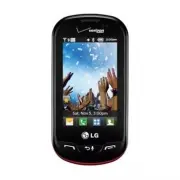
Phone Overview 12 1. Earpiece Lets you hear the caller. 2. Shortcuts Key Allows quick access to a customizable Shortcuts Menu. 3. Quick Keys The Quick Keys provide easy access to Messages, the phone Dialpad, theMain Menu, and the Contact List which easilyactivate with the touch of your fingertip. 4....
Page 16 - Using the QWERTY Keyboard; To enter text with the QWERTY keyboard; Function/Favorites Key; Messaging Key
Phone Overview Using the QWERTY Keyboard Your phone features a slide-out QWERTY keyboard, specifically designed foreasy and comfortable text entry. The QWERTY keyboard uses the samelayout as the keyboard on your computer, but has several added featuresand options to make text entry easier. To enter ...
Page 18 - Quick Glance of the Touch Screen and How to Use It; Quick Keys; How to Unlock the Screen
Quick Glance of the Touch Screen and How to Use It Quick Keys ( , , , ) l For optimal performance, makesure your hands are clean anddry. Remove moisture from thesurface of your hands. Don't usethe Quick Keys in a humidenvironment. l The touch screen is sensitive toyour light touch. You don't needto ...
Page 19 - Getting Started with Your Phone; Turning the Phone On and Off; Turning the Phone On; The Battery; Installing the Battery
Getting Started with Your Phone 17 Turning the Phone On and Off Turning the Phone On 1. Install a charged battery or connect the phone to an externalpower source if the battery levelis low. 2. Press the PWR/End Key for a few seconds until the LCDscreen turns on. Turning the Phone Off 1. Unlock the t...
Page 20 - Charging the Battery; Connect the USB Cable into the; Charging with USB; NOTICE
Getting Started with Your Phone Charging the Battery Your phone comes with a Wall/USBCharger and a USB Cable whichconnect together to charge yourphone. To charge your phone: NOTICE Please use only an approved chargingaccessory to charge your LG phone.Improper handling of the Charging/DataPort, as we...
Page 21 - How to Install a microSD; How to Remove a microSD; Card
supported, such as the USB porton your keyboard or bus-poweredUSB hub. NOTE If the phone is about to reset, awarning message will appear onthe Home screen. How to Install a microSD TM Card 1. Remove the back cover and locate the microSD slot to theleft of the battery compartment. 2. Insert the micro...
Page 22 - Menu Quick Key
Getting Started with Your Phone Battery Temperature Protection Though extremely rare, if thebattery becomes overheated, thephone will automatically turn off.When you turn the phone back on,a message pops up alerting youthat the phone was powered off foryour safety. Battery Charge Level You can find ...
Page 24 - Calibrating the Touch Screen; Unlock the touch screen by
Calibrating the Touch Screen 22 Calibration allows the phone to recognize the accuracy of your touch. 1. Unlock the touch screen by dragging up. Then, touch the Menu Quick Key . 2. Touch Settings . 3. Touch Touch Settings . 4. Touch Calibration . 5. Touch the target each time it appears. Slide up to...
Page 25 - Shorcuts Menu; Shortcuts Menu
Shorcuts Menu 23 Shortcuts Menu The Shortcuts Menu allows instantaccess to menus and phone featureswith the quick touch of yourfingertip. To use the ShortcutsMenu: 1. Unlock the touch screen by dragging up. 2. Touch the Shortcuts Menu icon on the Home screen or press the FN Key . 3. To close the Sho...
Page 26 - Phone Quick Key; To view other Home screen panes
Shorcuts Menu 24 Touch and hold this key to call your voicemail box. Touch this key to view recent call history. Touch this key to display your Contact List to view or call a Contact. Touch this key todelete digits enteredone by one. Holddown to delete theentire entry. Touch this key to dial using V...
Page 27 - Entering and Editing Information; Text Input
Entering and Editing Information 25 Text Input You can enter information using thetouch screen keypad. There arespecial key functions to help youwith text entry. Text Input While Composing a TXT Message 1. Unlock the touch screen by dragging up. 2. Touch the Messaging Quick Key . 3. Touch . 4. Touch...
Page 28 - Menu Tree; My V
Menu Tree 26 My V My V erizon erizon T T ools ools 1. Voice Commands 2. Notepad 3. Calendar 4. Alarm Clock 5. Stopwatch 6. World Clock 7. Calculator 8. Ez Tip Calculator 9. Eco-Calculator 10. Drawing Pad 11. USB Mass Storage Se Se t t tings tings l Airplane Mode l Bluetooth l Music Only Mode 1. Blue...
Page 30 - Apps
Menu Tree 28 3. My Sounds 4. Picture & Video 1. My Pictures 2. My Videos 3. Take Picture 4. Record Video 5. Online Album Apps Apps Calendar Calendar My Music My Music 1. All Songs 2. Playlists 3. Artists 4. Genres 5. Albums6. Manage My Music 1. Erase2. Move to Card3. Move to Phone l Airplane Mod...
Page 31 - Menu Access
Menu Access 29 Menu Access The Menu Quick Key provides access to the phone's main menu. To access the main menu, unlock the phone first by sliding the Unlock icon up. Touch the Menu Quick Key at the bottom of the screen to open the main menu. Slide up to unlock The main menu is displayed as shown be...
Page 32 - Shortcuts Menu on the Touch Screen
Shortcuts Menu on the Touch Screen 30 Clock Widget Calendar Widget Memo Widget Alarm Clock Drawing Pad New Message Memory Widget My Pictures Add/Remove Shortcuts Menu The Shortcuts Menu allows quick, direct access to several frequently usedfeatures from the touch screen. Up to 8 different shortcuts ...
Page 33 - Quick Access to Convenient Features; Restrictions; Quick Volume Adjustment; Vibrate Mode; Call Waiting; Ignore
Quick Access to Convenient Features 31 Restrictions Sets your phone to require a 4 digitpassword in order to use the phone. To set Lock Mode on with the touchscreen unlocked, touch Menu -> Settings -> Phone Settings -> Security -> Touch OK and then enter the Phone Lock Code . Touch Secur...
Page 34 - Voice Commands
Quick Access to Convenient Features Answering Call Waiting 1. While on a call, press the Send Key , to automatically put the first call on hold and answerthe new call. 2. Press the Send Key again, to put the second call on holdand return to the first caller. Voice Commands Voice Commands allow you t...
Page 35 - Contacts in Your Phone’s Memory; Storing New Contacts; Changing Contact Entries; Contacts Quick Key
Contacts in Your Phone’s Memory 33 Storing New Contacts 1. Unlock the touch screen by dragging up. 2. Touch the Contacts Quick Key . 3. Touch . 4. Touch an information field and use the keypad to enter thenecessary information. Thentouch . Do this for each field you want to enter. 5. When all fields...
Page 36 - Speed Dials; Storing a Number with Pauses; Erase; Save; Release
Contacts in Your Phone’s Memory Speed Dials Allows you to set up your SpeedDials. 1. Unlock the touch screen by dragging up. 2. Touch the Contacts Quick Key . 3. Touch Edit , then scroll down and touch Speed Dials . NOTE If you have more than 1 numberassigned to a Contact, you mustfirst select the d...
Page 37 - Contacts; Contacts Quick
Contacts 35 Contacts The Contacts Menu allows you tostore names, phone numbers andother information in your phone’smemory. 1. New Contacts 1. Unlock the touch screen by dragging up. 2. Touch the Contacts Quick Key . 3. Touch . 4. Touch an information field and use the keypad to enter thenecessary in...
Page 38 - New Group
Contacts 36 l Touch the phone number todial the contact. l Touch Send Message to send the contact a text or picturemessage. l Touch Send Name Card to send the contact your namecard. l Touch Ringtone to change the default ringtone for thecontact. l Touch Message Tone to change the default messagetone...
Page 39 - In Case of Emergency; Done; More
37 l Touch for the following options: Remove Contacts / Send Message / Rename Group / Erase Group . 5. Speed Dials Allows you to view and manage yourlist of Speed Dials for numbersentered in your Contacts. 1. Unlock the touch screen by dragging upand touch the Contacts Quick Key . 2. Touch More and ...
Page 40 - Recent Calls; Send Key
Recent Calls 38 Recent Calls The Recent Calls Menu is a list ofthe last phone numbers or Contactentries for calls you missed,received, or dialed. It's continuallyupdated as new numbers are addedto the beginning of the list and theoldest entries are removed from thebottom of the list. 1. Missed Allow...
Page 42 - Recent Calls/ My Verizon; My Verizon; Reset
Recent Calls/ My Verizon 5. View Timers Allows you to view the duration ofthe different call types. Also allowsyou to view Data counters. 1. Unlock the touch screen by dragging upand press the Send Key . 2. Touch and then View Timers . 3. Touch next to a call list to reset it. The Timers andCounters...
Page 43 - Tools; Send Msg to
Tools 41 Tools 1. Voice Commands 1. Unlock the touch screen by dragging up and touch the Menu Quick Key . 2. Touch Tools . 3. Touch Voice Commands . OR From the Home screen, press the Voice Commands/Back Key 4. Touch Settings to set Confirm Choices / Sensitivity / Adapt Voice / Prompts / CLR Key Act...
Page 44 - Redial; Viewing a Notepad Entry
Tools 42 5 Contacts <Name> You can look up names in yourContacts (for example, say"Contacts John"). Once a contact'sinfo is read out, you will beprompted for the following options:Call/ Read out/ Create New/Modify/ Erase 6 Redial Allows you to automatically redialthe last number called...
Page 45 - Add; Add New Event; New
43 OR To add a note or erase all of thenotes, touch or and then . 3. Calendar Allows you to store and access youragenda(s). Simply store yourappointments in your Calendar andyour phone will alert you with areminder. 1. Unlock the touch screen by dragging up and touch the Menu Quick Key . 2. Touch To...
Page 46 - Lap
Tools NOTE If no Alarms have been created,you will be notified with a pop-upand prompted to create a newone. Touch Yes to set an alarm. 5. Touch the Set Time field to set the alarm time. 6. Touch the Repeat field to set the recurrence for the alarm.Available options are: Once/ Daily/ Mon-Fri/ Weeken...
Page 47 - AC
45 4. Press and on the touch screen or QWERTY keyboard toselect other continents. 5. Touch Select and choose a city. 6. Touch for the following options: l Set DST Allows you to set Daylight Savings Time. l Cities Allows you to choose a city from the list. 7. Touch to save the city. 7. Calculator All...
Page 49 - Edit
NOTE If no drawings have been created,you will be notified with a pop-upand prompted to create a newone. Touch Yes to create a drawing. 4. Touch Add and create a drawing. l Takes you back to the Drawing Pad main screen. l Allows you to choose a color. l Allows you to choose the size of the pen. l Al...
Page 51 - Settings; Airplane Mode
Settings 49 Settings Airplane Mode Turns off all wirelesscommunications. This feature allowsyou to use the phone when radiotransmission is restricted. When inAirplane Mode, services using theLocation On functionality will notfunction completely. 1. Unlock the touch screen by dragging up and touch th...
Page 52 - Add New Device; Search New Device
Settings NOTE Your phone is based on theBluetooth ® specification, but it is not guaranteed to work with alldevices enabled with Bluetooth ® wireless technology. Your phonedoes not support ALL Bluetooth ® OBEX Profiles.*Contact Name Cards, Calendar events and other non-protecteddata. ** For vehicle/...
Page 54 - My Device Info; NOTES; Set
Settings 52 My Device Info Allows you to view your device'sBluetooth ® information. 1. Unlock the touch screen by dragging up and touch the Menu Quick Key . 2. Touch Settings . 3. Touch Bluetooth Menu . 4. Touch . 5. Touch My Device Info . Supported Profiles Allows you to see profiles that yourphone...
Page 55 - Caller ID Readout
53 2.2 Ringtones 1. Unlock the touch screen by dragging up and touch the Menu Quick Key . 2. Touch Settings . 3. Touch Sounds Settings . 4. Touch Ringtones . 5. Select a ringtone for Incoming Call, TXT Message, Media Message, Voicemail , and Missed Call . 2.3 Caller ID Readout 1. Unlock the touch sc...
Page 57 - Digit Dial Readout
55 On Vibrate / Power Off Sound / Power Off Vibrate to toggle the setting between ON or OFF . 2.10 Digit Dial Readout Allows you to set the phone toreadout the digits you dial. 1. Unlock the touch screen by dragging up and touch the Menu Quick Key . 2. Touch Settings . 3. Touch Sounds Settings . 4. ...
Page 58 - Main Menu Setting
Settings 6. Enter the banner text and touch . 3.2.2 ERI Banner If you use ERI Service, ERI Text isshown on the sub banner. 1. Unlock the touch screen by dragging up and touch the Menu Quick Key . 2. Touch Settings . 3. Touch Display Settings . 4. Touch Banner . 5. Touch ERI Banner to toggle the sett...
Page 59 - Display Backlight
57 3.4.2 Replace Menu Items You can move around and replacethe position of items from the Menuscreen. 1. Unlock the touch screen by dragging up and touch the Menu Quick Key . 2. Touch Settings . 3. Touch Display Settings . 4. Touch Main Menu Setting . 5. Touch Replace Menu Items . 6. Touch the item ...
Page 62 - Vibrate Type; Set Qwerty Shortcut
Settings 3.14 Favorite Bin Displays or hides the ShortcutsMenu icon ( ) on the Home screen. 1. Unlock the touch screen by dragging up and touch the Menu Quick Key . 2. Touch Settings . 3. Touch Display Settings . 4. Touch Favorite Bin to toggle the setting between ON or OFF . NOTE On the Home screen...
Page 66 - Outgoing Messages; OK
Settings 64 Outgoing Messages Allow All/ Block All 5.6.4 Reset Default Allows you to reset your phone tothe factory default settings. 1. Unlock the touch screen by dragging up and touch the Menu Quick Key . 2. Touch Settings . 3. Touch Phone Settings . 4. Touch Security . 5. Enter the four-digit loc...
Page 70 - Assisted Dialing
Settings 68 7. The voice or text message from the receiver end displays on theTTY equipment display. 6.7 One Touch Dial Allows you to initiate a speed dialcall by touching and holding thespeed dial digit on the dialpad. Ifset to Off, designated Speed Dialnumbers will not function. 1. Unlock the touc...
Page 74 - Mobile Email
Mobile Email Mobile Email 1. Unlock the touch screen by dragging up and touch the Menu Quick Key . 2. Touch Mobile Email . 3. Follow the on-screen instructions to log into your account. NOTE You may need to download andset up the Mobile Email programbefore using it for the first time. Slide up to un...
Page 75 - Messaging; SHORTCUT; New Message Alert
Messaging 73 Messaging The phone can store up to 790(depending on message sizes, lessmay be available) messages. Theinformation stored in the message isdetermined by phone mode andservice capability. Other limits toavailable characters per messagemay exist. Please check with yourservice provider for...
Page 76 - Other Message Options; The Text Field Options; Insert Quick Text; Send
Messaging 74 6. Touch to send the message. Other Message Options Entering saved addresses in theTo: field l Your Contact List is displayed. Select the contactsyou want to send a message to. l Your list of Favorite Contacts is displayed. Select theone(s) to send a message to. l Select Facebook, MySpa...
Page 79 - ERASE
messages in one folder sorted byaddress). To change the message settings: 1. Unlock the touch screen by dragging up and touch the Menu Quick Key . 2. Touch Messaging . 3. Touch More. 4. Touch Settings to access following settings: Message View/ Language/ Text Entry Settings/ Auto Save Sent/ Auto Era...
Page 81 - CALL
Message Icon Reference TXT Message Draft Media Message Draft 4. Voicemail Allows you to view the number ofnew voice messages recorded in theVoicemail box. Once you exceed thestorage limit, old messages may beoverwritten. When you receive a newvoice message, your phone will alertyou. Checking Your Vo...
Page 85 - Quick Text Options
The following settings are available: Extreme Alert/ Severe Alert/ AMBER(Child Abduction Emergency)/ Alert Reminder/ Alert Vibrate.15. TXT-Media Msg Notification Set your configuration for the pop-up notifying you of switching themessage type. Please list the TXT-Media Msg sub menu info. The followi...
Page 86 - Media Center
Media Center 84 Media Center Media Center gives youcustomizable service right on yourwireless device that lets you getringtones, play games, surf the web,get up-to-the-minute informationand more. Visitverizonwireless.com/get it now toview all of the applications availablefor your wireless device. NO...
Page 89 - Music Player Controls
3.3 My Sounds Allows you to select saved soundsor to record a new sound. 1. Unlock the touch screen by dragging up and touch the Menu Quick Key . 2. Touch Media Center . 3. Touch Music & Tones . 4. Touch My Sounds . 5. Touch More and then or touch a sound file to listen to it. The following opti...
Page 92 - SHORTCUTS
Media Center l Wipe the camera lens with a soft cloth. SHORTCUTS Press the Camera Key ( ) from the Home screen to open the Camera function. 1. Unlock the touch screen by dragging up and touch the Menu Quick Key . 2. Touch Media Center . 3. Touch Picture & Video . 4. Touch Take Picture . 5. Touch...
Page 94 - My Music
My Music / Alarm Clock/ My Pictures My Music Allows you to store and to listen tomusic right from your phone. Access and Options 1. Unlock the touch screen by dragging up and touch the Menu Quick Key . 2. Touch My Music . 3. Select the type of lists from All Songs, Playlists, Artists, Genres and Alb...
Page 95 - Troubleshooting
Troubleshooting 93 This section lists some problems that you might encounter while using yourphone. Some problems require that you call your service provider, but mostof problems you encounter are easy to correct yourself. Symptom Possible causes Possible Corrective measures No connectionto the netw...
Page 97 - Safety; TIA Safety Information; Radiation Protection
Safety 95 TIA Safety Information The following is the complete TIASafety Information for wirelesshandheld phones. Exposure to Radio Frequency Signal Your wireless handheld portablephone is a low power radiotransmitter and receiver. When ON,it receives and sends out RadioFrequency (RF) signals. In Au...
Page 98 - Tips on Efficient Operation; Persons with pacemakers:
Safety 96 Tips on Efficient Operation For your phone to operate mostefficiently: Don’t touch the antennaunnecessarily when the phone is inuse. Contact with the antennaaffects call quality and may causethe phone to operate at a higherpower level than otherwise needed. Driving Check the laws and regul...
Page 100 - For Vehicles Equipped with an Air; Safety Information; Violation of the; Caution
Safety 98 death. Areas with a potentially explosiveatmosphere are often, but notalways marked clearly. Potentialareas may include: fueling areas(such as gasoline stations); belowdeck on boats; fuel or chemicaltransfer or storage facilities;vehicles using liquefied petroleumgas (such as propane or bu...
Page 102 - Charging temperature range is
Safety it may cause electric shock orfire. l Unplug the power cord prior tocleaning your phone, and cleanthe power plug pin when it’sdirty. When using the powerplug, ensure that it’s firmlyconnected. If not, it may causeexcessive heat or fire. If you putyour phone in a pocket or bagwithout covering ...
Page 103 - Hazards
l Keep the battery away fromyoung children. Safeguard sothat small children do notremove the battery from thecharger or device. l If liquid from the battery rubsagainst skin or clothing, rinsewith clean water. The batteryliquid could cause skin irritation. l Do not handle the phone withwet hands whi...
Page 104 - General Notice
Safety l Unplug the power cord prior tocleaning your phone, and cleanthe power plug pin when it’sdirty. l When using the power plug,ensure that it’s firmly connected.If not, it may cause excessiveheat or fire. l If you put your phone in apocket or bag without coveringthe receptacle of the phone(powe...
Page 105 - Avoid potential hearing; or other
l The data saved in your phonemight be deleted due to carelessuse, repair of the phone, orupgrade of the software. Pleasebackup your important phonenumbers. (Ringtones, textmessages, voice messages, andpictures could also be deleted.)The manufacturer is not liablefor damage due to the loss ofdata. l...
Page 106 - You can obtain additional
Safety to you can hear what you arelistening to. l Do not turn the volume up toblock out noisy surroundings. Ifyou choose to listen to yourportable device in a noisyenvironment, use noise-cancelling headphones to blockout background environmentalnoise. l Limit the amount of time youlisten. As the vo...
Page 107 - FDA Consumer Update; Do wireless phones pose a
Voice: 1-800-35-NIOSH (1-800-356-4674) Internet: http://www.cdc.gov/niosh/topics/noise/default.html FDA Consumer Update The U.S. Food andDrug Administration’sCenter for Devices and Radiological Health ConsumerUpdate on Mobile Phones: 1. Do wireless phones pose a health hazard? The available scientif...
Page 114 - Where can I find additional
Safety Instrumentation (AAMI). The finaldraft, a joint effort by the FDA,medical device manufacturers, andmany other groups, was completedin late 2000. This standard willallow manufacturers to ensure thatcardiac pacemakers anddefibrillators are safe from wirelessphone EMI. The FDA has tested hearing...
Page 115 - 0 Driver Safety Tips; Get to know your wireless
10 Driver Safety Tips Your wireless phone gives you thepowerful ability to communicate byvoice almost anywhere, anytime. Animportant responsibilityaccompanies the benefits ofwireless phones, one that everyuser must uphold. When operating a car, driving isyour first responsibility. Whenusing your wir...
Page 116 - Dial sensibly and assess the
Safety you are reading or writing andnot paying attention to the roador nearby vehicles. 6. Dial sensibly and assess the traffic; if possible, place callswhen you are not moving orbefore pulling into traffic. Try toplan your calls before you beginyour trip or attempt to coincideyour calls with times...
Page 117 - Government’s Requirements for
signal, a minor traffic accidentwhere no one appears injured ora vehicle you know to be stolen,call roadside assistance or otherspecial non-emergency wirelessnumber. The above tips are meant asgeneral guidelines. Beforedeciding to use your mobiledevice while operating a vehicle,it is recommended tha...
Page 118 - This device was tested for typical
Safety and to account for any variationsin measurements. Tests for SAR are conducted usingstandard operating positionsspecified by the FCC with thephone transmitting at its highestcertified power level in all testedfrequency bands. Although SAR isdetermined at the highest certifiedpower level, the a...
Page 121 - FCC Hearing Aid Compatibility and Volume Control
In the above example, if a hearingaid meets the M2 level rating andthe wireless phone meets the M3level rating, the sum of the twovalues equal M5. This shouldprovide the hearing aid user with“normal usage” while using theirhearing aid with the particularwireless phone. “Normal usage” inthis context ...
Page 122 - LIMITED WARRANTY STATEMENT; WHAT THIS WARRANTY
LIMITED WARRANTY STATEMENT 120 1. WHAT THIS WARRANTY COVERS: LG offers you a limited warrantythat the enclosed subscriber unitand its enclosed accessories will befree from defects in material andworkmanship, according to thefollowing terms and conditions: (1) The limited warranty for the product ext...
Page 123 - non LG approved accessories.
LIMITED WARRANTY STATEMENT repair, misuse, neglect, abuse,accident, alteration, improperinstallation, or other acts whichare not the fault of LG, includingdamage caused by shipping,blown fuses, spills of food orliquid. (3) Breakage or damage to antennas unless caused directlyby defects in material o...
Page 124 - HOW TO GET WARRANTY
LIMITED WARRANTY STATEMENT 122 4. STATE LAW RIGHTS: No other express warranty isapplicable to this product. THEDURATION OF ANY IMPLIEDWARRANTIES, INCLUDING THEIMPLIED WARRANTY OFMARKETABILITY ORMERCHANTABILITY OR FITNESSFOR A PARTICULAR PURPOSE, ISLIMITED TO THE DURATION OFTHE EXPRESS WARRANTYHEREIN...
Page 125 - Glossary; Terminology; Acronyms and
123 Glossary Terminology Ez Tip Calculator Feature for easy bill calculationusing the total cost, tip, andnumber of people as variables. Voice Commands Feature that allows you to performa wide range of verbal commandsby training the phone to recognizeyour individual speech patterns. Bluetooth ® wire...
Page 126 - NAM
Glossary 124 IS 2000 Type of digital signaling. It's thesecond generation of CDMA digitalcellular, an extension of IS-95.Differences between signalingtypes have to do with pilot signaland links to provide more trafficchannels, and control protocols. NAM N N umber A A ssignment M M odule is how the p...
Page 127 - Index
Index 125 123 10 Driver Safety Tips 113 A Acronyms and Abbreviations 123 Alarm Clock 43, 92 All 39 Apps 84 B Backup Assistant 36 Battery Charge Level 20 Battery Temperature Protection 20 Bluetooth Menu 49 C Calculator 45 Calendar 43 Call <Name or Number> 41 Call Settings 65 Call Waiting 31 Cau...
Page 129 - MEMO
Page 133 - No seguir las instrucciones puede ocasionar lesiones graves o la; Precaución de Seguridad Importante
Lea estas sencillas instrucciones. Romper las reglas puede ser peligroso o ilegal. Se ofrece más información detallada en esta guía del usuario. No seguir las instrucciones puede ocasionar lesiones graves o la muerte. l No use nunca una batería no aprobada, ya que esto podría dañar el teléfono o la ...
Page 136 - Contenido
Contenido Precaución de SeguridadImportante . . . . . . . . . . . . . . .1 Contenido . . . . . . . . . . . . . . . .4 Detalles Técnicos . . . . . . . . . . .9 Descripción general del teléfono . . . . . . . . . . . . . . . . .13 Vista rápida de la Pantalla Táctil y cómo usarla . . . . . . .17 Para ha...
Page 137 - Almacenamiento Masivo USB51
Marcado Rápido . . . . . . . . . . . . . . . . . .34 Almacenar un número con una pausa 35 Borrar . . . . . . . . . . . . . . . . . . . . . . . . . . .35 Contactos . . . . . . . . . . . . . . . .36 1. Nuevo contacto . . . . . . . . . .362. Lista de contactos . . . . . . . . .363. Backup Assistant . ....
Page 141 - Bienvenidos; LG Extravert; diseñado para; Información Importante; es un teléfono; Detalles Técnicos
Bienvenidos Gracias por elegir el avanzado ycompacto teléfono celular LG Extravert TM diseñado para funcionar con la más recientetecnología de comunicación móvildigital, Acceso Múltiple de Divisiónde Código (CDMA). Información Importante Esta guía del usuario ofreceinformación importante sobre eluso...
Page 142 - Este dispositivo se probó para un
Detalles Técnicos 10 El sistema EV-DO está optimizadopara el servicio de datos y esmucho más rápido que el sistema1xRTT en el área aplicable. Información de la FCC sobre exposición a la RF¡ADVERTENCIA! Lea esta información antes de hacer funcionar el teléfono. En agosto de 1996, la ComisiónFederal d...
Page 144 - - Aumentar la distancia entre el
Detalles Técnicos 12 Declaración del artículo 15.105 Este equipo ha sido evaluado y seha comprobado que cumple con loslímites para un dispositivo digitalclase B, conforme el artículo 15 delas reglas de la FCC. Estos límiteshan sido diseñados para brindar unaprotección razonable contra lainterferenci...
Page 145 - Descripción general del teléfono; NOTA
Descripción general del teléfono 13 1. Auricular Le permite escuchar la persona al otro lado de la linea. 2. Tecla de Atajos Le permite acceder rápidamente al Menú de Atajos. 3. Teclas Rápidas Las teclas rápidas proporcionan acceso fácil a Mensajes, Teclado táctil demarcación y la Lista de Contactos...
Page 147 - Usando el teclado QWERTY; Para introducir texto con el teclado QWERTY; Tecla Función/Favoritos; Tecla
15 Usando el teclado QWERTY Su teléfono cuenta con un teclado QWERTY que se desliza hacia afuera,específicamente diseñado para la entrada de texto fácil y comoda. El tecladoQWERTY utiliza el mismo diseño que el teclado de su computadora, perotiene varias características y opciones añadidas para hace...
Page 149 - Vista rápida de la Pantalla Táctil y cómo usarla; Teclas Rápidas; Cómo desbloquear la pantalla
Vista rápida de la Pantalla Táctil y cómo usarla 17 Teclas Rápidas ( , , , ) 1. Para un rendimiento óptimo, asegúrese de tener las manoslimpias y secas. Elimine lahumedad de la superficie de susmanos. No use las TeclasRápidas en un entorno húmedo. 2. Los sensores de la pantalla son sensibles a un to...
Page 150 - Para hacer funcionar su teléfono por primera vez; Apagar y encender el teléfono; Encender el teléfono; La batería; Instalación de la batería
Para hacer funcionar su teléfono por primera vez 18 Apagar y encender el teléfono Encender el teléfono 1. Instale una batería cargada o conecte el teléfono a una fuentede electricidad externa si el nivelde batería es bajo. 2. Oprima la Tecla Encender/Fin por unos segundos hasta que la pantalla LCD s...
Page 151 - Carga de la batería; Conecte el Cable USB con el
19 Carga de la batería Su teléfono viene con unAdaptador de Pared/USB y unCable USB que se conectan parapoder cargar su teléfono. Paracargar el teléfono: AVISO Sólo use un accesorio de carga aprobadopara cargar su teléfono LG. Lamanipulación inadecuada del Puerto paraCargar/Datos, así como el uso de...
Page 152 - Carga con USB; Instalar la tarjeta microSD; Desinstalar la tarjeta
Para hacer funcionar su teléfono por primera vez 20 Carga con USB Es posible usar una computadorapara cargar el teléfono. Para podercargar el teléfono con un CableUSB, primero deberá tener loscontroladores USB adecuadosinstalados en su computadora.Conecte un extremo de un CableUSB al Puerto para Car...
Page 153 - Protección de la temperatura
21 deben formatear la tarjeta microSD ™ en este teléfono (Con el teléfonodesbloqueado, toque la Tecla RápidaMenú -> Prog.-> Memoria -> Memoria de la Tarjeta-> Formato). Advertencia: Alformatear la tarjeta microSD ™ se borrará todo el contenido. En caso de que latarjeta microSD ™ se utili...
Page 154 - Iconos de pantalla; Remarcado de llamadas
Para hacer funcionar su teléfono por primera vez 22 Iconos de pantalla Cuando el teléfono está encendido,la pantalla LCD muestra iconos queindican el estado del teléfono. 1. Arrastre hacia arriba para desbloquear lapantalla y toque la Tecla Rápida Menú . 2. Toque Prog . 3. Toque Info de Teléfono . 4...
Page 155 - Recibiendo llamadas
23 hacer una llamada a ese número.Oprima la Tecla Enviar dos veces para volver a marcar el últimonúmero que marcó, recibió, o no secontestó. Recibiendo llamadas 1. Cuando el teléfono suene y/o vibre, arrastrehacia arriba u oprima la Tecla Enviar . 2. Oprima la Tecla Encender/Fin para finalizar la ll...
Page 156 - Calibración de la pantalla táctil; Toque el objetivo cada vez que
Calibración de la pantalla táctil 24 La calibración permite que el teléfono reconozca la precisión del toque 1. Arrastre hacia arriba para desbloquear lapantalla y toque la Tecla Rápida Menú . 2. Toque Prog . 3. Toque Prog. de Toque . 4. Toque Calibración . 5. Toque el objetivo cada vez que aparezca...
Page 157 - Menú de Atajos; Menú de Atajos; Menú
Menú de Atajos 25 Menú de Atajos El Menú de Atajos le brinda un acceso instantáneo a menús con el toqueveloz de su dedo. Para usar el Menú de Atajos: 1. Arrastre hacia arriba para desbloquear la pantalla. 2. Toque el icono del Menú de Atajos en la pantalla principal u oprima la Tecla Función . 3. Pa...
Page 158 - Tecla Rápida Teléfono; Para ver otros paneles de la pantalla principal
Menú de Atajos 26 Toque y mantenga oprimida esta tecla para tener acceso a su Correo de Voz. Toque esta tecla para iniciar Comandos de Voz. Toque esta tecla para ver la Listade Contactos donde puede ver ollamar un Contacto. Toque esta teclapara borrar dígitosmarcados uno poruno. Mantengaoprimida par...
Page 159 - Introducir y editar información; Entrada de texto; Introducción de Texto en un
Introducir y editar información 27 Entrada de texto Puede introducir informaciónusando el teclado de la pantallatáctil. Existen funciones de teclaespeciales para ayudarle con laintroducción de texto. Introducción de Texto en un Mensaje de TXT 1. Arrastre hacia arriba para desbloquear lapantalla. 2. ...
Page 160 - Vista general de menús; Dibujo
Vista general de menús 28 Mi V Mi V erizon erizon Or Or ganizador ganizador 1. Comandos de Voz2. Cuaderno de Notas3. Calendario4. Reloj Despertador5. Cronómetro6. Reloj Mundial7. Calculadora8. EZ Sugerencia9. Eco-Calculadora10. Cuaderno de Dibujo 11. Almacenamiento Masivo USB Pr Pr og og 1. Menú de ...
Page 162 - Acceso a los menús; Tecla Rápida Menú
Acceso a los menús 30 Acceso a los menús La Tecla Rápida Menú proporciona acceso al menú principal del teléfono. Para acceder al menú principal, arrastre hacia arriba para desbloquear la pantalla. Toque la Tecla Rápida Menú en la parte inferior de la pantalla para abrir el menú principal. Deslice ar...
Page 163 - Menú Atajos en la Pantalla Táctil
Menú Atajos en la Pantalla Táctil 31 Menú de Atajos El Menú de Atajos permite acceder de manera rápida y directa a variasfunciones del teléfono usadas frecuentemente desde la pantalla táctil. Sepueden establecer hasta 8 diferentes atajos. Para acceder al Menú de Atajos,desbloquee la pantalla LCD y l...
Page 164 - Acceso rápido a funciones de conveniencia; Restricciones; Introduzca el Código; Ajuste rápido del volumen; Modo de vibración
Acceso rápido a funciones de conveniencia 32 Restricciones Ajusta su teléfono para que solicitela contraseña de 4 dígitos parausarlo. Para establecer el Modo debloqueo con la pantalladesbloqueada, toque Menú-> Prog -> Prog. de Teléfono -> Seguridad -> Introduzca el Código de Bloqueo ->...
Page 165 - Llamada en espera; Ignorar una llamada en espera; Comandos de Voz; Ignorar
33 Llamada en espera Durante una llamada, un pitidoindica otra llamada entrante. Ignorar una llamada en espera Si no desea responder una llamadaentrante, toque en la pantalla táctil. El pitido de lallamada en espera se detiene y lallamada va a su correo de voz, siestá disponible. Contestar una llama...
Page 166 - Contactos en la memoria de su teléfono; Almacenar nuevo contactos; Personalización de entradas
Contactos en la memoria de su teléfono 34 Almacenar nuevo contactos 1. Arrastre hacia arriba para desbloquear lapantalla. 2. Toque la Tecla Rápida Contactos . 3. Toque . 4. Toque un campo de información y use el teclado para introducirla información necesaria. Luegotoque . Haga esto para cada campo ...
Page 167 - Almacenar un número con; RELEASE
35 1. Arrastre hacia arriba para desbloquear lapantalla. 2. Toque la Tecla Rápida Contactos . 3. Toque Crrgr y luego Marcados Rápidos . NOTA Si tiene más de 1 númeroasignado al Contacto, debeseleccionar el número deseadoprimero y luego elegir la entradade Marcado Rápido. 4. Toque un número de Marcad...
Page 168 - Contactos; Lista de contactos
Contactos 36 Contactos El menú Contactos permitealmacenar nombres, números deteléfono y otra información en lamemoria del teléfono. 1. Nuevo contacto Permite agregar un nuevo número ala lista de contactos. 1. Arrastre hacia arriba para desbloquear lapantalla. 2. Toque la Tecla Rápida Contactos . 3. ...
Page 169 - Crrgr
37 l Toque para borrar el contacto. l Toque para editar el contacto. l Toque el número telefónicopara marcar al contacto. l Toque Enviar Mensaje para enviarle un mensaje de texto ofoto al contacto. l Toque Enviar Tarjeta de Nombre para enviarle su tarjeta de nombre al contacto. l Toque Timbre para c...
Page 170 - En Caso de Emergencia; Nuevo Grupo
Contactos 38 1. Arrastre hacia arriba para desbloquear lapantalla y toque la Tecla Rápida Contactos . 2. Toque Más . 3. Toque Grupos . Luego seleccione el grupo que desee ( Negocio/ Colegas/ Familia/ Amigos/ Escuela ). l Toque paraagregar un nuevo grupo a lalista. l Toque Más para las siguientes opc...
Page 172 - Llamadas recientes; Tecla Enviar; Más; Mensaje; Llamada
Recent Calls 40 Llamadas recientes El menú Llamadas recientes muestrauna lista de los últimos números deteléfono o las últimas entradas decontactos de llamadas perdidas,recibidas y realizadas. Se actualizacontinuamente a medida que seagregan nuevos números alprincipio de la lista y se eliminan lasen...
Page 174 - Ver los cronómetros; Reaj
Recent Calls 42 l Toque para ver las siguientes opciones: Guardar en contactos (Info de contacto)/ Borrar/ Asegurar/ Ver Contadores. 5. Ver los cronómetros Permite ver la duración de losdiferentes tipos de llamadas.También permite ver los contadoresde datos. 1. Arrastre hacia arriba para desbloquear...
Page 175 - Mi Verizon/ Organizador; Mi Verizon; Toque
Mi Verizon/ Organizador 43 Mi Verizon Compruebe su información desubscripción desde su plan delpago a la actualización de susoftware u otros serviciosdisponibles. 1. Arrastre hacia arriba para desbloquear lapantalla y toque la Tecla Rápida Menú . 2. Toque Mi Verizon . Organizador 1. Comandos de Voz ...
Page 176 - Organizador
Organizador 44 1.1.1 Llamar <Nombre o Número> Diga "Llamar" y luego llame aalguien simplemente diciendo elnúmero de teléfono y el nombre.Hable claramente y exactamentecomo están en su Lista deContactos. Cuando la entrada deContacto tiene varios números,puede establecer el tipo de nombr...
Page 177 - Borrar Todo; Nuevo
45 1.1.8 Reproducir Le permite reproducir cancionesgrabadas en su teléfono. 1.1.9 Mi Verizon Este comando le proporcionaacceso directo a su cuenta deVerizon Wireless. 1.1.0 Ayuda Proporciona una guía general parautilizar los Comandos de Voz. 2. Cuaderno de Notas Le permite leer, agregar, editar ybor...
Page 178 - Añadir; Agregar Nuevo Evento
Organizador 46 2. Toque Organizador . 3. Toque Calendario . 4. Toque un día para seleccionarlo. 5. Toque . 6. Introduzca la siguiente información. l Asunto l Fecha de inicio l Hora de Comienzo l Fecha de Trmino l Hora de Trmino l Periodicidad l Tono de Alerta l Vibrar l Hora de Alerta l Recordatorio...
Page 179 - Grdr
47 5. Toque el campo Fijar Tiemp para establecer la hora de la alarma. 6. Toque el campo Periodicidad para establecer la repetición dela alarma. Las opcionesdisponibles son las siguientes: Una vez/A diario/Lun-Vie/Fines de Semana/Seleccionar Días 7. Toque el campo Timbre para establecer el sonido qu...
Page 180 - Calculadora
Organizador 48 5. Toque y elija una ciudad. 6. Toque para guardar la ciudad. l Fije DST Permite establecer la hora de verano. l Ciudads Permite elegir una ciudad de la lista. 7. Calculadora Le permite realizar cálculosmatemáticos. 1. Arrastre hacia arriba para desbloquear lapantalla y toque la Tecla...
Page 181 - Cuaderno de Dibujo
49 6. Toque para otro cálculo. 9. Eco-Calculadora Le permite mantener un registro desus distancias a pie y en bicicleta.La cantidad de CO 2 que se reduce a pie y en bicicleta se muestra paraque usted vea. 1. Arrastre hacia arriba para desbloquear lapantalla y toque la Tecla Rápida Menú . 2. Toque Or...
Page 182 - Corregir; Enviar; Marcar todos
Organizador 2. Toque Organizador . 3. Toque Cuaderno de Dibujo . 4. Toque Añadir y crea un dibujo. NOTA Si no ha creado un dibujo. elteléfono le notificá y se le solicitacrear uno nuevo. Toque Sí para crear un dibujo nuevo. l Lo regresa a la pantalla principal del Cuaderno deDibujo. l Le permite ele...
Page 183 - Masivo USB; Conecte el Cable USB al Puerto
51 11. Almacenamiento Masivo USB Le permite seleccionar el modo deconexión de la computadora para elteléfono. 1. Arrastre hacia arriba para desbloquear lapantalla y toque la Tecla Rápida Menú . 2. Conecte el Cable USB al Puerto para Cargar/Datos en suteléfono. Asegúrese que elteléfono tenga una tarj...
Page 184 - Modo Vuelo; Prog
Prog Modo Vuelo Desactiva todas las comunicacionesinalámbricas. Esta función permiteutilizar el teléfono cuando estánrestringidas las transmisiones deradio. Durante el Modo avión, losservicios que usan la funcionalidadUbicación activada no funcionaránen su totalidad. 1. Arrastre hacia arriba para de...
Page 185 - Anadir Nuevo Aparato; Para emparejar con un nuevo
NOTA Su teléfono está basado en laespecificación Bluetooth ® , pero no se garantiza que funcione contodos los aparatos habilitadoscon la tecnología inalámbricaBluetooth ® . El teléfono no admite TODOSOBEX de Bluetooth ® . * Permite el envío o la recepción de tarjetas de nombres decontactos, eventos ...
Page 186 - Referencia de iconos para agregar; Mi Nombre de Teléfono; Borre el nombre existente e; Modo de Descubrimiento
Prog aparato está incluido en elMenú de Bluetooth y el iconode Bluetooth conectadoaparecerá en su enunciadorsólo cuando esté conectado alaparato de audio. Referencia de iconos para agregar nuevo aparato Cuando se crea la conexióninalámbrica Bluetooth ® y se encuentran aparatos emparejados,se muestra...
Page 187 - Mi Info de Dispositivo; puede; NOTAS; Oprima las Teclas de Volumen o
55 5. Toque el botón Modo de Descubrimiento para alternar entre ON (Encendido) y OFF (Apagado). Mi Info de Dispositivo Le permite ver la información de suaparato de Bluetooth ® . 1. Arrastre hacia arriba para desbloquear lapantalla y toque la Tecla Rápida Menú . 2. Toque Prog . 3. Toque Menú de Blue...
Page 188 - para guardar la; Llamador
Prog 7. Toque para guardar la configuración. 2.2 Timbres 1. Arrastre hacia arriba para desbloquear lapantalla y toque la Tecla Rápida Menú . 2. Toque Prog . 3. Toque Prog. de Sonidos. 4. Toque Timbres . 5. Seleccione un timbre para Llamada Entrante , Mensaje de TXT , Mensaje de Medias, Bzn Msjs Voz ...
Page 189 - FIJADO
57 5. Toque Llamada Entrante, Mensaje de TXT/ Mensaje de Medias/ Mensaje de voz/ Llamada Perdida para alternar entre ON (Encendido) y OFF (Apagado). 2.6 Recordatorio de Alerta Le permite configurar el teléfonopara que dicte en voz alta losdígitos marcados. 1. Arrastre hacia arriba para desbloquear l...
Page 190 - Lectura de Número
Prog Sonido de Minutos Le alerta 10 segundos antes del fin de cadaminuto durante una llamada. Conexión de Llamada Le alerta cuando la llamada está conectada. Cargar Completado Le alerta cuando la batería estácompletamente cargada. Actualización de Software Le alerta cuando existe una versiónactualiz...
Page 191 - Tipo de bloqueo de
59 2. Toque Prog . 3. Toque Prog. de Pantalla . 4. Toque Fondo de Pantalla . 5. Toque Bloquear Pantalla o Pantalla de Inicio . Luego toque Mis Fotos o Animaciones Divertidas. 6. Toque el fondo que desea y luego toque Configurar (Para Animaciones Divertidas, sólo debe tocar laimagen que desea usar). ...
Page 192 - Configuración del Menú; Arrastre los elementos a la nueva
Prog 4. Toque Tipo de bloqueo de pantalla. 5. Seleccione Deslice hacia arriba para desbloquear, Arrastre para desbloquear o Frotar para desbloquear . 3.4 Configuración del Menú Principal Le permite configurar los valores depantalla. 1. Arrastre hacia arriba para desbloquear lapantalla y toque la Tec...
Page 194 - Luz de fondo del Teclado; Toque una configuración para la; Cargando Pantalla
Prog 3.7 Luz de fondo del Teclado Le permite establecer la duraciónde la iluminación de la luz delteclado. 1. Arrastre hacia arriba para desbloquear lapantalla y toque la Tecla Rápida Menú . 2. Toque Prog . 3. Toque Prog. de Pantalla . 4. Toque Luz de fondo del Teclado . 5. Toque una configuración p...
Page 196 - para; Las siguientes opciones están
Prog Normal/ Analógico/ Digital 12/ Digital Grande 12/ Digital 24/ Digital Grande 24/ Doble/ Apagado NOTA En la pantalla principal, puedetocar y arrastrar el reloj paracambiar su ubicación en lapantalla táctil. 3.14 Acceso Directo Muestra o esconde el icono delMenú de Atajos ( ) en la pantalla princ...
Page 197 - y use
65 5. Prog. de Teléfono El menú Prog. de Teléfono le permitedesignar ajustes específicos parapersonaliza cómo usa su teléfono. 5.1 Establecer Atajo de Qwerty Le permite establecer atajos deQwerty para su pantalla principal. 1. Arrastre hacia arriba para desbloquear lapantalla y toque la Tecla Rápida...
Page 200 - Llamadas Entrantes
Prog 2. Toque Prog . 3. Toque Prog. de Teléfono . 4. Toque Seguridad . 5. Introduzca el código de bloqueo de cuatro dígitos. 6. Toque Security Unlock (Desbloqueo de seguridad) paraalternar entre ON (Encendido) y OFF (Apagado). 5.6.3 Restricciones Le permite configurar restriccionespara funciones com...
Page 201 - Selección de Sistema
69 3. Toque Prog. de Teléfono . 4. Toque Seguridad . 5. Introduzca el código de bloqueo de cuatro dígitos. 6. Toque Restablecer a Predeterminado . 7. Toque después de leer el mensaje de advertencia. 8. Toque Revertir . 5.6.5 Restaurar Teléfono Le permite eliminar todos los datosde usuario e informac...
Page 202 - Opciones de Contestar
Prog 5.8 Seleccionar NAM Le permite seleccionar el NAM(módulo de asignación de número)del teléfono si éste está registradocon varios proveedores de servicio. 1. Arrastre hacia arriba para desbloquear lapantalla y toque la Tecla Rápida Menú . 2. Toque Prog . 3. Toque Prog. de Teléfono . 4. Toque Sele...
Page 203 - Reenvío de Llamada; llamada para activar la función.; Marcación; para establecer la; Automáticamente
71 6.3 Reenvío de Llamada Le permite reenviar llamadas a otronúmero de teléfono. 1. Arrastre hacia arriba para desbloquear lapantalla y toque la Tecla Rápida Menú . 2. Toque Prog . 3. Toque Prog. de Llamada . 4. Toque Reenvío de Llamada . 5. Toque una configuración. Reenviar llamada/ Cancelar reenví...
Page 206 - Marcación Asistida
Prog 2. Toque Prog . 3. Toque Prog. de Llamada . 4. Toque Privacidad de Voz para alternar entre ON (Encendido) y OFF (Apagado). 6.9 Tonos DTMF Permite configurar la longitud delos tonos DTMF. 1. Arrastre hacia arriba para desbloquear lapantalla y toque la Tecla Rápida Menú . 2. Toque Prog . 3. Toque...
Page 208 - Memoria de la Tarjeta
5. Toque Uso de la Memoria/ Mis Fotos/ Mis Videos/ Mis Timbres/ Mi Música/ Mis Sonidos/ Mis Contactos/ Mover Todo a la Tarjeta . 8.3 Memoria de la Tarjeta Muestra la información de memoriaalmacenada en la tarjeta dememoria, por tipo. 1. Arrastre hacia arriba para desbloquear lapantalla y toque la Te...
Page 209 - para ver el estado
77 4. Toque Versión SW/HW . 9.3 Glosario de Iconos Le permite ver todos los iconos ysus significados. 1. Arrastre hacia arriba para desbloquear lapantalla y toque la Tecla Rápida Menú . 2. Toque Prog . 3. Toque Info de Teléfono . 4. Toque Glosario de Iconos . 9.4 Actualización de Software Esta funci...
Page 210 - Correo Elect Móvil; Acceso
Correo Elect Móvil Correo Elect Móvil La aplicación Mobile Email lepermite enviar y recibir correoelectrónico para que no pierda unmensaje de correo electrónicoimportante. Acceso 1. Arrastre hacia arriba para desbloquear lapantalla y toque la Tecla Rápida Menú . 2. Toque Mobile Email . 3. Siga las i...
Page 211 - ACCESO DIRECTO; Alerta de nuevo mensaje
Enviand.Msj El teléfono puede almacenar hasta790 (dependiendo del tamaño delos mensajes, pueden almacenarmenos) mensajes. La informaciónalmacenada en el mensaje estádeterminada por el modo delteléfono y la capacidad del servicio.Puede haber otros límites a loscaracteres disponibles por mensaje.Compr...
Page 212 - Insertar Text Rápido
Enviand.Msj Otras opciones de mensajeIntroducción de direcciones de destino en el campo Para: l Su lista de Contactos Favoritos aparece en la pantalla.Toque los contactos favoritos alos que les desea enviar elmensaje. l Se muestra su Lista de Contactos. Toque los contactosa los que les desea enviar ...
Page 214 - Nuevo Mensaje
Enviand.Msj 5. Repita la acción para agregar diapositivas, texto y fotos segúnsea necesario. Toque las Teclas Diapositiva Anterior/Siguiente Diapositiva / para desplazarse por las diapositivasadjuntas a su mensaje de foto. 6. Complete el mensaje y luego envíelo. 1.3 Mensaje de Voz Aspectos básicos d...
Page 216 - Referencia de iconos de mensaje
Enviand.Msj Ver sus mensajes 1. Arrastre hacia arriba para desbloquear lapantalla y toque la Tecla Rápida Menú . 2. Toque Enviand.Msj . 3. Toque Mensajes (o Entrada , dependiendo de la configuraciónVista de Mensaje). 4. Toque una conversación y luego toque la entrada de mensaje. 5. Opciones disponib...
Page 217 - Anular
85 3. Borradores Su teléfono le permitirá guardarmensajes en la carpeta deBorradores. 1. Arrastre hacia arriba para desbloquear lapantalla y toque la Tecla Rápida Menú . 2. Toque Enviand.Msj . 3. Toque Borradores . 4. Toque una entrada de mensaje. 5. Las siguientes opciones están disponibles: l Toqu...
Page 218 - Correo Elect Móvil; LLAMADA
l Oprima la Tecla Enviar o toque paraescuchar los mensajes. 5. IM Móvil Le permite enviar y recibir unmensaje instantáneo en cualquiermomento. 1. Arrastre hacia arriba para desbloquear lapantalla y toque la Tecla Rápida Menú . 2. Toque Enviand.Msj . 3. Toque IM Móvil . 4. Elija un proveedor de IM Mó...
Page 222 - Opciones de borrado; Opción de Text Rápido; Toque un mensaje para ver el
Enviand.Msj 16. Opción de Responder Seleccione Grupo de Conversación para automáticamente enviar al grupo.Seleccione Mensaje Individual para automáticamente enviar a una solapersona. 9. Opciones de borrado Permite borrar todos los mensajesalmacenados en las carpetasRecibidos, Enviados o Borradores.O...
Page 223 - Centro de Medios
Centro de Medios 91 Centro de Medios Centro de Medios le ofrece serviciopersonalizable en su aparatoinalámbrico que le permite obtenertonos para el teléfono, jugar juegos,navegar por la web, recibirinformación hasta el minuto y más.Visite verizonwireless.com/getitnowpara ver todas las aplicacionesdi...
Page 226 - Grabar Nuevo; Controles de música
3.3 Mis Sonidos Permite seleccionar sonidosguardados o grabar sonidos nuevos. 1. Arrastre hacia arriba para desbloquear lapantalla y toque la Tecla Rápida Menú . 2. Toque Centro de Medios . 3. Toque Música y Tonos. 4. Toque Mis Sonidos. 5. Toque Más y luego o toque un archivo de sonidos para escucha...
Page 229 - SUGERENCIAS; Tecla Rápida
97 4.3 Tomar Foto Permite tomar fotos directamentedesde el teléfono. SUGERENCIAS l Para tomar una foto clara, establezca elnivel de brillo adecuado y ajuste el zoomantes de tomar la fotografía. El zoom noestá disponible cuando se utiliza laresolución más alta de la imagen. l Evite sacudir la cámara....
Page 232 - Mi Música
Mi Música Mi Música Permite almacenar y escucharmúsica directamente desde suteléfono. Acceso y opciones 1. Arrastre hacia arriba para desbloquear lapantalla y toque la Tecla Rápida Menú . 2. Toque Mi Música . 3. Seleccione el tipo de listas entre Todas las Canciones, Lista de Canciones, Artistas, Gé...
Page 233 - Reloj Despertador; Cuando aparezca la ventana; Mis Fotos; Reloj Despertador/ Mis Fotos
Reloj Despertador 1. Arrastre hacia arriba para desbloquear lapantalla y toque la Tecla Rápida Menú . 2. Seleccione Reloj Despertador . 3. Cuando aparezca la ventana emergente, toque Sí . 4. Puede establecer la hora, establecer para repetir yseleccionar tono por medio delicono de selección. 5. Toque...
Page 234 - Solución de problemas
Solución de problemas 102 Esta sección enumera algunos problemas que podría encontrar al utilizar elteléfono. Algunos problemas requieren que llame a su proveedor deservicios, pero en la mayoría de los casos, puede corregirlos usted mismo. Síntoma Causas posibles Medidas correctivas posibles No hayc...
Page 236 - Seguridad; Información de seguridad; Exposición a las señales de
Seguridad 104 Información de seguridad de la TIA Lo que sigue es la Informacióncompleta de seguridad de la TIA(Asociación de la industria de lastelecomunicaciones) sobreteléfonos inalámbricos de mano. Exposición a las señales de radiofrecuencia Su teléfono celular de manoinalámbrico es un transmisor...
Page 238 - Aparatos para la sordera
Seguridad l SIEMPRE deben mantener elteléfono a más de quincecentímetros (seis pulgadas) delmarcapasos cuando el teléfonoesté encendido; l No deben llevar el teléfono enun bolsillo del pecho. l Deben usar la oreja opuesta almarcapasos para reducir almínimo la posibilidad deinterferencia. l Deben apa...
Page 240 - producirse graves lesiones.; No seguir las
Seguridad 108 producirse graves lesiones. Información de seguridad Lea y atienda la informaciónsiguiente para el uso seguro yadecuado de su teléfono y paraevitar cualquier daño. Igualmente,mantenga la guía del usuario en unsitio accesible en todo momentodespués de leerla. No seguir las instrucciones...
Page 242 - Peligros de explosión, descargas
Seguridad 110 útil de la misma. l La vida útil de la batería serádistinta en función de lospatrones de uso y lascondiciones medioambientales. l El uso extendido de la luz defondo, del mininavegador y delos kits de conectividad de datosafectan la vida útil de la batería ylos tiempos de conversación y...
Page 243 - No pinte el teléfono.
111 el introducir la batería en la bocapueden causar graves lesiones. l No coloque cerca del teléfonoartículos que contengancomponentes magnéticos comoserían tarjetas de crédito, tarjetastelefónicas, libretas de banco oboletos del metro. Elmagnetismo del teléfono puededañar los datos almacenados enl...
Page 244 - Evite una Probable
Seguridad 112 l Use los accesorios(especialmente los micrófonos)con cuidado y asegúrese de quelos cables están protegidos y noestán en contacto con la antenainnecesariamente. Cuidado: Evite una Probable Pérdida del Oído. La exposición prologada a sonidosaltos (incluida la música) es la causamás comú...
Page 246 - Actualización de la FDA; ¿Representan un riesgo para la
Seguridad 114 Actualización de la FDA para los consumidores Actualización paraconsumidores sobreteléfonos móviles del Centro de aparatos y saludradiológica de la Administración dealimentos y medicamentos deEE.UU.: 1. ¿Representan un riesgo para la salud los teléfonos inalámbricos? La evidencia cient...
Page 248 - ¿Qué tipos de teléfonos son el
Seguridad 116 de seguridad de la FCC que limitanla exposición a radiofrecuencias. LaFCC depende de la FDA y de otrasinstituciones de salud para lascuestiones de seguridad de losteléfonos inalámbricos. La FCC también regula lasestaciones de base de las cualesdependen los teléfonosinalámbricos. Mientr...
Page 250 - ¿Qué está haciendo la FDA
Seguridad 118 realizar estudios de exposiciónanimal durante toda la vida. Sinembargo, se necesitarían grandescantidades de animales paraproporcionar pruebas confiables deun efecto promotor del cáncer, siexistiera. Los estudiosepidemiológicos puedenproporcionar datos directamenteaplicables a poblacio...
Page 254 - ¿Qué hay de la interferencia
Seguridad estaba basada en ninguna evidenciacientífica de que exista ningúnriesgo para la salud. 11. ¿Qué hay de la interferencia de los teléfonos inalámbricos con el equipo médico? La energía de radiofrecuencia (RF)de los teléfonos inalámbricos puedeinteractuar con algunos aparatoselectrónicos. Por...
Page 255 - 0 Consejos de Seguridad; Conozca su teléfono inalámbrico
12. ¿Dónde puedo hallar información adicional? Para obtener información adicional,por favor consulte los recursossiguientes: Página Web de la FDA sobreteléfonos inalámbricos(http://www.fda.gov/Radiation-EmittingProducts/RadiationEmittingProductsandProcedures/HomeBusinessandEntertainment/CellPhones/d...
Page 256 - Coloque el teléfono inalámbrico
Seguridad 2. Cuando esté disponible, utilice un aparato de manos libres.Varios accesorios para teléfonosinalámbricos con manos libresestán a su disposiciónactualmente. Tanto si elige unaparato montado e instaladopara su teléfono inalámbricocomo si utiliza un accesorio parateléfono con altavoz, saque...
Page 258 - Información al; Specific Absorption Rate)
Seguridad encontrará situaciones queprecisen de atención, pero noserán lo bastante urgentescomo para llamar a los serviciosde emergencia. Sin embargo,puede utilizar el teléfonoinalámbrico para echar unamano. Si ve un vehículo averiado queno supone un peligro, una señalde tráfico rota, un accidente d...
Page 260 - Reglas para la
Seguridad la sección Display Grant (Mostrarsubvención) dehttp://www.fcc.gov/oet/fcciddespués de buscar la ID de la FCC. Se puede encontrar informaciónadicional sobre Tasas de absorciónespecífica (SAR) en el sitio Web dela Asociación de la Industria de lasTelecomunicaciones Celulares(Cellular Telecom...
Page 261 - Clasificaciones T: Los teléfonos
sistema de clasificación para losteléfonos inalámbricos, para ayudara los usuarios de aparatos auditivosa encontrar teléfonos que puedanser compatibles con sus aparatos.No se han clasificado todos losteléfonos. Los teléfonos clasificadostienen la clasificación en su caja ollevan una etiqueta situada...
Page 262 - Compatibilidad y control de volumen según la FCC
Seguridad En el ejemplo antes señalado, si unaparato para sordera cumple con laclasificación de nivel M2 y elteléfono inalámbrico cumple laclasificación de nivel M3, la sumade los dos valores es igual a M5.Esto debería proporcionar alusuario del aparato para sordera un“uno normal” al usar su aparato...
Page 263 - DECLARACIÓN DE GARANTÍA LIMITADA; provincias canadienses.
DECLARACIÓN DE GARANTÍA LIMITADA 131 1. LO QUE CUBRE ESTA GARANTÍA: LG le ofrece una garantía limitadade que la unidad de suscriptoradjunta y sus accesorios incluidosestaran libres de defectos demateriales y mano de obra segunlos terminos y condicionessiguientes: (1) La garantía limitada del product...
Page 266 - Terminología; Siglas y abreviaturas
Terminología 134 Terminología EZ Sugerencia Función para calcular las cuentas derestaurante fácilmente usando elcosto total, la propina y el númerode personas como variables. Comandos de Voz Función que le permite efectuaruna amplia variedad de comandosverbales entrenando al teléfonopara que reconoz...
Page 268 - Índice
123 10 Consejos de Seguridad paraConductores 123 A Actualización de la FDA para losconsumidores 114 Ajuste rápido del volumen 32 Almacenamiento Masivo USB 51 Almacenar nuevo contactos 34 Almacenar un número con una pausa 35 Apagar y encender el teléfono 18 Apps 91 B Backup Assistant 37Bienvenidos 9B...