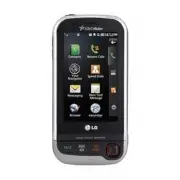
Page 2 - Precaución de Seguridad Importante
Copyright ©2010 LG Electronics, Inc. All rights reserved . LG and the LG logo are registered trademarks of LGGroup and its related entities. All other trademarks are theproperty of their respective owners. HOW TO GET WARRANTY SERVICE: T el. 1-8 00-7 93-8 8 96 or F ax. 1-800-4 4 8-4 0 26 UX840_cover_...
Page 4 - C o n te n i d o; Contenido
Important Safety Precautions 2 Impor tant Safe ty Precautions 1. Do not expose the battery charger or adapter to direct sunlight or use it in places with high humidity, such asa bathroom. 2. Do not use harsh chemicals (such as alcohol, benzene, thinners, etc.) or detergents to clean your phone. This...
Page 6 - Multimedia
Ta b l e o f C o n te n ts 4 T able of Cont ent s Important Safety Precautions 1 Table of Contents 4 Welcome 9 Technical Details 10 FCC RF Exposure Information 12 Bodily Contact During Operation 12 Vehicle-Mounted the External Antenna 13 FCC Notice and Cautions 13 Caution 14 Part 15.21 statement 14 ...
Page 7 - Seguridad
5 T able of Cont ent s Making a Call From Your Phone’sMemory 35 Using Phone Menus 36 Contacts 36 1. New Contact 36 2. Contact List 37 3. Speed Dials 37 4. Groups 38 5. My Name Card 38 Recent Calls 39 1. Missed Calls 39 2. Received Calls 40 3. Dialed Calls 40 4. All Calls 40 5. Call Timer 40 6. Data ...
Page 8 - Accesorios
Table of Contents 6 T able of Cont ent s 7.1 Repeat 63 7.2 Shuffle 63 7.3 Background Music 63 Record Video 64 My Stuff 65 Record Voice 65 Documents 66 PAC-MAN 66 Games 66 Voice Command 67 1. Start Command 67 1.1 Call <Name> or <Number> 67 1.2 Voicemail 67 1.3 Missed Calls 67 1.4 Messages...
Page 9 - B i e nve n i d o s; Teclado de 15 teclas
7 T able of Cont ent s 3. Message Alerts 76 4. Alert Type 77 5. Service Alerts 77 6. Power On/Off Tones 78 7. Slide Tone 78 Display 79 1. Wallpaper 79 1.1 Screen 79 1.2 Shuffle 79 2. Banner 80 3. Backlight 80 4. Brightness 80 5. Menu Style 81 6. Languages 81 7. Clock & Calendar 81 8. Font Settin...
Page 10 - D eta l l es Té c n i c o s; Información importante; Detalles técnicos
Table of Contents 8 T able of Cont ent s 4. Memory 93 5. USB Connection Mode 93 6. Phone Info 93 6.1 My Number 94 6.2 ESN/MEID 94 6.3 Icon Glossary 94 6.4 Version 94 7. Master Reset 95 Call Settings 95 1. Answer Options 95 2. Auto Retry 96 3. One-Touch Dial 96 4. Voice Privacy 96 5. Auto Volume 97 6...
Page 12 - Detalles Técnicos
Te c h n i c a l D eta i l s 10 T echnical De tails Important Information This user’s guide providesimportant information on the useand operation of your phone.Please read all the informationcarefully prior to using thephone for the best performanceand to prevent any damage to ormisuse of the phone....
Page 14 - D es c r i p c i ó n g e n e ra l d e l te l é f o n o
Technical Details 12 T echnical De tails FCC RF Exposure Information WARNING! Read thisinformation before operatingthe phone. In August 1996, the FederalCommunications Commission(FCC) of the United States, withits action in Report and OrderFCC 96-326, adopted anupdated safety standard forhuman expos...
Page 15 - Teclas suaves sensibles al tacto
13 T echnical De tails Vehicle-Mounted the ExternalAntenna (Optional, if available.) To satisfy FCC RF exposurerequirements, keep 8 inches (20cm) between the user /bystander and vehicle-mountedthe external antenna. For moreinformation about RF exposure,visit the FCC website atwww.fcc.gov. FCC Notice...
Page 16 - Descripción general del teléfono; Si la tapa está cerrada y está
Welcome 14 W e lcome Caution Use only the supplied andapproved antenna. Use ofunauthorized antennas ormodifications could impair callquality, damage the phone, voidyour warranty and/or result inviolation of FCC regulations. Donot use the phone with adamaged antenna. If a damagedantenna comes into co...
Page 17 - Menú Atajo De La Pantalla Táctil; las teclas suaves sensibles; Acceso; En el modo de espera, toque la pantalla táctil con el dedo.
15 W e lcome can radiate radio frequencyenergy and, if not installed andused in accordance with theinstructions, may cause harmfulinterference to radiocommunications. However, thereis no guarantee that interferencewill not occur in a particularinstallation. if this equipmentdoes cause harmful interf...
Page 18 - Descripción general de los menús
P h o n e O ve r v i ew 16 Phone Ov ervie w 1. Earphone Jack Allows the use of a headset to hear caller's voice. 2. Proximity Sensor When close (within 2-3 cm) to this sensor during a call, LCD turnsoff allowing you to only adjust volume orend the call so that you don't inadvertentlyactivate a featu...
Page 20 - Pantalla; Bluetooth
Phone Overview 18 Phone Ov ervie w 5. When the LCD screen is off, touch keys are deactivated.Press the Unlock Key ( ) to turn on the Touch Screen andtouch keys. 6. The Screen Lock feature protects against accidental keypresses during phone calls withthe flip closed. 7. Keep metal and other conductiv...
Page 21 - Acceso a los menús; Toque la tecla sensitiva MENÚ
TIP Keep in mind that the smaller the text appears on the screen, the smaller the area of touch activation. Try zooming the screen in, if available, to increase thetouch area. 19 Phone Ov ervie w The Touch Screen is a great way to interact with the ’s software. Take a little time to become accustome...
Page 22 - La batería; Instalación de la batería; Cargar la batería; Para hacer funcionar su teléfono por primera vez
Phone Overview 20 Phone Ov ervie w Main Multimedia Widget Contacts Set the features and items you want on each home screen and evendisplay different backgrounds for each one. 1. Message Displays the Messaging Menu. 2. Call Displays the Dialing Touchpad. 3. Menu Displays the Main Menu. 4. Contacts Di...
Page 23 - Nivel de carga de la batería; Encender el teléfono; Instale una batería cargada o; Apagar el teléfono; Mantenga presionada; Fuerza de la señal
M e nu s O ve r v i ew 21 Men us Ov ervie w Communication Contacts New ContactContact ListSpeed DialsGroupsMy Name Card Recent Calls Missed CallsReceived CallsDialed CallsAll Calls Call TimerData Counter Your Navigator Speed Dials Messaging New Text MessageNew Picture MessageInboxOutboxDraftsVoicema...
Page 24 - Iconos en pantalla; Glosario de Iconos; Hacer llamadas; END
Menus Overview 22 Men us Ov ervie w VideosAudiosDocuments Record Voice Documents PAC-MAN Games DartHomerun DerbyPac ManMore games Utilities Voice Command Start CommandCommand ModeAnnounce ModeTrain WordBest Match Alarm Clock Organizer CalendarDate Finder World Clock Tools CalculatorEz Tip Calculator...
Page 25 - Remarcado de llamadas
23 Men us Ov ervie w Text Message Picture Message Voicemail All Messages Message Reminder Alert Type Call Alert Message Alert Schedule Alert Alarm Alert Service Alerts Minute Beep Call Connect Low Battery Power On/Off Tones Slide Tone Display Wallpaper Screen Main Widget Contacts Multimedia Lock Scr...
Page 26 - Acceso rápido a funciones prácticas; Modo de bloqueo; durante 3; Función de silencio; Mudo; Ajuste rápido del volumen
Memory Handset Common MemoryHandset Reserved MemoryExternal MemoryPrimary Storage Setting ImagesVideosAudiosDocuments USB Connection ModePhone Info My NumberESN/MEIDIcon GlossaryVersion Master Reset Call Settings Answer Options Auto Retry One-Touch Dial Voice Privacy Auto Volume Airplane Mode TTY Mo...
Page 27 - para recibir una; ID de Llamador
G ett i n g S ta r te d w i t h Yo u r P h o n e 25 Getting St ar ted with Y our Phone The Battery The phone comes with arechargeable battery. Keep thebattery charged while not in usein order to maximize talk andstandby time. The battery chargelevel is shown at the top of theLCD screen. Installing t...
Page 28 - I n t ro d u c i r y e d i ta r i n f o r m a c i ó n; Entrada de texto; Uso de la pantalla táctil
2. Gently uncover the accessory charging port, then plug theend of the AC adapter intothe phone’s charger port andthe other end into anelectrical outlet. 3. The charge time varies depending upon the batterylevel. B attery Charge Level The battery charge level is shownat the top right of the LCDscree...
Page 29 - Contactos en la memoria del teléfono; En el modo de espera
27 Getting St ar ted with Y our Phone Signal Strength Call quality depends on thesignal strength in your area. Thesignal strength is indicated onthe screen as the number of barsnext to the signal strength icon . The more bars, the better the signal strength. If the signalquality is poor, move to an ...
Page 32 - Enviar contacto
1. Press to receive a waiting call. 2. Press again to switch between calls. Caller ID Caller ID displays the phonenumber or name of the incomingcall. If the caller’s identity is storedin Contacts, the name will appearalong with the phone number.Check with your service provider toensure they offer th...
Page 34 - Uso de los menús del teléfono; Llamada Perdidas
C o n ta c ts i n Yo u r P h o n e ’s M e m o r y 32 Cont acts in Y our Phone’ s Memory The Basics of StoringContacts Entries 1. Open the slide to reveal the keypad and enter the phonenumber you want to save (upto 48 digits). 2. Touch . 3. Touch Save and select either Add New Contact or Update Exist...
Page 35 - Llamadas Entrantes
33 Cont acts in Y our Phone’ s Memory 2-Sec Pause (P) The phone waits 2 secondsbefore sending the next string ofdigits. Storing a Number with Pauses 1. Touch . 2. Touch Contacts . 3. Touch New Contact . 4. Enter a name (up to 32 characters) and touch thenumber field to enter anumber. 5. Touch and se...
Page 37 - Nuevo contacto
35 Cont acts in Y our Phone’ s Memory Delete All Delete all Contacts in the list. Making a Call From YourPhone’s Memory Once you have stored phonenumbers in your Contacts, youcan place calls to those numbersquickly and easily. By highlighting a phonenumber in Contacts or RecentCalls, and pressing or...
Page 38 - Nueva Contacto
36 U s i n g P h o n e M e nu s Communicate Comm unica te Contacts The Contacts Menu allows youto store names, phone numbersand other information in yourphone’s memory. 1. New Contact Allows you to add a new contactto your Contact List. 1. Touch . 2. Touch . 3. Touch New Contact . 4. Enter the name....
Page 39 - Toque el ícono que está; Mi Tarjeta de Nombre; Mi Tarjeta de
37 Comm unica te 2. Contact List Allows you to view your ContactList. 1. Touch . 2. Touch . 3. Touch Contact List . 4. Choose from the following options: Scroll through yourContacts alphabetically. Touch to select one of the following: Send Message/ Delete/Sort By/ Send viaBluetooth/ Delete All Touc...
Page 40 - Nuevo Mensaje Texto; Mensajería
Communicate Comm unica te 4. Groups Allows you to view your groupedContacts, add a new group,change the name of a group, ordelete a whole group. 1. Touch . 2. Touch . 3. Touch Groups . 4. Choose from the following options: Touch a group to view. Touch a group, then touch to choose from the following...
Page 41 - Referencia de los iconos de mensaje
39 Comm unica te Recent Calls The Recent Calls Menu is a listof phone numbers or Contactentries for calls you placed,accepted, or missed. It iscontinually updated as newnumbers are added to thebeginning of the list and theoldest entries are removed fromthe bottom of the list. 1. Missed Calls Allows ...
Page 42 - Opciones de texto; Agregar; Nuevo Mensaje Foto
Communicate 40 Comm unica te 2. Received Calls Allows you to view the list ofincoming calls; up to 50 entries. 1. Touch . 2. Touch . 3. Touch Received Calls . 4. Touch the entry. 3. Dialed Calls Allows you to view the list ofoutgoing calls; up to 50 entries. 1. Touch . 2. Touch . 3. Touch Dialed Cal...
Page 43 - Enviar
41 Comm unica te 6. Data Counter Allows you to view the list ofreceived and transmitted datacalls. 1. Touch . 2. Touch . 3. Touch Data Counter . 4. Transmitted data are displayed for the following types: Received Data / Sent Data / All Data Your Navigator Download application formMobile Shop. Now yo...
Page 46 - Guardar Vídeo
Communicate 44 Comm unica te 2. New Picture Message Allows you to send messages withText, Image/ Video, and Audio. 1. Touch Messaging and New Picture Message . 2. Touch to enter the recipient's addressor to add contact. 3. Touch the corresponding field to add Text, Image/ Video,and Audio to your mes...
Page 47 - Toque para
45 Comm unica te 5. When you touch the Audio field, your have the option ofattaching a saved Audio file, orRecording a new one. 6. Options with the Menu: Insert Slide Inserts slide to add more picture message. Preview Shows your message before sending. Save to Draft Saves the current message as a Dr...
Page 50 - easyedge; Descarga de aplicaciones
Communicate 48 Comm unica te 5. Drafts Displays saved messages anddraft messages. 1. Touch Messaging and Drafts . 2. Touch to choose from the following options: Delete Deletes the selected message from the Drafts. Lock/Unlock Locks a message so that it is not erased if theErase Saved or Erase All fe...
Page 52 - Música; M u l t i m e d i a
Communicate 50 Comm unica te Browser The Browser feature allows youto view Internet content.Accessibility and selectionswithin this feature are dependentupon your service provider. Forspecific information on Webcontact your service provider. Start Browser Allows you to initiate an Websession. 1. Tou...
Page 53 - Shuffle; Tomar Foto
51 Comm unica te Command Bar icons: The Items Command Barprovides the following toolbarbuttons. Back to go back to the previous page. Forward (if available) takes you back to the nextpage. Refresh Allows you to reload the current Web page. Home Returns to Home Page. Zoom Allows you to zoom the scree...
Page 55 - Imágenes; Imágene; Grabar Vídeo
53 Comm unica te Manage Memory Manages memory used by browser. Information Show URL Redisplays current Web page. About Displays the current browser information. Thumbnail Option in BrowserMenu This option displays the entireoutline of the Web page in thescreen corner, which is helpful tofind out whe...
Page 56 - Calidad; Vídeo; Le permite elegir vídeo clips.
Communicate 54 Comm unica te Entering/Deleting Text,Numbers or Symbols When text, numbers or symbolsneed to be entered on thescreen, a Touch Keypad will popup when you touch the text field,on the screen. Simply touch thecharacters you want and touch to delete. Flash Contents has FlashLite engine tha...
Page 57 - Grabar Voz; para; Audio; Le permite elegir audioclips.
55 Comm unica te Using RSS reader RSS (Really Simple Syndication)is a family of web feed formatsused to publish frequentlyupdated content such as blogentries, news headlines orpodcasts. An RSS document,which is called a feed, web feed,or channel, contains either a summary of content from anassociate...
Page 58 - H e r ra m i e n tas; Voz Comando; nombre del Contacto al que; Alarma de Reloj
Communicate 56 Comm unica te To add an RSS feed You must first be on a websitethat supports RSS. The RSSregistration indicator will showthe RSS icon if the site has RSS. Touch the RSS registrationindicator next to the URL field(as shown in the first screenshotbelow) to add the RSS Feed toyour Feeds....
Page 59 - Calendario
57 Comm unica te Fit To Width A browser function that resizes the current webpage to fit better withthe width of the screen. Fit To Width icon: Allows you to adjust zoom level of Browser screen. To configure the Fit To Width settings,follow the steps below: Browser Menu > Settings > Display &g...
Page 60 - Herramientas; Ciudad; Calculadora; Ez Sugerencia
Communicate 58 Comm unica te easyedge easy edge SM allows you to do more than just talk on your phone. easy edge SM is a technology and service that allows you todownload and use applications onyour phone. With easy edge SM , it is quick and easy to personalizeyour phone to your lifestyle andtastes....
Page 61 - Guar
Entertainment 59 Ent e rt ainment Take Photo 1. Touch . 2. Touch . 3. Touch Take Photo or use the one of the following optionsto customize your settings: Back Record Video Changes from Camera mode to Video mode. Zoom (not available at highest resolution). Brightness Shot Mode Multishot/ Templates Se...
Page 62 - A m b i e n te
Entertainment 60 Ent e rt ainment Others Tab Settings Memory Storage Internal/ External Auto Focus On/ Off View Option Actual View/ Full Screen Shutter Sound Shutter/ No Sound/ Say “Cheese”/Ready! 1 2 3/ Auto Save On/ Off Send Reminder On/ Off Reset On/ Off 4. Take a picture by pressing the Camera b...
Page 64 - Opciones de el Tipo de Fuente
Entertainment 62 Ent e rt ainment 2. Touch . 3. Touch Music . 4. Touch Artists and touch the Artist you want to listen to. 4. Albums Allows you to view and listen toyour music by Album. 1. Touch . 2. Touch . 3. Touch Music . 4. Touch Albums and touch the Album you want to listen to. 5. Genres Allows...
Page 65 - Toque un timbre y toque; OK
63 Ent e rt ainment 7. Settings Allows you to customize musicplayback settings. 7.1 Repeat Allows you to set repeat settings. 1. Touch . 2. Touch . 3. Touch Music . 4. Touch Settings . 5. Touch Repeat . Repeat One/ Repeat All/ Off 7.2 Shuffle Allows you to set shuffle settings. 1. Touch . 2. Touch ....
Page 66 - Toque un estilo de tono y; Bip de Minuto
Entertainment 64 Ent e rt ainment Record Video 1. Touch . 2. Touch . 3. Touch Record Video and use the one of the followingoptions to customize yoursettings: Back Take Photo Changes from Video mode to Cameramode. Zoom Brightness Resolution 320X240/176X144 My Videos Video Tab Settings Color Effects N...
Page 67 - Batería baja
65 Ent e rt ainment Others Tab Settings Memory Storage Internal/ External Mute On/ Off Auto Save On/ Off Send Reminder On/ Off Reset On/ Off 4. Press the Camera button or to begin recording. 5. Press the Camera button or to stop recording. 6. A Send options menu will popup, allowing you to sendthe v...
Page 68 - Calibración; es de
Entertainment 66 Ent e rt ainment Touch to stop. Touch to pause. 5. After recording, voice memo is automatically saved in yourphone. Documents Allows you to view documentssaved in phone. 1. Touch . 2. Touch . 3. Touch Documents . 4. Touch the Document to open it. For memory options, touchOptions and...
Page 69 - Consulte las instrucciones del
Utilities 67 Utilitie s Voice Command Allows you to make phone callsquickly and easily by voice. Yourphone recalls the number fromyour Contacts, displays it briefly,and then dials it. This menu alsoincludes a feature for those whoare driving or blind. It deliverstime and date information byvoice and...
Page 70 - Potencia Encender
Utilities 68 Utilitie s 1. Touch . 2. Touch . 3. Touch Voice Command . 4. Touch Start Command . 5. Say Missed Calls . 1.4 Messages This voice command feature willread out information frommessages received. 1. Touch . 2. Touch . 3. Touch Voice Command . 4. Touch Start Command . 5. Say Messages . 1.5 ...
Page 71 - Visibilidad Escondido
69 Utilitie s 2. Command Mode Allows you to choose betweenNormal or Speed settings. TheSpeed setting allows you toaccess the Voice Commandfunctions more quickly with anon-verbal prompt. 1. Touch . 2. Touch . 3. Touch Voice Command . 4. Touch Command Mode . 5. Select options. Normal/ Speed 3. Announc...
Page 72 - Conexión USB
Utilities 70 Utilitie s 5. Best Match Allows you to customize BestMatch settings. 1. Touch . 2. Touch . 3. Touch Voice Command . 4. Touch Best match . 5. Select options. 1 Match/ 4 Matches Alarm Clock Allows you to set up to Fivealarms. At the alarm time, any setalarm will sound and/or vibrate(accor...
Page 73 - Cerciórese de que se haya; en el; Los archivos del reproductor
71 Utilitie s Organizer 1. Calendar Allows you to store and accessyour agenda(s). Simply storeyour appointments in yourCalendar and your phone willalert you with a reminder. 1. Touch . 2. Touch . 3. Touch Organizer , and Calendar. 4. Touch the calendar day (twice). 5. Touch . 6. Enter your schedule ...
Page 74 - Una vez que haya terminado
Utilities 72 Utilitie s 4. Scroll through the continents by touching the arrows underthe globe. 5. Touch to view the cities. 6. Touch a city to view the current date and time in thatcity. Or 5. Touch to choose from a list of available cities. 6. Touch a city from the list. Touch to view the current ...
Page 75 - Al Encenderse
73 Utilitie s Touch the correspondingTouch Keys to enterfunctions ( +, -, x, / ). Touch to complete equation. 2. Ez Tip Calculator Allows you to quickly and easilyestimate the tip and totalamount of a bill by inputting thebill amount before tip, the tippercentage, and divide it by thenumber of peopl...
Page 77 - desconecte una llamada.
75 Utilitie s Options for a Drawing PadEntry 1. Access Drawing Pad and select the entry. 2. To erase, touch . To edit, touch . To send as a Picture Message,touch . Notepad Allows you to add, read, edit,and erase notes to yourself. 1. Touch . 2. Touch . 3. Touch Notepad . 4. Touch to write a new note...
Page 79 - Lea el mensaje de advertencia
77 Sett ings 3. Touch Sound and Message Alerts . 4. Touch Text Message / Picture Message / Voicemail / All Messages / Message Reminder. 5. Touch a ringtone. For the Message Reminder option, choose from thefollowing settings: Once/ Every 2 Minutes/Every 15 Minutes/ Off 4. Alert Type Allows you to sel...
Page 80 - Sistema
Settings 78 Settings Minute Beep Alerts you 10 seconds before theend of every minute during a call. Call Connect Alerts you when the call isconnected. Low Battery Alerts you when the batterycharge level is low. Announce / Tone 6. Power On/Off Tones Allows you to set the phone tosound a tone when the...
Page 81 - Sistema de Servicio; Leer el instrucióne y toque
79 Sett ings Display Options to customize yourphone's display screen. 1. Wallpaper Allows you to choose the kind ofbackground to be displayed onthe phone. 1.1 Screen 1. Touch . 2. Touch . 3. Touch Display , Wallpaper then Screen. 4. Touch a submenu. Main/ Widget/ Contacts/Multimedia/ Lock Screen 5. ...
Page 82 - Mi Numero; Glosario de Iconos
Settings 80 Settings 2. Banner Allows you to enter a string ofcharacters which display on theMain Home Screen and Lockscreen. 1. Touch . 2. Touch . 3. Touch Display and Banner . 4. Touch the Status field and touch On/ Off . 5. Touch the Text field and type your Banner text. 6. When you are finished,...
Page 83 - Versión
81 Sett ings 5. Menu Style Allows you to choose the style inwhich the Main Menu displays. 1. Touch . 2. Touch . 3. Touch Display and Menu Style . 4. Touch a setting. Claro Style/ 3D Icon Style 6. Languages Allows you to use the bilingualfeature according to yourpreference. Choose betweenEnglish and ...
Page 84 - S e g u r i d a d; El diseño de su teléfono cumple
Settings 82 Settings 8. Font Settings Allows you to select the type offont displayed on LCD. 1. Touch . 2. Touch . 3. Touch Display and Font Settings . 4. Touch a sub-menu. Font Type/ Dial Font Size Options for Font Type LG Gothic/ LG Serif/ LG Joy/ LG Script Options for Dial Font Size Normal/ Large...
Page 86 - Dispositivos electrónicos
Settings 84 Settings 3. Thumbpad Effect Allows you to customize theThumbpad Calibration andThumbpad Sensitivity. 1. Touch . 2. Touch . 3. Touch Touch and Thumbpad Effect . 4. Touch a sub-menu. Thumbpad Calibration/Thumbpad Sensitivity Bluetooth ® The is compatible with devices that support theBlueto...
Page 89 - No seguir las
87 Sett ings 4.2 Device Name Allows you to edit the name ofthe Bluetooth ® device. 1. Touch . 2. Touch . 3. Touch Bluetooth , and My Bluetooth Info. 4. Touch . 5. Hold down to clear the existing name. 6. Enter a new alias. 7. Touch to save and exit. 4.3 My Bluetooth Info Allows you to view your phon...
Page 91 - Aviso general
89 Sett ings 1. Touch . 2. Touch . 3. Touch System , Network and Auto NAM . 4. Touch a setting. On / Off 1.4 Serving System Identifies the channel number ofa system that is served as a SIDNumber. This information shouldonly be used for technicalsupport. 1. Touch .2. Touch . 3. Touch System , Network...
Page 92 - No pinte el teléfono.; ¡Información de; Evite los daños a la audición
Settings 90 Settings Phone Settings 1. Power Save Allows you to set power savemode. 1. Touch . 2. Touch . 3. Touch Phone Settings and Power Save . 4. Touch a setting. ON/ OFF 2. Auto Lock Allows you to set the automaticscreen lock. 1. Touch . 2. Touch . 3. Touch Phone Settings and Auto Lock. 4. Touc...
Page 94 - Actualización de
Settings 92 Settings 5. Enter the four-digit lock code to confirm. The default lockcode is commonly the last 4digits of your phone number. 3.3 Emergency Numbers Allows you to enter 3 emergencynumbers. You can call theseemergency numbers and 911,even when the phone is lockedor restricted. 1. Touch . ...
Page 96 - Environmental Protection Agency
Settings 94 Settings 3. Touch Phone Settings , Phone Info . 6.1 My Number Allows you to view your phonenumber. 1. Touch . 2. Touch . 3. Touch Phone Settings , Phone Info and My Number . 6.2 ESN/MEID Allows you to view the ESNand/or MEID information of yourphone. 1. Touch . 2. Touch . 3. Touch Phone ...
Page 105 - Conozca su teléfono
103 Safe ty equipment that could besensitive to external RF energy. Vehicles RF signals may affect improperlyinstalled or inadequatelyshielded electronic systems inmotor vehicles. Check with themanufacturer or itsrepresentative regarding yourvehicle. You should also consultthe manufacturer of anyequ...
Page 106 - Termine las conversaciones
Safety 104 Safe ty petroleum gas (such as propaneor butane); areas where the aircontains chemicals or particles(such as grain, dust, or metalpowders); and any other areawhere you would normally beadvised to turn off your vehicleengine. For Vehicles Equipped with anAir Bag An air bag inflates with gr...
Page 107 - No mantenga conversaciones
105 Safe ty Only use the approved batterycharger. Otherwise, you maycause serious damage to yourphone. Battery Information and Care Please dispose of your batteryproperly or take it to yourlocal wireless carrier forrecycling. The battery doesn't need tobe empty before recharging. Use only LG-approve...
Page 108 - Llame al servicio de asistencia
Safety 106 Safe ty Unplug the power cord priorto cleaning your phone, andclean the power plug pin whenit’s dirty. When using the power plug,ensure that it’s firmlyconnected. If not, it may causeexcessive heat or fire. If you put your phone in apocket or bag withoutcovering the receptacle of thephone...
Page 109 - Su teléfono
107 Safe ty in a safe place with the powercord unplugged. Using the phone in proximityto receiving equipment (i.e.,TV or radio) may causeinterference to the phone. Do not use the phone if theantenna is damaged. If adamaged antenna contactsskin, it may cause a slightburn. Please contact an LGAuthoriz...
Page 115 - Compatibilidad y control de volumen según la FCC
113 Safe ty connected to the telephonewiring in a house, typicallyoperate at far lower power levels,and thus produce RF exposuresfar below the FCC safety limits. 4. What are the results of theresearch done already? The research done thus far hasproduced conflicting results, andmany studies have suff...
Page 116 - Ac c es o r i o s; argador
Safety 114 Safe ty wireless phone RF exposures.However, none of the studies cananswer questions about long-term exposures, since theaverage period of phone use inthese studies was around threeyears. 5. What research is needed todecide whether RF exposurefrom wireless phones poses ahealth risk? A com...
Page 117 - D e c l a ra c i ó n D e G a ra n t í a L i m i ta d a
115 Safe ty high priority animal studies areconducted to address importantquestions about the effects ofexposure to Radio Frequency(RF) energy. The FDA has been a leadingparticipant in the World HealthOrganization InternationalElectro Magnetic Fields (EMF)Project since its inception in1996. An influ...
Page 118 - Declaración De Garantía Limitada; LO QUE NO CUBRE ESTA
Safety 116 Safe ty guidelines in consultation withthe FDA and the other federalhealth and safety agencies. TheFCC limit for RF exposure fromwireless phones is set at aSpecific Absorption Rate (SAR)of 1.6 watts per kilogram (1.6W/kg). The FCC limit isconsistent with the safetystandards developed by t...
Page 120 - DERECHOS DE LA LEY
Safety 118 Safe ty headset and carry the wirelessphone away from your body oruse a wireless phone connectedto a remote antenna. Again, thescientific data do notdemonstrate that wirelessphones are harmful. But if youare concerned about the RFexposure from these products,you can use measures like thos...
Page 121 - CÓMO OBTENER SERVICIO
119 Safe ty 11. What about wireless phoneinterference with medicalequipment? Radio Frequency (RF) energyfrom wireless phones can interactwith some electronic devices. Forthis reason, the FDA helpeddevelop a detailed test methodto measure Electro MagneticInterference (EMI) of implantedcardiac pacemak...
Page 122 - Í n d i c e
Safety 120 Safe ty 12. Where can I find additionalinformation? For additional information, please refer to the following resources: FDA web page on wirelessphones(http://www.fda.gov/cellphones/) Federal CommunicationsCommission (FCC) RF SafetyProgram(http://www.fcc.gov/oet/rfsafety) International Co...