Page 2 - Important Safety Precautions
Important Safety Precautions 2 Impor tant Safe ty Precautions 1. Do not expose the battery charger or adapter to direct sunlight or use it in places with high humidity, such asa bathroom. 2. Do not use harsh chemicals (such as alcohol, benzene, thinners, etc.) or detergents to clean your phone. This...
Page 4 - Ta b l e o f C o n te n ts; Table of Contents
Ta b l e o f C o n te n ts 4 T able of Cont ent s Important Safety Precautions 1 Table of Contents 4 Welcome 10 Technical Details 11 Important Information 11 FCC Part 15 Class B Compliance 11 Technical Details 11 FCC RF Exposure Information 13 Bodily Contact During Operation 13 Vehicle-Mounted the E...
Page 5 - Using Phone Menus; Contacts
5 T able of Cont ent s Correcting Dialing Mistakes 27 Redialing Calls 28 Receiving Calls 28 Quick Access to ConvenientFeatures 29 Lock Mode 29 Mute Function 29 Volume Quick Adjustment 29 Call Waiting 30 Caller ID 30 Speed Dialing 30 Entering and EditingInformation 32 Text Input 32 Key Functions 32 C...
Page 7 - Settings
7 T able of Cont ent s 1.1.2 Voicemail 65 1.1.3 Missed Calls 66 1.1.4 Messages 66 1.1.5 Time & Date 66 1.1.6 Help 66 1.2 Command Mode 66 1.3 Announce Alert 67 1.4 Train Word 67 1.5 Best Match 67 2. My Menu 67 3. Calendar 68 4. Ez Tip Calc 68 5. Notepad 68 6. Calculator 69 7. World Clock 69 8. St...
Page 8 - Alarm Clock; Safety
Table of Contents 8 T able of Cont ent s 4.2 Restrictions 77 4.3 Emergency #s 77 4.4 Change Lock Code 78 4.5 Reset Default 78 5. Call Settings 79 5.1 Answer Options 79 5.2 Auto Retry 79 5.3 One-Touch Dial 79 5.4 Voice Privacy 80 5.5 Airplane Mode 80 5.6 TTY Mode 80 6. PC Connection 81 7. System 81 7...
Page 9 - Accessories
9 T able of Cont ent s For Vehicles Equipped with an Air Bag 89 Safety Information 89 Charger and Adapter Safety 89 Battery Information and Care 90 Explosion, Shock, and Fire Hazards 90 General Notice 91 Warning! Important safetyinformation 92 Avoiding hearing damage 92 Using your phone safely 93 Av...
Page 10 - We l c o m e; Thank you for choosing the
We l c o m e 10 W e lcome Thank you for choosing the cellular phone, designed to operate with thelatest digital mobilecommunication technology,Code Division Multiple Access(CDMA). Along with the manyadvanced features of the CDMAsystem, this compact phoneoffers: G Significantly enhanced voiceclarity ...
Page 11 - Te c h n i c a l D eta i l s; Important Information; The
Te c h n i c a l D eta i l s 11 T echnical De tails Important Information This user’s guide providesimportant information on the useand operation of your phone.Please read all the informationcarefully prior to using thephone for the best performanceand to prevent any damage to ormisuse of the phone....
Page 12 - Technical Details
Technical Details 12 T echnical De tails The Cellular and PCS CDMAnetworks consist of MSO (MobileSwitching Office), BSC (Base Station Controller), BTS (BaseStation Transmission System),and MS (Mobile Station). CDMA Standard Basic AirInterface TIA/EIA-95ATSB-74ANSI J-STD-008TIA/EIA-IS2000ANSI TIA/EIA...
Page 13 - FCC RF Exposure Information
13 T echnical De tails * TSB-74: Protocol between an IS-95A system and ANSI J-STD-008 1xRTT system receives twice asmany subscribers in the wirelesssection as IS-95. Its battery lifeis twice as long as IS-95. High-speed data transmission is alsopossible. The table (on the previous page)lists some ma...
Page 14 - FCC Notice and Cautions
Technical Details 14 T echnical De tails extended or retracted. Third-party belt-clips, holsters, andsimilar accessories containingmetallic components should notbe used. Avoid the use ofaccessories that cannot maintain0.79 inches (2.0 cm) distancebetween the user’s body and theback of the phone and ...
Page 15 - - Reorient or relocate the
15 T echnical De tails Don't use the phone with adamaged antenna. A damagedantenna could cause a minor skinburn. Contact your local dealerfor a replacement antenna. Part 15.105 statement This equipment has been testedand found to comply with thelimits for a class B digital device,pursuant to Part 15...
Page 16 - P h o n e O ve r v i ew
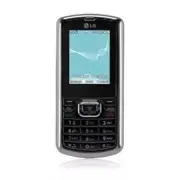
P h o n e O ve r v i ew 16 Phone Ov ervie w 1. Earpiece Lets you hear the caller. 2. LCD Screen Displays messages and indicator icons. When the phone is turned on, power save modeautomatically dims the screen and then darkens it if nokeys are pressed. 3. Left Soft Key Use to access Messaging when in...
Page 18 - Phone Overview; Entering Text With the QWERTY Keyboard; Press
Phone Overview 18 Phone Ov ervie w Entering Text With the QWERTY Keyboard Your phone features a slide-out QWERTY keyboard, specificallydesigned for easy and comfortable text entry. The QWERTY keyboarduses the same layout and works just like the keyboard on yourcomputer. The easiest way to enter text...
Page 19 - To enter text with the QWERTY keyboard:
19 Phone Ov ervie w To enter text with the QWERTY keyboard: 1. In any text entry screen, slide open the QWERTY keyboard. (The display automatically adjusts to landscape mode.) 2. Use your thumbs to enter text. ● To change capitalization, press . ● To enter alternate characters on a key, press and th...
Page 20 - M e nu s O ve r v i ew
M e nu s O ve r v i ew 20 Men us Ov ervie w Contacts 1. New Contact2. Contact List3. Groups4. Speed Dials5. My Name Card Messaging 1. New Text Message2. New Picture Message 3. Inbox4. Sent5. Drafts6. Voicemail7. Templates8. Settings 1. All Messages2. Text Message3. Picture Message 4. Edit Voicemail#...
Page 21 - Tools
21 Men us Ov ervie w Tools 1. Voice Command 1. Start Command2. Command Mode 3. Announce Alert4. Train Word5. Best Match 2. My Menu3. Calendar4. Ez Tip Calc5. Notepad6 Calculator7. World Clock8. Stopwatch9. Unit Converter Settings 1. Sound 1. Ringers2. Volume3. Message Alerts4. Alert Type 5. Service ...
Page 22 - Menus Overview
Menus Overview 22 Men us Ov ervie w 3. Icon Glossary4. Version PAC-MAN Alarm Clock Your Navigator Menu Access Press Menu to access the twelvephone menus. Thereare two methods ofaccessing menus andsubmenus: G Use the navigationkey to highlightand select, or G Press the numberkey thatcorresponds witht...
Page 23 - G ett i n g S ta r te d w i t h Yo u r P h o n e; The Battery; Installing the Battery; While holding the battery; Charging the Battery; Warning! Use only the charger; Note
G ett i n g S ta r te d w i t h Yo u r P h o n e 23 Getting St ar ted with Y our Phone Notice Please makesure that theLG logo of thecharger connectorfaces down before inserting acharger, data cable, etc into thecharger port of your phone. The Battery The phone comes with arechargeable battery. Keep ...
Page 24 - Getting Started with Your Phone
1. Plug the end of the adapter into the phone’s charger portand the other end into anelectrical outlet. 2. The charge time varies depending upon the batterylevel. Removing and Installing theFaceplate Removing the Faceplate ● Do not use an object with asmall point or card, such as apush pin or thumb ...
Page 25 - Card
25 Getting St ar ted with Y our Phone How to Install YourmicroSD ™ Card 1. Locate the microSD ™ slot on the right side of the phoneand gently uncover the slotopening (microSD ™ slot cover stays attached to the phoneso you don't lose it). 2. Insert the microSD ™ card facing up and push in until itcli...
Page 26 - Turning the Phone On; Install a charged battery or; Turning the Phone Off; until the; Signal Strength
B attery Charge Level The battery charge level is shownat the top right of the LCDscreen. When the battery chargelevel becomes low, the lowbattery sensor alerts you in threeways: sounding an audible tone,blinking the battery icon, anddisplaying a warning message. Ifthe battery charge level becomesex...
Page 27 - Screen Icons; To see the icon glossary, go to; Making Calls; Make sure the phone is; Correcting Dialing Mistakes; for
Screen Icons To see the icon glossary, go to Menu -> Settings -> Phone Info -> Icon Glossary on your phone. Making Calls 1. Make sure the phone is turned on. If not, press for about 3 seconds to turn iton. 2. Enter the phone number (include the area code ifneeded). 3. Press . lf the phone i...
Page 28 - Redialing Calls; twice to redial the; Receiving Calls; When the phone rings or
Getting Started with Your Phone 28 Getting St ar ted with Y our Phone Redialing Calls 1. Press twice to redial the last number you dialed. Thelast 120 numbers (40 missed,40 received and 40 dialed)are stored in the call historylist and you can also selectany of these to redial. Receiving Calls 1. Whe...
Page 29 - Quick Access to Convenient Features; Lock Mode; Menu when the; Mute Function; Mute; Volume Quick Adjustment
Quick Access to Convenient Features 29 Quick A cce ss t o Con venient F e a ture s Lock Mode Keyguard Mode QuickActivation 1. Press Menu when the slide is closed. 2. Press Settings . 3. Press Keyguard Timer . 4. Highlight a timer setting, then press to select it. 7 Seconds/ 15 Seconds/ 2 Minutes/ Al...
Page 30 - Call Waiting; to receive a waiting; Caller ID
Call Waiting Your cellular service may offercall waiting. While a call is inprogress one beep indicates anincoming call. When call waitingis enabled, you may put theactive call on hold while youanswer the other incoming call.Check with your cellular serviceprovider for information aboutthis function...
Page 31 - OR
31 Quick A cce ss t o Con venient F e a ture s Dialing Single Digit SpeedDials (from 2 to 9) Press and hold the Speed Dialnumber. OR Enter the Speed Dial numberand press . Dialing Double Digit SpeedDials (from 10 to 99) Press the first digit and thenpress and hold the key of thesecond digit. OR Ente...
Page 32 - Text Input; E n te r i n g a n d E d i t i n g I n f o r m at i o n
Text Input You can input and edit yourBanner, Calendar, Contacts,Alarm Clock, Notepad, andMessages plus much more. When Entering Text Without theQWERTY Key Functions Left Soft Key : Press to scroll through thefollowing text inputmodes: T9Word (T9WORD/T9Word/T9word) -> Abc(ABC/Abc/abc) -> 123 -...
Page 33 - C o n ta c ts i n Yo u r P h o n e ’s M e m o r y
C o n ta c ts i n Yo u r P h o n e ’s M e m o r y 33 Cont acts in Y our Phone’ s Memory The Basics of StoringContacts Entries 1. From standby mode enter the phone number you want tosave (up to 48 digits). 2. Press Left Soft Key Save . 3. Select either Save New or Update Existing . 4. Use to highligh...
Page 34 - Contacts in Your Phone’s Memory
Storing a Number with Pauses 1. Press Menu . 2. Press Contacts . 3. Press New Contact . 4. Enter a name (up to 22 characters). 5. Enter the number in any of the text fields presented( Mobile 1/ Home/ Work/Mobile 2/ Fax). 6. While entering, press the Right Soft Key Options . 7. Press Wait or Pause . ...
Page 38 - U s i n g P h o n e M e nu s; Highlight the field you wish to
U s i n g P h o n e M e nu s 38 Cont acts Contacts The Contacts Menu allows youto store names, phone numbersand other information in yourphone’s memory. 1. New Contact Allows you to add a new contactto your Contact List. 1. Press , , . 2. Enter the name, then press . 3. Highlight the field you wish ...
Page 40 - Assign
Contacts 40 Cont acts 4. Speed Dials Allows you to view your SpeedDials list, designate new SpeedDials, or remove Speed Dialdesignations entered in yourContacts. 1. Press , , . 2. Use to highlight the desired Speed Dial location(or enter the Speed Dial digit),and press Assign . 3. Use to highlight t...
Page 41 - Messaging; Send
Messaging 41 Messaging Messaging The can store a total of up to 435 incomingmessages and drafts. Theinformation stored in themessages is determined byphone mode and servicecapability. Other limits such asavailable characters per messagemay exist, please check with yourservice provider for systemfeat...
Page 42 - Customize Your Text Message
Messaging 42 Messaging Groups Select a recipient from your Groups. General / Family / Friends / Colleagues / Business / School Cancel Cancels editing your message. 4. Complete your message and press to send it, or go to Options (while entering text) to Save it. Customize Your Text Message Using Opti...
Page 43 - Message Icon Reference; Inbox; or press Right Soft Key
43 Messaging Message Icon Reference Inbox New/Unread Text/Picture Message Opened/Read Text/Picture Message New/Unread Notification Message Opened/Read Notification Message Priority High MMS New/Read Priority High Sent Failed Text/Picture Message Failed Multiple Text/Picture Messages Sent Message Pen...
Page 46 - View Type
Messaging 46 Messaging When viewing a particular textmessage and the View Type is set to Detail View , the Right Soft Key Options menu will contain the following options: Delete Deletes the selected message. Forward Forwards a received message to other destinationaddress(es). Save Contact Stores the...
Page 48 - Delete
Messaging 48 Messaging 5. Drafts Displays saved messages anddraft messages. 1. Press , , . 2. Use to highlight a Saved message. G Press to Edit . G Or press the Right Soft Key Options to view the options available (below): Delete Deletes the selected message from the Drafts. Save Contact Select Save...
Page 50 - and
Messaging 50 Messaging Messaging Settings Sub-MenuDescriptions 8.1 All Messages 1. Auto Save (Auto Save/ Prompt/ Do Not Save) With this feature on, messagesare automatically saved in theSent folder when transmitted. 2. Auto Delete (On/ Off) With this feature on, readmessages are automaticallydeleted...
Page 52 - Call History; to highlight an entry.; TALK Key
Call History 52 Call Hist ory Call History The Call History Menu is a list ofthe last phone numbers orContacts entries for calls youplaced, accepted, or missed. It iscontinually updated as newnumbers are added to thebeginning of the list and theoldest entries are removed fromthe bottom of the list. ...
Page 53 - The history of all calls are
53 Call Hist ory 4. All Calls Allows you to view the list ofmissed, received and dialed calls;up to 120 entries. 1. Press , , . 2. The history of all calls are displayed. 5. Call Timer Allows you to view the durationof selected calls. 1. Press , , . 2. Use to highlight a call type (below). Last Call...
Page 54 - Multimedia; Options
Multimedia 54 Multimedia Multimedia View, take, and trade your digitalpictures right from your wirelessphone. 1. Take Photo 1. Press , , . 2. Set the brightness , zoom and press Right Soft Key Options to change other settings. G Use to highlight an option (from the onesbelow) and press . Resolution ...
Page 55 - Save to Phone
55 Multimedia Save to Phone Save to Card Memory Set As Main Screen / Picture ID 2. Record Voice Allows you to add, listen to, anderase short verbal reminders. 1. Press , , . 2. Press Record to record a new voice memo. 3. Talk into the microphone, then press Stop . 4. Press Left Soft Key to Save. The...
Page 58 - easyedge; edge; Downloading Applications; Incoming Calls
easyedge SM 58 easy edge SM easy edge SM easy edge SM allows you to do more than just talk on yourphone. easy edge SM is a technology and service thatallows you to download and useapplications on your phone. With easy edge SM , it is quick and easy to personalize your phone toyour lifestyle and tast...
Page 59 - easyedge Apps; server; Music; Shortcut
Music 59 Music 1. easyedge Apps Allows you to download selectedapplications while displaying theentire application list retrievedfrom the easy edge SM server connection. 1. Press , , . Music The comesequipped with a Music Playerwith many features. This Menualso allows you to transfer songsstored in ...
Page 62 - Bluetooth; The is; For pairing new Bluetooth; Follow the Bluetooth
Bluetooth ® 62 Blue to o th ® Bluetooth ® The is compatible with devices that support theBluetooth ® headset and hands- free profile(s)*. You may createand store 20 pairings with the and connect to one device at a time. Theapproximate communicationrange for Bluetooth ® wireless technology is up to 3...
Page 64 - then press
Bluetooth ® 64 Blue to o th ® 3. My Visibility Allows you to set the visibility ofyour Bluetooth ® device. 1. Press , , . 2. Use to select a setting, then press . Visible / Hidden 4. My Bluetooth Name Allows you to edit the name ofthe Bluetooth ® device. 1. Press , , . 2. Hold down to clear the exis...
Page 65 - To enter the Voice Command
Tools 65 T ools Tools Your phone is equipped withhelpful tools, including: VoiceCommand, My Menu, Calendar,Ez Tip Calc, Notepad, Calculator,World Clock, Stopwatch, andUnit Converter. 1. Voice Command Allows you to make phone callsquickly and easily by voice. Yourphone recalls the number fromyour Con...
Page 67 - Select the location of your
67 T ools 1.3 Announce Alert Allows you to customize theAnnounce Alert function. AlertAnnounce allows you to hearmore information about anincoming call in addition to, orinstead of, the Ring/Ringtone. 1. Press , , , . 2. between the options: Disable/ Announce/ Announce + Ring 1.4 Train Word Allows y...
Page 68 - New
Tools 68 T ools 3. Calendar Allows you to store and accessyour agenda(s). Simply enteryour appointments in theCalendar, and your phone willalert you with a reminder. 1. Press , , . 2. Use to highlight the scheduled day. Moves cursor to the left. Moves cursor to the right. Moves to the previousweek. ...
Page 72 - save
Settings 72 Settings 1.4 Alert Type Allows you to select the alerttypes. 1. Press , , , . 2. Use to highlight the alert you wish to edit. Call Alert/ Message Alerts/Calendar Alert/ Alarm Alert 3. Use to scroll through the alert types. Ring Only/ Vibrate Only/Ring & Vib 4. Press to save . 1.5 Ser...
Page 75 - Switch between the options
75 Sett ings 2. Switch between the options (below) using . Normal Clock/ AnalogClock/ Digital Clock/ DualClock/ Calendar/ Clock &Keymap/ Off 3. Press OK to set. 2.7 Font Settings Allows you to select the type offont displayed on LCD. 1. Press , , , . 2. Choose a sub-menu and press . Font Type/ D...
Page 76 - set; Dialing
Settings 76 Settings 1. Press , , , . 2. Use to set On / Off , then press . 2.0 Name Match for Dialing Allows you to turn Name Matchfor Dialing On or Off. 1. Press , , , . 2. Use to select a setting, then press . 3. Keyguard Timer Options to customize yourphone's Keyguard Timer 1. Press , , . 2. Sel...
Page 77 - Unlock
77 Sett ings 4. Use to select an option, then press . Unlock The phone will remain unlocked. Lock The phone is locked until it is unlocked again.When locked, you can receiveincoming calls and make onlyemergency calls. On Power Up The phone is locked when it is turned on. 4.2 Restrictions Allows you ...
Page 79 - to select a setting
79 Sett ings 5. Call Settings The Call Settings menu allowsyou to designate how the phonehandles both incoming andoutgoing calls. 5.1 Answer Options Allows you to determine how toanswer an incoming call. 1. Press , , , . 2. Use to select a setting (from below), then press . TALK Key Only / Any Key/ ...
Page 82 - highlight
Settings 82 Settings 7.1.2 Set NAM Allows you to select the phone’sNAM (Number AssignmentModule) if the phone isregistered with multiple serviceproviders. 1. Press , , , , . 2. Use to highlight NAM1 or NAM2 , then press . 7.1.3 Auto NAM Allows the phone toautomatically switch betweenprogrammed telep...
Page 85 - S a f ety; Antenna Care
S a f ety 85 Safe ty TIA Safety Information The following is the completeTIA Safety Information forwireless handheld phones. Exposure to Radio FrequencySignal Your wireless handheld portablephone is a low power radiotransmitter and receiver. WhenON, it receives and sends outRadio Frequency (RF) sign...
Page 86 - Phone Operation
Safety 86 Safe ty could damage the phone andmay violate FCC regulations. Phone Operation NORMAL POSITION: Hold thephone as you would any othertelephone with the antennapointed up and over yourshoulder. Tips on Efficient Operation For your phone to operatemost efficiently: Don’t touch the antennaunne...
Page 87 - Persons with Pacemakers:; interference is taking place.; Hearing Aids
87 Safe ty recommends that a minimumseparation of six (6) inches bemaintained between a handheldwireless phone and a pacemakerto avoid potential interferencewith the pacemaker. Theserecommendations are consistentwith the independent researchby and recommendations ofWireless Technology Research. Pers...
Page 88 - Vehicles
Safety 88 Safe ty instruct you to do so. Hospitalsor health care facilities may useequipment that could besensitive to external RF energy. Vehicles RF signals may affect improperlyinstalled or inadequatelyshielded electronic systems inmotor vehicles. Check with themanufacturer or itsrepresentative r...
Page 89 - Safety Information; Violation of the; Charger and Adapter Safety
89 Safe ty below deck on boats; fuel orchemical transfer or storagefacilities; vehicles using liquefiedpetroleum gas (such as propaneor butane); areas where the aircontains chemicals or particles(such as grain, dust, or metalpowders); and any other areawhere you would normally beadvised to turn off ...
Page 90 - Battery Information and Care; Battery life will vary due to
Safety 90 Safe ty Battery Information and Care G Please dispose of your batteryproperly or take it to yourlocal wireless carrier forrecycling. G The battery doesn't need tobe empty before recharging. G Use only LG-approvedchargers specific to yourphone model since they aredesigned to maximize batter...
Page 91 - General Notice
91 Safe ty ensure that it’s firmlyconnected. If not, it may causeexcessive heat or fire. G If you put your phone in apocket or bag withoutcovering the receptacle of thephone (power plug pin),metallic articles (such as acoin, paperclip or pen) mayshort-circuit the phone.Always cover the receptaclewhe...
Page 92 - Do not paint your phone.; Avoiding hearing damage
Safety 92 Safe ty G Do not use the phone if theantenna is damaged. If adamaged antenna contactsskin, it may cause a slightburn. Please contact an LGAuthorized Service Center toreplace the damaged antenna. G Do not immerse your phonein water. If this happens, turnit off immediately and removethe batt...
Page 93 - Using your phone safely; Use of your phone while
93 Safe ty experience ringing in your ears ormuffled speech, stop listeningand have your hearing checked.The louder the volume, the lesstime is required before yourhearing could be affected.Hearing experts suggest that toprotect your hearing: G Limit the amount of time youuse your phone and/orheadse...
Page 94 - Using headsets safely
Safety 94 Safe ty G Limit the amount of time youuse headset at high volume. G Avoid turning up the volumeto block out noisysurroundings. G Turn the volume down if youcan’t hear people speakingnear you. For information about how to seta maximum volume limit on yourhandset, please refer to thefeatures...
Page 101 - If there is a risk from these
101 Safe ty ( http://www.fcc.gov/oet/rfsafety ) gives directions for locating theFCC identification number onyour phone so you can find yourphone’s RF exposure level in theonline listing. 8. What has the FDA done tomeasure the Radio Frequencyenergy coming from wirelessphones? The Institute of Electr...
Page 102 - Some groups sponsored by
Safety 102 Safe ty products — and at this point wedo not know that there is — it isprobably very small. But if youare concerned about avoidingeven potential risks, you can takea few simple steps to minimizeyour exposure to RadioFrequency (RF) energy. Sincetime is a key factor in how muchexposure a p...
Page 104 - For additional information, please; 0 Driver Safety Tips
Safety 104 Safe ty performance requirements forhearing aids and wireless phonesso that no interference occurswhen a person uses a“compatible” phone and a“compatible” hearing aid at thesame time. This standard wasapproved by the IEEE in 2000. The FDA continues to monitorthe use of wireless phones for...
Page 105 - Make sure you place your
105 Safe ty using your wireless phone behindthe wheel of a car, practice goodcommon sense and rememberthe following tips:1. Get to know your wireless phone and its features such asspeed dial and redial. Carefullyread your instruction manualand learn to take advantage ofvaluable features most phoneso...
Page 106 - Dial sensibly and assess the
Safety 106 Safe ty phone numbers while driving.If you are reading an addressbook or business card, orwriting a “to-do” list whiledriving a car, you are notwatching where you are going.It is common sense. Do notget caught in a dangeroussituation because you arereading or writing and notpaying attenti...
Page 107 - Use your wireless phone to
107 Safe ty medical emergency. Remember,it’s a free call on your wirelessphone! 9. Use your wireless phone to help others in emergencies.Your wireless phone providesyou a perfect opportunity tobe a “Good Samaritan” inyour community. If you see anauto accident, crime inprogress or other seriousemerge...
Page 108 - Your
Safety 108 Safe ty Consumer Informationon SAR (Specific Absorption Rate) This Model Phone Meets theGovernment’s Requirements forExposure to Radio Waves. Your wireless phone is a radiotransmitter and receiver. It isdesigned and manufactured notto exceed the emission limits forexposure to radiofrequen...
Page 113 - FCC Hearing Aid Compatibility and Volume Control
113 Safe ty The M mark is intended to besynonymous with the U mark.The T mark is intended to besynonymous with the UT mark.The M and T marks arerecommended by the Alliance forTelecommunications IndustriesSolutions (ATIS). The U and UT marks are referenced in Section20.19 of the FCC Rules. TheHAC rat...
Page 114 - Ac c es s o r i es; attery Charger; Standard battery is available.; Vehicle Power Charger
Ac c es s o r i es 114 A cce ssorie s There are a variety of accessories available for your mobile phone.Consult your local dealer for availability. Optional items are soldseparately. B attery Charger The battery charger allows you to charge yourphone. B attery Standard battery is available. Vehicle...
Page 115 - L i m i te d Wa r ra n ty S tate m e n t
L i m i te d Wa r ra n ty S tate m e n t 115 Limit ed W a rr anty St a tement 1. WHAT THIS WARRANTYCOVERS: LG offers you a limited warrantythat the enclosed subscriber unitand its enclosed accessories willbe free from defects in materialand workmanship, according tothe following terms andconditions:...
Page 116 - Limited Warranty Statement
Department of LG. LG shallbear the cost of shippingthe product back to theconsumer after thecompletion of service underthis limited warranty. 2. WHAT THIS WARRANTYDOES NOT COVER: (1) Defects or damages resulting from use of theproduct in other than itsnormal and customarymanner. (2) Defects or damag...
Page 117 - published maximum ratings.
117 Limit ed W a rr anty St a tement including, but not limited toany implied warranty ofmarketability or fitness for aparticular use. (7) Damage resulting from use of non-LG approvedaccessories. (8) All plastic surfaces and all other externally exposedparts that are scratched ordamaged due to norma...
Page 118 - . Please call or write
LG SHALL NOT BE LIABLE FORTHE LOSS OF THE USE OF THEPRODUCT, INCONVENIENCE,LOSS OR ANY OTHERDAMAGES, DIRECT ORCONSEQUENTIAL, ARISINGOUT OF THE USE OF, ORINABILITY TO USE, THISPRODUCT OR FOR ANYBREACH OF ANY EXPRESS ORIMPLIED WARRANTY,INCLUDING THE IMPLIEDWARRANTY OF MARKETABILITYAPPLICABLE TO THISPR...
Page 119 - I n d ex
1 10 Driver Safety Tips104 A Accessories 114Airplane Mode 80Alarm Clock 84Albums 61Alert Type 72All Calls 53All Messages 50All Songs 60Announce Alert 67Answer Options 79Artists 61Audios 56Auto NAM 82Auto Retry 79 B Back to Top 72Backlight 74Banner 73 Battery Charge Level26Best Match 67Bluetooth ® 62...
Page 120 - Index
F FCC Hearing-AidCompatibility (HAC)Regulations forWireless Devices 111FDA Consumer Update94Font Settings 75 G Genres 61Getting Started withYour Phone 23Groups 39 H Help 66How to Install YourmicroSD ™ Card 25 How to Remove YourmicroSD ™ Card 25 I Images 55 Important SafetyPrecautions 1Inbox 45Index ...
Page 123 - MEMO
123 Inde x MEMO UX265_Eng_Ver1.1_manual_090618.qxd 6/19/09 11:23 AM Page 123