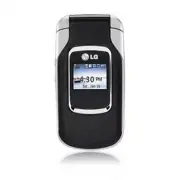
Page 2 - All rights reserved
Copyright ©2010 LG Electronics, Inc. All rights reserved . LG and the LG logo are registered trademarks of LGGroup and its related entities. All other trademarks are theproperty of their respective owners. UX220_cover_Ver1.1_100302.qxd 3/2/10 1:14 PM Page 3
Page 3 - Important Safety Precautions
Important Safety Precautions 1 Im po rta nt Sa fet y Pre ca uti on s Read these instructions. Breaking the rules may be dangerous orillegal. Further detailed information is given in this user guide. WARNING! Violation of the instructions may cause serious injury or death. 1. Never use an unapproved ...
Page 6 - ble; Table of Contents
Table of Contents 4 Ta ble of Co nte nts Important Safety Precautions 1 Table of Contents 4 Welcome 9 Technical Details 10 Important Information 10 FCC Part 15 Class B Compliance 10 Technical Details 10 FCC RF Exposure Information 12 Bodily Contact During Operation 12 Vehicle-Mounted the ExternalAnt...
Page 7 - Phone Menus; Contacts
5 Ta ble of Co nte nts Call Waiting 26 Caller ID 27 Speed Dialing 27 Entering and EditingInformation 28 Text Input 28 Key Functions 28 Contacts in Your Phone’sMemory 29 The Basics of Storing ContactsEntries 29 Phone Numbers With Pauses 29 Storing a Number with Pause or Wait 30 Adding a Pause or Wait...
Page 8 - Multimedia; Tone Room
Table of Contents 6 Ta ble of Co nte nts 3. Dialed Calls 45 4. All Calls 45 5. Call Timer 46 6. Data Counter 46 Multimedia 46 1. Record Voice 46 2. Images 47 3. Audios 47 4. Shuffle 49 easyedge SM 50 1. easyedge 50 Tone Room 50 Bluetooth ® 51 1. Paired Devices 51 2. Power 52 3. My Visibility 52 4. M...
Page 9 - Settings; Safety; TIA Safety Information
7 Ta ble of Co nte nts 0. Unit Converter 59 Settings 60 1. Sound 60 1.1 Ringers 60 1.2 Volume 60 1.3 Message Alerts 60 1.4 Alert Type 61 1.5 Service Alerts 61 1.6 Power On/Off Tone 62 1.7 Flip Tone 62 2. Display 62 2.1 Wallpaper 62 2.2 Banner 63 2.3 Backlight 63 2.4 Menu Style 63 2.5 Languages 63 2....
Page 10 - Accessories
Table of Contents 8 Ta ble of Co nte nts Phone Operation 73 Tips on Efficient Operation 73 Driving 73 Electronic Devices 73 Pacemakers 74 Persons with pacemakers: 74 Hearing Aids 74 Other Medical Devices 74 Health Care Facilities 75 Vehicles 75 Posted Facilities 75 Aircraft 75 Blasting Areas 75 Pote...
Page 11 - Welcome; elc
Welcome 9 W elc om e Thank you for choosing theUX220 cellular phone; designedto operate with the latest digitalmobile communicationtechnology, Code DivisionMultiple Access (CDMA). Alongwith the many advanced featuresof the CDMA system, such asgreatly enhanced voice clarity,this compact phone offers:...
Page 12 - Technical Details; ch; Important Information
Technical Details 10 Te ch nic al De tail s Important Information This user’s guide providesimportant information on the useand operation of your phone.Please read all the informationcarefully prior to using thephone for the best performanceand to prevent any damage to ormisuse of the phone. Anyunap...
Page 14 - FCC RF Exposure Information; information before operating; Bodily Contact During
Technical Details 12 Te ch nic al De tail s Switching Office), BSC (BaseStation Controller), BTS (BaseStation Transmission System), ,MS (Mobile Station) and AWS(Advanced Wireless Services). * TSB-74: Protocol between an IS-95A system and ANSI J-STD-008 1xRTT system receives twice asmany subscribers ...
Page 15 - Vehicle-Mounted the External
13 Te ch nic al De tail s body and the back of the phone,including the antenna, whetherextended or retracted. Third-party belt-clips, holsters, andsimilar accessories containingmetallic components should notbe used. Avoid the use ofaccessories that cannot maintain0.79 inches (2.0 cm) distancebetween...
Page 16 - Caution
Technical Details 14 Te ch nic al De tail s antenna could cause a minor skinburn. Contact your local dealerfor a replacement antenna. Caution Use only the supplied andapproved antenna. Use ofunauthorized antennas ormodifications could impair callquality, damage the phone, voidyour warranty and/or re...
Page 17 - - Reorient or relocate the
15 Te ch nic al De tail s Part 15.105 statement This equipment has been testedand found to comply with thelimits for a class B digital device,pursuant to Part 15 of the FCCRules. These limits are designedto provide reasonable protectionagainst harmful interference in aresidential installation. Thise...
Page 18 - Phone Overview; Ph
Phone Overview 16 Ph on e O ve rvie w 1. Earpiece Lets you hear the caller. 2. LCD Screen Displays messages and indicator icons. When the phone is turned on, Power Save modeautomatically dims the screen and then darkens it ifno keys are pressed. 3. Left Soft Key Use to access the Messaging menu from...
Page 20 - Menus Overview; us; While in standby mode, press
Menus Overview 18 M en us O ve rvie w Contacts 1. New Contact2. Contact List3. Groups4. Speed Dials5. My Name Card Messaging 1. New Message2. Inbox3. Sent4. Drafts5. Voicemail6. Templates7. Settings 1. Auto View2. Auto Play3. Auto Save4. Auto Delete5. Callback #6. Entry Mode7. Signature8. Edit Voice...
Page 21 - easyedge
19 M en us O ve rvie w easyedge Tone Room Bluetooth 1. Paired Devices2. Power3. My Visibility4. My Bluetooth Name 5. My Bluetooth Info Tools 1. Voice Command 1. Start Command2. Command Mode 3. Announce Alert4. Train Word5. Best Match 2. My Menu3. Alarm Clock 4. Calendar5. Ez Tip Calc6. Notepad7. Cal...
Page 23 - Getting Started with Your Phone; The Battery; Installing the Battery; Note
Getting Started with Your Phone 21 Ge ttin g Sta rte d wit h Yo ur Ph on e The Battery The phone comes with arechargeable battery. The batterycharge level is shown at the topof the LCD screen. Installing the Battery Remove the batter cover bypressing down on the top part ofthe cover, and sliding the...
Page 24 - Notice; Charging the Battery; Warning! Use only the charger; Battery Charge Level
Notice Please make sure that the 'B' Side facesup before inserting a charger or datacable into the charger port of yourphone. Charging the Battery Use the charger provided withyour phone: Warning! Use only the charger provided with the phone. Using any charger other than the one included with the UX...
Page 25 - Turning the Phone On; Install a charged battery or; Turning the Phone Off; until the; Signal Strength
23 Ge ttin g Sta rte d wit h Yo ur Ph on e Turning the Phone On and Off Turning the Phone On 1. Install a charged battery or connect the phone to anexternal power source. 2. Press for about 2 seconds until the LCD screenlights up. Turning the Phone Off 1. Press and hold until the display turns off. ...
Page 26 - Screen Icons; To see the icon glossary, go to; Making Calls; Enter the phone number
Screen Icons To see the icon glossary, go to Menu -> Settings -> Phone Info -> Icon Glossary on your phone. Making Calls 1. With the phone turned on, open the flip. lf the phone is locked, pressthe Left Soft Key Unlock , enter the lock code (the last4 digits of your phonenumber by default a...
Page 27 - or; Tip; Menu
Correcting Dialing Mistakes If you make a mistake while dialing a number, press once to erase the last digit entered, or hold down for at least 2 seconds to go back to standby mode. Redialing Calls 1. Press twice to redial the number from the most recent call. The last 120 calls (40 missed, 40 recei...
Page 28 - Quick Access to Convenient Features; Lock Mode; Mute; Quick Volume Adjustments
Quick Access to Convenient Features 26 Q uic k Ac ce ss to Co nve nie nt Fea tu res Lock Mode Sets your phone to require a 4-digit Lock Code in order to usethe phone. To quickly lock your phone, press for three seconds. To unlock, press Left Soft Key Unlock, enter the Lock Code and press . Mute Func...
Page 29 - Caller ID; Dialing Single Digit Speed Dials
27 Q uic k Ac ce ss to Co nve nie nt Fea tu res call. Check with your cellularservice provider for informationabout this function. 1. Press to answer a waiting call. 2. Press again to switch between calls. Caller ID Caller ID displays the phonenumber or name of the incomingcall. If the caller’s numb...
Page 30 - Entering and Editing Information; Text Input; Left Soft Key
Entering and Editing Information 28 En ter ing an d Ed itin g Inf orm ati on Text Input You can customize and enter textin many of the functions in yourphone, including, but not limitedto: the Banner, Calendar,Contacts and more. Whileentering text, the following areyour options: Key Functions Left S...
Page 31 - Contacts in Your Phone’s Memory; The Basics of Storing; Save; Phone Numbers With; Release
Contacts in Your Phone’s Memory 29 Co nta cts in Yo ur Ph on e’s M em ory The Basics of Storing Contacts Entries 1. From standby mode enter the phone number you want tosave (up to 48 digits). 2. Press Left Soft Key Save . 3. Select either Save New or Update Existing . 4. Use to highlight a Label and...
Page 32 - Storing a Number with Pause
Contacts in Your Phone’s Memory 30 Co nta cts in Yo ur Ph on e’s M em ory Storing a Number with Pause or Wait 1. Press Menu . 2. Press Contacts . 3. Press New Contact . 4. Enter a name (up to 22 characters) and enter anumber. 5. While entering a number, press Right Soft Key Options. 6. Press Wait or...
Page 34 - Making a Call From Your
Contacts in Your Phone’s Memory 32 Co nta cts in Yo ur Ph on e’s M em ory Edit : Edit the selected Contact's information. Delete Multiple : Choose Selective / All to delete multiple entries at onetime. Send via Bluetooth : Send a contact(vCard) viaBluetooth ® . In case Bluetooth ® power is not on, y...
Page 36 - Co; Highlight the field you wish to
Phone Menus 34 Co nta cts Contacts The Contacts Menu allows youto store names, phone numbersand other information in yourphone’s memory. When youaccess your Contacts, thenumber in parenthesesrepresents the number ofContacts you have stored (up to1000). 1. New Contact Allows you to add a new contactt...
Page 38 - Assign
Contacts 36 Co nta cts 4. Speed Dials Allows you to view your SpeedDials list, designate new SpeedDials, or remove Speed Dialdesignations entered in yourContacts. 1. Press , , . 2. Use to highlight the desired Speed Dial location(or enter the Speed Dial digit),and press Assign . 3. Use to highlight ...
Page 39 - ess; Messaging; The Basics of Sending a Text; to access the text; Options; Press Right Soft Key
Messaging 37 M ess ag ing Messaging The phone can store up to 265messages (including a maximumof 200 SMS in the Inbox). Theinformation stored in themessage is determined by phonemodel and service capability.Other limits, such as availablecharacters per message, mayexist, please check with yourservic...
Page 41 - Message Icon Reference
39 M ess ag ing Message Icon Reference Inbox New/Unread Text Message Opened/Read Text Message Priority High Sent Failed Text Sent Text Message Drafts Draft Text Message 2. Inbox The phone can alert you inseveral ways when you receive anew message, including: ● Displaying a notificationmessage on the...
Page 43 - Multiple
41 M ess ag ing Delete/ Forward/ Save Contact/ Lock(Unlock)/ Message Info/ Delete Multiple 3. While viewing the selected sent message, press Left Soft Key Resend to resend the message to the recipient, or Right Soft Key Options to access the additional options: Delete Deletes the selected message. F...
Page 44 - Save Contact
Messaging 42 M ess ag ing Save Contact Select Save New / Update Existing to store the phone number or e-mail addressin the draft message into yourContacts or update an existingcontact already stored inmemory. Lock/Unlock Locks a message so that it is not erased if theDelete Drafts or Delete Allfeatu...
Page 45 - Message Settings Sub-Menu
43 M ess ag ing Enter text and press Save to save the template. 3. Use to highlight a template and press Right SoftKey Options , then highlight an option and press to select: Delete/Edit Please note that this Optionsmenu is not available fordefault templates. 7. Settings Allows you to configure Mess...
Page 46 - and
Messaging 44 M ess ag ing 5. Callback # (On/ Off/ Edit) With this feature on, you caninput the callback numberthat will be automaticallyincluded when you send amessage. 6. Entry Mode Allows you to select thedefault input method between T9Word, Abc and 123. 7. Signature (On/ Off/ Edit) Allows you to ...
Page 47 - ll; Call History; to highlight an entry.; SEND Key
Call History 45 Ca ll His to ry Call History The Call History menu has listsof phone numbers and/orContacts entries for calls youplaced, accepted, or missed. It iscontinually updated as newnumbers are added to thebeginning of the list and theoldest entries are removed fromthe bottom of the list. 1. ...
Page 48 - Call History/ Multimedia; to highlight a call; to record a
Call History/ Multimedia 46 Ca ll His to ry/ M ult im ed ia 5. Call Timer Allows you to view the durationof calls made, by type. 1. Press , , . 2. Use to highlight a call type, then press . Last Call / Home Calls / Roam Calls / All Calls 6. Data Counter Allows you to view the amount ofReceived and S...
Page 50 - ult
2. Press Left Soft Key Voice to record an audio clip. ● Press Left Soft Key Audio to access My Audios. 3. Press Record to begin recording. 4. While recording, press Left Soft Key Pause to pause, or Stop to stop recording. 5. When you are finished recording, press Left Soft Key Save to save the audio...
Page 51 - Ringtone List
49 M ult im ed ia 4. Shuffle Allows you to set your ringtoneand wallpaper to change after aselected period of time. 1. Press , , . 2. Use to highlight Ringtone List / Wallpaper List then press . 3. Press Add to begin adding ringtones or wallpapersto the Shuffle list. 4. Use to highlight the desired ...
Page 52 - ea; To; allows you to do; is a; , it is quick and easy; where service; Shortcut
easyedge SM / Tone Room 50 ea sye dg e SM / To ne Ro om easyedge SM easyedge SM allows you to do more than just talk on yourphone. easyedge SM is a technology and service thatallows you to download and useapplications on your phone. Witheasyedge SM , it is quick and easy to personalize your phone to...
Page 53 - Blu; Bluetooth; wireless technology is; For pairing new Bluetooth; Follow the Bluetooth
Bluetooth ® 51 Blu eto oth ® Bluetooth ® The UX220 is compatible withdevices that support theBluetooth ® headset and hands- free profile(s). You may createand store 20 pairings within theUX220 and connect to onedevice at a time. The approximatecommunication range forBluetooth ® wireless technology i...
Page 55 - to clear the; Tools
Tools 53 Blu eto oth ® / To ols 4. My Bluetooth Name Allows you to edit the name ofthe Bluetooth ® device. 1. Press , , . 2. Hold down to clear the existing name. 3. Use the alphanumeric keypad to enter a new alias. 4. Press Save to save and exit, or Right Soft Key Cancel to cancel editing. 5. My Bl...
Page 56 - Yes
Tools 54 To ols 1.1 Start Command 1. Press , , , and say any of the followingcommands: 1.1.1 Call <Name or Number> 1. Press , , , , . 2. Say the name (and phone type, if necessary) or number. 1.1.2 Voicemail 1. Press , , , , . 2. Press to call Voicemail.. 1.1.3 Missed Calls You can hear inform...
Page 57 - Digit Dial
55 To ols 1.2 Command Mode Allows you to set commandmode to Normal or Speed (TheSpeed setting allows you toaccess and use the VoiceCommand functions more quicklywith a faster non-verbal prompt). 1. Press , , , . 2. Select options. Normal/ Speed 1.3 Announce Alert Allows you to customizeAnnounce Aler...
Page 59 - New
57 To ols 4. Calendar Allows you to store and accessyour agenda(s). Simply enteryour appointments in theCalendar, and your phone can(depending on your settings)alert you with a reminder. 1. Press , , . 2. Use to highlight the scheduled day. Moves to the previous day. Moves to the next day. Moves to ...
Page 62 - ttin
Settings 60 Se ttin gs Settings 1. Sound Options to customize yourphone's sounds: 1.1 Ringers Allows you to assign ringtonesfor incoming calls. 1. Press , , , . 2. Select All Calls / Caller ID / No Caller ID / Restricted Calls / Shuffle . 3. Select My Audios or Default . 4. Use to highlight the ring...
Page 63 - Emergency Alert
61 Se ttin gs 1.4 Alert Type Allows you to select the alerttypes. 1. Press , , , . 2. Use to highlight the alert you wish to edit. Call Alert/ Message Alert/ Schedule Alert/ Alarm Alert/ Emergency Alert 3. Use to scroll through the alert types. Ring Only/ Vibrate Only/ Ring & Vib Options for Eme...
Page 66 - Dialing
Settings 64 Se ttin gs 1. Press , , , . 2. Use to select English or Spanish , then press . 2.6 Clocks & Calendar Allows you to select the type ofclocks displayed on the mainLCD or the external LCD. 1. Press , , , . 2. Choose a sub-menu and press . Main Screen / Front Screen 3. Use to highlight a...
Page 67 - Lock Phone
65 Se ttin gs 3. Security The Security menu allows you tosecure the phone electronically. 3.1 Lock Phone Keeps your phone fromunauthorized use. Once thephone is locked, it is in restrictedmode until the lock code isentered. You can still receivephone calls and make emergencycalls. You can modify the...
Page 69 - Master Reset
67 Se ttin gs Call & Applications Allows you to change the lock code that isused to access the Restrictionsmenu (Incoming Calls,Outgoing Calls, IncomingMessages, Outgoing Messagesand easyedge). 5. Enter a new 4-digit lock code and press . 6. For confirmation, it will ask you to enter the new loc...
Page 70 - then press
Settings 68 Se ttin gs 2. Use to select a setting, then press . Flip Open/ Any Key/ SEND Key Only/ Auto Answer 4.2 Auto Retry Allows you to set the length oftime the phone waits beforeautomatically redialing a numberwhen the attempted call fails. 1. Press , , , . 2. Use to select a setting, then pre...
Page 71 - On
69 Se ttin gs 4.5 Airplane Mode Turns off wireless communicationsbut allows you to use features onyour phone that do not requirewireless communications. 1. Press , , , . 2. Read the displayed message and press to continue. 3. Use to select a setting, then press . On / Off 4.6 TTY Mode Allows you to ...
Page 72 - Home
Settings 70 Se ttin gs 1. Press , , , , . 2. Use to highlight Home Only/ Automatic A/ Automatic B then press . 5.1.2 Set NAM Allows you to select the phone’sNAM (Number AssignmentModule) if the phone isregistered with multiple serviceproviders. 1. Press , , , , . 2. Use to highlight NAM1 or NAM2 , t...
Page 73 - Next
71 Se ttin gs 1. Press , , , . 2. Read the disclaimer; press Right Soft Key Next to go next screen or Left SoftKey Prev to go previous screen and press on the last screen. 3. Use to highlight a setting, then press . On/ Off 6. Memory Allows you to check out thememory status of your phone. 1. Press ,...
Page 74 - Exposure to Radio Frequency; Sa
TIA Safety Information The following is the completeTIA Safety Information forwireless handheld phones. Exposure to Radio Frequency Signal Your wireless handheld portablephone is a low power radiotransmitter and receiver. WhenON, it receives and sends outRadio Frequency (RF) signals. In August, 1996...
Page 75 - Phone Operation; For your phone to operate; Driving
73 Sa fet y could damage the phone andmay violate FCC regulations. Phone Operation NORMAL POSITION: Hold thephone as you would any othertelephone with the antennapointed up and over yourshoulder. Tips on Efficient Operation For your phone to operate most efficiently: Don’t touch the antennaunnecessa...
Page 78 - Safety Information; Violation of the
Areas with a potentially explosiveatmosphere are often, but notalways marked clearly. Potentialareas may include: fueling areas(such as gasoline stations);below deck on boats; fuel orchemical transfer or storagefacilities; vehicles using liquefiedpetroleum gas (such as propaneor butane); areas where...
Page 79 - Charger and Adapter Safety
77 Sa fet y to fire, explosion or otherhazard. ● Only use the battery for thesystem for which it isspecified. ● Only use the battery with acharging system that has beenqualified with the system perIEEE-Std-1725-2006. Use ofan unqualified battery orcharger may present a risk offire, explosion, leakag...
Page 80 - Battery Information and Care
● Insert the battery packcharger vertically into the wallpower socket. ● Use the correct adapter foryour phone when using thebattery pack charger abroad. ● Only use the approved batterycharger. Otherwise, you maycause serious damage to yourphone. Battery Information and Care ● Please dispose of your...
Page 81 - Hazards
79 Sa fet y Explosion, Shock, and Fire Hazards ● Do not put your phone in aplace subject to excessive dustand keep the minimum requireddistance between the powercord and heat sources. ● Unplug the power cord priorto cleaning your phone, andclean the power plug pin whenit’s dirty. ● When using the po...
Page 82 - Do not paint your phone.
● Talking on your phone for along period of time mayreduce call quality due to heatgenerated during use. ● When the phone is not usedfor a long period time, store itin a safe place with the powercord unplugged. ● Using the phone in proximityto receiving equipment (i.e.,TV or radio) may causeinterfer...
Page 83 - safety information; Avoiding hearing damage
81 Sa fet y Warning! Important safety information Avoiding hearing damage Permanent hearing loss mayoccur if you use your phoneand/or headset at a high volume.Set the volume to a safe level.You can adapt over time to ahigher volume of sound that maysound normal but can bedamaging to your hearing. If...
Page 84 - FDA Consumer
Avoiding hearing damage Permanent hearing loss mayoccur if you use your headset ata high volume. Set the volume toa safe level. You can adapt overtime to a higher volume of soundthat may sound normal but canbe damaging to your hearing. Ifyou experience ringing in yourears or muffled speech, stoplist...
Page 85 - Do wireless phones pose a
83 Sa fet y 1. Do wireless phones pose a health hazard? The available scientific evidencedoes not show that any healthproblems are associated withusing wireless phones. There isno proof, however, that wirelessphones are absolutely safe.Wireless phones emit low levelsof Radio Frequency (RF) energyin ...
Page 86 - hazard no longer exists.
hazard no longer exists. Although the existing scientificdata do not justify FDAregulatory actions, the FDA hasurged the wireless phoneindustry to take a number ofsteps, including the following: ● Support needed research intopossible biological effects ofRF of the type emitted bywireless phones; ● D...
Page 87 - What kinds of phones are
85 Sa fet y in the United States must complywith FCC safety guidelines thatlimit RF exposure. The FCC relieson the FDA and other healthagencies for safety questionsabout wireless phones. The FCC also regulates the basestations that the wireless phonenetworks rely upon. While thesebase stations opera...
Page 91 - What has the FDA done to
89 Sa fet y wireless phones is set at aSpecific Absorption Rate (SAR)of 1.6 watts per kilogram (1.6W/kg). The FCC limit isconsistent with the safetystandards developed by theInstitute of Electrical andElectronic Engineering (IEEE) andthe National Council onRadiation Protection andMeasurement. The ex...
Page 93 - What about children using
91 Sa fet y described above to reduce yourRF exposure from wireless phoneuse. 10. What about children using wireless phones? The scientific evidence does notshow a danger to users ofwireless phones, includingchildren and teenagers. If youwant to take steps to lowerexposure to Radio Frequency(RF) ene...
Page 94 - Where can I find additional
now part of a standardsponsored by the Association forthe Advancement of MedicalInstrumentation (AAMI). Thefinal draft, a joint effort by theFDA, medical devicemanufacturers, and many othergroups, was completed in late2000. This standard will allowmanufacturers to ensure thatcardiac pacemakers andde...
Page 95 - 0 Driver Safety Tips; Get to know your wireless
93 Sa fet y Federal CommunicationsCommission (FCC) RF SafetyProgram(http://www.fcc.gov/oet/rfsafety) International Commission onNon-lonizing RadiationProtection(http://www.icnirp.de) World Health Organization(WHO) International EMFProject(http://www.who.int/emf) National Radiological ProtectionBoard...
Page 97 - Do not engage in stressful or
95 Sa fet y stationary. But if you need todial while driving, follow thissimple tip -- dial only a fewnumbers, check the road andyour mirrors, then continue. 7. Do not engage in stressful or emotional conversations thatmay be distracting. Stressfulor emotional conversationsand driving do not mix; th...
Page 98 - Government’s Requirements for
Certain situations youencounter while driving mayrequire attention, but are noturgent enough to merit a callfor emergency services. Butyou can still use yourwireless phone to lend ahand. If you see a broken-down vehicle posing noserious hazard, a brokentraffic signal, a minor trafficaccident where n...
Page 101 - Regulations for Wireless
99 Sa fet y SAR information on this modelphone is on file with the FCCand can be found under theDisplay Grant section ofhttp://www.fcc.gov/oet/ea/fccid/after searching on FCC ID. To find information that pertainsto a particular model phone, thissite uses the phone FCC IDnumber which is usually print...
Page 104 - For information about hearing aids and digital wireless; Wireless Phones and Hearing Aid Accessibility
Safety 102 Sa fet y Solutions (ATIS). The U and UTmarks are referenced in Section20.19 of the FCC Rules. TheHAC rating and measurementprocedure are described in theAmerican National StandardsInstitute (ANSI) C63.19standard. To enter that the Hearing AidCompatibility rating for yourphone is maintaine...
Page 105 - Ac; attery Charger
Accessories 103 Ac ce sso rie s There are a variety of accessories available for your mobile phone.Consult your local dealer for availability. Optional items are soldseparately. B attery Charger The battery charger allows you to charge yourphone battery. Battery Vehicle Power Charger The vehicle pow...
Page 106 - Limited Warranty Statement; WHAT THIS WARRANTY
Limited Warranty Statement 104 Lim ite d W arr an ty Sta tem en t 1. WHAT THIS WARRANTY COVERS: LG offers you a limited warrantythat the enclosed subscriber unitand its enclosed accessories willbe free from defects in materialand workmanship, according tothe following terms andconditions: (1) The li...
Page 107 - WHAT THIS WARRANTY
105 Lim ite d W arr an ty Sta tem en t Department of LG. LG shallbear the cost of shippingthe product back to theconsumer after thecompletion of service underthis limited warranty. 2. WHAT THIS WARRANTY DOES NOT COVER: (1) Defects or damages resulting from use of theproduct in other than itsnormal a...
Page 108 - published maximum ratings.
Limited Warranty Statement 106 Lim ite d W arr an ty Sta tem en t including, but not limited toany implied warranty ofmarketability or fitness for aparticular use. (7) Damage resulting from use of non-LG approvedaccessories. (8) All plastic surfaces and all other externally exposedparts that are scr...
Page 110 - Index; Ind
123 10 Driver Safety Tips93 A Accessories 103Airplane Mode 69Alarm Clock 56Alert Type 61All Calls 45Announce Alert 55Answer Options 67Audios 47Auto Retry 68 B Backlight 63Banner 63Battery Charge Level22Best Match 55Bluetooth ® 51 C Calculator 58Calendar 57Call History 45Call Settings 67Call Timer 46...
Page 112 - Unit Converter 59
Safety Information 76Screen Icons 24Searching Your Phone’sMemory 31Security 65Sent 40Service Alerts 61Settings 43, 60Shuffle 49Signal Strength 23Sound 60Speed Dialing 27Speed Dials 36Start Command 54Stopwatch 59System 69 T Table of Contents 4Technical Details 10Templates 42Text Input 28The Basics of...
Page 113 - Precaución de Seguridad Importante
Precaución de Seguridad Importante 1 Pre ca uc ión de Se gu rid ad Im po rta nte Lea estas sencillas instrucciones. Romper las reglas puede serpeligroso o ilegal. Se ofrece más información detallada en esta guíadel usuario. ¡Aviso! No seguir las instrucciones puede ocasionar lesiones graves o la mue...
Page 116 - Contenido
Contenido 4 Co nte nid o Precaución de SeguridadImportante 1 Contenido 4 Bienvenidos 9 Detalles Técnicos 10 Información importante 10 Cumplimiento de clase B según elartículo 15 de la FCC 10 Detalles técnicos 10 Información de la FCC sobreexposición a la RF 12 Contacto corporal durante elfuncionamie...
Page 117 - Menús del Teléfono; Contactos; Lista de Contactos; Mensajería; Llamadas Recibidas
5 Co nte nid o Modo de bloqueo 26 Función de silencio 26 Ajuste veloz del volumen 26 Llam. en Espera 26 ID de Llamador 27 Marcados Veloces 27 Introducir y editarinformación 28 Introducción de texto 28 Funciones de las teclas 28 Contactos en la memoria del teléfono 29 Aspectos básicos delalmacenamien...
Page 118 - Dispositivos emparejados 52; Convertidor De Unidades 61
Contenido 6 Co nte nid o 5. Contador de Llamadas 46 6. Contador Datos 47 Multimedia 47 1. Grabar Voz 47 2. Imágenes 48 3. Audios 48 4. Revolver 50 easyedge SM 51 1. easyedge 51 Tone Room 52 Bluetooth ® 52 1. Dispositivos emparejados 52 2. Poder 53 3. Mi Visibilidad 54 4. Mi Nombre de Bluetooth 54 5....
Page 119 - Seguridad
7 Co nte nid o 1.2 Volumen 62 1.3 Alertas de Mensaje 62 1.4 Tipo de Alerta 63 1.5 Alertas de Servicio 63 1.6 Activar/ Desactiva tono 64 1.7 Tono de Flip 64 2. Pantalla 64 2.1 Papel Tapiz 64 2.2 Pendón 65 2.3 Luz de Fondo 66 2.4 Estilo de Menú 66 2.5 Idiomas 66 2.6 Relojes & Calendario 66 2.7 Con...
Page 120 - Accesorios
Contenido 8 Co nte nid o Aparatos para la sordera 77 Otros dispositivos médicos 78 Centros de atención médica 78 Vehículos 78 Instalaciones con letreros 78 Aeronaves 78 Áreas de explosivos 78 Atmósfera potencialmente explosiva 79 Para vehículos equipados con bolsas de aire 79 Información de segurida...
Page 121 - Bienvenidos; Bie; Teclado de 24 teclas.; Nota
Bienvenidos 9 Bie nve nid os Felicidades por elegir el avanzadoy compacto teléfono celularUX220, diseñado para funcionarcon la más reciente tecnología decomunicaciones móviles digitales:Acceso múltiple de división decódigo (Code Division MultipleAccess, CDMA). Junto con lasmuchas funciones avanzadas...
Page 122 - Detalles Técnicos; tall; Información importante; Detalles técnicos
Detalles Técnicos 10 De tall es Té cn ico s Información importante Esta guía del usuario contieneinformación importante acerca deluso y funcionamiento delteléfono. Lea toda la informacióncon cuidado antes de usar elteléfono para obtener undesempeño óptimo y evitarcualquier daño o mal uso delaparato....
Page 124 - Información de la FCC sobre; ¡ADVERTENCIA! Lea esta; Contacto corporal durante el
Detalles Técnicos 12 De tall es Té cn ico s inalámbrica que IS-95. Laduración de su batería es deldoble que la de IS-95. Tambiénes posible la transmisión dedatos de alta velocidad. La tabla siguiente muestraalgunos de los principalesestándares CDMA. Información de la FCC sobre exposición a la RF ¡AD...
Page 125 - Antena externa instalada en un
13 De tall es Té cn ico s fundas y otros accesorios deterceros que contengancomponentes metálicos. Evite eluso de accesorios que no puedanmantener una distancia de 2.0 cm(0.79 pulgadas) entre el cuerpodel usuario y la parte posterior delteléfono y que no se hayanprobado para determinar quecumplen lo...
Page 126 - Precaución
Detalles Técnicos 14 De tall es Té cn ico s No use el teléfono si la antenaestá dañada. Si una antenadañada entra en contacto con lapiel, puede producirse una ligeraquemadura. Comuníquese con sudistribuidor local para obteneruna antena de reemplazo. Precaución Utilice solamente la antenaincluida y a...
Page 127 - Declaracion del articulo; equipo y el receptor.
15 De tall es Té cn ico s Declaracion del articulo 15.105 Este equipo ha sido evaluado yse ha comprobado que cumplecon los limites para undispositivo digital clase B,conforme el Articulo 15 de lasreglas de la FCC. Estos limiteshan sido disenados para brindaruna proteccion razonable contrala interfer...
Page 128 - Descripción general del teléfono
Descripción general del teléfono 16 De scr ipc ión ge ne ral de lte léf on o 1. Audífono Le permite escuchar a quien le llama. 2. Pantalla de cristal líquido Muestra mensajes e iconos indicadores. Cuando el teléfono esta encendido, elmodo de ahorro de energía atenúa automáticamentela pantalla y lueg...
Page 130 - Descripción general de los menús; de Llamada; Lista Llam; Llamadas; Desde la pantalla principal, presione la tecla
Descripción general de los menús De scr ipc ión ge ne ral de los me nú s 18 De scr ipc ión ge ne ral de los me nú s Contactos 1. Nuevo Contacto2. Lista de Contactos3. Grupos4. Marcados Veloces5. Mi Tarjeta Nombre Mensajería 1. Nuevo Mensaje2. Entrada3. Enviados4. Borradores5. Correo de Voz6. Texto R...
Page 133 - Para hacer funcionar su teléfono por primera vez; La batería; Instalación de la batería; Alinee la cubierta de la batería; Extraer la batería
Para hacer funcionar su teléfono por primera vez 21 Par a hac er fun cio nar su telé fon o po rp rim era vez La batería El teléfono viene con una bateríarecargable. El nivel de carga de labatería se muestra en la partesuperior de la pantalla de cristallíquido. Instalación de la batería Remueva la cu...
Page 134 - Cargar la batería; Conecte el cable del cargador; Nivel de carga de la batería; Aviso
Para hacer funcionar su teléfono por primera vez 22 Par a hac er fun cio nar su telé fon o po rp rim era vez Cargar la batería Use el cargador incuido con suteléfono: ¡Advertencia! Use únicamente el cargador que viene incluido con el teléfono. El uso de cualquier cargador distinto del que viene incl...
Page 135 - Encender el teléfono; Instale una batería cargada o; Apagar el teléfono; Mantenga presionada; Fuerza de la señal
23 Par a hac er fun cio nar su telé fon o po rp rim era vez Encender y apagar el teléfono Encender el teléfono 1. Instale una batería cargada o conecte el teléfono a unafuente de corriente externa. 2. Oprima durante 2 segundos hasta que seencienda la pantalla de cristallíquido. Apagar el teléfono 1....
Page 136 - Iconos en pantalla; Menú; Hacer llamadas; Desbloq
Para hacer funcionar su teléfono por primera vez 24 Par a hac er fun cio nar su telé fon o po rp rim era vez Iconos en pantalla Para ver el glosario de iconos,vaya a Menú -> Ambiente -> Info. de Tel -> Glosario de Iconos de su teléfono. Hacer llamadas 1. Con el teléfono encendido, abra la t...
Page 138 - Acceso veloz a funciones prácticas; Modo de bloqueo; durante 3; Función de silencio; Mudo; Ajuste veloz del volumen
Acceso veloz a funciones prácticas 26 Ac ce so ve loz a fun cio ne s prá cti cas Modo de bloqueo Ajusta su teléfono para que serequiera su contraseña de 4cifras para usar el teléfono. Para bloquear rápidamente suteléfono, oprima durante 3 segundos. Para desbloquearoprima la tecla suave izquierda Des...
Page 139 - ID de Llamador
27 Ac ce so ve loz a fun cio ne s prá cti cas servicio para pedirle informaciónsobre esta función. 1. Oprima para contestar una llamada en espera. 2. Oprima de nuevo para alternar entre llamadas. ID de Llamador El identificador de llamadas muestrael número de la persona que llamacuando suena su telé...
Page 140 - Introducir y editar información; Introducción de texto; Oprima para
Introducir y editar información 28 Int ro du cir y ed ita rin fo rm aci ón Introducción de texto Puede personalizar e introducirtexto en muchas de las funcionesen su teléfono, incluyendo:Pendón, Calendario, Contactos, ydemás opciones. Mientrasintroduce el texto, éstan son lassiguientes opciones: Fun...
Page 141 - Contactos en la memoria del teléfono; Aspectos básicos del; Guar; Números de teléfono con
Contactos en la memoria del teléfono 29 Co nta cto s en la me mo ria de lte léf on o Aspectos básicos del almacenamiento de entradas de contactos 1. En el modo de espera introduzca el número deteléfono (de hasta 48 dígitos)que desee guardar. 2. Oprima la tecla suave izquierda Guar . 3. Oprima la tec...
Page 143 - Desplazamiento por sus
31 Co nta cto s en la me mo ria de lte léf on o 5. Oprima la tecla suave derecha Opciones . 6. Oprima Espera o Pausa . 7. Introduzca los números adicionales y oprima Guar . Búsqueda en la memoria del teléfono El teléfono UX220 puede llevar acabo una búsqueda dinámica delcontenido de su Lista deConta...
Page 144 - y oprima; Hacer llamadas desde la; Usando Marcados Veloces.
Contactos en la memoria del teléfono 32 Co nta cto s en la me mo ria de lte léf on o 3. Seleccione una opción (con y oprima , ú oprima el número correspondiente en elteclado): Nuevo Mensaje : Enviar un mensaje de texto o de fotoal contacto seleccionado. Borrar : Borra la entrada seleccionada en susc...
Page 149 - saj; Aspectos básicos del envío de; para ir a la
Mensajería 37 M en saj erí a Mensajería El teléfono puede almacenarhasta 265 mensajes (incluyendoun máximo de 200 SMS en lacarpeta de Entrada.) Lainformación almacenada en elmensaje está determinada por elmodo del teléfono y la capacidaddel servicio. Puede haber otroslímites al número de caracteresd...
Page 150 - Opciones de texto
3. Use para elegir una opción y oprima . Contactos Para seleccionar a un destinatario de su lista deContactos. Llamadas Recien. Para seleccionar a un destinatario desu lista de Llamadas recientes. Mensaje. Recntes Eliga Entrada / Enviado para elegir un recipiente de sus mensajes recientes. Grupos Gr...
Page 151 - Referencia de los iconos de; Entrada
39 M en saj erí a Referencia de los iconos de mensaje Entrada Mensajes de Texto nuevos/no leídos Mensajes de Texto abiertos/leídos Prioridad de Mensajes Enviado Mensajes Fallados De Texto Mensajes Enviados De Texto Borrador Borrador Mensajes de Texto 2. Entrada El teléfono le avisa de variasformas c...
Page 153 - Reenviar
41 M en saj erí a 1. Oprima , , . 2. Use para resaltar un mensaje enviado. Oprima latecla suave izquierda Reenviar para responder al mensaje, Ver para acceder al mensaje, u oprima la tecla suavederecha Opciones para seleccionar diferentes opciones. Borrar/ Transferir/ GuardarContacto/ Bloq.(Desbloq....
Page 154 - Borrar
Mensajería 42 M en saj erí a 2. Use para resaltar un mensaje guardado. ● Oprima Editar. ● Oprima la tecla suavederecha Opciones. Borrar Borra el mensaje seleccionado del Buzón de salida. Guar Contac Guardar Nuevo Contacto/ Actualizar Contacto Existente Almacena el número, el email, yel número del me...
Page 155 - Nuevo
43 M en saj erí a 6. Texto Rápido Le permite mostrar, editar yagregar frases de texto. Estasfrases cortas le ayudan adisminuir la entrada de textomanual en los mensajes. 1. Oprima , , . 2. Oprima la Tecla suave izquierda Nuevo para agregar elementos nuevos detexto rápido. Introduzca eltexto y oprima...
Page 157 - Lis; para resaltar una
Lista Llam 45 Lis ta Lla m 8. Borrar Todos Le permite borrar todos losmensajes de texto guardados ensu carpeta de Entrada, carpeta deEnviados, o Borradores. Tambiénpuede borrar todos los mensajesal mismo tiempo. 1. Oprima , , . 2. Seleccione Entrada/ Enviados/ Borradores/ Todos y oprima . 3. Resalte...
Page 158 - Contador de Llamadas; para resaltar una lista
2. Llamadas Recibidas Le permite ver la lista dellamadas que ha recibido, puedetener hasta 40 entradas. 1. Oprima , , . 2. Use para resaltar una entrada. 3. Llamadas Marcados Le permite ver la lista dellamadas que ha hecho, puedetener hasta 40 entradas. 1. Oprima , , . 2. Use para resaltar una entra...
Page 162 - Añad
Para Mi Audios : Fijar como/ Grabar Voz/ Borrar/ Cambiar Nombre/ Bloq (Desbloq)/ Información/ Borrar Multiple/ Ordenar Por/ Envió vía Bluetooth Para Preferido : Se Fijó como/ Información 4. Revolver Permite que usted fije tonos detimbre/papel tapiz en su teléfonopara que estos cambien despuésde un p...
Page 163 - le permite hacer en; donde quiera; Ayuda de acceso directo
easyedge SM 51 ea sye dg e SM easyedge SM easyedge SM le permite hacer en su teléfono más que sólo hablar.easyedge es un servicio que lepermite descargar y usaraplicaciones en su teléfono. Coneasyedge, es veloz y fácil adaptarsu teléfono a su estilo de vida ysus gustos. Simplementedescargue las apli...
Page 164 - emparejados
Tone Room/ Bluetooth ® 52 To ne Ro om / Blu eto oth ® Tone Room Aplicación que le permitenavegar y descargar nuevostimbres. 1. Oprima , . Bluetooth ® El UX220 es compatible condispositivos que admiten losperfiles de audífonos y manoslibres de Bluetooth ® . Puede crear y almacenar 20 emparejamientosd...
Page 165 - Para emparejar un nuevo; Buscar
53 Blu eto oth ® Para emparejar un nuevo dispositivo Bluetooth ® 1. Oprima , , . 2. Consulte las instrucciones del accesorio de Bluetooth ® para configurar el dispositivo en elmodo de emparejamiento. 3. Oprima la tecla suave izquierda Buscar . 4. Si Bluetooth ® se configuró en apagado, se le indicar...
Page 166 - Encendido; Mi Info de Bluetooth
Bluetooth ® 54 Blu eto oth ® 1. Oprima , , . 2. Use para seleccionar un valor y oprima . Encendido / Apagado 3. Mi Visibilidad Le permite establecer la visibilidadde Bluetooth ® . 1. Oprima , , . 2. Use para seleccionar un valor y oprima . Visible/ Ocultado 4. Mi Nombre de Bluetooth Le permite edita...
Page 167 - rra; Herramientas; Para entrar al menú de; Atajo
Herramientas 55 He rra mie nta s Herramientas Las aparato del teléfono incluyen:Comando de Voz, Mi Menú, RelojAlarma, Calendario, EzSugerencia, Nota, Calculadora,Reloj Mundial, Cronómetro yConvertidor De Unidades. 1. Comando de Voz Le permite hacer llamadas deteléfono rápida y fácilmentemediante com...
Page 168 - El teléfono anunciará el
Herramientas 56 He rra mie nta s 2. El teléfono anunciará el número de nuevo(s) buzonesde voz. Oprima para llamar al correo de Voz. 1.1.3 Llamadas Perdidas Puede escuchar detalles de susllamadas perdidas. 1. Oprima , , , , . El teléfono le preguntará marcar ese número; Si o No . 1.1.4 Mensajes Puede...
Page 169 - Responder/ Dial Del Dígito; Coincidencias
57 He rra mie nta s 1.3 Anunciar Alertas Le permite personalizar lafunción de Anunciar Alertas.Anunciar Alertas le permite oírmas información sobre lasllamadas entrantes, en vez de deel timbre o con el timbre. 1. Oprima , , , . 2. Seleccione opciones. Inhabilitado/ Anunciar/ Anunciar + Timbre 1.4 En...
Page 173 - Ciudades; Unidades
61 He rra mie nta s 1. Oprima , , . 2. Oprima la tecla suave derecha Ciudades para elegir de la lista otra ciudad del mundo. 3. Use para desplazarse a través de todas las ciudadesen el mapa. 4. Presione para seleccionar destacó la ciudad. 3. Oprima tecla suave izquierda Fije DST. 9. Cronómetro Le pe...
Page 174 - Am; Ambiente; Fijada; Alertas de Mensaje
Ambiente 62 Am bie nte Ambiente 1. Sonido Opciones para personalizar lossonidos del teléfono. 1.1 Timbres Configura tonos para distintostipos de llamadas entrantes. 1. Oprima , , , . 2. Seleccione Todas las Llamadas / ID de Llamador / Sin ID de Llamador / Llamadas Restringidas / Revolver . 3. Use pa...
Page 175 - para navegar las; Alertas de Servicio
63 Am bie nte 1. Oprima , , , . 2. Seleccione Mensaje de texto/ Buzón de Voz / Aviso de mensaje. 3. Use para navegar las carpetas y sobresaltar unarchivo. Luego presione Fijada para fijar. 1.4 Tipo de Alerta Le permite seleccionar los tiposde alertas. 1. Oprima , , , . 2. Seleccione la alerta (abajo...
Page 178 - Configuraciones de
Ambiente 66 Am bie nte 2.3 Luz de Fondo Le permite fijar la duración deiluminación de la luz trasera. 1. Oprima , , , . 2. Elija un submenú de Luz trasera y oprima . Pantalla / Teclado 3. Configure su selección con y luego oprima . 2.4 Estilo de Menú Le permite elegir si desea que lasopciónes del me...
Page 179 - Tipo de Fuente; Nombre de Igualar de; Configure su selección con
67 Am bie nte 1. Oprima , , , . 2. Seleccione el sub-menú y oprima . Tipo de Fuente / Tamaño Fuente de Marcación. 3. Use para configurar el tipo de fuente y oprima . Opciones de Tipo de Fuente LG Gothic/ LG Secret/ LG Greentea Opciones de Tamaño Fuente deMarcación Normal / Largo 2.8 Nombre de Iguala...
Page 180 - Al Encender El Teléfono
Ambiente 68 Am bie nte 2. Introduzca el código de bloqueo de cuatro dígitos yoprima . El código de bloqueo eshabitualmente las 4 últimascifras de su número deteléfono. 3. Oprima Bloq. Teléfono . 4. Use para seleccionar una opción y oprima . Desbloq. El teléfono se mantiene desbloqueado hastaque es b...
Page 181 - Emergencia; Cambiar Código de; Celular Nomas
69 Am bie nte 3.3 Emergencia #s Le permite introducir 3 númerosde emergencia. Podrá llamar aestos números de emergencia yal 911 si el teléfono estábloqueado o restringido. 1. Oprima , , . 2. Introduzca el código de bloqueo de cuatro dígitos y oprima . 3. Oprima #s de Emergencia . 4. Sobresalte una d...
Page 182 - Reinicio Principal; Reinicio; Opciones de Contestar; Al Abrirlo
Ambiente 70 Am bie nte 5. Introduzca un nuevo código de 4 dígitos de bloqueo yoprima . 6. Para confirmar, le pedirá que se introduzca el nuevo códigode nuevo. 3.5 Reinicio Principal Le permite restaurar lasconfiguraciones de su teléfono alos valores predeterminados defábrica. 1. Oprima , , . 2. Intr...
Page 183 - Marcar de un Toque
71 Am bie nte 4.2 Auto Reintentar Le permite fijar el tiempo que elteléfono esperará antes deremarcar automáticamente unnúmero cuando falla una llamadade salida. 1. Oprima , , , . 2. Configure su selección con y luego oprima . Apagado / Cada 10 Segundos / Cada 30 Segundos / Cada 60 Segundos 4.3 Marc...
Page 184 - Activado/ Desactivado
Ambiente 72 Am bie nte 4.5 Modo Avión Permite que usted use lasfunciones en su teléfono que norequieren comunicacionesinalámbricas. 1. Oprima , , , . 2. Lea la adventencia y oprima . 3. Configure su selección con y luego oprima . Activado/ Desactivado 4.6 Modo TTY Le permite conectar undispositivo T...
Page 185 - seleccionar
73 Am bie nte 1. Oprima , , , , . 2. Use para seleccionar Sólo Base / Automático A / Automático B y oprima . 5.1.2 Fijar NAM Le permite seleccionar el NAM(Módulo de Asignación deNúmero) del teléfono si éste estáregistrado con variosproveedores de servicio. 1. Oprima , , , , . 2. Use para seleccionar...
Page 186 - Siguien
Ambiente 74 Am bie nte 2. Lea la advertencia y oprima Tecla suave derecha Siguien . para ir a la siguiente pantalla o Tecla suave izquierda Anter . para ir a la pantalla anterior y oprima . 2. Configure su selección con y luego oprima en la última página. Encendida/ Apagada 6. Memoria Le permite ver...
Page 187 - rid; Información de; Exposición a las señales de; El diseño de su teléfono cumple
Seguridad 75 Se gu rid ad Información de seguridad de la TIA Lo que sigue es la Informacióncompleta de seguridad de la TIA(Asociación de la Industria de lasTelecomunicaciones) sobreteléfonos inalámbricos de mano. Exposición a las señales de radiofrecuencia Su teléfono celular de manoinalámbrico es u...
Page 188 - Cuidado de la antena
Seguridad 76 Se gu rid ad los lineamientos de la FCC (yesas normas internacionales). Cuidado de la antena Utilice solamente la antenaincluida o una antena dereemplazo aprobada. Lasantenas, modificaciones oaccesorios no autorizadospueden dañar el teléfono y violarlos reglamentos de la FCC. Funcionami...
Page 192 - No seguir las; Seguridad del cargador y del
Seguridad 80 Se gu rid ad Información de seguridad Lea y atienda la informaciónsiguiente para el uso seguro yadecuado de su teléfono y paraevitar cualquier daño.Igualmente, mantenga la guía delusuario en un sitio accesible entodo momento después deleerla. ¡ ¡ P P r r e e c c a a u u c c i i ó ó n n ...
Page 193 - Peligros de explosión, descargas
81 Se gu rid ad ● Reemplace la batería cuandoya no tenga un desempeñoaceptable. La batería puederecargarse varios cientos deveces antes de necesitar serreemplazada. ● Cargue la batería después deperíodos prolongados sin usarel teléfono para maximizar lavida útil de la misma. ● La vida útil de la bat...
Page 194 - Aviso general
Seguridad 82 Se gu rid ad usando. ● No le provoque un cortocircuito a la batería. Losartículos metálicos comomonedas, clips o plumas en elbolsillo o bolso puedenprovocar al moverse uncortocircuito en los terminales+ y – de la batería (las tirasde metal de la batería). Elcortocircuito de los terminal...
Page 195 - No pinte el teléfono.; ¡Información de; Evite los daños a la audición
83 Se gu rid ad ● No sumerja el teléfono enagua. Si esto ocurre, apáguelode inmediato y extraiga labatería. Si el teléfono nofunciona, llévelo a un Centrode servicio autorizado LG. ● No pinte el teléfono. ● Los datos guardados en elteléfono se pueden borrardebido a un uso descuidado,reparación del t...
Page 196 - Uso de su teléfono con; Evite subir el volumen para
Seguridad 84 Se gu rid ad quedar afectada. Los expertos enaudición sugieren que, paraproteger su audición: ● Limite la cantidad de tiempoque usa su teléfono oaudífonos a un volumen alto. ● Evite subir el volumen parabloquear entornos ruidosos. ● Baje el volumen si no puedeescuchar a la gente habland...
Page 197 - bloquear entornos ruidosos.; Uso de los audífonos con; Actualización de; ¿Representan un riesgo para la
85 Se gu rid ad bloquear entornos ruidosos. ● Baje el volumen si no puedeescuchar a la gente hablandocerca de usted. Para obtener información sobrecómo ajustar un límite máximo devolumen en sus audífonos, vea la guíade características del terminal. Uso de los audífonos con seguridad No se recomienda...
Page 198 - ¿Cuál es el papel de la FDA en
Seguridad 86 Se gu rid ad (calentando los tejidos), laexposición a RF de bajo nivel noproduce efectos de calentamientoy no causa efectos conocidosadversos para la salud. Muchosestudios sobre la exposición a RFde bajo nivel no han encontradoningún efecto biológico. Algunosestudios han sugerido que pu...
Page 199 - Environmental Protection
87 Se gu rid ad ● Diseñar teléfonos inalámbricosde tal modo que se minimice laexposición del usuario a RF queno sea necesaria para la funcióndel dispositivo y ● Cooperar para dar a losusuarios de teléfonosinalámbricos la mejorinformación sobre los posiblesefectos del uso de los teléfonosinalámbricos...
Page 200 - ¿Qué tipos de teléfonos son el
Seguridad 88 Se gu rid ad estaciones de base funcionan auna potencia mayor que losteléfonos inalámbricos mismos, laexposición a RF que recibe lagente de estas estaciones de basees habitualmente miles de vecesmenor de la que pueden tenerprocedente de los teléfonosinalámbricos. Las estaciones debase, ...
Page 203 - ¿Cómo puedo averiguar cuánta
91 Se gu rid ad investigadores en todo el mundopara asegurarse de que se lleven acabo estudios de alta prioridad conanimales para ocuparse deimportantes preguntas referentes alos efectos de la exposición a laenergía de radiofrecuencia (RF). La FDA ha sido un participantelíder en el Proyecto de campo...
Page 204 - ¿Qué ha hecho la FDA para
Seguridad 92 Se gu rid ad en Estados Unidos deben cumplircon los lineamientos de laComisión Federal deComunicaciones (FCC) que limitanlas exposiciones a la energía deradiofrecuencia (RF). La FCCestableció esos lineamientosasesorada por la FDA y otrasdependencias federales de salud yseguridad. El lím...
Page 205 - ¿Qué pasos puedo dar para
93 Se gu rid ad radiofrecuencia (RF) provenientede los teléfonos inalámbricos yotros dispositivos inalámbricoscon la participación y el liderazgode científicos e ingenieros de laFDA. El estándar denominado“Práctica recomendada paradeterminar la Tasa de absorciónespecífica (SAR) pico espacial enel cu...
Page 206 - ¿Qué hay del uso de
Seguridad 94 Se gu rid ad conversaciones prolongadas conteléfonos inalámbricos todos losdías, puede aumentar la distanciaentre su cuerpo y la fuente de laRF, dado que el nivel de exposicióncae drásticamente con la distancia.Por ejemplo, podría usar unauricular y llevar el teléfonoinalámbrico lejos d...
Page 207 - ¿Qué hay de la interferencia
95 Se gu rid ad niños era estrictamenteprecautoria, no estaba basada enninguna evidencia científica de queexista ningún riesgo para la salud. 11. ¿Qué hay de la interferencia de los teléfonos inalámbricos con el equipo médico? La energía de radiofrecuencia (RF)de los teléfonos inalámbricospuede inte...
Page 208 - ¿Dónde puedo hallar; 0 Consejos de
Seguridad 96 Se gu rid ad detectar posibles interaccionescon otros dispositivos médicos. Sise determinara que se presentauna interferencia dañina, la FDArealizará las pruebas necesariaspara evaluar la interferencia ytrabajará para resolver elproblema. 12. ¿Dónde puedo hallar información adicional? P...
Page 209 - Conozca su teléfono
97 Se gu rid ad conductores.Cuando conduzca un coche, laconducción es su primeraresponsabilidad. Cuando utiliceun teléfono inalámbrico y esté alvolante, sea sensato y tengapresente los siguientes consejos: 1. Conozca su teléfono inalámbrico y sus funciones,como la marcación rápida y larellamada. Lea...
Page 210 - No tome notas ni busque
Seguridad 98 Se gu rid ad Comunique a la persona conla que está hablando que estáconduciendo; si fueranecesario, termine la llamadaen situaciones de tráficodenso o en las que lascondiciones climatológicascomporten un peligro para laconducción. La lluvia, elaguanieve, la nieve y el hielopueden ser pe...
Page 211 - Utilice el teléfono inalámbrico
99 Se gu rid ad distraerle. Este tipo deconversaciones debe evitarsea toda costa, ya que ledistraen e incluso le puedenponer en peligro cuando estáal volante. Asegúrese de quela gente con la que estáhablando sabe que estáconduciendo y, si fueranecesario, termine aquellasconversaciones que puedandist...
Page 212 - Información al; cumple los requisitos del
Seguridad 100 Se gu rid ad situaciones que precisen deatención, pero no serán lobastante urgentes como parallamar a los servicios deemergencia. Sin embargo,puede utilizar el teléfonoinalámbrico para echar unamano. Si ve un vehículoaveriado que no supone unpeligro, una señal de tráficorota, un accide...
Page 216 - Reglas para la
Seguridad 104 Se gu rid ad Industrias de TelecomunicacionesCelulares (CTIA) en http://www.ctia.org/ *En Estados Unidos y Canadá, ellímite de SAR de los teléfonoscelulares usados por el públicoes de 1.6 watts/kg (W/kg)promediados sobre un gramo detejido. El estándar incluye unmargen sustancial de seg...
Page 219 - Para obtener información sobre los aparatos para audición y los
107 Se gu rid ad UT. Las marcas M y T sonrecomendadas por la Alianzapara las soluciones de lasindustrias de telecomunicaciones(ATIS). Las marcas U y UT sereferencian en la Sección 20.19de las reglas de la FCC. Elprocedimiento de clasificación ymedición HAC se describe en elestándar C63.19 del Instit...
Page 220 - Cargador de Batería
Accesorios 108 Ac ce so rio s Cargador de Batería El cargador de batería le permite recargar la batería de su teléfono. Batería Cargador de Automóvil El cargador para el automóvil le permite usar yrecargar la batería del teléfono directamente desu vehículo. USB Cable Hay diversos accesorios disponib...
Page 221 - Declaración De Garantía Limitada
Declaración De Garantía Limitada 109 De cla rac ión D e G ara ntí a L im ita da 1. LO QUE CUBRE ESTA GARANTÍA: LG le ofrece una garantía limitadade que la unidad de suscriptoradjunta y sus accesoriosincluidos estaran libres dedefectos de materiales y manode obra segun los terminos ycondiciones sigui...
Page 222 - LO QUE NO CUBRE ESTA
Declaración De Garantía Limitada 110 De cla rac ión D e G ara ntí a L im ita da (5) A solicitud de LG, el consumidor debera aportarinformacion aceptable paraprobar la fecha de compra. (6) El cliente se hara cargo del costo de envio del productoal Departamento de servicioal cliente de LG. LG se harac...
Page 224 - DERECHOS DE LA LEY
Declaración De Garantía Limitada 112 De cla rac ión D e G ara ntí a L im ita da 3. LO QUE HARÁ LG: LG, a su exclusivo criterio,reparará, reemplazará orembolsará el precio de comprade cualquier unidad que nocumpla con la presente garantíalimitada. LG puede, a su elección,optar por usar partes o unida...
Page 226 - Índice; Índ
123 10 Consejos deSeguridad paraConductores 96 A Acceso rápido afunciones prácticas 26Accesorios 108Activar/ Desactivatono 64Actualización de laFDA para losconsumidores 85Ajuste rápido delvolumen 26Alertas de Mensaje 62Alertas de Servicio 63Ambiente 62Anunciar Alertas 57Aspectos básicos delalmacenam...
Page 228 - Other
Nombre de Igualar deMarcación 67Nota 59Nuevo Contacto 34Nuevo Mensaje 37Números de teléfonocon pausas 29 O Opciones de Contestar70 P Pancarta 65Pantalla 64Papel Tapiz 64Para hacer funcionar suteléfono por primeravez 21Poder 53Precaución deSeguridad Importante1Privacidad de Voz 71 R Recibir llamadas ...