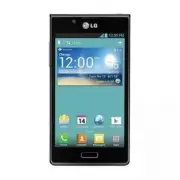
Page 3 - Contents
Contents 3 Getting to know your phone ................. 8Your Home screen ............................... 26Google account setup .......................... 41Connecting to Networks and Devices 43Calls ...................................................... 56Contacts ....................................
Page 4 - Caution
4 Violation of the instructions may cause serious injury or death. • Never use an unapproved battery since this could damage the phone and/or battery and could cause the battery to explode. • Never place your phone in a microwave oven as it will cause the battery to explode. • Never store your phone...
Page 8 - Getting to know your phone; Before you start using the; To uninstall applications:; On the Home screen, touch
8 Getting to know your phone Before you start using the phone, please read this! Please check to see whether any problems you encountered with your phone are described in this section before taking the phone in for service or calling a service representative. 1. Phone memory When there is less than ...
Page 9 - Optimizing battery life; To check the battery power level:; Apps
9 2. Optimizing battery life Extend your battery's life between charges by turning off features that you don't need to having running constantly in the background. You can monitor how applications and system resources consume battery power. Extending your phone's battery life: • Turn off radio commu...
Page 11 - Before installing an
Getting to know your phone 11 Applications screen and the two icons will be combined. NOTE You can customize contents and properties of each folder. To change the folder name and color, touch the folder, then touch . To add more apps to the folder, simply drag and drop the icons into the desired fol...
Page 12 - Using the hard reset; Turn the power off
Getting to know your phone 12 5. Using the hard reset (Factory reset) If your phone needs to be restored to its original condition, perform a hard reset to reboot your phone. 1. Turn the power off 2. Press and hold the following keys at the same time: Volume Down Key + Home Key + Power/Lock Key . 3....
Page 13 - Opening and switching
Getting to know your phone 13 5. Press the Power/Lock Key and your phone will be restored to the factory settings. To cancel, press any other key. Leave your phone for at least a minute while the hard reset is carried out. Your phone will reboot automatically. Caution If you perform a hard reset, al...
Page 14 - To stop applications:; Hold your phone upright
Getting to know your phone 14 To view a list of recently used applications: Simply touch and hold the Home Key . To stop applications: 1. On the Home screen, touch > Apps tab > Settings > Apps (DEVICE category) > Running tab. 2. Scroll and touch the desired application and touch Stop to ...
Page 15 - When the screen freezes; OR; Press and hold the
Getting to know your phone 15 8. When the screen freezes If the screen freezes or the phone does not respond when you try to operate it: Remove the battery, reinsert it, then turn the phone on. OR Press and hold the Power/Lock Key for 10 seconds to turn it off. If it still does not work, please cont...
Page 16 - Device components
Getting to know your phone 16 Device components Earpiece Proximity Sensor Front Camera Lens Home Key • Return to the Home screen from any screen. • Press and hold to view a list of the most recently used apps. Back Key Return to the previous screen. Power/Lock Key • Switch your phone on/off by press...
Page 20 - Charging your phone
Getting to know your phone 20 3. Align the back cover over the battery compartment and press it down until it clicks into place . Charging your phone The Charger/USB Port is at the bottom of the phone. Insert the charger and plug it into an electrical outlet.
Page 21 - Using the memory card; To insert a memory card:
Getting to know your phone 21 NOTE The battery must be fully charged initially to improve battery lifetime. NOTE Do not open the back cover during the charging your phone. Using the memory card To insert a memory card: Insert the memory card into the slot. Make sure the gold contact area is facing d...
Page 22 - To format the memory card:
Getting to know your phone 22 WARNING Do not insert or remove the memory card when the phone is on. Doing so may damage the memory card as well as your phone, and the data stored on the memory card may get corrupted. To format the memory card: Your memory card may already be formatted. If it isn't, ...
Page 23 - When you are not using the LG
Getting to know your phone 23 NOTE If there is content on your memory card, the folder structure may be different after formatting as all the files will be deleted. Locking and unlocking the screen If you do not use the phone for a while, the screen is turned off and locked automatically. This helps...
Page 24 - Secure your lock screen; • On the Home screen, touch
Getting to know your phone 24 screen in any direction to unlock your Home screen. The last screen you viewed will open. Secure your lock screen You can lock your screen so that only you can unlock it to access your phone. To set Swipe, Face Unlock, Pattern, PIN or Password for the first time: • On t...
Page 25 - To adjust the volume; On the Home screen, touch the
Getting to know your phone 25 When you cannot recall your unlock pattern: If you logged in to your Google account on the phone but failed to enter the correct pattern 5 times, touch Forgot pattern ?. You are then required to log in with your Google account to unlock your phone or enter your Backup P...
Page 26 - Your Home screen; Touch screen tips; Touch
26 Your Home screen Touch screen tips Here are some tips on how to navigate around your phone. Touch – To choose a menu/option or open an application, touch it. Touch and hold – To open an options menu or grab an object you want to move, touch and hold it. Drag – To scroll through a list or move slo...
Page 27 - Home screen; Phone
Your Home screen 27 Home screen Simply swipe your finger to the left or right to view the panels. You can customize each panel with apps, downloads, widgets and wallpapers. NOTE Some screen images may be different depending on your phone provider. On your Home screen, you can view quick keys at the ...
Page 28 - Customizing the Home screen; To add items on your Home screen:
Your Home screen 28 Customizing the Home screen You can personalize your Home screen by adding application icons, and widgets to any Home screen canvas. You can also change the wallpaper. To add items on your Home screen: 1. Go to the Home screen canvas where you want to add the item. Then touch and...
Page 30 - Customizing an application icon
Your Home screen 30 Customizing an application icon from the Home screen NOTE : This feature allows you to make and use an icon with the pictures in your Gallery. You can further edit application icons on the Home screen. 1. Touch and hold an icon until the canvas grid is displayed, then release the...
Page 32 - Status Bar; Scroll to the right and touch
Your Home screen 32 Status Bar The Status Bar runs across the top of your screen. GPS Bluetooth Airplane Wi-Fi QuickMemo Touch and slide the Status Bar down with your finger to display the Notifications Panel. The Notifications Panel displays all of your notifications along with the Quick Settings a...
Page 33 - Viewing the Status Bar; Icon Description
Your Home screen 33 Viewing the Status Bar The Status Bar uses different icons to display phone information such as signal strength, new messages, battery life, active Bluetooth and data connections. Below is a table explaining the meaning of icons you're likely to see in the Status Bar. Icon Descri...
Page 36 - Using the keypad & entering text; Tap once to capitalize the next letter
Your Home screen 36 On-screen keyboard You can enter text using the on-screen keyboard. The on-screen keyboard appears automatically on the screen when you need to enter text. To manually display the keyboard, simply touch a text field where you want to enter text. Using the keypad & entering te...
Page 37 - Entering accented letters; The
Your Home screen 37 Entering accented letters The on-screen keyboard allows you to enter special characters (e.g. "á"). For example, to input "á", touch and hold the "a" key until the zoom-in key grows bigger and displays special characters. Then select the special character ...
Page 39 - Using the QuickMemo options; - Select if you want to use the
Your Home screen 39 3. Touch from the Edit menu and select to save the memo. NOTE : Please use a fingertip while using the QuickMemo feature. Do not use your fingernail. Using the QuickMemo options While using the QuickMemo feature, the following options are available: - Select if you want to use th...
Page 40 - Viewing the saved QuickMemo; Open the
Your Home screen 40 - Save the memo to your Gallery. - Crop the screen capture to the desired size. Viewing the saved QuickMemo Open the Gallery and touch the QuickMemo album.
Page 41 - Google account setup; To set up your Google account:
41 Google account setup When you first turn on your phone, you have the opportunity to activate the network, to sign into your Google Account and how you want to use some Google services. To set up your Google account: • Sign into a Google Account from the prompted setup screen. OR • On the Home scr...
Page 43 - Connecting to Networks and Devices; Connecting to Wi-Fi networks
43 Connecting to Networks and Devices Wi-Fi With Wi-Fi, you can use high-speed Internet access within the coverage of the wireless access point (AP). Enjoy wireless Internet using Wi-Fi, without extra charges. Connecting to Wi-Fi networks To use Wi-Fi on your phone, you need to access a wireless acc...
Page 45 - Bluetooth
Connecting to Networks and Devices 45 Bluetooth You can use Bluetooth to send data by running a corresponding application, not from the Bluetooth menu as on most other mobile phones. Turning on Bluetooth and pairing up your phone with a Bluetooth device You must pair your device with another device ...
Page 46 - Sending pictures using Bluetooth; Gallery
Connecting to Networks and Devices 46 Depending on the type of device, you will have to confirm codes, enter a code, or it will automatically pair. Once the paring is successful, your device will connect to the device. Sending pictures using Bluetooth 1. Open the Gallery and touch a picture, then to...
Page 49 - Using the Wi-Fi Direct
Connecting to Networks and Devices 49 connect to the phone's hotspot with a computer or other device. You can set Open in the Security menu to remove security from your Wi-Fi network. 4. Touch Save . ATTENTION! If you set the security option as Open, you cannot prevent unauthorized usage of online s...
Page 51 - Using SmartShare
Connecting to Networks and Devices 51 Enabling Wi-Fi Direct to share through SmartShare Wi-Fi Direct automatically scans nearby Wi-Fi Direct devices and the searched devices are listed as they are found. You can select a specific device to share multimedia data through Smart Share. Using SmartShare ...
Page 52 - To control your renderer devices; SmartShare
Connecting to Networks and Devices 52 • Touch Always accept request if you would like to automatically accept sharing requests from other devices. • Touch Receive files if you would like to allow the other devices to upload media files to your phone. 4. Under the SHARED CONTENTS section, touch to ch...
Page 56 - Calls; Making a call; Calling your contacts; Search contacts
56 Calls Making a call 1. On the Home screen, touch to open the keypad. 2. Enter the number using the keypad. To delete a digit, touch . 3. Touch to make a call. 4. To end a call, touch . TIP! To enter "+" to make international calls, touch and hold . Calling your contacts 1. On the Home scr...
Page 57 - Answering and rejecting a call; Locked screen; Adjusting call volume; Menu Key
Calls 57 Answering and rejecting a call Locked screen • Swipe in any direction to answer an incoming call. • Swipe in any direction to decline an incoming call. Unlocked screen • Touch to answer an incoming call. • Touch to decline an incoming call. TIP! Quick msg You can send a message quickly usin...
Page 58 - Viewing your call logs; Call logs
Calls 58 the number. You can also go to your recently dialed list by touching or search contacts by touching and select the number you want to call. 2. Touch to make the call. 3. Both calls are displayed on the call screen. Your initial call is locked and put on hold. 4. To merge the calls, touch . ...
Page 59 - Call settings
Calls 59 Call settings You can configure phone call settings such as call forwarding and other special features offered by your carrier. 1. On the Home screen, touch . 2. Touch the Menu Key . 3. Touch Call settings and choose the options that you want to adjust. Voicemail service – Allows you to sel...
Page 61 - Contacts; Searching for a contact
61 Contacts Add contacts to your phone and synchronize them with the contacts in your Google account or other accounts that support contact syncing. Searching for a contact 1. On the Home screen, touch to open your contacts. 2. Touch the Search contacts field and enter the contact name using the key...
Page 62 - Editing Contacts
Contacts 62 4. Touch a category of contact information and enter the details about your contact. 5. Touch Save . NOTE If you touch the Menu Key from the contact info screen, you can choose from Delete, Share, Join, Export or Add to home screen . Editing Contacts 1. Open the Contacts application. 2. ...
Page 63 - Favorite contacts; Adding a contact to your favorites; Favorites
Contacts 63 Favorite contacts You can classify frequently called contacts as favorites. Adding a contact to your favorites 1. On the Home screen, touch to open your contacts. 2. Touch a contact to view their details. 3. Touch the star to the right of the contact's name. The star turns yellow. Removi...
Page 64 - Sending a message; To
64 Messaging Your LG Splendor ™ combines text (SMS) and multimedia (MMS) messages into one intuitive, easy-to-use menu. Sending a message 1. Touch on the Home screen, and touch to create a new message. 2. Enter a contact name or contact number in the To field. As you enter the contact name, matching...
Page 65 - Threaded box; Liven up your messages using Smilies.
Messaging 65 Add subject , Discard , Send to Online Album , Set priority and All messages . 6. Touch Send to send your message. WARNING The 1000-character limit may vary from language and how the SMS is coded. WARNING If an image, video or audio file is added to an SMS message, it is automatically c...
Page 66 - Messaging; Changing your message settings
Messaging 66 Changing your message settings Your LG Splendor™ message settings are predefined, so you can send messages immediately. You can change the settings based on your preferences. Open the Messaging application and touch the Menu Key > Settings . Set you preferences as desired.
Page 67 - Email; Managing an email account; The first time you open the; To add another email account:
67 Email You can use the Email application to read emails from services other than Gmail. The Email application supports the following account types: POP3, IMAP and Exchange. Your service provider or system administrator can provide the account settings you need. Managing an email account The first ...
Page 68 - To delete an email account:; Email account screen
Email 68 To change an email account's setting: • On the Home screen, touch > Apps tab > Email > Menu Key > Settings. Then touch the desired email account. To delete an email account: • On the Home screen, touch > Apps tab > Email > Menu Key > Settings . Then select an account...
Page 69 - Working with account folders; To compose and send a message
Email 69 Working with account folders Each account has an Inbox, Outbox, Sent and Drafts folder. Depending on the features supported by your account's service provider, you may have additional folders. Composing and sending email To compose and send a message 1. Open the Email application and touch ...
Page 71 - Camera; Getting to know the viewfinder; Switch lenses
71 Camera Getting to know the viewfinder Switch lenses – Switch between the rear–facing camera lens and the front–facing camera lens. Cheese shutter – Take photo with voice command (saying "Cheese"). Brightness – This defines and controls the amount of sunlight entering the image. Shot mode ...
Page 72 - Taking a quick photo; Once you've taken the photo
Camera 72 Taking a quick photo 1. Open the Camera application. 2. Hold the phone and point the lens towards the subject you want to photograph. 3. Touch the screen and a focus box will appear in the center of the viewfinder screen. 4. When the focus box turns green, the camera has focused on your su...
Page 74 - Using the advanced settings
Camera 74 Edit - View and edit the pictures. Improves color qualities in different lighting conditions. Applies artistic effects to the pictures. Applies color effects to the pictures. Applies additional options to the pictures. Slideshow – Displays your images in a slideshow. Details – Displays the...
Page 76 - – Select one of the five shutter; – Restore all camera default
Camera 76 can see the pictures displayed on a map. NOTE This function is only available when GPS is active. – Select one of the five shutter sounds. – Automatically displays the picture after taking it. TIP! When you exit the camera, some settings return to their defaults, such as white balance, col...
Page 77 - Video camera
77 Video camera Getting to know the viewfinder Switch lenses – Switch between the rear– facing camera lens and the front-facing camera lens. Zoom – Zoom in or zoom out. Brightness – This defines and controls the amount of sunlight entering the video. Flash – Allows you to turn on the flash when reco...
Page 78 - Recording a quick video; After recording a video
Video camera 78 Recording a quick video 1. Open the Camera application and touch the Mode switch button. 2. The video camera viewfinder appears on the screen. 3. Holding the phone, point the lens towards the subject you want to capture in your video. 4. Touch once to start recording. 5. A red light ...
Page 81 - Multimedia; Music Player
81 Multimedia You can store multimedia files on a memory card for easy access to all your image and video files. Gallery On the Home screen, touch > Apps tab > Gallery . Open a list of albums that store all your image and video files. Music Player Your LG Splendor™ has a music player that lets...
Page 82 - Playing a song
Multimedia 82 Connectivity > USB Connection type > Media sync (MTP). 3. You can view the content on your PC and transfer the files. Playing a song 1. On the Home screen, touch > Apps tab > Music Player . 2. Touch the Songs tab. 3. Select the song you want to play. Touch to pause playback...
Page 84 - Utilities; Setting your alarm
84 Utilities Setting your alarm 1. On the Home screen, touch > Apps tab > Alarm/Clock . 2. Touch to add a new alarm and enter the desired time. 3. Set Repeat , Snooze duration , Vibration , Alarm sound , Puzzle lock and Memo . 4. Touch Save to save the alarm. Using your calculator 1. On the Ho...
Page 86 - Polaris Office; Managing files
Utilities 86 9. Touch Save to save the event in the calendar. Polaris Office Polaris Office is a professional mobile office solution that lets users conveniently view various types of office documents, including Word, Excel and PowerPoint files, anywhere, anytime, using their mobile devices. On the ...
Page 87 - Your Navigator Deluxe; and
Utilities 87 Office, the objects and layout remain the same as in their original documents. Your Navigator Deluxe With Your Navigator Deluxe, get all of the features of an advanced car navigation system on your mobile phone with voice turn-by-turn navigation enabled by GPS. Search for any destinatio...
Page 88 - Play StoreTM; To open the Play Store application
Utilities 88 • "Drive To" for turn by turn direction to an address, airport, contacts addresses and more. • "Places" to search for nearby businesses, the cheapest gas prices and more. • "Maps & Traffic" to see where you currently are located on a map and what traffic is i...
Page 89 - To download the applications; Touch the
Utilities 89 Scroll to the left and right to view and explore sub- categories. Touch here to search for the apps. To download the applications NOTE Before you can download a paid application, you must set up a billing arrangement. 1. Find an application you want and open its details screen. 2. Touch...
Page 90 - To get help with Play Store
Utilities 90 tells you what it can access if you continue with the download. 3. If you agree to the application’s access requirements, touch Accept & download (for free applications) or Accept & buy (for paid applications.) To get help with Play Store Play Store Help web pages are available ...
Page 91 - The web; Browser; Using the web toolbar; Touch to go back a page.
91 The web Browser Browser gives you a fast, full-color world of games, music, news, sport, entertainment and much more, right on your mobile phone. Wherever you are and whatever you enjoy. NOTE Additional charges apply when connecting to these services and downloading content. Check data charges wi...
Page 92 - Using options
The web 92 Touch to add your favorite bookmarks. Using options Touch the Menu Key to view the following options. Refresh – Update the current web page. Save to bookmarks – Add the current web page as bookmark. Go to Homepage – Go to the home page. Share page – Allows you to share the web page with o...
Page 93 - Slide
93 Settings On the Home screen, touch > Apps tab > Settings . WIRELESS & NETWORKS < Wi-Fi > Slide to the right to turn on Wi-Fi to connect to available Wi-Fi networks. Here you can manage Wi-Fi and Bluetooth. You can also set up mobile networks and switch to airplane mode. TIP! How t...
Page 95 - Settings; DEVICE
Settings 95 DEVICE < Sound > Sound profile – You can choose Sound, Vibrate only or Silent . Volumes – You can manage the volumes for various phone settings. Phone ringtone – Allows you to set your default incoming call ringtone. Notification sound – Allows you to set your default notification ...
Page 98 - PERSONAL; Google's location service
Settings 98 SD CARD – Check total available SD card space. Touch Unmount SD card to unmount the SD card for safe removal. Touch Erase SD card if you want to delete all data from the SD card. < Power Saver > Here you can manage the battery and check the power saving items. You can also check th...
Page 101 - SYSTEM
Settings 101 and delete all your data. If you reset the phone in this way, you are prompted to reenter the same information as when you first started your phone. SYSTEM < Date & time > Use Date & time settings to set how dates are displayed. < Accessibility > Use the Accessibilit...
Page 103 - DivX Mobile; DivX
Settings 103 DivX Mobile ABOUT DIVX VIDEO: DivX ® is a digital video format created by DivX, LLC, a subsidiary of Rovi Corporation. This is an official DivX Certified ® device that plays DivX video. Visit divx.com for more information and software tools to convert your files into DivX videos. ABOUT ...
Page 104 - Accessories
104 Accessories These accessories are available for use with the LG Splendor™. (Items described below may be optional and sold separately) Travel adapter Battery Stereo headset Data cable Connect your LG Splendor™ and PC. User Guide Learn more about your LG Splendor™.
Page 106 - FAQ
106 FAQ Please check to see if any problems you have encountered with your phone are described in this section before taking the phone in for service or calling a service representative. Category Sub-Category Question Answer BT Bluetooth Devices What are the functions available via Bluetooth? Connec...
Page 125 - Safety; HAC
125 Safety HAC This phone has been tested and rated for use with hearing aids for some of the wireless technologies that it uses. However, there may be some newer wireless technologies used in this phone that have not been tested yet for use with hearing aids. It is important to try the different fe...
Page 127 - Bodily Contact During Operation; This device was tested for typical
Safety 127 adopted an updated safety standard for human exposure to Radio Frequency (RF) electromagnetic energy emitted by FCC regulated transmitters. Those guidelines are consistent with the safety standard previously set by both U.S. and international standards bodies. The design of this phone com...
Page 128 - Vehicle-Mounted External Antenna
Safety 128 between the user’s body and the back of the phone and have not been tested for compliance with FCC RF exposure limits. Vehicle-Mounted External Antenna (Optional, if available.) To satisfy FCC RF exposure requirements, keep 8 inches (20 cm) between the user / bystander and vehicle-mounted...
Page 129 - Consumer Information; Are wireless phones safe?
Safety 129 Consumer Information About Radio Frequency Emissions Your wireless phone, which contains a radio transmitter and receiver, emits radio frequency energy during use. The following consumer information addresses commonly asked questions about the health effects of wireless phones. Are wirele...
Page 131 - What does “SAR” mean?
Safety 131 http://www.fcc.gov/cgb/ cellular.html or through the FCC at (888) 225-5322 or (888) CALL-FCC. What does “SAR” mean? In 1996, the FCC, working with the FDA, the U.S. Environmental Protection Agency, and other agencies, established RF exposure safety guidelines for wireless phones in the Un...
Page 132 - Can I minimize my RF exposure?
Safety 132 is determined at the highest power level, the actual SAR value of a wireless phone while operating can be less than the reported SAR value. This is because the SAR value may vary from call to call, depending on factors such as proximity to a cell site, the proximity of the phone to the bo...
Page 136 - World Health Organization
Safety 136 www.fcc.gov/oet/rfsafety Independent Expert Group on Mobile Phones http://www.iegmp.org.uk Royal Society of Canada Expert Panels on Potential Health Risks of Radio Frequency Fields from Wireless Telecommunication Devices 283 Sparks Street Ottawa, Ontario K1R 7X9 Canada Telephone: (613) 99...
Page 138 - Consumer Information on; This model phone meets the
Safety 138 Engineering in Medicine and Biology Society, Committee on Man and Radiation (COMAR) of the Institute of Electrical and Electronics Engineers http://ewh.ieee.org/soc/embs/comar/ Consumer Information on SAR (Specific Absorption Rate) This model phone meets the Government’s requirements for ...
Page 142 - Regulations for Wireless
Safety 142 on the Cellular Telecommunications Industry Association (CTIA) website at http://www.ctia.org/ *In the United States and Canada, the SAR limit for mobile phones used by the public is 1.6 watts/kg (W/kg) averaged over one gram of tissue. The standard incorporates a substantial margin of sa...
Page 146 - Caution: Avoid potential
Safety 146 For information about hearing aids and digital wireless phones Wireless Phones and Hearing Aid Accessibility http://www.accesswireless.org/Home.aspx FCC Hearing Aid Compatibility and Volume Control http://www.fcc.gov/cgb/consumerfacts/hac_wireless.html Caution: Avoid potential hearing los...
Page 149 - TIA Safety Information; *American National Standards
Safety 149 TIA Safety Information The following is the complete TIA Safety Information for wireless handheld phones. Exposure to Radio Frequency Signal Your wireless handheld portable phone is a low power radio transmitter and receiver. When ON, it receives and sends out Radio Frequency (RF) signals...
Page 150 - Antenna Care; NORMAL POSITION: Hold the phone
Safety 150 Institute; National Council on Radiation Protection and Measurements; International Commission on Non-Ionizing Radiation Protection Those standards were based on comprehensive and periodic evaluations of the relevant scientific literature. For example, over 120 scientists, engineers, and ...
Page 151 - Tips on Efficient Operation
Safety 151 as you would any other telephone with the antenna pointed up and over your shoulder. Tips on Efficient Operation For your phone to operate most efficiently: Don’t touch the antenna unnecessarily when the phone is in use. Contact with the antenna affects call quality and may cause the phon...
Page 152 - Persons with pacemakers:; • Should ALWAYS keep the phone; Hearing Aids
Safety 152 avoid potential interference with the pacemaker. These recommendations are consistent with the independent research by and recommendations of Wireless Technology Research. Persons with pacemakers: • Should ALWAYS keep the phone more than six (6) inches from their pacemaker when the phone ...
Page 153 - Other Medical Devices; Turn your phone OFF in health care; Vehicles
Safety 153 call the customer service line to discuss alternatives). Other Medical Devices If you use any other personal medical device, consult the manufacturer of your device to determine if it is adequately shielded from external RF energy. Your physician may be able to assist you in obtaining thi...
Page 154 - Posted Facilities; To avoid interfering with blasting; Potentially Explosive Atmosphere; Areas with a potentially explosive
Safety 154 manufacturer of any equipment that has been added to your vehicle. Posted Facilities Turn your phone OFF in any facility where posted notices so require. Aircraft FCC regulations prohibit using your phone while in the air. Switch OFF your phone before boarding an aircraft. Blasting Areas ...
Page 157 - Safety Information; • Do not disassemble or open crush,
Safety 157 - Connect the equipment into an outlet on a circuit different from that to which the receiver is connected. - Consult the dealer or an experienced radio/TV technician for help. * Information subject to change. Part 15.21 statement Changes or modifications that are not expressly approved b...
Page 160 - Charger and Adapter Safety
Safety 160 Charger and Adapter Safety • The charger and adapter are intended for indoor use only. • Insert the battery pack charger vertically into the wall power socket. • Only use the LG-approved battery charger. Otherwise, you may cause serious damage to your phone. • Use the correct adapter for ...
Page 167 - General Notice; • Using a damaged battery or placing
Safety 167 • Don’t short-circuit the battery. Metallic articles such as a coin, paperclip or pen in your pocket or bag or contact with sharp objects including animal bites may short-circuit the + and – terminals of the battery (metal strips on the battery) upon moving. Shortcircuit of the terminal m...
Page 169 - American Academy of Audiology
Safety 169 text messages, voice messages, pictures, and videos could also be deleted.) The manufacturer is not liable for damage due to the loss of data. • When you use the phone in public places, set the ringtone to vibration so you don't disturb others. • Do not turn your phone on or off when putt...
Page 171 - FDA Consumer Update; Do wireless phones pose a
Safety 171 FDA Consumer Update The U.S. Food and Drug Administration’s Center for Devices and Radiological Health Consumer Update on Mobile Phones: 1. Do wireless phones pose a health hazard? The available scientific evidence does not show that any health problems are associated with using wireless ...
Page 172 - What is the FDA’s role concerning
Safety 172 may occur, but such findings have not been confirmed by additional research. In some cases, other researchers have had difficulty in reproducing those studies, or in determining the reasons for inconsistent results. 2. What is the FDA’s role concerning the safety of wireless phones? Under...
Page 175 - What kinds of phones are the
Safety 175 are thus not the subject of the safety questions discussed in this document. 3. What kinds of phones are the subject of this update? The term “wireless phone” refers here to handheld wireless phones with built-in antennas, often called “cell”, “mobile”, or “PCS” phones. These types of wir...
Page 176 - What are the results of the
Safety 176 a house, typically operate at far lower power levels, and thus produce RF exposures far below the FCC safety limits. 4. What are the results of the research done already? The research done thus far has produced conflicting results, and many studies have suffered from flaws in their resear...
Page 177 - What research is needed to
Safety 177 Other studies exposed the animals to RF for up to 22 hours per day. These conditions are not similar to the conditions under which people use wireless phones, so we do not know with certainty what the results of such studies mean for human health. Three large epidemiology studies have bee...
Page 179 - What is the FDA doing to find out; The FDA and the Cellular
Safety 179 which model of phone is used. 6. What is the FDA doing to find out more about the possible health effects of wireless phone RF? The FDA is working with the U.S. National Toxicology Program and with groups of investigators around the world to ensure that high priority animal studies are co...
Page 180 - How can I find out how much
Safety 180 Telecommunications & Internet Association (CTIA) have a formal Cooperative Research And Development Agreement (CRADA) to do research on wireless phone safety. The FDA provides the scientific oversight, obtaining input from experts in government, industry, and academic organizations. C...
Page 182 - What has the FDA done to
Safety 182 online listing. 8. What has the FDA done to measure the Radio Frequency energy coming from wireless phones? The Institute of Electrical and Electronic Engineers (IEEE) is developing a technical standard for measuring the Radio Frequency (RF) energy exposure from wireless phones and other ...
Page 183 - What steps can I take to reduce
Safety 183 to greatly improve the consistency of measurements made at different laboratories on the same phone. SAR is the measurement of the amount of energy absorbed in tissue, either by the whole body or a small part of the body. It is measured in watts/kg (or milliwatts/g) of matter. This measur...
Page 184 - What about children using
Safety 184 between your body and the source of the RF, since the exposure level drops off dramatically with distance. For example, you could use a headset and carry the wireless phone away from your body or use a wireless phone connected to a remote antenna. Again, the scientific data does not demon...
Page 185 - What about wireless phone
Safety 185 Some groups sponsored by other national governments have advised that children be discouraged from using wireless phones at all. For example, the government in the United Kingdom distributed leaflets containing such a recommendation in December 2000. They noted that no evidence exists tha...
Page 187 - Where can I find additional
Safety 187 interactions with other medical devices. Should harmful interference be found to occur, the FDA will conduct testing to assess the interference and work to resolve the problem. 12. Where can I find additional information? For additional information, please refer to the following resources...
Page 188 - Driving; • Give full attention to driving -- driving; 0 Driver Safety Tips
Safety 188 Driving Check the laws and regulations on the use of wireless phones in the areas where you drive and always obey them. Also, if using your phone while driving, please observe the following: • Give full attention to driving -- driving safely is your first responsibility; • Use hands-free ...
Page 194 - Limited Warranty Statement; WHAT THIS WARRANTY; (1) The limited warranty for the product
194 Limited Warranty Statement Limited Warranty Statement 1. WHAT THIS WARRANTY COVERS: LG offers you a limited warranty that the enclosed subscriber unit and its enclosed accessories will be free from defects in material and workmanship, according to the following terms and conditions: (1) The limi...
Page 196 - WHAT THIS WARRANTY DOES
Limited Warranty Statement 196 2. WHAT THIS WARRANTY DOES NOT COVER: (1) Defects or damages resulting from use of the product in other than its normal and customary manner. (2) Defects or damages from abnormal use, abnormal conditions, improper storage, exposure to moisture or dampness, unauthorized...
Page 200 - HOW TO GET WARRANTY
Limited Warranty Statement 200 5. HOW TO GET WARRANTY SERVICE: To obtain warranty service, please call or fax to the following telephone numbers from anywhere in the continental United States: Tel. 1-800-793-8896 or Fax. 1-800-448-4026 Or visit http://us.lgservice.com. Correspondence may also be mai...