Page 2 - Important Safety Precautions; Wash hands after handling
2 Important Safety Precautions Read these instructions. Breaking the rules may be dangerous or illegal. Further detailed information is given in this user guide. Violation of the instructions may cause serious injury or death. s This product contains chemicals known to the State of California to cau...
Page 6 - Contents
6 Contents Important Safety Precautions ...............2 Contents ..................................................6 Welcome ................................................. 11 Technical Details ................................... 13 Phone Overview ................................... 20 Quick Keys...
Page 7 - Quick Access to Convenient Features 40; The Basics of Storing Contacts Entries .. 45
7 Contents Quick Access to Convenient Features 40 Lock Mode ..................................................... 40Speakerphone Function.............................. 40Quick Volume Adjustment .......................... 41Call Waiting ..................................................... 41Caller I...
Page 11 - Welcome; Thank you for choosing the LG Freedom
11 Welcome Thank you for choosing the LG Freedom ™ cellular phone designed to operate with the latest digital mobile communication technology, Code Division Multiple Access (CDMA). Along with the many advanced features of the CDMA system, this compact phone offers: s Music playing capability. s micr...
Page 12 - Bluetooth
12 Welcome speed dialing with 99 memory locations. s Bilingual (English and Spanish) capabilities. s Bluetooth ® wireless technology. NOTE The Bluetooth ® word mark and logos are owned by the Bluetooth ® SIG, Inc. and any use of such marks by LG Electronics is under license. Other trademarks and tra...
Page 13 - The LG Freedom
13 Technical Details Important Information This user’s guide provides important information on the use and operation of your phone. Please read all the information carefully prior to using the phone for the best performance and to prevent any damage to or misuse of the phone. Any unapproved changes ...
Page 14 - combine to reduce call interruptions.; Technical Details
14 combine to reduce call interruptions. The Cellular and PCS CDMA networks consist of MSO (Mobile Switching Office), BSC (Base Station Controller), BTS (Base Station Transmission System), and MS (Mobile Station). * TSB-74: Protocol between an IS-95A system and ANSI J-STD-008 Its battery life is twic...
Page 15 - FCC RF Exposure Information
15 Network TIA/EIA/IS-634TIA/EIA/IS/651TIA/EIA/IS-41-CTIA/EIA/IS-124 MAS-BS PCSC-RS Intersystem operations Non-signaling data comm. Service TIA/EIA/IS-96-BTIA/EIA/IS-637TIA/EIA/IS-657IS-801TIA/EIA/IS-707-A Speech CODEC Short Message Service Packet Data Position Determination Service (gpsOne) High Sp...
Page 18 - - Reorient or relocate the receiving
Technical Details 18 with the instructions, may cause harmful interference to radio communications. However, there is no guarantee that interference will not occur in a particular installation. if this equipment does cause harmful interference or television reception, which can be determined by turn...
Page 20 - Phone Overview
Page 21 - Home screen
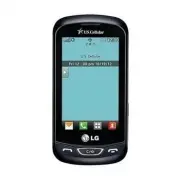
21 Phone Overview 1. Earpiece Lets you hear the caller. 2. Home screen Displays incoming calls, messages and status icons as well as a wide variety of content you select to view. 3. Send Key Use to place or answer calls. You can also press to access your Call History. 4. Lock/Unlock Key Allows you t...
Page 22 - QWERTY Keyboard; Quick Keys
22 Phone Overview 9. QWERTY Keyboard Use to enter numbers and characters and select menu items. 10. Camera Lens Use to take photos. Keep it clean for optimal photo quality. 1 2 3 1. Volume Keys Use to adjust the Master Volume from the Home screen and the Earpiece volume during a call. 2. Accessory/C...
Page 23 - to turn on the touchscreen and
23 Phone Overview surface of your hands. Don't use in a humid environment. 2. The Quick Key sensors are sensitive to your light touch. You don't need to press them forcefully to use them. Protect your phone from severe impact and can cause the Quick Key sensors to become damaged from harsh use. 3. U...
Page 24 - Home screens
Phone Overview 24 s$ONOTDRAGORSCRATCHYOURPHONEWITHANYSHARP materials. s$ONOTKEEPYOURPHONEINEXTREMECONDITIONS (places that are too humid, hot, or cold). s+EEPCHEMICALSAWAYFROMYOURPHONEBECAUSE they may change the cosmetic or functional features of your phone. The touchscreen is a great way to interact...
Page 25 - Contact; Shortcuts Menu
25 Phone Overview Contact : Add up to 11 contacts and groups then make calls or send and review messages from the Home screen. Messages : Shows all messages sent to or received from your contacts grouped by time. Main Contact Messages Shortcuts Menu The Shortcuts Menu allows instant access to menus ...
Page 28 - Menu Access; Main Overview
28 Menu Access Touch to access the phone's main menu. To access the main menu, first unlock the phone by pressing on the right side of your phone. To return to the Home screen, press . Main Overview Contacts 1. New Contact 2. Contact List 3. Groups 4. Speed Dials 5. My vCard Messaging 1. New Text Mes...
Page 33 - Getting Started with Your Phone; The Battery; Installing the Battery
33 Getting Started with Your Phone The Battery NOTE It is important to fully charge the battery before initial use of the phone. The phone comes with a rechargeable battery. The battery charge level is shown at the top right of the Home screen. Installing the Battery 1. Remove the battery from its p...
Page 34 - Turn the power off.; Charging the Battery; Your LG Freedom
34 Getting Started with Your Phone Removing the Battery 1. Turn the power off. 2. Lift the back cover using the fingertip cutout located at the bottom of the cover and remove it. 3. Lift the battery using the fingertip cutout located at the bottom of the battery compartment and remove it from the phon...
Page 35 - slot (refer to image
35 Getting Started with Your Phone Notice Please make sure that the 'B' side faces up before inserting a charger or USB cable into the Accessory/Charger Port of your phone. Plug one end of the USB cable into the phone’s Accessory/Charger Port and the other end into an electrical outlet. The charge t...
Page 36 - card slot. Then gently
Getting Started with Your Phone 36 2. Insert the microSD™ card with the label side facing upwards and the gold contact area downwards. Then gently push in until it clicks into the slot. If you insert the card in the wrong direction, it may damage your phone or your card. How to Remove Your microSD™ ...
Page 37 - Battery Charge Level; Turning the Phone On; Press; Turning the Phone Off; Press and hold; Signal Strength
37 Getting Started with Your Phone Battery Charge Level The battery charge level is shown at the top right corner of the Home screen. When the battery charge level becomes low, the low battery sensor alerts you in three ways: sounding an audible tone, blinking the battery icon, and displaying a warn...
Page 38 - Screen Icons; Menu; Making Calls
Getting Started with Your Phone 38 the number of bars next to the signal strength icon . The more bars, the better the signal strength. If the signal quality is poor, move to an open area. If you are in a building, the reception may be better near a window. Screen Icons To see the icon glossary, tou...
Page 39 - Correcting Dialing Mistakes
39 Getting Started with Your Phone Correcting Dialing Mistakes If you make a mistake while dialing a number, press or touch once to erase the last digit entered, or hold down or for at least 2 seconds to erase all the digits you have entered. Redialing Calls 1. Press twice to redial the last number ...
Page 40 - Quick Access to Convenient Features; Lock Mode; Speakerphone Function
40 Quick Access to Convenient Features Lock Mode Sets your phone to require a 4-digit Lock Code in order to use the phone. To set Lock Mode on when turning on the phone, touch Menu > Settings > Phone Settings > Security > Enter your Lock Code > Lock Phone > On Power Up . To lock th...
Page 41 - Quick Volume Adjustment; Call Waiting
Quick Access to Convenient Features 41 Quick Volume Adjustment Use the Volume Keys to adjust the Master Volume from the Home screen, and the Earpiece volume during a call. The upper Volume Key increases the volume and the lower Volume Key decreases the volume. NOTE The keypad volume is adjusted thro...
Page 42 - Caller ID; Enter and hold the Speed Dial
Quick Access to Convenient Features 42 Caller ID Caller ID displays the phone number or name of the incoming call. If the caller’s identity is stored in Contacts, the name will appear along with the phone number. Check with your service provider to ensure they offer this feature. Speed Dialing Speed...
Page 44 - Text Input; Entering and Editing Information
44 Text Input Each time you touch a data entry field, the touchscreen automatically displays a keypad allowing you to enter text, numbers, and symbols. For example, in a text field, an alphabet keypad appears, but you can also switch to number mode to enter digits. Touch to change the text input: T9 W...
Page 45 - Contacts in Your Phone’s Memory; Phone Numbers With Pauses
45 Contacts in Your Phone’s Memory The Basics of Storing Contacts Entries 1. Enter the phone number you want to save (up to 48 digits). 2. Touch Save and select either Add New Contact or Update Existing on the pop-up screen. 3. Touch a Phone Label. Mobile 1 / Home 1 / Office 1 / Mobile 2 / Fax / Home...
Page 47 - Add Wait; Searching Your Phone’s Memory; Searching by Letter; Go To; Scrolling Through Your Contacts
47 Contacts in Your Phone’s Memory 4. Touch the number. 5. Touch . 6. Touch Add Wait or Add 2-Sec Pause . 7. Enter the additional number(s), touch Done and then Save . Searching Your Phone’s Memory The LG Freedom ™ phone is able to perform a dynamic search of the contents in your phone’s memory. A d...
Page 48 - Accessing Options; Send via Bluetooth
48 Contacts in Your Phone’s Memory 2. Use your finger to scroll up and down through the list. Accessing Options 1. Touch to display your Contacts. 2. Touch . 3. Touch one of the following options: Send via Bluetooth : Send a contact(Name Card) via Bluetooth ® . Delete : Delete the selected entry from...
Page 50 - Using Phone Menus; Contacts
50 Using Phone Menus Contacts The Contacts menu allows you to store names, phone numbers and other information in your phone’s memory. 1. New Contact Allows you to add a new contact to your Contact List. NOTE Use Existing Entry to add another phone number to a contact already stored in memory. 1. To...
Page 52 - Messaging
Using Phone Menus 52 number from the list. 3. Touch the Contact you would like to assign a Speed Dial to. Then touch Yes . A confirmation message is displayed. 5. My vCard Allows you to view all of your personal Contact information including name and phone numbers. 1. Touch > Contacts > My vCar...
Page 53 - Preview
Using Phone Menus 53 1. New Text Message Allows you to send text messages and e-mail. Each message will be formatted and sent according to the destination address. The Basics of Sending a Text Message 1. Touch Messaging > New Text Message . 2. Touch Edit Number to manually enter the address or Ad...
Page 54 - Save As Draft; Text Options
Using Phone Menus 54 touch Edit to continue editing or Send to send it. Save As Draft Save the current message draft. Priority Level Choose High / Normal to set the priority level of your message. Callback # Choose On / Off to set your callback number to be sent with the message. Cancel Message Allo...
Page 56 - Add Slide; Viewing Your Inbox
Using Phone Menus 56 Add Slide Inserts a slide to add more pictures to the message. Priority Level Choose High / Normal to set the priority level of your message. Cancel Message Allows you to cancel sending the message. 7. Touch Send to send the message. 3. Messages The phone alerts you in 3 ways wh...
Page 57 - Forward
Using Phone Menus 57 1. Touch Messaging > Messages . 2. Touch a message thread, then select the desired message. s Touch Reply to reply to the message. s Touch Delete to delete the message. s Touch Chat to view the conversation in Chat view mode. - OR - s Touch to choose from the following option...
Page 58 - Add New; Message Icon Reference
Using Phone Menus 58 Play Again Allows you to play the attached file again. Save As Ringtone Allows you to save sound as your ringtone. Save Sound Allows you to save the attached media to your phone. (Only for messages with audio attached.) Lock/Unlock Locks or unlocks the selected message. Go to URL...
Page 59 - Displays saved draft messages.
Using Phone Menus 59 Text Message Read New MMS Message New MMS Message Received MMS Message Unread MMS Message Read Message Delivered Message Failed Pending Message Message Sent Multiple Messages Delivered Multiple Messages Failed Multiple Messages Delivery Incomplete Multiple Pending Messages Multi...
Page 60 - Delete; Checking Your Voicemail Box
Using Phone Menus 60 2. Touch to choose from the following options: Delete Deletes the selected message from Drafts. Lock/Unlock Locks or unlocks the selected message(s). Delete Draft Deletes all Draft messages at one time. Settings Reply Settings / Messages View / Entry Mode / Auto Save / Auto Dele...
Page 61 - Touch
Using Phone Menus 61 message(s). 6. Templates Allows you to display, edit, and add text templates. These text templates allow you to reduce manual text input into messages. 1. Touch Messaging > Templates . 2. Touch New to create a new template. 3. After editing the new template, touch Save to sav...
Page 64 - With this feature on, you can input
Using Phone Menus 64 Service. This feature should only be used when a VMS (Voicemail Service) access number is not provided from the network. 10. Callback # ( On / Off ) With this feature on, you can input the callback number that will be automatically included when you send a message. 11. Signature...
Page 65 - Call History
Using Phone Menus 65 Call History The Call History menu is a list of the last phone numbers or Contact entries for calls you missed, received, and dialed. It is continually updated as new numbers are added to the beginning of the list and the oldest entries are removed from the bottom of the list. N...
Page 68 - Multimedia; Back
Using Phone Menus 68 6. Data Counter Allows you to view the list of received and transmitted data. 1. Touch > Call History > Data Counter . 2. Transmitted data is displayed for the following types: Received Data / Sent Data / All Data 3. Touch to reset an individual counter or to reset all cou...
Page 69 - To adjust the brightness.
Using Phone Menus 69 Brightness To adjust the brightness. White Balance Auto/ Sunny/ Cloudy/ Fluorescent/ Glow Video Takes a video. Take Takes a picture. Images To view the photos in the Images folder. Settings Resolution 1600X1200/ 1280X960/ 640X480/ 320X240 Shutter Sound Shutter 1/ No Sound/ Shutt...
Page 72 - Allows you to play the last played song.
Using Phone Menus 72 to view and listen to pre-loaded ringtones. 7. Music Allows you to listen to songs stored in your memory card. To access this feature, there should be stored music in your memory card. Notes s "ESURETOUSEONLYRECOMMENDED microSD ™ cards. Using non-recommended microSD ™ cards ...
Page 76 - Shuffle; easyedge; Downloading Applications; Incoming Calls
Using Phone Menus 76 2. Touch Shuffle to turn the feature On or Off . easyedge easyedge SM allows you to do more than just talk on your phone. easyedge SM is a technology and service that allows you to download and use applications on your phone. With easyedge SM , it is quick and easy to personalize...
Page 77 - easyedge Shop; My Schedule
Using Phone Menus 77 easyedge Shop Get your news, weather, sports, ringtones, e-mail, and games on your phone. Call 888-BUY-USCC for unlimited access. 1. Touch > easyedge > easyedge Shop > Catalog . 2. Search for an application you like and follow the instructions to download it. My Schedul...
Page 79 - Browser; Start Browser; Ending an Web Session
Using Phone Menus 79 Browser The Browser feature allows you to view Internet content. Accessibility and selections within this feature are dependent upon your service provider. For specific information on the Web, contact your service provider. Start Browser Allows you to initiate a Web session. 1. T...
Page 80 - Homepage
Using Phone Menus 80 Bookmarks menu where you can add, edit, and delete your bookmarks. s Go to URL Allows you to enter a Web address to visit. s Refresh Allows you to reload the current Web page. s History Displays a list of visited web pages. s Clear Memory Allows you to clear the memory. s Search...
Page 81 - Advanced
Using Phone Menus 81 disable image, background, and object downloads. Restart Browser Allows you to restart the Browser. Scroll Mode Allows you to customize the scrolling settings. Send Referrer Allows you to turn the HTTP Send Referrer Header on or off. Key Press Timeout Set the key press timeout. ...
Page 82 - Tools
Using Phone Menus 82 Tools Your phone’s tools include: Voice Command, Calculator, Ez Tip Calculator, World Clock, Unit Converter, Drawing Panel, and Stopwatch. 1. Voice Command Allows you to make phone calls quickly and easily by voice. Your phone recalls the number from your Contacts and then dials...
Page 89 - Settings
Using Phone Menus 89 Settings This menu allows you to configure various phone settings. 1. Sounds Settings This menu allows you to customize the phone’s sounds. 1.1 Master Volume Allows you to configure the master volume level. 1. Touch > Settings > Sounds Settings > Master Volume . 2. Touch ...
Page 92 - Display Backlight
Using Phone Menus 92 3. When you are finished, touch Save . To select whether to display the banner or not : Toggle the Banner button between ON and OFF . 2.2 Display Backlight Allows you to set the display backlight timer. 1. Touch > Settings > Display Settings > Display Backlight . 2. Touc...
Page 103 - Unlock
Using Phone Menus 103 4. Touch an option. Unlock The phone is never locked (Lock mode can still be used using the options below). Lock The phone is immediately locked. On Power Up The phone is locked when it is turned on. 5.4.6 Master Reset Allows you to reset your phone to the factory default setti...
Page 105 - Pairing a new Bluetooth
Using Phone Menus 105 Notes s 2EADTHEUSERGUIDEOFEACH"LUETOOTH ® accessory that you are trying to pair with your phone because the instructions may be different. s 4HE"LUETOOTH ® features of this handset may not be compatible with all Bluetooth ® enabled devices. Your service provider or hand...
Page 106 - If Bluetooth
Using Phone Menus 106 pairing mode. 4. If Bluetooth ® power is set to off, you will be prompted to turn power on. Touch Yes . 5. The device will appear in the Device Found menu once it has been located. Touch the device. 6. The handset may prompt you for the passkey. Consult the Bluetooth ® accessor...
Page 110 - Tone Room Deluxe
Using Phone Menus 110 2. Touch a submenu to view that type of icon. 9.4 SW/HW Version Allows you to view the versions of various applications. 1. Touch > Settings > Phone Info > SW/HW Version . 9.5 Software Update 1. Touch > Settings > Phone Info > Software Update . 2. Touch Check ...
Page 111 - My Contacts Backup
Using Phone Menus 111 My Contacts Backup My Contacts Backup safeguards your mobile phone’s address book and automatically saves a copy of the names, phone numbers, and email addresses stored in your phone. You can also view, print, add, delete, and edit your contacts online. 1. Touch > My Contact...
Page 112 - Troubleshooting
112 Troubleshooting This section lists some problems that you might encounter while using your phone. Some problems require that you call your service provider, but most of problems you encounter are easy to correct yourself Symptom Possible causes Possible Corrective measures No connection to the n...
Page 115 - TIA Safety Information; Exposure to Radio Frequency Signal; ICNIRP; Safety
115 TIA Safety Information The following is the complete TIA Safety Information for wireless handheld phones. Exposure to Radio Frequency Signal Your wireless handheld portable phone is a low power radio transmitter and receiver. When ON, it receives and sends out Radio Frequency (RF) signals. In Au...
Page 117 - power level than otherwise needed.; Driving; conditions or the law require it.; Electronic Devices
117 power level than otherwise needed. Driving Check the laws and regulations on the use of wireless phones in the areas where you drive and always obey them. Also, if using your phone while driving, please observe the following: s Give full attention to driving -- driving safely is your first respon...
Page 118 - Persons with pacemakers:; minimize the potential for interference; Hearing Aids
118 avoid potential interference with the pacemaker. These recommendations are consistent with the independent research by and recommendations of Wireless Technology Research. Persons with pacemakers: s Should ALWAYS keep the phone more than six (6) inches from their pacemaker when the phone is turn...
Page 119 - to external RF energy.; Vehicles
119 Safety Other Medical Devices If you use any other personal medical device, consult the manufacturer of your device to determine if it is adequately shielded from external RF energy. Your physician may be able to assist you in obtaining this information. Health Care Facilities Turn your phone OFF...
Page 120 - Turn your phone OFF when in any area
Safety 120 Aircraft FCC regulations prohibit using your phone while in the air. Switch OFF your phone before boarding an aircraft. Blasting Areas To avoid interfering with blasting operations, turn your phone OFF when in a “blasting area” or in areas posted: “Turn off two-way radio”. Obey all signs ...
Page 121 - Battery Information and Care
121 Safety particles (such as grain, dust, or metal powders); and any other area where you would normally be advised to turn off your vehicle engine. For Vehicles Equipped with an Air Bag An air bag inflates with great force. DO NOT place objects, including either installed or portable wireless equip...
Page 122 - Safety Information
Safety 122 s Use only LG-approved chargers specific to your phone model since they are designed to maximize battery life. s Do not disassemble or short-circuit the battery. s Keep the battery’s metal contacts clean. s Replace the battery when it no longer provides acceptable performance. The battery ...
Page 123 - Violation of the instructions
123 Safety use of your phone and to prevent damage. Also, keep the user guide in an accessible place at all times after reading it. Caution! Violation of the instructions may cause minor or serious damage to the product. s Do not disassemble or open crush, bend or deform, puncture or shred. s Do not...
Page 124 - service center for inspection.; Charger and Adapter Safety
Safety 124 battery that has been qualified with the system per this standard, IEEE-Std-1725-2006. Use of an unqualified battery may present a risk of fire, explosion, leakage or other hazard. s Promptly dispose of used batteries in accordance with local regulations. s Battery usage by children should b...
Page 127 - Do not disassemble or crush the; General Notice
127 Safety of the phone (power plug pin), metallic articles (such as a coin, paperclip or pen) may short-circuit the phone. Always cover the receptacle when not in use. s Don’t short-circuit the battery. Metallic articles such as a coin, paperclip or pen in your pocket or bag may short-circuit the +...
Page 128 - heat generated during use.
Safety 128 heat generated during use. s When the phone is not used for a long period time, store it in a safe place with the power cord unplugged. s Using the phone in proximity to receiving equipment (i.e., TV or radio) may cause interference to the phone. s Do not use the phone if the antenna is d...
Page 129 - due to the loss of data.; Avoiding hearing damage
129 Safety due to the loss of data. s When you use the phone in public places, set the ringtone to vibration so you don't disturb others. s Do not turn your phone on or off when putting it to your ear. s Use accessories, such as earphones and headsets, with caution. Ensure that cables are tucked awa...
Page 131 - FDA Consumer Update
131 Safety and attentive while driving. Stop using this device if you find it disruptive or distracting while operating any type of vehicle or performing any other activity that requires your full attention. FDA Consumer Update The U.S. Food and Drug Administration’s Center for Devices and Radiologic...
Page 132 - Under the law, the FDA does not
Safety 132 health effects. Many studies of low level RF exposures have not found any biological effects. Some studies have suggested that some biological effects may occur, but such findings have not been confirmed by additional research. In some cases, other researchers have had difficulty in reproduc...
Page 133 - Cooperate in providing users of
Safety 133 Although the existing scientific data do not justify FDA regulatory actions, the FDA has urged the wireless phone industry to take a number of steps, including the following: s Support needed research into possible biological effects of RF of the type emitted by wireless phones; s Design w...
Page 134 - Environmental Protection Agency
Safety 134 s Environmental Protection Agency s Occupational Safety and Health Administration s National Telecommunications and Information Administration The National Institutes of Health participates in some interagency working group activities, as well. The FDA shares regulatory responsibilities f...
Page 135 - These RF exposures are limited by FCC
Safety 135 are thus not the subject of the safety questions discussed in this document. 3. What kinds of phones are the subject of this update? The term “wireless phone” refers here to handheld wireless phones with built-in antennas, often called “cell”, “mobile”, or “PCS” phones. These types of wir...
Page 137 - was around three years.
Safety 137 have been published since December 2000. Between them, the studies investigated any possible association between the use of wireless phones and primary brain cancer, glioma, meningioma, or acoustic neuroma, tumors of the brain or salivary gland, leukemia, or other cancers. None of the stu...
Page 145 - The FDA continues to monitor the
Safety 145 method to measure Electro Magnetic Interference (EMI) of implanted cardiac pacemakers and defibrillators from wireless telephones. This test method is now part of a standard sponsored by the Association for the Advancement of Medical Instrumentation (AAMI). The final draft, a joint effort b...
Page 146 - FDA web page on wireless phones
Safety 146 use of wireless phones for possible interactions with other medical devices. Should harmful interference be found to occur, the FDA will conduct testing to assess the interference and work to resolve the problem. 12. Where can I find additional information? For additional information, plea...
Page 147 - 0 Driver Safety Tips; When operating a car, driving is your
Safety 147 (http://www.who.int/emf) National Radiological Protection Board (UK) (http://www.hpa.org.uk/radiation/) 10 Driver Safety Tips Your wireless phone gives you the powerful ability to communicate by voice almost anywhere, anytime. An important responsibility accompanies the benefits of wireles...
Page 148 - Make sure you place your wireless
Safety 148 2. When available, use a hands-free device. A number of hands-free wireless phone accessories are readily available today. Whether you choose an installed mounted device for your wireless phone or a speaker phone accessory, take advantage of these devices if available to you. 3. Make sure...
Page 149 - Dial sensibly and assess the traffic if
Safety 149 are reading an address book or business card, or writing a “to-do” list while driving a car, you are not watching where you are going. It is common sense. Do not get caught in a dangerous situation because you are reading or writing and not paying attention to the road or nearby vehicles....
Page 150 - Use your wireless phone to call for
Safety 150 if necessary, suspend conversations which have the potential to divert your attention from the road. 8. Use your wireless phone to call for help. Your wireless phone is one of the greatest tools you can own to protect yourself and your family in dangerous situations -- with your phone at ...
Page 151 - Consumer Information on SAR
Safety 151 driving may require attention, but are not urgent enough to merit a call for emergency services. But you can still use your wireless phone to lend a hand. If you see a broken-down vehicle posing no serious hazard, a broken traffic signal, a minor traffic accident where no one appears injure...
Page 152 - exposure to radio waves
Safety 152 exposure to radio waves . Your wireless phone is a radio transmitter and receiver. It is designed and manufactured not to exceed the emission limits for exposure to radiofrequency (RF) energy set by the Federal Communications Commission (FCC) of the U.S. Government. These FCC exposure lim...
Page 154 - The highest SAR value for this model
Safety 154 ear and worn on the body) as required by the FCC for each model. This device was tested for typical body-worn operations with the back of the phone kept 0.59 inches (1.5 cm) between the user’s body and the back of the phone. To comply with FCC RF exposure requirements, a minimum separatio...
Page 157 - for persons with hearing disabilities.
Safety 157 for persons with hearing disabilities. While some wireless phones are used near some hearing devices (hearing aids and cochlear implants), users may detect a buzzing, humming, or whining noise. Some hearing devices are more immune than others to this interference noise, and phones also va...
Page 158 - Hearing devices may also be rated. Your
Safety 158 M-Ratings: Phones rated M3 or M4 meet FCC requirements and are likely to generate less interference to hearing devices than phones that are not labeled. M4 is the better/higher of the two ratings. T-Ratings: Phones rated T3 or T4 meet FCC requirements and are likely to generate less inter...
Page 161 - Limited Warranty Statement
161 Limited Warranty Statement 1. WHAT THIS WARRANTY COVERS: LG offers you a limited warranty that the enclosed subscriber unit and its enclosed accessories will be free from defects in material and workmanship, according to the following terms and conditions: (1) The limited warranty for the produc...
Page 162 - Defects or damages resulting from use
162 Limited Warranty Statement (5) Upon request from LG, the consumer must provide information to reasonably prove the date of purchase. (6) The customer shall bear the cost of shipping the product to the Customer Service Department of LG. LG shall bear the cost of shipping the product back to the c...
Page 163 - (10) Products used or obtained in a rental
163 (3) Breakage or damage to antennas unless caused directly by defects in material or workmanship. (4) That the Customer Service Department at LG was not notified by consumer of the alleged defect or malfunction of the product during the applicable limited warranty period. (5) Products which have h...
Page 165 - LG Electronics Service- Mobile Handsets
Limited Warranty Statement 165 CONSEQUENTIAL, ARISING OUT OF THE USE OF, OR INABILITY TO USE, THIS PRODUCT OR FOR ANY BREACH OF ANY EXPRESS OR IMPLIED WARRANTY, INCLUDING THE IMPLIED WARRANTY OF MARKETABILITY APPLICABLE TO THIS PRODUCT. Some states do not allow the exclusive limitation of incidental...
Page 167 - Index
167 Index 123 10 Driver Safety Tips 147 A Accessing Options 48Add New 105Airplane Mode 99Alarm Clock 77Albums 74Alert Sounds 89All Calls 67 All Songs 73Answer Options 95Artists 74Auto Retry 96Auto Touch Lock 98 B Banner 91Battery Charge Level 37Battery Information and Care 121Bluetooth ® 104 Brightn...