Page 2 - Important Safety Precautions
Important Safety Precautions 2 Impor tant Safe ty Precautions 1. Do not expose the battery charger or adapter to direct sunlight or use it in places with high humidity, such asa bathroom. 2. Do not use harsh chemicals (such as alcohol, benzene, thinners, etc.) or detergents to clean your phone. This...
Page 4 - Ta b l e o f C o n te n ts
Ta b l e o f C o n te n ts 4 T able of Cont ent s Important Safety Precautions 1 Table of Contents 4 Welcome 10 Technical Details 11 Important Information 11 FCC Part 15 Class B Compliance 11 Technical Details 11 FCC RF Exposure Information 13 Bodily Contact During Operation 13 Vehicle-Mounted the E...
Page 5 - Messaging
5 T able of Cont ent s Redialing Calls 25 Receiving Calls 25 Quick Access to ConvenientFeatures 26 Mute Function 26 Quick Volume Adjustment 26 Call Waiting 26 Caller ID 27 Speed Dialing 27 Entering and EditingInformation 28 Text Input 28 Key Functions 28 Contacts in Your Phone’sMemory 29 The Basics ...
Page 6 - Table of Contents
Table of Contents 6 T able of Cont ent s Contacts 43 1. New Contact 43 2. Contact List 44 3. Groups 44 4. ChatLINK 45 5. Metro411 45 6. My Name Card 45 7. Speed Dials 46 Multimedia 46 1. Take Photo 46 2. Record Video 48 3. Record Voice 48 4. Images 49 5. Videos 49 6. Audios 49 7. Shuffle 50 @metro 5...
Page 7 - Bluetooth
7 T able of Cont ent s 3. Alarm Clock 57 Bluetooth ® 58 1. Paired Devices 59 2. Power 60 3. My Visibility 60 4. My Bluetooth Name 60 5. My Bluetooth Info 60 Tools 61 1. Voice Command 61 2. Ez Tip Calc 61 3. Calculator 62 4. World Clock 62 5. Stopwatch 62 6. Unit Converter 63 Settings 63 1. Sound 63 ...
Page 8 - Safety
Table of Contents 8 T able of Cont ent s 3.5 Reset Default 70 4. Call Settings 70 4.1 Answer Options 70 4.2 End Call Options 71 4.3 Auto Retry 71 4.4 One-Touch Dial 71 4.5 Voice Privacy 71 4.6 Airplane Mode 72 4.7 TTY Mode 72 5. USB Mass Storage 72 6. System 73 6.1 Network 73 6.2 Location 74 7. Memo...
Page 9 - Accessories
9 T able of Cont ent s Explosion, Shock, and Fire Hazards80 General Notice 81 Warning! Important safetyinformation 82 Avoiding hearing damage 82 Using your phone safely 83 Avoiding hearing damage 83 Using headsets safely 84 FDA Consumer Update 84 10 Driver Safety Tips 94 Consumer Information onSAR 9...
Page 10 - We l c o m e; Thank you for choosing the
We l c o m e 10 W e lcome Thank you for choosing the MT375 cellular phone, designed to operate with the latest digitalmobile communicationtechnology, Code DivisionMultiple Access (CDMA). Alongwith the many advanced featuresof the CDMA system, thiscompact phone offers: ● Significantly enhanced voicec...
Page 11 - Te c h n i c a l D eta i l s; Important Information
Te c h n i c a l D eta i l s 11 T echnical De tails Important Information This user’s guide providesimportant information on the useand operation of your phone.Please read all the informationcarefully prior to using thephone for the best performanceand to prevent any damage to ormisuse of the phone....
Page 12 - Technical Details
Technical Details 12 T echnical De tails The Cellular and PCS CDMAnetworks consist of MSO (MobileSwitching Office), BSC (Base Station Controller), BTS (BaseStation Transmission System),and MS (Mobile Station). CDMA Standard Basic AirInterface TIA/EIA-95ATSB-74ANSI J-STD-008TIA/EIA-IS2000ANSI TIA/EIA...
Page 13 - FCC RF Exposure Information
13 T echnical De tails * TSB-74: Protocol between an IS-95A system and ANSI J-STD-008 1xRTT system receives twice asmany subscribers in the wirelesssection as IS-95. Its battery lifeis twice as long as IS-95. High-speed data transmission is alsopossible. The table (on the previous page)lists some ma...
Page 14 - FCC Notice and Cautions
Technical Details 14 T echnical De tails between the user’s body and theback of the phone and have notbeen tested for compliance withFCC RF exposure limits. Vehicle-Mounted the ExternalAntenna (Optional, if available.) To satisfy FCC RF exposurerequirements, keep 8 inches (20cm) between the user / b...
Page 15 - - Reorient or relocate the
15 T echnical De tails Part 15.19 statement This device and its accessoriescomply with part15 of FCC rules. Operation is subject to thefollowing two conditions: (1) This device & its accessoriesmay not cause harmfulinterference. (2) This device & its accessoriesmust accept any interferencere...
Page 16 - P h o n e O ve r v i ew
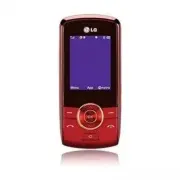
P h o n e O ve r v i ew 16 Phone Ov ervie w 1. Earpiece Lets you hear the caller. 2. LCD Screen Displays all the information needed to operate your phone, such as the call status, theContacts list, the date and time, and the signal andbattery strength. 3. Left Soft Key Use to access Menu from the st...
Page 18 - M e nu s O ve r v i ew; Contacts; Press
M e nu s O ve r v i ew 18 Men us Ov ervie w Messaging 1. New Text Message 2. New Picture Message 3. Inbox 4. Sent 5. Drafts 6. Voicemail 7. Email 8. Mobile IM 9. Templates 0. Settings 1. All Messages 2. Text Message 3. Picture Message 4. Edit Voicemail# *. Delete All 1. Delete Inbox 2. Delete Sent 3...
Page 20 - Menus Overview; Settings
Menus Overview 20 Men us Ov ervie w Settings 1. Sound 1. Ringers 2. Volume 3. Message Alerts 4. Alert Type 5. Service Alerts 6. Power On/Off Tone 7. Slide Tone 2. Display 1. Shotcuts Displays 2. Wallpaper 3. Banner 4. Backlight 5. Menu Style 6. Languages 7. Clocks & Calendar 8. Font Settings 9. ...
Page 21 - G ett i n g S ta r te d w i t h Yo u r P h o n e; The Battery; Installing the Battery; Make sure the power is off so; Charging the Battery; Connect the USB data cable; Note
G ett i n g S ta r te d w i t h Yo u r P h o n e 21 Getting St ar ted with Y our Phone The Battery The phone comes with arechargeable battery. The batterycharge level is shown at the topof the LCD screen when thephone is on. Installing the Battery To install, insert the battery intothe opening on th...
Page 22 - Card; Getting Started with Your Phone
3. The charge time variesdepending upon the battery leveland usage. How to Install YourmicroSD ™ Card 1. Locate the microSD ™ slot on the right side of the phoneand gently uncover the slotopening (the microSD TM slot cover stays attached to thephone so it doesn't becomemisplaced). 2. Insert the micr...
Page 23 - B attery Charge Level; Turning the Phone On; Install a charged battery or; Turning the Phone Off; until the; Signal Strength
23 Getting St ar ted with Y our Phone B attery Charge Level The battery charge level is shownat the top right of the LCDscreen. When the battery chargelevel becomes low, the phonealerts you in up to three ways:sounding an audible tone,blinking the battery icon, anddisplaying a warning message. Ifthe...
Page 24 - Screen Icons; To see the icon glossary, go to; Making Calls; Enter the phone number
Screen Icons To see the icon glossary, go to Menu -> Settings -> Phone Info -> Icon Glossary on your phone. Making Calls 1. Slide the phone open. 2. Enter the phone number (include the area code ifneeded). 3. Press . lf the phone is locked, enterthe lock code (by default, it'sthe last 4 dig...
Page 25 - Correcting Dialing Mistakes; for; Redialing Calls; twice to redial the; Receiving Calls
Correcting Dialing Mistakes If you make a mistake whiledialing a number, press once to erase the last digitentered, or hold down for at least 2 seconds to go to thestandby mode. Redialing Calls 1. Press twice to redial the most recent number in yourcall history. The last 120 calls(40 Missed, 40 Rece...
Page 26 - Mute Function; Mute; Quick Volume Adjustment; to receive a waiting; Quick Access to Convenient Features
Mute Function The Mute Function is used during aphone call. To quickly activate Mutepress Left Soft Key Mute , then to cancel press Left Soft Key Unmute . Quick Volume Adjustment Use the side keys to adjust theringer volume while in standbymode, and the earpiece volumeduring a phone call. The upperk...
Page 27 - Caller ID; OR
27 Quick A cce ss t o Con venient F e a ture s Caller ID Caller ID displays the phonenumber or name of the incomingcall. If the caller’s identity isstored in Contacts, the name willappear along with the phonenumber. Check with your serviceprovider to ensure they offer thisfeature. Speed Dialing Spee...
Page 28 - Text Input; E n te r i n g a n d E d i t i n g I n f o r m at i o n
Text Input You can customize and enter textin many of the functions in yourphone. Including, but not limitedto: the Banner, Calendar,Contacts and more. Whileentering text, the following areyour options: Key Functions Left Soft Key : Press to scroll through thefollowing text inputmodes: T9Word (T9WOR...
Page 29 - C o n ta c ts i n Yo u r P h o n e ’s M e m o r y; Phone Numbers With Pauses
C o n ta c ts i n Yo u r P h o n e ’s M e m o r y 29 Cont acts in Y our Phone’ s Memory The Basics of StoringContacts Entries 1. From standby mode enter the phone number you want tosave (up to 48 digits). 2. Press Left Soft Key Save . 3. Select either Save New or Update Existing . 4. Use to highligh...
Page 30 - Contacts in Your Phone’s Memory
Storing a Number with Pause orWait 1. Press Menu . 2. Press Contacts . 3. Press New Contact . 4. Enter a name (up to 22 characters) and enter anumber. 5. Enter the number in any of the text fields presented (Mobile 1, Home, Work,Mobile 2 and Fax) . 6. Press Right Soft Key Options and select Pause or...
Page 34 - The
Messaging 34 Messaging Messaging The MT375 can store up to 700 messages (including a maximumof 500 SMS and 100 MMS inthe Inbox). The informationstored in the messages isdetermined by phone mode andservice capability. Other limitssuch as available characters permessage may exist, please checkwith you...
Page 35 - Customize Your Text Message
35 Cont acts Recent Calls To select a recipient from your Recent Calls. Recent Messages Choose Inbox/ Sent to select a recipient from your Recent Messages. Groups Select a recipient from your Groups. Cancel Cancels the text message. 4. Complete your message and send or save it. Customize Your Text M...
Page 40 - Mobile IM
Messaging 40 Messaging 7. Email Allows you to send an email viaMobile Web. Mobile Email is anapplication downloadable fromthe Messaging Menu. Don't missan important email. Thanks toMobile Email, you can get youremails on your phone, whileyou're on the go. Mobile Emailworks with many providers,includ...
Page 42 - to highlight an
Messaging 42 Messaging 2. Auto Play (On/ Off) Allows the display toautomatically scroll downwhile viewing messages. 3. Callback # (On/ Off/ Edit) With this feature on, you caninput the callback numberthat will be automaticallyincluded when you send amessage. 0.3 Picture Message 1. Auto Receive (On/ ...
Page 43 - Highlight the field you wish to
Contacts 43 Cont acts Contacts The Contacts Menu allows youto store names, phone numbersand other information in yourphone’s memory. 1. New Contact Allows you to add a new contactto your Contact List. 1. Press , , . 2. Enter the name, then press . 3. Highlight the field you wish to store contact inf...
Page 45 - Edit
45 Cont acts 4. ChatLINK Allow you to use Push-To-Talk totalk with other PTT user inperson or group. 1. Press to start ChatLINK application 2. Follow on-screen instruction to provision and log-in to PTTservice. 3. Add your friend in your PTT contact list 4. Choose contact then press and hold CAMERA ...
Page 46 - Assign; Multimedia; Options
Contacts/ Multimedia 46 Cont acts/ Multimedia 7. Speed Dials Allows you to view your SpeedDials list, designate new SpeedDials, or remove Speed Dialdesignations entered in yourContacts. 1. Press , , . 2. Use to highlight the desired Speed Dial location(or enter the Speed Dialdigits), and press Assig...
Page 48 - Record Time
Multimedia 48 Multimedia 2. Record Video 1. Press , , . 2. Set the brightness using , zoom using and press Right Soft Key Options to change other settings. Select from the availableoptions (below): Switch to CameraResolution 176X144/ 128X96 ZoomBrightnessWhite Balance Auto/ Sunny/ Tungsten /Cloudy/ ...
Page 51 - Choose which application you; MetroWEB; Press the Directional Key
@metro/ MetroWEB 51 @me tr o/ Me tr oWEB @metro Allow you to download newapplications from the @metroservice. 1. Press , . 2. Waiting for @metro started then go to Browse to see thecatalog of application 3. Choose which application you want to download then followthe on-screen instruction todownload...
Page 52 - Recent Calls; to highlight an entry.
Recent Calls 52 R ecent Calls Recent Calls The Recent Calls menu has listsof phone numbers and/orContact entries for calls youmissed, received or dialed. It is continually updated as newnumbers are added to thebeginning of the list and theoldest entries are removed fromthe bottom of the list. 1. Mis...
Page 53 - to highlight a call
Recent Calls 53 R ecent Calls 2. Use to highlight a call type, then press . Last Call/ Dialed Calls/Received Calls/ Home Calls/Roam Calls/ All Calls/Lifetime Calls 6. Data Allows you to view the list of themost recent data calls. 1. Press , , . 2. Use to highlight an entry. 7. Data Counter Allows yo...
Page 54 - Music
Music 54 Music Music Allows you to access songsstored in your memory card. Foraccess to this feature, thereshould be stored music in yourmemory card. Music can betransferred to your phone fromyour PC. To enable this feature,please set USB Mass Storage toOn (see page 72). 1. All Songs 1. Press , , . ...
Page 55 - Play
55 Music 3. Recently Played Allows you to view the mostrecently played songs. 1. Press , , . 2. Use to highlight the recently played songs. Thenpress Play to play or the Right Soft Key Clear to clear the list. 4. Artists Allows you to view and listen toyour music by Artists. 1. Press , , . 2. Use to...
Page 56 - My Schedule; New
My Schedule 56 My Schedule My Schedule Your My Schedule tools includeCalendar, Notepad, Alarm Clock. 1. Calendar Allows you to store and accessyour agenda(s). Simply enteryour appointments in theCalendar, and your phone can(depending on your MasterVolume settings) alert you with areminder. 1. Press ...
Page 58 - My Menu; Select the location for your
My Menu/ Bluetooth ® 58 My Men u/ Blue to o th ® My Menu Allows you quick access to yourfavorite menus or functions. Amaximum of 12 items can bestored in My Menu. 1. Press , . 2. Select the location for your menu (or function) by using , then press . 3. Select the menu (or function) you wish to add ...
Page 59 - For pairing new Bluetooth
Bluetooth ® 59 Blue to o th ® 1. Paired Devices Pairing is the process that allowsthe handset to locate, establishand register 1-to-1 connectionwith the target device. For pairing new Bluetooth ® device 1. Press , , . Follow the Bluetooth ® accessory instructions to set the targetdevice to pairing m...
Page 60 - On
Bluetooth ® 60 Blue to o th ® 7. Once connected, you will see the device listed in the PairedDevices menu. 2. Power Allows you to set Bluetooth ® power to On/Off. 1. Press , , . 2. Use to select a setting, then press . On / Off 3. My Visibility Allows you to set the visibility ofyour Bluetooth ® fun...
Page 61 - Tools; Start Command
Tools 61 T ools Tools Your phone tools include VoiceCommand, Ez Tip Calc,Calculator, World Clock,Stopwatch and Unit Converter. 1. Voice Command Allows you to make phone callsquickly and easily by voice. Yourphone recalls the number fromyour Contacts, displays it briefly,and then dials it. This menui...
Page 62 - Clear
Tools 62 T ools 3. Calculator Allows you to perform simplemathematical calculations. 1. Press , , . 2. Enter data. ● Use keypad to enternumbers. ● Use to enter decimals. ● Use to switch the numbers entered to anegative value. ● Press Left Soft Key Clear to erase the entry. ● Press Right Soft Key Ope...
Page 66 - Set
Settings 66 Settings popup shortcut from thestandby screen. When set to On,you can access the metroPCSApps by pressing . When set to Off, accesses MetroWEB and accesses the Calendar. 1. Press , , , . 2. Select On/ Off, then press . 2.2 Wallpaper Allows you to choose the kind ofbackground to be displ...
Page 67 - Icon
67 Sett ings 2.5 Menu Style Allows you to view the Menu asan Icon or List display. 1. Press , , , . 2. Select Icon or List and press . 2.6 Languages Allows you to use the bilingualfeature according to yourpreference. Choose betweenEnglish and Spanish. 1. Press , , , . 2. Use to select English or Spa...
Page 68 - Normal; Lock Phone
Settings 68 Settings Options for Dial Font Size Normal / Large 2.9 Color Schemes Allows you to choose the colorscheme of the phone menus. 1. Press , , , . 2. Select Black/ White then press . 2.0 Name Match for Dialing Matches a saved Contact entrywith the corresponding lettersentered on the Dialing ...
Page 70 - Change Lock Code
Settings 70 Settings 2. Enter the four-digit lock code and press . 3. Press Change Lock Code . 4. Use to select a setting, then press . Phone Only Allows you to change the lock code used tolock/unlock the phone. Call & Applications Allows you to change the lock codethat is used to access theRest...
Page 71 - then press
71 Sett ings 4.1 Answer Options Allows you to determine how toanswer an incoming call. 1. Press , , , . 2. Use to select a setting, then press . Slide Open/ TALK Key Only/Slide Open & Any Key / Auto Answer 4.2 End Call Options Allows you to determine how thephone will disconnect a call. 1. Press...
Page 73 - Automatic
73 Sett ings or Windows Vista ™ PC with a compatible USB cable. Mac OSoperating system is notsupported. 1. Press , , . 2. Use to select a setting, then press . On/ Off 6. System The System menu allows you todesignate specific systemnetwork settings. 6.1 Network 6.1.1 System Select Allows you to set ...
Page 74 - select
Settings 74 Settings 1. Press , , , , . 2. Use to select On or Off , then press . 6.1.4 Serving System Identifies the channel number of asystem that is served as a SIDNumber. This information shouldonly be used for technical support. 1. Press , , , , . 6.2 Location Allows you to turn On or Off theLo...
Page 75 - S a f ety; Antenna Care
S a f ety 75 Safe ty TIA Safety Information The following is the completeTIA Safety Information forwireless handheld phones. Exposure to Radio FrequencySignal Your wireless handheld portablephone is a low power radiotransmitter and receiver. WhenON, it receives and sends outRadio Frequency (RF) sign...
Page 76 - Phone Operation
Safety 76 Safe ty could damage the phone andmay violate FCC regulations. Phone Operation NORMAL POSITION: Hold thephone as you would any othertelephone with the antennapointed up and over yourshoulder. Tips on Efficient Operation For your phone to operatemost efficiently: Don’t touch the antennaunne...
Page 77 - Persons with Pacemakers:; interference is taking place.; Hearing Aids
77 Safe ty recommends that a minimumseparation of six (6) inches bemaintained between a handheldwireless phone and a pacemakerto avoid potential interferencewith the pacemaker. Theserecommendations are consistentwith the independent researchby and recommendations ofWireless Technology Research. Pers...
Page 78 - Vehicles
Safety 78 Safe ty instruct you to do so. Hospitalsor health care facilities may useequipment that could besensitive to external RF energy. Vehicles RF signals may affect improperlyinstalled or inadequatelyshielded electronic systems inmotor vehicles. Check with themanufacturer or itsrepresentative r...
Page 79 - Safety Information; Violation of the; Charger and Adapter Safety
79 Safe ty below deck on boats; fuel orchemical transfer or storagefacilities; vehicles using liquefiedpetroleum gas (such as propaneor butane); areas where the aircontains chemicals or particles(such as grain, dust, or metalpowders); and any other areawhere you would normally beadvised to turn off ...
Page 80 - Battery Information and Care; Battery life will vary due to
Safety 80 Safe ty Battery Information and Care ● Please dispose of your batteryproperly or take it to yourlocal wireless carrier forrecycling. ● The battery doesn't need tobe empty before recharging. ● Use only LG-approvedchargers specific to yourphone model since they aredesigned to maximize batter...
Page 82 - Do not paint your phone.; Avoiding hearing damage
Safety 82 Safe ty ● Do not use the phone if theantenna is damaged. If adamaged antenna contactsskin, it may cause a slightburn. Please contact an LGAuthorized Service Center toreplace the damaged antenna. ● Do not immerse your phonein water. If this happens, turnit off immediately and removethe batt...
Page 83 - Using your phone safely; Use of your phone while
83 Safe ty experience ringing in your ears ormuffled speech, stop listeningand have your hearing checked.The louder the volume, the lesstime is required before yourhearing could be affected.Hearing experts suggest that toprotect your hearing: ● Limit the amount of time youuse your phone and/orheadse...
Page 84 - Using headsets safely
Safety 84 Safe ty ● Limit the amount of time youuse headset at high volume. ● Avoid turning up the volumeto block out noisysurroundings. ● Turn the volume down if youcan’t hear people speakingnear you. For information about how to seta maximum volume limit on yourhandset, please refer to thefeatures...
Page 91 - If there is a risk from these
91 Safe ty ( http://www.fcc.gov/oet/rfsafety ) gives directions for locating theFCC identification number onyour phone so you can find yourphone’s RF exposure level in theonline listing. 8. What has the FDA done tomeasure the Radio Frequencyenergy coming from wirelessphones? The Institute of Electri...
Page 92 - Some groups sponsored by
Safety 92 Safe ty products — and at this point wedo not know that there is — it isprobably very small. But if youare concerned about avoidingeven potential risks, you can takea few simple steps to minimizeyour exposure to RadioFrequency (RF) energy. Sincetime is a key factor in how muchexposure a pe...
Page 94 - For additional information, please; 0 Driver Safety Tips
Safety 94 Safe ty performance requirements forhearing aids and wireless phonesso that no interference occurswhen a person uses a“compatible” phone and a“compatible” hearing aid at thesame time. This standard wasapproved by the IEEE in 2000. The FDA continues to monitorthe use of wireless phones forp...
Page 95 - Make sure you place your
95 Safe ty using your wireless phone behindthe wheel of a car, practice goodcommon sense and rememberthe following tips:1. Get to know your wireless phone and its features such asspeed dial and redial. Carefullyread your instruction manualand learn to take advantage ofvaluable features most phonesof...
Page 96 - Dial sensibly and assess the
Safety 96 Safe ty phone numbers while driving.If you are reading an addressbook or business card, orwriting a “to-do” list whiledriving a car, you are notwatching where you are going.It is common sense. Do notget caught in a dangeroussituation because you arereading or writing and notpaying attentio...
Page 97 - Use your wireless phone to
97 Safe ty medical emergency. Remember,it’s a free call on your wirelessphone! 9. Use your wireless phone to help others in emergencies.Your wireless phone providesyou a perfect opportunity tobe a “Good Samaritan” inyour community. If you see anauto accident, crime inprogress or other seriousemergen...
Page 98 - Your
Safety 98 Safe ty Consumer Informationon SAR (Specific Absorption Rate) This Model Phone Meets theGovernment’s Requirements forExposure to Radio Waves. Your wireless phone is a radiotransmitter and receiver. It isdesigned and manufactured notto exceed the emission limits forexposure to radiofrequenc...
Page 103 - FCC Hearing Aid Compatibility and Volume Control
103 Safe ty The M mark is intended to besynonymous with the U mark.The T mark is intended to besynonymous with the UT mark.The M and T marks arerecommended by the Alliance forTelecommunications IndustriesSolutions (ATIS). The U and UT marks are referenced in Section20.19 of the FCC Rules. TheHAC rat...
Page 104 - Ac c es s o r i es; USB Cable; Standard battery is available.; Vehicle Power Charger
Ac c es s o r i es 104 A cce ssorie s There are a variety of accessories available for your mobile phone.Consult your local dealer for availability. Optional items are soldseparately. Wall/USB Charger USB Cable B attery Standard battery is available. Vehicle Power Charger The vehicle power charger a...
Page 105 - L i m i te d Wa r ra n ty S tate m e n t
L i m i te d Wa r ra n ty S tate m e n t 105 Limit ed W a rr anty St a tement 1. WHAT THIS WARRANTYCOVERS: LG offers you a limited warrantythat the enclosed subscriber unitand its enclosed accessories willbe free from defects in materialand workmanship, according tothe following terms andconditions:...
Page 106 - Limited Warranty Statement
Department of LG. LG shallbear the cost of shippingthe product back to theconsumer after thecompletion of service underthis limited warranty. 2. WHAT THIS WARRANTYDOES NOT COVER: (1) Defects or damages resulting from use of theproduct in other than itsnormal and customarymanner. (2) Defects or damag...
Page 107 - published maximum ratings.
107 Limit ed W a rr anty St a tement including, but not limited toany implied warranty ofmarketability or fitness for aparticular use. (7) Damage resulting from use of non-LG approvedaccessories. (8) All plastic surfaces and all other externally exposedparts that are scratched ordamaged due to norma...
Page 108 - . Please call or write
LG SHALL NOT BE LIABLE FORTHE LOSS OF THE USE OF THEPRODUCT, INCONVENIENCE,LOSS OR ANY OTHERDAMAGES, DIRECT ORCONSEQUENTIAL, ARISINGOUT OF THE USE OF, ORINABILITY TO USE, THISPRODUCT OR FOR ANYBREACH OF ANY EXPRESS ORIMPLIED WARRANTY,INCLUDING THE IMPLIEDWARRANTY OF MARKETABILITYAPPLICABLE TO THISPR...
Page 109 - I n d ex
1 10 Driver Safety Tips94@metro 51 A Accessories 104Airplane Mode 72Alarm Clock 57Albums 55Alert Type 64All Calls 52All Messages 41All Songs 54Answer Options 71Artists 55Audios 49Auto Retry 71 B Backlight 66Banner 66Battery Charge Level23Bluetooth® 58 C Calculator 62Calendar 56Call Settings 70Call T...
Page 110 - Index
Your Phone 21Groups 44 H How to Install YourmicroSD™ Card 22How to Remove YourmicroSD™ Card 22 I Images 49Important SafetyPrecautions 1Inbox 37Index 109 L Languages 67Limited WarrantyStatement 105Location 74Lock Phone 68 M Making a Call FromYour Phone’s Memory32Making Calls 24Memory 74Menu Style 67M...