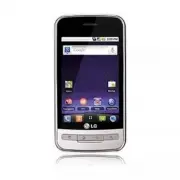
Page 3 - Co nte nt s
Contents . . . . . . . . . . . . . . . . . . . . . . . . . . . . . . . . . . . . . . . . .1 The Basics . . . . . . . . . . . . . . . . . . . . . . . . . . . . . . . . . . . . . . .2 Connecting to Networks and Devices . . . . . . . . . . . . . . . .28 Placing and Receiving Calls . . . . . . . . . . ....
Page 4 - T h e Ba s i c s; Phone Overview; Front View
2 T h e Ba s i c s 1. Proximity Sensor senses proximity towards other objects (such as your head) so that touch commands are not accidentally activated during a call. Note *Do not block the sensor or near the sensor area with film cover or phone case. * The use of a film cover produced by other manu...
Page 6 - Installing the Battery and microSD Card; Installing the battery; Turn the phone off before inserting or removing the memory card.
4 Installing the Battery and microSD Card NOTE It is important to fully charge the battery before initial use of the phone. The phone comes with a rechargeable battery. Keep the batterycharged while not in use in order to maximize talk, use, and standbytime. The battery charge level is shown at the ...
Page 7 - Charging the Phone
5 WARNING! On the Android OS 2.2, you can download applications from AndroidMarket and can store them on microSD card as well as on the device. Dueto this feature, if you skip the unmount procedure, it can cause an errorbecause information between microSD card and the device is accordedproperly. In ...
Page 8 - Charging with USB; Optimizing Battery Life; Tips to extend the life of your battery; Turn off radio communications that you aren't using.
6 Charging with USB You can use your computer to charge your phone. To be able tocharge with the USB cable, you need to have the necessary USBdrivers installed on your PC first. Connect one end of the USBcable to the charger port on your phone and connect the otherend to a USB port on your PC. It is...
Page 9 - To monitor and control what uses the battery
7 T h e Ba s i c s To check the battery charge level © From the Home screen, press the Menu Key and touch Settings > About phone > Status . The battery status (charging, discharging) and level (as apercentage of fully charged) will be displayed at the top ofthe screen. To monitor and control w...
Page 10 - Turning the Phone On and Off; Turning the phone on; Turning the phone off; To unlock the phone
Turning the Phone On and Off Turning the phone on © Press and hold the Power/Lock Key for a couple of seconds. NOTE When you turn on your phone for the first time, follow the instructions onthe screen to activate your device. Turning the phone off 1. Press and hold the Power/Lock Key until the pop-u...
Page 11 - To turn the phone sounds off; Creating a Google Account; Your Google Account
To turn the phone sounds off If you're in a place where your phone sounds may disturb others,you can quickly silence your phone from the lock screen. 1. Press the Power/Lock Key . 2. Drag the Sounds off icon to the left. To turn the phone sounds back on, drag the Sounds on icon to the left. Creating...
Page 12 - Signing into Your Google Account; Launch the application that requires a Google account (such as; and; fields and enter your; . Your device then communicates with the Google
10 Signing into Your Google Account 1. Launch the application that requires a Google account (such as Android Market or Gmail). 2. Touch Next > Sign in . NOTE If you do not already have a Google account, touch Create and follow theonscreen prompts to create your new account. 3. Touch the Username...
Page 13 - Phone’s Status Icons; Status icons
11 T h e Ba s i c s Phone’s Status Icons Status icons 3G connected Roaming 3G in use No signal Connected to a Wi-Fi network No microSD card installed Bluetooth is on Vibrate mode Connected to a Bluetooth device Ringer is silenced Airplane mode is set Phone microphone is muted Alarm is set Battery is...
Page 15 - Getting to Know the Home Screen; Quick Keys; application, which displays the dialpad so
13 T h e Ba s i c s Getting to Know the Home Screen Quick Keys The Quick Keys are located on a bar along the bottom of the Homescreen and the Launch screen. : opens the Phone application, which displays the dialpad so you can dial an unsaved number. You can also access the Calllog, Contacts and Favo...
Page 16 - Touchscreen; Touch
14 T h e Ba s i c s Touchscreen The following terms are used for describing the different availableactions using the touchscreen: Touch A single finger touch selects items. Touch and hold Touch and hold an item on the screen by touching it and not lifting your finger until an action occurs. Drag Tou...
Page 17 - Rotate the screen; From many applications, the orientation of the; Text Input Methods; The Android keyboard can also be used to enter; Swype Tips; Touch and hold a key to enter the alternate letter or symbol
15 T h e Ba s i c s Rotate the screen From many applications, the orientation of the screen rotates with the phone as you turn it from upright tosideways and back again. NOTE To turn this feature on and off, from the Home screen, touch the Aplications Launcher Key Settings > Display . Then touch ...
Page 18 - Using the Android keyboard; You can also enter text by speaking instead of by typing.; To enter text; Touch the keys on the keyboard to type.
16 © Move your finger or stylus over the apostrophe to entercontractions. © Double-touch on the word you want to change to correct amisspelled word. © Touch the delete key to erase one character. Touch and hold the delete key to erase an entire word. Using the Android keyboard You enter text using t...
Page 19 - To enter numbers, symbols, and other characters
17 T h e Ba s i c s © Touch the Space Key or a punctuation key to enter the predicted word. © Touch another word in the predictive word box. © Continue touching letters until the word appears in thepredictive word box. © Touch the Delete Key to erase characters to the left of the cursor. NOTE Words ...
Page 20 - Entering text by speaking; To turn on voice input
18 T h e Ba s i c s To change the keyboard orientation © Turn the phone sideways or upright. You can control whether the screenchanges orientation automatically whenyou turn the phone. Entering text by speaking You can use voice input to enter text by speaking. Voice input is anexperimental feature ...
Page 21 - on the keyboard (if you set the; When prompted to “Speak now,” speak what you want to; Overview
19 19 T h e Ba s i c s 2. Touch the Microphone Key on the keyboard (if you set the Microphone Key to appear on the symbols keyboard, touchthe Symbols Key first). 3. When prompted to “Speak now,” speak what you want to enter. Overview NOTE The Launch screen closes automatically when you touch an icon...
Page 22 - Switching between multiple applications; Adding application icons to the Home screen
20 Switching between multiple applications 1. Press and hold the Home Key . A small window opens with icons of applications that you’veused recently. 2. Touch the application icon you want to open. Or press the Back Key to return to the current application. Adding application icons to the Home scree...
Page 23 - to open the additional items.; Context menus
21 Some applications have more Options menu items than can fit inthe options menu; touch More to open the additional items. Context menus Context menus contain options that apply to a specific item onthe screen. To open a Context menu, touch and hold an item onthe screen. Not all items have Context ...
Page 24 - To open the Notifications panel; Touch and drag the Status Bar downwards.; From the Home screen, press the; and touch
22 Notifications Notifications appear conveniently on the Status Bar to announcenew messages, calendar events, alarms, and more. To open the Notifications panel © Touch and drag the Status Bar downwards. OR © From the Home screen, press the Menu Key and touch Notifications . The Notifications panel ...
Page 25 - Phone and Web search using text entry; When you press the; on the Home screen; . This is indicated by the application's icon
Phone and Web search using text entry 1. Press the Search Key . When you press the Search Key on the Home screen or in the other applications that support this, the QuickSearch Box will open automatically. In some applications, such as Gmail, Contacts, and Browser,the application's own search box op...
Page 26 - to search for the entered terms.; Web search using voice command; Press and hold the; Touch the Microphone icon; Locking the Screen
You can use the Search preferences to configure someaspects of Google web search (for example, whether itmakes suggestions below the Quick Search Box as youtype), and what phone features you want to include insearches. 3. Touch to search for the entered terms. OR If what you want to search for what ...
Page 27 - Setting a Lock Pattern
Setting a Lock Pattern 1. From the Home screen, press the Menu Key . 2. Touch Settings > Location & security . 3. Touch Set up screen lock (under the Screen unlock section). The first time you do this, you will see a tutorial withinstructions on how to create an unlock pattern. 4. You're prom...
Page 28 - Customizing the Home Screen; To change the Home screen wallpaper
Customizing the Home Screen You can add the following types of items to the Home screen: Shortcuts Add shortcuts to applications, a bookmarked webpage, a favorite contact, a destination in Google Maps, a Gmail label, amusic playlist, and more. The shortcuts available depend on theapplications you ha...
Page 29 - Connecting Quickly With Your Contacts; Touch a Quick Contact icon to communicate with the; icon will be
Connecting Quickly With Your Contacts As you build up your list of contacts on your phone, you can useQuick Contact for Android to quickly chat, email, text message,place a call, or to locate your contacts. Quick Contact for Android isa special set of icons that you can use to quickly and easily con...
Page 30 - Connecting to Mobile Networks; To disable data when roaming; to remove the checkmark from the box.; unchecked, you can still transmit data; Connecting to Wi-Fi Networks; To turn Wi-Fi on and connect to a Wi-Fi network; Co n n e c t i n g to N et wo r k s a n d D ev i c es
Connecting to Mobile Networks When you buy your phone and sign up for service, your phone isconfigured to use your provider's mobile networks for voice callsand for transmitting data.Different locations may have different mobile networks available. To disable data when roaming You can prevent your p...
Page 31 - to turn Wi-Fi on and scan for available Wi-Fi; When you're connected to a network, you can touch the; MetroPCS Easy Wifi; Connecting to Bluetooth Devices
29 Co n n e c t i n g to N et wo r k s a n d D ev i c es 3. Touch Wi-Fi to turn Wi-Fi on and scan for available Wi-Fi networks. ● A list of available Wi-Fi networks will be displayed. Securednetworks are indicated by a lock icon. ● If the phone finds a network that you have connected topreviously, i...
Page 32 - To turn Bluetooth on or off; to turn the function on or off.; Connecting to Virtual Private Networks; To add a VPN; In the screen that opens, follow the instructions from your
30 To turn Bluetooth on or off 1. From the Home screen, press the Menu Key . 2. Touch Settings > Wireless & networks . 3. Touch Bluetooth to turn the function on or off. The phone supports HFP, HSP, A2DP, AVRCP, OPP, PBAP, FTP. Bluetooth ® QD ID B016832 Connecting to Virtual Private Networks ...
Page 33 - Working With Secure Certificates; To install a secure certificate from the microSD card; Copy the certificate from your computer to the root (that is,; Touch the file name of the certificate to install.; Enter a name for the certificate then touch
31 Working With Secure Certificates If your organization's VPN or Wi-Fi network relies on securecertificates, you must obtain the certificates and store them in yourphone's secure credential storage before you can configure accessto that VPN or Wi-Fi network on your phone.For specific instructions, ...
Page 34 - Connecting Your Device to Your Computer; To connect your device to a computer via USB:
Connecting Your Device to Your Computer Before using your device's mass storage capabilities, you need toprepare your device's data services to synchronize with yourdesktop or laptop computer. Once you have connected the deviceto the computer, you can transfer your data to or from the microSDcard. T...
Page 35 - To remove the connection:; Important Connection Information
33 Co n n e c t i n g to N et wo r k s a n d D ev i c es To remove the connection: WARNING! Carefully follow your computer's instructions to unmount, remove, ordisconnect any removable USB devices or disks, to avoid losing informationon the microSD card when disconnecting your phone from your comput...
Page 36 - Placing and Ending Calls; to adjust the call volume.; Airplane mode; Press and hold the; P l a c i n g a n d Re c e i v i n g C a l l s
34 Placing and Ending Calls ● Press the up/down Volume Keys to adjust the call volume. ● Use the onscreen buttons to add another call on hold, touse the speakerphone, and for other options. Airplane mode Some locations may require you to turn off your phone's wirelessconnections by placing your phon...
Page 37 - Answering or Rejecting Calls; To answer a call; Use the; to answer a call. If your screen is; When unlocked
35 2. Touch Airplane mode . You can also set to Airplane mode with the Wireless &networks menu. Answering or Rejecting Calls When you receive a phone call, the Incoming Call screen openswith the caller ID and any additional information about the caller, ifsaved in the Contacts list. All incoming...
Page 38 - Working with the Call Log; or add a number to your Contacts.; To open the Call log
36 P l a c i n g a n d Re c e i v i n g C a l l s To decline a call and divert it to voicemail © Drag the Decline Key to the left. The caller is sent directly to your voicemail box to leave amessage. © To silence the ringer, press the up/down Volume Key. Working with the Call Log The Call log is a l...
Page 39 - To add an entry’s number to your Contacts; To take other actions on a Call log entry; Calling Your Contacts; To call a contact
37 To add an entry’s number to your Contacts 1. Touch and hold the entry. 2. Touch Add to contacts . 3. In the list of contacts that opens, touch Create new contact at the top, or touch an existing contact to add the newnumber to that existing contact. To take other actions on a Call log entry © Tou...
Page 40 - To call a favorite contact; Voice Dialer; To place a call by speaking; Managing Multiple Calls; To set up a conference call
38 To call a favorite contact 1. From the Home screen, touch Contacts then touch the Favorites tab. You can add and remove favorites by touching the star nextto their names (when you're viewing information about thecontact). 2. Touch the favorite you wish to call. 3. Touch the phone number you wish ...
Page 41 - Listening to Your Voice mail; To listen to your Voice mail
39 1. Place a call to the first participant. 2. When you're connected, touch Add call . The first participant is put on hold and you're prompted todial the second caller. 3. Place the next call using the Phone , Call log , Contacts , or Favorites tab. 4. After you're connected, touch Merge calls . T...
Page 42 - We b; Google Search; If what you’re searching for is not in the list, touch; MetroWEB; Internet; Learn to access and bookmark your favorite web pages.; • You may incur additional charges for accessing the; • Available icons may vary depending on your region.
40 We b Google Search Google Search is the search engine which helps you to searchthrough the web, as well as search for applications and contacts onyour phone. © If what you’re searching for is in the list of suggestions,touch it in the list. The item opens in the appropriateapplication. © If what ...
Page 44 - To open Google Maps and view your location
42 We b © To bookmark the current web page, press Menu Key > More > Add bookmark . © To search for text on the web page, Menu Key > More > Find on page . © To select text on the web page, press Menu Key > More > Select text . Highlight the text you want with your finger.The highlig...
Page 45 - To get an address and additional information for a location; To view map, satellite, or traffic layers; Searching For Locations and Places; To search for a location
43 We b To get an address and additional information for a location © Touch and hold a location on the map. A balloon with the address and a thumbnail from Street View (if available) opensover the location. © Touch the balloon to access additional options. To view map, satellite, or traffic layers ©...
Page 46 - Getting Directions; To get directions
44 We b Getting Directions To get directions 1. While viewing a map, press the Menu Key and touch Directions . 2. Enter a starting point in the first text box and your destination in the second text box. You can also touch to open a menu with options for selecting an address fromother locations. To ...
Page 47 - To search for locations along your route; Latitude; Finding Your Friends with Google Latitude
45 We b To search for locations along your route You can search for businesses, points of interest, and otherfeatures along your route. When you search while navigating, yourresults include locations along your route, rather than locationsthat are near your current location. © Press the Search Key a...
Page 48 - Places; To find places; RSS Reader; Using RSS reader
46 We b Places To find places Touch the Places icon from the Launch screen to choose a category,such as gas stations, coffee shops, bars, restaurants, etc. Onceselected you’ll see a list of closest matches, including theirdistance, compass bearing, description and even user reviews. Youcan customize...
Page 49 - MyExtras
47 We b Metro411 Metro411 Premium Directory Assistance provides business andresidential listings right to your phone. Just speak or type yourrequest and we’ll do the rest. Get phone numbers, maps,directions, a list of nearby businesses, and much more. MyExtras MyExtras is a FREE service that brings ...
Page 50 - MetroNavigator
48 We b MetroNavigator With MetroNavigator, you get audible, turn-by-turn directions to anydestination, along with detours if traffic’s heavy, and re-routing ifyou miss a turn. You can perform a local search by businesscategory, address, intersection or airport code and then call foundlocations with...
Page 51 - Using Your Contacts; To open your Contacts application; To view details about a contact; Co m m u n i c at i o n
Contacts Using Your Contacts Use the Contacts application to add, view, and communicate with your friends and acquaintances. To open your Contacts application © Touch the Contacts Key on the Home screen or in the Launch screen. NOTE You can also access your contacts by using Quick Contact. All of yo...
Page 52 - To connect by using Quick Contact for Android; To communicate with a contact; To set whether contacts without phone numbers are displayed
To connect by using Quick Contact for Android TM 1. Touch a contact's picture to open Quick Contact for Android. 2. Touch the icon corresponding to the type of communication you want to start.Depending on the contact information saved, the availableactions will be displayed above the name. To commun...
Page 54 - Email; Opening Email and the Accounts Screen; To open the Email application; The Accounts screen
52 Co m m u n i c at i o n Email Opening Email and the Accounts Screen You can use the Email application to read email from services other than Gmail TM . The Email application supports the following account types: POP3, IMAP and Exchange. To open the Email application 1. Press the Home Key , then t...
Page 55 - To open your Combined Inbox; If you have multiple email accounts, touch
53 Co m m u n i c at i o n Each folder and account on the Accounts screen displays thenumber of unread messages in green, or will display thenumber of messages in Starred, Drafts and Outbox in gray.You can touch an account to view its Inbox, or an account'sfolder icon to view a list of that account'...
Page 56 - Reading Your Messages; To read a message; Composing and Sending Email; To compose and send a message
Reading Your Messages You can read messages from your Combined Inbox, from the Inbox,or from other folders from the individual accounts. To read a message 1. Press the Home Key , then touch the Applications Launcher Key > Email . 2. Touch the message you want to read. The message opens in a scree...
Page 57 - Working with Account Folders
55 Co m m u n i c at i o n 3. Press the Menu Key , then touch Add Cc/Bcc to be able to Cc or Bcc other contacts/email addresses. 4. Enter a subject for the message. 5. Enter the text of the message. 6. Press the Menu Key , then touch Add attachment to send a photo with the message. 7. Touch Send to ...
Page 58 - To view an account’s folders; Adding and Editing Email Accounts; To add an email account
To view an account’s folders 1. Open the Email application , press the Menu Key , then touch Accounts . 2. Touch an account's folder icon. The account's Folders screen will open, with a list of thefolders in the account. Touch a folder to view a list of themessages it contains. Adding and Editing Em...
Page 59 - To change an account’s settings
57 Co m m u n i c at i o n Depending on the service provider, you may be asked whatkind of email account you have. If you're not sure, ask youremail service provider.If the wizard determines that your service provider requiresadditional information, or if you touched the Manual setup button, you're ...
Page 60 - Facebook for LG; Using the Facebook application
4. Touch OK in the dialog box to confirm that you want to delete the account. Facebook for LG The Facebook application on your phone lets you keep up and stayclose with your friends in Facebook. It offers most of the featuresthat you are familiar with when using Facebook on your computer. NOTE If yo...
Page 61 - Opening Gmail and Your Inbox; To open the Gmail application; on the Home screen or in the Launch
59 Co m m u n i c at i o n Adding the Facebook widget Add the Facebook widget to the Home screen to let you quicklyshare your thoughts and view your friends’ status updates. NOTE The widget will only link to the Facebook account that you logged intoon the Facebook application. 1. Touch and hold an a...
Page 62 - To open your Inbox when Gmail is running; To switch accounts
To open your Inbox when Gmail is running © Press the Back Key until you return to your Inbox . OR © When reading a message, press the Menu Key and touch Go to Inbox . OR © When viewing a list of labeled conversations, press the Menu Key and touch More > Go to Inbox . To switch accounts Gmail disp...
Page 63 - Touch a conversation that contains the message you want to; To reread a message; Touch the contact name to open that message.; to return a read
61 Co m m u n i c at i o n Reading Your Messages When viewing a list of conversations in your Inbox or in any list oflabeled conversations, you can open a conversation to read itsmessages. To read a message © Touch a conversation that contains the message you want to read.A conversation opens to the...
Page 64 - Composing and Sending a Message; Replying to or Forwarding a Message
Composing and Sending a Message You can compose and send a message to people or groups withGmail addresses or other email addresses. To compose and send a message 1. From the Home screen, touch Gmail , press the Menu Key and touch Compose . 2. Enter a recipient's address. As you enter text, matching...
Page 65 - To reply to or forward a message; Working with Conversations in Batches
63 Co m m u n i c at i o n To reply to or forward a message 1. Scroll to the bottom of a message. 2. Touch Reply , Reply to all , or Forward . 3. Touch Send to send the email. Working with Conversations in Batches You can archive, label, delete, or perform other actions on a batch ofconversations at...
Page 66 - Labeling a Conversation; To label a conversation or change the conversation's label; To label a batch of conversations at once; Starring a Message
If you never work with batches of messages, you can hide thecheckboxes to leave more room for the subjects of conversations. Labeling a Conversation As mentioned previously, conversations are organized by labels.Gmail has several default labels, but you can also add your ownthrough Gmail on the web....
Page 67 - To star a message; To unstar a message; Viewing Conversations by Label
65 Co m m u n i c at i o n To star a message © When reading a message, touch the star in its header. OR © When viewing a conversation, touch its star to star the desired message in the conversation. To unstar a message © Touch its star again. To star or unstar all messages in a conversation © Touch ...
Page 68 - Searching for Messages; Changing Gmail Settings; From the Home screen, touch
66 Co m m u n i c at i o n Searching for Messages 1. From the Inbox, press the Menu Key and touch Search . Or from the Inbox, press the Search Key . 2. Enter the word or words to search for then touch the Search icon to the right of the text field.A list of results will appear, displaying all of the...
Page 69 - Opening Messaging; To open Messaging; to start a new text or multimedia message.; To delete a message thread from the Messaging window; in the menu that opens.
67 Co m m u n i c at i o n Messaging Opening Messaging To open Messaging © From the Home screen, touch Messaging . The Messaging window will open, where you can create anew message or open an ongoing message thread. © Touch New message to start a new text or multimedia message. © Touch an existing m...
Page 70 - Excuse Message
68 Co m m u n i c at i o n Excuse Message Displays your list of Excuse Message phrases that help you toreduce manual input into messages. To access from the Homescreen, press the Menu Key , then touch Settings > Call settings > Excuse Messages . Press the Menu Key to add new messages, multisel...
Page 71 - To create and send a multimedia message
69 Co m m u n i c at i o n 4. Touch Send to send the message. To create and send a multimedia message 1. On the Messaging screen, touch New message. 2. Enter a mobile phone number or email address in the To field. As you type, matching contacts appear. You can toucha suggested contact or continue ty...
Page 72 - To view details about a message; Google Talk; Signing in and Opening your Friends List
● If you touch Audio , you're prompted to select an audio file from your collection. ● If you touch Record audio, the voice recording function opens and allows you to record a spoken message andattach it to your message. ● If you touch Slideshow , a menu opens and allows you to assemble photos into ...
Page 73 - Chatting with Friends; To chat with a friend
71 Co m m u n i c at i o n To open Google Talk and sign in Chatting with Friends To chat with a friend 1. From the Home screen, open the Launch screen and touch Talk . If you're already chatting with someone, you can press the Menu Key and touch Friends list to return to the friend's list. 2. Touch ...
Page 74 - To set whether you sign into Google Talk automatically; Twitter for LG; Home screen
The messages that you exchange are interleaved on thescreen and include information about the chat, such aswhether it's on the record, the time a message was sent (ifthere's no response after a short while), and so on.You can enter an emoticon (smiley), just press the Menu Key and touch More > In...
Page 75 - Call log
73 Co m m u n i c at i o n 2. Shows all tweets that mentions your username using the “@[your username]” convention. 3. Touch to view your Twitter profile. This also shows you all of your tweets. 4. Shows tweets that were marked as favorites. 5. Shows all the people you follow. 6. Shows all private/d...
Page 76 - Favorites; To add a contact to your list of favorites :; Touch the contact you want to add to your favorites.; Call a contact by voice dialling; Say “Call” or “Dial” and then a name or a phone number.; Loopt
Favorites To add a contact to your list of favorites : © Touch the Contacts tab. © Touch the contact you want to add to your favorites. © Touch the star next to the contact's name. Voice Dialer Call a contact by voice dialling You can call numbers directly by saying the contact’s name ornumber. 1. F...
Page 77 - You can search by voice with just a simple touch of the; IM and Social
75 Co m m u n i c at i o n Voice Search You can search by voice with just a simple touch of the Voice Search icon . 1. From the Home screen, touch the Applications Launcher Key > Voice Search . 2. Wait for the "Speak now" prompt, then say your query. The search results will be displayed a...
Page 78 - Camera; Getting to know the viewfinder; Viewing your saved photos; Ente r ta i n m e nt
Camera Press the Home Key , then touch the Applications Launcher Key > Camera . Getting to know the viewfinder NOTE A memory card needs to be inserted and mounted to activate theCamera application. TIP! You can close all the setting icons to give a clearer viewfinder screen bytouching the center ...
Page 79 - Video Camera
77 Ente r ta i n m e nt Menu : Touch to open a menu of options including Share, Delete, or More . If you touch More, you have the following additional options: Details - Displays the information about the selected photo (e.g., file type, file size, etc.). Set as - Sets the photo as the icon identify...
Page 80 - Shooting a quick video; Gallery; Opening Gallery and Viewing Your Albums; To open Gallery and view your albums
Shooting a quick video 1. Open the Camera application. Press the Home Key , then touch the Applications Launcher Key > Camera . 2. Slide the Camera mode icon down to change to Video mode. The Camera mode icon changes to and the Capture button changes to . 3. The video camera’s viewfinder will app...
Page 81 - To view and browse pictures
79 Ente r ta i n m e nt The Gallery application presents the pictures and videos on your microSD card, including those you ' ve taken with the Camera application and those you downloaded from the web or other locations. If you have a Picasa TM account associated with one of your phone's Google TM Ac...
Page 82 - Working with Videos; To play videos
80 Ente r ta i n m e nt © When the picture is zoomed in, drag the picture to view parts that are not in view. © When the picture is zoomed to fit in the window, drag left or right to view the next or previous picture in the album. Working with Videos Use the Gallery application to play videos that y...
Page 83 - Android Market; Opening Android Market and Finding Applications; To open Android Market application; To get help with Android Market
81 Android Market TM Opening Android Market and Finding Applications Open Android Market to browse and search for free and paidapplications. To open Android Market application © Touch Market on the Home screen or in the Launch screen. When you open Android Market application for the first time, you ...
Page 84 - Music; Opening Music and Working with Your Library; To open Music and view your music library; How to use
82 Ente r ta i n m e nt Music Opening Music and Working with Your Library After you ' ve copied some music onto your microSD card you can open the Music application and see your library of music files. To open Music and view your music library © Touch Music on the Home screen or in the Launch screen...
Page 85 - You can control the volume of music in the; application by; To use a song as a ringtone; Touch and hold a song in a Library list. In the menu that; On the Playback screen, press the
83 To control playback The Playback screen contains several icons that you can touch tocontrol the playback of songs, albums, and playlists: To control playback volume You can control the volume of music in the Music application by pressing the phone's up/down Volume Keys. To use a song as a rington...
Page 86 - Video Player; Rotate the device counter clockwise to landscape view.
84 Ente r ta i n m e nt Video Player Learn to use the video player to play various kinds of videos. Thevideo player supports the following file formats: 3gp, mp4, avi, wmv(Codec: MPEG4, H.263, Sorenson H.263, H.264, VC-1, DivX/XviD). • Some file formats are not supported depending on the softwareof ...
Page 87 - Opening YouTube and Watching Videos; To open the YouTube application; To watch and interact with YouTube videos
85 YouTube TM Opening YouTube and Watching Videos You can browse, search for, view, upload, and rank YouTube videoson your phone with the YouTube application. To open the YouTube application © Touch YouTube on the Home screen or in the Launch screen. YouTube presents the videos grouped into categori...
Page 88 - Voice Recorder; Record a voice memo; AppStore
86 Ente r ta i n m e nt Voice Recorder Learn to operate your phone’s voice recorder. You can set voicememos as call or alarm ringtones. Record a voice memo 1. From the Home screen, touch the Applications Launcher Key > Voice Recorder . 2. Touch to start recording. 3. Speak into the microphone. 4....
Page 89 - Search for any game you like and follow the prompts to; UNO; VirtualCard
87 2. You will be asked to enter your telephone number (if it has not been automatically detected by the application) and add acredit card (You can access your account details at any time byselecting the My Account option found at the bottom of thescreen). 3. Follow the prompts to complete your purc...
Page 90 - To o l s; To open Calendar; Working in Agenda view
88 To o l s Calendar To open Calendar © Touch Calendar on the Home screen or in the Launch screen.Events from each account you’ve added to your phone andconfigured to synchronize calendars is displayed in Calendar.Events from each calendar are displayed in a different color. Working in Agenda view A...
Page 92 - To open and use the Calculator
90 To o l s Calculator To open and use the Calculator © Touch Calculator on the Home screen or in the Launch screen. © Enter numbers and arithmetic operators on the Basic panel. © Drag the Basic panel to the left to open the Advanced panel. © Touch and hold the Calculator’s display to open a menu wh...
Page 93 - Viewing the Date, Time, and Other Information; To open the Clock application
91 Clock Viewing the Date, Time, and Other Information You use the Clock application to monitor several kinds of information at once, in addition to the current date and time. To open the Clock application © Touch Clock on the Home screen or in the Launch screen. When the Clock application is runnin...
Page 94 - ThinkFreeOffice; Create a new document; View and edit a document on your device
92 To o l s ThinkFreeOffice Create a new document 1. From the Home screen, touch the Applications Launcher Key > ThinkFree Office . 2. Touch Accept > Activate now > Close (This is necessary only when you launch this application for the first time). 3. Press the Menu Key , then touch New and...
Page 95 - H o m es c re e n; Using Car Home; The; application opens with five large icons that you can; Home Selector
93 H o m es c re e n Using Car Home The Car Home application opens with five large icons that you can touch to access Navigation, Voice Search, Music, Phone, andContacts. You can also access Map and Settings by flicking thescreen to the left, as well as adjust the screen brightness. Home Selector Al...
Page 96 - ELECTRICAL SAFETY; SAFETY PRECAUTIONS FOR POWER SUPPLY UNIT; Use the correct external power source; I m p o r ta nt H ea l t h I nfo r m at i o n a n d Sa fet y P re c a u t i o n s
When using this product, the safety precautions below must betaken to avoid possible legal liabilities and damages.Retain and follow all product safety and operating instructions.Observe all warnings in the product operating instructions. Toreduce the risk of bodily injury, electric shock, fire, and...
Page 98 - If the battery leaks:; SAFETY PRECAUTIONS FOR DIRECT SUNLIGHT
● Only use the battery with a charging system that has beenqualified with the system per this standard, IEEE-Std-1725-200x.Use of an unqualified battery or charger may present a risk of fire,explosion, leakage or other hazard. ● Replace the battery only with another battery that has beenqualified wi...
Page 99 - s navigation system and its communications network, using; ENVIRONMENT RESTRICTIONS
PREVENTION OF HEARING LOSS CAUTION: Permanent hearing loss may occur if earphones orheadphones are used at high volume for prolonged periods oftime. SAFETY IN AIRCRAFT Due to the possible interference caused by this product to anaircraft ’ s navigation system and its communications network, using th...
Page 100 - ROAD SAFETY; SAFETY PRECAUTIONS FOR RF EXPOSURE
deck on boats, fuel or chemical transfer or storage facilities, andareas where the air contains chemicals or particles, such as grain,dust, or metal powders. ROAD SAFETY Vehicle drivers in motion are not permitted to use communicationservices with handheld devices, except in the case of emergency.In...
Page 103 - Te c h n i c a l D eta i l s
FCC Notice and Cautions Part 15.21 statement Changes or modifications that are not expressly approved by themanufacturer could void the user ’ s authority to operate the equipment. Part 15.19 statement This device and its accessories comply with part 15 of FCC rules.Operation is subject to the follo...
Page 105 - TIA Safety Information; Sa fet y
103 TIA Safety Information The following is the complete TIASafety Information for wirelesshandheld phones. Exposure to Radio Frequency Signal Your wireless handheld portablephone is a low power radiotransmitter and receiver. When ON,it receives and sends out RadioFrequency (RF) signals. In August, ...
Page 107 - Safety Information; Caution
105 Aircraft FCC regulations prohibit using yourphone while in the air. Switch OFFyour phone before boarding anaircraft. Blasting Areas To avoid interfering with blastingoperations, turn your phone OFFwhen in a “blasting area” or in areasposted: “Turn off two-way radio”.Obey all signs and instructio...
Page 110 - Avoid potential hearing
108 ● Use accessories, such asearphones and headsets, withcaution. Ensure that cables aretucked away safely and do nottouch the antenna unnecessarily. Caution: Avoid potential hearing loss. Prolonged exposure to loud sounds(including music) is the mostcommon cause of preventablehearing loss. Some sc...
Page 111 - FDA Consumer Update
109 American Academy of Audiology 11730 Plaza American Drive, Suite300Reston, VA 20190Voice: (800) 222-2336Email: [email protected]Internet: www.audiology.org National Institute on Deafness andOther Communication Disorders National Institutes of Health31 Center Drive, MSC 2320Bethesda, MD USA 20892-...
Page 117 - 0 Driver Safety Tips
115 Commission (FCC) RF SafetyProgram(http://www.fcc.gov/cgb/cellular.html) International Commission onNonlonizing Radiation Protection(http://www.icnirp.de) World Health Organization (WHO)International EMF Project(http://www.who.int/emf) Health Protection Agency(http://www.hpa.org.uk/) 10 Driver Sa...
Page 121 - For information about hearing aids and digital wireless phones
119 successfully. Trying out the phonewith your hearing device is the bestway to evaluate it for your personalneeds. M-Ratings: Phones rated M3 or M4meet FCC requirements and are likelyto generate less interference tohearing devices than phones that arenot labeled. M4 is the better/higher ofthe two ...
Page 122 - S p e c i f i c at i o n s
120 The Optimus M phone and Android TM 2.2 mobile platform feature the following specifications. S p e c i f i c at i o n s Physical dimensions Height: 4.47 inchesWidth: 2.32 inches Depth: 0.52 inches Weight: 4.72 oz. Storage Internal Memory: 150MBmicroSD card: 2GB microSD card included(expandable t...
Page 123 - DivX Mobile; and audio
DivX Mobile ABOUT DIVX VIDEO: DivX ® is a digital video format created by DivX,Inc. This is an official DivX Certified ® device that plays DivX video. Visit www.divx.com for more information and software tools to convert your files into DivX video. ABOUT DIVX VIDEO-ON-DEMAND: This DivX Certified ® d...
Page 124 - FAQ
122 Please check to see if any problems you have encountered withyour phone are described in this section, before taking the phone infor service or calling a service representative. FAQ Category Sub- Category Question Answer BT Bluetooth Devices What are thefunctionsavailable viaBluetooth? Connectin...
Page 136 - Can I import contacts to my Optimus M?
Can I import contacts to my Optimus M? Yes. If you have .vcf files stored on a microSD card, you can importthose to your phone. 1. From the Home screen, touch Contacts . 2. Press the Menu Key , touch More and touch Import/Export . 3. Touch Import from SD card . 4. If you have more than one account o...
Page 137 - How can I separate the grouped contacts?
I added contacts to the Contacts list, but they’re not displayed.Why? 1. From the Home screen, touch Contacts . 2. Press the Menu Key and touch Display options . 3. Check whether Only contacts with phones is selected. (When selected, a Green checkmark will appear.)If Only contacts with phones is che...
Page 138 - How can I sync contacts?; How can I check that my data is synchronizing?
How can I sync contacts? 1. From the Home screen, press the Menu Key and touch Settings . 2. Touch Accounts & sync . OR 1. From the Home screen, touch Contacts . 2. Press the Menu Key and touch Accounts . 3. Touch Add account and touch an account to add. 4. Follow the on-screen steps displayed, ...
Page 139 - Email Information; Unable to access your Email on the Optimus M?; WBMP; Other Email-Related Issues; Why can’t connect to the Mail Server?
Email Information Unable to access your Email on the Optimus M? You may need to manually set up your account as a POP3 or IMAP4or EAS account. Why can’t open email attachments? To view some file types, you must first download the applications(from the Android Market) that can access those file types...
Page 141 - or
How do I sync Facebook/Twitter for LG with thephone? 1. From the Home screen, press the Menu Key and touch Settings > Accounts & sync . 2. Touch Add Account . 3. Touch Facebook for LG or Twitter for LG. 139 FAQ ( U p d ate d )
Page 142 - Enter your Email address and Password, then touch; Select the type of synchronization you want to set up, then; Select your friends/followings to import into Contacts, then
4. Enter your Email address and Password, then touch Log in . 5. Select the type of synchronization you want to set up, then touch Save . 6. Select your friends/followings to import into Contacts, then touch To Contacts . 140 FAQ ( U p d ate d )
Page 143 - L I M I T E D WA R R A N T Y STAT E M E N T
1. WHAT THIS WARRANTY COVERS: LG offers you a limited warranty that the enclosed subscriber unitand its enclosed accessories will be free from defects in materialand workmanship, according to the following terms and conditions: (1) The limited warranty for the product extends for TWELVE (12) MONTHS ...
Page 147 - I n d e x
123 10 Driver Safety Tips 115 A Adding and Editing Email Accounts 56 Adding application icons to the Home screen 20 Adding the Facebook widget 59 Airplane mode (to disable wireless communication) 34 Android Market TM 81 Answering or Rejecting Calls 35 AppStore 86 B Browse web pages 41 C Calculator 9...
Page 151 - M E M O
Page 153 - Co nte n i d o
Contenido . . . . . . . . . . . . . . . . . . . . . . . . . . . . . . . . . . . . . . . .1 Aspectos básicos . . . . . . . . . . . . . . . . . . . . . . . . . . . . . . . . . .2 Conectarse a redes y aparatos . . . . . . . . . . . . . . . . . . . . . .30 Hacer y recibir llamadas . . . . . . . . . . . ...
Page 154 - As p e c tos b á s i c os; Descripción general del teléfono; Vista frontal
2 As p e c tos b á s i c os 1. Sensore de proximidad detectan la proximidad de otros objetos (por ejemplo, la cabeza) para que los comandos táctiles no se activen accidentalmente durante una llamada. Nota * No bloquee el sensor ni el área cercana al sensor con una cobertura o un estuche para teléfon...
Page 156 - Instalar la batería y la tarjeta SIM; Instalación de la batería; Apague el teléfono antes de insertar o quitar la tarjeta de
4 Instalar la batería y la tarjeta SIM NOTA Es importante cargar la batería por completo antes de usar el teléfono por primera vez. El teléfono viene con una batería recargable. Mantenga la bateríacargada mientras no usa el teléfono para maximizar el tiempo deconversación, uso y espera. El nivel de ...
Page 158 - Carga del teléfono; Conecte el cable de datos USB al cargador de pared/USB. Al
6 Carga del teléfono Su teléfono Optimus M viene con un cargador de pared/USB y uncable de datos USB que se conectan para cargar el teléfono. Paracargar el teléfono: AVISO Sólo use un accesorio de carga aprobado para cargar su teléfono LG.La manipulación inadecuada del puerto para cargador, así como...
Page 159 - Carga con USB; Optimización de la vida útil de la batería; Sugerencias para prolongar la vida útil de la batería
7 Carga con USB Puede usar la computadora para cargar el teléfono. Para podercargar con el cable de datos USB, primero debe tener loscontroladores USB adecuados instalados en su PC. Conecte unextremo del cable de datos USB al puerto para cargador de suteléfono y el otro extremo a un puerto USB de su...
Page 160 - Para supervisar y controlar las aplicaciones que usan la batería
8 As p e c tos b á s i c os Para comprobar el nivel de carga de la batería © Desde la pantalla principal, presione la tecla de menú y toque Configuración > Acerca del teléfono > Estado . El estado de la batería (carga y descarga) y el nivel (como unporcentaje de la carga completa) aparecen en ...
Page 161 - Encender y apagar el teléfono; Encender el teléfono; Apagar el teléfono
9 As p e c tos b á s i c os Encender y apagar el teléfono Encender el teléfono © Mantenga presionada la tecla de encender/bloquear durante unos segundos hasta que se ilumine la pantalla. NOTA Cuando encienda el teléfono por primera vez, siga las instrucciones en lapantalla para activarlo. Apagar el ...
Page 162 - Para desactivar los sonidos del teléfono; Creación de una cuenta de Google; Su cuenta de Google
Para desactivar los sonidos del teléfono Si se encuentra en un lugar donde los sonidos del teléfonopueden molestar a otras personas, puede silenciarlo rápidamentedesde la pantalla de bloqueo. 1. Presione la tecla de encender/bloquear . 2. Arrastre el icono Sonido apagado hacia la izquierda. Para vol...
Page 163 - Inicio de sesión en la cuenta de Google; Inicie la aplicación que requiere una cuenta de Google (como; Toque los campos Nombre de usuario y Contraseña e; . Su teléfono se comunicará con los servidores
Inicio de sesión en la cuenta de Google 1. Inicie la aplicación que requiere una cuenta de Google (como Android Market o Gmail). 2. Toque Siguiente > Acceder . NOTA Si todavía no posee una cuenta de Google, toque Crear y siga lasindicaciones en pantalla para crear una nueva cuenta. 3. Toque los c...
Page 164 - Iconos de estado del teléfono; Iconos de estado
12 Iconos de estado del teléfono Iconos de estado As p e c tos b á s i c os 3G conectado Roaming 3G en uso Sin señal Conectado a la red Wi-Fi No hay tarjeta microSD instalada Bluetooth activado Modo de vibración Conectado a un aparatoBluetooth Timbre silenciado Modo avión activado Micrófono silencia...
Page 166 - Características de la pantalla principal; Teclas rápidas
Características de la pantalla principal Teclas rápidas En la pantalla de inicio, las teclas rápidas se encuentran en unabarra a lo largo de la parte inferior de la pantalla principal y lapantalla de inicio. : abre la aplicación Teléfono que muestra el teclado de marcación para marcar un número no g...
Page 167 - Pantalla táctil; Tocar; Un único toque con el dedo selecciona elementos.; Tocar y mantener presionado; Toque y mantenga presionado un; Arrastrar; Toque y mantenga presionado un elemento por un; Desplazar o deslizar; Para desplazar o deslizar, mueva con el; Tocar dos veces; Toque dos veces para acercar o alejar a una
15 As p e c tos b á s i c os Pantalla táctil Para describir las diferentes acciones disponibles usando la pantallatáctil, se usan los siguientes términos: Tocar Un único toque con el dedo selecciona elementos. Tocar y mantener presionado Toque y mantenga presionado un elemento en la pantalla al toca...
Page 168 - Pellizcar para acercar o alejar; Junte el dedo índice y el pulgar y; Girar la pantalla; En muchas aplicaciones, la orientación de la; Métodos de entrada de texto; es un método de entrada de
16 Pellizcar para acercar o alejar Junte el dedo índice y el pulgar y expándalos para alejar o acercar cuando usa el navegador, unmapa o fotografías. Girar la pantalla En muchas aplicaciones, la orientación de la pantalla cambia con el teléfono a medida que lo gira de la posiciónvertical a la horizo...
Page 169 - Consejos sobre Swype; Toque y mantenga presionada una tecla para introducir una; Uso del Teclado de Android
Consejos sobre Swype Acceda a Consejos sobre Swype para ver un video o tutorial acercade cómo utilizar Swype.También puede utilizar los siguientes consejos de entrada de textode Swype. © Cree un garabato (como forma de S) para crear una letradoble (como ll en lluvia). © Toque y mantenga presionada u...
Page 170 - Para introducir texto
18 También puede introducir texto usando la voz en lugar de escribirlo. Para introducir texto 1. Toque un campo de texto. 2. Toque las teclas en el teclado para escribir. 3. Introduzca texto en el campo de texto. © Toque la palabra que desea en cuanto aparezca en el cuadro de palabras predictivas. ©...
Page 171 - Para introducir números, símbolos y otros caracteres; Para cambiar la orientación del teclado
19 As p e c tos b á s i c os 4. Cuando haya terminado de escribir, presione la tecla Atrás para cerrar el teclado. Para introducir números, símbolos y otros caracteres © Toque la tecla de símbolos para cambiar al teclado de números y símbolos.Toque la tecla Alt en el teclado de símbolos para acceder...
Page 172 - Introducción de texto usando la voz; Para activar la función Entrada de voz; Toque la opción de configuración para ver la tecla de; Para introducir texto usando la voz; en el teclado (si configuró la
Introducción de texto usando la voz Puede utilizar la entrada de voz para introducir texto usando la voz.La entrada de voz es una función experimental que utiliza el serviciode reconocimiento de voz de Google, por lo tanto, debe tener unaconexión de datos en una red móvil o Wi-Fi para usarla. Para a...
Page 173 - Descripción general
NOTA La pantalla de inicio se cierra de forma automática cuando toca unicono para abrir su aplicación correspondiente. Si arrastra un icono enla pantalla principal, también se cierra la pantalla de inicio de formaautomática. SUGERENCIA Puede personalizar la pantalla principal con los iconos de las a...
Page 174 - Alternar entre varias aplicaciones; Agregar iconos de aplicaciones a la pantalla principal
22 Alternar entre varias aplicaciones 1. Mantenga presionada la tecla de inicio . Se abrirá una pequeña ventana con iconos de aplicacionesque usó recientemente. 2. Toque el icono de la aplicación que desea abrir. O bien, toque la tecla Atrás para volver a la aplicación actual. Agregar iconos de apli...
Page 175 - para abrir los elementos adicionales.; Menús contextuales
23 As p e c tos b á s i c os Algunas aplicaciones tienen más elementos de menú conopciones de los que pueden ajustarse en dicho menú; toque laopción Más para abrir los elementos adicionales. Menús contextuales Los menús contextuales contienen opciones que se aplican a unelemento específico en la pan...
Page 176 - Para abrir el panel de notificaciones; Toque y arrastre la barra de estado hacia la parte inferior de la; toque
Notificaciones Las notificaciones aparecen de manera conveniente en la barra deestado para anunciar nuevos mensajes, eventos del calendario,alarmas y mucho más. Para abrir el panel de notificaciones © Toque y arrastre la barra de estado hacia la parte inferior de la pantalla. O © En la pantalla prin...
Page 177 - Al presionar la; en la pantalla; Introduzca el texto que desea buscar en el cuadro de
25 As p e c tos b á s i c os Buscar en el teléfono y la Web a través de la entrada de texto 1. Presione la tecla de búsqueda . Al presionar la tecla de búsqueda en la pantalla principal o en otras aplicaciones que sean compatibles, seabrirá el cuadro de búsqueda rápida de forma automática. En alguna...
Page 178 - para buscar los elementos ingresados.; Buscar en la Web por comando de voz; Toque y mantenga presionada la; Toque el icono Micrófono; Bloquear la pantalla; Establecer un patrón de bloqueo; Desde la pantalla principal, presione la
26 Puede usar las preferencias de búsqueda para configuraralgunos aspectos de la búsqueda web de Google (porejemplo, si desea ver sugerencias debajo del cuadro debúsqueda rápida a medida que escribe) y qué tipo defunciones del teléfono desea incluir en las búsquedas. 3. Toque para buscar los element...
Page 179 - Se le solicita que dibuje su patrón dos veces.
27 3. Toque Configurar bloqueo de pantalla (en la sección Desbloqueo de pantalla). La primera vez que lo haga, verá untutorial con instrucciones sobre cómo crear un patrón dedesbloqueo. 4. Se le solicita que dibuje su patrón dos veces. De allí en adelante, cada vez que desee encender el teléfono ode...
Page 180 - Personalizar la pantalla principal; Agregue accesos directos a aplicaciones, una; Para cambiar el papel tapiz de la pantalla principal; y toque
28 Personalizar la pantalla principal Puede agregar los siguientes tipos de elementos a la pantallaprincipal: Accesos directos Agregue accesos directos a aplicaciones, una página web marcada, un contacto favorito, un destino en GoogleMaps, una etiqueta de Gmail, una lista de reproducción de músicay ...
Page 181 - Conectarse rápidamente con los contactos; Toque un icono de contacto rápido para comunicarse con el; estará
29 Conectarse rápidamente con los contactos A medida que genera la lista de contactos en el teléfono, puedeusar Contacto rápido de Android para chatear, enviar correoselectrónicos, mensajes de texto, hacer llamadas o ubicar a loscontactos rápidamente. Contacto rápido de Android incluye unconjunto es...
Page 182 - Co n e c ta rs e a re d e s y a p a ratos; Conectarse a redes de celulares; Para deshabilitar datos cuando esté roaming; Conectarse a redes Wi-Fi
30 Co n e c ta rs e a re d e s y a p a ratos Conectarse a redes de celulares Al adquirir el teléfono e inscribirse en el servicio, el teléfono estáconfigurado para usar las redes de celulares de su proveedor parallamadas de voz y transmisión de datos.Es posible que las redes de celulares disponibles...
Page 183 - para activarla; MetroPCS Easy WiFi
31 Co n e c ta rs e a re d e s y a p a ratos Para activar la tecnología Wi-Fi y conectarse a una red Wi-Fi 1. Desde la pantalla principal, presione la tecla de menú . 2. Toque Configuración > Redes inalám. y redes > Configuración Wi-Fi . 3. Si la casilla Wi-Fi no está marcada, toque Wi-Fi para...
Page 184 - Conectarse a aparatos Bluetooth; Para activar o desactivar Bluetooth; Conectarse a redes privadas virtuales; Para agregar una VPN
Conectarse a aparatos Bluetooth Para activar o desactivar Bluetooth 1. Desde la pantalla principal, presione la tecla de menú . 2. Toque Configuración > Redes inalám. y redes . 3. Toque Bluetooth para activar o desactivar la función. El teléfono admite HFP, HSP, A2DP, AVRCP, OPP, PBAP, FTP. Bluet...
Page 185 - Usar certificados seguros; Para instalar un certificado seguro desde la tarjeta microSD
Usar certificados seguros Si la VPN de su organización o la red de Wi-Fi dependen de certificadosseguros, debe obtenerlos y conservarlos en el almacenamiento de lacredencial del teléfono antes de configurar el acceso a esa VPN o redde Wi-Fi en el teléfono. Para obtener instrucciones específicas,comu...
Page 186 - Conectar el teléfono a la computadora; Para conectar el teléfono a una computadora vía USB:; para; Para quitar la conexión:
Conectar el teléfono a la computadora Antes de usar los recursos de almacenamiento masivo del teléfono,debe preparar los servicios de datos del teléfono para sincronizarloscon la computadora portátil o de escritorio. Cuando el teléfono estéconectado a la computadora, podrá transferir datos desde la ...
Page 187 - En su computadora, complete el proceso para detener o; para desmontar la tarjeta microSD.; y retire el cable; Información importante sobre la conexión
35 Co n e c ta rs e a re d e s y a p a ratos 1. En su computadora, complete el proceso para detener o extraer de forma segura el aparato USB (en este caso, elteléfono). Por ejemplo, utilice la opción Safely RemoveHardware (Quitar hardware con seguridad) en Windows ® XP. 2. Abra el panel de notificac...
Page 188 - H a c e r y re c i b i r l l a m a d a s; Realizar y finalizar llamadas; Presione las; superior/inferior para; Modo avión; Mantenga presionada la
36 H a c e r y re c i b i r l l a m a d a s Realizar y finalizar llamadas ● Presione las teclas de volumen superior/inferior para ajustar el volumen de la llamada. ● Use los botones en pantalla para introducir númerosadicionales, poner la llamada en espera y contestar otrallamada entrante, agregar o...
Page 189 - Responder o rechazar llamadas; Para responder una llamada
37 H a c e r y re c i b i r l l a m a d a s 2. Toque Modo avión. La configuración de redes inalámbricas y redes tambiéntiene una casilla de verificación para activar y desactivar elModo avión. Responder o rechazar llamadas Cuando recibe una llamada, la pantalla Llamada entrante se abre ymuestra la i...
Page 190 - la; Usar el registro de llamadas; Para abrir el registro de llamadas
38 H a c e r y re c i b i r l l a m a d a s Para rechazar una llamada y desviarla al correo de voz © Arrastre la tecla Decline (Rechazar) hacia la izquierda. La llamada se enviará directamente al buzón de correo de vozpara que le deje un mensaje. © Para silenciar el timbre, presione la tecla de volu...
Page 191 - Para agregar el número de una entrada a los contactos; Para borrar el registro de llamadas
39 Para agregar el número de una entrada a los contactos 1. Toque y mantenga presionada la entrada. 2. Toque Agregar a contactos . 3. En la lista de contactos que se abre, toque Crear nuevo contacto en la parte superior; o toque un contacto existente para agregar el nuevo número a ese mismo contacto...
Page 192 - Llamar a los contactos; Para llamar a un contacto; Para llamar a un contacto favorito; Marcador de voz; Para realizar una llamada usando la voz
40 Llamar a los contactos Para llamar a un contacto 1. Desde la pantalla principal, toque Contactos . 2. Toque el contacto que desea llamar. 3. Toque el número de teléfono deseado para llamar al contacto. Para llamar a un contacto favorito 1. Desde la pantalla principal, toque Contactos y luego la f...
Page 193 - Administrar varias llamadas; Para establecer una llamada en conferencia; El participante se agrega a la llamada en conferencia.
Administrar varias llamadas Si acepta una nueva llamada cuando está en otra llamada, puedealternar entre las dos o unirlas en una sola llamada en conferencia.Además, puede establecer una llamada en conferencia con variaspersonas en línea. Para establecer una llamada en conferencia Comuníquese con su...
Page 194 - Escuchar el correo de voz; Para escuchar el correo de voz; Abra el panel de notificaciones y toque; Desde la pantalla principal, toque la; luego toque y mantenga presionado
Escuchar el correo de voz Para escuchar el correo de voz © Abra el panel de notificaciones y toque Correo de voz nuevo . O © Desde la pantalla principal, toque la tecla de teléfono y luego toque y mantenga presionado . Por lo general, el sistema de correo de voz de su proveedor lo guiará a travésdel...
Page 195 - Búsqueda de Google; Toque la información que está buscando si aparece en la lista
43 We b Búsqueda de Google La búsqueda de Google es un motor de búsqueda que le ayuda abuscar por la web, así como buscar por aplicaciones y contactos ensu teléfono. © Toque la información que está buscando si aparece en la lista de sugerencias. El elemento se abre en la aplicación apropiada. © Si l...
Page 197 - Para abrir Google Maps y ver su ubicación
45 © Para ir a la página siguiente en el historial, presione la tecla de menú , luego toque Reenviar . © Para marcar la página web actual como favorita, presione la tecla de menú , luego toque Más > Agregar marcador . © Para busar texto en la página web, presione la tecla de menú , luego toque Má...
Page 198 - Buscar ubicaciones y lugares; Para buscar una ubicación
46 We b Para obtener una dirección e información adicional para unaubicación © Toque y mantenga presionada una ubicación en el mapa. Un globo con la dirección y una miniatura de vista de la calle (siestá disponible) se abre sobre la ubicación. © Toque el globo para acceder opciones adicionales. Para...
Page 199 - Obtener indicaciones; Para obtener indicaciones; Para ver las indicaciones detalladas en una lista
47 3. Toque el icono de búsqueda . Los marcadores con etiquetas de letras indican lascoincidencias de la búsqueda en el mapa. Obtener indicaciones Para obtener indicaciones 1. Al ver un mapa, presione la tecla de menú y toque Indicaciones . 2. Introduzca un punto de partida en el primer cuadro de te...
Page 200 - Encontrar a sus amigos con Google Latitude
48 We b Para buscar ubicaciones a lo largo de la ruta Puede buscar negocios, puntos de interés y otros lugares a lolargo de la ruta. Cuando realiza búsquedas al navegar, losresultados incluyen ubicaciones a lo largo de la ruta, en lugar deubicaciones cercanas a la ubicación actual. © Toque la tecla ...
Page 201 - Para encontrar lugares; Toque el icono; desde la pantalla de inicio y elija una; Visor de RSS; Uso del Visor de RSS
49 Lugares Para encontrar lugares Toque el icono Lugares desde la pantalla de inicio y elija una categoría, como gasolineras, cafeterías, bares, restaurantes y más.Una vez seleccionada, verá una lista de las coincidencias máscercanas, incluyendo su distancia, brújula, descripción y hastacalificacion...
Page 204 - Usar contactos; Para abrir la aplicación Contactos; Para ver los detalles de un contacto; Co m u n i c a c i ó n
Contactos Usar contactos Use la aplicación Contactos para agregar, ver y comunicarse con amigos y conocidos. Para abrir la aplicación Contactos © Toque Contactos desde la pantalla principal o la pantalla de inicio. NOTA También puede acceder a los contactos con Contacto rápido. Todos los contactos a...
Page 205 - Para comunicarse con un contacto
Para conectarse usando la función Contacto rápido deAndroid TM 1. Toque la foto de un contacto para abrir Contacto rápido de Android. 2. En la barra de Contactos rápidos que se abre, pulse el icono de la forma en la que se quiere comunicar. Los iconos quese muestran dependen del tipo de información ...
Page 206 - Para cambiar los grupos que se deben mostrar; Abra la aplicación; Para unir contactos; Toque la entrada del contacto al cual desea agregar
Para cambiar los grupos que se deben mostrar 1. Abra la aplicación Contactos . 2. Presione la tecla de menú , luego toque Mostrar opciones . 3. Toque una cuenta para abrir la lista de grupos disponibles. 4. Toque cada uno de los grupos cuyos contactos desea ver en la aplicación Contactos. Los tipos ...
Page 207 - Correo electrónico; Abrir el correo electrónico y la pantalla de cuentas; Para abrir la aplicación Correo electrónico; La pantalla Cuentas
Correo electrónico Abrir el correo electrónico y la pantalla de cuentas Puede usar la aplicación Correo electrónico para leer correoselectrónicos de servicios distintos a Gmail™. La aplicación Correoelectrónico permite acceder a los siguientes tipos de cuentas:P0P3, IMAP y Exchange. Para abrir la ap...
Page 208 - Para abrir la Bandeja de entrada combinada
© Abra la aplicación de Correo electrónico. Si no está en lapantalla Cuentas, presione la tecla de menú , toque Cuentas . Cada carpeta y cuenta que figuran en la pantalla Cuentasmuestran la cantidad de mensajes no leídos en verde o lacantidad de mensajes en Destacados, Borradores y Bandejade salida ...
Page 209 - Si tiene varias cuentas de correo electrónico, toque Bandeja; en la parte; Leer mensajes; Para leer un mensaje
2. Si tiene varias cuentas de correo electrónico, toque Bandeja de entrada combinada (en la pantalla Cuentas).Los mensajes de la Bandeja de entrada combinada estáncodificados por color en los lados izquierdos según lacuenta, con los mismos colores que se usan para lascuentas en la pantalla Cuentas. ...
Page 210 - Redactar y enviar correos electrónicos; Para redactar y enviar un mensaje; Mientras está en la aplicación Correo electrónico, presione la
El estado en línea de Google Talk ™ (si está disponible)aparece al lado del nombre del remitente de cada mensaje.Puede tocar ese indicador de estado para abrir la opciónContacto rápido. Redactar y enviar correos electrónicos Puede enviar correos electrónicos a sus contactos, o a otraspersonas o grup...
Page 211 - Usar las carpetas de las Cuentas; Para ver las carpetas de una cuenta; Abra la aplicación Correo electrónico
7. Toque Enviar para enviar el mensaje. Si no está listo para enviar el mensaje, toque Guardar como borrador (o presione la tecla Atrás ) para mover el mensaje a la carpeta Borradores. Más tarde, cuando estélisto para enviar el mensaje, toque el mensaje en la carpetaBorradores para continuar trabaja...
Page 212 - Agregar y editar cuentas de correo electrónico; Para agregar una cuenta; . En la pantalla de configuración del correo
Agregar y editar cuentas de correo electrónico Para agregar una cuenta 1. Abra la pantalla Cuentas. 2. Presione la tecla de menú , luego toque Agregar cuenta . En la pantalla de configuración del correo electrónico, escriba la dirección de correo electrónico y lacontraseña. Si agrega una dirección d...
Page 213 - Para cambiar la configuración de una cuenta
Si el asistente determina que el proveedor de serviciosrequiere información adicional, o si tocó Configuración manual , se le solicita introducir los detalles de la cuenta de correo electrónico. Comuníquese con el proveedor deservicios de correo electrónico para obtener los valores quese requieren p...
Page 214 - Para borrar una cuenta de correo electrónico; Toque y mantenga presionada la cuenta que desea borrar.; en el menú que se abre.; en el cuadro de diálogo para confirmar que
Para borrar una cuenta de correo electrónico 1. Abra la aplicación Correo electrónico , presione la tecla de menú , luego toque Cuentas . 2. Toque y mantenga presionada la cuenta que desea borrar. 3. Toque Eliminar cuenta en el menú que se abre. 4. Toque Aceptar en el cuadro de diálogo para confirma...
Page 215 - Cómo usar la aplicación Facebook; Para agregar un control de Facebook
Cómo usar la aplicación Facebook 1. Desde la pantalla principal, presione la tecla de menú y luego toque Facebook for LG . 2. Si es la primera vez que usa Facebook, siga las instrucciones en pantalla para iniciar sesión en la cuenta de Facebook. 3. En la pantalla Noticias, presione la tecla de menú ...
Page 216 - Abrir Gmail y Recibidos; Para abrir la aplicación Gmail
Gmail Abrir Gmail y Recibidos Al abrir la aplicación Gmail, aparecen las conversaciones másrecientes en Recibidos. Para abrir la aplicación Gmail © Toque Gmail desde la pantalla principal o pantalla de inicio. : indica que este mensaje se envió al usuario en forma directa. : indica que este mensaje ...
Page 218 - Toque una conversación que contenga el mensaje que desea; Para volver a leer un mensaje; Toque el nombre del contacto para abrir ese mensaje.
Leer mensajes Durante la visualización de una lista de conversaciones en Recibidoso en cualquier lista de conversaciones etiquetadas, puede abrir unaconversación para leer los mensajes. Para leer un mensaje © Toque una conversación que contenga el mensaje que desea leer. Se abrirá una conversación e...
Page 219 - Redactar y enviar un mensaje
Redactar y enviar un mensaje Puede redactar y enviar un mensaje a personas o grupos condirecciones de Gmail u otras direcciones de correo electrónico. Para redactar y enviar un mensaje 1. Desde la pantalla principal, toque Gmail , presione la tecla de menú y luego toque Redactar . 2. Escriba la dire...
Page 220 - Responder o reenviar un mensaje; Para responder o reenviar un mensaje; Desplácese hasta la parte inferior de un mensaje.; Usar las conversaciones en lotes; En Recibidos o en los mensajes con otra etiqueta, toque la; en la parte inferior de la
Responder o reenviar un mensaje Puede continuar una conversación de correo electrónico alresponder un mensaje o al reenviarlo. Para responder o reenviar un mensaje 1. Desplácese hasta la parte inferior de un mensaje. 2. Toque Responder, Responder a todos , o Reenviar . 3. Toque Enviar . Usar las con...
Page 221 - Etiquetar una conversación; Para etiquetar una conversación; Al leer los mensajes de una conversación, presione la
2. Toque el botón Archivar, Suprimir o Etiquetas . O presione la tecla de menú , y toque Añadir estrella, Marcar como spam, Silenciar, Marcar como no leída o Desmarcar todas . Su acción afecta el lote seleccionado de mensajes. Si poraccidente borra un lote de conversaciones, puede tocar Deshacer en ...
Page 222 - Para etiquetar un lote de conversaciones de una sola vez; Destacar un mensaje; Para destacar un mensaje
Para etiquetar un lote de conversaciones de una sola vez Puede asignar o cambiar las etiquetas de una o másconversaciones a la vez. 1. En Recibidos o en los mensajes con otra etiqueta, seleccione las conversaciones para elegir un lote. 2. Toque Etiquetas en la parte inferior de la pantalla. 3. En el...
Page 223 - Para no destacar un mensaje; Vuelva a tocar la estrella.; Ver conversaciones por etiqueta; Cuando vea los Recibidos o mensajes con otra etiqueta,; Toque una etiqueta para ver una lista de conversaciones con
Para no destacar un mensaje © Vuelva a tocar la estrella. Para destacar o no destacar todos los mensajes en unaconversación © Toque una estrella en una lista de conversaciones. Ver conversaciones por etiqueta Puede ver una lista de las conversaciones que tienen la mismaetiqueta, incluidas las conver...
Page 224 - Buscar mensajes; luego toque; Cambiar la configuración de Gmail; Desde la pantalla principal, toque
Buscar mensajes 1. En Recibidos de Gmail, presione la tecla de menú , luego toque Buscar . O en Recibidos, presione la tecla de búsqueda . 2. Escriba la(s) palabra(s) que desea buscar y luego toque la tecla de búsqueda a la derecha del campo de texto. Aparecerá una lista de resultados en la que se m...
Page 225 - Abrir la mensajería; Para abrir la mensajería
Mensajería Abrir la mensajería Para abrir la mensajería © Desde la pantalla principal, toque Mensajería . Aparece la ventana Mensajería, en la que podrá crear unnuevo mensaje o abrir una cadena de mensajes existente. © Toque Mensaje nuevo para iniciar un nuevo mensaje de texto o multimedia. © Toque ...
Page 226 - Mensajes de disculpa; Para enviar un mensaje de texto
Mensajes de disculpa Muestra la lista de frases de mensajes de disculpa que te ayudarána reducir la introducción manual en los mensajes. Para accederdesde la pantalla principal, presione la tecla de menú , toque Configuración > Config. de llamada > Mensajes de disculpa . Presione la tecla de m...
Page 227 - Para crear y enviar un mensaje multimedia
4. Toque Enviar para enviar el mensaje. Para crear y enviar un mensaje multimedia 1. En la pantalla Mensajería, toque Mensaje nuevo . 2. Introduzca un número de teléfono celular o dirección de correo electrónico en el campo Para . A medida que escribe, aparecen contactos coincidentes. Puede tocar un...
Page 228 - Para ver los detalles de un mensaje; Iniciar sesión y abrir la lista de amigos
● Si toca Audio , se le solicitará que seleccione un archivo de audio de los archivos de audio incrustados. ● Si toca Grabar audio , se abre la función de grabación de voz que le permite grabar un mensaje de voz y adjuntarlo asu mensaje. ● Si toca Presentación de diapositivas , se abre un menú que l...
Page 229 - Para abrir Google Talk e iniciar sesión; Chatear con amigos; Para chatear con un amigo; Desde la pantalla principal, abra la pantalla de inicio y toque; Si ya está chateando con una persona, puede presionar la; y tocar; para volver a la
Para abrir Google Talk e iniciar sesión Chatear con amigos Para chatear con un amigo 1. Desde la pantalla principal, abra la pantalla de inicio y toque Google Talk . Si ya está chateando con una persona, puede presionar la tecla de menú y tocar Lista de amigos para volver a la lista de amigos. 2. To...
Page 231 - Actualización del estado; Llamadas
2. Muestra todos los tweets que mencionan su nombre de usuario con la convención "@[su nombre de usuario]" . 3. Toque para ver su perfil de Twitter. Aparecerán todos los tweets de su cuenta. 4. Contiene una lista de los tweets marcados como favoritos. 5. Muestra todas las personas que sigue....
Page 232 - Favoritos; Llamar a un contacto mediante el marcado por voz
También puede seleccionar Buscar, Selección múltiple o Mostrar opciones . Favoritos Para agregar un contacto a su lista de favoritos: © Toque la ficha Contactos . © Toque el contacto que desea agregar a sus favoritos. © Toque la estrella junto al nombre del contacto. Marcador de voz Llamar a un cont...
Page 233 - Puede hacer una búsqueda por voz con un simple toque del icono; Desde la pantalla principal, toque la; Toque los resultados que desee o continúe buscando.
Loopt Vea la última ubicación de sus amigos de Loopt y Facebook parareunirse o vea sugerencias de lugares cercanos que puede visitar. Búsqueda por voz Puede hacer una búsqueda por voz con un simple toque del icono Búsqueda por voz . 1. Desde la pantalla principal, toque la tecla de Inicio de aplicac...
Page 234 - Cámara; Uso del visor; Ent rete n i m i e nto
Cámara Presione la tecla de Inicio , toque la tecla de Inicio de aplicaciones > Cámara . Uso del visor NOTA Se necesita tener una tarjeta de memoria insertada y montada paraactivar la aplicación Cámara. SUGERENCIA Puede cerrar todos los iconos de configuración para proporcionar una pantalla delvi...
Page 236 - Videocámara
Videocámara Presione la tecla de inicio , toque la tecla de inicio de aplicaciones > Cámara . Getting to know the viewfinder Filmar un video rápido 1. Abra la aplicación Cámara. Presione la tecla de inicio , luego toque la tecla de inicio de aplicaciones > Cámara . 2. Deslice el icono del Modo...
Page 237 - Abrir la galería y ver los álbumes; Para abrir la galería y ver los álbumes; Para ver y examinar fotos
85 Ent rete n i m i e nto Galería Abrir la galería y ver los álbumes Abra la aplicación Galería para ver los álbumes de fotos y videos. Para abrir la galería y ver los álbumes © Toque el icono Galería en la pantalla principal o en la pantalla de inicio. O © Abra la Galería desde la aplicación Cámara...
Page 238 - Usar los videos; Para reproducir videos; Toque el video para ver los controles de reproducción.
© Gire el teléfono para ver la foto en orientación vertical(retrato) u horizontal (paisaje). Se muestra (pero no seguarda) la foto en la nueva orientación. © Toque la foto para ver las opciones de navegación, zoom y otros botones de control. © Toque el icono Zoom para acercar o alejar la imagen o si...
Page 239 - Abrir Android Market y buscar aplicaciones; Para abrir la aplicación Android Market; en la pantalla principal o en la pantalla de; Para obtener ayuda con Android Market
87 Ent rete n i m i e nto Android Market Abrir Android Market y buscar aplicaciones Abra Android Market para examinar y buscar aplicaciones gratuitas yde pago. Para abrir la aplicación Android Market © Toque Market en la pantalla principal o en la pantalla de inicio. Cuando abre la aplicación Androi...
Page 240 - Música; Abrir la música y usar la biblioteca; Para abrir la música y ver la biblioteca de música; Modo de uso
88 Ent rete n i m i e nto Música Abrir la música y usar la biblioteca Después de copiar algo de música en la tarjeta microSD, puedeabrir la aplicación Música y ver la biblioteca de archivos de música,ordenada en una de cuatro formas. Para abrir la música y ver la biblioteca de música © Toque Música ...
Page 241 - En la pantalla Reproducir, presione la
89 Para controlar la reproducción La pantalla Reproducir contiene varios iconos que puede tocarpara controlar la reproducción de canciones, álbumes y listas dereproducción: Para controlar el volumen de la reproducción Puede controlar el volumen de la música en la aplicación Músicapresionando las tec...
Page 242 - Reproductor de video; Abrir YouTube y mirar videos
90 Ent rete n i m i e nto Reproductor de video Puede reproducir una gran variedad de video con el reproductor devideo. El reproductor de video admite los siguientes formatos dearchivo: 3gp, mp4, avi, wmv (Codec: MPEG4, H.263, SorensonH.263, H.264, VC-1, DivX/XviD). • Los formatos de archivo admitido...
Page 243 - Para abrir la aplicación YouTube; Para mirar e interactuar con los videos de YouTube
91 Para abrir la aplicación YouTube © Toque YouTube en la pantalla principal o en la pantalla de inicio. YouTube presenta los videos agrupados en categorías comolos Más vistos, los Más discutidos y los Mejor clasificados.Toque un video para mirarlo o toque para obtener más información acerca de él. ...
Page 244 - Grabador de voz; Grabar una nota de voz
92 Ent rete n i m i e nto Grabador de voz Aprenda a manejar la Grabadora de voz del teléfono. Puedeestablecer notas de voz como tonos de llamada o de alarma. Grabar una nota de voz 1. Presione la tecla de inicio , toque la tecla de inicio de aplicaciones > Grabador de voz . 2. Toque para iniciar ...
Page 245 - Busque el juego que desee y siga las indicaciones para
93 2. Se le pedirá que especifique su número de teléfono (cuando la aplicación no lo detecta automáticamente) y agregue unatarjeta de crédito (puede acceder a los detalles de su cuentaen cualquier momento al seleccionar la opción Mi cuenta quese encuentra en la parte inferior de la pantalla). 3. Sig...
Page 246 - H e r ra m i e nta s; Para abrir el calendario; Usar la vista de Agenda
94 H e r ra m i e nta s Calendario Para abrir el calendario © Toque Calendario en la pantalla principal o en la pantalla de inicio.En Calendario se muestran los eventos de cada cuentaagregada al teléfono y configurada para establecer unasincronización con los calendarios.Los eventos de cada calendar...
Page 248 - Para abrir y usar la calculadora
96 H e r ra m i e nta s Calculadora Para abrir y usar la calculadora © Toque Calculadora en la pantalla principal o la pantalla de inicio. © Introduzca números y operadores aritméticos en el panelbásico. © Arrastre el panel básico hacia la izquierda para abrir el panelavanzado. © Mantenga presionada...
Page 249 - Ver la fecha, la hora y otra información; Para abrir la aplicación Reloj; en la pantalla principal o la pantalla de inicio.
97 Reloj Ver la fecha, la hora y otra información Se usa la aplicación Reloj para supervisar varios tipos deinformación a la vez, además de la fecha y la hora actuales. Para abrir la aplicación Reloj © Toque Reloj en la pantalla principal o la pantalla de inicio. Cuando la aplicación Reloj está en e...
Page 250 - Crear un documento nuevo; Ver y editar documentos en el teléfono
98 H e r ra m i e nta s ThinkFreeOffice Crear un documento nuevo 1. Desde la pantalla principal, toque la tecla de inicio de aplicaciones > ThinkFree Office . 2. Toque Activar > Activar ahora > Cerrar (Esto solo es necesario cuando ejecuta la aplicación por primera vez). 3. Presione la tecl...
Page 251 - Pa nta l l a p r i n c i p a l; Usar Car Home
99 Pa nta l l a p r i n c i p a l Usar Car Home La aplicación Car Home se abre con cinco iconos grandes quepuede tocar para acceder a las opciones Navegar, Buscar por voz,Música, Teléfono y Contactos. También puede acceder a lasopciones Mapa y Configuración o ajustar el brillo de la pantalla aldar u...
Page 252 - SEGURIDAD ELÉCTRICA
Al usar este producto, debe seguir las siguientes precauciones deseguridad para evitar posibles responsabilidades legales y daños.Conserve y siga todas las instrucciones de seguridad y defuncionamiento del producto. Observe todas las advertencias en lasinstrucciones de funcionamiento del producto. T...
Page 254 - Precauciones adicionales
Precauciones adicionales ● Mantenga la batería o el dispositivo secos y alejados del agua ocualquier líquido, dado que puede ocasionar un cortocircuito. ● Mantenga los objetos de metal alejados para que no entren encontacto con la batería o sus conectores, dado que se puedeproducir un cortocircuito ...
Page 257 - SEGURIDAD EN LA RUTA; PRECAUCIONES DE SEGURIDAD PARA LA EXPOSICIÓN A RF
105 Información importante sobre la salud y precauciones de seguridad SEGURIDAD EN LA RUTA Los conductores de vehículos en movimiento no pueden usarservicios de comunicación mediante dispositivos portátiles, exceptoen caso de emergencia. En algunos países, se permite el uso dedispositivos manos libr...
Page 260 - D eta l l es Té c n i c os; Aviso de la FCC y precauciones
108 D eta l l es Té c n i c os Aviso de la FCC y precauciones Declaración del artículo 15.21 Los cambios o las modificaciones que no estén expresamenteaprobados por el fabricante pueden anular la autoridad del usuariopara hacer funcionar el equipo. Declaración del artículo 15.19 Este dispositivo y s...
Page 261 - - Aumente la distancia entre el equipo y el receptor.
109 D eta l l es Té c n i c os - Aumente la distancia entre el equipo y el receptor. - Conecte el equipo en un tomacorriente de un circuito diferente de aquel al que esté conectado el receptor. - Consulte con el distribuidor o con un técnico de radio/TV experimentado para obtener ayuda. HAC Este tel...
Page 262 - S e g u r i d a d
Información de seguridad de TÍA A continuación se incluyeinformación de seguridad de laAsociación de la Industria de lasTelecomunicaciones (TÍA) parateléfonos inalámbricos de mano. Exposición a las señales deradiofrecuencia El teléfono inalámbrico de manoportátil es un transmisor y receptorde radio ...
Page 264 - Información de
112 Vehículos Las señales de RF pueden afectar alos sistemas electrónicos malinstalados o blindados de manerainadecuada en los vehículosautomotores. Compruebe con elfabricante o con su representanterespecto de su vehículo. Tambiéndebería consultar al fabricante decualquier equipo que le haya añadido...
Page 267 - Evite una posible
115 S e g u r i d a d pueden causar graves lesiones. ● No coloque cerca del teléfonoartículos que contengancomponentes magnéticos comotarjetas de crédito, tarjetas deteléfono, libretas de banco oboletos del metro. El magnetismodel teléfono puede dañar los datosalmacenados en la tira magnética. ● Hab...
Page 269 - Actualización de la FDA
117 S e g u r i d a d National Institute for OccupationalSafety and Health (InstitutoNacional para la Seguridad y SaludLaborales) Hubert H. Humphrey Bldg. 200 Independence Ave., SWWashington, DC 20201Voz: 1-800-35-NIOSH (1-800-356-4674)Internet:http://www.cdc.gov/niosh/topics/noise/default.html Actu...
Page 278 - Información al
126 echar una mano. Si ve un vehículoaveriado que no presenta unpeligro grave, un semáforo roto,un accidente de tránsito levedonde nadie parece herido o unvehículo que sabe que es robado,llame a la asistencia en ruta o a unnúmero especial para asistencia deno emergencia desde el teléfonoinalámbrico....
Page 281 - Accesibilidad de teléfonos inalámbricos y audífonos
129 S e g u r i d a d generen menos interferencia con losdispositivos auditivos que losteléfonos no etiquetados. M4 lamejor o más alta de las dosclasificaciones. Los dispositivos auditivos tambiénpueden tener una clasificación. Elfabricante del dispositivo auditivo oun otorrinolaringólogo puedenayud...
Page 282 - Es p e c i f i c a c i o n es
130 El teléfono Optimus M de LG y la plataforma móvil Android 2.2presentan las siguientes especificaciones. Es p e c i f i c a c i o n es Dimensiones físicas Altura: 113,5 cm (4,47 pulgadas) Ancho : 59 cm (2,32 pulgadas) Profundidad: 13,3 cm (0,52 pulgadas) Peso: 134 g (4.72 onzas) Almacenamie nto M...
Page 283 - indicadores y
DivX Mobile ACERCA DEL VIDEO DIVX: DivX ® es un formato de video digital creado por DivX, Inc. Este es un dispositivo oficial certificado por DivX ® , que reproduce videos DivX. Visite www.divx.com si desea obtener más información y herramientas de software paraconvertir sus archivos en videos DivX....
Page 284 - P re g u nta s M á s Fre c u e ntes
132 Antes de llevar el teléfono a reparar o llamar a un representante delservicio técnico, revise si alguno de los problemas que presenta elteléfono está descrito en esta sección. P re g u nta s M á s Fre c u e ntes Categoría Subcategoría Pregunta Respuesta BT Aparatos Bluetooth ¿Cuáles son lasfunci...
Page 295 - P re g u nta s M á s Fre c u e ntes (Ac t u a l i za d o)
Esta es una guía con instrucciones detalladas para las preguntasfrecuentes. Si detecta un problema o tiene dificultades con unafunción, revise esta sección antes de ponerse en contacto con elcentro de información para el cliente. Gracias. Contactos ¿Cómo puedo agregar contactos si no tengo una tarje...
Page 297 - ¿Cómo puedo separar los contactos agrupados?
NOTA Para sincronizar los contactos con otras aplicaciones, siga lasinstrucciones de esa aplicación. No aparecen los contactos que agregué a la lista de contactos.¿Por qué? 1. En la pantalla principal, toque Contactos . 2. Presione la tecla de menú y toque Mostrar opciones . 3. Compruebe si la opció...
Page 298 - ¿Cómo puedo sincronizar contactos?; ¿Cómo puedo comprobar si los datos se están sincronizando?
¿Cómo puedo sincronizar contactos? 1. En la pantalla principal, presione la tecla de menú y toque Configuración . 2. Toque Cuentas y sincronización . O 1. En la pantalla principal, toque Contactos . 2. Presione la tecla de menú y toque Cuentas . 3. Toque Agregar cuenta y toque la cuenta que desee ag...
Page 299 - Información de correo electrónico; No me puedo conectar con el servidor de correo, ¿por qué?
Información de correo electrónico ¿No puede acceder a su correo electrónico a través deOptimus M? Es posible que deba configurar manualmente la cuenta como unacuenta POP3 o IMAP4 o EAS. No puedo abrir los archivos adjuntos de los correoselectrónicos, ¿por qué? Para ver algunos tipos de archivos, pri...
Page 301 - En la pantalla principal, presione la
¿Cómo puedo sincronizar Facebook/Twitter forLG con el teléfono? 1. En la pantalla principal, presione la tecla de menú y toque Configuración > Cuentas y sincronización . 2. Toque Agregar cuenta . 3. Toque la opción Facebook for LG o Twitter for LG. 149 P re g u nta s M á s Fre c u e ntes (Ac t u ...
Page 302 - Introduzca su dirección de correo electrónico y contraseña. A; Seleccione el tipo de sincronización que desea configurar y,; Seleccione los amigos o seguidores que desea importar a
4. Introduzca su dirección de correo electrónico y contraseña. A continuación, toque Iniciar sesión . 5. Seleccione el tipo de sincronización que desea configurar y, luego, toque Guardar . 6. Seleccione los amigos o seguidores que desea importar a Contactos. A continuación, toque A contactos . 150 P...
Page 303 - D e c l a ra c i ó n d e g a ra nt í a l i m i ta d a
1. ESTA GARANTÍA CUBRE: LG le ofrece una garantía limitada de que la unidad adjunta para elsuscriptor y sus accesorios adjuntos estarán libres de defectos demateriales y mano de obra, según los siguientes términos ycondiciones: (1) La garantía limitada del producto se extiende durante DOCE (12) MESE...
Page 305 - DERECHOS SEGÚN LA LEGISLACIÓN ESTATAL:
3. LO QUE HARÁ LG: LG, a su exclusivo criterio, reparará, reemplazará o reembolsará elprecio de compra de cualquier unidad que no cumpla con lapresente garantía limitada. LG puede, a su elección, optar por usarpartes o unidades nuevas, restauradas o reacondicionadasequivalentes en cuanto a funcional...
Page 306 - CÓMO OBTENER EL SERVICIO POR GARANTÍA:
5. CÓMO OBTENER EL SERVICIO POR GARANTÍA: Si tuvo cualquier problema con el auricular Bluetooth o con elteléfono móvil, en cada caso según lo que cubre esta garantíalimitada, solo deberá devolver el dispositivo afectado. Por ejemplo,si tiene un problema con el auricular Bluetooth, NO devuelva eltelé...
Page 307 - Í n d i c e
123 10 consejos de seguridad para conductores 124 A Abrir Android Market y buscar aplicaciones 87 Abrir el correo electrónico y la pantalla de cuentas 55 Abrir Gmail y Recibidos 64 Abrir la galería y ver los álbumes 85 Abrir la mensajería 73 Abrir la música y usar la biblioteca 88 Abrir YouTube y mi...