Page 3 - I m p o r ta n t S a f ety P re c a u t i o n s; handling
I m p o r ta n t S a f ety P re c a u t i o n s 1 Im p o rt a n t S a fe ty P re c a u ti o n s Read these instructions. Breaking the rules may be dangerous orillegal. Further detailed information is given in this user guide. WARNING! Violation of the instructions may cause serious injury or death. ...
Page 4 - Important Safety Precautions
Important Safety Precautions 2 Im p o rt a n t S a fe ty P re c a u ti o n s 1. Do not expose the battery charger or adapter to direct sunlight or use it in places with high humidity, such as abathroom. 2. Do not use harsh chemicals (such as alcohol, benzene, thinners, etc.) or detergents to clean y...
Page 6 - Ta b l e o f C o n te n ts; Table of Contents; Welcome
Ta b l e o f C o n te n ts 4 Important Safety Precautions 1 Table of Contents 4 Welcome 10 Technical Details 11 FCC RF Exposure Information 13 Vehicle-Mounted the External Antenna 13 Caution 14 Part 15.19 statement 14 Part 15.21 statement 14 Part 15.105 statement 15 HAC 16 Phone Overview 17 Touch Ke...
Page 7 - Using Phone Menus; Call History
5 T a b le o f C o n te n ts Call Waiting 33 Caller ID 33 Speed Dialing 34 Entering and EditingInformation 35 Text Input 35 Contacts in Your Phone’sMemory 36 The Basics of Storing ContactsEntries 36 Phone Numbers With Pauses 36 Storing a Number with Pauses 37 Adding a Pause to an Existing Number 37 ...
Page 9 - Settings
7 T a b le o f C o n te n ts 6. Drawing Panel 68 7. Stopwatch 68 8. Notepad 69 Settings 70 1. Sounds Settings 70 1.1 Master Volume 70 1.2 Call Sounds 70 1.3 Alert Sounds 70 1.4 Button Sounds 70 1.5 Service Alerts 71 1.6 Power On/Off 71 2. Display Settings 71 2.1 Banner 71 2.2 Display Backlight 72 2....
Page 10 - Troubleshooting; Safety
Table of Contents 8 5.6 NAM Select 82 6. Bluetooth 82 6.1 Power 83 6.2 Add New 83 6.3 Paired Devices 84 6.4 Settings 84 6.4.1 My Device Info 84 6.4.2 Discovery Mode 85 6.4.3 Supported Profiles 85 7. USB Mass Storage 85 8. Memory 85 9. Phone Info 86 9.1 My Number 86 9.2 MEID 86 9.3 Icon Glossary 87 9...
Page 11 - Accessories
9 T able ofCont ent s Battery Information and Care 97 Explosion, Shock, and Fire Hazards 98 General Notice 98 Warning! Important safetyinformation 100 Avoiding hearing damage 100 Using your phone safely 101 Using headsets safely 101 FDA Consumer Update 101 10 Driver Safety Tips 112 Consumer Informat...
Page 12 - We l c o m e; Thank you for choosing the; cellular phone
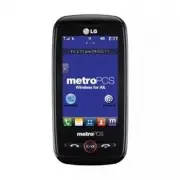
10 W elcome We l c o m e Thank you for choosing the LG BEACON TM cellular phone designed to operate with the latestdigital mobile communicationtechnology, Code Division MultipleAccess (CDMA). Along with themany advanced features of theCDMA system, this compact phoneoffers: l Music playing capability...
Page 13 - Te c h n i c a l D eta i l s; Important Information; Technical Details; The; is an all
Te c h n i c a l D eta i l s 11 T e c h n ic a l D e ta ils Important Information This user’s guide providesimportant information on the useand operation of your phone.Please read all the informationcarefully prior to using thephone for the best performanceand to prevent any damage to ormisuse of th...
Page 14 - The following table lists some major CDMA standards.
Technical Details 12 CDMA Standard Basic Air Interface TIA/EIA-95ATSB-74ANSI J-STD-008TIA/EIA-IS2000 CDMA Dual-Mode Air Interface14.4kbps radio link protocol and inter-band operationsIS-95 adapted for PCS frequency bandCDMA2000 1xRTT Air Interface MAS-BSPCSC-RSIntersystem operationsNon-signaling dat...
Page 15 - FCC RF Exposure Information; information before operating; Vehicle-Mounted the External
13 T e c h n ic a l D e ta ils FCC RF Exposure Information WARNING! Read this information before operating the phone. In August 1996, the FederalCommunications Commission(FCC) of the United States, withits action in Report and OrderFCC 96-326, adopted anupdated safety standard forhuman exposure to R...
Page 16 - Caution
Technical Details 14 Caution Use only the supplied andapproved antenna. Use ofunauthorized antennas ormodifications could impair callquality, damage the phone, voidyour warranty and/or result inviolation of FCC regulations. Donot use the phone with adamaged antenna. If a damagedantenna comes into co...
Page 17 - - Reorient or relocate the
15 T e c h n ic a l D e ta ils Part 15.105 statement This equipment has been testedand found to comply with thelimits for a class B digital device,pursuant to Part 15 of the FCCRules. These limits are designedto provide reasonable protectionagainst harmful interference in aresidential installation. ...
Page 18 - HAC
Technical Details 16 HAC This phone has been tested andrated for use with hearing aids forsome of the wireless technologiesthat it uses. However, there may be somenewer wireless technologies usedin this phone that have not beentested yet for use with hearingaids. It is important to try the different...
Page 19 - P h o n e O ve r v i ew
P h o n e O ve r v i ew 17 P h o n e O ve rv ie w 1. Earpiece Lets you hear the caller. 2. Slide Slide open to access the QWERTY keyboard. 3. LCD Screen Displays incoming calls, messages and status icons as well as awide variety of content you select to view. 4. SEND Key Use to place or answer calls...
Page 20 - Phone Overview; Touch Keys; The Touch Key sensors are
Phone Overview 18 1. Accessory/Charger Port Connects the phone to the battery charger or othercompatible accessories. 2. Volume Keys Use to adjust the Master Volume from the Homescreen and theEarpiece volume during a call. 3. Lock/Unlock Key Use to lock and unlock the phone. 4 . microSD TM Slot Acco...
Page 21 - Use the tip of your finger to
19 P h o n e O ve rv ie w 3. Use the tip of your finger to touch the Touch Key. If youtouch off-center, it mayactivate the nearby functioninstead. 4. The touch feedback level can be adjusted to your preference. 5. When the LCD screen is off, the Touch Keys are deactivated.Press the Lock/ Unlock Key ...
Page 22 - LG BEACON; Homescreens
Phone Overview 20 TIP Keep in mind that the smaller the text appears on the screen, the smaller the area of touch activation. Try zooming the screen in, if available, to increase thetouch area. The touchscreen is a great way to interact with the LG BEACON TM ’s software. Take a little time to become...
Page 23 - Main
21 P h o n e O ve rv ie w Main Messages Contact 1. Call Displays the Dialing touchpad. 2. Message Displays the Messages menu. 3. Menu Displays the Main Menu. 4. Contacts Displays your Contact List. 5. MetroPCS Featured Apps Displays preloaded MetroPCS apps.
Page 24 - Shortcuts Menu
Phone Overview 22 Shortcuts Menu The Shortcuts Menu allowsinstant access to menus andphone features with the quicktouch of your fingertip. To usethe Shortcuts Menu: 1. Unlock the touch screen by touching and holding on the screen. 2. Touch the Shortcuts Menu icon on the Homescreen. 3. To close the S...
Page 26 - M e nu s O ve r v i ew; Menu Access
M e nu s O ve r v i ew 24 Call History 1. Missed Calls 2. Received Calls 3. Dialed Calls 4. All Calls 5. Call Timer 6. Data Counter Contacts 1. New Contact 2. Contact List 3. Groups 4. Metro411 5. Speed Dials 6. My vCard Messages 1. New Text Message 2. New Picture Message 3. Email 4. IM 5. Inbox 6. ...
Page 27 - Receipt
25 M e n u s O ve rv ie w 7. Auto Play 8. Auto Receive 9. Voicemail # 10. Callback # 11. Signature 12. Delivery Receipt 13. Message Counter @metro App Store MetroWEB Music Player 1. Last Played Song 2. All Songs 3. Artists 4. Albums 5. My Playlists 6. Genres 7. Settings Calendar Camera Mutimedia 1. ...
Page 28 - Menus Overview
Menus Overview 26 Settings 1. Sounds Settings 1. Master Volume 2. Call Sounds 1. Call Ringtone 2. Call Vibrate 3. Caller ID Readout 4. Roaming 3. Alert Sounds 1. Text Message 2. Picture Message 3. Voicemail 4. Emergency Tone 5. Missed Call 4. Button Sounds 5. Service Alerts 1. Minute Beep 2. Call Co...
Page 30 - G ett i n g S ta r te d w i t h Yo u r P h o n e; The Battery; Installing the Battery; Charging the Battery; Note
G ett i n g S ta r te d w i t h Yo u r P h o n e 28 The Battery The phone comes with arechargeable battery. The batterycharge level is shown at the topright corner of the LCD screen. Installing the Battery 1. Press down on the battery cover and slide downwards.Then lift it off to remove it. 2. Align...
Page 31 - Card; Locate the microSD
29 G e tt in g S ta rt e d w it h Y o u r P h o n e 1. Connect the Wall/USB adapter and USB cable. Whenconnecting, as shown below,the LG logo on the USB cableshould face toward you. 2. Gently uncover the Accessory/ Charger Port, then plug one endof the Wall/USB adapter into thephone’s Accessory/Char...
Page 32 - Getting Started with Your Phone; Turning the Phone On
Getting Started with Your Phone 30 How to Remove YourmicroSD ™ Card 1. Uncover the microSD slot opening and gently press andrelease the exposed edge ofthe microSD ™ card to eject it. 2. Remove the microSD ™ card from the slot and replace thecover. Battery Charge Level The battery charge level is sho...
Page 33 - To see the icon glossary, touch; Making Calls; on the right
Signal Strength Call quality depends on thesignal strength in your area. Thesignal strength is indicated onthe screen as the number of barsnext to the signal strength icon . The more bars, the better the signal strength. If the signalquality is poor, move to an openarea. If you are in a building, th...
Page 34 - Correcting Dialing Mistakes
Getting Started with Your Phone 32 Correcting Dialing Mistakes If you make a mistake whiledialing a number, press theClear/Speakerphone Key or touch once to erase the last digit entered. Youcan also press and hold down theClear/Speakerphone Key or touch and hold for at least 2 seconds to erase all t...
Page 35 - Q u i c k Ac c es s to C o nve n i e n t Fe at u res; Speakerphone Function
Q u i c k Ac c es s to C o nve n i e n t Fe at u res 33 Q u ic k A c c e ss to C o n ve n ie n t Fe a tu re s Speakerphone Function This function is used during aphone call. Press the Clear/SpeakerphoneKey to activate and deactivate the speakerphone. OR Press and hold the Clear/Speakerphone Key from...
Page 36 - Speed Dialing; Dialing Single Digit Speed; Dialing Double Digit Speed; OR; Quick Access to Convenient Features
Speed Dialing Speed dialing is a convenientfeature that allows you to makephone calls quickly. A numberkey can be assigned to a specificphone number. By touching andholding down a number key, yourphone will recall the phonenumber associated from theContact List and dial that phonenumber for you. Spe...
Page 37 - E n te r i n g a n d E d i t i n g I n f o r m at i o n; Text Input
E n te r i n g a n d E d i t i n g I n f o r m at i o n 35 E n te ri n g a n d E d it in g In fo rm a ti o n Text Input Each time you touch a text entry field, the touchscreen automaticallydisplays a keypad allowing you to enter text, numbers, and symbols. Forexample, in a text field, an alphabet ke...
Page 38 - C o n ta c ts i n Yo u r P h o n e ’s M e m o r y; Enter the phone number you
C o n ta c ts i n Yo u r P h o n e ’s M e m o r y 36 The Basics of StoringContacts Entries 1. Enter the phone number you want to save (up to 48 digits). 2. Touch Save and select either Add New Contact or Update Existing on the pop-up screen. 3. Touch a Phone Label. Mobile 1/ Home 1/ Office 1/ Mobile...
Page 39 - SAVE
37 C o n ta c ts in Y o u r P h o n e ’s M e m o ry Storing a Number with Pauses 1. Touch Menu . 2. Touch Contacts . 3. Touch New Contact . 4. Enter a name (up to 32 characters) and touch thenumber field to enter anumber. 5. Touch Options and select Add Wait or Add 2- Sec Pause . 6. Enter the additi...
Page 40 - Accessing Options; Contacts in Your Phone’s Memory
Searching by Letter 1. Touch Contacts to display your contactsalphabetically. 2. Touch Go To and touch the letters that correspond to theContact's name. Scrolling Through Your Contacts 1. Touch Contacts to display your Contactsalphabetically. 2. Scroll through the list. Accessing Options 1. Touch Co...
Page 42 - U s i n g P h o n e M e nu s; SEND
40 U s i n g P h o n e M e nu s Call History The Call History Menu is a list ofthe last phone numbers orContact entries for calls youmissed, received, and dialed. It iscontinually updated as newnumbers are added to thebeginning of the list and theoldest entries are removed fromthe bottom of the list...
Page 44 - Call History/ Contacts; Contacts
Call History/ Contacts 4. Call times are displayed for the following types of calls: Last Call / Received Calls / Dialed Calls / Home Calls/ Roam Calls/ All Calls/ Lifetime Calls 5. Touch Reset to reset the timer for the desired type of calls. 6. Data Counter Allows you to view the list ofreceived a...
Page 46 - Touch the desired Unassigned
Contacts 44 Remove/ New Text Message/ New Picture Message /Mark All/Unmark All/Remove All 4. Metro411 Get directory assistanceinformation quickly andeasilywith one of theseMetroPCS Directory AssistanceServices. 1. Touch Menu . 2. Touch Contacts . 3. Touch Metro411 . 4. Follow on-screen instructions ...
Page 47 - Messages
Contacts/ Messages 45 C o n ta c ts / M e ss a g e s 6. My vCard Allows you to view all of yourpersonal Contact informationincluding name and phonenumbers. 1. Touch Menu . 2. Touch Contacts . 3. Touch My vCard . 4. Touch EDIT . 5. Touch the field you want to edit. 6. Edit the information as necessar...
Page 48 - Preview
Messages 46 2. Touch to manually enter the address or to add the address from your ContactsList. 3. Touch the Text field to enter text. 4. Slide open the QWERTY keyboard to type yourmessage. 5. Touch . A confirmation message isdisplayed. Text Message Options 1. Touch Messages and New Text Message . ...
Page 49 - On; Message Icon Reference
47 M e ss a g e s 4. Touch the option(s) to customize. Insert Template Allows you to insert a quick text. See page 53for more information. Save As Draft Saves the message into the Drafts folder. Add Allows you to add a Graphic, Animation, Sound, NameCard, or Contact Number/Email. Copy Text Allows yo...
Page 50 - New Picture Message
Messages 48 Multitple Messages Failed Multitple Messages Delivery Incomplete Multitple Pending Messages Multitple Messages Sent Text Message Draft MMS Message Draft Namecard High Priority Lock 2. New Picture Message Allows you to send messages withText/ Picture/ Sound/ Subject. 1. Touch Messages and...
Page 52 - DELETE
Messages 50 Received text messages andpicture messages may besearched and the contentsviewed. Received messages aredisplayed from newest to oldest. Viewing Your Inbox Up to 500 messages (300 SMS,100 MMS, and 100 MMSnotifications) can be stored in theInbox. 1. Touch Messages and Inbox . 2. Touch an I...
Page 56 - Message Settings Sub-Menu
Messages 54 1. Touch Messages and Delete All . 2. Touch Delete Inbox / Delete Outbox / Delete Drafts / Delete All Messages . 12. Message Settings Allows you to configure settings forMessages. 1. Touch Messages and Message Settings . Message Settings Sub-Menu Descriptions 1. Reply Settings (Text Mess...
Page 57 - Readout
55 M e ss a g e s 6. Auto View (On/ On + Readout/ Off) When set to On, newmessages will automaticallydisplay on your screen whenthey are received Select On + Readout to automatically display content and read italoud. 7. Auto Play (ON/ OFF) Allows the display toautomatically scroll downwhile viewing ...
Page 59 - Metro WEB/ Music Player; Metro WEB; Music Player; Notes
Metro WEB/ Music Player 57 M e tr o W E B / M u si c P la y e r Metro WEB The MetroWeb browser allowsyou to view Internet content.Access and potential airtimecharges for this web access aredependent on your serviceprovider. For specific informationon Web access through yourphone, contact your servic...
Page 62 - Music Player/ Calendar; Calendar
Music Player/ Calendar 60 7. Settings Allows you to customize Musicsettings. 4.7.1 Repeat Allows you to set repeat settings. 1. Touch Menu . 2. Touch Music Player . 3. Touch Settings . 4. Touch Repeat to toggle between the following options. Repeat All/ Repeat Once/ Repeat Off 4.7.2 Shuffle Allows y...
Page 63 - Camera; Multimedia
Calendar/ Multimedia 61 C a le n d a r/ M u lt im e d ia Camera Refer to the Multimedia sectionfor more information. 1. Touch Menu . 2. Touch Camera . Multimedia View, take, and share your digitalpictures and audio right fromyour wireless phone. 1. Take Photos 1. Touch Menu . 2. Touch Multimedia . 3...
Page 65 - Touch to
63 M u lt im e d ia 5. Once recording has started, the following options areavailable: Touch to stop. Touch to pause. Once the recording hasstopped, the audio file will beautomatically saved. 3. Images Allows you to view images savedin phone. 1. Touch Menu . 2. Touch Multimedia . 3. Touch Images . 4...
Page 66 - Alarm; field to; Tools; ADD
Alarm/ Tools 64 Alarm Allows you to set up to tenalarms. At the alarm time, any setalarm will sound and/or vibratethe tone of your choice(depending on your soundsettings), and a notificationmessage will be displayed onyour screen. 1. Touch Menu . 2. Touch Alarm , then . 3. Touch the Set Time field t...
Page 67 - Say the name as it is saved in
65 T o o ls 4. Touch or say Call <Name or Number> . 6. Say the name as it is saved in your Contact List or say thenumber. 1.2 Send Msg to <Name or Number or Group> 1. Touch Menu . 2. Touch Tools . 3. Touch Voice Command . 4. Touch or say Send Msg to <Name or Number or Group> . 1.3 ...
Page 69 - SET DST
67 T o o ls 5. Touch to begin another calculation. 4. World Clock Allows you to determine thecurrent time in another timezone or country. 1. Touch Menu . 2. Touch Tools . 3. Touch World Clock . 4. Scroll through continents by touching the arrows below theglobe. 5. Touch to view the cities in the sel...
Page 71 - to start the
69 T o o ls 2. Touch Tools . 3. Touch Stopwatch . 4. Touch to start the stopwatch, and touch to stop it. l You can use the Lapfunction by touching to record up to 20 laps andlap times. 5. Touch to reset the stopwatch. 8. Notepad Allows you to add, read, edit, anderase notes to yourself. 1. Touch Men...
Page 73 - and
71 S e tt in g s 1.5 Service Alerts Allows you to configure the 3available Service Alerts. 1. Touch Menu . 2. Touch Settings . 3. Touch Sounds Settings and Service Alerts . 4. Touch an alert option. Minute Beep Alerts you 10 seconds before theend of every minute during a call. Call Connect Alerts yo...
Page 76 - Name Match for Dialing; button to toggle the
Settings 74 S e tt in g s 2.9 Clock Format Allows you to select the type ofclocks displayed on the MainHomescreen. 1. Touch Menu . 2. Touch Settings . 3. Touch Display Settings and Clock Format . 4. Touch a setting. Normal/ Analog/ Digital 12/ Large Digital 12/ Digital 24/ Large Digital 24/ Dual/ Of...
Page 77 - OK
75 S e tt in g s 3.2 Auto Retry Allows you to set the length oftime the phone waits beforeautomatically redialing a numberwhen the attempted call fails. 1. Touch Menu . 2. Touch Settings . 3. Touch Call Settings and Auto Retry . 4. Touch a setting. Off / Every 10 Seconds / Every 30 Seconds / Every 6...
Page 84 - is compatible; and connect to
Settings 82 S e tt in g s 5.6 NAM Select Allows you to select the phone’sNAM (Number AssignmentModule) if the phone isregistered with multiple serviceproviders. 1. Touch Menu . 2. Touch Settings . 3. Touch Phone Settings and NAM Select . 4. Touch a setting. NAM1 / NAM2 6. Bluetooth The LG BEACON TM ...
Page 85 - Pairing a new Bluetooth
83 S e tt in g s 6.1 Power Allows you to turn the power onor off. 1. Touch Menu . 2. Touch Settings . 3. Touch Bluetooth and then TURN ON or TURN OFF . 6.2 Add New Pairing is the process that allowsthe handset to locate, establishand register a 1-to-1 connectionwith the target device. Pairing a new ...
Page 90 - Tro u b l es h o ot i n g
Tro u b l es h o ot i n g 88 T ro u b le sh o o ti n g This section lists some problems that you might encounter while usingyour phone. Some problems require that you call your service provider,but most of problems you encounter are easy to correct yourself. Symptom Possible causes Possible Correcti...
Page 92 - S a f ety; Exposure to Radio Frequency
S a f ety 90 S a fe ty TIA Safety Information The following is the completeTIA Safety Information forwireless handheld phones. Exposure to Radio Frequency Signal Your wireless handheld portablephone is a low power radiotransmitter and receiver. WhenON, it receives and sends outRadio Frequency (RF) s...
Page 93 - For your phone to operate; Driving
Antenna Care Use only the supplied or anapproved replacement antenna.Unauthorized antennas,modifications, or attachmentscould damage the phone andmay violate FCC regulations. Phone Operation NORMAL POSITION: Hold thephone as you would any othertelephone with the antennapointed up and over yourshould...
Page 94 - Pacemakers
Safety 92 S a fe ty Pacemakers The Health IndustryManufacturers Associationrecommends that a minimumseparation of six (6) inches bemaintained between a handheldwireless phone and a pacemakerto avoid potential interferencewith the pacemaker. Theserecommendations are consistentwith the independent res...
Page 96 - For Vehicles Equipped with an; Battery Information and
Safety 94 S a fe ty Areas with a potentially explosiveatmosphere are often, but notalways marked clearly. Potentialareas may include: fueling areas(such as gasoline stations);below deck on boats; fuel orchemical transfer or storagefacilities; vehicles using liquefiedpetroleum gas (such as propaneor ...
Page 97 - Safety Information; Violation of the
95 S a fe ty l Use only LG-approvedchargers specific to yourphone model since they aredesigned to maximize batterylife. l Do not disassemble or short-circuit the battery. l Keep the battery’s metalcontacts clean. l Replace the battery when itno longer provides acceptableperformance. The battery canb...
Page 99 - Charger and Adapter Safety
97 S a fe ty Charger and Adapter Safety l The charger and adapter areintended for indoor use only. l Insert the battery packcharger vertically into the wallpower socket. l Use the correct adapter foryour phone when using thebattery pack charger abroad. l Only use the approved batterycharger. Otherwi...
Page 100 - Hazards
Safety 98 S a fe ty l The self-protection function ofthe battery cuts the power ofthe phone when its operationis in an abnormal state. In thiscase, remove the battery fromthe phone, reinstall it, and turnthe phone on. Explosion, Shock, and Fire Hazards l Do not put your phone in aplace subject to ex...
Page 101 - Do not paint your phone.
99 S a fe ty l Do not place items containingmagnetic components such asa credit card, phone card,bank book, or subway ticketnear your phone. Themagnetism of the phone maydamage the data stored in themagnetic strip. l Talking on your phone for along period of time mayreduce call quality due to heatge...
Page 102 - safety information; Avoiding hearing damage
Safety 100 S a fe ty l Do not turn your phone on oroff when putting it to your ear. l Use accessories, such asearphones and headsets, withcaution. Ensure that cables aretucked away safely and do nottouch the antennaunnecessarily. Warning! Important safety information Avoiding hearing damage Permanen...
Page 103 - Using your phone safely; FDA Consumer; Do wireless phones pose a
101 S a fe ty Using your phone safely Use of your phone whileoperating a vehicle is notrecommended and is illegal insome areas. Be careful andattentive while driving. Stopusing your phone if you find itdisruptive or distracting whileoperating any type of vehicle orperforming any other activitythat r...
Page 104 - concerning the safety of
Safety 102 S a fe ty heating effects causes no knownadverse health effects. Manystudies of low level RF exposureshave not found any biologicaleffects. Some studies havesuggested that some biologicaleffects may occur, but suchfindings have not been confirmedby additional research. In somecases, other...
Page 106 - What kinds of phones are
Safety 104 S a fe ty not the subject of the safetyquestions discussed in thisdocument. 3. What kinds of phones are the subject of this update? The term “wireless phone” refershere to handheld wireless phoneswith built-in antennas, oftencalled “cell”, “mobile”, or “PCS”phones. These types of wireless...
Page 107 - What research is needed to
105 S a fe ty cancer in laboratory animals.However, many of the studiesthat showed increased tumordevelopment used animals thathad been genetically engineeredor treated with cancer-causingchemicals so as to be pre-disposed to develop cancer inthe absence of RF exposure.Other studies exposed theanima...
Page 108 - What is the FDA doing to
Safety 106 S a fe ty numbers of animals would beneeded to provide reliable proofof a cancer promoting effect ifone exists. Epidemiologicalstudies can provide data that isdirectly applicable to humanpopulations, but ten or moreyears follow-up may be neededto provide answers about somehealth effects, ...
Page 109 - How can I find out how much
107 S a fe ty project has also helped developa series of public informationdocuments on EMF issues. The FDA and the CellularTelecommunications & InternetAssociation (CTIA) have a formalCooperative Research AndDevelopment Agreement(CRADA) to do research onwireless phone safety. The FDAprovides th...
Page 110 - What has the FDA done to
Safety 108 S a fe ty takes into consideration thebody’s ability to remove heatfrom the tissues that absorbenergy from the wireless phoneand is set well below levels knownto have effects. Manufacturers ofwireless phones must report theRF exposure level for each modelof phone to the FCC. The FCCwebsit...
Page 111 - What steps can I take to
109 S a fe ty energy absorbed in tissue, eitherby the whole body or a smallpart of the body. It is measuredin watts/kg (or milliwatts/g) ofmatter. This measurement is usedto determine whether a wirelessphone complies with safetyguidelines. 9. What steps can I take to reduce my exposure to Radio Freq...
Page 112 - What about children using
Safety 110 S a fe ty 10. What about children using wireless phones? The scientific evidence does notshow a danger to users ofwireless phones, includingchildren and teenagers. If youwant to take steps to lowerexposure to Radio Frequency(RF) energy, the measuresdescribed above would apply tochildren a...
Page 113 - Where can I find additional
111 S a fe ty sponsored by the Association forthe Advancement of MedicalInstrumentation (AAMI). Thefinal draft, a joint effort by theFDA, medical devicemanufacturers, and many othergroups, was completed in late2000. This standard will allowmanufacturers to ensure thatcardiac pacemakers anddefibrilla...
Page 114 - 0 Driver Safety Tips; Get to know your wireless
Safety 112 S a fe ty Federal CommunicationsCommission (FCC) RF SafetyProgram(http://www.fcc.gov/oet/rfsafety) International Commission onNon-lonizing RadiationProtection (http://www.icnirp.de) World Health Organization(WHO) International EMFProject (http://www.who.int/emf) National Radiological Prot...
Page 115 - Make sure you place your
113 S a fe ty or a speaker phone accessory,take advantage of thesedevices if available to you. 3. Make sure you place your wireless phone within easyreach and where you canreach it without removingyour eyes from the road. Ifyou get an incoming call at aninconvenient time, if possible,let your voicem...
Page 116 - Do not engage in stressful or
Safety 114 S a fe ty numbers, check the road andyour mirrors, then continue. 7. Do not engage in stressful or emotional conversations thatmay be distracting. Stressfulor emotional conversationsand driving do not mix; theyare distracting and evendangerous when you arebehind the wheel of a car.Make pe...
Page 117 - Consumer Information; government’s requirements for
115 S a fe ty urgent enough to merit a callfor emergency services. Butyou can still use yourwireless phone to lend ahand. If you see a broken-down vehicle posing noserious hazard, a brokentraffic signal, a minor trafficaccident where no oneappears injured or a vehicleyou know to be stolen, callroads...
Page 120 - Regulations for Wireless
Safety 118 S a fe ty SAR information on this modelphone is on file with the FCCand can be found under theDisplay Grant section ofhttp://www.fcc.gov/oet/fccidafter searching on FCC ID. To find information that pertainsto a particular model phone, thissite uses the phone FCC IDnumber which is usually ...
Page 123 - For information about hearing aids and digital wireless; Wireless Phones and Hearing Aid Accessibility
121 S a fe ty The M mark is intended to besynonymous with the U mark.The T mark is intended to besynonymous with the UT mark.The M and T marks arerecommended by the Alliance forTelecommunications IndustriesSolutions (ATIS). The U and UTmarks are referenced in Section20.19 of the FCC Rules. TheHAC ra...
Page 124 - Ac c es s o r i es; Battery
Ac c es s o r i es 122 A c c e ss o ri e s There are a variety of accessories available for your mobile phone.Consult your local dealer for availability. Optional items are soldseparately. Wall/USBAdapter Battery
Page 125 - WHAT THIS WARRANTY; L i m i te d Wa r ra n ty S tate m e n t
123 Li m it e d W a rr a n ty S ta te m e n t 1. WHAT THIS WARRANTY COVERS: LG offers you a limited warrantythat the enclosed subscriber unitand its enclosed accessories will befree from defects in material andworkmanship, according to thefollowing terms and conditions: (1) The limited warranty for ...
Page 126 - Limited Warranty Statement; WHAT THIS WARRANTY
Limited Warranty Statement 124 Li m it e d W a rr a n ty S ta te m e n t 2. WHAT THIS WARRANTY DOES NOT COVER: (1) Defects or damages resulting from use of theproduct in other than itsnormal and customarymanner. (2) Defects or damages from abnormal use, abnormalconditions, improperstorage, exposure ...
Page 127 - published maximum ratings.
125 Li m it e d W a rr a n ty S ta te m e n t (7) Damage resulting from use of non-LG approvedaccessories. (8) All plastic surfaces and all other externally exposedparts that are scratched ordamaged due to normalcustomer use. (9) Products operated outside published maximum ratings. (10)Products used...
Page 128 - HOW TO GET WARRANTY
126 Li m it e d W a rr a n ty S ta te m e n t Limited Warranty Statement INCONVENIENCE, LOSS ORANY OTHER DAMAGES, DIRECTOR CONSEQUENTIAL, ARISINGOUT OF THE USE OF, ORINABILITY TO USE, THISPRODUCT OR FOR ANYBREACH OF ANY EXPRESS ORIMPLIED WARRANTY,INCLUDING THE IMPLIEDWARRANTY OF MARKETABILITYOR MERC...
Page 129 - I n d ex
123 10 Driver Safety Tips112@metro App Store 56 A Accessing Options 38Accessories 122Add New 83Airplane Mode 77Alarm 64Albums 59Alert Sounds 70All Calls 41All Songs 58Answer Options 74Artists 58Auto Retry 75Auto Touch Lock 76 B Banner 71Battery Charge Level30 Battery Informationand Care 94Bluetooth ...
Page 130 - Index
F FCC Hearing-AidCompatibility (HAC)Regulations forWireless Devices 118FDA Consumer Update101Font Settings 73 G Genres 59Getting Started withYour Phone 28Groups 43 H Help 65How to Install YourmicroSD ™ Card 29 How to Remove YourmicroSD ™ Card 30 I Icon Glossary 87IM 49 Important SafetyPrecautions 1I...
Page 133 - MEMO
Page 135 - Precaución de Seguridad Importante; las manos después de manipular.
Precaución de Seguridad Importante 1 Lea estas sencillas instrucciones. Rompiendo las reglas puede serpeligroso o ilegal. Se ofrece más información detallada en esta guíadel usuario. ¡Aviso! No seguir las instrucciones puede ocasionar lesiones graves o la muerte. Este producto contiene quimicos cono...
Page 138 - C o n te n i d o
4 Precaución de SeguridadImportante 1 Contenido 4 Bienvenidos 10 Detalles Técnicos 11 Información de la FCC sobreexposición a la RF 13 Antena externa instalada en un vehículo 13 Precaución 13 Declaración del artículo 15.19 14 Declaración del artículo 15.21 14 Declaración del artículo 15.105 15 HAC 1...
Page 139 - Lista de Llamadas; Contactos
5 Acceso rápido a funcionesprácticas 33 Función de Altavoz 33 Ajuste rápido del volumen 33 Llam. en Espera 33 ID de Llamador 34 Marcado Veloz 34 Introducir y editarinformación 35 Entrada de texto 35 Contactos en la memoria del teléfono 36 Aspectos básicos del almacenamiento de entradas decontactos 3...
Page 140 - Contenido
6 6. Mi vCard 46 Mensajería 47 1. Nuevo Mensaje Texto 47 2. Nuevo Mensaje Foto 49 3. Email 50 4. MI 51 5. Entrada 51 6. Enviado 53 7. Borradores 54 8. Alertas WEB 54 9. Correo de Voz 54 10. Plantillas 55 11. Borrar Todos 55 12. Config de Mensaje 56 13. Contador Mensage 58 @metro App Store 58 MetroWE...
Page 141 - Ambiente
7 1. Comando de Voz 67 1.1 Llamar <Nombre o Númbre> 67 1.2 Enviar Msj a <Nombre o Número o Grupo> 67 1.3 Verificar <Elemento> 68 1.4 Contactos<Nombre> 68 1.5 Reproducir 68 1.6 Ayuda 68 2. Calculadora 68 3. Ez Sugerencia 69 4. Reloj Mundial 70 5. Convertidor de Unidades 70 6. ...
Page 142 - Solución de problemas; Seguridad
8 4.3 Nivel de Vibración 80 4.4 Tipo de Tono 80 4.5 Calibración 80 5. Prog. de Teléfono 81 5.1 Modo Avión 81 5.2 Idioma (Language) 81 5.3 Ubicación 81 5.4 Seguridad 82 5.4.1 Cambiar Código de Bloqueo 82 5.4.2 Restricciones 82 5.4.3 Números de Emergencia 83 5.4.4 Auto Bloqueo del dispositivo 84 5.4.5...
Page 143 - Accesorios
9 C o n te n id o Manejo 95 Dispositivos electrónicos 96 Marcapasos 96 Las personas con marcapasos: 96 Aparatos para la sordera 97 Otros dispositivos médicos 97 Centros de atención médica 97 Vehículos 97 Instalaciones con letreros 97 Aeronaves 97 Áreas de explosivos 98 Atmósfera potencialmente explo...
Page 144 - Ranura para tarjeta microSD; B i e nve n i d o s
10 Gracias por elegir el avanzado ycompacto teléfono celular LG BEACON TM , diseñado para funcionar con la más recientetecnología de comunicacionesmóviles digitales: Acceso múltiplede división de código (CodeDivision Multiple Access,CDMA). Junto con las muchasfunciones avanzadas del sistemaCDMA, est...
Page 145 - Información importante; Detalles técnicos; EL; es un teléfono; D eta l l es Té c n i c o s
11 Información importante Esta guía del usuario contieneinformación importante acercadel uso y funcionamiento delteléfono. Lea toda la informacióncon cuidado antes de usar elteléfono para obtener undesempeño óptimo y evitarcualquier daño o mal uso delaparato. Cualquier cambio omodificación no aproba...
Page 146 - La duración de su batería es del doble que la de IS-95.; Detalles Técnicos
12 La duración de su batería es del doble que la de IS-95. La tabla siguiente muestra algunos de los principales estándaresCDMA. Estándar de CDMA Institución designada Descripción Interfaz de aire básica TIA/EIA-95A TSB-74 ANSI J-STD-008 TIA/EIA-IS2000 Interfaz de aire Modo dual CDMA Protocolo de en...
Page 147 - ¡ADVERTENCIA! Lea esta; Antena externa instalada en un
13 Información de la FCC sobre exposición a la RF ¡ADVERTENCIA! Lea esta información antes de hacer funcionar el teléfono. En agosto de 1996, la ComisiónFederal de Comunicaciones(FCC) de los Estados Unidos,con su acción sobre el Informe yorden FCC 96-326, adoptó unestándar de seguridadactualizado pa...
Page 149 - Declaración del artículo; - Aumentar la distancia entre el
15 Declaración del artículo 15.105 Este equipo ha sido evaluado yse ha comprobado que cumplecon los límites para undispositivo digital clase B,conforme el Artículo 15 de lasreglas de la FCC. Estos límiteshan sido diseñados para brindaruna protección razonable contrala interferencia dañina en unainst...
Page 151 - D es c r i p c i ó n g e n e ra l d e l te l é f o n o
17 1. Auricular Le permite escuchar a quien le llama. 2. Tapa Deslice el teléfono para acceder al teclado QWERTY. 3. Pantalla LCD Muestra las llamadas entrantes, mensajes e iconos de estado. También muestrauna gran variedad de contenido que desee ver. 4. Tecla ENVIAR Utilícela para hacer o contestar...
Page 152 - Teclas táctiles; Los sensores de las teclas; Descripción general del teléfono
18 Teclas táctiles ( , , , , ) 1. Para un desempeño óptimo, asegúrese de tener las manoslimpias y secas. Eliminecualquier humedad de lasuperficie de sus manos. No useen un entorno húmedo. 2. Los sensores de las teclas táctiles son sensibles a untoque ligero. No tiene queoprimir las teclas táctiles d...
Page 154 - Pantallas principales
20 La pantalla táctil es una manera excelente de interactuar con el softwaredel LG BEACON TM . Tome su tiempo para acostumbrarse a usarla. Si no reacciona cómo usted espera, ajuste la calibración de la pantalla táctil. Pantallas principales Puede personalizar la pantalla táctil para obtener acceso i...
Page 156 - Menú de Atajos; Menú de
22 Menú de Atajos El Menú de Atajos permite accesoinmediato a menús ycaracterísticas del teléfono conun toque rápido. Para usar elMenú de Atajos: 1. Desbloquee la pantalla táctil manteniendo oprimida en la pantalla principal 2. Toque el icono Menú de Atajos en la pantalla principal. 3. Para cerrar e...
Page 158 - Toque; Descripción general de los menús
D e sc ri p c ió n g e n e ra l d e lo s m e n ú s 24 Lista de Llamadas 1. Perdidas 2. Recibidas 3. Marcadas 4. Todas 5. Tiempo de Llamadas 6. Contador KB Contactos 1. Nuevo Contacto 2. Lista de Contactos 3. Grupos 4. Metro411 5. Marcado Veloz 6. Mi vCard Mensajería 1. Nuevo Mensaje Texto 2. Nuevo M...
Page 161 - La batería; Instalación de la batería; Cargar la batería; Pa ra e m p e z a r c o n s u te l é f o n o
27 La batería El teléfono viene con una bateríarecargable. El nivel de carga de labatería se muestra en la esquinasuperior derecha de la pantallaLCD. Instalación de la batería 1. Oprima la tapa de la batería hacia abajo y deslícela haciaabajo. Luego levántela pararetirarla. 2. Alinee los contactos d...
Page 162 - Para empezar con su teléfono
28 1. Conecte el Adaptador de Pared/USB y el cable USB.Cuando estén conectados,como se muestra en la imagende abajo, el logo LG debeestar orientado hacia usted. 2. Cuidadosamente destape el Puerto para cargador yaccesorios, y conecte unextremo del cargador dentrodel Puerto para cargador yaccesorios ...
Page 164 - Nivel de carga de la batería; Encender el teléfono; Fuerza de la señal
30 Nivel de carga de la batería El nivel de carga de la batería semuestra en la esquina superiorderecha de la pantalla LCD.Cuando el nivel de carga de labatería es bajo, el sensor debatería baja le avisa de tresformas: sonando un tonoaudible, parpadeando el iconode la batería y mostrando unmensaje d...
Page 167 - Ac c es o rá p i d o a f u n c i o n es p rá c t i c as
33 Función de Altavoz La función altavoz se utilizadurante una llamada telefónica.Oprima la Tecla Borrar/Altavoz para activar o desactivar el altavoz. o Manténgala oprimida la TeclaBorrar/Altavoz desde la pantalla principal. Ajuste rápido del volumen Use las teclas de volumen paraajustar el volumen ...
Page 168 - Marcado Veloz de un dígito; Acceso rápido a funciones prácticas
34 ID de Llamador El identificador de llamadasmuestra el número de la personaque llama cuando suena suteléfono. Si la identidad de lapersona que llama estáalmacenada en Contactos,aparece el nombre con elnúmero. Hable con su proveedorde servicio para asegurarse si seofrece esta función. Marcado Veloz...
Page 169 - Entrada de texto; I n t ro d u c i r y e d i ta r i n f o r m a c i ó n
35 Entrada de texto Cada vez que toca un campo de texto, la pantalla táctil muestra lastáctiles automáticamente, permitiéndole introducir texto, números ysímbolos. Por ejemplo, en un campo de texto, un teclado alfanuméricoaparece pero también puede cambiar a modo de números para introducirdígitos. O...
Page 170 - Contactos en la memoria del teléfono
36 Aspectos básicos delalmacenamiento deentradas de contactos 1. Introduzca el número de teléfono (hasta 48 dígitos)que desee guardar. 2. Toque GRDR y seleccione Nuevo Contacto o Actualizar Existente en la pantalla emergente. 3. Toque una etiqueta de teléfono. Móvil 1/ Casa 1/ Trabajo 1/ Móvil 2/ Fa...
Page 171 - Almacenar un número con; seleccione; Agregar una pausa a un; Desplácese por la lista hasta
37 Espera (W) El teléfono deja de marcar hastaque usted toca RELEASE para avanzar al número siguiente. Pausa (P) El teléfono espera 2 segundosantes de enviar la siguientecadena de dígitos. Almacenar un número con pausas 1. Toque Menú . 2. Toque Contactos . 3. Toque Nuevo contacto . 4. Introduzca un ...
Page 172 - Desplazamiento por sus
9. Toque y luego . Búsqueda en la memoria delteléfono El teléfono LG BEACON TM puede llevar a cabo una búsquedadinámica del contenido de sumemoria. La búsqueda dinámicacompara las letras o númerosintroducidos con las entradas desus Contactos. Se muestra unalista de coincidencias en ordendescendente....
Page 173 - Accediendo opciones
39 Accediendo opciones 1. Toque Contactos . 2. Toque Opciones . 3. Toque una de las siguientes opciones: Envíar vía Bluetooth Envía un contacto (Tarjeta deNombre) a través de Bluetooth ® . Borrar Borra la entrada seleccionada detus contactos. Mensaje Envía un mensaje de texto omensaje de foto al con...
Page 175 - Toque una entrada y toque; Uso de los menús del teléfono
41 Lista de Llamadas El Menú Lista de Llamadas es unalista de los últimos números deteléfono o entradas deContactos de llamadas que hayaperdidas, recibidas y marcadas.Se actualiza constantemente conlos nuevos números agregándoseal principio de la lista y lasentradas más antiguaseliminándose del fina...
Page 177 - para volver a la; Los tiempos de llamada se
43 5. Oprima la Tecla ENC/FIN para volver a la Pantalla principal. 5. Tiempo de Llamadas Le permite ver la duración de lasllamadas seleccionadas. 1. Toque Menú . 2. Toque Lista de Llamadas . 3. Toque Tiempo de Llamadas . 4. Los tiempos de llamada se muestran para los siguientestipos de llamadas: Últ...
Page 178 - Menú
Contactos El Menú Contactos le permitealmacenar nombres, números deteléfono y otros datos en lamemoria de su teléfono. 1. Nuevo Contacto Le permite agregar un nuevocontacto. 1. Toque Menú . 2. Toque Contactos . 3. Toque Nuevo Contacto. 4. Introduzca el nombre. 5. Para continuar introduciendo informa...
Page 181 - Nuevo Mensaje Texto; Aspectos básicos del envío de; ENV; Mensajería
47 Mensajería El LG BEACON TM puede almacenar hasta 690 mensajes ynotificaciones (incluyendo unmáximo de 300 SMS y 100MMS en la carpeta Entrada).Puede haber otros límites, comoel número de caracteresdisponibles por cada mensaje.Pregunte a su proveedor deservicios acerca de las funcionesy capacidades...
Page 182 - Opciones de texto
48 Avance Permite ver el mensaje antes de enviarlo. Guardar Como Borrador Guarda el mensaje en la carpetaBorradores. Prioridad Seleccione Alto/Normal para configurar elnivel de prioridad de su mensaje. Dev Llmda # Seleccione Encendido/ Apagado paraconfigurar su número derespuesta para ser enviado co...
Page 183 - Referencia de iconos de mensaje; Nuevo Mensaje Foto
49 Guardar Plantillas Le permite agregar un texto introducidocomo Texto rápido. Cancelar mensaje Cancela la edición del mensaje y regresa almenú de Nuevo mensaje. 5. Complete el mensaje y envíelo o guárdelo. Referencia de iconos de mensaje Nuevo mensaje de Texto Mensaje de Texto leído Nuevo Mensaje ...
Page 190 - Config de Mensaje; Configuraciones de Mensajería
12. Config de Mensaje Le permite configurar los ajustespara Mensajería. 1. Toque Mensajería y Config de Mensaje . Configuraciones de Mensajería de los submenús 1. Config de Respuestas (Sólo Mensaje de Texto/ Selección) Permite elegir qué opción derespuesta se permite cuandoresponde a mensajes. Elija...
Page 191 - Encendido + Información
57 5. Auto Borrar (ON/ OFF) Con esta función activada, losmensajes leídos se borranautomáticamente al superarseel límite de almacenamiento. 6. Auto-ver (Encendido/ Encendido + Información impresa/ Apagado) Cuando se establece enEncendido, los nuevosmensajes automáticamente semuestran en la pantallac...
Page 193 - MetroWEB; Reproductor de; MetroWEB/ Reproductor de música
59 MetroWEB El navegador MetroWeb lepermite ver el contenido delInternet. Acceso y cargospotenciales por el acceso de webson dependiente del proveedorde servicio. Para informaciónespecífica acerca de acceso a laWeb a través de su teléfono,comuníquese con su proveedorde servicio. 1. Toque Menú . 2. T...
Page 194 - Todas las Canciones; Reproductor de música
60 1. Últ. Canción Repro. Le permite ver las cancionestocando actualmente o lasrecientemente tocadas. 1. Toque Menú . 2. Toque Reproductor de música . 3. Toque Últ. Canción Repro. 2. Todas las Canciones Le permite reproducir todas lascanciones. 1. Toque Menú . 2. Toque Reproductor de música . 3. Toq...
Page 196 - Aleatorio; Calendario; AÑADIR; Reproductor de música/ Calendario
7. Ambiente Le permite personalizar laconfiguración de Música. 4.7.1 Repetir Le permite establecer lasconfiguraciones de repetición. 1. Toque Menú . 2. Toque Reproductor de música . 3. Toque Ambiente . 4. Toque Repetir para alternar entre las siguientes opciones: Todol/ Uno/ Apag 4.7.2 Aleatorio Le ...
Page 197 - Cámara
63 l Asunto l Hora de Comienzo l Hora de Término l Repetir l Hasta l Alertas l Tonos l Vibrar 6. Toque para guardar. Cámara Consulte la la sección Multimediapara más información. 1. Toque Menú . 2. Toque . Multimedia 1. Tomar Foto 1. Toque Menú . 2. Toque Multimedia . 3. Toque Tomar Foto . Las sigui...
Page 200 - Alarma; y después
66 4. Timbres Le permite seleccionar imágenes,audios, y documentos guardadosen el teléfono. 1. Toque Menú . 2. Toque Multimedia . 3. Toque Timbres. 4. Toque Mis Timbres o Predetermin. Timbres . 5. Toque un timbre para ver las opciones disponibles. Alarma Le permite fijar hasta cincoalarmas. A la hor...
Page 201 - Herramientas; Diga el nombre que está
Herramientas 67 Herramientas El teléfono incluye las siguientesherramientas: Comando de Voz,Calculadora, EZ Sugerencia, RelojMundial, Convertidor deUnidades, Cuaderno de Dibujo yCronómetro. 1. Comando de Voz Le permite hacer llamadas deteléfono rápido y fácilmenteusando comandos verbales. Suteléfono...
Page 202 - Introduzca los datos
68 H e rr a m ie n ta s Herramientas 1.3 Verificar <Elemento> 1. Toque Menú . 2. Toque Herramientas . 3. Toque Comando de Voz . 4. Toque o diga Verificar <Elemento> . 1.4 Contactos<Nombre> 1. Toque Menú . 2. Toque Herramientas . 3. Toque Comando de Voz . 4. Toque o diga Contactos&l...
Page 204 - Unidades; FIJE DST
70 4. Reloj Mundial Le permite determinar la horaactual en otra zona horaria o enotro país. 1. Toque Menú . 2. Toque Herramientas . 3. Toque Reloj Mundial . 4. Desplácese a través de los continentes tocando lasflechas bajo el mundo. 5. Toque para ver las ciudades de un continente. 6 Toque las flecha...
Page 205 - Cuaderno de Dibujo; para escribir
71 Masa/ Temperatura/ Volumen/ Velocidad 5. Elija el tipo de medida que desea convertir y cambie laTasa, si aplica. 6. Los valores se calcularán automáticamente. 6. Cuaderno de Dibujo Esta función le permite dibujarpara que simplemente guarde eldibujo, la mande en un mensajeo la configure como Tapiz...
Page 207 - Toque el nivel de volumen; Sonidos de Llamada; Toque el sonido deseado para; Sonidos de Alerta
Ambiente 73 Ambiente 1. Prog. de Sonidos Esté menú le permitepersonalizar los sonidos delteléfono. 1.1 Volumen Maestro 1. Toque Menú . 2. Toque Ambiente . 3. Toque Prog. de Sonidos y Volumen Maestro . 4. Toque el nivel de volumen deseado y luego FIJADO . 1.2 Sonidos de Llamada 1. Toque Menú . 2. Toq...
Page 208 - Alertas de Servicio; Sonido de Minutos; Toque las opciones
74 3. Toque Prog. de Sonidos y Volumen de Teclado . 4. Toque el nivel de volumen deseado y luego FIJADO . 1.5 Alertas de Servicio Le permite configurar las 3Alertas de Servicio disponibles. 1. Toque Menú . 2. Toque Ambiente . 3. Toque Prog. de Sonidos y Alertas de Servicio . 4. Toque una opción de a...
Page 209 - Pantalla Luz de Fondo; GUARDAR
75 2. Prog. de Pantalla Este menú le permitepersonalizar la pantalla delteléfono. 2.1 Aviso Le permite introducir una fraseque se muestran en la Pantallaprincipal y la Pantalla de bloqueo. 1. Toque Menú . 2. Toque Ambiente . 3. Toque Prog. de Pantalla y Aviso . 4. Toque Aviso para alternar entre ON ...
Page 210 - Fondo de Pantalla; Toque la imagen que desee y; Pantalla de Cargar
76 A m b ie n te Ambiente 2.4 Fondo de Pantalla Le permite seleccionar el tipo defondo que se muestra en elteléfono. 1. Toque Menú . 2. Toque Ambiente . 3. Toque Prog. de Pantalla y Fondo de Pantalla . 4. Toque la imagen que desee y luego toque AJUSTAR para editarlo. 5. Toque FIJADO para establecer ...
Page 211 - Tamaño de Fuente de
77 A m b ie n te 4. Toque una configuración. LG Gothic/ LG Serif/LG Joy 2.8 Tamaño de Fuente de Marcación Permite seleccionar el el tamañode la fuente que aparece en lapantalla de marcación cuandomarca un número telefónico. 1. Toque Menú . 2. Toque Ambiente . 3. Toque Prog. de Pantalla y Tamaño de F...
Page 212 - Opciones de Contestar
78 A m b ie n te Ambiente 4. Toque el botón Coincidencia de Nombre para Marcación para alternar la configuraciónentre Encendida ( ON ) y Apagada ( OFF ). 3. Prog. de Llamada El menú de Config Llamada lepermite decidir cómo maneja elteléfono las llamadas de entraday de salida. 3.1 Opciones de Contest...
Page 213 - Lea el mensaje de advertencia; Tipo de Vibración
79 3.3 Modo TTY Le permite conectar un aparatoTTY (teclado para personas conproblemas de audición) paracomunicarse con personas quetambién lo usen. Un teléfono concompatibilidad TTY puedetraducir caracteres escritos a voz.La voz también puede traducirseen caracteres y mostrarse en elTTY. 1. Toque Me...
Page 214 - Toque la pantalla para iniciar la
80 4.3 Nivel de Vibración 1. Toque Menú . 2. Toque Ambiente . 3. Toque Prog. de Toque y Nivel de Vibración. 4. Toque Desactivado , Bajo , Medio o Alto . 4.4 Tipo de Tono 1. Toque Menú . 2. Toque Ambiente . 3. Toque Prog. de Toque y Tipo de Tono. 4. Toque Clic , Bloque de Madera , Bip o Desactivado ....
Page 216 - Bloqueo; Introduzca el código de
82 5.4 Seguridad El menú de Seguridad le permiteasegurar electrónicamente elteléfono. 5.4.1 Cambiar Código de Bloqueo Le permite introducir un nuevocódigo de bloqueo de cuatrodígitos. 1. Toque Menú . 2. Toque Ambiente . 3. Toque Prog. de Teléfono y Seguridad . 4. Introduzca el código de bloqueo de c...
Page 220 - es compatible; es de
86 5.6 Seleccionar NAM Le permite seleccionar el NAM(Módulo de asignación denúmero) del teléfono si elteléfono está registrado convarios proveedores de servicio. 1. Toque Menú . 2. Toque Ambiente . 3. Toque Prog. de Teléfono y Seleccionar NAM . 4. Toque una configuración. NAM1/ NAM2 6. Bluetooth ® E...
Page 221 - y luego; Para emparejar un nuevo; toque
87 6.1 Potencia Le permite encender y apagarBluetooth. 1. Toque Menú . 2. Toque Ambiente . 3. Toque Bluetooth y luego APAGADO o ENCENDER . 6.2 Agregar Nuevo El emparejamiento es el procesoque permite que su teléfonoubique, establezca y registre unaconexión 1-a-1 con el aparatoobjetivo. Para empareja...
Page 222 - Ok
88 6. Toque CMNZR . El aparato aparecerá en el menú Dispositivos Encontrados una vez que se lo ubica. Toqueel aparato. 7. El teléfono puede pedirle por la clave. Consulte las instruccionesdel accesorio Bluetooth ® para la clave adecuada (normalmente"0000" - 4 ceros). Introduzcala clave y toq...
Page 223 - Descubrimiento; Masívo USB
89 5. Mantenga la Tecla Borrar/Altavoz oprimidapara borrar el nombreexistente. 6. Introduzca el nuevo nombre. 7. Toque para guardar y salir. 6.4.2 Modo de Descubrimiento Permite configurar la visibilidadde su función Bluetooth ® . 1. Toque Menú . 2. Toque Ambiente . 3. Toque Bluetooth , Opciones y M...
Page 226 - S o l u c i ó n d e p ro b l e m as
92 S o lu c ió n d e p ro b le m a s S o l u c i ó n d e p ro b l e m as Esta sección enumera algunos problemas que podría encontrar alutilizar el teléfono. Algunos problemas requieren que llame a suproveedor de servicios, pero en la mayoría de los casos, puedecorregirlos usted mismo. Síntoma Causas...
Page 228 - S e g u r i d a d; Información de; Exposición a las señales de
94 S e g u ri d a d S e g u r i d a d Información de seguridad de la TIA Lo que sigue es la Informacióncompleta de seguridad de la TIA(Asociación de la industria de lastelecomunicaciones) sobreteléfonos inalámbricos de mano. Exposición a las señales de radiofrecuencia Su teléfono celular de manoinal...
Page 233 - No seguir las; Seguridad del cargador y del
99 vehículo está mal instalado y seinfla la bolsa de aire, puedenproducirse graves lesiones. Información de seguridad Lea y atienda la informaciónsiguiente para el uso seguro yadecuado de su teléfono y paraevitar cualquier daño.Igualmente, mantenga la guía delusuario en un sitio accesible entodo mom...
Page 235 - Aviso general
101 firmemente. En caso contrario,puede provocar calor excesivoo incendio. l Si coloca el teléfono en unbolsillo o bolso sin cubrir elreceptáculo (clavija dealimentación), los artículosmetálicos (tales como unamoneda, clip o pluma) puedenprovocarle un corto circuito alteléfono. Siembre cubra elrecep...
Page 237 - Evite los daños a la audición
103 ¡Información de Seguridad Importante! Evite los daños a la audición Puede haber pérdida permanentede la audición si usa su teléfono oaudífonos a un volumen alto.Ajuste el volumen en un nivelseguro. Al paso del tiempo puedeadaptarse a un volumen más altodel sonido del que puede parecernormal, per...
Page 238 - Actualización de; ¿Representan un riesgo para
104 Uso de los audífonos con seguridad No se recomienda el uso deaudífonos para escuchar músicamientras opera un vehículo y esilegal en algunas áreas. Seacuidadoso y atento al manejar.Deje de usar este dispositivo si loencuentra molesto o le distraemientras opera cualquier tipo devehículo o realiza ...
Page 240 - Environmental Protection Agency
106 efectos biológicos de lasradiofrecuencias del tipo queemiten los teléfonosinalámbricos; l Diseñar teléfonos inalámbricosde tal modo que se minimice laexposición del usuario a RFque no sea necesaria para lafunción del dispositivo y l Cooperar para dar a losusuarios de teléfonosinalámbricos la mej...
Page 251 - Conozca su teléfono
117 (http://www.icnirp.de) Proyecto de EMF internacionalde la Organización Mundial de laSalud (OMS) (http://www.who.int/emf) Junta Nacional de ProtecciónRadiológica (R.U.) (http://www.hpa.org.uk/radiation/) 10 Consejos de Seguridad para Conductores Un teléfono inalámbrico le ofrecela extraordinaria ...
Page 255 - cumple los requisitos del
121 jurisdicción u otras normativasrespecto de dicho uso. Talesleyes u otras normativas puedenprohibir o restringir de otraforma la manera en la cual unconductor pued eusar suteléfono al estar operando unvehículo. Información al consumidor sobre la SAR (Tasa de absorción específica, Specific Absorpt...
Page 261 - Bluetooth; Para obtener información sobre los aparatos para audición y los
127 el teléfono inalámbrico cumple laclasificación de nivel M3, la sumade los dos valores es igual a M5.Esto debería proporcionar alusuario del aparato para sorderaun "uno normal” al usar sudispositivo auditivo con eseteléfono inalámbrico enparticular. “Uso normal” en estecontexto se define como...
Page 262 - Ac c es o r i o s
Adaptador de Pared / USB Batería 128 A c c e so ri o s Ac c es o r i o s Hay varios accesorios disponibles para su teléfono celular. Consulte asu distribuidor local para saber con cuáles cuenta. Los artículosopcionales se venden por separado.
Page 263 - D e c l a ra c i ó n D e G a ra n t í a L i m i ta d a
129 D e c la ra c ió n D e G a ra n tí a L im it a d a D e c l a ra c i ó n D e G a ra n t í a L i m i ta d a 1. LO QUE CUBRE ESTA GARANTÍA: LG le ofrece una garantía limitadade que la unidad de suscriptoradjunta y sus accesoriosincluidos estaran libres dedefectos de materiales y manode obra segun l...
Page 264 - Declaración De Garantía Limitada; LO QUE NO CUBRE ESTA
Declaración De Garantía Limitada 130 D e c la ra c ió n D e G a ra n tí a L im it a d a (5) A solicitud de LG, el consumidor debera aportarinformacion aceptable paraprobar la fecha de compra. (6) El cliente se hara cargo del costo de envio del productoal Departamento de servicioal cliente de LG. LG ...
Page 266 - DERECHOS DE LA LEY
132 D e c la ra c ió n D e G a ra n tí a L im it a d a Declaración De Garantía Limitada 3. LO QUE HARÁ LG: LG, a su exclusivo criterio,reparará, reemplazará orembolsará el precio de comprade cualquier unidad que nocumpla con la presente garantíalimitada. LG puede, a su elección,optar por usar partes...
Page 268 - Í n d i c e
123 10 Consejos deSeguridad paraConductores 117@metro App Store 58 A Accediendo opciones39Acceso rápido afunciones prácticas 33Accesorios 128Actualización de laFDA para losconsumidores 104Agregar Nuevo 87Ajuste rápido delvolumen 33Alarma 66Alertas de Servicio 74Alertas WEB 54AlmacenamíentoMasívo USB...
Page 270 - Índice
N Nivel de carga de labatería 30Nivel de Vibración 80Nuevo Contacto 44Nuevo Mensaje Foto49Nuevo Mensaje Texto47Números deEmergencia 83Números de teléfonocon pausas 36 O Opciones de Contestar78 P Pantalla de Cargar 76Pantalla Luz de Fondo75Para empezar con suteléfono 27Pareja de Disposit. 88 Perdidas...
Page 271 - Other
Tiempo de Llamadas43Tipo de Tono 80Tipo de Vibración 79Todas 42Tomar Foto 63 U Ubicación 81 V Versión SW/HW 91Volumen de Teclado73Volumen Maestro 73 Other ¡Información deSeguridad Importante!103 137 Ín d ic e