Page 2 - About this user guide
Copyright ©2011 LG Electronics, Inc. All rights reserved . LG and the LG logo are registered trademarks of LG Group and its related entities. All other trademarks are the property of their respective owners.
Page 3 - Instructional notices
LG L85C User Guide - English Some of the contents in this manual may differ from your phone depending onthe software of the phone or your service provider.
Page 4 - Custom-designed Features; Table of contents; Basic Functions
2 Table of Contents Device Basics 4 Your Device Overview 4 Viewing the Display Screen 9 Turning Your Device On and Off 13Battery and Charger 14 Device Function Keys 20 Touchscreen Navigation 28 Your Home Screen 30 Displaying Your Phone Number 45Creating a Google Account 54 Phone 56 Making Calls 56 C...
Page 7 - Multi-tasking feature
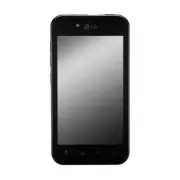
1. Front Camera Lens allows you to take a self-shot. 2. Proximity Sensor senses proximity towards other objects (such as your head) so that touch commands are not accidentally activated during a call. 3. Status Bar provides information about your device’s status and options, such as signal strength,...
Page 8 - Overview screen; Fingerprint recognition; Fingerprint recognition overview
Home screen: Add , Manage apps , Wallpaper , Search , Notifications , and Settings . While in an application, tap to open a list of options available. 7. Back Key returns to the previous screen. Also closes pop-up display items such as menus and dialog boxes. 8. Search Key displays the Quick Search ...
Page 9 - Precautions for fingerprint recognition
1. Charger/Accessory Port allows you to connect the device charger or an optional USB cable. CAUTION! Inserting an accessory into the incorrect port may damage the device. 2. Power/Lock Key locks the screen. Press and hold to open the Phone options menu for the following options: Silent mode , Airpl...
Page 10 - Registering fingerprints
8 Device Basics 5. Speaker lets you hear the different ringers and sounds. The speaker also lets you hear the caller‘s voice in speakerphone mode. 6. Fingertip Cutout allows you to lift and remove the device's back cover. 7. Volume Keys allow you to adjust the ringer and media volumes or to adjust t...
Page 11 - Managing fingerprints
9 Viewing the Display Screen The Status Bar appears at the top of the screen. It displays icons indicating thatyou’ve received notifications (on the left) and icons indicating the device’s status(on the right), along with the current time. If you have more notifications than can fit in the Status Ba...
Page 12 - quick share
10 Device Basics Bluetooth On – Indicates that Bluetooth is on. Bluetooth Connected – Indicates that the phone is connected to a Bluetooth device. GPS On – Indicates that GPS is on. GPS Communicating – Indicates that the device is receiving location data from GPS. Roaming – Your phone is roaming. Ai...
Page 13 - Pen Pop; Setting up Pen Pop; Pen Pop options
11 Device Basics Battery Drained (40%) – Indicates that the battery charge is partially drained. Battery Full – Indicates that your battery is fully charged. Battery Charging – Indicates that the battery is charging. Unknown Battery – Indicates that an unknown battery is inserted. Alarm Clock – Indi...
Page 16 - Parts overview
14 Device Basics Wake Up the Screen If you don’t use the device for a while, the screen and backlight will turn off toconserve battery power. To wake up the device's screen: 1. Press . Your lock screen will appear. See Your Device's Lock Feature on page 88. 2. Touch and drag the green Unlock icon to...
Page 18 - Turning the power on or off; Turning the power on; Turning the power off; Power control options
16 Device Basics Removing the Battery 1. Make sure the power is turned off so that you don’t lose any unsaved items. 2. Lift the back cover using the fingertip cutout located on bottom of the cover and remove it. 3. Lift the battery using the fingertip cutout located at the bottom of the battery com...
Page 19 - Inserting the memory card
17 Device Basics 1. Connect the adapter and USB cable as shown; the LG logo on the USB cable should face toward you. 2. Plug one end of the USB cable into the device's Charger/Accessory Port and the other end into an electrical outlet. The charge time varies depending uponthe battery level. With the...
Page 20 - Removing the memory card
18 Device Basics Extending Your Battery Life You can extend your battery's life between charges by turning off features thatrun in the background. You can also monitor how applications and systemresources consume battery power. ● Reduce your screen's backlight time. ● Turn Bluetooth off when not in ...
Page 21 - Battery; Installing the battery
19 Device Basics ● Turn off Automatic application sync. ● Use the Power Control Widget to deactivate hardware functions such as Wi-Fi,Bluetooth, GPS, Synchronization, or the LCD brightness setting. ● Check the Running Services and close any unnecessary applications. ● Turn down screen brightness. To...
Page 22 - Removing the battery
20 Device Basics Device Function Keys The LG L85C comes equipped with four main function keys that can be used onany screen to access added functions. Menu Key The Menu Key ( ) activates an available menu function for the current screen or application. When on the Home screen, the following menu opt...
Page 23 - Charging the battery
21 Device Basics Working with Menus There are two Android menu types: Options menus and Context menus. Options menus Options menus contain tools that apply to the activities of the current screen orapplication, not to any specific item on the screen. To open the available optionsmenu, tap . ● Not al...
Page 24 - Precautions when using the device; Using the battery efficiently
22 Device Basics Backing Up Within a Menu To go to the previous menu: ● Tap . To return to the Home screen: ● Tap . Using the Notifications Panel Notification icons report the arrival of new messages, calendar events, alarms, aswell as ongoing events, such as when you are on a call. When you receive...
Page 25 - Touch screen; Tapping; Touching and holding
23 You can open the Notifications Panel to view a list of all recent notifications.Depending on your settings, you may hear a notification sound, and the devicemay vibrate. Applications whose activities produce notifications, such as Gmail ™ and Google Talk, have their own settings, which you can us...
Page 26 - Dragging
24 Device Basics To clear all notifications: 1. Open the Notifications Panel. 2. Tap Clear at the top right corner of the panel. All event-based notifications will be cleared; ongoing notifications will remain inthe list. To close the Notifications Panel: Touch and drag the tab at the bottom of the ...
Page 27 - Pinching and spreading
Search Key The Search Key displays the Quick Search Box that can be used to search for a key term both on the device and on the Web. Some applications, such asContacts, Gmail ™ , and Google Maps ™ , have the ability to search contents within those specific applications. Along with being able to sear...
Page 28 - Home screen; Home screen overview
● In some applications, such as Gmail, Contacts, Browser, and Android Market TM , the application’s own search box opens when you tap . This is indicated by the application's icon on the left side of the search box. 2. Enter the text you're searching for in the Quick Search Box. ● You can use the Se...
Page 29 - Editing the Home touch buttons
27 To search different by type: ● Tap > All , Web , Apps , or Contacts . To search using voice command: ● Tap . – or – Tap from the Quick Search Box. When you stop speaking, Google Search by Voice analyzes your speech anddisplays the results of your search. Device Basics
Page 30 - Status icons
28 Device Basics Touchscreen Navigation The LG L85C is a touch-sensitive device which allows you to not only select anon-screen option with a single touch, but to easily scroll through long lists. Simplyslide up and down through the display with your fingertip. Your touchscreenprovides an excellent ...
Page 31 - Notifications panel
29 through a list, or browse through the different Home screens by swiping fromleft to right (and vice versa). ● Double-tap : Double-tap to zoom on a Web page or a map. For example, quickly double-tap a section of a Web page to adjust that section to fit thewidth of the screen. You can also double-t...
Page 32 - Switching the screen orientation; Editing the Home screen
30 Device Basics Your Home Screen The Home screen is the starting point for many applications and functions, andit allows you to add items like application shortcuts, folders, or Google widgetsto give you instant access to information and applications. This is the defaultpage and accessible from any...
Page 33 - Viewing the background theme
Extended Home Screens The Android operating system provides multiple Home screens to provide morespace for adding icons, widgets, and more. ● Slide your finger left or right across the Home screen. The main screen is inthe center with two extension screens on either side of it.. ● Touch and hold the...
Page 34 - Using folders from the Home screen; Creating folders
32 Device Basics Applications: How to View, Open and Switch All of the applications on your device, including any applications that youdownloaded and installed from Android Market™ or other sources, aregrouped together on one Applications screen that you access from your Homescreen. If you have more...
Page 35 - Screen lock; Screen lock overview
33 Opening and Switching Applications Multi-tasking is easy with Android ™ . Opened applications can keep running in the background when you open another application. There’s no need to quit anapplication before opening another. You can easily switch among several openapplications. Android manages e...
Page 36 - Secure start-up settings
34 Device Basics 3. Tap and tap the icon for the other application you want to open. – or – Simply tap the icon if the application you want is already on your Homescreen. To switch between multiple applications: 1. Touch and hold . A small window opens with icons of applications that you’ve used rec...
Page 37 - KnockON; Turning on the screen; Knock Code
35 Applications The following is a listing of the default applications available on both theHome/Extended screens and the Applications screen. Device Basics Application Icons Browser – Launches the Web browser. Calculator – Launches the Calculator application. Calendar – Launches the Calendar applic...
Page 38 - Creating a Knock Code; Memory card encryption
36 Device Basics Application Icons Gmail – Provides access to your Gmail account. Google Search – Displays the Quick Search Box to search for a key term both on your device and the Web. Latitude – Lets you see your friends' locations and share yours with them. The application also lets you see your ...
Page 39 - Taking screenshots; Via a shortcut
37 Note The Email application can access both Exchange Server-based email (such as Work email)and other Internet-based email providers such as Yahoo! and Gmail. Device Basics Application Icons Settings – Accesses the device’s Settings menu. SmartShare – Play and share media contents from a wireless ...
Page 40 - Entering text; Using the Smart keyboard; Moving the cursor
38 Device Basics Customizing Your Home Screen You can customize your Home screen by doing the following: ● Creating Shortcuts ● Adding Widgets ● Creating Contact shortcuts ● Creating Folders ● Changing the Background (Wallpaper) Creating Shortcuts Shortcuts are different from the Home screen Widgets...
Page 41 - Suggesting words; Changing the QWERTY keyboard layout
39 5. Touch and hold the on-screen icon. This creates an immediate shortcut of the selected icon and closes the Applications screen. The new shortcut thenappears to hover over the Home screen. 6. While holding the on-screen icon, position it on the current screen. Once complete, release the screen t...
Page 42 - Customizing the keyboard height
40 Device Basics ● Directions & Navigation ● Music playlist ● Settings 5. Locate the desired shortcut and tap it to place it on the Home screen. To delete a shortcut: 1. Tap to access the Home screen. 2. Touch and hold the desired shortcut. This unlocks it from its location on the current screen...
Page 43 - Splitting the keyboard; One-handed operation mode
41 To add a Widget: 1. Tap to access the Home screen. 2. Touch and hold on an empty area of the screen. 3. From the Add to Home screen window, tap Widgets . 4. Tap an available Widget to place it on your current screen. ● Default widgets include: Analog clock, Calendar, Google Search, Home screentip...
Page 44 - Entering text by using voice; Adding languages to the keyboard
42 Device Basics To place a Widget onto a different screen 1. Touch and hold the widget you want to move. 2. Drag the widget to the edge of the screen (the left side if moving to a screen located on the left, right side if moving to a screen located on the right). 3. After about one second, the curr...
Page 45 - Clip Tray; Do not disturb
43 Changing the Device's Wallpaper To change the Home screen wallpaper: 1. From the Home screen, tap > Wallpaper . – or – Touch and hold an empty spot on the Home screen, then tap Wallpapers . 2. Tap Gallery , LG Wallpapers , Live wallpapers , or Wallpapers . ● Gallery to use a picture saved on y...
Page 46 - Useful Apps
44 Device Basics Accessing Recently-Used Applications Your device keeps a running list of your eight most recently used applications. 1. Tap to open the recently-used applications window. 2. Tap an icon to open the related application. Changing the Screen Orientation This device is capable of changi...
Page 47 - Installing and uninstalling apps; Installing apps; Uninstalling apps; Uninstalling with the touch and hold gesture; Uninstalling by using the settings menu
45 To manually activate the auto-rotate feature: 1. Tap > > Settings > Display . 2. Tap Auto-rotate screen to enable or disable the screen auto-rotation. Displaying Your Phone Number Display your phone number and other information about your phone andaccount. ● Tap > > Settings > A...
Page 48 - Uninstalling apps from the app store
46 Device Basics Shift Key Tap once to capitalize thenext letter you type.Double-tap for all caps. Number and Symbols Key Tap to change input tonumber and symbol entry. Settings Key Tap to set various Androidkeyboard settings. Voice to Text Key Tap to enter text by voice. Delete Key Tap to delete ch...
Page 49 - Phone; Voice call; Making a call from the keypad; Making a call from the contact list
1. Tap a text field where you want to enter text. 2. Use the on-screen keyboard to enter text. ● To enter numbers or symbols, tap . ● To enter letters again, tap . ● To configure Android keyboard settings, tap . ● Vibrate on keypress allows you to activate a vibration sensation as you enter text usi...
Page 50 - Answering a call
48 Device Basics ● Input languages allows you to select the current text input language. The default language depends on the language set when you first activated thephone. ● Quick fixes allows you to correct some common misspellings as you type. ● Show suggestions shows you suggested words in a str...
Page 51 - Functions accessible during a call; Making a three-way calling
49 3. When you finished typing, tap to close the keyboard. Using Swype Method Swype is a text entry method that allows you to enter a word by sliding your finger fromletter to letter, lifting your finger between words. Swype uses error correcting algorithmsand a language model to predict the next wo...
Page 52 - Viewing call records; Configuring call options
● Create a squiggle (like an S shape) to create a double letter (such as “pp” in“apple”). ● To enter a capitalized word, slide your finger above the top row of thekeyboard and then slide back down to the next letter(s). ● Move your finger over the apostrophe to enter contractions. For commonpunctuat...
Page 53 - Messaging; Sending a message; Reading a message
To configure Swype settings: 1. When the Swype keyboard is displayed, tap . 2. Tap Settings . 3. Tap any of the following settings: ● Language allows you to select the current text input language. The default language depends on the language set when you first activated the phone. ● Audio feedback a...
Page 54 - Starting the camera
52 Device Basics ● Show complete trace allows you choose whether or not you want the complete Swype path to be displayed. ● Speed vs. accuracy sets how quickly Swype responds to on-screen input. Move the slider between Fast Response (speed) or Error Tolerance (accuracy) and tap OK . ● Personal dicti...
Page 55 - Taking a photo; Recording a video
Tips for Editing Text You can edit the text you enter in text fields and use menu commands to cut,copy, and paste text, within or across most applications. To cut/copy and pastethe text: 1. Touch and hold the text field that contains the text. 2. Tap Select word or Select all in the menu that opens....
Page 57 - Panorama; Burst shot
55 2. Tap Next > Sign in . 3. Tap the Username and Password fields and enter your information. 4. Tap Sign in . Your device then communicates with the Google servers to confirm your information. Important: Some applications, such as Calendar, work only with the primary Google account (the first G...
Page 58 - Switching between cameras; Zoom in or out
56 Making Calls There are several convenient ways to place calls from your device. 1. Tap > . 2. Enter a phone number using the on-screen dial pad and tap . ● If you enter a wrong number, tap to erase digits one by one. ● To erase the entire number, touch and hold . Options during a call: ● You c...
Page 59 - Gesture shot
57 You can also make calls from your Contacts list, from the Call log, and usingVoice Dialer. Dialing Options After entering numbers with the dial pad, you can use the following dialingoptions. Tap to view the following options: ● Add to contacts : Tap to add the entered number as a new contact or t...
Page 60 - Auto shot; Interval shot
58 Missed Call Notification When you do not answer an incoming call , is displayed in the Status Bar. To display the Missed Call entry from the notification screen: 1. Touch and drag the Status Bar to the bottom of the screen to open the Notifications Panel. 2. Tap the missed call notification. The ...
Page 61 - Save as flipped
59 To exit Emergency mode: 1. Tap to end the emergency call. 2. Tap Exit on the Emergency Call Back mode. Enhanced 911 (E911) Information This phone features an embedded Global Positioning System (GPS) chipnecessary for utilizing E911emergency location services where available. Whenyou place an emer...
Page 62 - Gallery overview; Viewing photos
60 Phone Your phone and TTY device will connect via a special cable that plugs into yourdevice's headset jack. If this cable was not provided with your TTY device,contact your TTY device manufacturer to purchase the connector cable. To turn TTY Mode on or off: 1. Tap > > Settings > Call set...
Page 63 - Editing photos; Playing a video
61 ● Bluetooth (Only available when a Bluetooth headset is connected to your phone) to conduct the call via the Bluetooth headset for hands-freeconversation (For details about pairing the phone with a Bluetooth headset,see Pairing Bluetooth Devices on page 221). ● Mute to mute the microphone during ...
Page 64 - Deleting files; Sharing files
62 ● Hard Pause (Wait) sends the next set of numbers when you tap Yes . To dial or save phone numbers with pauses: 1. Enter the phone number. 2. Tap > Add 2-sec pause or Add wait . 3. Enter the additional numbers. 4. Tap to dial the number. – or – Tap > Add to contacts to save the number in yo...
Page 65 - Email; Email overview
63 Dialing From the Contacts List Dial directly from your contacts list. 1. Tap > > Contacts . – or – Tap > > Contacts . 2. Find a contact to call and tap it to open its entry, then tap . – or – Touch and hold the contact. When a context menu opens, tap Call contact . Using Direct Dialin...
Page 66 - Checking email; Calendar; Calendar overview
Plus (+) Code Dialing When placing international calls, Plus Code Dialing automatically enters theinternational access code for your location (for example, 011 for internationalcalls made from the U.S.). 1. In the Dial screen, touch and hold until you see a “+” on the display screen. 2. Dial the cou...
Page 67 - Syncing events; Event pocket
To decline a call and divert it to voicemail: ● Touch and drag to the left. The caller is sent directly to your voicemail box to leave a message. Answering a Roam Call With Call Guard Enabled Call Guard is an option that helps you manage your roaming charges whenmaking or receiving calls while outsi...
Page 68 - Clock; Alarm; World clock
Call Log The Call Log tab of the Phone application lists all recent incoming, outgoing, andmissed calls. Viewing the Call Log The Call log is a list of the most recently placed, received, or missed calls. Itoffers a convenient way to redial a number, return a call, or add a number to yourContacts. T...
Page 69 - Stopwatch
67 ● Add to contacts to add an entry's number to your Contacts. If several calls were made to one number or received by one number, the calls aredisplayed as one entry. When you tap this entry, the individual call logs areopened. You can also touch and hold the entry to open a menu with more options...
Page 70 - Writing notes on a photo
68 Making a Call From the Call Log ● From the Call log, tap the to the right of the entry. Saving a Number From the Call Log 1. Tap an entry and tap Add to contacts . – or – Touch and hold an entry and tap Add to contacts . 2. Tap Create new contact . – or – Search for an existing contact name and t...
Page 71 - Calculator
69 Prepending a Number From the Call Log If you need to make a call from the Call log and you are outside your local areacode, you can add the appropriate prefix by prepending the number. 1. Touch and hold an entry and tap Edit number before call . 2. Tap the area immediately to the left of the phon...
Page 72 - FM Radio; Voice Recorder
70 Saving a Phone Number You can store phone numbers and contact entries in your phone. You can alsosynchronize them with your Google TM Account, Microsoft Exchange account, or other accounts that support syncing contacts (For more information, seeContacts on page 100). To save a number from standby...
Page 73 - Contacts overview; Adding new contacts
71 Finding a Phone Number Your contacts are displayed alphabetically in a list. It is easy to search for acontact by name. 1. Tap > > Contacts > . – or – Tap > . 2. Start entering the name of the contact you’re searching for. As you type, contacts with matching names will appear above th...
Page 74 - Searching for contacts; Editing contacts
72 Wireless & networks settings This group of settings lets you control your device's Wi-Fi settings, Bluetooth,VPN, and Mobile networks. Airplane mode Airplane mode (Flight mode) allows you to use many of your device’s features,such as Games and Music, when you are in an airplane or in any othe...
Page 75 - Music
73 – or – 1. Tap > > Settings > Wireless & networks . 2. Tap Airplane mode to remove the checkmark. Wi-Fi settings For details on your device’s Wi-Fi features and settings, see Connecting to Wi-FiNetworks on page 169. Bluetooth settings Your device’s Bluetooth capabilities let you use w...
Page 76 - Tasks; Voicemail
74 Mobile networks settings You can set whether to enable or disable data access on your device. 1. Tap > > Settings > Wireless & networks > Mobile networks . 2. Tap Data enabled to check or uncheck it. Call settings Your device's Call settings menu lets you configure International c...
Page 77 - Google apps
75 TTY mode A TTY (also known as a TDD or Text Telephone) is a telecommunications devicethat allows people who are deaf, hard of hearing, or who have speech orlanguage disabilities, to communicate by telephone. Your device is compatiblewith select TTY devices. Please check with the manufacturer of y...
Page 79 - Phone Settings
Call Guard Call Guard makes it easy to manage your roaming by requiring confirmationbefore placing or answering a roaming call. To turn Call Guard on or off: 1. Tap > > Settings > Roaming > Roaming Guards . 2. Tap Voice(Domestic) , Voice(International) or both to activate or deactivate t...
Page 80 - WIRELESS NETWORKS; Connecting to a Wi-Fi network
78 Data Roam Guard Depending on service availability and roaming agreements, your phone may be ableto access data services while roaming on certain digital systems. You can set yourdevice to alert you when you are roaming off the home area mobile network andtry to use data services such as messaging...
Page 82 - Pairing with another device; Sending data via Bluetooth
Adjusting the Device's Volume Settings Adjust your device's volume settings to suit your needs and your environment. 1. Tap > > Settings > Sound > Volume . 2. Adjust each volume level. ● Ringtone : Changes the volume of your call ringtones and notifications (if applicable). ● Media : Cha...
Page 83 - Mobile data; Turning on mobile data; Call
Vibrate and Silent Mode To set your device to vibrate instead of making any sounds: 1. Tap > > Settings > Sound > Vibrate . 2. Tap one of the four options. To set your device to always vibrate: 1. Tap > > Settings > Sound > Vibrate . 2. Tap Always . To switch to silent mode: ...
Page 84 - File sharing
Selecting a Notification Ringtone When you receive a notification, such as the arrival of new messages, calendarevents, or alarms, the device sounds a ringtone. 1. Tap > > Settings > Sound > Notification ringtone . 2. Tap a ringtone to select it and to hear it. If you want to set the rin...
Page 86 - USB tethering
84 Changing the Contrast Adjust your screen’s contrast (brightness) to suit your surroundings. 1. Tap > > Settings > Display > Brightness . 2. Use the slider to set a brightness level and tap OK . Display Language You can choose to display your device's on-screen menus in English or inSp...
Page 88 - Bluetooth tethering; Help; More; Mobile networks
86 Animation Options Choose whether you want to enjoy animated transitions for some effects (suchas when opening menus), for all supported effects (such as when navigating fromone screen to another), or to remove all animated transitions (this setting doesnot affect transitions in non-native applica...
Page 89 - VPN; Emergency alerts
87 To enable your device's Location feature: 1. Tap > > Settings > Location & security > GPS Privacy Setting . 2. Tap Location On or E911 Only. Using Wireless Networks You can use information from Wi-Fi and your service provider's networks todetermine your approximate location, for u...
Page 90 - DEVICE; Sound
88 1. Tap > > Settings > Location & security . 2. Tap Use GPS satellites (A green checkmark will appear). Your Device's Lock Feature Locking Your Device Press to lock your device. Locking the screen prevents accidental screen touches from activating phone functions. Unlocking Your Devic...
Page 91 - Display
● If you have set up an Unlock Pattern (see Your Device's Lock Feature on page 90),use your fingertip to draw the pattern. ● If you have set up PIN or Password, enter the PIN or Password. Afterentering it, tap . The last screen you were working on opens. Note You have five opportunities to enter you...
Page 93 - Pen
2. Tap Set up screen lock . 3. Select Pattern , PIN, or Password . ● Pattern : The first time you set unlock pattern, you will see a tutorial with instructions on how to create it. Read the tutorial and tap Next (twice). Draw your pattern and tap Continue . Then redraw your pattern and tap Confirm (...
Page 94 - Storage
92 Changing the Lock Code 1. Tap > > Settings > Location & security > Change screen lock . 2. Confirm the saved Pattern, or your PIN or Password. 3. Select Pattern , PIN, or Password . To disable your device's lock feature: 1. Tap > > Settings > Location & security > ...
Page 95 - Apps
93 Credential Storage Settings You use credential storage to establish some kinds of VPN and Wi-Ficonnections. To allow applications to access your device's encrypted store of securecertificates and related passwords and other credentials: 1. Tap > > Settings > Location & security . 2. ...
Page 96 - PERSONAL; Location
94 2. Enter the current password, a new password, and confirm the new password. (Please note that your password must have at least 8 characters.) To delete all secure certificates and related credentials and reset its password: 1. Tap > Settings > Location & security > Clear storage . 2...
Page 98 - Google services
96 Removing an Account You can remove an account to delete all information associated with it from yourdevice, including email, contacts, settings, etc. Some accounts cannot be removed, such the first Google Account you set up onthe device. That account can only be removed by resetting your device e...
Page 99 - SYSTEM
97 computer. Your Google Account synchronizes in a two-directional manner. Otheraccounts support only one-way sync; the information changed on your phone is onlychanged on your phone. To configure general sync settings: 1. Tap > Settings > Accounts & sync. ● Indicates that some, or all, of...
Page 101 - About phone
99 ● The Data and synchronization screen will open, displaying a list of thetypes of data the account can sync. 3. Tap the items you want to sync (A green checkmark indicates that synchronization has been enabled). ● By disabling synchronization for an item, it will not remove the previouslysynchron...
Page 102 - Appendix
100 The Contacts application lets you store and manage contacts from a variety ofsources, including contacts you enter and save directly in your device as well ascontacts synchronized with your Google account, your PC, compatible emailprograms (including Exchange Server), and your Facebook friends. ...
Page 103 - Phone software update
3. Tap a destination type ( Phone, Google, or Corporate ), if applicable. 4. Tap the Picture Frame icon to select a picture to display next to the name in your list of contacts and in the Caller ID. 5. Tap the First name and Last name fields, and enter a name for the new entry. 6. Tap the label butt...
Page 105 - FAQ
103 To edit contact details: 1. Tap > > Contacts . 2. Touch and hold the contact whose details you want to edit. 3. Tap Edit contact . 4. Edit the desired contact information. 5. Tap Done . To change a contact’s default phone number: The default phone number is used when you initiate a call or...
Page 109 - More information; Open Source Software Notice Information
Selecting a Ringtone for an Entry Assign a ringtone to a Contacts entry so you can identify the caller by theringtone (See Ringer Types on page 79). 1. Tap > > Contacts . 2. Tap the name of a contact to view its details. 3. Tap > Options . 4. Tap Ringtone and tap a ringtone to select it. 5....
Page 110 - For Your Safety
108 Tap Select photo from Gallery to select a picture from the Gallery. 6. After cropping the picture as you want, (see Gallery Options on page 196) tap Save . Finding Contacts Entries Finding Contacts by Name 1. Tap > > Contacts . 2. Tap . 3. Start entering the name of the contact you’re sear...
Page 111 - Important Information
109 Selecting which Contacts are Displayed You can hide contacts that don't have phone numbers. You can also configurewhich groups of contacts you want to display in the Contacts List. To set whether contacts without phone numbers are displayed: 1. Tap > > Contacts . 2. Tap > Display o ptio...
Page 114 - HAC statement
112 Importing, Exporting, and Sharing Contacts If you have contacts stored in vCard format on a microSD card you can importthem into your Contacts application on your device. You can also exportcontacts in vCard format onto a microSD card. Export your contacts to backthem up to a computer or another...
Page 115 - Are wireless phones safe?
113 Exporting contacts to your microSD card You can export all of the contacts on your phone to your microSD card, as vCard files.You can then copy this file to a computer or another device that is compatible with thisformat, such as an address book application (See Connecting Your Device to YourCom...
Page 116 - What does “SAR” mean?
114 Email Your device's Email application lets you access and manage multiple emailaccounts simultaneously in one convenient location. Although there is a separate Gmail application, the main email application canmanage both Internet based email services (Gmail ™ and Yahoo! ™ ) and Corporate Work Em...
Page 117 - Can I minimize my RF exposure?
115 Email Icons/Shortcuts - Email shortcut - Gmail shortcut Status Bar - Notifications - New Email message received - New Gmail message received Corporate Email (Outlook) The Email application also provides access to your Outlook Exchange server via your device. If your company uses Microsoft Exchan...
Page 118 - Where can I get further information about RF emissions?
116 3. Tap > Add account . 4. Enter your Email address and Password information, then tap Next . Consult your Network Administrator for further details. ● Email address : Your Outlook work email address. ● Password : Typically your network access password (case-sensitive). 5. Tap Exchange . 6. En...
Page 119 - Consumer Information on SAR
117 7. Read the Remote security administration disclaimer and tap OK . 8. Configure your Inbox checking frequency, Period to synchronize (days to synchronize between your device and server), and activate any other emailsettings, then tap Next . 9. Identify your new account with a unique name and tap...
Page 124 - TIA Safety Information
122 To create a Corporate Email Signature: This signature can differ from any current Email signature on your local Outlookclient. This signature is applied to any outgoing emails originating on your device. 1. Tap > > Settings > Accounts & sync . 2. Tap the Corporate account to reveal ...
Page 125 - Pacemakers; Hearing Aids
123 Text Messaging With text messaging (SMS), you can send and receive instant text messages betweenyour wireless phone and another messaging-ready phone. When you receive a newmessage, you will be notified by your device. Messaging is available via the Messaging application in your Applications scr...
Page 126 - Posted Facilities
124 3. Tap a matching entry from the on-screen dropdown list. This list is populated by matches found from your managed accounts. 4. Tap the text field and enter your message. 5. Insert an emoticon or a smiley. ● To enter an emoticon, touch and hold on the on-screen keyboard. ● To enter a smiley fro...
Page 128 - Safety Information; Battery Information and Care
126 Composing MMS Messages 1. Tap > > Messaging > New message . 2. Tap the To field and enter the recipient’s phone number or email information. As you enter the phone number or email address, matching contacts appearon-screen. Tap an available matching recipient or continue entering the ph...
Page 130 - General Notice
128 6. When you are finished creating your new MMS message, tap Send MMS . To view and play a multimedia message: 1. Tap > > Messaging . 2. From the message list, tap a multimedia message to open its contents. 3. While viewing a message, tap the play icon (on the video file) to playback the fi...
Page 131 - FDA Consumer Update; Do wireless phones pose a health hazard?
129 4. Once completed, tap Send . Deleting a Message or Message Thread 1. Tap > > Messaging . 2. From the message list, tap a message and tap . – or – Touch and hold the message thread to display the context menu. Then tap Delete thread > Delete to confirm. 3. Tap More > Delete thread an...
Page 132 - What kinds of phones are the subject of this update?
130 ● Text message limit Sets the maximum number of text messages that can be stored on the device (per conversation). ● Multimedia message limit Sets the maximum number of multimedia messages that can be stored on the device (per conversation). ● Signature Tap this to automatically add signature (g...
Page 133 - What are the results of the research done already?
131 ● Roaming auto-retrieve . Disable this option if you only desire the multimedia message headers to download while roaming. Enable this optionto automatically download your complete multimedia messages even whileroaming. ● Set priority Set the priority level for multimedia messages. Choose from L...
Page 136 - What about children using wireless phones?
134 ● Gmail is conversation-based : Every related message is grouped in your Inbox as a single conversation tread. In other email applications, replies to messagesare sent as individual messages, making it difficult to keep track of relatedmessages. Gmail makes it easy to follow conversations with i...
Page 137 - Where can I find additional information?; Driving
135 Yahoo!, or other email account), you must use the Email application (SeeEmail on page 114). Setting Up other Email accounts via the Device The Email application only reveals all currently added Email accounts. To viewadditional email accounts within the Email application, they must first be adde...
Page 138 - 0 Driver Safety Tips
136 >>: Indicates that this message was sent directly to you.> : Indicates that you were CC'd on this message.(No indicator): Indicates that this message was sent to a group that includes you. To open your Inbox when Gmail is running: ● When reading a message, tap > Go to inbox . – or – ...
Page 141 - Warranty Laws
139 3. Tap the contact name to open that message. When reading a message or when its tab is selected, you can tap > Mark unread to return a read message to the unread state. For example, to remind yourself to read it again later. Composing and Sending a Message You can compose and send a message ...