LG LGL46C - User Manual
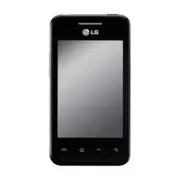
LG LGL46C Cell Phone – User Manual, read for free online in PDF format. We hope this helps you resolve any issues you may have. If you have further questions, please contact us through the contact form.


Text Messaging
Add Favorite
Contacts
Browse the Web
Customize
Your Phone
Use
Bluetooth
®
Q
U
IC
K
S
TA
R
T G
U
ID
E
TM
Account Setup
Basics
Messaging
The Web
Getting to know your phone
P/N : MBM63645401 (1.0)
Printed in Korea
LG L46C
The first time you open a Google
TM
application on your phone, you will be
required to sign in with your existing Google account. If you do not have a
Google account, you will be prompted to create one.
Setting up your Google Account
1. At the setup screen, touch
Create
or
Sign in
.
2. Enter your username and password and any other necessary information if
creating an account.
NOTE:
Touch the
Back Key
to close the keyboard.
3. Touch
Sign in
.
Now your Gmail
TM
, Google Contacts, Google Calendar
TM
events, and other
settings information synchronized to your Google Account will all be loaded
to your phone automatically.
Your Google Account
You must sign into a Google Account to use Gmail, Google Talk
TM
Calendar, and other Google Apps
TM
to download applications from Google Play;
and to take advantage of other Google services on your phone.
NOTE:
The user interface of Google applications (Google Search, Google
Maps, Navigation, etc.) can vary depending on its software version.
Touchscreen tips
Here are some tips on how to navigate around your phone.
Touch -
To choose a menu/option or open an application, touch it.
Touch and hold -
To open an Context menu or grab an object you want
to move, touch and hold it.
Drag -
To scroll through a list or move slowly, drag across the touch
screen.
Flick -
To scroll through a list or move quickly, flick across the touch
screen (drag quickly and release).
QuickMemo
TM
You can easily and efficiently create memos during a call, with a saved
picture or on the current phone screen.
1. Access the QuickMemo feature by pressing and holding the Up and
Down Volume Keys at the same time for one second while viewing the
screen you want to capture and use to create a memo.
2. Write a QuickMemo using the following options:
- Tap to select whether to use the background screen or not.
- Tap to select the pen type and the color.
- Tap to use the eraser to erase the memo that you created.
- Tap to share the memo via
Bluetooth
,
Gmail
,
Google+
,
Messaging
,
Picasa
, or any other installed application that supports sharing.
- Tap to save the memo you‘ve created on the current screen.
3. Tap from the Edit menu and select to save the memo with the
current screen.
Messaging
Your LG L46C combines text (SMS) and multimedia (MMS) messaging
into one intuitive, easy-to-use menu.
To send a text message
1. Open the
Messaging
application and touch
New message
.
2. Enter a mobile phone number in the
To
field.
As you enter the mobile phone number, matching contacts appear.
You can touch a suggested recipient or continue entering the phone
number.
3. Touch the text field to start entering your message.
A counter is displayed in the top right corner of the text field to tell you
how many characters are left.
If you touch the
Back Key
while composing a message, it’s saved
as a draft in your
Messaging
application. Touch the message to resume
composing it.
4. Touch the
Send
button to send the message.
Your message is displayed and responses appear in the same window,
creating a message thread with that contact.
WARNING
: If an image, video or audio file is added to an SMS
message, it will be automatically converted into an MMS message.
Browser
The Browser application allows you to access the internet from your
device. Access and selections within this feature are dependent upon your
service provider. For specific information on Browser access through your
phone, contact your service provider.
Touch the
Menu
Key
to view the following options:
New window
: Opens a new window.
Bookmarks
: Allows you to view, edit, and add bookmarks.
Windows:
Displays all your open windows.
Refresh
: Allows you to refresh the web page to view new content.
Forward:
Go forward to the page you connected to after the current
page. The
Back
Key
takes you to the previous page.
More
•
Add bookmark:
Allows you to save the current web page as a bookmark.
•
Find on page:
Allows you to find letters or words on the current web page.
•
Select text
: Allows you to select any text from the web page to copy.
•
Page info:
Displays the web page information.
•
Share page
: Allows you to share the web page with others.
•
Downloads
: Displays your download history.
•
Setting:
Allows you to set various Browser settings.
NOTE:
To return to the previous page, touch the
Back
Key
.
Calls
To open the Phone application
From the Home screen, touch the
Phone Key
.
To place a call by dialing
1. Open the
Phone
application.
2. Enter the desired number and touch the
Call Key
.
Answering and rejecting a call
When you receive a phone call, the Incoming call screen opens with the
caller ID and any additional information about the caller that you have
saved in the Contacts list. All incoming calls are recorded in the Call log.
Answer a Call
Touch and drag to the right.
Reject a Call
Touch and drag to the left.
To turn on the phone, press and hold the
Power/Lock
Button
for
three seconds.
To turn off the phone, press the
Power/Lock
Button
for three
seconds and touch
Power off
. Then touch
OK
to confirm.
NOTE: Proximity Sensor
When receiving and making calls, the proximity sensor automatically turns
the backlight off and locks the touch keypad by sensing when the phone
is near your ear. This extends battery life and prevents the touch keypad
from activating unintentionally during calls.
Menu Key
View available options.
Home Key
Return to the Home
screen from any screen.
Phone Keys
Opens the dial pad.
Also provides additional
tabs to access Call
log, Contacts, and your
Favorites.
Proximity Sensor
Status Bar
Search Key
Search the web and contents
in your phone.
Microphone
Back Key
Return to the previous screen.
Earpiece
Power/Lock Button
Touchscreen
Applications Key
Opens the Applications
screen to view installed
applications.
Browser Key
Access to the Web browser.
microSD
Slot
3.5mm Headset Jack
Charger/ Accessory Port
Fingertip Cutout
Volume Buttons
Tip:
Press and hold the both
Volume Buttons at the same time
to use the QuickMemo
TM
feature.
Flash
Camera Lens
Camera
Mirror
To dial an international number, touch and hold the 0 key to enter the
plus ( + ) symbol. Then, enter the international prefix for the country;
followed by the full phone number.
Touch the
Delete Key
to erase a digit. Touch and hold the
Delete
Key
to erase the entire number.
Touch the
Call Key
to dial the number that you entered.
"Loading the manual" means you need to wait until the file loads and becomes available for online reading. Some manuals are very large, and the time they take to appear depends on your internet speed.


