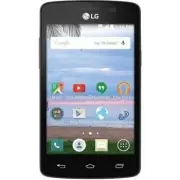
Page 2 - User Guide; ENGLISH
User Guide ENGLISH t Screen displays and illustrations may differ from those you see on actual phone. t Some of the contents of this guide may not apply to your phone, depending on the software and your service provider. All information in this document is subject to change without notice. t This ha...
Page 3 - Table of contents
Table of contents 2 Important notice ................................... 5 Getting to know your phone ............... 10 Phone overview ................................. 10Installing the battery .......................... 13Charging the phone ........................... 15Using the memory card.........
Page 6 - Important notice; Please read this before you start using your phone!; From the Home screen, tap; Optimizing battery life
5 Important notice Please read this before you start using your phone! Please check to see whether any problems you encountered with your phone are described in this section before taking the phone in for service or calling a service representative. 1. Phone memory When there is less than 10MB of sp...
Page 7 - Reduce screen brightness and set a shorter screen timeout.; Before installing an open source application and
6 Important notice t Reduce screen brightness and set a shorter screen timeout. t Turn off automatic syncing for Gmail, Calendar, Contacts and other applications. t Some applications you have downloaded may reduce battery power. To check the battery power level: t From the Home screen, tap > Apps...
Page 8 - Using a screen lock
7 WARNING To protect your phone and personal data, only download applications from trusted sources, such as Play Store. If there are improperly installed applications on your phone, the phone may not work normally or a serious error may occur. You must uninstall those applications and all associated...
Page 9 - Opening and switching applications
8 Important notice 5. Opening and switching applications Multi-tasking is easy with Android because you can keep more than one application running at the same time. There is no need to quit an application before opening another one. Use and switch between several open applications. Android manages e...
Page 10 - Hold your phone upright
9 7. Hold your phone upright Hold your cell phone vertically, as you would a regular phone. Your phone has an internal antenna. Be careful not to scratch or damage the back of the phone, as this may affect performance.When making/receiving calls or sending/receiving data, avoid holding the lower par...
Page 11 - Phone overview; Getting to know your phone
10 Phone overview Proximity Sensor Earpiece Home Key Return to the Home screen from any screen. Press and hold to access Google Now. Volume Keys Allow you to adjust the ringer, media volume, or the volume during a call. Back Key Return to the previous screen. Recent Apps Key Power/Lock Key Turn your...
Page 12 - Microphone; Control volume continuously.
11 WARNING Placing a heavy object on the phone or sitting on it can damage the LCD and touch screen functions. Microphone Charger/USB Port 3.5mm Headset Jack Power/Lock Key Volume Keys t On the Home screen : Control ringer volume. t During a call : Control your earpiece volume. t When playing audio/...
Page 13 - Back cover
12 Getting to know your phone Back cover Battery microSD Card slot Camera LensSpeaker
Page 14 - Installing the battery
13 Installing the battery Before you can start exploring your new phone, you'll need to set it up. 1 To remove the back cover, hold the phone firmly in one hand. With your other hand, place your thumbnail in the Charger/USB Port at the bottom of the phone as shown in the illustration below. NOTE: Ma...
Page 15 - and pressing it down until it clicks into place
14 Getting to know your phone 2 Insert the battery into the battery compartment by aligning the gold contacts on the phone and the battery 1 and pressing it down until it clicks into place 2 . 1 2 3 Align the back cover over the battery compartment 1 and press down along the outer edges of the back ...
Page 16 - Charging the phone
15 Charging the phone Your phone comes with a USB cable and a charging adapter. The Charger/USB Port is at the bottom of the phone. Insert one end of the USB cable into the phone and plug the charging adapter into an electrical outlet. NOTE: t The battery must be fully charged initially to improve b...
Page 17 - Using the memory card; Remove the back cover.
16 Getting to know your phone Using the memory card Make sure to unmount the SD card in the Storage menu before removing it. 1 Remove the back cover. 2 Insert the memory card into the slot. Make sure the gold contact area is facing downwards.
Page 18 - Locking and unlocking the screen; to lock your
17 Locking and unlocking the screen If you do not use the phone for a while, the screen will be automatically turned off and locked. This helps to prevent accidental taps and saves battery power.When you are not using your phone, press the Power/Lock Key to lock your phone. If there are any programs...
Page 19 - Your Home screen; Touch screen tips; Touch or tap
18 Your Home screen Touch screen tips Here are some tips on how to navigate on your phone. Touch or tap – A single finger tap selects items, links, shortcuts and letters on the on-screen keyboard. Touch and hold – Touch and hold an item on the screen by touching it and not lifting your finger until ...
Page 20 - Home screen; Phone
19 NOTE: t To select an item, tap the center of the icon. t Do not press too hard; the touch screen is sensitive enough to pick up a light, yet firm tap. t Use the tip of your finger to tap the option you want. Be careful not to tap any other keys. Home screen Simply swipe your finger to the left or...
Page 21 - Customizing the Home screen; To add items on your Home screen:; Touch and hold the empty part of the Home screen.; Apps; or; Widget; Touch and hold the icon you want to remove, then drag it to
20 Your Home screen Customizing the Home screen You can customize your Home screen by adding apps, downloads, widgets or wallpapers. For more convenience using your phone, add your favorite apps and widgets to the Home screen. To add items on your Home screen: 1 Touch and hold the empty part of the ...
Page 22 - Notifications; Accessing notifications; Back Key; Quick Settings
21 Notifications Notifications alert you to the arrival of new messages, calendar events, and alarms, as well as to ongoing events, such as video downloads.From the Notifications Panel, you can view your phone's current status and pending notifications.When a notification arrives, its icon appears a...
Page 23 - To rearrange Quick Setting items on the Notification Panel; Swipe the Quick Settings bar to the left and tap; Edit; next to
22 Your Home screen To rearrange Quick Setting items on the Notification Panel Swipe the Quick Settings bar to the left and tap Edit . Touch and hold next to the items you want to move and drag it to the desired location. Tap the checkbox next to each item to add and remove them from the Quick Setti...
Page 24 - Notification icons on the Status Bar; Icon Description
23 Notification icons on the Status Bar Notification icons appear on the Status Bar at the top of the screen to report missed calls, new messages, calendar events, device status and more. The icons listed in the table below are some of the most common ones. Icon Description Icon Description No signa...
Page 26 - Using the keypad & entering text; Tap to switch to the numbers and symbols keyboard.; Entering special characters
25 On-screen keyboard You can enter text using the on-screen keyboard. The on-screen keyboard appears automatically on the screen when you need to enter text. To manually display the keyboard, simply tap a text field where you want to enter text. Using the keypad & entering text Tap once to capi...
Page 27 - Google account setup; Creating your Google account; Settings
26 Google account setup The first time you open a Google application on your phone, you will be required to sign in with your existing Google account. If you do not have a Google account, you will be prompted to create one. Creating your Google account 1 From the Home screen, tap to open the applica...
Page 28 - Signing in to your Google account; On the Google Account setup screen, tap; Existing
27 Signing in to your Google account 1 On the Google Account setup screen, tap Existing , enter your e-mail address and password, then tap . 2 Once you have set up your Google account on your phone, it will be automatically synchronized with your Google account on the web (depending on your synchron...
Page 29 - Connecting to Wi-Fi networks; Turning Wi-Fi on and connecting to a Wi-Fi network
28 Connecting to Networks and Devices Connecting to Networks and Devices Wi-Fi With Wi-Fi, you can use high-speed Internet access within the coverage of the wireless access point (AP). Enjoy wireless Internet using Wi-Fi, without extra charges. Connecting to Wi-Fi networks To use Wi-Fi on your phone...
Page 30 - Bluetooth; Tap the switch
29 Bluetooth Bluetooth allows you to share data with other Bluetooth-enabled devices and connect to Bluetooth headsets. NOTE: t LG is not responsible for the loss, interception or misuse of data sent or received via the Bluetooth wireless feature. t Always ensure that you share and receive data with...
Page 31 - Connecting to Networks and Devices; Send data using the Bluetooth wireless feature; Select the option for sending data via Bluetooth.; Receive data using the Bluetooth wireless feature; Pair both devices and send a file from the other device to yours.; Accept; to confirm that you are willing to receive data from the device.
30 Connecting to Networks and Devices 4 A list of available devices will be displayed. Choose the device you want to pair with from the list. 5 Depending on the type of device, you may have to enter matching codes, confirm matching codes, or the devices will automaticall pair. Once the paring is suc...
Page 32 - Connecting to Virtual Private Networks; PC connections with a USB cable
31 Connecting to Virtual Private Networks Virtual private networks (VPNs) allows you to connect to resources inside a secure local network, from outside that network. To add a VPN 1 From the Home screen, tap > Apps tab (if necessary) > Settings > More ... > VPN . NOTE: You must configure...
Page 33 - Synchronize with Windows Media Player
32 Connecting to Networks and Devices Synchronize with Windows Media Player Ensure that Windows Media Player is installed on your PC. 1 Use the USB cable to connect the phone to a PC on which Windows Media Player has been installed. 2 Select the Media device (MTP) option. When connected, a pop-up wi...
Page 34 - Making a call; Calling your contacts; Search contacts; Answering and rejecting a call
33 Calls Calls Making a call 1 From the Home screen, tap to open the dial pad. 2 Enter the number using the dial pad. To delete a digit, tap . 3 Tap to make a call. 4 To end a call, tap . TIP! To enter “+” to make international calls, touch and hold . Calling your contacts 1 From the Home screen, ta...
Page 35 - Calls; Adjusting the in-call volume; Viewing your call logs; Call logs
34 Calls Adjusting the in-call volume To adjust the in-call volume during a call, use the Volume Up and Volume Down Keys on the left side of the phone. Making a second call 1 During your first call, tap Menu icon , touch Add call and dial the number. You can also go to the recently dialed numbers li...
Page 36 - icon; Call settings; and choose the options that you wish to adjust.
35 Call settings You can configure phone call settings such as call forwarding, as well as other special features offered by your provider. 1 From the Home screen, tap . 2 Tap the Menu icon . 3 Tap Call settings and choose the options that you wish to adjust.
Page 37 - Searching for a contact
36 Contacts Contacts Add contacts to your phone and synchronize them with the contacts in your Google account or other accounts that support contact syncing. Searching for a contact 1 From the Home screen, tap to open your contact list. 2 Tap the Search contacts box and enter the contacts name. You ...
Page 39 - Sending a message; To; Send
38 Messaging Messaging Your phone combines text and multimedia messages into one intuitive, easy-to-use menu. Sending a message 1 Tap on the Home screen and tap to compose a new message. 2 Enter a contact name or contact number in the To field. As you enter the contact name, matching contacts will a...
Page 40 - View mode for the Messaging app; Open the; Messaging; app and tap the
39 WARNING t The 160-character limit may vary from country to country, depending on the language and how the text message is coded. t If an image, video or audio file is added to an text message, it is automatically converted into a multimedia message and you are charged accordingly. View mode for t...
Page 41 - Managing an email account
40 E-mail E-mail You can use the Email application to read emails from services like Gmail. The Email application supports the following account types: POP3, IMAP and Exchange.Your service provider or system administrator can provide you with the account settings you need. Managing an email account ...
Page 42 - Working with account folders; Email; Composing and sending email; To compose and send a message
41 Working with account folders Open the Email application and tap the Menu icon > Folders . Each account has an Inbox, Outbox, Sent and Drafts folder. Depending on the features supported by your account's service provider, you may have additional folders. Composing and sending email To compose a...
Page 43 - Camera and Video; Camera; Getting to know the viewfinder
42 Camera and Video To open the Camera application, tap from the Home screen, then tap Camera . TIP! You can quickly access the Camera app without unlocking your phone first. t While the screen is off, press and hold the Volume Down Key or Volume Up Key on the left side of the phone. Getting to know...
Page 44 - Using the advanced settings
43 Capture – Tap to capture a photo. Back Key – Tap to exit the camera. NOTE: The memory capacity may differ depending on the configured camera settings. Using the advanced settings In the viewfinder, tap to open the advanced options. You can change the camera settings by scrolling through the list....
Page 45 - Taking a quick photo
44 Camera and Video This option displays grid lines so that you can easily take pictures and record videos.This option sets the location where you want to save your images and videos.Choose SD card or Internal storage . This menu is displayed only when the microSD card is inserted. This option provi...
Page 47 - Viewing your saved photos and videos
46 Camera and Video Viewing your saved photos and videos You can access your saved photos and videos when in camera mode. Just tap the image preview next to the Record button and your Gallery will be displayed. t To view more photos, scroll left or right. t To zoom in or out, double-tap the screen o...
Page 48 - After recording a video; Tap to record another video immediately.; Watching your saved videos; In the viewfinder, tap the image preview next to the Record button.; Adjusting the volume when viewing a video
47 After recording a video Tap the image next to the Record button to view the last video you recorded. Tap to record another video immediately. Tap to send your video to others or share it via social network services. Tap to delete the video. Watching your saved videos 1 In the viewfinder, tap the ...
Page 49 - Unique LG Features; Guest Mode; Knock Code
48 Unique LG Features Guest Mode To protect your privacy or limit some applications to your children, you can use the Guest mode. When you lend your phone to others, you can limit the applications to be displayed. 1 From the Home screen, tap > Apps tab (if necessary) > Settings > Guest mode...
Page 50 - KnockON; Using KnockON; Access the
49 KnockON The KnockON feature allows you to turn the screen on and off by simply double tapping on it. Using KnockON t When the screen is off, double-tap the center of it quickly to unlock it. t To lock the screen, double-tap the Status Bar in any screen (except on the camera viewfinder) or an empt...
Page 51 - OR
50 Unique LG Features OR OR Drag the Status Bar down and and tap on the Quick Settings Bar. 2 Create a memo using the toolbar options. 3 Tap in the Edit menu to save the memo to the QuickMemo+ app or your Gallery. NOTE: Please use a fingertip while using the QuickMemo+ function. Do not use your fing...
Page 52 - Using QuickMemo+ toolbar options
51 Using QuickMemo+ toolbar options The QuickMemo+ toolbar options allow you to easily create memos. Tap the toolbar tab to access and hide the QuickMemo+ toolbar icons. Tap to undo the most recent action. Tap to redo the most recently deleted action. Tap to type text in your memo. Tap to select the...
Page 53 - QuickMemo+ Menu Options
52 Unique LG Features QuickMemo+ Menu Options From the QuickMemo+ screen, tap the Menu icon to access the following options. t Tap Insert to insert files stored in your phone/memory card into the memo. t Tap Move to move the current memo into another folder. t Tap Delete to delete the current memo. ...
Page 54 - Multimedia; Gallery; Viewing pictures; Zooming in and out; Use one of the following methods to zoom in on an image:
53 Multimedia Gallery You can store multimedia files in the internal and external memory for easy access to all your multimedia files. Use this application to view multimedia files like pictures and videos. t From the Home screen, tap > Apps tab (if necessary) > Gallery . NOTE: t Some file for...
Page 55 - Playing videos; Deleting images; Delete; Setting a photo as the wallpaper
54 Multimedia Playing videos Video files show the icon in the preview. Select a video to watch it and tap . NOTE: t Some file formats are not supported, depending on the device software. t If the file size exceeds the available memory, an error can occur when you open files. Editing photos When view...
Page 56 - Videos; Playing a video
55 Videos Your phone has a video player that lets you play all of your favorite videos. Playing a video 1 From the Home screen, tap > Apps tab (if necessary) > Gallery . 2 Open the album that contains the desired video and tap it to play it. Tap to pause video playback. Tap to resume video pla...
Page 57 - Music; Playing a song
56 Multimedia NOTE: While watching a video, slide the left side of the screen up and down to adjust the brightness. Slide the right side of the screen up anddown to adjust the volume. You can also slide the bottom part of thescreen to the right or left to fast-forward and rewind. Music Your phone ha...
Page 59 - Tools; Setting your alarm; Using your calculator
58 Tools Setting your alarm 1 From the Home screen, tap > Apps tab (if necessary) > Clock > . 2 Set the time and select AM or PM . 3 Set Repeat , Snooze duration , Vibration , Alarm sound , Alarm volume , Auto app starter , Puzzle lock and Memo . 4 Tap Save to save the alarm. NOTE: To chang...
Page 60 - Recording a sound or voice
59 Adding an event to your calendar 1 From the Home screen, tap > Apps tab (if necessary) > Calendar . 2 Tap and choose from Day, Week, Month, Year, or Agenda to change the month view. 3 Tap the date for which you wish to add an event and touch . 4 Tap the Event name field and enter the event ...
Page 61 - Polaris Office; folder
60 Tools NOTE: Tap to access the list of recordings. You can listen to any saved recordings from the list. The available recording time may differ from actual recording time. Polaris Office Polaris Office allows you to use various types of documents, such as MS Office documents and PDFs. t From the ...
Page 62 - Voice Search; Downloads
61 Voice Search Use this application to search webpages using voice. 1 From the Home screen, tap > Apps tab (if necessary) > Google folder > Voice Search . 2 Say a keyword or phrase when Speak now appears on the screen. Select one of the suggested keywords that appear. NOTE: This applicatio...
Page 63 - Browsing the Web; Browser; Using the Browser toolbar; Back; Viewing webpages
62 Browsing the Web Browser Use this application to browse the Internet. The Browser gives you a fast, full-color world of games, music, news, sports, entertainment and much more, right on your mobile phone wherever you are and whatever you enjoy. NOTE: Additional charges apply when connecting to th...
Page 64 - Bookmarks; Chrome
63 Opening a page To open a new page, tap > . To go to to an open page, tap , scroll up or down, and tap the page to select it. Searching the web by voice Tap the address field, tap , speak a keyword, and then select one of the suggested keywords that appear. NOTE: This feature may not be availab...
Page 65 - on the; Opening a page; To open a new page, tap; Searching the web by voice; Syncing with other devices; Recent tabs; Access bookmarks; To view bookmarks, touch and hold the; Recent Apps Key
64 Browsing the Web Viewing webpages Tap the address field, enter a web address or search criteria, and tap on the keyboard. Opening a page To open a new page, tap > . To go to an open page, tap , scroll up or down and tap the page to select it. Searching the web by voice Tap the address field, t...
Page 66 - Access the Settings menu; Select a setting option and configure the desired settings.; Wireless Networks settings; – Activating airplane mode disables all wireless connections.
65 Settings Access the Settings menu 1 From the Home screen, tap > Apps tab (if necessary) > Settings . 2 Select a setting option and configure the desired settings. Wireless Networks settings < Airplane mode >Airplane mode – Activating airplane mode disables all wireless connections. &l...
Page 68 - Device settings
67 < More ... >Mobile networks – Allows you to manage mobile data. VPN – Allows you to set up and manage Virtual Private Networks (VPNs). NOTE: You must set a pattern, PIN or password before you can use credential storage. Device settings < Sound > Sound profile – Set the sound profile t...
Page 72 - Personal settings; setting can save battery
71 < Apps > Use the Apps menu to view details about the applications installed on your phone, manage their data, and force them to stop.Swipe left and right to select one of the three tabs across the top of the screen to view detailed information for Downloaded , On SD Card , Running , and All...
Page 77 - System settings
76 Settings System settings Shortcut key Tap the Shortcut key switch (at the upper-right corner of the screen) to toggle it On or Off. On allows quick access to apps by pressing and holding the Volume Keys. < Date & time >Automatic date & time – Checkmark to use the network-provided da...
Page 81 - Phone software update
80 Phone software update Update your smart phone without a PC (FOTA) This feature allows you to conveniently update your phone's software to a newer version via Firmware Over-the-Air (FOTA), without connecting to a PC with a USB cable. 1 From the Home screen, tap > Apps tab (if necessary) > Se...
Page 83 - These accessories are available for use with your phone.; (Items described below
82 Accessories Accessories These accessories are available for use with your phone. (Items described below may be optional and sold separately.)Charger USB cable Connect your phone and PC. Battery User Guide Learn more about your phone. SD card NOTE: t Always use genuine LG accessories. Failure to d...
Page 85 - FAQ
84 FAQ Category Sub-Category Question Answer Phone Function Email What happens when I execute another application while writing an email? Your email will automatically be saved as a draft. Phone Function Ringtone Is there a file size limitation for when I want to use a MP3 file as a ringtone? There ...
Page 90 - For your safety; To reduce risk of fire or burns, do not dispose of in fire or water.
89 For your safety The highest SAR value for this model phone when tested for use at the ear is 1.19 W/Kg (1g) and when worn on the body, as described in this user guide, is 1.17 W/Kg (1g) (body-worn measurements differ among phone models, depending upon available accessories and FCC requirements). ...
Page 93 - Gallaudet University, RERC
92 For your safety The M mark is intended to be synonymous with the U mark. The T mark is intended to be synonymous with the UT mark. The M and T marks are recommended by the Alliance for Telecommunications Industries Solutions (ATIS). The U and UT marks are referenced in Section 20.19 of the FCC Ru...
Page 95 - Safety; Safety Information; Charger and Adapter Safety
1 Safety Safety Information Please read and observe the following information for safe and proper use of your phone and to prevent damage. WARNING! This product contains chemicals known to the State of California to cause cancer and birth defects or reproductive harm. Wash hands after handling. Caut...
Page 96 - Care and Maintenance; Liquids of any kind
2 • Unplug the power cord prior to cleaning your phone, and clean the power plug pin when it’s dirty. When using the power plug, ensure that it’s firmly connected. If not, it may cause excessive heat or fire. If you put your phone in a pocket or bag without covering the receptacle of the phone (powe...
Page 103 - FDA Consumer Update
9 interference, you may want to consult your service provider (or call the customer service line to discuss alternatives). Other Medical Devices If you use any other personal medical device, consult the manufacturer of your device to determine if it is adequately shielded from external RF energy. Yo...
Page 109 - Driving
15 (http://www.who.int/emf)National Radiological Protection Board (UK)(http://www.hpa.org.uk/radiation/) Driving Check the laws and regulations on the use of wireless phones in the areas where you drive and always obey them. Also, if using your phone while driving, please observe the following:• Giv...
Page 110 - HAC; FCC Hearing-Aid Compatibility
16 compliance with the FCC RF emission guidelines. The highest SAR value for this model phone when tested for use at the ear is 1.19 W/Kg (1g) and when worn on the body, as described in this user’s manual, is 1.17 W/Kg (1g). While there may be differences between SAR levels of various phones and at ...
Page 112 - Battery information and care
18 For information about hearing aids and digital wireless phones Wireless Phones and Hearing Aid Accessibility http://www.accesswireless.org/ Gallaudet University, RERC http://tap.gallaudet.edu/Voice/ FCC Hearing Aid Compatibility and Volume Control http://www.fcc.gov/cgb/dro/hearing.html The Heari...