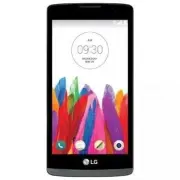
Page 3 - User Guide; ENGLISH
User Guide • Some content and illustrations may differ from your device depending on the region, service provider, software version, or OS version, and are subject to change without prior notice. • Always use genuine LG accessories. The supplied items are designed only for this device and may not be...
Page 4 - SERVICE ACTIVATION
2 SERVICE ACTIVATION SERVICE ACTIVATION If you are a new T-Mobile ® customer and your service has not been activated, simply call Customer Care at 1-800-937-8997 from your landline phone and a T-Mobile Activations representative will assist you. You will need the following information when activatin...
Page 5 - About this user guide
3 SERVICE ACTIVATION About this user guide Please read this user guide carefully before you use your phone and keep it handy for future reference.Should your phone fails to operate correctly, refer to the FAQ section. • Some features and service may vary by area, phone, carrier, plan and version of ...
Page 6 - Table of contents
4 Table of contents Table of contents SERVICE ACTIVATION ................................2 About this user guide ...............................3 Important notice .......................................8 Getting to know your phone ...................12 Phone layout .....................................
Page 8 - Violation of the instructions may cause serious injury or death.; Caution
6 SERVICE ACTIVATION Violation of the instructions may cause serious injury or death. WARNING: This product contains chemicals known to the State of California to cause cancer and birth defects or other reproductive harm. Wash hands after handling . • Never use an unapproved battery since this could...
Page 9 - Do not disassemble the phone.
7 SERVICE ACTIVATION • Do not disassemble the phone. • Do not place or answer calls while charging the phone as it may short-circuit the phone and/or cause electric shock or fire. • Make sure that no sharp-edged items, such as animal’s teeth or nails, come into contact with the battery. This could c...
Page 10 - Please read this before you start using your phone!; To uninstall applications:; Important notice
8 Important notice Please read this before you start using your phone! Please check to see whether any problems you encountered with your phone are described in this section before taking the phone in for service or calling a service representative. 1. Phone memory When there is less than 10MB of sp...
Page 11 - Optimizing battery life; Reduce screen brightness and set a shorter screen timeout.; Before installing an open source application and OS
9 Important notice 2. Optimizing battery life Extend your battery's power by turning off features that you do not need to run constantly in the background. You can monitor how applications and system resources consume battery power. Extending your phone's battery life: • Turn off radio communication...
Page 13 - Opening and switching applications; To stop applications:; If the screen freezes
11 Important notice 5. Opening and switching applications Multitasking is easy with Android; you can keep more than one application running at the same time. There is no need to quit an application before opening another. Use and switch between several open applications. Android manages each applica...
Page 14 - Phone layout; Getting to know your phone
12 Getting to know your phone Phone layout Earpiece Proximity Sensor Front Camera Lens Microphone Microphone Charger/USB port Headset Jack NOTE: Proximity sensor When receiving and making calls, the proximity sensor automatically turns the backlight off and locks the touch screen by sensing when the...
Page 15 - Volume Buttons
13 Getting to know your phone Volume Buttons Power/Lock Button Speaker Rear Camera LensFlash Power/Lock Key • Press and hold to access the menu to turn your phone off, restart it, or turn airplane mode on and off. • Press once quickly to wake or lock the screen. Volume Keys While screen is off • Pre...
Page 16 - Installing the SIM or USIM card; Before you can start exploring your new phone, you need to set it up.
14 Getting to know your phone Installing the SIM or USIM card Before you can start exploring your new phone, you need to set it up. 1 To remove the back cover, hold the phone firmly in one hand. With your other hand, lift off the back cover with your thumbnail as shown in the figure below. 2 Slide t...
Page 17 - and press it down until it clicks into place
15 Getting to know your phone 3 Insert the battery. 4 To replace the cover onto the device, align the cover over the back of the phone and press it down until it clicks into place .
Page 18 - Charging the phone
16 Getting to know your phone Charging the phone Charge the battery before using it for first time. Use the charger to charge the battery. WARNING Use only LG-approved chargers, batteries and cables. If you use unapproved chargers, batteries or cables, it may cause a battery charging delay or displa...
Page 19 - Unlocking the screen; Smart Lock; Setting up Smart Lock
17 Getting to know your phone Unlocking the screen By default, your screen will lock after a period of inactivity, then turn off. Unlocking the screen 1 Press the Power/Lock Key or double-tap on the screen. 2 Swipe the screen in any direction to unlock it. Smart Lock You can use Smart Lock to make u...
Page 20 - Your Home screen; Touch screen tips; Tap or touch
18 Your Home screen Your Home screen Touch screen tips Here are some tips on how to navigate on your phone. • Tap or touch – A single finger tap selects items, links, shortcuts and letters on the on-screen keyboard. • Touch and hold – Touch and hold an item on the screen by tapping it and not liftin...
Page 21 - Home screen; Status Bar
19 Your Home screen Home screen The Home screen is the starting point for many and functions. It allows you to add items like app shortcuts and Google widgets to give you instant access to information and applications. This is the default canvas and accessible from any menu by tapping . Status Bar A...
Page 22 - Back Key; Customizing the Home screen; Adding items on your Home screen
20 Your Home screen Back Key Returns to the previous screen. Also closes pop-up items, such as menus, dialog boxes and the on-screen keyboard. Home Key Return to the Home screen from any screen. Touch and hold to access the Google Now shortcut. Recent Apps Key Displays recently used applications. If...
Page 23 - Removing an item from the Home screen; Customizing app icons on the Home screen; Returning to recently-used applications
21 Your Home screen Removing an item from the Home screen • While on the Home screen, touch and hold the icon you want to remove, then drag it to and release it. Adding an app as a Quick Button • From the Apps screen or on the Home screen, touch and hold an application icon and drag it to the Quick ...
Page 24 - Notifications panel
22 Your Home screen Notifications panel Notifications alert you to the arrival of new messages, calendar events and alarms, as well as ongoing events, such as when you are using turn-by-turn navigation.When a notification arrives, its icon appears at the top of the screen. Icons for pending notifica...
Page 25 - Opening the Notifications panel
23 Your Home screen Opening the Notifications panel Swipe down from the Status Bar to open the Notifications panel. To close the Notifications panel, swipe the screen upwards or tap . Quick Settings Area Notifications Clear Tap each Quick Setting key to toggle it on/off. Touch and hold the desired k...
Page 26 - Indicator icons on the Status Bar
24 Your Home screen Indicator icons on the Status Bar Indicator icons appear on the Status bar at the top of the screen to report missed calls, new messages, calendar events, device status and more. The icons displayed at the top of the screen provide information about the status of the device. The ...
Page 27 - Icon; Using the keypad and entering text
25 Your Home screen Icon Description Icon Description New text or multimedia message Wi-Fi hotspot is active NOTE: The icon's location in the Status bar may differ depending on the function or service. On-screen keyboard You can enter text using the on-screen keyboard. The on-screen keyboard appears...
Page 28 - Gesture shot; To take photo; Special Features
26 Special Features Gesture shot The Gesture shot feature allows you to take a picture with a hand gesture using the front camera. To take photo There are two methods for using the Gesture shot feature. • Raise your hand, with an open palm, until the front camera detects it and a box appears on the ...
Page 29 - KnockON; camera viewfinder) or empty area on the Home screen.; Knock Code; feature in the Lock screen settings.; From the Home screen, tap
27 Special Features KnockON You can wake up, or turn off, the screen as easily as double-tapping the screen.While the screen is off, and idle, double-tap the center screen quickly to wake the screen. To turn the screen off, double-tap the Status bar in any screen (except on the camera viewfinder) or...
Page 30 - Unlocking the screen using the Knock Code
28 Special Features Unlocking the screen using the Knock Code You can wake up and unlock the screen by tapping the Knock Code, set up in the previous section, when the screen is off. QuickMemo+ The QuickMemo+ feature allows you to capture screen shots and use them to create memos. You can use QuickM...
Page 31 - Google account setup; Setting up your Google account; After having exited the Startup Wizard, tap
29 Google account setup Google account setup When you first turn on your phone, you have the opportunity to sign into your Google Account and select how you want to use certain Google services. Setting up your Google account • During the initial boot up of your device, ensure your device is connecte...
Page 32 - Connecting to Networks and Devices; Connecting to Wi-Fi networks
30 Connecting to Networks and Devices Connecting to Networks and Devices Wi-Fi You can use high-speed Internet access while within the coverage of the wireless access point (AP). Connecting to Wi-Fi networks 1 From the Home screen, tap > Apps tab (if necessary) > > Networks tab > Wi-Fi ....
Page 33 - Bluetooth; Pairing your phone with another Bluetooth device
31 Connecting to Networks and Devices Bluetooth You can use Bluetooth to connect with headsets, sound systems, or even to exchange data between nearby devices. NOTE: • LG is not responsible for the loss, interception or misuse of data sent or received via the Bluetooth feature. • Always ensure that ...
Page 34 - Sending data via Bluetooth; Receiving data via Bluetooth
32 Connecting to Networks and Devices Sending data via Bluetooth 1 Using an application that supports sharing, locate the data, or file, that you want to share. 2 Select the Share option. 3 Select Bluetooth . 4 Select the paired Bluetooth device (or pair with a new device). NOTE: The method for sele...
Page 35 - Transferring data between a PC and your device; You can copy or move data between a PC and the device.; Items
33 Connecting to Networks and Devices Transferring data between a PC and your device You can copy or move data between a PC and the device. Transferring data 1 Connect your device to a PC using the USB cable that came with your phone. 2 Open the Notifications panel and select Media device (MTP) . 3 ...
Page 36 - Calls; Making a call; Apps; Apps; Answering and rejecting a call
34 Calls Calls Making a call 1 From the Home screen, tap > Apps tab (if necessary) > to open the dialer. 2 Enter the number using the dialer. To delete a digit, tap . 3 After entering the desired number, tap to place the call. 4 To end the call, tap . TIP! To enter "+" to make internat...
Page 37 - Making a second call; Viewing your call logs; Call settings
35 Calls Making a second call 1 During your fi rst call, tap > Add call . 2 Enter the number and tap to place the call. 3 Both calls are displayed on the call screen. Your initial call is locked and put on hold. 4 To toggle between numbers, tap the number displayed on the screen. You can also tap...
Page 38 - Contacts; Searching for a contact
36 Contacts Contacts Add contacts to your phone and synchronize them with the contacts in your Google account or other accounts that support contact syncing. Searching for a contact 1 From the Home screen, tap > Apps tab (if necessary) > to open your contacts. 2 Tap Search contacts and enter t...
Page 39 - Favorites contacts; Adding a contact to your favorites; Creating a group
37 Contacts Favorites contacts You can classify frequently called contacts as favorites. Adding a contact to your favorites 1 From the Home screen, tap > Apps tab (if necessary) > to open your contacts. 2 Tap a contact to view its details. 3 Tap the star at the top right corner of the screen. ...
Page 40 - Messaging; Sending a message; Send
38 Messaging Messaging Your phone combines text and multimedia messages into one intuitive, easy-to-use menu. Sending a message 1 From the Home screen, tap > Apps tab (if necessary) > > to create a new message. 2 Enter a contact name or contact number into the To fi eld. As you enter the co...
Page 41 - Conversation view; Open the
39 Messaging Conversation view Text and multimedia messages exchanged with another party are displayed in chronological order so that you can conveniently see and find your conversations. Changing message settings Your phone's messaging settings are predefined to allow you to send messages immediate...
Page 42 - Email; Managing email accounts; Adding another email account:; Working with account folders
40 Email Email You can use the Email application to read emails from services like Gmail. The Email application supports the following account types: POP3, IMAP and Exchange. Your service provider or system administrator can provide you with the account settings you need. Managing email accounts The...
Page 43 - Composing and sending email; Composing and sending messages
41 Email Composing and sending email Composing and sending messages 1 While in the Email application, tap to create a new email. 2 Enter an address for the message's intended recipient. As you enter text, matching addresses will be proposed from your Contacts. Separate multiple addresses using semic...
Page 44 - Camera options on the viewfinder; Camera and Video
42 Camera and Video To open the Camera application, from the Home screen, tap > Apps tab (if necessary) > . Camera options on the viewfinder Hide/Display Options – Tap to hide/display the camera options on the viewfinder. Flash – Allows you to manage the camera's flash. Choose from Off , On , ...
Page 45 - Using the advanced settings; Camera
43 Camera and Video Using the advanced settings In the camera viewfinder, tap to access the camera settings below. Selects the photo and video resolution.Allows you to say a voice command to take pictures. You can say LG, Cheese, Smile, or any other available command.Sets a delay after the capture k...
Page 46 - Once you have taken a photo
44 Camera and Video Once you have taken a photo Tap the image thumbnail on the screen to view the last photo you took. The following options are available. Tap to edit the photo. Tap to take another photo immediately.Tap to send your photo to others or share it in via any available social network se...
Page 47 - After recording a video; Tap to access additional options.; Gallery
45 Camera and Video After recording a video Tap the video thumbnail on the screen to view the last video you recorded. The following options are available. Tap to record another video immediately.Tap to send your video to others or share it via any available social network services.Tap to delete the...
Page 48 - Viewing pictures
46 Camera and Video Viewing pictures The Gallery displays your pictures in folders. When some applications save a picture, a folder is automatically created to contain the picture. Pictures are displayed in a folder by the date they were created. Select a picture to view it full screen. Scroll left ...
Page 49 - Touch to adjust the video volume.
47 Camera and Video Touch to adjust the video volume. Touch to lock/unlock the screen.Tap to access additional options. To change the volume while watching a video, press the Volume Up/Down Keys on the back of the phone. Editing photos While viewing a photo, tap . Deleting photos/videos Use one of t...
Page 50 - Music; Multimedia
48 Multimedia Music Your phone has a music player that lets you play all your favorite tracks. To access the music player, from the Home screen, tap > Apps tab (if necessary) > . Playing a song 1 from the Home screen, tap > Apps tab (if necessary) > . 2 Tap the Songs tab. 3 Select the so...
Page 51 - Tap to add the song to your favorites.
49 Multimedia Tap to restart the current track or skip to the previous track in the album, playlist or shuffle list. Touch and hold to rewind.Tap to adjust the volume. Tap to see all song list.Tap to play the current playlist in shuffle mode (tracks are played in random order).Tap to toggle through ...
Page 52 - Clock; Alarms; Timer; Utilities
50 Utilities Clock Use the Clock app to access the Alarms, Timer, World clock and Stopwatch functions. Access these functions by tapping the tabs across the top of the screen or swiping horizontally across the screen.To access the Clock app, from the Home screen, tap > Apps tab (if necessary) >...
Page 53 - World clock; Calculator
51 Utilities World clock The World clock allows you to easily check the current time in other cities around the world. 1 Open the Clock app, then select the World clock tab. 2 Tap and select the desired city. Stopwatch The Stopwatch feature allows you to use your phone as a stopwatch. 1 Open the Clo...
Page 54 - Calendar; Voice Recorder; Recording a sound or voice
52 Utilities Calendar The Calendar app allows you to track your schedule of events. 1 From the Home screen, tap > Apps tab (if necessary) > . 2 Tap the date you want to add an event to. Then tap . 3 Enter the event details and tap Save to save the event. Voice Recorder The Voice Recorder app r...
Page 55 - Voice Search; Downloads
53 Utilities Voice Search Use this application to search the web using your voice. 1 From the Home screen, tap > Apps tab (if necessary) > Google folder > . 2 Say a keyword or phrase when Listening... appears on the screen. Select one of the suggested keywords that appear. NOTE: This applic...
Page 56 - Browsing the Web; Browser
54 Browsing the Web Browsing the Web Browser Use this application to browse the Internet. Browser gives you a fast, full-color world of games, music, news, sports, entertainment and much more, right on your mobile phone. NOTE: Additional charges apply when connecting to these services and downloadin...
Page 57 - Opening a page
55 Browsing the Web Opening a page To open a new page, tap .To go to another webpage, tap , scroll up or down, and tap the page to select it. Searching the web by voice In the browser, tap the address field and then tap . When prompted, say a keyword and select one of the suggested keywords that app...
Page 58 - Chrome; Use Chrome to search for information and browse webpages.
56 Browsing the Web Chrome Use Chrome to search for information and browse webpages. • From the Home screen, tap > Apps tab (if necessary) > . NOTE: This application may not be available, depending on your region and service provider. Viewing webpages In the Chrome browser, tap the address fie...
Page 59 - Settings; Accessing the Settings menu:; Networks; Allows you to manage your the Bluetooth wireless feature.
57 Settings Settings This section provides an overview of items you can change using your phone’s System Settings menus. Accessing the Settings menu: • From the Home screen, touch and hold > System settings . OR • From the Home screen, tap > Apps tab (if necessary) > . Networks < WIRELES...
Page 62 - Sound; Allows you to set your phone's sound profile. Choose from
60 Settings Sound < BASIC >Sound profile Allows you to set your phone's sound profile. Choose from Sound and Vibrate only . Volume Adjust the phone’s volume settings to suit your needs and environment. < RINGTONES & VIBRATIONS >Ringtone Allows you to set the ringtones for calls. You ...
Page 63 - Display
61 Settings Apps Allows you to prevent apps from displaying notifications. You can also set apps to show notifications with priority when Do not disturb is set to Priority only. < ADVANCED SETTINGS >Vibrate on tap Enable to vibrate when tapping the Home touch buttons and during other UI intera...
Page 65 - Allows you to set the type of font used for the phone and menus.
63 Settings < FONT >Font type Allows you to set the type of font used for the phone and menus. Font size Allows you to set the size of the font displayed in the phone and menus. < OTHER SCREEN SETTINGS >Brightness Adjusts the brightness of the screen. For best battery performance, use th...
Page 66 - General
64 Settings General < PERSONAL >Language & input Use the Language & input settings to select the language for the text on your phone and to configure the on-screen keyboard, including words you added to its dictionary. • Language – Sets the language to use on your device. • Default – A...
Page 72 - Phone software update; LG Mobile phone software update from the Internet; Phone software update
70 Phone software update Phone software update LG Mobile phone software update from the Internet For more information about using this function, please visit http://www.lg.com/common/index.jsp select your country and language. This feature allows you to conveniently update the firmware on your phone...
Page 75 - Trademarks; LG and the LG logo are registered trademarks of LG Electronics.
73 About this user guide Trademarks • LG and the LG logo are registered trademarks of LG Electronics. • Bluetooth ® is a registered trademark of Bluetooth SIG, Inc. worldwide. • Wi-Fi ® and the Wi-Fi logo are registered trademarks of the Wi-Fi Alliance. • All other trademarks and copyrights are the ...
Page 76 - Troubleshooting
74 Troubleshooting Troubleshooting This chapter lists some problems you might encounter when using your phone. Some problems require you to call your service provider, but most are easy to fix yourself. Message Possible causes Possible corrective measures SIM or USIM card error There is no SIM or US...
Page 80 - FAQ
78 FAQ Category Question Answer Bluetooth Devices What functions are available via Bluetooth? You can connect a Bluetooth audio device, such as a Stereo/Mono headset or car kit. Contacts Backup How can I back up Contacts? Contacts data can be synchronized between your phone and Gmail™. Synchronizati...
Page 86 - HAC; Safety
84 Safety HAC This phone has been tested and rated for use with hearing aids for some of the wireless technologies that it uses. However, there may be some newer wireless technologies used in this phone that have not been tested yet for use with hearing aids. It is important to try the different fea...
Page 88 - receiver is connected.
86 Safety user is encouraged to try to correct the interference by one or more of the following measures:- Reorient or relocate the receiving antenna.- Increase the separation between the equipment and receiver.- Connect the equipment into an outlet on a circuit different from that to which the rece...
Page 89 - What does “SAR” mean?
87 Safety issued its own website publication stating that “there is no scientific evidence that proves that wireless phone usage can lead to cancer or a variety of other problems, including headaches, dizziness or memory loss.”This publication is available at http://www.fcc.gov/cgb/ cellular.html or...
Page 90 - Do wireless phones pose any special risks to children?
88 Safety used with wireless phones for convenience and comfort. These systems reduce the absorption of RF energy in the head because the phone, which is the source of the RF emissions, will not be placed against the head. On the other hand, if the phone is mounted against the waist or other part of...
Page 91 - Independent Expert Group on Mobile Phones
89 Safety U.S. Food and Drug Administration FDA Consumer magazine November-December 2000 Telephone: (888) INFO-FDA http://www.fda.gov (Under “c”in the subject index, select Cell Phones > Research.) U.S. Federal Communications Commission 445 12th Street, S.W. Washington, D.C. 20554 Telephone: (888...
Page 92 - National Council on Radiation Protection and Measurements; Consumer Information on SAR
90 Safety National Council on Radiation Protection and Measurements 7910 Woodmont Avenue, Suite 800 Bethesda, MD 20814-3095 Telephone: (301) 657-2652 http://www.ncrponline.org Engineering in Medicine and Biology Society, Committee on Man and Radiation (COMAR) of the Institute of Electrical and Elect...
Page 94 - sum of 6 is considered for best use.
92 Safety FCC Hearing-Aid Compatibility (HAC) Regulations for Wireless Devices On July 10, 2003, the U.S. Federal Communications Commission (FCC) Report and Order in WT Docket 01-309 modified the exception of wireless phones under the Hearing Aid Compatibility Act of 1988 (HAC Act) to require digita...
Page 95 - Wireless Phones and Hearing Aid Accessibility
93 Safety In the above example, if a hearing aid meets the M2 level rating and the wireless phone meets the M3 level rating, the sum of the two values equal M5. This should provide the hearing aid user with “normal usage”while using their hearing aid with the particular wireless phone. “Normal usage...
Page 97 - TIA Safety Information; Exposure to Radio Frequency Signal
95 Safety TIA Safety Information The following is the complete TIA Safety Information for wireless handheld phones. Exposure to Radio Frequency Signal Your wireless handheld portable phone is a low power radio transmitter and receiver. When ON, it receives and sends out Radio Frequency (RF) signals....
Page 98 - Electronic Devices
96 Safety Electronic Devices Most modern electronic equipment is shielded from RF signals. However, certain electronic equipment may not be shielded against the RF signals from your wireless phone. Pacemakers The Health Industry Manufacturers Association recommends that a minimum separation of six (...
Page 100 - Safety Information; Do not disassemble or open crush, bend or deform, puncture or shred.
98 Safety Safety Information Please read and observe the following information for safe and proper use of your phone and to prevent damage. Caution Violation of the instructions may cause minor or serious damage to the product. • Do not disassemble or open crush, bend or deform, puncture or shred. •...
Page 101 - Charger and Adapter Safety
99 Safety Charger and Adapter Safety • The charger and adapter are intended for indoor use only. • Insert the battery pack charger vertically into the wall power socket. • Only use the LG-approved battery charger. Otherwise, you may cause serious damage to your phone. • Use the correct adapter for y...
Page 102 - The charger and adapter are intended for indoor use only.
100 Safety recommended range might cause the generating heat or serious damage of battery. And also, it might cause the deterioration of battery's characteristics and cycle life. • Do not use or leave the battery under the blazing sun or in heated car by sunshine. The battery may generate heat, smok...
Page 104 - General Notice
102 Safety General Notice • Using a damaged battery or placing a battery in your mouth or animal's mouth may cause serious injury including a fire or explosion. • Do not place items containing magnetic components such as a credit card, phone card, bank book, or subway ticket near your phone. The mag...
Page 105 - FDA Consumer Update; Health Consumer Update on Mobile Phones:
103 Safety FDA Consumer Update The U.S. Food and Drug Administration’s Center for Devices and Radiological Health Consumer Update on Mobile Phones: 1. Do wireless phones pose a health hazard? The available scientific evidence does not show that any health problems are associated with using wireless ...
Page 106 - National Institute for Occupational Safety and Health
104 Safety • Cooperate in providing users of wireless phones with the best possible information on possible effects of wireless phone use on human health. The FDA belongs to an interagency working group of the federal agencies that have responsibility for different aspects of RF safety to ensure coo...
Page 107 - What are the results of the research done already?
105 Safety the source. The so-called “cordless phones,”which have a base unit connected to the telephone wiring in a house, typically operate at far lower power levels, and thus produce RF exposures far below the FCC safety limits. 4. What are the results of the research done already? The research d...
Page 110 - What about children using wireless phones?
108 Safety 9. What steps can I take to reduce my exposure to Radio Frequency energy from my wireless phone? If there is a risk from these products — and at this point we do not know that there is — it is probably very small. But if you are concerned about avoiding even potential risks, you can take ...
Page 111 - Where can I find additional information?; Driving
109 Safety devices. For this reason, the FDA helped develop a detailed test method to measure Electro Magnetic Interference (EMI) of implanted cardiac pacemakers and defibrillators from wireless telephones. This test method is now part of a standard sponsored by the Association for the Advancement o...
Page 112 - 0 Driver Safety Tips
110 Safety • Give full attention to driving – driving safely is your first responsibility; • Use hands-free operation, if available; • Pull off the road and park before making or answering a call if driving conditions or the law require it. 10 Driver Safety Tips Your wireless phone gives you the pow...
Page 114 - Limited Warranty Statement; assignable or transferable to any subsequent purchaser/end user.
112 Safety posing no serious hazard, a broken traffic signal, a minor traffic accident where no one appears injured or a vehicle you know to be stolen, call roadside assistance or other special nonemergency wireless number. The above tips are meant as general guidelines. Before deciding to use your ...
Page 115 - damaged due to normal customer use.
113 Safety (6) The customer shall bear the cost of shipping the product to the Customer Service Department of LG. LG shall bear the cost of shipping the product back to the consumer after the completion of service under this limited warranty. 2. WHAT THIS WARRANTY DOES NOT COVER: (1) Defects or dama...
Page 117 - DO NOT RETURN YOUR PRODUCT TO THE ABOVE ADDRESS.
115 Safety DO NOT RETURN YOUR PRODUCT TO THE ABOVE ADDRESS. Please call or write for the location of the LG authorized service center nearest you and for the procedures for obtaining warranty claims. 7.11 Warranty Laws The following laws govern warranties that arise in retail sales of consumer goods...