Page 3 - User Guide; ENGLISH
User Guide • Screen displays and illustrations may differ from those you see on actual phone. • Some of the contents of this guide may not apply to your phone, depending on the software and your service provider. All information in this document is subject to change without notice. • This handset is...
Page 4 - Table of contents
2 Table of contents Guidelines for safe and efficient use .......5 Important notice .....................................15 Getting to know your phone ...................21 Phone overview .....................................21Installing the SIM card and battery .........23Charging your phone .........
Page 7 - Exposure to radio frequency energy; regardless of age and health.; Guidelines for safe and efficient use
5 Please read these simple guidelines. Not following these guidelines may be dangerous or illegal. Should a fault occur, a software tool is built into your device that will gather a fault log. This tool gathers only data specific to the fault, such as signal strength, cell ID position in sudden call...
Page 8 - instructions are followed until the transmission is completed.; Product care and maintenance; that of the parts being replaced.
6 • This device meets RF exposure guidelines when used either in the normal use position against the ear or when positioned at least 1.5 cm away from the body. When a carry case, belt clip or holder is used for body-worn operation, it should not contain metal and should position the product at least...
Page 10 - Efficient phone operation; Electronics devices; Road safety
8 Efficient phone operation Electronics devices All mobile phones may receive interference, which could affect performance. • Do not use your mobile phone near medical equipment without requesting permission. Avoid placing the phone over pacemakers, for example, in your breast pocket. • Some hearing...
Page 11 - Avoid damage to your hearing; Glass Parts; glass is replaced by an authorised service provider.; Blasting area; regulations or rules.
9 Avoid damage to your hearing To prevent possible hearing damage, do not listen at high volume levels for long periods. Damage to your hearing can occur if you are exposed to loud sound for long periods of time. We therefore recommend that you do not turn on or off the handset close to your ear. We...
Page 13 - Battery information and care
11 in Australia. Battery information and care • You do not need to completely discharge the battery before recharging. Unlike other battery systems, there is no memory effect that could compromise the battery’s performance. • Use only LG batteries and chargers. LG chargers are designed to maximise t...
Page 14 - Driver Safety Tips
12 Guidelines for safe and efficient use Driver Safety Tips Your mobile telephone gives you the powerful ability to communicate almost anywhere, anytime, but an important responsibility accompanies the benefits of mobile phones, one that every user must uphold. When driving a car, driving is your fi...
Page 15 - Laser safety statement; maintenance, contact an authorised service center.
13 Laser safety statement Caution! This product employs a Laser system. To ensure proper use of this product, please read this owner's manual carefully and retain for future reference. Should the unit require maintenance, contact an authorised service center. Use of controls, adjustments, or the per...
Page 17 - Important notice; Tap; Optimizing battery life; Reduce screen brightness and set a shorter screen timeout.; Please read this before you start using your phone!
15 Important notice Please check to see whether any problems you encountered with your phone are described in this section before taking the phone in for service or calling a service representative. 1. Phone memory When there is less than 10% of space available in your phone memory, your phone canno...
Page 18 - Before installing an open source application and OS
16 NOTE: If you accidently press the Power/Lock Key while the device is in your pocket, the screen will turn off automatically in order to save battery power. To check the battery power level: • Tap > > Apps tab > Settings > General tab > About phone > Battery. The battery status (...
Page 19 - Using an unlock pattern; Set an unlock pattern to secure your phone. Tap; pattern 5 times, tap the
17 4. Using an unlock pattern Set an unlock pattern to secure your phone. Tap > > Apps tab > Settings > Display tab > Lock screen > Select screen lock > Pattern . This opens a screen that will guide you through how to draw a screen unlock pattern. You have to create a Backup PIN...
Page 20 - Volume Keys; Opening and switching applications
18 NOTE: If you have not logged into your Google Account and have forgotten your Unlock Pattern, you will need to enter your Backup PIN. 5. Using the Hard Reset (Factory Reset) If your phone does not restore to its original condition, use a Hard Reset (Factory Reset) to initialise it. 1 Turn the pow...
Page 23 - Phone overview; Back Key; Getting to know your phone
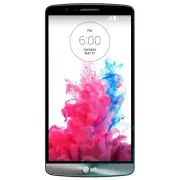
21 Phone overview Back Key • Returns to the previous screen. Also closes pop-up items such as menus, dialog boxes, and the on-screen keyboard. • Touch and hold to access Dual window. Notofication LED Front Camera Lens Home Key • Return to the Home screen from any screen. • Touch and hold to launch G...
Page 25 - Installing the SIM card and battery
23 Installing the SIM card and battery Before you can start exploring your new phone, you'll need to set it up. 1 To remove the back cover, hold the phone firmly in one hand. With your other hand, lift off the back cover with your thumbnail as shown in figure below. 2 Slide the micro-USIM card into ...
Page 27 - Charging your phone
25 Charging your phone Charge the battery before using it for the first time. Use the charger to charge the battery. A computer can be also used to charge the device by connecting them via a USB cable. WARNING Use Only LG-approved chargers, batteries, and cables. Using unapproved chargers or cables ...
Page 28 - Using the memory card; contact area of Memory card is facing downwards.
26 Using the memory card Your phone supports the use of microSD, microSDHC and microSDXC memory cards of up to 2TB capacity. These memory cards are specifically designed for mobile phones and other ultra-small devices and are ideal for storing media-rich files such as music, programs, videos, and ph...
Page 29 - Locking and unlocking the screen
27 To format the memory card: Your memory card may already be formatted. If it isn't, you must format it before you can use it. NOTE: All files on your memory card are deleted when it is formatted. 1 Touch to open the application list. 2 Scroll and touch Settings > General tab > Storage . 3 To...
Page 30 - Knock Code; can enable/disable this feature in the Lock screen settings.
28 Getting to know your phone Knock Code The Knock Code feature allows you to tap the screen with your own Knock Code pattern using the screen divided by 4 squares to easily turn the screen on or off. You can enable/disable this feature in the Lock screen settings. NOTE: • If you enter the wrong Kno...
Page 31 - KnockON; area on the Home screen.; Stereo headset with microphone; easily switch from your music/video to take and end calls.
29 KnockON Double-tap the center screen quickly to wake up the screen. To lock the screen, double-tap the status bar in any screen (except on the camera viewfinder) or empty area on the Home screen. NOTE: When turning the screen on, make sure you do not cover the proximity sensor. Doing so will turn...
Page 33 - Your Home screen; Touch screen tips; Tap or touch
31 Your Home screen Touch screen tips Here are some tips on how to navigate on your phone. Tap or touch – A single finger tap selects items, links, shortcuts and letters on the on-screen keyboard. Touch and hold – Touch and hold an item on the screen by tapping it and not lifting your finger until a...
Page 34 - Home screen; Extended home screen
32 Home screen The Home screen is the starting point for many applications and functions, and it allows you to add items like application shortcuts, or widgets to give you instant access to information and applications. This is the default canvas and accessible from any menu by tapping . Status Bar ...
Page 35 - Customising the Home screen
33 Customising the Home screen You can customise your Home screen by adding apps, widgets or changing wallpapers. To add items on your Home screen 1 Touch and hold the empty part of the Home screen. 2 In the Add Mode menu, select the item you wish to add. You will then see this added item on the Hom...
Page 36 - Returning to recently-used applications; Notifications panel
34 Returning to recently-used applications 1 Tap . A list of recently used applications will be displayed. 2 Tap an icon to open the application, or tap to return to your previous screen. Notifications panel Notifications alert you the arrival of new messages, calendar events, and alarms, as well as...
Page 37 - Opening the notifications panel; Swipe down from the status bar to open the notifications panel.; Indicator icons on the Status Bar
35 Opening the notifications panel Swipe down from the status bar to open the notifications panel. Quick Toggle Area Tap each quick toggle key to turn it on/off. Touch and hold the key to access the settings menu of the function. To see more toggle keys, swipe left or right. Tap to remove, add, or r...
Page 39 - Using the keypad & entering text; Entering accented letters
37 A song is currently playing Mobile hotspot is active NOTE: The icons location in the status bar may differ according to the function or service. On-screen keyboard You can enter text using the on-screen keyboard. The on-screen keyboard appears automatically on the screen when you need to enter te...
Page 40 - Google account setup; To set up your Google account:; OR
38 Google account setup When you first turn on your phone, you have the opportunity to activate the network, to sign into your Google Account and select how you want to use certain Google services. To set up your Google account: • Sign into a Google Account from the prompted set-up screen. OR • Tap ...
Page 41 - Connecting to Networks and Devices; Connecting to Wi-Fi networks; Turning Wi-Fi on and connecting to a Wi-Fi network; Apps
39 Connecting to Networks and Devices Wi-Fi With Wi-Fi, you can use high-speed Internet access within the coverage of the wireless access point (AP). Enjoy wireless Internet using Wi-Fi, without extra charges. Connecting to Wi-Fi networks To use Wi-Fi on your phone, you need to access a wireless acc...
Page 42 - Bluetooth
40 Bluetooth You can use Bluetooth to send data by running a corresponding application, but not from the Bluetooth menu as on most other mobile phones. NOTE: • LG is not responsible for the loss, interception or misuse of data sent or received via the Bluetooth wireless feature. • Always ensure that...
Page 43 - Sharing your phone's data connection
41 Send data using the Bluetooth wireless feature 1 Select a file or item, such as a contact, calendar event or media file, from an appropriate application or from Downloads . 2 Select the option for sending data via Bluetooth. NOTE: The method for selecting an option may vary by data type. 3 Search...
Page 45 - Using SmartShare
43 3 Tap Save . ATTENTION! If you set the security option as Open, you cannot prevent unauthorised usage of online services by other people and additional charges may be incurred. To avoid unauthorised usage, you are advised to keep the security option active. Wi-Fi Direct Wi-Fi Direct supports a di...
Page 47 - PC connections with a USB cable; USB connected
45 PC connections with a USB cable Learn to connect your device to a PC with a USB cable in USB connection modes. Transferring music, photos and videos using the USB mass storage mode 1 Connect your phone to a PC using a USB cable. 2 If you haven't installed the LG Android Platform Driver on your PC...
Page 48 - Calls; Making a call; End; Calling your contacts; Search contacts; Answering and rejecting a call
46 Calls Making a call 1 Tap to open the keypad. 2 Enter the number using the keypad. To delete a digit, tap the . 3 Tap to make a call. 4 To end a call, tap the End icon . TIP! To enter "+" to make international calls, touch and hold . Calling your contacts 1 Tap to open your contacts. 2 Sc...
Page 49 - Making a second call; Viewing your call logs
47 Making a second call 1 During your first call, tap Menu key > Add call and dial the number. You can also go to the recently dialled numbers list by tapping Call logs or can search contacts by tapping Contacts and selecting the contact you want to call. Also, you can search contacts by tapping ...
Page 50 - Call settings; features offered by your carrier.
48 Call settings You can configure phone call settings such as call forwarding, as well as other special features offered by your carrier. 1 On the Home screen, tap . 2 Tap . 3 Tap Call settings and choose the options that you wish to adjust. Calls
Page 51 - Contacts; Searching for a contact
49 Contacts Add contacts to your phone and synchronise them with the contacts in your Google account or other accounts that support contact syncing. Searching for a contact On the Home screen 1 Tap to open your contacts. 2 Tap Search contacts and enter the contact name using the keyboard. Adding a n...
Page 52 - Creating a group
50 Contacts Removing a contact from your favourites list 1 Tap to open your contacts. 2 Tap the Favourites tab, and choose a contact to view its details. 3 Tap the yellow color star to the right corner of the contact's name. The star turns white color and the contact is removed from your favourites....
Page 53 - Messaging; Sending a message
51 Messaging Your phone combines SMS and MMS into one intuitive, easy-to-use menu. Sending a message 1 Tap on the Home screen and tap to open a blank message. 2 Enter a contact name or contact number in the To field. As you enter the contact name, matching contacts will appear. You can tap a suggest...
Page 54 - You can change the settings according to your preferences.
52 Threaded box Messages (SMS, MMS) exchanged with another party can be displayed in chronological order so that you can conveniently see an overview of your conversation. Changing your message settings Your phone message settings are pre-defined, so you can send messages immediately. You can change...
Page 56 - Composing and sending email; To compose and send a message
54 Composing and sending email To compose and send a message 1 While in the E-mail application, tap the . 2 Enter an address for the message's intended recipient. As you enter text, matching addresses will be proposed from your Contacts. Separate multiple addresses using semicolons. 3 Tap the to add...
Page 57 - To open the Camera application; Getting to know the viewfinder; Camera and Video
55 You can use the camera or camcorder to take and share pictures and videos. Your phone comes with a 13 megapixel camera with autofocus feature that lets you capture sharp pictures and videos. NOTE: Be sure to clean the protective lens cover with a microfiber cloth before taking pictures. A lens co...
Page 59 - Camera and Video Settings
57 5 The length of the recording is displayed on the top of the screen. NOTE: • Tap to take pictures while recording video. • The maximum length of a UHD resolution recording is set to 5 minutes. This is to prevent excessive heating. 6 Tap to pause recording video. You can resume recording again tap...
Page 60 - Multi-point Autofocus; Apps Key
58 X Timer: Set your camera's timer. This is ideal if you want to be a part of the picture. X Grid: It is easily used to take better pictures to keeping horizontal and verticals. X SD card: Set the storage location for your pictures. Choose from IN or SD . This menu appears only when the SD card is ...
Page 61 - Tap to stop dual recording.; Gesture shot; feature is only available while using the front facing camera.; Super Zooming
59 NOTE: Drag the small screen to move it to your desired location. Touch and hold the small screen to resize it. Tap on the small screen to switch screens. 3 Tap to stop dual recording. Gesture shot Take a picture with hand gesture. To take photo, raise your hand until front camera detects it and a...
Page 62 - View Your Pictures; Gallery Options
60 View Your Pictures The Gallery is where you can access the stored camera images. You can view them in a slideshow, share them with your friends, and delete and edit them. 1 From the Home screen, tap the Apps Key > Gallery . 2 Select a location and tap an image to view your picture. Gallery Opt...
Page 63 - Assign Pictures
61 X Tap the picture again to reveal the following icons: • Camera: Opens the Camera. • Share: You can share the picture via various methods such as Messaging or Bluetooth. • Delete: Deletes the picture. X Tap a picture in an album then tap for the following options: SmartShare , Set image as , Move...
Page 64 - Video Options
62 Camera and Video Video Options The Gallery is where you can access stored videos. You can view them, share them with your friends, and delete and edit them. 1 From the Home screen, tap the Apps Key > Gallery to view the videos stored in storage. X Scroll up or down to view more albums. 2 Tap a...
Page 65 - Live Zoom; motion to zoom in or out.
63 NOTE: While a video is playing, slide the left side of the screen up or down to adjust the screen brightness. While a video is playing, slide the right side of the screen up or down to adjust the sound. While playing a video, tap the timeline point to preview that portion of the video via a small...
Page 66 - Dual Play; Gallery
64 Camera and Video Dual Play Dual Play allows for a video to be played on a connected screen while allowing uninterupted full use of the phone. Dual play works with a wired or wirelessly connected secondary screen. NOTE: Connect a secondary screen to your phone by using a wired Slimport to HDMI cab...
Page 67 - Working with photos
65 1 From the Home screen, tap the Apps Key > Gallery . 2 Touch and hold the desired album, tap Share , select the application to use to share, then complete the sending method as necessary. Working with photos Use the Gallery application to view pictures that you’ve taken with the Camera applica...
Page 68 - QSlide while playing videos
66 To share a video 1 Open an album to view its contents, then tap the Share icon at the top of the Gallery screen. 2 Checkmark the video(s) you want to share, tap Share at the bottom of the screen, select how to share the file(s), then complete as necessary. To delete a video 1 Open an album to vie...
Page 69 - Function
67 Function QuickMemo+ The QuickMemo+ allows you to create memos and capture screen shots. Capture screens, draw on them and share them with family and friends with QuickMemo+. OR 1 (While screen is switched off) Press and hold the Volume Up key. OR Touch and slide the status bar downward and tap . ...
Page 70 - Using the QuickMemo+ options; Viewing the saved QuickMemo+
68 3 Tap in the Edit menu and select from Gallery or Quickmemo+ to save the memo. To exit QuickMemo+ at any time, tap . NOTE: Please use a fingertip while using the QuickMemo+. Do not use your fingernail. Using the QuickMemo+ options QuickMemo+ has easy to use editing tools. Undo or Redo. Add text u...
Page 71 - QSlide
69 QSlide From any screen, bring up a notepad, calendar, and more as a window inside your screen. OR Tap to exit the QSlide and return to full window. Slide to adjust transparency.Tap to end the QSlide.Drag to adjust the size. 1 Touch and slide the status bar downwards > tap a QSlide app or while...
Page 72 - QuickRemote; ADD
70 QuickRemote QuickRemote turns your phone into a Universal Remote for your home TV, set top box, audio system. 1 Touch and slide the status bar downwards and tap > ADD REMOTE . OR Tap > > Apps tab > QuickRemote > tap . 2 Select the type and brand of device, then follow the on-screen...
Page 73 - Smart Keyboard; Move cursor using space bar
71 Smart Keyboard Smart Keyboard recognises your keyboard typing sequences and provides you with word suggestions for faster input. Move cursor using space bar Touch and hold the space bar and slide left or right to move the cursor. Enter suggested word using gesture control Enter text on the keyboa...
Page 74 - LG SmartWorld; How to Get to LG SmartWorld from Your Phone
72 LG SmartWorld LG SmartWorld offers an assortment of exciting content – fonts, themes, games, applications. How to Get to LG SmartWorld from Your Phone 1 Tap > > Apps tab > tap the icon to access LG SmartWorld . 2 Tap Sign in and enter ID/PW for LG SmartWorld. If you have not signed up ye...
Page 75 - Music; Add music files to your phone; Multimedia
73 Music Your phone has a built-in music player that lets you play all your favorite tracks. To access the music player, tap > > Apps tab > Music . Add music files to your phone Start by transferring music files to your phone: • Transfer music using Media sync (MTP). • Download from the Web...
Page 77 - Setting your alarm; Using your calculator; Utilities
75 Setting your alarm 1 Tap > > Apps tab > Clock > . 2 After you set the alarm, your phone lets you know how much time is left before the alarm will go off. 3 Set Repeat , Snooze duration , Vibration , Alarm sound, Alarm volume, Auto app starter, Puzzle lock and Memo . Tap Save . NOTE: T...
Page 78 - Voice Recorder; Recording a sound or voice; Sending the voice recording; Tasks
76 7 Tap Save to save the event in the calendar. Voice Recorder Use the voice recorder to record voice memos or other audio files. Recording a sound or voice 1 Tap > > Voice Recorder . 2 Tap to begin recording. 3 Tap to end the recording. 4 Tap to listen to the recording. NOTE: Tap to access y...
Page 79 - Voice Search; Downloads
77 3 Tap Microsoft Exchange to create Email address and Password. 4 Make sure if you checkmark Sync task. NOTE: MS Exchange may not be supported depending on email server. Google+ Use this application to stay connected with people via Google’s social network service. • Tap > > Apps tab > Go...
Page 80 - The Web; Internet; Using the Web toolbar; Go; Opening a page
78 The Web Internet Use this application to browse the Internet. Browser gives you a fast, full-color world of games, music, news, sports, entertainment and much more, right on your mobile phone wherever you are and whatever you enjoy. NOTE: Additional charges apply when connecting to these services...
Page 81 - Chrome; Viewing webpages
79 Searching the web by voice Tap the address field, tap , speak a keyword, and then select one of the suggested keywords that appear. NOTE: This feature may not be available depending on the region or service provider. Bookmarks To bookmark the current webpage, tap > Add to bookmarks > OK . T...
Page 82 - Syncing with other devices; Menu key
80 Syncing with other devices Sync open tabs and bookmarks to use with Chrome on another device when you are logged in with the same Google account.To view open tabs on other devices, tap Menu key Other devices . Select a webpage to open.To add bookmarks, tap . The Web
Page 83 - Settings; Networks
81 Settings This section provides an overview of items you can change using your phone's System settings menus. To access the Settings menu: Tap > > System settings . - or -Tap > > Apps tab > Settings . Networks < Wi-Fi >Wi-Fi – Turns on Wi-Fi to connect to available Wi-Fi netwo...
Page 86 - Sound
84 NOTE: You must set a lock screen PIN or password before you can use credential storage. Mobile networks – Set options for data roaming, network mode & operators, access point names (APNs) etc. VPN – Displays the list of Virtual Private Networks (VPNs) that you've previously configured. Allows...
Page 87 - Display
85 Help – Display Quiet mode setting information. Ringtone – Set the ringtone for calls. You can also add a ringtone by tapping at the top right corner of the screen. Notification sound – Set the notification sound. You can also add a notification sound by tapping at the top right corner of the scre...
Page 90 - General
88 General < Language & input > Use the Language & input settings to select the language for the text on your phone and to configure the on-screen keyboard, including words you've added to its dictionary. Language – Sets the language to use on your device. Default – Sets the default on...
Page 100 - LG Mobile phone software update from the Internet; Phone software update
98 Phone software update LG Mobile phone software update from the Internet For more information about using this function, please visit http://www.lg.com/common/ index.jsp select your country and language. This feature allows you to conveniently update the firmware on your phone to a newer version f...
Page 102 - About this user guide
100 About this user guide • Before using your device, please carefully read this manual. This will ensure that you use your phone safely and correctly. • Some of the images and screenshots provided in this guide may appear differently on your phone. • Your content may differ from the final product, ...
Page 104 - These accessories are available for use with the your phone.; Accessories
102 These accessories are available for use with the your phone. (Items described below may be optional.) Travel adaptor Stereo headset Quick Start Guide Data cable Battery Accessories NOTE: • Always use genuine LG accessories. • Failure to do this may void your warranty. • Accessories may vary in d...
Page 105 - Troubleshooting
103 Troubleshooting This chapter lists some problems you might encounter when using your phone. Some problems require you to call your service provider, but most are easy to fix yourself. Message Possible causes Possible corrective measures Micro-USIM card error There is no Micro-USIM card in the ph...
Page 109 - FAQ
107 Category Sub- Category Question Answer BT Bluetooth Devices What are the functions available via Bluetooth You can connect a Bluetooth audio device such as a Stereo/Mono headset or Car Kit. Also, when the FTP server is connected to a compatible device, you can share content stored on the storage...