Page 3 - English
• Screen displays and illustrations may differ from those you see on the actual phone. • Some of the contents of this guide may not apply to your phone, depending on the software and your service provider. All information in this document is subject to change without notice. • This handset is not su...
Page 4 - About this user guide; SERVICE ACTIVATION
2 If you are a new T-Mobile® customer and your service has not been activated, simply call Customer Care at 1-800-937-8997 from your landline phone and a T-Mobile Activations representative will assist you. You will need the following information when activating service: • Service Agreement and agen...
Page 5 - Table of contents
3 Table of contents SERVICE ACTIVATION ......................2Important notice ................................6Getting to know your phone ........... 12 Phone overview ...................................... 12 Installing the Micro SIM card and battery ..................................................
Page 8 - Important notice; Before you start using the phone, please read this!; Managing applications; Optimizing Battery Life; To extend the life of your battery
6 Important notice Before you start using the phone, please read this! Please check to see if any problems you have encountered with your phone are described in this section before taking the phone in for service or calling a service representative. 1. Phone Memory In order to make more memory avail...
Page 9 - Installing an Open Source Operating System
7 • Turn off automatic syncing for Gmail™, Calendar, Contacts, and other applications. • Some applications you have downloaded may cause your battery power to be reduced. • While using downloaded applications, check the battery charged level. To view the battery charge level 1 From the Home screen, ...
Page 10 - Using a screen lock; When you can’t recall your Unlock Pattern, PIN, or Password:
8 4. Using a screen lock Set a screen lock to secure your phone from unauthorized use. To set the screen lock, follow the process below.From the Home screen, tap Apps > Settings > Display tab > Lock screen > Select screen lock and select from None, Swipe , Knock Code , Pattern , PIN or P...
Page 12 - Using a microSD Card; Connecting Your Phone to a Computer via USB
10 7. Using a microSD Card Pictures, music and video files, can be saved to external memory. Before saving these files to external memory, you need to insert a microSD card. If you have not inserted a microSD card, your items will be saved to internal memory. Warning! Do not remove the microSD card ...
Page 13 - Unlock the Screen; Please hold the mobile phone straight up as a regular phone.; If the Screen Freezes; If the phone does not respond to user input or the screen; Do Not Connect Your Phone When You Power On/Off
11 TIP! To return to a recent application, touch and hold the Back Key . The screen then displays a list of applications you have recently used. 10. Unlock the Screen Your screen will go dark if untouched for a period of time when using a data connection. To turn on your screen, press the Power/Lock...
Page 14 - Phone overview; Getting to know your phone
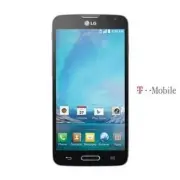
12 Phone overview EarpieceProximity Sensor Front Camera Lens Use to take a picture of yourself or to video chat on supported applications. Home Key • Returns to the Home screen from any screen. • Press and hold to access Google Now. Back Key • Returns to the previous screen. • Closes pop-up menus an...
Page 16 - Installing the Micro SIM card and battery
14 Getting to know your phone Installing the Micro SIM card and battery Before you can start exploring your new phone, you’ll need to set it up. To insert the Micro SIM card and battery: 1 Hold the phone on your hand firmly. With the other hand, lift the back cover using the fingertip cutout located...
Page 18 - Charging your phone
16 Getting to know your phone Charging your phone A rechargeable Li-ion battery is used to power your phone. A USB adapter, which is included with your phone, is used to charge the battery. Ask your local T-Mobile sales representative for further details regarding approved batteries and chargers. Be...
Page 19 - Inserting a microSD card
17 2 Plug the USB cable (as shown below) into the phone’s Charger/USB Port. NOTE: The battery must be fully charged initially to improve battery lifetime. Inserting a microSD card Insert a microSD™ card to use the camera and other multimedia features. Multimedia contents can be saved in the microSD ...
Page 20 - Removing the microSD card
18 Getting to know your phone 2 Insert the microSD card into the slot. Make sure the gold contact area is facing downwards. Removing the microSD card To safely remove the microSD card from your phone, first you need to unmount it. 1 From the Home screen, tap Apps > Settings > General tab > ...
Page 21 - Locking and unlocking the screen
19 3 If you set an unlock pattern, enter it and tap Erase everything . The card will then be formatted and ready to use. NOTE: If there is content on your microSD card, the folder structure may be different after formatting since all the files will have been deleted. Locking and unlocking the screen...
Page 22 - Your Home screen; Touch Screen tips
20 Your Home screen Touch Screen tips Here are some tips on how to navigate on your phone. Tap or touch – A single finger tap selects items, links, shortcuts and letters on the on-screen keyboard. Touch and hold – Touch and hold an item on the screen by touching it and not lifting your finger until ...
Page 23 - Home screen; Customizing the Home screen; To add items on your Home screen:
21 Home screen Simply swipe your finger to the left or right to view the panels. You can customize each panel with apps, downloads, widgets and wallpapers. NOTE: Some screen images may be different depending on your phone provider. On your Home screen, you can view the Quick Keys icons at the bottom...
Page 24 - To remove an item from the Home screen:; Returning to recently-used applications; Notifications
22 Your Home screen To remove an item from the Home screen: Touch and hold the icon you want to remove, drag it to , and lift your finger. TIP! To add an application icon to the Home screen from the Apps screen, touch and hold the application you want to add and drag it to the desired location. TIP!...
Page 25 - Accessing notifications; To rearrange Quick Setting items on the Notification Panel
23 Pending notifications System notifications Accessing notifications Swipe the Status Bar down to open the Notifications Panel. To close the Notifications Panel, swipe the bar that is at the bottom of the screen upwards. Quick Settings Use the Quick Settings to easily toggle function settings like ...
Page 26 - Notification icons on the Status Bar
24 Your Home screen Notification icons on the Status Bar Notification icons appear on the Status Bar at the top of the screen to report missed calls, new messages, calendar events, device status and more. The icons listed in the table below are some of the most common ones. Icon Description Icon Des...
Page 27 - Using the keypad & entering text
25 Bluetooth is on GPS is on System warning Data is synchronizing An alarm is set New Gmail message available New voicemail available New Hangouts message available New text or multimedia message Choose input method A song is currently playing Mobile hotspot is active NOTE: The icons location in the...
Page 28 - Entering special characters
26 Your Home screen Entering special characters The on-screen keyboard allows you to enter special characters (e.g. "á").For example, touch and hold the desired key (for example, the "a" key). After the desired character appears, slide your your finger over it and lift it off to ente...
Page 29 - To set up your Google account:; Google account setup
27 When you first turn on your phone, you have the opportunity to activate the network, to sign into your Google Account and select how you want to use certain Google services. To set up your Google account: • Sign into a Google Account from the prompted set-up screen. OR • From the Home screen, tap...
Page 30 - Connecting to Wi-Fi networks; Turning Wi-Fi on and connecting to a Wi-Fi network; Bluetooth; Connecting to Networks and Devices
28 Wi-Fi With Wi-Fi, you can use high-speed Internet access within the coverage of the wireless access point (AP). Enjoy wireless Internet using Wi-Fi, without extra charges. Connecting to Wi-Fi networks To use Wi-Fi on your phone, you need to access a wireless access point or ‘hotspot’. Some access...
Page 32 - How to send data from your phone via Bluetooth
30 Connecting to Networks and Devices How to send data from your phone via Bluetooth You can send data via Bluetooth by running a corresponding application, not from the Bluetooth menu. • Sending pictures : Open the Gallery application and tap a picture. Then tap > Bluetooth . Check the devices i...
Page 33 - USB tethering; To tether your phone with your computer using the USB; Smartphone Mobile Hotspots
31 USB tethering You can use your phone to provide a data connection to a computer by activating data tethering and connecting the phone and computer with a USB cable. To tether your phone with your computer using the USB 1 Connect your phone to your computer with a USB cable. 2 From the Home screen...
Page 35 - Calls
33 Making a call 1 From the Home screen, tap Phone to open the dial pad. 2 Enter the number on the keypad. To delete a digit, tap Clear . 3 Tap Call to make a call. 4 To end a call, tap End . TIP! To enter “+” to make international calls, touch and hold . Calling your contacts 1 From the Home screen...
Page 38 - To add a contact to your favorites; Contacts
36 You can add contacts on your phone and synchronize them with the contacts in your Google Account or other accounts that support syncing contacts. Searching for a contact 1 From the Home screen, tap Contacts to open your contacts. 2 Tap the Search contacts box and enter the contact name using the ...
Page 39 - To remove a contact from your favorites list; Creating a group
37 To remove a contact from your favorites list 1 From the Home screen, tap Contacts to open your contacts. 2 Tap the Favorites tab to view your favorite contacts. 3 Tap a contact to view its details. 4 Tap the gold star at the top right corner of the screen. The star turns grey and the contact is r...
Page 40 - Messaging
38 Your phone combines text and multimedia messages into one intuitive, easy- to-use menu. Warning! The LG Messaging app should be set up as the default SMS app. If not, some message functions will be limited. Conversation view Messages exchanged with another party are displayed in chronological ord...
Page 41 - Using smilies; Changing your message settings
39 NOTE: When you get a text message during a call, there will be an audible notification. Using smilies Liven up your messages using smilies.When writing a new message, tap or tap the Menu Key > Insert smiley . Changing your message settings Your phone’s message settings are predefined, so you c...
Page 42 - Email; Managing an email account
40 Email You can use the Email application to read emails from services like Gmail. The Email application supports the following account types: POP3, IMAP and Exchange.Your service provider or system administrator can provide you with the account settings you need. Managing an email account The firs...
Page 43 - Composing and sending email; To compose and send a message
41 Composing and sending email To compose and send a message 1 While in the Email application, tap Compose . 2 Enter an address for the message’s intended recipient. As you enter text, matching addresses will be proposed from your Contacts. Separate multiple addresses using semicolons. 3 Tap Attach ...
Page 44 - Getting to know the viewfinder; Camera
42 To open the Camera application, tap Camera on the Home screen. Getting to know the viewfinder Flash – Choose from Off , On , Auto . Swap camera – Switch between the rear–facing camera lens and the front– facing camera lens. Shot mode – Choose from Normal, Panorama , Continuous shot , Time catch s...
Page 45 - Using the advanced settings
43 Using the advanced settings In the viewfinder, tap to open the advanced options. You can change the camera settings by scrolling through the list. After selecting the option, tap the Back Key . To take a photo, say one of the following words: Cheese, Smile, Whisky, Kimchi or LG. Defines and contr...
Page 46 - Taking a quick photo; Using Time catch shot mode
44 Select the storage location to save images. Opens the help guide to know how a function operates. Restores all camera default settings. TIP! • When you exit the camera, some settings return to their defaults, such as white balance, color effect, timer and scene mode. Check these before you take y...
Page 47 - Once you've taken a photo
45 3 Tap to take a picture. 4 To view the moments just before the picture was taken, tap the image thumbnail at the bottom of the Camera screen. 5 Select the pictures that you want to keep, then tap at the top of the screen. Once you've taken a photo Touch the image preview on the screen to view the...
Page 48 - Viewing your saved photos
46 Crop – Crop your photo. Move your finger across the screen to select the area to be cropped. Add location – Allows you to add the location information. Rename – Tap to edit the name of the selected photo. Print – Allow you to print the selected photo. Details – Find out more information about the...
Page 49 - Camcorder
47 To open the Camcorder application, tap Apps > Camera > slide down to to toggle from Camera to Camcorder mode. Getting to know the viewfinder Flash – Choose from Off , On , Auto . Swap camera – Switch between the rear–facing camera lens and the front- facing camera lens. Settings – Tap this ...
Page 52 - Functions
50 Functions QuickMemo+ The QuickMemo+ feature allows you to capture screen shots and use them as memos. Capture screens, draw on them, and share them with family and friends with QuickMemo+. OR 1 Enter the QuickMemo+ screen by pressing QuickButton Key once on the screen you want to capture. OR Touc...
Page 53 - Using the QuickMemo+ options
51 3 Tap in the toolbar to save the memo with the current screen. To exit QuickMemo+ at any time, tap the Back Key . NOTE: Please use a fingertip while using the QuickMemo+. Do not use your fingernail. Using the QuickMemo+ options The following options are available when using QuickMemo+. Undo or re...
Page 54 - QSlide
52 QSlide QSlide allows you to layer up to two apps and use them at the same time. OR Tap to return to full window.Slide to adjust transparency.Tap to exit the QSlide.Tap to adjust the size. 1 Slide the Status Bar downwards, tap , then tap an application from the QSlide apps section. Or while using ...
Page 55 - QuickRemote
53 QuickRemote QuickRemote turns your phone into a Universal Remote for your home TV and cable box. 1 Slide the Status Bar downwards and tap > ADD REMOTE. OR Press the Home Key and tap Apps > Apps tab > QuickRemote > . 2 Select the type of device and device manufacturer, then follow the ...
Page 56 - Using QuickRemote; QuickRemote options
54 Using QuickRemote 1 From the Home screen, tap Apps > QuickRemote to open QuickRemote. 2 Select the remote you want by tapping its type/name at the top of the QuickRemote bar. 3 Tap the buttons on the displayed remote. NOTE: When adding remote control of TV, QuickRemote could use the INPUT butt...
Page 57 - Multimedia; Gallery; Viewing pictures
55 Multimedia Gallery You can store multimedia files in internal or external memory for easy access to all your multimedia files. Use this application to view multimedia files like pictures and videos.From the Home screen, tap Apps > Gallery . You can manage and share all your image and video fil...
Page 59 - Music; Add music files to your phone
57 Touch to lock/unlock the screen.Changing the orientation of screen content. To change the volume while watching a video, press the Volume Keys on the left side of the phone.Touch and hold a video in the list to access the following options: Share , Delete, Rename and Details . Music Your phone ha...
Page 62 - Utilities; Setting your alarm
60 Utilities Setting your alarm 1 From the Home screen, tap Apps > Clock > . 2 Set the desired alarm time. 3 Set Repeat , Snooze duration , Alarm with vibration , Alarm sound, Alarm volume, Auto app starter, Puzzle lock and Memo . 4 Touch Save . NOTE: To change alarm settings in the alarm list...
Page 63 - Lookout Security
61 6 If you wish to add a note to your event, touch the Description field and enter the details. 7 If you wish to repeat the alarm, set REPEAT and set REMINDERS , if necessary. 8 Touch Save to save the event in the calendar. Lookout Security Lookout™ offers you mobile device security features that h...
Page 64 - Visual Voicemail
62 T-Mobile TV This application lets you watch live TV and Video on Demand on your phone. 1 From the Home screen, tap Apps > T-Mobile folder > T-Mobile TV . The T-Mobile Terms and Conditions page will be shown. 2 Tap Accept if you accept the Terms and Conditions. OR Tap Exit to close the appli...
Page 65 - Voice Recorder; Recording a sound or voice; Sending the voice recording
63 2 A list of the voicemail messages will be displayed. Important! If this is the first time accessing Visual Voicemail, you may be prompted to enter a new PIN code and touch Next to activate Visual Voicemail. NOTE: To use your phone’s Visual Voicemail capability, you must have the Visual Voicemail...
Page 66 - ThinkFree Viewer; LG Backup; Backing up and restoring smartphone data
64 ThinkFree Viewer ThinkFree Viewer is a professional mobile office solution that lets users conveniently view various types of office documents, including Word, Excel and PowerPoint files, anywhere or anytime, using their mobile devices.Press the Home Key and tap Apps > Apps tab > ThinkFree ...
Page 68 - Voice Search; Downloads
66 Google+ Use this application to stay connected with people via Google’s social network service.From the Home screen, tap Apps > Google > Google+ . NOTE: This application may not be available depending on the region or service provider. Voice Search Use this application to search web pages u...
Page 69 - The Web; Browser; Using the Web toolbar; Viewing webpages
67 The Web Browser Use this application to browse the Internet. The browser gives you a fast, full- color world of games, music, news, sports, entertainment and much more, right on your mobile phone wherever you are and whatever you enjoy. NOTE: Additional charges apply when connecting to these serv...
Page 70 - Chrome
68 Searching the web by voice Tap the web address field, tap , speak a keyword, and then select one of the suggested keywords that appear. NOTE: This feature may not be available depending on the region or service provider. Bookmarks • To bookmark the current webpage, tap the Menu Key > Add to bo...
Page 71 - Opening a page; Adding bookmarks
69 Opening a page • To go to a new page, tap the Menu Key > New tab . • To go to another webpage, touch and hold the Menu Key (if tabs are merged with apps) or (if tabs are not merged with apps). Then tap the desired page to view it. Adding bookmarks To add bookmarks, tap the Menu Key > .
Page 72 - Settings; Access the Settings menu
70 Settings Access the Settings menu 1 From the Home screen, tap Apps > Settings . OR From the Home screen, tap the Menu Key > System settings . 2 Select a setting category and set the desired options. Networks < Airplane mode > Tap the Airplane mode switch to toggle between On and Off. ...
Page 74 - Sound
72 Call duration – View the duration of various categories of calls. Additional settings – Allows you to change the following settings: Caller ID: Choose whether to display your number in an outgoing call. Call waiting: If call waiting is activated, the handset will notify you of an incoming call wh...
Page 76 - Display
74 < Sound effects > Tap to set the dialpad touch sounds, touch sounds, and screen lock sound. Dialpad touch sounds – Checkmark to play tones while using dial pad. Touch sound – Checkmark to play sound when making screen selections. Screen lock sound – Checkmark to play sound when locking and ...
Page 78 - General
76 < Smart Screen > Checkmark to allow the screen to stay on when phone detects yourface. < Screen-off effect > Sets the effect used when the screen turns off. Choose from Retro TV , Black hole and Fade out . < Daydream > Tap the switch to toggle it On or Off. On allows the set scr...
Page 85 - Phone software update
83 Phone software update Phone software update This feature allows you to update the firmware of your phone to the latest version conveniently from the internet without the need to visit a service center. For more information on how to use this function, please visit: http://www. lg.com As the mobil...
Page 87 - Trademarks; Dolby Digital Plus
85 Trademarks Trademarks • LG and the LG logo are registered trademarks of LG Group and its related entities. • Bluetooth® is a registered trademark of the Bluetooth SIG, Inc. worldwide. • Wi-Fi®, the Wi-Fi CERTIFIED logo, and the Wi-Fi logo are registered trademarks of the Wi-Fi Alliance. • All oth...
Page 89 - Accessories
87 Accessories These accessories are available for use with your phone. (Items described below may be optional and sold separately.) Travel adapter USB cable Connect your phone and PC. User Guide Learn more about your phone. Battery NOTE: • Always use genuine LG accessories. Failure to do this may v...
Page 90 - Troubleshooting
88 Troubleshooting This chapter lists some problems you might encounter when using your phone. Some problems require you to call your service provider, but most are easy to fix yourself. Message Possible causes Possible corrective measures Micro SIM error There is no Micro SIM card in the phone or i...
Page 94 - For Your Safety; Safety Information
92 For Your Safety Safety Information Please read and observe the following information for safe and proper use of your phone and to prevent damage. WARNING! This product contains chemicals known to the State of California to cause cancer and birth defects or reproductive harm. Wash hands after hand...
Page 95 - Charger and Adapter Safety
93 • Repairs under warranty, at LG’s option, may include replacement parts or boards that are either new or reconditioned, provided that they have functionality equal to that of the parts being replaced. • For those host devices that utilize a USB port as a charging source, the host device’s user ma...
Page 97 - Care and Maintenance; Extreme heat or cold
95 Care and Maintenance Your mobile device is a product of superior design and craftsmanship and should be treated with care. The suggestions below will help you fulfill any warranty obligations and allow you to enjoy this product for many years: Keep your Mobile Device away from:Liquids of any kind...
Page 100 - FCC RF Exposure Information; Vehicle-Mounted External Antenna
98 FCC RF Exposure Information WARNING! Read this information before operating the phone. In August 1996, the Federal Communications Commission (FCC) of the United States, with its action in Report and Order FCC 96-326, adopted an updated safety standard for human exposure to Radio Frequency (RF) el...
Page 101 - Consumer Information About Radio Frequency Emissions; Are wireless phones safe?; What does “SAR” mean?
99 Consumer Information About Radio Frequency Emissions Your wireless phone, which contains a radio transmitter and receiver, emits radio frequency energy during use. The following consumer information addresses commonly asked questions about the health effects of wireless phones. Are wireless phone...
Page 102 - Can I minimize my RF exposure?
100 certified to the FCC that it does not exceed limits established by the FCC. One of these limits is expressed as a Specific Absorption Rate, or “SAR.” SAR is a measure of the rate of absorption of RF energy in the body. Tests for SAR are conducted with the phone transmitting at its highest power ...
Page 105 - TIA Safety Information; Consumer Information on SAR
103 Bethesda, MD 20814-3095Telephone: (301) 657-2652 http://www.ncrponline.org Engineering in Medicine and Biology Society, Committee on Man and Radiation (COMAR) of the Institute of Electrical and Electronics Engineers http://ewh.ieee.org/soc/embs/comar/ TIA Safety Information The following is the ...
Page 106 - Exposure to Radio Frequency Signal
104 phone is designed to operate at multiple power levels to use only the power required to reach the network, in general, the closer you are to a wireless base station antenna, the lower the power output.Before a phone model is available for sale to the public, it must be tested and certified to th...
Page 107 - Antenna Care; Phone Operation; Tips on Efficient Operation; Electronic Devices
105 and international standards bodies: ANSI C95.1 (1992) * NCRP Report 86 (1986) ICNIRP (1996)* American National Standards Institute; National Council on Radiation Protection and Measurements; International Commission on Non-Ionizing Radiation Protection Those standards were based on comprehensive...
Page 109 - Blasting Areas
107 Posted Facilities Turn your phone OFF in any facility where posted notices so require. Aircraft FCC regulations prohibit using your phone while in the air. Switch OFF your phone before boarding an aircraft. Blasting Areas To avoid interfering with blasting operations, turn your phone OFF when in...
Page 110 - FDA Consumer Update; FDA; Do wireless phones pose a; Do wireless phones pose a health hazard?; What is the FDA’s role concerning the safety of wireless
108 FDA Consumer Update ● Do not immerse your phone inwater, liquid, or expose to highhumidity. If this happens, turn itoff immediately and remove thebattery. Immediately, take it to anLG Authorized Service Center. ● Do not paint your phone. ● The data saved in your phonemight be deleted due to care...
Page 111 - What kinds of phones are the subject of this update?
109 that is not necessary for device function; and • Cooperate in providing users of wireless phones with the best possible information on possible effects of wireless phone use on human health. The FDA belongs to an interagency working group of the federal agencies that have responsibility for diff...
Page 112 - What are the results of the research done already?; What research is needed to decide whether RF exposure from
110 with increasing distance from the source. The so-called “cordless phones,” which have a base unit connected to the telephone wiring in a house, typically operate at far lower power levels, and thus produce RF exposures far below the FCC safety limits. 4. What are the results of the research done...
Page 113 - What is the FDA doing to find out more about the possible
111 cancer promoting effect if one exists. Epidemiological studies can provide data that is directly applicable to human populations, but ten or more years follow- up may be needed to provide answers about some health effects, such as cancer. This is because the interval between the time of exposure...
Page 114 - What has the FDA done to measure the Radio Frequency
112 7. How can I find out how much Radio Frequency energy exposure I can get by using my wireless phone? All phones sold in the United States must comply with Federal Communications Commission (FCC) guidelines that limit Radio Frequency (RF) energy exposures. The FCC established these guidelines in ...
Page 115 - What steps can I take to reduce my exposure to Radio; What about children using wireless phones?
113 of matter. This measurement is used to determine whether a wireless phone complies with safety guidelines. 9. What steps can I take to reduce my exposure to Radio Frequency energy from my wireless phone? If there is a risk from these products — and at this point we do not know that there is — it...
Page 117 - Driving; HAC statement; FCC Hearing-Aid Compatibility (HAC) Regulations for Wireless
115 National Radiological Protection Board (UK)(http://www.hpa.org.uk/radiation/) Driving Check the laws and regulations on the use of wireless phones in the areas where you drive and always obey them. Also, if using your phone while driving, please observe the following:• Give full attention to dri...
Page 121 - Limited Warranty Statement
Limited Warranty Statement 1. WHAT THIS WARRANTY COVERS: LG offers you a limited warranty that the enclosed subscriber unit and its enclosed accessories will be free from defects in material and workmanship, according to the following terms and conditions: (1) The limited warranty for the product ex...