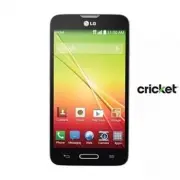
Page 3 - User Guide; English
t Screen displays and illustrations may differ from those you see on the actual phone. t Some of the contents of this guide may not apply to your phone, depending on the software and your service provider. All information in this document is subject to change without notice. t This handset is not su...
Page 4 - About this user guide; SERVICE ACTIVATION
2 About this user guide Please read this user guide carefully before you use your phone and keep it handy for future reference.Should your phone fails to operate correctly, refer to the FAQ section. t Some features and service may vary by area, phone, carrier, plan and version of phone software. t S...
Page 5 - Table of contents
3 Table of contents SERVICE ACTIVATION ................................2 Important notice .......................................6 Getting to know your phone ...................12 1IPOFPWFSWJFX 12 *OTUBMMJOHUIF.JDSP4*.DBSEBOECBUUFSZ 14 $IBSHJOHZPVSQIPOF 16 *OTFSUJOHBNJDSP4%DBSE 18 3FNPWJOHUIFNJDSP4%...
Page 8 - Important notice; Before you start using the phone, please read this!
6 Important notice Before you start using the phone, please read this! Please check to see if any problems you have encountered with your phone are described in this section before taking the phone in for service or calling a service representative. 1. Phone Memory In order to make more memory avail...
Page 9 - Installing an Open Source Operating System
7 t Turn off automatic syncing for Gmail™, Calendar, Contacts, and other applications. t Some applications you have downloaded may cause your battery power to be reduced. t While using downloaded applications, check the battery charged level. To view the battery charge level 1 From the Home screen, ...
Page 10 - Using a screen lock; and select from; button. You will be required to sign in with your Google
8 4. Using a screen lock Set a screen lock to secure your phone from unauthorized use. To set the screen lock, follow the process below.From the Home screen, tap Apps > Settings > Display tab > Lock screen > Select screen lock and select from None, Swipe , Knock Code , Face Unlock , Patt...
Page 12 - Using a microSD Card; Connecting Your Phone to a Computer via USB; Tap; Opening and Switching Applications
10 7. Using a microSD Card Pictures, music and video files, can be saved to external memory. Before saving these files to external memory, you need to insert a microSD card. If you have not inserted a microSD card, your items will be saved to internal memory. Warning! Do not remove the microSD card ...
Page 13 - Unlock the Screen; Please hold the mobile phone straight up as a regular phone.; When the Screen Freezes; If the phone does not respond to user input or the screen freezes:; Press and hold the; Do Not Connect Your Phone When You Power On/
11 TIP! To return to a recent application, press and hold the Menu Key . The screen then displays a list of applications you have recently used. 10. Unlock the Screen Your screen will go dark if untouched for a period of time when using a data connection. To turn on your screen, press the Power/Lock...
Page 14 - Phone overview; Getting to know your phone
12 Phone overview Earpiece Proximity Sensor Front-Facing Camera Lens Use to take a picture of yourself or to video chat on supported applications. Home Key t Returns to the Home screen from any screen. t Press and hold to open Google Now. Back Key t Returns to the previous screen. t Closes pop-up me...
Page 16 - Installing the Micro SIM card and battery
14 Getting to know your phone Installing the Micro SIM card and battery Before you can start exploring your new phone, you’ll need to set it up. To insert the Micro SIM card and battery: 1 Hold the phone on your hand firmly. With the other hand, lift the back cover using the Charger/USB Port located ...
Page 17 - Micro SIM card and battery:
15 Installing the Micro SIM card and battery Before you can start exploring your new phone, you’ll need to set it up. To insert the Micro SIM card and battery: 1 Hold the phone on your hand firmly. With the other hand, lift the back cover using the Charger/USB Port located at the bottom of the phone...
Page 18 - Align the back cover over the battery compartment; Charging your phone; USB Adapter
16 Getting to know your phone 4 Align the back cover over the battery compartment and press it down until it clicks into place . Charging your phone A rechargeable Li-ion battery is used to power your phone. A USB adapter, which is included with your phone, is used to charge the battery. Ask your lo...
Page 19 - Connect the USB adapter and USB cable.
17 NOTE : Make sure the battery is installed before connecting the USB adapter. If the battery is not installed and the USB adapter is connected, the phone will not operate properly due to prolonged power cycling. Also, removing the battery with the USB adapter connected may damage the device. Pleas...
Page 20 - Inserting a microSD card; Remove the back cover.
18 Getting to know your phone Inserting a microSD card You can expand the available memory space on your phone by using a microSD™ card. Multimedia contents can be saved in the microSD card. NOTE : This device supports up to a 32GB microSD card. 1 Remove the back cover. 2 Insert the microSD card int...
Page 21 - Removing the microSD card; Formatting the microSD card; From the Home screen, tap
19 Removing the microSD card To safely remove the microSD card from your phone, first you need to unmount it. 1 From the Home screen, tap Apps > Settings > General tab > Storage > Unmount SD card . 2 Remove the back cover and battery, then gently pull the microSD card from the slot. Warn...
Page 22 - If you set a screen lock, enter it and tap; Erase everything; . The card will then be; Locking and unlocking the screen; to lock your
20 3 If you set a screen lock, enter it and tap Erase everything . The card will then be formatted and ready to use. NOTE : If there is content on your microSD card, the folder structure may be different after formatting since all the files will have been deleted. Locking and unlocking the screen If...
Page 23 - Your Home screen; Touch Screen tips; Tap or touch
21 Your Home screen Touch Screen tips Here are some tips on how to navigate on your phone. Tap or touch – A single finger tap selects items, links, shortcuts and letters on the on-screen keyboard. Touch and hold – Touch and hold an item on the screen by touching it and not lifting your finger until ...
Page 24 - Home screen; Phone; Customizing the Home screen
22 Home screen Simply swipe your finger to the left or right to view the panels. You can customize each panel with apps, downloads, widgets and wallpapers. NOTE : Some screen images may be different depending on your phone provider. On your Home screen, you can view the Quick Keys icons at the botto...
Page 25 - Returning to recently-used applications
23 To add items on your Home screen: 1 Touch and hold the empty part of the Home screen. 2 Tap the Apps or Widgets tab. 3 Drag the desired item to the desired location and lift your finger. To remove an item from the Home screen: Touch and hold the icon you want to remove, drag it to , and lift your ...
Page 26 - Accessing notifications; To rearrange Quick Setting items on the Notification Panel
24 notifications appear on the left, and system icons showing things like Wi-Fi or bat tery strength on the right. NOTE : The available options may vary depending on the region or service provider. Pending notifications Bluetooth, Wi-Fi & battery status Accessing notifications Swipe the Status B...
Page 27 - Notification icons on the Status Bar; Icon
25 Notification icons on the Status Bar Notification icons appear on the Status Bar at the top of the screen to report missed calls, new messages, calendar events, device status and more. The icons listed in the table below are some of the most common ones. Icon Description Icon Description No SIM c...
Page 28 - Entering text; Using the keypad & entering text
26 Missed call Uploading data Bluetooth is on GPS is on System warning Data is synchronizing An alarm is set New Gmail message available New voicemail available New Hangouts message available New text or multimedia message Choose input method A song is currently playing NOTE : The icons location in ...
Page 29 - Tap to delete the previous character.; Entering special characters
27 Tap to delete the previous character. Entering special characters The on-screen keyboard allows you to enter special characters (e.g. "á").For example, touch and hold the desired key (for example, the "a" key). After the desired character appears, slide your your finger over it an...
Page 30 - To set up your Google account:; Sign into a Google account from the prompted set-up screen.; Google account setup
28 When you first turn on your phone, you have the opportunity to activate the network, to sign into your Google account and select how you want to use certain Google services. To set up your Google account: t Sign into a Google account from the prompted set-up screen. OR t From the Home screen, tap...
Page 31 - Connecting to Wi-Fi networks; Turning Wi-Fi on and connecting to a Wi-Fi network; Apps; Bluetooth; Connecting to Networks and Devices
29 Wi-Fi With Wi-Fi, you can use high-speed Internet access within the coverage of the wireless access point (AP). Enjoy wireless Internet using Wi-Fi, without extra charges. Connecting to Wi-Fi networks To use Wi-Fi on your phone, you need to access a wireless access point. Some access points are o...
Page 34 - Making a call; Calling your contacts; Calls
32 Making a call 1 From the Home screen, tap Phone to open the dial pad. 2 Enter the number on the keypad. To delete a digit, tap Clear . 3 Tap Call to make a call. 4 To end a call, tap End . TIP ! To enter “+” to make international calls, touch and hold . Calling your contacts 1 From the Home scree...
Page 36 - Call settings
34 Ending a Call from the Status Bar 1 Touch and drag the Status Bar down to open the Notifications Panel. 2 Tap End call to end the currently active call. Viewing your call logs From the Home screen, tap Phone , then tap the Call logs tab. View a complete list of all dialed, received, and missed voi...
Page 37 - Contacts
35 You can add contacts on your phone and synchronize them with the contacts in your Google account or other accounts that support syncing contacts. Searching for a contact 1 From the Home screen, tap Contacts to open your contacts. 2 Tap the Search contacts box and enter the contact name using the ...
Page 38 - Creating a group
36 is added to your favorites. To remove a contact from your favorites list 1 From the Home screen, tap Contacts to open your contacts. 2 Tap the Favorites tab to view your favorite contacts. 3 Tap a contact to view its details. 4 Tap the gold star to the right of the contact’s name. The star turns ...
Page 39 - Conversation view; Messaging
37 Your phone combines text and multimedia messages into one intuitive, easy-to-use menu. Warning ! The LG Messaging app should be set up as the default messaging app. If not, some message functions will be limited. Conversation view Messages exchanged with another party are displayed in chronologic...
Page 40 - Using smilies; Set Messaging as the default messaging app
38 NOTE : When you get a text message during a call, there will be an audible notification. Using smilies Liven up your messages using smilies.When writing a new message, tap or tap the Menu Key > Insert smiley . Changing your message settings Your phone’s message settings are predefined, so you ...
Page 41 - Email; Managing an email account
39 Email You can use the Email application to read emails from services like Gmail. The Email application supports the following account types: POP3, IMAP and Exchange.Your service provider or system administrator can provide you with the account settings you need. Managing an email account The firs...
Page 42 - Composing and sending email; To compose and send a message; While in the
40 Composing and sending email To compose and send a message 1 While in the Email application, tap Compose . 2 Enter an address for the message’s intended recipient. As you enter text, matching addresses will be proposed from your Contacts. Separate multiple addresses using semicolons. 3 Tap to atta...
Page 43 - Getting to know the viewfinder; Camera
41 To open the Camera application, tap Camera on the Home screen. Getting to know the viewfinder Flash – Choose from Off , On , Auto . Swap camera – Switch between the rear–facing camera lens and the front–facing camera lens. Shot mode – Choose from Normal, Panorama , Continuous shot or Sports . Set...
Page 44 - Using the advanced settings; Back Key
42 Using the advanced settings In the viewfinder, tap to open the advanced options. You can change the camera settings by scrolling through the list. After selecting the option, tap the Back Key . To take a photo, say one of the following words: Cheese, Smile, Whiskey, Kimchi or LG. Defines and cont...
Page 45 - Taking a quick photo
43 Allows you to use the Volume Key for capturing photos or for zoom. Select where you want to save your photos. Opens the help guide to know how a function operates. Restores all camera default settings. TIP! t When you exit the camera, some settings return to their defaults, such as white balance,...
Page 46 - Once you've taken a photo
44 Once you've taken a photo Touch the image preview in the bottom right corner of the screen to view the last photo you took. The following options are available: Touch to take another photo immediately. Touch to share your photo with others using any of the available methods. Touch to delete the p...
Page 47 - Add location; – Allows you to add the location information.; Details; – Find out more information about the contents.; Viewing your saved photos; To view more photos, scroll left or right.
45 Add location – Allows you to add the location information. Details – Find out more information about the contents. Viewing your saved photos You can access your saved photos when in camera mode. Just tap the image preview in the bottom of the screen and your Gallery will be displayed. t To view m...
Page 48 - Camcorder
46 To open the Camcorder application, tap Apps > Camera . Then slide down to to toggle from Camera to Camcorder mode. Getting to know the viewfinder Flash – Choose from Off , On , Auto . Swap camera – Switch between the rear–facing camera lens and the front-facing camera lens. Recording mode – Ch...
Page 50 - Recording a quick video; After recording a video
48 Recording a quick video 1 Open the Camera application and slide the Video mode button. 2 The video camera viewfinder appears on the screen. 3 Point the lens towards the subject you wish to capture in your video. 4 Tap once to start recording. 5 A red light will appear at the top left corner of the...
Page 51 - Watching your saved videos; Your Gallery will appear on the screen.; Adjusting the volume when viewing a video
49 Watching your saved videos 1 In the viewfinder, touch the image preview in the bottom of the screen. 2 Your Gallery will appear on the screen. 3 Tap to play the video automatically. Adjusting the volume when viewing a video To adjust the volume of a video while it is playing, use the Volume Keys o...
Page 52 - Functions; Guest Mode; Knock Code
50 Functions Guest Mode To protect your privacy or limit some applications to your children, you can use the Guest mode.When you lend your phone to others, you can limit the applications you want them to have access to. NOTE: To use the Guest mode, the pattern lock should be set in advance. 1 Press ...
Page 53 - KnockON
51 KnockON The KnockON feature allows you to turn the screen on and off by simply double tapping on it. To activate KnockON feature 1 Press the Home Key and tap Apps > Apps tab > Settings > General tab > Gestures . 2 Place a checkmark on Screen on/off . Using KnockON t When the screen is...
Page 54 - QuickMemo; OR
52 QuickMemo The QuickMemo feature allows you to create memos and capture screen shots. Capture screens, draw on them, and share them with family and friends with QuickMemo. OR 1 Access the QuickMemo feature by pressing both the Volume up and down keys for one second on the screen you want to captur...
Page 55 - Using the QuickMemo options
53 3 Tap in the toolbar to save the memo. To exit QuickMemo at any time, tap . NOTE: Please use a fingertip while using the QuickMemo. Do not use your fingernail. Using the QuickMemo options The following options are available when using QuickMemo. Touch to keep the current memo on the screen and us...
Page 56 - QSlide; Slide the Status Bar downwards and tap an application from the; QSlide apps; section. Or while using applications that support QSlide, tap
54 QSlide The QSlide feature allows you to multitask by displaying up to two floating windows at a time. OR Tap to exit QSlide and return to full window.Tap to adjust the transparency.Tap to exit QSlide.Tap to adjust the size. 1 Slide the Status Bar downwards and tap an application from the QSlide a...
Page 57 - Multimedia; Gallery; Viewing pictures; Use one of the following methods to zoom in on an image:; Playing videos; Video files show the
55 Multimedia Gallery You can store multimedia files in internal or external memory for easy access to all your multimedia files. Use this application to view multimedia files like pictures and videos. From the Home screen, tap Apps > Gallery . You can manage and share all your image and video fi...
Page 58 - Videos; Playing a video
56 Viewing photo options When viewing a photo, tap the Menu Key and use the advanced editing options. Deleting images and videos Use one of the following methods: t In a folder, tap and select the photos and videos you want to delete, then tap Delete . t When viewing a photo or video, tap . Setting ...
Page 59 - Music; Add music files to your phone
57 Touch to pause/resume video playback. Touch to go 10 forward. Touch and hold to fast-forward in 3 second increments. Touch to go 10 seconds backward. Touch and hold to rewind in 3 second increments. Touch to manage the video volume. Touch to change the ratio of the video screen. Tap to capture im...
Page 60 - Playing a song
58 Transfer music using Media sync (MTP) 1 Connect the phone to your PC using the USB cable. 2 Select the Media sync (MTP) option. Your phone will appear as another hard drive on your computer. Click on the drive to view it. Copy the files from your PC to the drive folder. 3 When you’re finished trans...
Page 61 - and; Search
59 Tap to toggle through the repeat modes to repeat all songs, repeat current song, or repeat off. To change the volume while listening to music, press the Volume Keys on the left side of the phone.Touch and hold any song in the list to access the following options: Play , Add to playlist , Share, S...
Page 62 - Utilities; Setting your alarm; Using your calculator
60 Utilities Setting your alarm 1 From the Home screen, tap Apps > Clock > New alarm . 2 Set the desired alarm time. 3 Set Repeat , Snooze duration , Vibration , Alarm sound, Alarm volume, Auto app starter, Puzzle lock and Memo . 4 Touch Save . NOTE : To change alarm settings in the alarm list...
Page 63 - About backing up and restoring smartphone data
61 5 Touch the Location field and enter the location. Check the date and enter the time you wish your event to start and finish. 6 If you wish to add a note to your event, touch the Description field and enter the details. 7 If you wish to repeat the alarm, set REPEAT and set REMINDERS , if necessary. ...
Page 64 - Backup your smart phone data; Scheduling automatic backups
62 If you have the Backup application preloaded on your smartphone, you can backup and restore most of your smart phone data, including downloaded and pre-installed applications, LG Home screen, personal data and system settings. You may also: t Perform a manual LG Backup of your smartphone data. t ...
Page 65 - Restoring smartphone data
63 2 Set the desired options and tap to turn the feature on. NOTE : Checkmark the Use the lock when creating backup file option to set a password for the backup file. Restoring smartphone data NOTE : All files that are stored on your smart phone are deleted before the backup file is restored. 1 From...
Page 66 - Voice Search; Use this application to search web pages using voice.; Downloads
64 Voice Search Use this application to search web pages using voice. 1 From the Home screen, tap Apps > Google > Voice Search . 2 Say a keyword or phrase when Speak now appears on the screen. Select one of the suggested keywords that appear. NOTE : This application may not be available depend...
Page 67 - The Web; Using the Web toolbar; Viewing webpages
65 The Web Web Use this application to browse the Internet. The Web gives you a fast, full-color world of games, music, news, sports, entertainment and much more, right on your mobile phone wherever you are and whatever you enjoy. NOTE : Additional charges apply when connecting to these services and...
Page 68 - Searching the web by voice; Bookmarks; Chrome
66 Searching the web by voice Tap the web address field, tap , speak a keyword, and then select one of the suggested keywords that appear. NOTE : This feature may not be available depending on the region or service provider. Bookmarks t To bookmark the current webpage, tap the Menu Key > Add to b...
Page 69 - Syncing with other devices; To add bookmarks, tap the; Menu Key
67 Syncing with other devices Sync open tabs and bookmarks to use with Chrome on another device when you are logged in with the same Google account.To view open tabs on other devices, tap the Menu Key > Other devices . You must be signed in to the same Google account on all devices. Select a webp...
Page 70 - Settings; Access the Settings menu
68 Settings Access the Settings menu 1 From the Home screen, tap Apps > Settings . OR From the Home screen, tap the Menu Key > All settings . 2 Select a setting category and set the desired options. Networks < Airplane mode > Tap the Airplane mode switch to toggle between On and Off. Act...
Page 72 - Sound
70 < More... >Mobile networks – Set options for data roaming, network mode & operators, access point names (APNs), and more. Default message app – Allows you to set the default message app. VPN – Displays the list of Virtual Private Networks (VPNs) that you've previously configured. Allows...
Page 73 - Display
71 Help – Tap to view help information about Quiet mode. < Phone ringtone > Set the ringtone for calls. You can also add a ringtone by tapping at the top right corner of the screen. < Ringtone with vibration > Checkmark to set the phone to vibrate in addition to the ringtone when you rec...
Page 75 - General
73 < Brightness > Adjusts the brightness of the screen. For best battery performance, use the dimmest comfortable brightness. < Screen timeout > Sets the amount of time before the screen times out. < Screen-off effect > Sets the screen-off effect. Choose from Retro TV, Black hole a...
Page 82 - Phone software update; To perform a software update, from the Home screen, tap the
80 Phone software update Phone software update This feature allows you to update the firmware of your phone to the latest version conveniently from the internet without the need to visit a service center. For more information on how to use this function, please visit: http://www.lg.com As the mobile...
Page 84 - Trademarks; and Wi-Fi Protected Access
82 Trademarks Trademarks t LG and the LG logo are registered trademarks of LG Group and its related entities. t Bluetooth ® is a registered trademark of the Bluetooth SIG, Inc. worldwide. t Wi-Fi ® , the Wi-Fi CERTIFIED logo, and the Wi-Fi logo are registered trademarks of the Wi-Fi Alliance. t All ...
Page 85 - Accessories; Travel adapter
83 Accessories These accessories are available for use with your phone. (Items described below may be optional and sold separately.) Travel adapter USB cable Connect your phone and PC. User Guide Learn more about your phone. Battery NOTE: t Always use genuine LG accessories. Failure to do this may v...
Page 86 - Troubleshooting
84 Troubleshooting This chapter lists some problems you might encounter when using your phone. Some problems require you to call your service provider, but most are easy to fix yourself. Message Possible causes Possible corrective measures Micro SIM error There is no Micro SIM card in the phone or i...
Page 90 - For Your Safety; Safety Information; cancer and birth defects or reproductive harm.; Wash hands after handling.; Do not disassemble or open crush, bend or deform, puncture or shred.
88 For Your Safety Safety Information Please read and observe the following information for safe and proper use of your phone and to prevent damage. WARNING! This product contains chemicals known to the State of California to cause cancer and birth defects or reproductive harm. Wash hands after hand...
Page 91 - Charger and Adapter Safety; The charger and adapter are intended for indoor use only.; Battery Information and Care; if it is loose as it may cause electric shock or fire.
89 t Improper battery use may result in a fire, explosion or other hazard. t Repairs under warranty, at LG’s option, may include replacement parts or boards that are either new or reconditioned, provided that they have functionality equal to that of the parts being replaced. t For those host devices...
Page 93 - Care and Maintenance
91 clean your phone. This could cause a fire. t Always unplug the charger from the wall socket after the phone is fully charged to save unnecessary power consumption of the charger. Care and Maintenance Your mobile device is a product of superior design and craftsmanship and should be treated with c...
Page 94 - generated during use.
92 Cleaning solutions Do not use harsh chemicals, cleaning solvents, or strong detergents to clean the mobile device.Wipe it with a soft cloths lightly dampened in a mild soap-and-water solution. Shock or vibration Do not drop, knock, or shake the mobile device.Rough handling can break internal circ...
Page 95 - Do not turn your phone on or off when putting it to your ear.
93 deleted.) The manufacturer is not liable for damage due to the loss of data. t When you use the phone in public places, set the ringtone to vibration so you don’t disturb others. t Do not turn your phone on or off when putting it to your ear. t Your phone is an electronic device that generates he...
Page 96 - FCC RF Exposure Information; WARNING! Read this information before operating the phone.; Vehicle-Mounted External Antenna
94 t Reorient or relocate the receiving antenna. t Increase the separation between the equipment and receiver. t Connect the equipment into an outlet on a circuit different from that to which the receiver is connected. t Consult the dealer or an experienced radio/TV technician for help. FCC RF Expos...
Page 101 - TIA Safety Information
99 85764 OberschleissheimGermanyTelephone: 011 49 1888 333 2156http://www.icnirp.de American National Standards Institute 1819 L Street, N.W., 6th FloorWashington, D.C. 20036Telephone: (202) 293-8020http://www.ansi.org National Council on Radiation Protection and Measurements 7910 Woodmont Avenue, S...
Page 104 - the phone is turned ON
102 Phone Operation NORMAL POSITION: Hold the phone as you would any other telephone with the antenna pointed up and over your shoulder. Tips on Efficient Operation For your phone to operate most efficiently:Don’t touch the antenna unnecessarily when the phone is in use. Contact with the antenna aff...
Page 106 - FDA Consumer Update; The U.S. Food and Drug Administration’s Center for Devices and; Do wireless phones pose a health hazard?
104 Potentially Explosive Atmosphere Turn your phone OFF when in any area with a potentially explosive atmosphere and obey all signs and instructions. Sparks in such areas could cause an explosion or fire resulting in bodily injury or even death.Areas with a potentially explosive atmosphere are ofte...
Page 107 - What is the FDA’s role concerning the safety of wireless phones?
105 but such findings have not been confirmed by additional research. In some cases, other researchers have had difficulty in reproducing those studies, or in determining the reasons for inconsistent results. 2. What is the FDA’s role concerning the safety of wireless phones? Under the law, the FDA ...
Page 109 - phones poses a health risk?
107 in the absence of RF exposure. Other studies exposed the animals to RF for up to 22 hours per day. These conditions are not similar to the conditions under which people use wireless phones, so we do not know with certainty what the results of such studies mean for human health. Three large epide...
Page 112 - What about children using wireless phones?
110 place more distance between your body and the source of the RF, since the exposure level drops off dramatically with distance. For example, you could use a headset and carry the wireless phone away from your body or use a wireless phone connected to a remote antenna. Again, the scientific data d...
Page 113 - Where can I find additional information?; Driving
111 The FDA has tested hearing aids for interference from handheld wireless phones and helped develop a voluntary standard sponsored by the Institute of Electrical and Electronic Engineers (IEEE). This standard specifies test methods and performance requirements for hearing aids and wireless phones ...
Page 114 - HAC statement
112 HAC statement This phone has been tested and rated for use with hearing aids for some of the wireless technologies that it uses. However, there may be some newer wireless technologies used in this phone that have not been tested yet for use with hearing aids. It is important to try the different...
Page 116 - FCC Hearing Aid Compatibility and Volume Control
114 For information about hearing aids and digital wireless phones Wireless Phones and Hearing Aid Accessibility http://www.accesswireless.org/ FCC Hearing Aid Compatibility and Volume Control http://www.fcc.gov/cgb/consumerfacts/hac_wireless.html For Your Safety
Page 117 - Limited Warranty Statement
Limited Warranty Statement 1. WHAT THIS WARRANTY COVERS: LG offers you a limited warranty that the enclosed subscriber unit and its enclosed accessories will be free from defects in material and workmanship, according to the following terms and conditions:(1) The limited warranty for the product ext...