Page 3 - User Guide; ENGLISH
User Guide • Screen displays and illustrations may differ from those you see on actual phone. • Some of the contents of this guide may not apply to your phone, depending on the software and your service provider. All information in this document is subject to change without notice. • This handset is...
Page 4 - Table of contents
2 Table of contents Guidelines for safe and efficient use .................5 Important notice ...............................................11 Getting to know your phone .............................15 Phone overview ...............................................15Installing the SIM card and batte...
Page 7 - Exposure to radio frequency energy; Guidelines for safe and efficient use
5 Please read these simple guidelines. Not following these guidelines may be dangerous or illegal.Should a fault occur, a software tool is built into your device that will gather a fault log. This tool gathers only data specific to the fault, such as signal strength, cell ID position in sudden call ...
Page 8 - Product care and maintenance
6 Product care and maintenance WARNING Only use batteries, chargers and accessories approved for use with this particular phone model. The use of any other types may void any approval or warranty applying to the phone and may be dangerous. • Do not disassemble this unit. Take it to a qualified servi...
Page 9 - Efficient phone operation; Road safety
7 • If your phone gets wet, immediately unplug it to dry off completely. Do not attempt to accelerate the drying process with an external heating source, such as an oven, microwave or hair dryer. • The liquid in your wet phone, changes the colour of the product label inside your phone. Damage to you...
Page 10 - In aircraft
8 Avoid damage to your hearing To prevent possible hearing damage, do not listen at high volume levels for long periods. Damage to your hearing can occur if you are exposed to loud sound for long periods of time. We therefore recommend that you do not turn on or off the handset close to your ear. We...
Page 11 - Children
9 • Turn your mobile phone off before boarding any aircraft. • Do not use it on the ground without permission from the crew. Children Keep the phone in a safe place out of the reach of small children. It includes small parts which may cause a choking hazard if detached. Emergency calls Emergency cal...
Page 12 - Driver Safety Tips
10 • If you need to replace the battery, take it to the nearest authorised LG Electronics service point or dealer for assistance. • Always unplug the charger from the wall socket after the phone is fully charged to save unnecessary power consumption of the charger. • Actual battery life will depend ...
Page 13 - Important notice; Optimizing battery life
11 Important notice Please check to see whether any problems you encountered with your phone are described in this section before taking the phone in for service or calling a service representative. 1. Phone memory When there is less than 10% of space available in your phone memory, your phone canno...
Page 14 - Before installing an open source application and OS; Using an unlock pattern
12 To monitor and control how battery power is being used: • Tap > > Apps tab > Settings > About phone > Common tab > Battery > Battery use . Battery usage time is displayed on the screen. It tells you how long it has been since you last connected your phone to a power source or...
Page 16 - Opening and switching applications
14 WARNING If you perform a Hard Reset, all user applications, user data and DRM licenses will be deleted. Please remember to backup any important data before performing a Hard Reset. 6. Opening and switching applications Multi-tasking is easy with Android, you can keep more than one application run...
Page 17 - Phone overview; Getting to know your phone
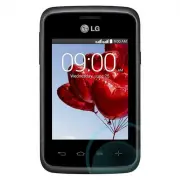
15 Phone overview Volume keys Earpiece QuickButton Touch for quick access to your favorite app. Home Key • Returns to the Home screen from any screen. • Touch and hold to open Google Now. Back Key • Return to the previous screen. • Exit an app after using it. Menu Key • Display the available options...
Page 19 - Installing the SIM card and battery
17 Installing the SIM card and battery Before you can start exploring your new phone, you'll need to set it up. To insert the SIM card and battery. 1 To remove the battery cover, hold the phone firmly in one hand. With your other hand, lift off the battery cover with your thumb nail as shown in figu...
Page 21 - Charging your phone
19 Charging your phone Charge the battery before using it for the first time. Use the charger to charge the battery. A computer can be also used to charge the device by connecting them via the USB cable. WARNING Use Only LG-approved chargers, batteries, and cables. Using unapproved chargers or cable...
Page 22 - Using the memory card
20 Using the memory card Your phone supports the use of microSD TM or microSDHC TM memory cards of up to 32 GB capacity. These memory cards are specifically designed for mobile phones and other ultra-small devices, and are ideal for storing media-rich files such as music, programs, videos, and photo...
Page 23 - Locking and unlocking the screen
21 To format the memory card: Your memory card may already be formatted. If it isn't, you must format it before you can use it. NOTE: All files on your memory card are deleted when it is formatted. 1 Touch to open the application list. 2 Scroll and touch Settings > Storage . 3 Touch Unmount SD ca...
Page 24 - Your Home screen; Touch screen tips
22 Your Home screen Touch screen tips Here are some tips on how to navigate on your phone. Tap or touch – A single finger tap selects items, links, shortcuts and letters on the on-screen keyboard. Touch and hold – Touch and hold an item on the screen by tapping it and not lifting your finger until a...
Page 25 - Home screen; Extended home screen
23 Home screen The Home screen is the starting point for many applications and functions, and it allows you to add items like application shortcuts, or Google widgets to give you instant access to information and applications. This is the default canvas and accessible from any menu by tapping . Stat...
Page 26 - Customising the Home screen; Returning to recently-used applications
24 Customising the Home screen You can customise your Home screen by adding apps, widgets or changing wallpapers. To add items on your Home screen 1 Tap > . 2 Tap the desired tab. Choose from Apps or Widgets . 3 Drag item to the desired location and lift your finger. TIP! To add an application ic...
Page 28 - Opening the notifications panel; Indicator icons on the Status Bar
26 Opening the notifications panel Swipe down from the status bar to open the notifications panel. Quick Toggle Area Tap each quick toggle key to turn it on/off. Touch and hold the key to access the settings menu of the function. To see more toggle keys, swipe left or right. Tap to remove, add, or r...
Page 30 - Entering accented letters
28 NOTE: The icons location in the status bar may differ according to the function or service. On-screen keyboard You can enter text using the on-screen keyboard. The on-screen keyboard appears automatically on the screen when you need to enter text. To manually display the keyboard, simply tap a te...
Page 31 - Google account setup; To set up your Google account:
29 Google account setup When you first turn on your phone, you have the opportunity to activate the network, to sign into your Google Account and select how you want to use certain Google services. To set up your Google account: • Sign into a Google Account from the prompted set-up screen. OR • Tap ...
Page 32 - Connecting to Networks and Devices; Connecting to Wi-Fi networks; Turning Wi-Fi on and connecting to a Wi-Fi network
30 Connecting to Networks and Devices Wi-Fi With Wi-Fi, you can use high-speed Internet access within the coverage of a wireless access point (AP). Enjoy wireless Internet using Wi-Fi, without extra charges. Connecting to Wi-Fi networks To use Wi-Fi on your phone, you need to access a wireless acces...
Page 33 - Bluetooth
31 Bluetooth You can use Bluetooth to send data by running a corresponding application, but not from the Bluetooth menu. NOTE: • LG is not responsible for the loss, interception or misuse of data sent or received via the Bluetooth wireless feature. • Always ensure that you share and receive data wit...
Page 34 - Sharing your phone's data connection
32 2 Tap the Bluetooth menu again and mark the checkbox at the top of the screen to make your phone visible to other devices. NOTE: To select the length of time that your device will be visible, tap > Visibility timeout . 3 Select Accept to confirm that you are willing to receive data from the de...
Page 35 - PC connections with a USB cable
33 • You can also tap the Security menu to configure the network with Wi-Fi Protected Access 2 (WPA2) security using a pre-shared key (PSK). • If you touch the WPA2 PSK security option, a password field is added to the Set up Wi-Fi hotspot dialogue box. If you enter a password, you will need to ente...
Page 37 - Calls; Making a call; Calling your contacts; Answering and rejecting a call; Adjusting the in-call volume
35 Calls Making a call 1 Tap to open the keypad. 2 Enter the number using the keypad. To delete a digit, tap the . 3 Tap to make a call. 4 To end a call, tap the End icon . TIP! To enter "+" to make international calls, touch and hold . Calling your contacts 1 Tap to open your contacts. 2 Sc...
Page 38 - Making a second call; Viewing your call logs; Call settings
36 Making a second call 1 During your first call, tap > Add call and dial the number. You can also go to the recently dialled numbers list by tapping or can search contacts by tapping and selecting the contact you want to call. 2 Tap to make the call. 3 Both calls are displayed on the call screen...
Page 39 - Contacts; Searching for a contact
37 Contacts Add contacts to your phone and synchronise them with the contacts in your Google account or other accounts that support contact syncing. Searching for a contact 1 Tap to open your contacts. 2 Tap Search contacts and enter the contact name using the keyboard. Adding a new contact 1 Tap , ...
Page 40 - Creating a group
38 Removing a contact from your favourites list 1 Tap to open your contacts. 2 Tap the tab, and choose a contact to view its details. 3 Tap the yellow colour star to the right corner of the contact's name. The star turns grey colour and the contact is removed from your favourites. Creating a group 1...
Page 41 - Messaging; Sending a message
39 Messaging Your phone combines SMS and MMS into one intuitive, easy-to-use menu. WARNING: LG message should be set up to default SMS app. If not, some message functions will be limited. Sending a message 1 Tap on the Home screen and tap to open a blank message. 2 Enter a contact name or contact nu...
Page 44 - Camera; Getting to know the viewfinder
42 Camera To open the Camera application, tap > > Apps tab > . Getting to know the viewfinder Settings – Tap this icon to open the settings menu. Gallery – Tap to view the last photo you captured. This enables you to access your gallery and view saved photos while in camera mode. Capture bu...
Page 45 - Using the advanced settings
43 Using the advanced settings In the viewfinder, tap to open the advanced options. You can change the camera settings by scrolling through the list. After selecting the option, tap . To take a photo, say one of the following words: Cheese, Smile, Whisky, Kimchi or LG. Defines and controls the amoun...
Page 46 - Taking a quick photo; Once you've taken a photo
44 TIP! • When you exit the camera, some settings return to their defaults, such as white balance, colour effect, timer and shot mode. Check these before you take your next photo. • The setting menu is superimposed over the viewfinder, so when you change photo colour or quality elements, you will se...
Page 47 - From your Gallery
45 Tap to open all advanced options. Set image as – Tap to use the photo as a Contact photo, Home screen wallpaper, Lock screen wallpaper, Wallpaper.Move – Tap to move the photo to another place. Copy – Tap to copy the selected photo and save it to another album. Rename – Tap to edit the name of the...
Page 48 - Video camera
46 Video camera Getting to know the viewfinder Settings – Tap this icon to open the settings menu. Gallery – Tap to view the last video you recorded. This enables you to access your gallery and view your saved videos while in video mode. Start/Pause recordingCamera mode – Touch and slide right this ...
Page 50 - After recording a video
48 After recording a video In the viewfinder, tap the video thumbnail at the bottom of the screen to view the last video you took. Tap to enter the camera. Tap to send your video to others or share it via social network services. Tap to delete the video. NOTE: Additional charges may apply when MMS m...
Page 51 - Function; Guest mode; Knock Code
49 Function Guest mode To protect your privacy or limit some applications to your children, you can use the Guest mode.When you lend your phone to others, you can limit the applications to be displayed.In advance, set the Guest mode and customise the options. NOTE: To use the Guest mode, the pattern...
Page 52 - QuickMemo
50 QuickMemo The QuickMemo allows you to create memos and capture screen shots. Capture screens, draw on them and share them with family and friends with QuickMemo. OR 1 Enter the QuickMemo screen by pressing both the Volume up and down keys for one second on the screen you want to capture. OR Touch...
Page 53 - Using the QuickMemo options; Viewing the saved QuickMemo
51 3 Tap in the Edit menu to save the memo with the current screen. To exit QuickMemo at any time, tap . NOTE: Please use a fingertip while using the QuickMemo. Do not use your fingernail. Using the QuickMemo options You can easily use the QuickMenu options when using the QuickMemo. Tap to keep the ...
Page 54 - Viewing pictures; Playing videos; Multimedia
52 Gallery Open the Gallery application to view albums of your pictures and videos. 1 Tap > > Apps tab > Gallery . You can manage and share all your image and video files with Gallery. NOTE: • Some file formats are not supported, depending on the software installed on the device. • Some fil...
Page 55 - Setting as wallpaper; Videos; Playing a video
53 Setting as wallpaper When viewing a photo, tap > Set image as to set the image as wallpaper or assign to a contact. NOTE: • Some file formats are not supported, depending on the device software. • If the file size exceeds the available memory, an error can occur when you open files. Videos You...
Page 56 - Music; Playing a song
54 Touch to go 10 seconds backward. Touch to manage the video volume. Touch to change the ratio of the video screen. Touch to capture image during playing a video. Touch to rotate a video. Touch to lock/unlock a video screen. To change the volume while watching a video, press the up and down volume ...
Page 58 - Add music files to your phone; FM radio
56 Touch and hold any song in the list. The Play , Add to playlist , Share , Set as ringtone , Delete , Details and Search options will be displayed. Add music files to your phone Start by transferring music files to your phone: • Transfer music using Media sync (MTP). • Download from the wireless W...
Page 59 - Setting your alarm; Using your calculator; Utilities
57 Setting your alarm 1 Tap > > Apps tab > Alarm/Clock > . 2 After you set the alarm, your phone lets you know how much time is left before the alarm will go off. 3 Set Repeat , Snooze duration , Vibration , Alarm sound, Alarm volume, Auto app starter, Puzzle lock and Memo . 4 Tap Save ....
Page 60 - Voice Recorder; Recording a sound or voice; Task Manager
58 Voice Recorder Use the voice recorder to record voice memos or other audio files. Recording a sound or voice 1 Tap > > Apps tab > Voice Recorder . 2 Tap to begin recording. 3 Tap to end the recording. 4 Tap to listen to the recording. NOTE: Tap to access your album. You can listen to the...
Page 61 - LG SmartWorld; How to Get to LG SmartWorld from Your Phone
59 ThinkFree Viewer ThinkFree Viewer is a professional mobile office solution that lets users conveniently view various types of office documents, including Word, Excel and PowerPoint files, anywhere or anytime, using their mobile devices.Tap > > Apps tab > ThinkFree Viewer . Viewing files ...
Page 63 - The Web; Internet; Using the Web toolbar; Opening a page
61 The Web Internet Use this application to browse the Internet. Browser gives you a fast, full-colour world of games, music, news, sports, entertainment and much more, right on your mobile phone wherever you are and whatever you enjoy. NOTE: Additional charges apply when connecting to these service...
Page 64 - Chrome; Viewing webpages
62 NOTE: This feature may not be available depending on the region or service provider. Bookmarks To bookmark the current webpage, tap > Add to bookmarks > OK . To open a bookmarked webpage, tap and select one. History Tap > History to open a webpage from the list of recently-visited webpag...
Page 65 - WIRELESS NETWORKS
63 Settings This section provides an overview of items you can change using your phone's System settings menus. To access the Settings menu: Tap > > System settings . - or -Tap > > Apps tab > Settings . WIRELESS NETWORKS < Dual SIM card > You can configure Dual SIM settings. SIM...
Page 67 - DEVICE
65 < Tethering & networks >Wi-Fi hotspot – You can also use your phone to provide a mobile broadband connection. Create a hotspot and share your connection. Please read "Sharing your phone's data connection" for more information. Bluetooth tethering – Allows you to set your phone w...
Page 69 - PERSONAL
67 Tap to enter the text to be displayed as the Owner info. Lock timer – Sets the amount of time before the screen automatically locks after the screen has timed-out. Power button instantly locks – Checkmark to instantly lock the screen when the Power/Lock Key is pressed. This setting overrides the ...
Page 71 - SYSTEM
69 phone this way, you are prompted to re-enter the same information as when you first started Android. SYSTEM < QuickButton > Select apps you wish to get quick access to using QuickButton. < Date & time > Use Date & time settings to set how dates will be displayed. You can also ...
Page 74 - Phone software update
72 Phone software update LG Mobile phone software update from the Internet For more information about using this function, please visit http://www.lg.com/common/index.jsp select your country and language. This feature allows you to conveniently update the firmware on your phone to a newer version fr...
Page 75 - About this user guide
73 About this user guide • Before using your device, please carefully read this manual. This will ensure that you use your phone safely and correctly. • Some of the images and screenshots provided in this guide may appear differently on your phone. • Your content may differ from the final product, o...
Page 76 - Accessories
74 These accessories are available for use with the your phone. (Items described below may be optional.) Travel adaptor Data cable Quick Start Guide Battery Accessories NOTE: • Always use genuine LG accessories. • Failure to do this may void your warranty.• Accessories may vary in different regions.
Page 77 - Troubleshooting
75 Troubleshooting This chapter lists some problems you might encounter when using your phone. Some problems require you to call your service provider, but most are easy to fix yourself. Message Possible causes Possible corrective measures SIM card error There is no SIM card in the phone or it is in...
Page 80 - FAQ
78 Category Sub-Category Question Answer BT Bluetooth Devices What are the functions available via Bluetooth You can connect a Bluetooth audio device such as a Stereo/Mono headset or Car Kit. Also, when the FTP server is connected to a compatible device, you can share content stored on the storage m...