Page 2 - Impor
2 AX4750 ● Do not use harsh chemicals(such as alcohol, benzene, thinners,etc.) or detergents to clean your phone. There is a risk of thiscausing a fire. ● Do not drop, strike, or shake your phone severely. Such actionsmay harm the internal circuit boards of the phone. ● Do not use your phone in high...
Page 9 - Speaker phone feature.
9 AX4750 W W e l c o m e e l c o m e Thank you for choosing the advanced and compact AX4750cellular phone, designed to operate with the latest digitalmobile communication technology, Code Division MultipleAccess (CDMA) and Advanced Mobile Phone Service. Alongwith the many advanced features of the CD...
Page 10 - Important Information; FCC Part 15 Class B Compliance
10 AX4750 Important Information This user’s guide provides important information on the useand operation of your phone. Please read all the informationcarefully prior to using the phone for the best performance andto prevent any damage to or misuse of the phone. Anyunapproved changes or modification...
Page 11 - CDMA Standard; Designator
11 AX4750 The Cellular and PCS CDMA networks consist of MSO (MobileSwitching Office), BSC (Base Station Controller), BTS (BaseStation Transmission System), and MS (Mobile Station). Thefollowing table lists some major CDMA standards. * TSB -74: Protocol between an IS-95A system and ANSI J-STD-008 1xR...
Page 12 - FCC RF Exposure Information; WARNING! Read this information before operating the phone.
12 AX4750 FCC RF Exposure Information WARNING! Read this information before operating the phone. In August 1996, the Federal Communications Commission(FCC) of the United States, with its action in Report and OrderFCC 96-326, adopted an updated safety standard for humanexposure to Radio Frequency (RF...
Page 14 - Keypad
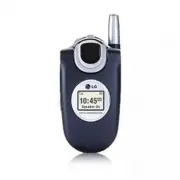
14 AX4750 P h o n e O v e r P h o n e O v e r v i e w v i e w 9. Right Soft Key 10. Navigation Key 12. End/Power Key 13. BACK Key 14. Alphanumeric Keypad 15. Lock Mode Key 1. Earpiece 7. Voice Command Key 6. Send Key 5. Side Keys 8. Manner Mode Key 16. Microphone 17. T2T Key 18. Headset Jack 3. LCD ...
Page 16 - Contacts; Media; Press Left Soft Key; Menu
16 AX4750 M e n u s O v e r M e n u s O v e r v i e w v i e w Contacts 1. List Contacts2. New Number3. New E-mail4. Groups5. Speed Dials6. My Contact Info Recent Calls 1. Dialed Calls2. Received Calls3. Missed Calls4. Erase Calls 1. Dialed Calls2. Received Calls3. Missed Calls4. All Calls 5. Call Ti...
Page 18 - The Battery; Installing the Battery; To use the charger provided with your phone:; Getting Star
18 AX4750 The Battery The phone comes with a rechargeable battery. Keep the batterycharged while not in use in order to maximize talk and standbytime. The battery charge level is shown at the top of the LCDscreen. Installing the Battery To install the battery, insert the battery into the opening on ...
Page 19 - If the; Turning the Phone On; Install a charged battery or connect the phone to an; Turning the Phone Off; until the display turns off.; Signal Strength
19 AX4750 Battery Charge Level The battery charge level is shown at the top right of the LCDscreen. When the battery charge level becomes low, the lowbattery sensor alerts you in three ways: sounding an audibletone, blinking the battery icon, and displaying Low Battery If the battery charge level be...
Page 20 - Screen Icons; Description
20 AX4750 Screen Icons When the phone is powered on, the top line of the LCD screendisplays icons indicating the status of the phone. Getting Star Getting Star ted with Y ted with Y our Phone our Phone Description Signal strength indicator. The strength of the signalreceived by the phone is indicate...
Page 21 - Making Calls; Call Failed; Receiving Calls; NOTE: If you press or (the side keys) while the phone is
21 AX4750 Making Calls 1. Make sure the phone is turned on. If not, press for about 3 seconds. 2. Enter the phone number (include the area code if needed). 3. Press . lf the phone is locked, enter the lock code. Call Failed - indicates the call did not go through. Restricted - indicates outgoing cal...
Page 22 - Manner Mode; Manner Mode Quick Activation; Lock Mode; Lock Mode Quick Activation; Unlock; NOTE: The lock code/password is the last 4 digits of your phone
22 AX4750 Quick Access to Convenient Featur Quick Access to Convenient Featur es es Manner Mode Use Manner Mode in public places. When Manner Mode is set , is displayed on the screen, the key tones are silent, and the phone is set to vibrate. Manner Mode Quick Activation 1. From Main Menu Screen pre...
Page 23 - Mute Function; Mute Quick Activation; Mute; Mute Quick Cancellation; Unmute; Volume Quick Adjustment; NOTE : Key beep volume is adjusted through the Sounds
23 AX4750 Mute Function The Mute function prevents the other party from hearing yourvoice, but allows you to hear the other party. Mute Quick Activation 1. Press Left Soft Key Mute during a call. Mute Quick Cancellation 1. Press Left Soft Key Unmute . Volume Quick Adjustment Use the side keys to adj...
Page 24 - Call Waiting; Dialing Single Digit Speed Dials (from 2 to 9)
24 AX4750 Quick Access to Convenient Featur Quick Access to Convenient Featur es es Call Waiting Your cellular service may offer call waiting. While a call is inprogress, two beeps indicate another incoming call. When callwaiting is enabled, you may put the active call on hold whileyou answer the ot...
Page 25 - Dialing Double Digit Speed Dials (from 10 to 99); OR; Voice Command Dialing; NOTE: Another way to activate Voice Command is to set
25 AX4750 Dialing Double Digit Speed Dials (from 10 to 99) Press the first digit and then press and hold the key of thelast digit. OR Enter the first and second digits and press . Voice Command Dialing Voice Command is a convenient feature that allows you toactivate certain feature quickly and easil...
Page 26 - Text Input; Key Functions; Shift; T9 text; Next; NOTE: When DTMF Tone is changed from Beep to English or
26 AX4750 Entering and Editing Infor Entering and Editing Infor mation mation Text Input You can input and edit your Banner, Schedule, Contacts,Notepad, and Messages. Key Functions Right Soft Key (Left Soft Key) : Press to scroll access the following text input modes: T9Word -> Abc -> 123 ->...
Page 27 - Text Input Modes; Symbols Mode; Changing Letter Case
27 AX4750 Text Input Modes There are five modes for entering text, numbers, specialcharacters, and punctuation. In a text entry field, pressing Right(or Left) Soft Key displays a pop-up list of text modes. T9Word (T9) Mode Use to type text using one keystroke per letter. The phonetranslates keystrok...
Page 28 - Text Input Examples; LG; Using T9 Mode Text Input
28 AX4750 Entering and Editing Infor Entering and Editing Infor mation mation Text Input Examples Display the text modes and select a text mode: 1. In a text entry field, press Right Soft Key (or Left Soft Key ) to display text modes. 2. Press to highlight the text input mode you want to use. 3. Pre...
Page 30 - Contacts Entries; The Basics of Storing Contacts Entries; NOTE: Use Existing to add another phone
30 AX4750 Contacts in Y Contacts in Y our Phone’ our Phone’ s Memor s Memor y y Contacts Entries This allows you to have easy access to your most frequentlydialed phone numbers. You may store up to 500 entries with upto 5 phone numbers each. Each entry may be up to 22characters. Each phone number ma...
Page 31 - Done; NOTE: Press Left Soft Key
31 AX4750 6. Enter a name for the phone number (up to 22 characters), then press . A confirmation message is displayed briefly. 7. Continue saving the entry as a Speed Dial, press to select Speed Dial. 8. Enter a Speed Dial digit (e.g., 2). Use the keypad, then press or use to highlight the Speed Di...
Page 32 - Options to Customize Your Contacts; Adding or Changing the Group; No Group
32 AX4750 Contacts in Y Contacts in Y our Phone’ our Phone’ s Memor s Memor y y Options to Customize Your Contacts Once the basic phone number and name information is stored inyour Contacts, you can edit and customize each entry. 1. Press Right Soft Key Contacts and use to highlight the contact entr...
Page 33 - Changing the Call Ringer; Default Ringer; Changing the Message Ringer; Default Text Msg Ringer
33 AX4750 Changing the Call Ringer Allows you to identify who is calling, by setting different ringersfor different phone numbers in your Contacts. It is automaticallyset to the default ringer when the Contact is saved. 1. Press Right Soft Key Contacts and use to highlight an entry, then press . 2. ...
Page 34 - Adding or Changing the Memo; Memo; Adding or Changing the Picture ID; Default
34 AX4750 Contacts in Y Contacts in Y our Phone’ our Phone’ s Memor s Memor y y Adding or Changing the Memo Allows you to enter up to 32 characters as a memo to theContact entry. 1. Press Right Soft Key Contacts and use to highlight an entry, then press . 2. Press Left Soft Key Edit . 3. Use to high...
Page 35 - Adding Speed Dial; Speed Dial
35 AX4750 Adding Speed Dial 1. Press Right Soft Key Contacts and use to highlight an entry, then press . 2. Press Left Soft Key Edit . 3. Use to highlight the phone number you want to set with a Speed Dial , then press . 4. Press to select Speed Dial , then press . 5. Enter a Speed Dial digit. Use t...
Page 36 - Editing Contacts Entries; Adding Another Phone Number; From the Main Menu Screen
36 AX4750 Contacts in Y Contacts in Y our Phone’ our Phone’ s Memor s Memor y y Editing Contacts Entries Adding Another Phone Number From the Main Menu Screen 1. From Main Menu Screen enter the phone number you want to save (up to 48 digits). 2. Press Right Soft Key Options and select Save to Contac...
Page 37 - Default Numbers; Changing the Default Number; Editing Stored Phone Numbers
37 AX4750 Default Numbers The phone number saved when a Contact is created is theDefault Number. If more than one number is saved in a Contactentry, another number can be designated as the Default Number. Changing the Default Number 1. Press Right Soft Key Contacts to display your Contacts alphabeti...
Page 38 - Editing Stored Names
38 AX4750 Contacts in Y Contacts in Y our Phone’ our Phone’ s Memor s Memor y y Editing Stored Names 1. Press Right Soft Key Contacts to display your Contacts alphabetically. 2. Use to highlight the Contact entry you want to edit, then press . 3. Press Left Soft Key Edit . 4. Use to highlight the na...
Page 39 - Deleting; Deleting a Phone Number from a Contact
39 AX4750 Deleting Deleting a Phone Number from a Contact 1. Press Right Soft Key Contacts to display your Contacts alphabetically. 2. Use to highlight the Contact entry, then press . 3. Press Left Soft Key Edit . 4. Use to highlight the phone number to be deleted. 5. Press Right Soft Key Options . ...
Page 40 - Additional Ways to Delete a Contact
40 AX4750 Contacts in Y Contacts in Y our Phone’ our Phone’ s Memor s Memor y y Additional Ways to Delete a Contact At any time when your Contacts are displayed, the Right SoftKey Options allows you to erase the highlighted entry. Deleting a Speed Dial 1. Press Right Soft Key Contacts to display you...
Page 41 - Phone Numbers With Pauses; Storing a Number with Pauses
41 AX4750 Phone Numbers With Pauses When you call automated systems such as voice mail or creditbilling numbers, you often have to enter a series of numbers.Instead of entering these numbers by hand, you can store thenumbers in your Contacts separated by special pausecharacters (P, T). There are two...
Page 42 - Adding a Pause to an Existing Number; Searching Your Phone’s Memory
42 AX4750 Contacts in Y Contacts in Y our Phone’ our Phone’ s Memor s Memor y y Adding a Pause to an Existing Number 1. Press Right Soft Key Contacts to display your Contacts alphabetically. 2. Use to highlight the Contact entry to edit, then press . 3. Press Left Soft Key Edit . 4. Use to highlight...
Page 44 - Making a Call From Your Phone’s Memory; From Contacts
44 AX4750 Contacts in Y Contacts in Y our Phone’ our Phone’ s Memor s Memor y y Making a Call From Your Phone’s Memory Once you have stored phone numbers in your Contacts, you canplace calls to those numbers quickly and easily. ● By pressing after searching for a phone number in Contacts or Recent C...
Page 45 - Options; Press; Prepend; Enter the prepend digits to the phone number.
45 AX4750 Prepending a Stored Number Prepend can be used if you are out of your home system areaand need to add the area code to an existing number in yourphone's memory. When a Contacts entry or message callbacknumber is displayed, you can add to the beginning of theoriginal number. However, you ca...
Page 46 - Menu Access; NOTE: Press to go back one step (while accessing a menu
46 AX4750 U s i n g P h o n e M e n u s U s i n g P h o n e M e n u s Menu Access Press Left Soft Key Menu to access nine phone menus. There are two methods of accessing menus and submenus: ● Use the navigation key to highlight and select, or ● Press the number key that corresponds to the menu (orsu...
Page 50 - My Contact Info (Menu; NOTE: You cannot edit phone number, but you can add an
50 AX4750 U s i n g P h o n e M e n u s U s i n g P h o n e M e n u s Speed Dials (Menu ) Allows you to view your Speed Dials list, designate new SpeedDials, or remove Speed Dial designations entered in yourContacts. 1. Press , , . 2. Use to highlight the Speed Dial position (or enter the Speed Dial...
Page 51 - Access and Options; NOTE: To view a quick list of all your recent calls, press from
51 AX4750 Recent Calls (Menu ) The Recent Calls Menu is a list of the last phone numbers orContact entries for calls you placed, accepted, or missed. It iscontinually updated as new numbers are added to thebeginning of the list and the oldest entries are removed fromthe bottom of the list. ● indicat...
Page 52 - Received Calls (Menu
52 AX4750 U s i n g P h o n e M e n u s U s i n g P h o n e M e n u s Dialed Calls (Menu ) Allows you to view the list of outgoing calls; up to 30 entries. 1. Press , , . 2. Use to highlight an entry. ● Press to view the entry. ● Press to place a call to the number. ● Press Right Soft Key Options (f...
Page 54 - New Message Alert; Urgent
54 AX4750 U s i n g P h o n e M e n u s U s i n g P h o n e M e n u s Messages (Menu ) Text messages, pages, and the voice mail box become availableas soon as the phone is powered on. ● Check types of messages by pressing the message key . ● Make a call to the callback number by pressing during an I...
Page 56 - Checking Your Voice Mail Box; Clear; The Basics of Sending a Text Message; Address 1
56 AX4750 U s i n g P h o n e M e n u s U s i n g P h o n e M e n u s Voice Mail (Menu ) Allows you to view new voice messages recorded in the voicemail box. Your phone will alert you when you receive a newvoice message. Checking Your Voice Mail Box 1. Press , , . 2. Options from here: ● Press Left ...
Page 57 - Customizing the Text Message Using Options; Create a new message.
57 AX4750 Customizing the Text Message Using Options 1. Create a new message. 2. Press Right Soft Key Options . 3. Select the option(s) to customize. Send Sends the message. Priority Gives priority to the message. Normal / Urgent Callback # Inserts a pre-programmed callback numberwith your message. ...
Page 58 - Using contacts to send a Text Message; NOTE: The Address 1 feature allows multi-sending of up to
58 AX4750 U s i n g P h o n e M e n u s U s i n g P h o n e M e n u s Using contacts to send a Text Message You can designate an entry saved in your Contacts as Address 1instead of manually entering the destination. 1. Press , , . 2. Press Left Soft Key Contacts . 3. Select Contacts / Recent Calls /...
Page 59 - Text Options
59 AX4750 Text Options While you are composing the text of a message you can insertcustomized text. 1. Create a new message. 2. Use to highlight Message then press . 3. Press Right Soft Key Options . 4. Select the option(s) to customize. Insert Quick-Text Inserts predefined phrases. Yes / No / Call ...
Page 60 - Message Icon Reference; Icons
60 AX4750 U s i n g P h o n e M e n u s U s i n g P h o n e M e n u s Message Icon Reference Inbox (Menu ) The phone alerts you in 3 ways when you receive a newmessage by: ● Displaying a message notification on the screen. ● Sounding a beep, vibrating or sound, if set. ● Displaying the message icon ...
Page 64 - Allows you to configure 9 settings for received messages.
64 AX4750 U s i n g P h o n e M e n u s U s i n g P h o n e M e n u s Msg Settings (Menu ) Allows you to configure 9 settings for received messages. 1. Press , , . 2. Use to highlight one of the settings and press to select it. Auto Save Auto Save / Prompt / Do Not Save Auto Erase On / Off Callback ...
Page 65 - Message Settings Sub-Menu Descriptions; Allows you to select the default input method.
65 AX4750 Message Settings Sub-Menu Descriptions Auto Save (Menu ) Allows you to automatically save sent messages in yourOutbox. You can choose Auto Save, Prompt, or Do Not Save. Auto Erase (Menu ) With this feature on, read messages (except locked messages)are automatically deleted when you exceed ...
Page 66 - Inbox
66 AX4750 U s i n g P h o n e M e n u s U s i n g P h o n e M e n u s Quick-Text (Menu ) Allows you to display, edit, and add text phrases. These textstrings allow you to reduce manual text input into messages. Auto Play (Menu ) With this feature on, the display automatically scrolls down whileviewi...
Page 67 - NOTE: Setting up T2T for the first time ‘T2T service is not yet
67 AX4750 Touch2Talk (Menu ) Touch2Talk allows you to make a barge call or send an Alertmessage.The receiving party does not have the option to ignore the call.When an Alert message is sent to the receiving party,the receiving party has the option to place a T2T call or ignorethe alert. Access and O...
Page 68 - Alert
68 AX4750 U s i n g P h o n e M e n u s U s i n g P h o n e M e n u s Call from T2T Contact List (Barge) 1. From Idle Screen, press and hold T2T key to access your T2T Contact List. 2. Use to highlight the T2T Contact entry you wish to call. 3. Press and hold T2T key. ● Sender hears T2T talk tone an...
Page 70 - NOTE: All Incoming T2T calls come through the Speaker
70 AX4750 U s i n g P h o n e M e n u s U s i n g P h o n e M e n u s Call from Keypad (Barge) 1. From Idle Screen, enter the number. 2. Press and hold T2T Key. ● If the phone number is in the T2T contact list, screenshows the Contact name. ● Sender hears T2T talk tone and can begin speaking. 3. Rel...
Page 71 - Making a T2T call when the folder is closed; NOTE: During a voice call, T2T call waiting is allowed and
71 AX4750 Incoming T2T (Alert) 1. Buddy Alert Message appears. 2. Select Accept or Ignore and press . 3. If Accept is selected, ‘Push T2T button to make T2T call to(Contact name)’ is shown. 4. Press and hold T2T key to place a T2T call. ● Sender Hears T2T talk tone and can begin speaking. 5. Release...
Page 72 - Copy to Contacts
72 AX4750 U s i n g P h o n e M e n u s U s i n g P h o n e M e n u s T2T Contacts (Menu ) Allows you to view your T2T Contacts list. T2T Contactsconsists of individual and Group. For a individual, a singlephone number is saved. For a Group, multiple individuals canbe saved. A individual can be save...
Page 73 - My Availability (Menu; Available; NOTE: Adding a new contact or new group is permission based.
73 AX4750 New Group (Menu ) Allows you to add a new T2T group. 1. Press , , . 2. Enter the T2T Group name, then press . 3. Select the individuals with to add to the group, then press Left Softkey . Or press Right Soft Key to add new member to the group. A confirmation message is displayed briefly. R...
Page 76 - Axcess Apps; To view; Short Cut: Pressing the right arrow key will start Axcess
76 AX4750 U s i n g P h o n e M e n u s U s i n g P h o n e M e n u s Access and Options 1. Press Left Soft Key Menu . 2. Press Axcess Apps . 3. Options from here: ● Axcess Apps : To add, delete, or disable Axcess Appsapplications. ● Axcess Info : To view information about Axcess Appsapplications. A...
Page 77 - Gives you information about the Axcess Apps selection key.; Managing Your Axcess Apps Applications; Add new applications and remove old ones at any time.; Removing Applications; Settings; to highlight Manage Apps, then press; Remove
77 AX4750 Axcess Info (Menu ) Gives you information about the Axcess Apps selection key. 1. Press , , . 2. Press . Managing Your Axcess Apps Applications Add new applications and remove old ones at any time. Removing Applications Only removing an application deletes it completely from thememory of t...
Page 78 - Mobile Web; Allows you to initiate a MiniBrowser session.
78 AX4750 U s i n g P h o n e M e n u s U s i n g P h o n e M e n u s Mobile Web (Menu ) The MiniBrowser feature allows you to view internet content.Access and selections within this feature are dependent uponyour service provider. For specific information on MiniBrowseraccess through your phone, co...
Page 79 - Numbered options; Scrolling
79 AX4750 Ending a MiniBrowser Session End a MiniBrowser session by pressing . Navigating Through the Browser On-screen items may be presented in one of the following ways: ● Numbered options You can use your numeric keypad or you can select theitems by moving the cursor and pressing the appropriate...
Page 80 - View Browser Menu; Press and hold Voice Command Key (; Soft Keys; Clearing Out Text/Number Entered; When entering text or numbers, press
80 AX4750 U s i n g P h o n e M e n u s U s i n g P h o n e M e n u s View Browser Menu Press and hold Voice Command Key ( ) to use the Browser menu. Soft Keys To navigate to different screens or select special functions, use the SoftKeys. The function associated with the Soft Keys can change for ea...
Page 81 - Call; Your list of Web messages is displayed.
81 AX4750 Initiating a Phone Call From MiniBrowser You can make a phone call from MiniBrowser if the site you areusing supports the feature (the phone number may be highlightedand Left Soft Key appears as Call ). The browser connection is terminated when you initiate the call. After you end the call...
Page 82 - Use
82 AX4750 U s i n g P h o n e M e n u s U s i n g P h o n e M e n u s Media (Menu ) This menu allows you to download and use a wide variety ofimages, sounds, and more. Access and Options 1. Press Left Soft Key Menu . 2. Press Media . 3. Select a sub-menu. ● Images ● Sounds ● Msg Objects Images (Menu...
Page 84 - Your phone tools include a Schedule, Alarm Clock, Voice Memo,
84 AX4750 U s i n g P h o n e M e n u s U s i n g P h o n e M e n u s Tools (Menu ) Your phone tools include a Schedule, Alarm Clock, Voice Memo, My Shortcut, Notepad, Ez Tip Calc, Calculator, and World Clock. Access and Options 1. Press Left Soft Key Menu . 2. Press Tools . 3. Select a sub-menu. ● ...
Page 85 - NOTE: Scheduler will not alert you during a call or during
85 AX4750 Schedule (Menu ) Allows you to conveniently keep and access your agenda(s).Simply store your appointments and your phone will alert youwith a reminder of your appointment. 1. Press , , . 2. Use to highlight the scheduled day. Moves cursor to the left. Moves cursor to the right. Moves to th...
Page 86 - Alarm 1
86 AX4750 U s i n g P h o n e M e n u s U s i n g P h o n e M e n u s Alarm Clock (Menu ) Allows you to set one of four alarms. The current time isdisplayed at the top of the screen when you select an alarm toset. At the alarm time, Alarm 1 (or 2 or 3, as applicable) will be displayed on the LCD scr...
Page 89 - Cities; NOTE: Press Left Soft Key
89 AX4750 Calculator (Menu ) Allows you to perform simple mathematical calculations. Youcan enter numbers up to the second decimal place. 1. Press , , . 2. Enter data. ● Use keypad to enter numbers. ● Use to enter decimals. ● Use to enter plus/minus change. ● Press Left Soft Key to clear the entry. ...
Page 92 - Message Alerts (Menu; Voice Mail; Service Alerts (Menu; On; Service Change (Menu
92 AX4750 U s i n g P h o n e M e n u s U s i n g P h o n e M e n u s Message Alerts (Menu ) Allows you to select the alert type for a new message. 1. Press , , , . 2. Select Voice Mail / Text Message / E-mail / Page / 2-Min Reminder . 3. Use to select a setting, then press . Service Alerts (Menu ) ...
Page 94 - Display; Timer; Key Light Timer (Menu; Choose a setting, then press; NOTE: If an amount of time is set for the timer option, the time
94 AX4750 U s i n g P h o n e M e n u s U s i n g P h o n e M e n u s Display (Menu ) Options to customize the phone’s display screen. Banner (Menu ) Allows you to enter a string of up to 16 characters which displayon the LCD screen. 1. Press , , , . 2. Enter your banner text, then press . Backlight...
Page 96 - Calling Digits (Menu
96 AX4750 U s i n g P h o n e M e n u s U s i n g P h o n e M e n u s Theme Colors (Menu ) Allows you to choose the color of the background screen. 1. Press , , , . 2. Select Default / Green / Violet / Orange , then press . Contrast (Menu ) Allows you to set the level of contrast for your LCD screen...
Page 98 - Home Only; Serving System (Menu
98 AX4750 U s i n g P h o n e M e n u s U s i n g P h o n e M e n u s System (Menu ) The System menu allows you to designate specific systemnetwork settings. Select System (Menu ) Allows you to set up the phone producer’s managementenvironment. Leave this setting as the default unless you wantto alt...
Page 100 - Restrict Calls (Menu
100 AX4750 U s i n g P h o n e M e n u s U s i n g P h o n e M e n u s Restrict Calls (Menu ) Allows you to restrict incoming and outgoing calls. If you set thisfeature to Outgoing Only , you can only place calls to emergency numbers and phone numbers stored in your Contacts. 1. Press , , . 2. Enter...
Page 101 - Change Code; Erase Contacts (Menu; Erase Contacts
101 AX4750 Change Code (Menu ) Allows you to enter a new four-digit lock code. 1. Press , , . 2. Enter the four-digit lock code. 3. Press Change Code . 4. Enter a new 4-digit lock code. 5. For confirmation, it will ask you to enter the new lock codeagain. Erase Contacts (Menu ) Allows you to erase a...
Page 105 - NOTE: When using the 1X HSPD data service via an RS-232C
105 AX4750 Select Port (Menu ) Allows you to select the data port. 1. Press , , , . 2. Use to select a setting, then press . ● USB / RS-232C(COM Port) / Closed Port Speed (Menu ) This setting enables you to set the port speed. 1. Press , , , . 2. Use to select a setting, then press . 19200 / 115200 ...
Page 106 - Voice Services (Menu; Voice Commands (Menu; Flip Open
106 AX4750 U s i n g P h o n e M e n u s U s i n g P h o n e M e n u s PAP ID (Menu ) It is the user’s ID for PPP Authentication Protocol. 1. Press , , , . 2. Enter a PAP ID and press . PAP Password (Menu ) It is the user’s password for PPP Authentication Protocol. 1. Press , , , . 2. Enter a PAP Pa...
Page 108 - Result
108 AX4750 U s i n g P h o n e M e n u s U s i n g P h o n e M e n u s Best Match (Menu ) After you say a name or a number, your phone displays therecognition results—the name or number that best matches theone you said—and asks you to confirm. Select the number ofresults that you want your phone to...
Page 109 - Location On; My Phone Number (Menu; Allows you to view your phone number.; NOTE: GPS satellite signals are not always transmitted,
109 AX4750 Help (Menu ) Helps you to use the Voice menu. 1. Press , , , . Location (Menu ) Menu for GPS (Global Positioning System: Satellite assistedlocation information system) mode. 1. Press , , . 2. Use to select a setting, then press . ● Location On / E911 Only Phone Info (Menu ) The Phone Info...
Page 110 - U s i n g P h o n e M e n u s
110 AX4750 Icon Glossary (Menu ) Allows you to view all the icons and their meanings. 1. Press , , , . Shortcut Help (Menu ) Allows you to view condensed information about using the phone. 1. Press , , , . U s i n g P h o n e M e n u s U s i n g P h o n e M e n u s
Page 111 - TIA Safety Information; Exposure to Radio Frequency Signal
111 AX4750 S a f e t y S a f e t y TIA Safety Information The following is the complete TIA Safety Information for wireless handheld phones. Exposure to Radio Frequency Signal Your wireless handheld portable phone is a low power radio transmitter andreceiver. When it is ON, it receives and also send...
Page 112 - Tips on Efficient Operation; Electronic Devices
112 AX4750 S a f e t y S a f e t y Tips on Efficient Operation For your phone to operate most efficiently:Do not touch the antenna unnecessarily when the phone is in use. Contactwith the antenna affects call quality and may cause the phone to operate at ahigher power level than otherwise needed. Dri...
Page 114 - Potentially Explosive Atmosphere; Safety Information; Charger and Adapter Safety; Battery Information and Care; Caution
114 AX4750 S a f e t y S a f e t y Potentially Explosive Atmosphere Turn your phone OFF when in any area with a potentially explosiveatmosphere and obey all signs and instructions. Sparks in such areas couldcause an explosion or fire resulting in bodily injury or even death.Areas with a potentially ...
Page 116 - General Notice
116 AX4750 S a f e t y S a f e t y General Notice ● Using a damaged battery or placing a battery in your mouth may causeserious injury. ● Do not place items containing magnetic components such as a creditcard, phone card, bank book or subway ticket near your phone. Themagnetism of the phone may dama...
Page 117 - FDA Consumer Update; Do wireless phones pose a health hazard?
117 AX4750 FDA Consumer Update The U.S. Food and Drug Administration’s Center for Devices and Radiological Health Consumer Update on Mobile Phones: 1. Do wireless phones pose a health hazard? The available scientific evidence does not show that any health problems are associated with using wireless ...
Page 120 - What research is needed to decide whether RF
120 AX4750 S a f e t y S a f e t y development of cancer in laboratory animals. However, many of the studies that showed increased tumor development used animals that had been genetically engineered or treated with cancer-causing chemicals so as to be pre-disposed to develop cancer in the absence of...
Page 122 - How can I find out how much radio frequency
122 AX4750 S a f e t y S a f e t y 7. How can I find out how much radio frequency energy exposure I can get by using my wireless phone? All phones sold in the United States must comply with Federal Communications Commission (FCC) guidelines that limit Radio Frequency (RF) energy exposures. The FCC e...
Page 124 - What about children using wireless phones?
124 AX4750 S a f e t y S a f e t y 10. What about children using wireless phones? The scientific evidence does not show a danger to users ofwireless phones, including children and teenagers. If you wantto take steps to lower exposure to Radio Frequency (RF) energy ,the measures described above would...
Page 125 - Where can I find additional information?
125 AX4750 The FDA has tested hearing aids for interference from handheld wireless phones and helped develop a voluntary standard sponsored by the Institute of Electrical and Electronic Engineers (IEEE). This standard specifies test methods and performance requirements for hearing aids and wireless ...
Page 126 - 0 Driver Safety Tips; S a f e t y
10 Driver Safety Tips Your wireless phone gives you the powerful ability to communicate by voice almost anywhere, anytime. An important responsibility accompanies the benefits of wireless phones, one that every user must uphold. When operating a car, driving is your first responsibility. When using ...
Page 128 - Consumer Infor mation on SAR
128 AX4750 S a f e t y S a f e t y Consumer Infor mation on SAR (Specific Absorption Rate) This model phone meets the government’s requirements for exposure to radio waves. Your wireless phone is a radio transmitter and receiver. It is designed and manufactured not to exceed the emission limits for ...
Page 130 - Batter y Charger
130 AX4750 A c c e s s o r i e s A c c e s s o r i e s There are a variety of accessories available for your mobile phone. Consult your local dealer for availability. Batter y Charger The battery charger allows you to power your phone. Input Voltage: 8102-240VAC 50-60Hz Output Voltage: 5.0V, 1000mA ...
Page 131 - NOTE: It operates in vibration/no sound mode on
131 AX4750 Headset The headset connects to your phone allowing hands-free operation. It includes earpiece, microphone. USB Converter Cable Connects your phone to your PC. Battery Pack Charger The battery pack charger allows you to charge the battery pack itself without the phone. It can charge a com...