Page 2 - All rights reserved
Copyright ©2011 LG Electronics, Inc. All rights reserved . LG and the LG logo are registered trademarks of LGGroup and its related entities. All other trademarksare the property of their respective owners. LG511C_TRF_Cover_110816_1.0.qxd 8/16/11 2:42 PM Page 2
Page 3 - LG 511 C U s e r G u i d e
LG 511 C U s e r G u i d e - English Some of the contents in this manual may differ from yourphone depending on the software of the phone or your serviceprovider. LG511C_TRF_Eng1.0_110816.qxd 8/16/11 2:44 PM Page 1
Page 4 - P h o n e O ve r v i ew
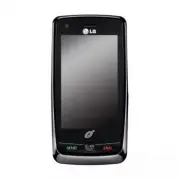
2 P h o n e O ve r v i ew 1. LED Light Alerts you of new notifications. 2. Earpiece Lets you hear the caller. 3. Slide Slide open to access the QWERTY keyboard. 4. LCD Screen Displays incoming calls, messages and status icons as well as viewing a wide varietyof content. 5. Send Key Use to place or a...
Page 6 - Phone Overview; Qwerty Keyboard
4 Phone Overview Qwerty Keyboard Your phone features a QWERTY keyboard, specifically designedfor easy and comfortable text entry. The QWERTY keyboard usesa standard layout. 1. Function Key allows you enter the alternate character (such as $ for the Ykey) on the QWERTY keyboard (See"Entering and ...
Page 7 - Prepaid; Menus Overview; Menu Access
Communicate Prepaid Add AirtimeBuy Airtime My Phone Number Airtime Info Airtime Display Serial Number Code Entry Mode Contacts New Contact Contact List Speed Dials Groups My vCard Messages New Text Message New Picture Message Inbox Drafts Outbox Voicemail Web Alerts Templates Delete All Delete Inbox...
Page 11 - G ett i n g S ta r te d w i t h Yo u r P h o n e; The Battery; Installing the Battery; Charging the Battery; Note
9 G ett i n g S ta r te d w i t h Yo u r P h o n e The Battery The phone comes with arechargeable battery. Thebattery charge level is shown atthe top right corner of the LCDscreen. Installing the Battery 1. Press down on the bottom center part of the batterycover and slide it upwards toremove it. 2....
Page 12 - Card
Plug one end of the adapterinto the phone’s Accesory/Charger Port and the otherend into an electrical outlet.The charge time variesdepending upon the batterylevel. How to Install YourmicroSD ™ Card 1. Locate the microSD ™ slot on the right side of the phoneand gently uncover the slotopening. 2. Inse...
Page 13 - Turning the Phone On
How to Remove YourmicroSD ™ Card 1. Uncover the slot opening and gently press and releasethe exposed edge of themicroSD ™ card to eject it. 2. Remove the microSD ™ card from the slot and replacethe cover. B attery Charge Level The battery charge level isshown at the top right cornerof the LCD screen...
Page 14 - Making Calls; Getting Started with Your Phone
Signal Strength Call quality depends on thesignal strength in your area.The signal strength is indicatedon the screen as the number ofbars next to the signal strengthicon . The more bars, the better the signal strength. Ifthe signal quality is poor, moveto an open area. If you are in abuilding, the ...
Page 15 - Redialing Calls
for at least 2 seconds to erase all the digits entered. Redialing Calls Press the Send Key twice to redial the last numberyou dialed. If you press once,the most recent (Missed,Received and Dialed) calls willdisplay. You can select any ofthese calls to place anoutgoing call. Receiving Calls 1. When t...
Page 16 - Quick Volume Adjustment; Quick Access to Convenient Features
Lock Phone Sets your phone to require a4-digit Lock Code in order touse the phone.To set the lock mode on, touch Menu > Settings > Phone Settings > Security > Enter your Lock Code > Lock Phone > None/ When Switch On/ Immediately . Speakerphone Function This function is used during ...
Page 17 - Caller ID
1. During a call, press the Send Key to answer a waiting call. 2. Press the Send Key again to switch betweenyour active calls. Caller ID Caller ID displays the phonenumber or name of the incomingcall. If the caller’s identity is storedin Contacts, the name will appearalong with the phone number.Chec...
Page 18 - Entering and Editing Information; Text Input
16 Entering and Editing Information Text Input Each time you touch a text entry field, the touchscreenautomatically displays a keypad allowing you to enter text,numbers, and symbols. For example, in a name field, an alphabetkeypad appears, but you can also switch to number mode toenter digits. You c...
Page 19 - Contacts in Your Phone’s Memory
17 Contacts in Your Phone’s Memory The Basics of StoringContacts Entries 1. Enter the phone number you want to save (up to 48digits). 2. Touch Options . 3. Touch Save and select either Add New Contact or Update Existing on the pop- up screen. 4. Touch a Phone Label. Mobile 1/ Home 1/ Office1/ Mobile...
Page 21 - Accessing Options
Searching Your Phone’sMemory The LG511C phone is able to perform a dynamic search of thecontents in your phone’smemory. A dynamic searchcompares entered letters ornumbers against the entries inyour Contacts. A matching list isdisplayed in descending order.You can then select a numberfrom the list to...
Page 26 - Contacts
24 Contacts The Contacts menu allows youto store names, phone numbersand other information in yourphone’s memory. 1. New Contact Allows you to add a newcontact to your Contact List. 1. Touch , , New Contact . 2. Enter the name. 3. Continue entering Contact information by touching thecorresponding fi...
Page 28 - Messages
5. My vCard Allows you to view all of yourpersonal Contact information,including name and phonenumbers. 1. Touch , , My vCard . 2. Touch . 3. Touch the field you want to edit. 4. Edit the information as necessary and touch . Messages The phone can store up to535 messages, including amaximum of 200 S...
Page 37 - New Text Message; Speed Dials
New Text Message Refer to page 27 ~ 28 for more information. 1. Touch Menu . 2. Touch New Text Message . Speed Dials Refer to page 25 for moreinfomation 1. Touch Menu . 2. Touch Speed Dials . Recent Calls The Recent Calls menu is a listof the last phone numbers orContacts entries for calls youplaced...
Page 39 - Browser
3. Press the End Key to return to the Home screen. 5. Call Timer Allows you to view the durationof selected calls. 1. Touch , , Call Timer . 2. Call times are displayed for the following types of calls: Last Call/ Received Calls/Dialed Calls/ Home Calls/Roam Calls/ All Calls/Lifetime Calls Browser T...
Page 40 - Browser Navigation
Ending an Browser Session End an Browser session bypressing the End Key . Browser Navigation Links embedded in content Select items or links bytouching it on the screen. Scrolling / Fast Scrolling Use your fingertip to scroll thescreen contents in thedirection you move your finger.How quickly you mo...
Page 43 - Apps
2. Touch Browser . 3. Touch (in the Browser Menu Bar) to view theBrowser menu settings. 4. Touch Settings , then Display . 5. Touch Thumbnail . The options available are: ● On : The thumbnail screen image is always displayed inone corner of the screen. ● Off : The thumbnail screen image is never dis...
Page 44 - Entertainment; Take Photo
Entertainment Take Photo 1. Touch , , . 2. Touch access the following camera options: ● Zoom Allows you to zoom in and out. This function isnot available at the highestresolution. ● Brightness Allows you to change the Brightness. ● Resolution 1600X1200/ 1280X960/ 640X480/320X240 ● Self Timer Off/ 3 ...
Page 45 - Gallery
5. If Auto Save is set to Off, the following options areavailable: Send Allows you to send the picture via PictureMessage. Set as Wallpaper/ Picture ID Back To return to Camera Mode. Delete To delete the photo. Save Stores the picture in My Images . My Images To view the photos in the My Imagesfolde...
Page 46 - My Stuff
44 Pen Be creative. Draw on a photo. Choose from multiplecolors and pen widths. Touch OK to set the settings. Stamp LG511C has multiple stamps to choose fromto enhance your pictures. Eraser Allows you to erase the edits/changes made to theimage. Save Saves the image. Undo Allows you to undo the last...
Page 49 - Drawing Panel
4. Your video will be saved to your phone. 5. If Auto Save is set to Off, the following options areavailable: Send Allows you to send the video via MultimediaMessage. Back To return to Video Mode. Delete To delete the video. Save Stores the video in Videos. Videos To view the videos in the Videos fo...
Page 50 - Record Voice; SNS
48 Record Voice Record Voice allows you torecord short verbal voicemessages. 1. Touch , , . 2. Touch to record a new voice memo. 3. Talk into the microphone, then touch . The default memo title is the date andtime of recording. 4. Once recording has stopped, touch Options to access the following: Se...
Page 51 - Music
Music Allows you to listen to songsstored in your memory card. To access this feature, thereshould be stored music in yourmemory card. 1. Recently Played Allows you to view the songscurrently playing, or the mostrecently played songs. 1. Touch , , , Recently Played . 2. Touch the music file to play ...
Page 54 - Voice Command; Utilities
52 Utilities Voice Command Allows you to make phone callsquickly and easily by voice.Your phone recalls the numberfrom your Contacts, displays itbriefly, and then dials it. Thismenu also includes featuresthat are useful for those whoare driving or blind. It deliverstime information by voice andallow...
Page 56 - Notepad
54 2. Select an option. Disable/ Announce/Announce + Ring 4. Train Word Allows you to train the voicerecognition for improvedresults. 1. Touch , , , Train Word . 2. Select an option. Voice Command/ Answer/Digit Dial 5. Best Match Allows you to customize theBest Match settings. 1. Touch , , , Best Ma...
Page 57 - Organizer
55 Organizer 1. Calendar Allows you to store and accessyour agenda(s). Simply storeyour appointments in yourCalendar and your phone willalert you with a reminder. 1. Touch , , , Calendar. 2. Touch the day you wish to add an event to. 3. Touch . 4. Enter your schedule information including: ● Subject...
Page 58 - Stopwatch; Alarm Clock
56 Stopwatch Allows you to use theStopwatch function of thephone. 1. Touch , , . 2. Touch to start the stopwatch and to stop it. ● You can use the Lapfunction by touching to record up to 20 laps and lap times. 3. Touch Reset to reset the stopwatch or Resume to resume it. Alarm Clock Allows you to se...
Page 59 - World Clock
57 5. Touch Save to save your settings. World Clock Allows you to determine thecurrent time in another timezone or country. 1. Touch , , . 2. Touch to select other regions of the world. 3. Touch , select the city and touch . 4. Touch if you wish to set Daylight SavingsTime. 5. Touch to save the city...
Page 60 - Tools
58 Tools 1. Tip Calculator Allows you to quickly andeasily estimate the tip and totalamount of a bill by inputtingthe bill amount before tip, thetip percentage, and dividing itby the number of peoplepaying. 1. Touch , , , Tip Calculator . 2. Enter the variable fields (Total bill, Tip(%), Split). 3. ...
Page 61 - Sound Settings
59 Settings Settings Sound Settings This menu allows you tocustomize the phone’s sounds. 1. Ringtones Allows you to select ringtonesfor specific incoming calls. 1. Touch , , and Ringtones . 2. Touch the type of call you would like to set. All Calls/ Caller ID/ NoCaller ID 3. Touch My Sounds or Defau...
Page 62 - Minute Beep
3. Touch My Sounds or Default Sounds . For Message Reminder, touch Once , Every 2 Minutes , Every 15 Minutes , or Off . 4. Touch the desired alert to set it. 4. Alert Type Allows you to select the alerttypes. 1. Touch , , and Alert Type . 2. Touch the option you want to customize: Call Alert / Messa...
Page 63 - Display Settings
61 6. Power On/Off Tone Allows you to set the phone tosound a tone when the phoneis powered on and off. 1. Touch , , . 2. Touch the Power On/Off Tone button to toggle the setting between ON and OFF . 7. Emergency Tone Allows you to set theEmergency Tone. 1. Touch , , , and Emergency Tone . 2. Touch ...
Page 66 - Dialing; Call Settings
8. Menu Style Allows you to set the defaultMenu Style. 1. Touch , , and Menu Style . 2. Touch a setting. Claro Style/ 3D Icon Style 9. Name Match for Dialing Matches a saved Contact entrywith the corresponding lettersentered on the Dialpad. 1. Touch , , . 2. Touch the Name Match for Dialing button t...
Page 68 - Touch Settings
5. TTY Mode Allows you to attach a TTY(Teletype writer) deviceenabling you to communicatewith parties also using a TTYdevice. A phone with TTYsupport is able to translatetyped characters to voice.Voice can also be translatedinto characters and thendisplayed on the TTY. 1. Touch , , and TTY Mode . 2....
Page 69 - Phone Settings
2. Touch the screen to start calibration, then touch thetarget each time it appears. 2. Touchscreen Effect Allows you to customize yourtouchscreen's sound andvibration settings. 1. Touch , , and Touchscreen Effect . 2. Touch the option you want to customize: ● Tone TypeWoodblock/ Click/ Beep/Bubble ...
Page 70 - Camera Restrictions
2. Security The Security menu allows youto electronically secure yourphone. 2.1 Lock Phone Keeps your phone fromunauthorized use. Once thephone is locked, it is inrestricted mode until the LockCode is entered. You can stillreceive phone calls and makeemergency calls. You can modify the Lock Codeby n...
Page 73 - System
4.2 ESN/MEID Allows you to view the ESN/MEID information of yourphone. 1. Touch , , , Phone Info and ESN/ MEID . 4.3 Icon Glossary Allows you to view all the iconsand their meanings. 1. Touch , , , Phone Info and Icon Glossary . 4.4 Version Allows you to view the versionsof various applications. 1. ...
Page 74 - Bluetooth
1.2 Serving System Identifies the channel numberof a system that is served as aSID Number. This informationshould only be used fortechnical support. 1. Touch , , , Network and Serving System . 2. Location Allows you to set your settingsfor GPS (Global PositioningSystem: Satellite assistedlocation in...
Page 75 - My Visibility
ON/OFF Allows you to turn the poweron or off. 1. Touch , , . 2. Touch the Bluetooth button to turn the feature ON or OFF . Search To search for a new device topair with touch . Settings My Visibility Allows you to set the visibilityof your Bluetooth ® feature. 1. Touch , , , and My Visibility. 2. To...
Page 76 - Devices Found; USB Mass Storage; Using Phone Menus
My Bluetooth Info Allows you to edit your phone'sname and allows you to viewyour phone's Bluetooth ® information. 1. Touch , , , and My Bluetooth Info. 2. Touch . 3. Press and hold down to clear the existing name. 4. Enter a new name using the QWERTY keyboard. 5. Touch to save and exit. Supported Pr...
Page 77 - S a f ety; For Your Safety; Important Information; Safety Instructions
75 S a f ety For Your Safety Important Information This user guide containsimportant information on the useand operation of this phone.Please read all the informationcarefully for optimal performanceand to prevent any damage to ormisuse of the phone. Anychanges or modifications notexpressly approved...
Page 78 - Safety; Safety Information
76 Safety medical facility or at a gasstation. Never place your phonein a microwave oven as this willcause the battery to explode. IMPORTANT ! Please read the TIA SAFETY INFORMATIONbefore using your phone. Safety Information Read these simple guidelines.Breaking the rules may bedangerous or illegal....
Page 82 - Cautions for Battery
80 Safety ● Connect the equipment intoan outlet on a circuit differentfrom that to which thereceiver is connected. ● Consult the dealer or anexperienced radio/TVtechnician for help. Cautions for Battery ● Do not disassemble or opencrush, bend or deform,puncture or shred. ● Do not modify orremanufact...
Page 84 - TIA Safety Information
82 Safety reasonable level so that youare aware of yoursurroundings. This isparticularly imperative whenattempting to cross the street. Safety Guidelines TIA Safety Information Provided herein is the completeTIA Safety Information forWireless Handheld phones.Inclusion of the text coveringPacemakers,...
Page 85 - Tips on Efficient Operation
* American National StandardsInstitute; National Council onRadiation Protection andMeasurements; InternationalCommission on Non-IonizingRadiation Protection The design of your phonecomplies with the FCC guidelines(and those standards). Antenna Care Use only the supplied or anapproved replacement ant...
Page 86 - HAC
● Pull off the road and parkbefore making or answering acall if driving conditions sorequire. Electronic Devices Most modern electronicequipment is shielded from RFsignals. However, certainelectronic equipment may not beshielded against the RF signalsfrom your wireless phone. Pacemakers The Health I...
Page 88 - Safety Guidelines
Posted Facilities Turn your phone OFF in anyfacility where posted notices sorequire. Aircraft FCC regulations prohibit usingyour phone while in the air. Turnyour phone OFF before boardingan aircraft. Blasting Areas To avoid interfering with blastingoperations, turn your phone OFFwhen in a ‘blasting ...
Page 89 - Charger and Adapter Safety
87 the area over the air bag or inthe air bag deployment area. Ifin-vehicle wireless equipment isimproperly installed and the airbag inflates, serious injurycould result. Charger and Adapter Safety ● The charger and adapter areintended for indoor use only. Battery Information andCare ● Please dispos...
Page 91 - General Notice
89 General Notice ● Using a damaged battery orplacing a battery in your mouthmay cause serious injury. ● Do not place items containingmagnetic components such asa credit card, phone card,bank book or subway ticketnear your phone. Themagnetism of the phone maydamage the data stored in themagnetic str...
Page 92 - FDA Consumer Update
software. Please backup yourimportant phone numbers.(Ring tones, text messages,voice messages, pictures, andvideos could also be deleted.)The manufacturer is not liablefor damage due to the loss ofdata. ● When you use the phone inpublic places, set the ringtone to vibration so as not todisturb other...
Page 103 - 0 Driver Safety Tips
World Health Organization(WHO) International EMFProject (http://www.who.int/peh-emf/) National Radiological ProtectionBoard (UK) (http://www.hpa.org.uk/radiation/) 10 Driver Safety Tips Your wireless phone gives youthe powerful ability tocommunicate by voice almostanywhere, anytime. An importantresp...
Page 111 - Ac c es s o r i es; attery Charger
109 Ac c es s o r i es There are a variety of accessories available for your mobile phone.Consult your local dealer for availability. Optional items are soldseparately. B attery Charger The battery charger allows you to chargeyour phone. B attery Standard battery is available. LG511C_TRF_Eng1.0_1108...
Page 112 - I n d ex
110 A Accessories 109Add Airtime 22Airplane Mode 65Airtime Display 23Airtime Info 23Alarm Clock 56Albums 50Alert Type 60All Calls 36All Songs 49Answer Options 64Apps 41Artists 50Auto Retry 64 B Bluetooth 72Browser 37Buy Airtime 22 C Calculator 57Calendar 55 Call Settings 64Call Timer 37Clock & C...
Page 114 - Index
112 Index U Unit Converter 58USB Mass Storage74 V Voice Command 52Voicemail 32Volume 59 W Wallpaper 61Web Alerts 33World Clock 57 LG511C_TRF_Eng1.0_110816.qxd 8/16/11 2:44 PM Page 112
Page 115 - Guía del usuario de LG511C
Guía del usuario de LG511C - Español Parte del contenido de este guía puede no coincidir con elteléfono dependiendo del software del teléfono o del proveedorde servicios. LG511C_TRF_Spa1.0_110816.qxd 8/16/11 2:45 PM Page 1
Page 116 - D es c r i p c i ó n g e n e ra l d e l te l é f o n o
2 D es c r i p c i ó n g e n e ra l d e l te l é f o n o 1. Luz LED Le avisa de nuevas notificaciones. 2. Auricular Le permite escuchar a quien le llama. 3. Tapa Deslice el teléfono para acceder al teclado QWERTY. 4. Pantalla LCD Muestra las llamadas entrantes, mensajes e iconos de estado. También m...
Page 118 - Descripción general del teléfono; El teclado QWERTY
4 Descripción general del teléfono El teclado QWERTY Su teléfono cuenta con un teclado QWERTY, específicamentediseñado para la introducción de texto fácil y cómodo. El tecladoQWERTY usa un diseño estándar. 1. Tecla Función Permite introducir los carácteres alternos (como $ para la tecla Y ) en el te...
Page 119 - Prepago; Descripción general de los menús; Acceso a los menús
Comunicar Prepago Añadir TiempoCelularComprar TiempoCelular Mi NúmeroTelefónico Saldo de TiempoCelular Mostrar TiempoCelular Número de Serie Modo Ingreso deCódigo Contactos Nuevo Contacto Lista de Contactos Marcado Veloz Grupos Mi vCard Mensajes Nuevo Mensaje Texto Nuevo Mensaje conFoto Entrada Borr...
Page 124 - La batería; Instalación de la batería; Cargar la batería; C ó m o e m p e z a r c o n s u te l é f o n o
La batería El teléfono viene con unabatería recargable. El nivel decarga de la batería se muestraen la esquina superior derechade la pantalla LCD. Instalación de la batería 1. Oprima la parte central inferior de la tapa de labatería hacia abajo y deslícelahacia arriba para retirarla. 2. Alinee los c...
Page 126 - Nivel de carga de la batería; Nota; Cómo empezar con su teléfono
Retirando la tarjetamicroSD TM 1. Destape la abertura de la ranura y suavemente oprimay libere el borde expuestode la tarjeta microSD ™ para expulsarla. 2. Retire la tarjeta microSD ™ de la ranura y vuelva acolocar la tapa. Nivel de carga de la batería El nivel de carga de la batería semuestra en la...
Page 127 - Encender el teléfono; Apagar el teléfono; Fuerza de la señal
Encender y apagar elteléfono Encender el teléfono 1. Instale una batería cargada o conecte el teléfono a unafuente de corriente externa(si el nivel de carga de labatería es bajo). 2. Oprima la Tecla Encender/ Bloquear por 3 segundos hasta que se encienda lapantalla LCD. Apagar el teléfono Mantenga o...
Page 129 - Recibir llamadas
Recibir llamadas 1. Cuando el teléfono suene o vibre, oprima la Tecla Enviar para contestar. 2. Oprima la Tecla Fin para terminar la llamada. 15 Sugerencia El menú Config Llamada le permiteelegir opciones para contestar lasllamadas. Para acceder lasOpciones de Respuesta, toque Menú > Configuracio...
Page 130 - Ajuste rápido del volumen; Acceso rápido a funciones prácticas
Bloqueo de Teléfono Ajusta su teléfono para que serequiera su Código de Bloqueode 4 dígitos para usarlo. Para establecer el modoBloqueo de Teléfono, toque Menú > Configuraciones > Config Teléfono > Seguridad > Introduzca su Código de Bloqueo > Bloqueo de Teléfono > Ninguno/ Al Ence...
Page 131 - Llamada en Espera; ID de Llamador
Llamada en Espera Es posible que su serviciocelular le ofrezca el servicio dellamada en espera. Mientrasuna llamada está en curso, unpitido indica que otra llamadaestá entrando. Cuando estáhabilitada la llamada en espera,puede poner la llamada activaen espera mientras contesta laotra llamada entrant...
Page 132 - Marcado Veloz
Marcado Veloz El Marcado Veloz es unacaracterística conveniente quepermite hacer llamadastelefónicas rápidamente. Unnúmero de Marcado Veloz sepuede asignar a un número deteléfono específico. Al manteneroprimida una tecla numérica, suteléfono recordará el número deteléfono y lo marcará parausted. El ...
Page 133 - Introducir y editar información; Entrada de texto
19 Introducir y editar información Entrada de texto Cada vez que toca un campo de texto, la pantalla táctil muestra elteclado automáticamente, permitiéndole introducir texto, números ysímbolos. Por ejemplo, en un campo de texto, un teclado alfanuméricoaparece pero también puede cambiar a modo de núm...
Page 134 - Contactos en la memoria del teléfono
20 Contactos en la memoria del teléfono Aspectos básicos delalmacenamiento deentradas de contactos 1. Introduzca el número de teléfono (hasta 48 dígitos)que desee guardar. 2. Toque Opciones . 3. Toque Grdr y seleccione Nuevo Contacto o Actualizar Existente en la pantalla emergente. 4. Toque una etiq...
Page 136 - Buscando por letra
22 8. Toque Espera o 2-Seg Pausa . 9. Introduzca los números adicionales, toque y luego . Búsqueda en la memoriadel teléfono El teléfono LG511C puederealizar una búsqueda dinámicadel contenido de su Lista deContactos. La búsquedadinámica compara las letras onúmeros introducidos con lasentradas de su...
Page 137 - Accediendo opciones
Accediendo opciones 1. Toque Menú . 2. Toque Contactos . 3. Toque la Lista de Contactos para mostrar sus contactosen orden alfabético. 4. Toque Opciones para seleccionar una de lassiguientes opciones: Nuevo Contacto Permite agregar un nuevocontacto a la Lista deContactos. Nuevo Mensaje Envía un mens...
Page 139 - Celular
25 Comunicar Comunicar Prepago El menú Prepago ofreceaccesos directos para accedera información de la cuenta deutilidad. 1. Añadir Tiempo Celular Le permite iniciar una solicitudde tiempo celular adicional através del aire. 1. Toque , , Añadir Tiempo Celular . 2. Introduzca el PIN de tiempo celular ...
Page 141 - Contactos; Lista de Contactos
27 Contactos El menú Contactos le permitealmacenar nombres, númerosde teléfono y otros datos en lamemoria de su teléfono. 1. Nuevo Contacto Le permite agregar un nuevocontacto. 1. Toque , , Nuevo Contacto. 2. Introduzca el nombre. 3. Para continuar introduciendo informacióndel contacto, toque elcamp...
Page 143 - Mensajería
Nuevo Mensaje/Renombrar Grupos/Eliminar de Grupos/Grupos de Timbre/Envió vía Bluetooth/Borrar/ Borrar Todos 5. Mi vCard Le permite ver toda suinformación de contactopersonal, lo que incluye elnombre y números de teléfono. 1. Toque , , Mi vCard . 2. Toque . 3. Toque el campo que desea editar. 4. Modi...
Page 144 - Texto
30 1. Nuevo Mensaje Texto Le permite enviar mensajes detexto y correo electrónico.Cada mensaje se formatea yenvía de acuerdo con ladirección del destinatario. Aspectos básicos del envíode mensajes 1. Toque Mensajes y Nuevo Mensaje Texto . 2. Toque para introducir la dirección deldestinatario o Conta...
Page 145 - Opciones de texto
31 Opciones de texto Al redactar un mensaje detexto, tiene varias opcionespara personalizar el texto. 1. Toque Mensajes y Nuevo Mensaje Texto . 2. Toque el campo Texto para introducir texto. 3. Toque Opciones . 4. Seleccione la opción u opciones que deseapersonalizar. Añadir Texto Rápidos/ Firma/ No...
Page 146 - Nuevo Mensaje Foto
2. Nuevo Mensaje Foto Le permite enviar mensajes conTexto, Imagen/Vídeo y Audio. 1. Toque Mensajes y Nuevo Mensaje con Foto . 2. Toque para introducir la dirección deldestinatario o para agregar un contacto dela Lista de Contactos. 3. Toque el campo correspondiente paraagregar Texto,Imagen/Vídeo, So...
Page 151 - Config de Mensaje
37 1. Toque Mensajería y Textos Rápidos. 2. Toque para añadir un nuevo textorápido. 3. Después de añadir el nuevo texto rápido, toque para guardarlo. 4. Toque un mensaje borrador para abrirlo y editarlo. 9. Borrar Todos Le permite borrar todos losmensajes de texto guardadosen su carpeta Entrada,Borr...
Page 152 - Nuevo Msj Texto
38 Configuraciones de lossubmenús de Mensajes 10.1 Todos los Mensajes 1. Modo de Ingreso (T9/ Abc/ 123) Le permite seleccionar elmétodo de introducciónpredeterminado. 2. Firma (ON/ OFF) Le permite crear o modificaruna firma que se envíeautomáticamente con susmensajes. 10.2 Mensajes de Texto 1. Repro...
Page 153 - Llamadas Recientes
39 Llamadas Recientes El menú Llamadas Recientes esuna lista de los últimosnúmeros de teléfono oentradas de Contactos dellamadas perdidas, recibidas ymarcadas. Se actualizaconstantemente con los nuevosnúmeros agregándose alprincipio de la lista y lasentradas más antiguaseliminándose del final. 1. Pe...
Page 154 - Tiempo de Llamadas
3. Oprima la Tecla Fin para volver a la Pantallaprincipal. 3. Marcadas Le permite ver la lista dellamadas marcadas; hasta 50entradas. 1. Toque , , Marcadas . 2. Toque una entrada o toque Opciones para las siguientes opciones: Ir a Contacto/ Ir aMarcación/ Borrar/ BorrarTodos/ Tiempo deLlamadas 3. Op...
Page 155 - Acceso Web; Iniciar Acceso Web
2. Los tiempos de llamada se muestran para los siguientestipos de llamadas: Última Llamada / Llams de Entrada/ Llams de Salida/Llamada de Base / Llamada de Roam / Todas las Llams/ De por vida Acceso Web La función Acceso Web lepermite ver contenido delnternet diseñadoespecialmente para su teléfonoce...
Page 160 - Tomar Foto
46 Entretenimiento Tomar Foto 1. Toque , , . 2. Las siguientes opciones de Cámara están disponibles: ● Zoom Permite acercar y alejar la imagen. Esta funciónno está disponible en laresolución máxima ● Brillo Permite ajustar el brillo ● Resolución 1600X1200/ 1280X960/ 640X480/320X240 ● Disparo Auto Ap...
Page 161 - Galería
4. Su foto se guardará en su teléfono. 5. Si Guardar Siempre está Apagado, las siguientesopciones están disponibles: Enviar Permite enviar la imagen via Mensaje deFoto Establecer como Fondo de Pantalla/ Foto ID Atrás Para regresar al Modo de Cámara. Borrar Para borrar la imagen. Guardar La imagen se...
Page 162 - Mis Cosas
48 Pluma Sea creativo. Dibuje sobre una foto. Elija entrevarios colores y anchuras delapiceras. Toque OK para establecer la configuración. Estampa LG511C tiene varias estampas de las cualeselegir para mejorar las fotos. Borrador Permite borrar las ediciones/cambios hechos ala imagen. Guardar Guarde ...
Page 165 - Cuaderno de; Grabar Voz
4. Su foto se guardará en su teléfono. 5. Si Guardar Siempre está Apagado, las siguientesopciones están disponibles: Enviar Permite enviar el vídeo via mensajemultimedia Atrás Para regresar al Modo de Vídeo. Borrar Para borrar la imagen. Guardar Guarda el vídeo en su teléfono. Vídeos Para ver los ví...
Page 166 - Música
52 3. Hable por el micrófono, a continuación, toque . El nombre predeterminado dela nota es la fecha y hora dela grabación. 4. Una vez que la grabación ha parado, toque Opciones para acceder lo siguiente: Enviar/ Prueba/ Borrar/Configuración/ Ir a MisSonidos SNS SNS le permite publicar elcontenido d...
Page 167 - Todas las Canciones
53 2. Todas las Canciones Le permite reproducir todas lascanciones. 1. Toque , , , Todas las Canciones . 2. Toque un archivo de música para reproducirlo o toque Opciones para las siguientes opciones: Tocando Ahora/ Agregar ala Lista/ Usar AuricularBluetooth/ Borrar/Establecer Pantalla/ BorrarTodos O...
Page 168 - Reproducción
54 2. Toque el Álbum que desea escuchar y elija la canciónque desea reproducir. 5. Géneros Le permite ver y escuchar sumúsica por Géneros. 1. Toque , , , Géneros . 2. Toque el Género que desea escuchar y elija la canciónque desea reproducir. 6. Listas de Reproducción Le permite ver y escuchar sumúsi...
Page 169 - Reproducir al Azar
55 7. Ambiente Le permite personalizar laconfiguración de Música. 7.1 Repetir Le permite establecer lasconfiguraciones de repetición. 1. Toque , , , Ambiente . 2. Toque Repetir . 3. Toque Repetir Una/ Repetir Todas/ Apagado. 7.2 Reproducir al Azar Le permite establecer lasconfiguraciones dereproducc...
Page 170 - Comando de Voz; Utilidades
56 Utilidades Comando de Voz Le permite hacer llamadas deteléfono rápido y fácilmenteusando comandos verbales. Suteléfono recuerda el número desus Contactos y lo marca. Estemenú también es útil paraquienes están manejando o sonciegos. Ofrece información dela hora por voz y permitecomprobar las llama...
Page 172 - Mejor Coincidencia; Notas
58 Anunciar Alertas . 2. Seleccione una opción disponible. Inhabilitado/ Anunciar/Anunciar + Timbre 4. Entrenar Palabra Le permite personalizar elentrenamiento de las palabras. 1. Toque , , , Entrenar Palabra. 2. Seleccione una opción disponible. Comando de Voz/Responder/ Marc. DelDígito 5. Mejor Co...
Page 173 - Organizador
59 Aparece brevemente unmensaje de confirmación yluego se muestra su lista denotas. Ver una entrada de la Libretade notas 1. Acceda a Notas. 2. Toque una nota para abrirla. Para borrar, toque . o Para añadir una nota oborrar todas las notas, toque o . Organizador 1. Calendario Le permite almacenar y...
Page 174 - Cronómetro; Alarma de Reloj
60 2. Búsq. de Fecha Le permite encontrar una fechadespués, o antes, de la FechaMeta. 1. Toque , , Búsq. de Fecha . 2. Introduzca los datos en los campos De y Después . La Fecha Meta se calculaautomáticamente. Cronómetro Le permite utilizar el teléfonocomo un cronómetro. 1. Toque , , . 2. Toque para...
Page 175 - Reloj Mundial
61 3. Toque el campo de Repetir para definir la recurrencia dela alarma. Las opciones son: Una Vez/ Diario/ Lun - Vie/Fines de Semana 4. Toque el campo Timbre para seleccionar un timbrepara la alarma. 5. Toque Grdr para guardar la configuración. Reloj Mundial Le permite determinar la horaactual en o...
Page 176 - Herramientas
62 ● Use para introducir decimales. ● Toque para borrar el último dígito. Mantengaoprimido para borrar todala entrada. ● Use las teclas táctilescorrespondientes paraintroducir el operador ( +, -, x, / ). ● Toque paracompletar la ecuación. Herramientas 1. Calc. de Propina Le permite calcular rápido y...
Page 177 - Utilidades/ Configuraciones; Unidades; Configuraciones; Config Sonido
63 Utilidades/ Configuraciones 2. Convertidor de Unidades Le permite convertir unidadesde medida. 1. Toque , , , Convertidor de Unidades . 2. Introduzca la unidad que desea convertir. Moneda/ Área/ Longitud/Masa/ Temperatura/Volumen/ Velocidad 3. Seleccione la unidad conocida, introduzca lacantidad ...
Page 178 - Alertas de Mensaje
64 4. Toque el timbre que desea establecer. 2. Volumen Le permite configurar varios valores de volumen. 1. Toque , , y Volumen . 2. Toque el tipo de volumen que desea establecer. Volumen Principal/Teclado/ Audifono/Altavoz 3. Toque el nivel de volumen deseado y luego toque Fijado . 3. Alertas de Men...
Page 179 - Bip de Minuto
65 4. Tipo de Alerta Le permite seleccionar tipos dealerta. 1. Toque , , y Tipo de Alerta . 2. Toque la opcion que desea personalizar: Alertas de Llamada / Alertas de Mensaje / Alertas de Agenda / Alertas de Alarma 3. Elija entre las siguientes opciones: Sólo Timbre/ Sólo Vibrar/Timbre & Vibraci...
Page 180 - Tono de Emergencia; Config Pantalla
66 6. Tonos de Enc./Apag. Le permite configurar elteléfono para que haga sonarun tono cuando se enciende ycuando se apaga. 1. Toque , , . 2. Toque el botón Tonos de Enc./Apag . para alternar la configuración entre ON (encendido) y OFF (apagado). 7. Tono de Emergencia Permite establecer el Tono deEme...
Page 181 - Ahorro de Energía
67 2. Config del LCD Le permite configurar variosajustes de la pantalla. 2.1 Ahorro de Energía Permite configurar el modo deahorro de energía 1. Toque , , , Config del LCD y Ahorro de Energía . 2. Toque una configuración. Encendido/ Apagado 2.2 Luz de Fondo Permite establecer la duraciónde la luz de...
Page 182 - Configuraciones de
68 4. Idiomas(Languages) Le permite elegir el idioma deacuerdo a sus preferencia. Elijaentre inglés y español. 1. Toque , , e Idiomas ( Languages ). 2. Toque English o Español . 5. Relojes & Calendario Permite seleccionar el tipo derelojes que aparecen en laPantalla principal. 1. Toque , , y Rel...
Page 183 - de Marcación
69 7. Tamaño de Fuente de Marcación Permite seleccionar el eltamaño de la fuente queaparece en la pantalla demarcación cuando marca unnúmero telefónico. 1. Toque , , y Tamaño de Fuente deMarcación . 2. Toque una configuración. Normal/ Grande 8. Estilo de Menú Permite establecer el Estilo deMenú pred...
Page 184 - Config Llamada; Respuesta; Marcación de 1 Toque
Config Llamada El menú Config Llamada lepermite decidir cómo maneja elteléfono las llamadas deentrada y de salida. 1. Opciones de Respuesta Le permite determinar cómocontestar una llamada entrante. 1. Toque , , y Opciones de Respuesta . 2. Toque una configuración. Al Abrirlo/ CualquierTecla/ Sólo Te...
Page 186 - Config Toque; Pantalla Táctil; Efecto de la Pantalla
72 Config Toque Este menú le permitepersonalizar las configuracionesde la pantalla táctil. 1. Calibración de la Pantalla Táctil Permite calibrar la pantallatáctil para asegurar que estáfuncionando correctamente. 1. Toque , , y Calibracion de la PantallaTáctil . 2. Toque la pantalla para iniciar la c...
Page 187 - Config Teléfono; Toque; Bloqueo de Teléfono
● Nivel de Tono Apagada/ Nivel 1/ Nivel 2/Nivel 3/ Nivel 4/ Nivel 5 ● Tipo de Vibración Corta/ Medio/ Larga ● Nivel de Vibración Apagado/ Bajo/ Medio/ Alto Config Teléfono Este menú permite establecervarias configuraciones delteléfono. 1. Auto Bloqueo de Toque Le permite establecer elbloqueo automát...
Page 188 - Restricciones Cámara
2. Introduzca el código de bloqueo de cuatro dígitos.El código de bloqueo sonhabitualmente los 4 últimosdígitos de su número deteléfono o cuatro ceros. 3. Toque Bloqueo de Teléfono . 4. Toque una opción. Ninguno El teléfono no está bloqueado. Al Encender El Teléfono El teléfono está bloqueadocuando ...
Page 191 - Glosario de Iconos; Sistema
1. Toque , , , Info de Teléfono y Mi Numero . 4.2 ESN/MEID Le permite ver información desu ESN/MEID del teléfono. 1. Toque , , , Info de Teléfono y ESN/MEID . 4.3 Glosario de Iconos Le permite ver todos los iconosy sus significados. 1. Toque , , , Info de Teléfono y Glosario de Iconos . 4.4 Versión ...
Page 192 - Sistema de Servicio
1.2 Sistema de Servicio Identifica el número de canalde un sistema atendido y unnúmero SID. Esta informaciónes sólo para asistencia técnica. 1. Toque , , , Red y Sistema de Servicio. 2. Ubicación Permite establecer laconfiguración para modo GPS(Sistema de posicionamientoglobal: sistema de infomación...
Page 193 - Encender y Apagar
Encender y Apagar Le permite encender y apagarBluetooth. 1. Toque , , . 2. Toque el botón Bluetooth para encender ( ON ) o apagar ( OFF ) esta función. Buscando Para buscar un nuevodispositivo para emparejar,toque . Buscando Nota De manera predeterminada, lafuncionalidad Bluetooth ® de su teléfono e...
Page 194 - Configuración; Mi Info de Bluetooth
Configuración Mi Visibilidad Permite configurar la visibilidadde su función Bluetooth ® . 1. Toque , , , y Mi Visibilidad . 2. Toque una opción. Encendido/ Apagado Mi Info de Bluetooth Le permite editar el nombre delteléfono y ver la informaciónde Bluetooth ® . 1. Toque , , , y Mi Info de Bluetooth ...
Page 195 - Dispositivos encontrados; Almacenamiento
Perfiles Soportados Le permite ver los perfilesBluetooth que soporta suteléfono. 1. Toque , , , y Perfiles Soportados . Dispositivos encontrados Le permite ver la lista dedispositivos emparejados consu teléfono. 1. Toque , , , . 2. Su lista de dispositivos emparejados se muestra enla pantalla. Almac...
Page 196 - Instrucciones de seguridad; Po r s u s e g u r i d a d
Información importante Esta guía del usuario contieneinformación importante acercadel uso y funcionamiento deeste teléfono. Lea toda lainformación con cuidado paraobtener un desempeño óptimoy para evitar cualquier daño omal uso del teléfono. Cualquiercambio o modificación que noesté explícitamente a...
Page 197 - Información de seguridad
determinar si son susceptiblesde recibir interferencia delteléfono celular. Apague elteléfono cuando esté en unainstalación médica o en unagasolinera. Nunca coloque elteléfono en un horno demicroondas, ya que esto haráque la batería estalle. IMPORTANTE Antes de usar el teléfono, lea la INFORMACIÓNDE...
Page 198 - Por su seguridad
● No toque la pantalla con unobjeto punzante; de locontrario, podría dañar elteléfono. ● No exponga el teléfono alcontacto con líquidos ohumedad. ● Use los accesorios talescomo auriculares conprecaución. No toque laantena innecesariamente. Información y cuidado de las tarjetas de memoria ● La tarjet...
Page 234 - Ac c es o r i o s; Cargador de Batería; B atería
120 Ac c es o r i o s Hay varios accesorios disponibles para su teléfono celular.Consulte a su distribuidor local para saber con cuáles cuenta. Losartículos opcionales se venden por separado. Cargador de Batería El cargador de batería le permite recargar la batería de su teléfono. B atería La baterí...
Page 235 - Í n d i c e
121 Í n d i c e 123 10 consejos deseguridad paraconductores 112 A Acceso rápido afunciones prácticas16Acceso Web 41Accesorios 120Actualización de laFDA para losconsumidores 99Ajuste rápido delvolumen 16Alarma de Reloj 60Alerta Web 36Alertas de Mensaje64Alertas de Servc 65AlmacenamientoMasivo USB 81A...
Page 238 - Índice
124 O Opciones deRespuesta 70Organizador 59Otros dispositivosmédicos 93 P Para vehículosequipados conbolsas de aire 95Peligros deexplosión, descargaseléctricas e incendio97Perdidas 39Por su seguridad 82PRECAUCIÓN 85Precauciones con eladaptador(cargador) 89Precauciones con labatería 87Prepago 25 R Re...
Page 239 - MEMO
125 MEMO LG511C_TRF_Spa1.0_110816.qxd 8/16/11 2:46 PM Page 125