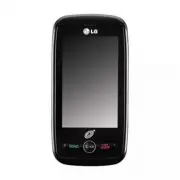
Page 3 - LG 505 C U s e r G u i d e
LG 505 C U s e r G u i d e - English Some of the contents in this manual may differ from yourphone depending on the software of the phone or yourservice provider.
Page 4 - P h o n e O ve r v i ew
P h o n e O ve r v i ew 2 Phone O ve rvie w 1. Earpiece Lets you hear the caller. 2. Touchscreen Displays incoming calls, messages and status icons as well as awide variety of content you select toview. 3. Shortcuts Key Allows quick access to a customizable Shortcut Menu. 4. Quick Keys The Quick Key...
Page 6 - Phone Overview; Qwerty Keyboard
Phone Overview 4 Phone O ve rvie w Qwerty Keyboard Your phone features a QWERTY keyboard specifically designedfor easy and comfortable text entry. The QWERTY keyboarduses a standard layout. 1. Function Key Allows you enter the alternate character (such as ~ for the W key) on the QWERTY keyboard. To ...
Page 7 - M e nu s O ve r v i ew; Prepaid; Buy Games; Menu Access; Touch
M e nu s O ve r v i ew 5 Men u s O ve rvie w Prepaid 1. Add Airtime 2. Buy Airtime 3. My Phone Number 4. My Airtime Info 5. Airtime Display 6. Serial Number 7. Code Entry Mode Contacts 1. New Contact 2. Contact List 3. Groups 4. My vCard 5. Speed Dials Messages 1. New Text Message 2. New Picture Mes...
Page 8 - Menus Overview; Solitaire 3
Menus Overview 6 Men u s O ve rvie w 3. Platinum Solitaire 3 4. UNO Browser Multimedia 1. Take Photo 2. Record Voice 3. My Stuff 1. Images2. Sounds 4. Music 1. Last Song Played 2. All Songs3. Artists4. Albums5. Genres6. My Playlists7. Settings New Text Message Take Photo My Schedule 1. Alarm Clock2....
Page 10 - Getting Started with Your Phone; The Battery; Installing the Battery; Align the battery contacts; Removing the Battery; Turn the phone off and; Note
Getting Started with Your Phone 8 Gett ing S ta rt edwith Y o urPhone The Battery The phone comes with arechargeable battery. Thebattery charge level is shownat the top right corner of thescreen. Installing the Battery 1. Hold the phonesecurelywith bothhands (asdemonstrated) and slidethe back cover ...
Page 11 - Use the fingertip cutout at; Charging the Battery; Gently uncover the; B attery Charge Level
2. Use the fingertip cutout at the bottom of the batterycompartment to lift thebattery out. Charging the Battery To use the charger providedwith your phone: Warning! Use only the charger provided with the phone. Using any charger other than the one included with the LL G G 5 5 0 0 5 5 C C may damage...
Page 12 - Turning the Phone On; Signal Strength
Getting Started with Your Phone 10 Gett ing St ar te d with Y o ur Phone exceedingly low, the phoneautomatically turns off andany function in progress isnot saved. Turning the Phone On andOff Turning the Phone On 1. Install a charged battery or connect the phone to anexternal power source ifthe batt...
Page 13 - Making Calls
11 Gett ing St ar te d with Y o ur Phone Making Calls 1. Make sure the phone is turned on. If not, press andhold the PWR/End Key for about 3 seconds to turn it on. 2. Touch the Phone Quick Key and enter the phone number (includethe area code if needed). 3. Press the Send Key or touch to dial the num...
Page 14 - Receiving Calls; When the phone rings
Getting Started with Your Phone 12 Gett ing St ar te d with Y o ur Phone Receiving Calls 1. When the phone rings and/or vibrates, press the Send Key to answer the call. 2. Press the PWR/End Key or touch to end the call. Tip To choose your answeroptions: Menu > Settings > Call Settings > Ans...
Page 15 - Quick Access to Convenient Features; Lock Mode; To set Lock Mode on, touch; Mute Function; deactivate Mute, touch; Call Waiting
Quick Access to Convenient Features 13 Quick A cce ss t o Con venient F e a tur e s Lock Mode Sets your phone to require a4-digit password in order touse the phone. To set Lock Mode on, touch Menu > Settings > Phone Settings > Security > OK > Enter the Lock Code > Lock Phone . Then...
Page 16 - Send Key; Caller ID; OR
Quick Access to Convenient Features 14 Quick A cce ss t o Con venient F e a tur e s enabled, you may put theactive call on hold while youanswer the other incomingcall. Check with your cellularservice provider forinformation about thisfunction. 1. Press the Send Key to automatically put thefirst call...
Page 18 - Text Input; Entering and Editing Information
Text Input Each time you touch a text entry field, the touchscreenautomatically displays a keypad allowing you to enter text,numbers, and symbols. For example, in a text field, an alphabetkeypad appears but you can also switch to number mode toenter digits. Entering and Editing Information 16 Ent e ...
Page 19 - S h o r t c u ts M e nu; Unlock Key; Shorcut Tips
Shor tcut s Men u S h o r t c u ts M e nu 17 The Shortcuts menu allows instant access to menus and phonefeatures with the quick touch of your fingertip. To use theShortcuts Menu: 1. Unlock the touch screen by pressing and holding or press the Unlock Key on the right side of your phone. 2. Touch the ...
Page 20 - To view other Home screen panes
To view other Home screen panes Slide your finger left or right across the Home screen. If youslide your finger Left, you could access and edit Favorites. If youslide your finger right, you can access Messages. 18 T o vie w o ther Home scr e en pane s Favorites Allows you to add upto 11 Contact entr...
Page 21 - Contacts in Your Phone’s Memory; SAVE
Contacts in Your Phone’s Memory 19 Cont acts in Y o ur Phone’ s Memory The Basics of StoringContacts Entries 1. Touch the Phone Quick Key and enter the phone number you wantto save (up to 48 digits). 2. Touch SAVE and select either Add New Contact or Update Existing . 3. Touch a Phone Label. Mobile ...
Page 23 - CONTACTS
21 Cont acts in Y o ur Phone’ s Memory Searching Your Phone’sMemory The LG505C phone is ableto perform a dynamic searchof the contents in yourphone’s Contact List. Adynamic search comparesentered letters or numbers onthe Dial pad against theentries in your Contacts. Amatching list is displayed indes...
Page 24 - Contacts Options; : Delete the selected
Contacts Options 1. Touch the Phone Quick Key . 2. Touch . 3. Touch Options . 4. Select an option. Send via Bluetooth : Send a contact (vCard) viaBluetooth ® . Delete : Delete the selected entry in your Contacts. Message : Send a text message or picturemessage to the selectedcontact. Lock/Unlock : A...
Page 25 - Touch the type of recent
23 Cont acts in Y o ur Phone’ s Memory From Recent Calls 1. Touch Menu . 2. Touch Recent Calls . 3. Touch the type of recent call. Missed Calls/ ReceivedCalls/ Dialed Calls/ AllCalls 4. Touch next to the desired phone number. Speed Dialing For a single-digit Speed Dial,press and hold the digit orpre...
Page 26 - U s i n g P h o n e M e nu s
U s i n g P h o n e M e nu s 24 Pr epaid Prepaid The Prepaid menu providesshortcuts to access usefulaccount information. 1. Add Airtime This menu allows you to startan over-the-air request foradditional airtime. 1. Touch , . 2. Touch Add Airtime . 3. Touch the text field and enter your code. Thentou...
Page 27 - or
25 Pr epaid 4. My Airtime Info This menu displays thebalance and due date. 1. Touch , . 2. Touch My Airtime Info . 5. Airtime Display This menu allows you toenable or disable the displayof Balance and Due Dateinformation on the Homescreen. 1. Touch , . 2. Touch Airtime Display . 3. Touch Balance or ...
Page 28 - Contacts
Contacts 26 Cont acts Contacts The Contacts menu allows youto store names, phonenumbers and other informationin your phone’s memory. 1. New Contact Allows you to add a newcontact to your Contact List. 1. Touch Menu . 2. Touch Contacts . 3. Touch New Contact . 4. Touch the Name field and enter the na...
Page 30 - Edit the information as
Contacts 28 Cont acts 6. Edit the information as necessary and touch Save . 5. Speed Dials Allows you to view your SpeedDials list, designate new SpeedDials, or remove Speed Dialdesignations entered in yourContacts. 1. Touch Menu . 2. Touch Contacts . 3. Touch Speed Dials . 4. Touch the desired Unas...
Page 31 - Messages; Messages
Messages Message s 29 Messages The phone can store up to690 messages, including amaximum of 300 SMS, 100MMS, and 100 MMSnotification messages in theInbox, 100 SMS and 50MMS in the Outbox, and 20SMS and 20 MMS in Drafts.The information stored in themessage is determined byphone model and servicecapab...
Page 32 - Preview; Text Options
Messages 30 Message s Text Message Options 1. Touch Messages and New Text Message . 2. Touch Options . 3. Touch the following options to customize. Preview Allows you to preview the message beforesending it. Save As Draft Saves the message into the Draftsfolder. Priority Level Choose High/ Normal to...
Page 33 - Complete your message; Message Icon Reference
31 Message s Paste/ Priority Level/Callback #/ SaveTemplate/ CancelMessaage 5. Complete your message and send. Message Icon Reference New Text Message Text Message Read New MMS Message New MMS Message Received MMS Message Unread MMS Message Read Message Delivered Message Failed Pending Message Messa...
Page 34 - Message
Messages 32 Message s 2. New Picture Message Allows you to send messageswith text, a picture, sound, anda subject. 1. Touch Messages and New Picture Message . 2. Touch to manually enter the addressor to add the address from your Contacts List. 3. Touch the corresponding field to add text, apicture, ...
Page 41 - Recent Calls
Recent Calls 39 Rec e n t Ca lls Recent Calls The Recent Calls menu is alist of the last phonenumbers or Contacts entriesfor calls you placed,accepted, or missed. It iscontinually updated as newnumbers are added to thebeginning of the list and theoldest entries are removedfrom the bottom of the list...
Page 45 - Games; Menu
Games 43 Game s Games Allows you to use thepreloaded games or buy newgames. 1. Buy Games 1. Touch Menu . 2. Touch Games . 3. Touch Buy Games . 4. Browse for games and follow the on-screenprompts to complete thepurchase. 2. Play Games 1. Touch Menu . 2. Touch Games . 3. Touch the game you want to pla...
Page 46 - will see the home page.; Browser
Browser The Browser feature allowsyou to view Internetcontent. Accessibility andselections within this featureare dependent upon yourservice provider. For specificinformation on the Webfunctionality contact yourservice provider. 1. Start Browser Allows you to initiate a Websession. 1. Touch Menu . 2...
Page 47 - to
45 Br o w ser Scrolling Touch to scroll through thecontent if the current pagedoes not fit on one screen.The currently selected item isindicated by a cursor on thescreen. Fast Scrolling Touch to quickly move thecursor up and down on thecurrent screen. Option Keys The Option Keys located atthe bottom...
Page 49 - Multimedia
Multimedia 47 Multimedia Multimedia 1. Take Photo 1. Touch , , Take Photo . 2. Touch the on-screen icons to access the followingcamera options: ● Back Returns to the Multimedia menu. ● Brightness Allows you to adjust the brightnesslevel. ● White Balance Allows you to adjust the whitebalance. Choose ...
Page 50 - STOP
Multimedia 48 Multimedia ● Take Allows you to take a picture. ● Gallery Allows you to view your Gallery. 4. Take a picture by touching Take . 5. Select Send or View after the picture is taken. Send will open a new PictureMessage. View will offer the following options: ● Delete Allows you to delete t...
Page 53 - My Schedule
My Schedule 51 My Schedule My Schedule 1. Alarm Clock Allows you to set up to tenalarms. At the alarm time, anyset alarm will sound and/orvibrate the tone of yourchoice (depending on yoursound settings), and anotification message will bedisplayed on your screen. 1. Touch Menu . 2. Touch My Schedule ...
Page 55 - Tools
Tools 53 T ools Tools Your phone is equipped withhelpful tools, including: VoiceCommand, Calculator, Ez TipCalculator, World Clock, UnitConverter, Drawing Panel,Stopwatch 1. Voice Command Allows you to make phonecalls quickly and easily byvoice. Your phone recalls thenumber from your Contactsand the...
Page 57 - Ez Tip
55 T ools ● Touch an Operator foradditional calculatingoptions. ● Touch to complete equation. 3. Ez Tip Calculator Allows you to quickly andeasily estimate the tip andtotal amount of a bill byinputting the bill amountbefore tip, the tippercentage, and dividing it bythe number of people paying. 1. To...
Page 59 - Stopwatch
57 T ools 5. Create a drawing, then touch to save it. A confirmation messagedisplays briefly, thendisplays your list ofdrawings. Managing Drawing PadEntries 1. Access Drawing Pad and select the desired drawing. 2. The following options are available. ● To erase, touch . ● To edit, touch . ● To send ...
Page 60 - Settings
Settings 1. Sound Profiles This menu allows you tocustomize the phone’s sounds. 1.1 Master Volume Allows you to set the MasterVolume. 1. Touch Menu . 2. Touch Settings . 3. Touch Sound Profiles and Master Volume . 4. Press the Volume Keys or touch the volume bars toadjust the Master Volume. 5. Touch...
Page 62 - Display Backlight
Minute Beep Alerts you 10 seconds beforethe end of every minuteduring a call. Call Connect Alerts you when the call isconnected. Roam Alert Alerts you when the Roamarea changes. 1.6 Power On/Off Allows you to set the phoneto sound a tone when thephone is powered on and off. 1. Touch Menu . 2. Touch ...
Page 63 - ADJUST
61 Sett ings 2.2 Keypad Backlight Allows you to set the keypadbacklight duration time. 1. Touch Menu . 2. Touch Settings . 3. Touch Display Settings and Keypad Backlight . 4. Touch a duration time: 7 Seconds/ 15 Seconds/ 30 Seconds/ Always Off 2.3 Wallpaper Allows you to choose thekind of background...
Page 65 - Dialing; button to
4. Touch a setting. Normal/ Analog/ Digital12/ Large Digital 12/Digital 24/ Large Digital24/ Dual/ Off 2.9 Name Match for Dialing Matches a saved Contactentry with thecorresponding lettersentered on the Dial pad. 1. Touch Menu . 2. Touch Settings . 3. Touch Display Settings . 4. Touch the Name Match...
Page 66 - and
Settings 64 Sett ings 3.2 Auto Retry Allows you to set the lengthof time the phone waitsbefore automatically redialinga number when theattempted call fails. 1. Touch Menu . 2. Touch Settings . 3. Touch Call Settings and Auto Retry . 4. Touch a setting. Off / Every 10 Seconds / Every 30 Seconds / Eve...
Page 69 - Touch the screen to start
67 Sett ings 4. Touch the screen to start calibration, then touch thetarget each time itappears. 5. Phone Settings This menu allows you toconfigure various phonesettings. 5.1 Airplane Mode Airplane Mode turns off thephone's wireless signal andallows you to use features onyour phone that do not requi...
Page 73 - wireless; Pairing a new Bluetooth; TURN OFF
71 Sett ings device at a time. Theapproximate communicationrange for Bluetooth ® wireless technology is up to 30 feet(10 meters). 6.1 Power Allows you to turn theBluetooth function on or off. 1. Touch Menu . 2. Touch Settings . 3. Touch Bluetooth , then touch or . 6.2 Add New Pairing is the process ...
Page 74 - OK
Settings 72 Sett ings 4. Follow the Bluetooth ® accessory instructions toset the device to pairingmode. 5. If Bluetooth ® power is set to off, you will beprompted to turn poweron. Touch Yes . 6. Touch START to begin a search. The device willappear in the Add NewDevice menu once it hasbeen located. T...
Page 78 - Fo r Yo u r S a f ety; WARNING; Before You Start; Safety Instructions; To reduce the
Fo r Yo u r S a f ety 76 Fo r Your Safe ty WARNING : This product contains chemicals known tothe State of California tocause cancer and birthdefects or reproductive harm. Wash hands after handling . ImportantInformation This user guide containsimportant information on theuse and operation of thispho...
Page 79 - Safety Information; repair work is required.
nearby in adequately shieldedelectronic equipment. Youshould consult withmanufacturers of any personalmedical devices such aspacemakers and hearing aidesto determine if they aresusceptible to interferencefrom your mobile phone.Turn off your phone in amedical facility or at a gasstation. Never place ...
Page 80 - For Your Safety; Read this
For Your Safety 78 Fo r Your Safe ty ● Do not subject this unit toexcessive smoke or dust. ● Do not keep the phonenext to credit cards ortransport tickets; it canaffect the information onthe magnetic strips. ● Do not tap the screen witha sharp object; otherwise,it may damage the phone. ● Do not expo...
Page 81 - CAUTION
79 For Y o u r S a fe ty emitted by FCC regulatedtransmitters. Thoseguidelines are consistentwith the safety standardpreviously set by both U.S.and international standardsbodies.The design of this phonecomplies with the FCCguidelines and theseinternational standards. CAUTION Use only the supplied an...
Page 82 - Cautions for Battery
For Your Safety 80 Fo r Your Safe ty the user’s body and the backof the phone, and have notbeen tested for typical body-worn operations may notcomply with FCC RF exposurelimits and should be avoided. FCC Part 15 Class BCompliance This device and its accessoriescomply with part 15 of FCCrules. Operat...
Page 84 - TIA Safety Information
For Your Safety 82 Fo r Your Safe ty Do not expose the adapter orbattery charger to directsunlight or use it in placeswith high humidity, such asthe bathroom. Avoid damage to yourhearing ● Damage to your hearingcan occur if you areexposed to loud sound forlong periods of time. Wetherefore recommend ...
Page 85 - Antenna Care
83 For Y o u r S a fe ty lowpower radio transmitterand receiver. When it is ON,it receives and also sendsout radio frequency (RF)signals. In August, 1996 ,the Federal CommunicationsCommissions (FCC)adopted RF exposureguidelines with safety levelsfor handheld wirelessphones. Those guidelinesare consi...
Page 86 - Phone Operation; Hold; Driving
For Your Safety 84 Fo r Your Safe ty the phone and may violateFCC regulations. Phone Operation NORMAL POSITION: Hold the phone as you would anyother telephone with theantenna pointed up and overyour shoulder. Tips on EfficientOperation For your phone to operatemost efficiently: ● Do not touch the an...
Page 87 - Pacemakers; Persons with pacemakers:; Hearing Aids
85 For Y o u r S a fe ty be shielded against the RFsignals from your wirelessphone. Pacemakers The Health IndustryManufacturers Associationrecommends that a minimumseparation of six (6’) inches bemaintained between ahandheld wireless phone and apacemaker to avoid potentialinterference with thepacema...
Page 88 - Health Care Facilities
For Your Safety 86 Fo r Your Safe ty adequately shielded fromexternal RF energy. Yourphysician may be able toassist you in obtaining thisinformation. Health Care Facilities Turn your phone OFF inhealth care facilities when anyregulations posted in theseareas instruct you to do so.Hospitals or health...
Page 89 - Potentially Explosive
87 For Y o u r S a fe ty Potentially Explosive Atmosphere Turn yourphone OFF when in any areawith a potentially explosiveatmosphere and obey allsigns and instructions.Sparks in such areas couldcause an explosion or fireresulting in bodily injury oreven death. Areas with a potentiallyexplosive atmosp...
Page 91 - - Reorient or relocate the; HAC
89 For Y o u r S a fe ty - Reorient or relocate the receiving antenna. - Increase the separation between the equipment andreceiver. - Connect the equipment into an outlet on a circuitdifferent from that to whichthe receiver is connected. - Consult the dealer or an experienced radio/TVtechnician for ...
Page 94 - General Notice; Do not paint your phone.
For Your Safety 92 Fo r Your Safe ty General Notice ● Using a damaged batteryor placing a battery in yourmouth may cause seriousinjury. ● Do not place itemscontaining magneticcomponents such as acredit card, phone card,bank book or subwayticket near your phone.The magnetism of thephone may damage th...
Page 95 - FDA Consumer Update; Do wireless phones pose
93 For Y o u r S a fe ty ● The data saved in yourphone might be deleted dueto careless use, repair of thephone, or upgrade of thesoftware. Please backup yourimportant phone numbers.(Ring tones, text messages,voice messages, pictures,and videos could also bedeleted.) The manufactureris not liable for...
Page 96 - What is the FDA’s role
For Your Safety 94 Fo r Your Safe ty RF that does not produceheating effects causes noknown adverse health effects.Many studies of low level RFexposures have not found anybiological effects. Somestudies have suggested thatsome biological effects mayoccur, but such findings havenot been confirmed bya...
Page 97 - The FDA belongs to an
95 For Y o u r S a fe ty ● Design wireless phones in away that minimizes any RFexposure to the user thatis not necessary for devicefunction; and ● Cooperate in providingusers of wireless phoneswith the best possibleinformation on possibleeffects of wireless phoneuse on human health. The FDA belongs ...
Page 98 - What kinds of phones are
For Your Safety 96 Fo r Your Safe ty guidelines that limit RFexposure. The FCC relies onthe FDA and other healthagencies for safety questionsabout wireless phones. The FCC also regulates thebase stations that the wirelessphone networks rely upon.While these base stationsoperate at higher power thand...
Page 99 - What are the results of
97 For Y o u r S a fe ty typically operate at far lowerpower levels, and thusproduce RF exposures farbelow the FCC safety limits. 4. What are the results of the research donealready? The research done thus farhas produced conflictingresults, and many studieshave suffered from flaws intheir research ...
Page 100 - What research is needed
For Your Safety 98 Fo r Your Safe ty cancer, glioma, meningioma,or acoustic neuroma, tumorsof the brain or salivary gland,leukemia, or other cancers.None of the studiesdemonstrated the existenceof any harmful health effectsfrom wireless phone RFexposures. However, none ofthe studies can answerquesti...
Page 101 - What is the FDA doing to
99 For Y o u r S a fe ty measuring actual RF exposureduring day-to-day use ofwireless phones. Many factorsaffect this measurement, suchas the angle at which thephone is held, or which modelof phone is used. 6. What is the FDA doing to find out more about thepossible health effects ofwireless phone R...
Page 102 - How can I find out how
For Your Safety 100 Fo r Your Safe ty research will include bothlaboratory studies and studiesof wireless phone users. TheCRADA will also include abroad assessment ofadditional research needs inthe context of the latestresearch developmentsaround the world. 7. How can I find out how much radio frequ...
Page 103 - What has the FDA done
101 For Y o u r S a fe ty can find your phone’s RFexposure level in the onlinelisting. 8. What has the FDA done to measure the radiofrequency energy comingfrom wireless phones? The Institute of Electrical andElectronic Engineers (IEEE) isdeveloping a technicalstandard for measuring theradio frequenc...
Page 104 - What about children
For Your Safety 102 Fo r Your Safe ty If there is a risk from theseproducts - and at this pointwe do not know that there is -it is probably very small. But ifyou are concerned aboutavoiding even potential risks,you can take a few simplesteps to minimize yourexposure to radiofrequencyenergy (RF). Sin...
Page 105 - that any health hazard exists.
103 For Y o u r S a fe ty using wireless phones.Reducing the time of wirelessphone use and increasing thedistance between the userand the RF source will reduceRF exposure. Some groupssponsored by other nationalgovernments have advisedthat children be discouragedfrom using wireless phones atall. For ...
Page 106 - additional information?
For Your Safety 104 Fo r Your Safe ty in late 2000. This standardwill allow manufacturers toensure that cardiacpacemakers and defibrillatorsare safe from wireless phoneEMI. The FDA has testedhearing aids for interferencefrom handheld wirelessphones and helped develop avoluntary standard sponsoredby ...
Page 107 - 0 Driver Safety Tips
105 For Y o u r S a fe ty ety) International Commissionon Nonlonizing RadiationProtection (http://www.icnirp.de) World HealthOrganization (WHO)International EMF Project(http://www.who.int/peh-emf/) National RadiologicalProtection Board (UK)(http://www.nrpb.org.uk) 10 Driver Safety Tips Your wireless...
Page 112 - * In the United States and
For Your Safety 110 Fo r Your Safe ty Before a phone model isavailable for sale to thepublic, it must be tested andcertified to the FCC that itdoes not exceed the limitestablished by thegovernment-adoptedrequirement for safeexposure. The tests areperformed in positions andlocations (e.g., at the ear...
Page 113 - Phones rated M3
111 For Y o u r S a fe ty Canada, the SAR limit formobile phones used by thepublic is 1.6 watts/kg (W/kg)averaged over one gram oftissue. The standardincorporates a substantialmargin of safety to giveadditional protection for thepublic and to account for anyvariations in measurements. Hearing AidCom...
Page 114 - Phones rated T3
For Your Safety 112 Fo r Your Safe ty or M4 meet FCCrequirements and are likely togenerate less interference tohearing devices than phonesthat are not labeled. M4 isthe better/higher of the tworatings. T-Ratings: Phones rated T3 or T4 meet FCC requirementsand are likely to be moreusable with a heari...
Page 115 - Ac c es s o r i es; Battery Charger; Standard battery is available.
Ac c es s o r i es There are a variety of accessories available for your mobilephone. Consult your local dealer for availability. Optional itemsare sold separately. Battery Charger The battery charger allows you tocharge your phone. Battery Standard battery is available. 113 A c c e ss o ri e s
Page 116 - L i m i te d Wa r ra n ty S tate m e n t
L i m i te d Wa r ra n ty S tate m e n t 114 Limit e d W a rr anty Sta tement 1. WHAT THIS WARRANTYCOVERS: LG offers you a limitedwarranty that the enclosedsubscriber unit and itsenclosed accessories will befree from defects in materialand workmanship, accordingto the following terms andconditions: ...
Page 118 - Limited Warranty Statement
Limited Warranty Statement 116 Limit e d W a rr anty Sta tement (4) That the Customer Service Department atLG was not notified byconsumer of the allegeddefect or malfunction ofthe product during theapplicable limitedwarranty period. (5) Products which have had the serial numberremoved or madeillegib...
Page 121 - Guía del usuario de LG505C
Guía del usuario de LG505C - Español Parte del contenido de este guía puede no coincidir con el teléfono dependiendo del software del teléfono o del proveedor de servicios.
Page 122 - Descripción general del teléfono
2 Descripción general del teléfono Descripción gener aldel teléfono 1. Auricular Le permite escuchar a quien le llama. 2. Pantalla táctil Muestra las llamadas entrantes, mensajes e iconos de estado.También muestra una gran variedad decontenido que desee ver. 3. Tecla Atajos Le permite acceder rápida...
Page 124 - Teclado QWERTY
4 Descripción general del teléfono Descripción gener aldel teléfono Teclado QWERTY Su teléfono cuenta con un teclado QWERTY específicamentediseñado para la entrada de texto fácil y comoda. El tecladoQWERTY utiliza un diseño estándar. 1. Tecla Función Le permite introducir el carácter alternativo (po...
Page 125 - Descripción general de los menús; Prepago; Toque
5 Descripción general de los menús Descripción gener aldelos men ús Prepago 1. Añadir Tiempo Celular 2. Comprar Minutos3. Mi Número Telefónico 4. Saldo de Minutos 5. Mostrar Tiempo Celular 6. Número de Serie7. Ingresar Código Contactos 1. Nuevo Contacto2. Lista de Contactos3. Grupos4. Mi Tarj.de Pre...
Page 127 - Configuraciones
7 Configuraciones 1. Perfiles de Sonido1. Volumen Maestro 2. Llamadas3. Alertas de Mensajes 4. Volumen del Teclado 5. Alertas de Servicio 6. Encender/ Apagar 2. Conf. de Pantalla 1. Iluminación de Fondo 2. Ilum. del Teclado 3. Fondo de Pantalla 4. Reloj- Calendario 5. Tema6. Tipo de Letra7. Tamaño d...
Page 128 - La batería; Instalación de la batería; Alinee los contactos de la; Retirando la batería; Apague el teléfono y retire; Pa ra e m p e z a r c o n s u te l é f o n o
La batería El teléfono viene con unabatería recargable. El nivel decarga de la batería se muestraen la esquina superior derechade la pantalla. Instalación de la batería 1. Sostenga el teléfono conambas manos(como semuestra) ydeslice la tapaposterior hacia abajo para retirarla. 2. Alinee los contacto...
Page 129 - Use la abertura de dedo en; Cargar la batería; Cuidadosamente destape
2. Use la abertura de dedo en la parte inferior del compartimiento de labatería para levantar labatería y sacarla. Cargar la batería Para utilizar el cargador proporcionado con su teléfono: ¡Advertencia! Sólo utilice el cargador proporcionado con su teléfono. El uso de otro cargador no incluido con ...
Page 130 - Encender el teléfono; Fuerza de la señal; Para empezar con su teléfono
Cuando disminuya el nivel decarga de la batería, el sensorde batería baja le alerta detres maneras: sonando untono audible, destellando elicono de batería y mostrandoun mensaje de alertas. Si elnivel de carga de la batería sehace demasiado bajo, el teléfono se apaga automáticamente y no seguarda nin...
Page 132 - Recibir llamadas; Cuando el teléfono suene o
recibidas, 90 perdidas y 90 marcadas) están almacenadasen la lista del historial de llamadas. Toque la Tecla Llamar junto a cualquiera de las entradas para haceruna llamada a ese número.Oprima la Tecla Enviar dos veces para volver a marcar el último número quemarcó, recibió, o no se contestó. Recibi...
Page 133 - Acceso rápido a funciones prácticas; Menú; Función Mudo
13 Acceso rápido a funciones prácticas A cce so r ápido a funcione s pr áctica s Modo Bloqueo deTeléfono Ajusta su teléfono para que serequiera su código de bloqueode 4 dígitos para usar el teléfono. Para establecer el modoBloqueo de Teléfono, toque Menú > Configuraciones > Conf. del Teléfono ...
Page 134 - Llamada en Espera; Tecla; Marcación Rápida
14 Llamada en Espera Es posible que su serviciocelular le ofrezca el serviciode llamada en espera.Mientras una llamada está encurso, un pitido indica queotra llamada está entrando.Cuando está habilitada la llamada en espera, puedeponer la llamada activa enespera mientras contesta laotra llamada entr...
Page 135 - Tecla Enviar
15 A cce so r ápido a funcione s pr áctica s el número de teléfono asociadode la Lista de Contactos y lomarca por usted. El número 1de Marcación Rápida está configurado para el Correo deVoz de manera predeterminaday no se puede cambiar. Marcación Rápida de undígito (del 2 al 9) Mantenga oprimido eln...
Page 136 - Introducir texto; Introducir y editar información
Introducir texto Cada vez que toca un campo de texto, la pantalla táctil muestra unteclado automáticamente, permitiéndole introducir texto, númerosy símbolos. Por ejemplo, en un campo de texto, un tecladoalfabético aparece pero también puede cambiar a modo denúmeros para introducir dígitos. Opciones...
Page 137 - M e nú d e Ata j o s; Tecla Atajos; Sugerencias
17 M e nú d e Ata j o s Men ú de A tajos El Menú de Atajos le brinda un acceso instantáneo a menús yfunciones del teléfono con el toque veloz de su dedo. Para usarel Menú de Atajos: 1. Toque y mantenga oprimido u oprima la Tecla Bloquear/Desbloquear ( ) en el lado derecho del teléfono. 2. Toque la T...
Page 138 - Para ver otros paneles de la pantalla principal
Deslice su dedo hacia la izquierda o derecha sobre la pantallaprincipal. Si desliza su dedo hacia la izquierda, puede acceder yeditar sus Favoritos. Si desliza su dedo hacia la derecha, puedeacceder Mensajes. 18 Para ver otros paneles de la pantalla principal P ar a ver o tr os panele s de la pant a...
Page 139 - Contactos en la memoria del teléfono; e introduzca
19 Contactos en la memoria del teléfono Cont actos en la memoria del t eléfono Aspectos básicos del almacenamiento deentradas de contactos 1. Toque la Tecla Rápida Teléfono e introduzca el número de teléfono(hasta 48 dígitos) quedesee guardar. 2. Toque GRDR y seleccione Nuevo Contacto o Actualizar E...
Page 140 - CONTACTOS
20 Contactos en la memoria del teléfono Cont actos en la memoria del t eléfono de pausas que puede usar al almacenar un número: Espera (W) El teléfono deja de marcarhasta que usted toca RELEASE para avanzar al número siguiente. 2-Seg Pausa (P) El teléfono espera 2 segundosantes de enviar la siguient...
Page 141 - Buscando por letra; Tecla Rápida
21 Cont actos en la memoria del t eléfono 8. Toque y luego . Búsqueda en la memoriadel teléfono El teléfono LG505C puede llevar a cabo una búsquedadinámica del contenido de sumemoria. La búsqueda dinámicacompara las letras o númerosintroducidos con las entradasde sus Contactos. Se muestrauna lista d...
Page 142 - Accediendo opciones; o toque la
22 Cont actos en la memoria del t eléfono Accediendo opciones 1. Toque la Tecla Rápida Teléfono . 2. Toque . 3. Toque Opciones . 4. Toque una de las siguientes opciones: Enviar via Bluetooth Envía un contacto (Tarjeta deNombre) a través deBluetooth®. Borrar Borra la entrada seleccionadade tus contac...
Page 143 - Toque el tipo de llamada
23 Cont actos en la memoria del t eléfono Desde Llamadas recientes 1. Toque Menú . 2. Toque Llamadas Recien. . 3. Toque el tipo de llamada reciente. Perdidas/ Recibidas/Marcadas/ Todas 4. Toque al lado del número de teléfono. Marcación Rápida Para un número de MarcaciónRápida de un solo dígito, mant...
Page 144 - Celular; Uso de los menús del teléfono
Prepago El menú Prepago ofrece accesos directos para acceder ainformación de la cuenta deutilidad. 1. Añadir Tiempo Celular Le permite iniciar una solicitudde tiempo celular adicional através del aire. 1. Toque , . 2. Toque Añadir Tiempo Celular . 3. Toque el campo de texto e introduzca su código.Lu...
Page 146 - e introduzca el nombre.; Lista de Contactos; Escoga de las siguientes; Contactos
26 Cont actos Contactos El menú Contactos le permitealmacenar nombres, númerosde teléfono y otros datos enla memoria de su teléfono. 1. Nuevo Contacto Le permite agregar un nuevocontacto. 1. Toque Menú . 2. Toque Contactos . 3. Toque Nuevo Contacto. 4. Toque el campo Nombre e introduzca el nombre. 5...
Page 147 - Presentación
27 Cont actos ● Toque Opciones para seleccionar una delas siguientes opciones: Enviar vía Bluetooth/Borrar/ Mensaje/Bloq/ Desbloq 3. Grupos Le permite ver sus Contactosagrupados, agregar un nuevogrupo, cambiar el nombre deun grupo o borrar todo ungrupo. 1. Toque Menú . 2. Toque Contactos . 3. Toque ...
Page 149 - Mensajes; Texto; Mensajes
29 Mensaje s Mensajes Mensajes El teléfono puede almacenarhasta 690 mensajes, con unmáximo de 300 SMS, 100MMS y 100 mensajes de notificación de MMS en laBandeja de entrada, 100 SMSy 50 MMS en la carpetaEnviado, y 20 SMS y 20 MMSen Borradores. 1. Nuevo Msj. de Texto Le permite enviar mensajes detexto...
Page 150 - Opciones de texto
30 Avance Le permite ver el mensaje antes de enviarlo. Guardar Como Borrador Guarda el mensaje en la carpeta Borradores. Prioridad Elige Alto/ Normal para establecer el nivel de prioridad de su mensaje. Dev Llmda # Inserta un número de devolución pre-programados con sumensaje. Cancelar Mensaje Cance...
Page 153 - ADELANTAR
33 Mensaje s Ver su buzón de entrada Se pueden almacenar hasta500 mensajes (300 SMS,100 MMS y 100 notificaciones MMS) en laBandeja de Entrada. 1. Toque Mensajes y Bandeja de Entrada . 2. Toque un mensaje. ● Toque pararesponder al mensaje. ● Toque paraborrar el mensaje. ● Toque para reenviar el mensa...
Page 158 - Llmadas Recien
Llmadas Recien. El menú Llmadas Recien. esuna lista de los últimosnúmeros de teléfono oentradas de Contactos dellamadas que haya perdidas,recibidas y marcadas. Seactualiza constantementecon los nuevos númerosagregándose al principio dela lista y las entradas másantiguas eliminándose delfinal. 1. Per...
Page 160 - Llamadas
3. Oprima la Tecla Encender/Fin para volver a la pantalla principal. 4. Todas Le permite ver una lista de las llamadas Perdidas, Recibidasy Marcadas más recientes. 1. Toque , , Todas . 2. Toque una entrada y toque Opciones para las siguientes opciones. Guardar en contactos(Info de contacto)/Borrar/ ...
Page 161 - Los tiempos de llamada
41 Llmada s Recien 4. Los tiempos de llamada se muestran para lossiguientes tipos de llamadas: Última Llamada/Llamadas de Base/Llamadas de Roam/Todas las Llamadas 5. Para restablecer el contador, toque . 6. Contador KB Le permite ver la lista dedatos recibidos y transmitidos. 1. Toque Menú . 2. Toqu...
Page 162 - Precargados; Juegos
42 Juegos Le permite utilizar los juegos precargados o comprarnuevos juegos. 1. Juegos 1. Toque Menú . 2. Toque Juegos . 3. Toque Comprar Juegos . 4. Busque el juego deseado y siga las indicaciones en pantalla para completar lacompra. 2. Juegos Precargados 1. Toque Menú . 2. Toque Juegos . 3. Toque ...
Page 163 - Acceso Web
43 A cce so W e b Acceso Web Acceso Web La función Acceso Web lepermite ver contenido delnternet diseñado especialmente para su teléfono celular. Para obtenerinformación concreta acercadel Acceso Web, comuníquesecon su proveedor de servicios. 1. Acceso Web Le permite iniciar una sesiónde Web. 1. Toq...
Page 167 - ALTO
47 Multimedia ● Tomar Permite tomar una foto. ● Galería Permite ver la Galería. 3. Toque Galería para acceder a Mis Imágenes o toque Opciones para las siguientes opciones: 4. Toque Tomar para tomar una foto. 5. Seleccione Enviar o Ver después de tomar la foto. Enviar abrirá un nuevo Mensaje de Foto....
Page 170 - después toque; Mi Agenda
Mi Agenda 1. Despertador Le permite fijar hasta diez alarmas. A la hora de laalarma, cualquier alarmaestablecida sonará el tonoque elegió y/o vibrará(dependiendo de la configuración de sonido) yun mensaje de notificaciónse mostrará en la pantalla. 1. Toque Menú . 2. Toque Mi Agenda . 3. Toque Desper...
Page 171 - Calendario
51 Mi Agenda 3. Toque Calendario . 4. Toque el día que desea editar. 5. Toque . 6. Introduzca la información de su calendario incluyendo: ● Asunto ● Hora de Comienzo ● Hora de Término ● Repetir ● Hasta ● Alerta ● Tonos ● Vibrar 7. Toque para guardar. 3. Bloc de Notas Le permite leer, agregar, modifi...
Page 173 - Herramientas; y el nombre
53 Herr amient as Herramientas Herramientas El teléfono incluye las siguientes herramientas:Comando de Voz, Calculadora,Calculadora de Propinas, RelojMundial, Convertidor,Cuaderno de Dibujo yCronómetro. 1. Comando de Voz Le permite hacer llamadas deteléfono rápido y fácilmenteusando comandos verbale...
Page 175 - Introduzca los datos; Propinas; Introduzca valores en los
55 Herr amient as 2. Calculadora Le permite hacer cálculosmatemáticos sencillos. 1. Toque Menú . 2. Toque Herramientas . 3. Toque Calculadora . 4. Introduzca los datos necesarios. ● Toque el teclado queaparece para introducirnúmeros. ● Toque para introducir decimales. ● Toque para borrar el último d...
Page 177 - AÑADIR
57 Herr amient as 5. Convertidor Le permite convertir unidadesde medida. 1. Toque Menú . 2. Toque Herramientas . 3. Toque Convertidor . 4. Introduzca el valor que desee convertir a otraunidad. Moneda/ Área/Longitud/ Masa/Temperatura/ Volumen/Velocidad 5. Toque el tipo de unidad conocido y seleccione...
Page 179 - Perfiles de Sonido; Oprima la Teclas de
Configuraciones 59 Configur acione s Configuraciones 1. Perfiles de Sonido Esté menú le permite personalizar los sonidos del teléfono. 1.1 Volumen Maestro Le permite configurar el nivelde volumen maestro. 1. Toque Menú . 2. Toque Configuraciones . 3. Toque Perfiles de Sonido y Volumen Maestro . 4. O...
Page 181 - para guardar la; Alertas de Servicio; Toque una opción de alerta; “Bip” de Minutos; Toque las siguientes
61 Configur acione s para establecer el nivel devolumen y luego toque FIJAR para guardar la configuración. 1.5 Alertas de Servicio Le permite configurar lasAlertas de Serviciodisponibles. 1. Toque Menú . 2. Toque Configuraciones . 3. Toque Perfiles de Sonido y Alertas de Servicio . 4. Toque una opci...
Page 183 - Fondo de Pantalla; Toque la imagen que desee
63 Configur acione s 2.3 Fondo de Pantalla Le permite seleccionar el tipode fondo que se muestra enel teléfono. 1. Toque Menú . 2. Toque Configuraciones . 3. Toque Conf. de Pantalla y Fondo de Pantalla . 4. Toque la imagen que desee y luego toque para establecer la imagencomo su fondo de pantallao t...
Page 184 - Formato del Reloj
4. Toque una configuración. Espacio/ Dibujos animados 2.6 Tipo de Letra Permite que usted seleccioneel tipo de fuente en la pantalla LCD. 1. Toque Menú . 2. Toque Configuraciones . 3. Toque Conf. de Pantalla y Tipo de Letra . 4. Toque una configuración. LG Gothic/ LG Serif/LGJoy 2.7 Tamaño de Letra ...
Page 185 - para; Conterstar; HECHO
65 Configur acione s Grande 24/ Doble/Apagado 2.9 Comandos de Voz Le permite buscar unContacto introduciendo lasletras correspondientes en elteclado. 1. Toque Menú . 2. Toque Configuraciones . 3. Toque Conf. de Pantalla . 4. Toque el botón Comandos de Voz para alternar la configuraciónentre ON (Ence...
Page 187 - para alternar la; Privacidad de Voz
67 Configur acione s Marcación Rápida. Si se fija enapagado, los números deMarcación Rápida designadosen sus Contactos no funcionarán. 1. Toque Menú . 2. Toque Configuraciones . 3. Toque Conf. de Llamadas . 4. Toque el botón Marcación Rapida para alternar la configuración entre ON (Encendido) and OF...
Page 189 - Toque la pantalla para
69 Configur acione s 4.5 Calibración Permite calibrar la pantallatáctil para asegurar que está funcionando correctamente. 1. Toque Menú . 2. Toque Configuraciones . 3. Toque Tocar y Calibración. 4. Toque la pantalla para iniciar la calibración y luegotoque el objetivo cada vezque aparezca. 5. Conf. ...
Page 191 - Bloqueo
71 Configur acione s 5.4.1 Cambiar Código de Bloqueo Le permite introducir unnuevo código de bloqueo decuatro dígitos. 1. Toque Menú . 2. Toque Configuraciones . 3. Toque Conf. del Teléfono y Seguridad . 4. Introduzca el código de bloqueo de cuatro dígitos. 5. Toque Cambiar Código de Bloqueo. 6. Toq...
Page 193 - Introduzca el código de; Selección de Sistema
73 Configur acione s 7. Toque . 8. Toque / . 9. Introduzca el código de bloqueo de cuatro dígitos.El teléfono volverá a la configuración predeterminada. 5.5 Selección de Sistema Le permite configurar elentorno de administración delproductor del teléfono. Dejeesta configuración como predeterminada a ...
Page 194 - APAGADO
Bluetooth es de hasta 10metros (30 pies). 6.1 Potencia Le permite encender y apagarBluetooth. 1. Toque Menú . 2. Toque Configuraciones . 3. Toque Bluetooth . 4. Toque o . 6.2 Añadir Nuevo El emparejamiento es el proceso que permite que suteléfono ubique, establezca yregistre una conexión 1-a-1con el...
Page 196 - Dispositivo; Descubrimiento; y luego; Acceso Directo
6.3 Configuración Le permite ajustar la configuración de la funciónBluetooth. 6.3.1 Mi Info de Dispositivo Permite configurar la visibilidadde su función Bluetooth ® . 1. Toque Menú . 2. Toque Configuraciones . 3. Toque Bluetooth , Opciones y luego Mi Info de Dispositivo . 4. Toque . 5. Mantenga opr...
Page 197 - Masivo USB
77 Configur acione s 6.3.3 Perfiles Soportados Le permite ver los perfilesBluetooth que soporta su teléfono. 1. Toque Menú . 2. Toque Configuraciones . 3. Toque Bluetooth , Opciones y luego Perfiles Soportados . 7. Almacenamiento Masivo USB Le permite seleccionar elmodo de conexión con la PC. 1. Toq...
Page 198 - Glosario de Iconos; Toque un submenú para
78 Configuraciones Configur acione s 9. Info del Teléfono El menú Info de Teléfono le proporciona información concreta respecto al modelodel teléfono. 1. Toque Menú . 2. Toque Configuraciones . 3. Toque Info del Teléfono . 9.1 Mi Número Le permite ver su número deteléfono. 1. Toque Menú . 2. Toque C...
Page 200 - Información; usuario de operar el equipo.; Antes de comenzar; Instrucciones de seguridad; Para reducir; Po r s u s e g u r i d a d
ADVERTENCIA : Este produc- to contiene químicos conocidospor el Estado de California decausar cáncer y defectos denacimiento u otros dañosreproductivos. Lávese las manos después de manipular . Información importante Esta guía del usuario contieneinformación importante acer-ca del uso y funcionamient...
Page 201 - Información de seguridad
fono cerca de otros disposi-tivos electrónicos. Las emi-siones de radiofrecuencia delteléfono celular pueden afec-tar a equipos electrónicoscercanos que no estén ade-cuadamente blindados. Debeconsultar con los fabricantesde cualquier dispositivo médi-co personal, como sería elcaso de marcapasos o au...
Page 202 - Lea esta; Por su seguridad
● No permita que la unidadentre en contacto conhumo o polvo excesivo. ● No coloque el teléfonojunto a tarjetas de créditoo boletos de transporte;puede afectar la informa-ción de las cintas magnéti-cas. ● No toque la pantalla conun objeto punzante; de locontrario, podría dañar elteléfono. ● No expong...
Page 205 - Precauciones con el
según este estándar, IEEE-Std-1725-200x. El uso deuna batería no calificadapuede presentar peligro deincendio, explosión, escapeu otro riesgo. ● Deseche de inmediato lasbaterías usadas conformelas regulaciones locales. ● Si los niños usan la batería,se los debe supervisar. ● Evite dejar caer el telé...
Page 206 - Evite daños en el oído
86 Por su seguridad P or su seguridad humedad, como porejemplo el baño. Evite daños en el oído ● Los daños en el oídopueden ocurrir debido ala constante exposición asonidos demasiadofuertes durante períodosprolongados. Por lotanto recomendamosque usted no encienda oapague el teléfono cercade su oído...
Page 207 - Cuidado de la antena
radiofrecuencia (RF). En agosto de 1996, laComisión federal de comuni-caciones (FCC) de los EE.UU. adoptó lineamientos deexposición a RF con nivelesde seguridad para teléfonosinalámbricos de mano. Esoslineamientos se correspondencon la norma de seguridadestablecida previamente porlos organismos de n...
Page 209 - Las personas con marcapasos:; Audífonos
Dispositivos electrónicos La mayoría del equipo elec-trónico moderno está blinda-do contra las señales de RF.Sin embargo, algunos equiposelectrónicos pueden no estarblindados contra las señalesde RF de su teléfono inalám-brico. Marcapasos La Asociación de fabricantesdel sector de la saludrecomienda ...
Page 213 - - Reoriente o reubique la
93 P or su seguridad con las instrucciones, podrácausar interferencia dañinapara las comunicaciones radi-ales. Sin embargo, no existegarantía de que la interferen-cia no se produzca en unainstalación en particular. Siexperimenta interferencia conla recepción (por ejemplo, deltelevisor), para determi...
Page 216 - Aviso general
● Al usar la clavija de ali-mentación, asegúrese deque esté conectada firme-mente. En caso contrario,puede provocar calor exce-sivo o incendio. ● Si coloca el teléfono en unbolsillo o bolso sin cubrirel receptáculo (clavija dealimentación), los artículosmetálicos (tales como unamoneda, clip o pluma)...
Page 217 - No pinte el teléfono.
mada debido al calor gen-erado durante la uti-lización. ● Cuando el teléfono no seusa durante mucho tiempo,déjelo en un lugar segurocon el cable de ali-mentación desconectado. ● El uso del teléfono cercade equipo receptor (comoun televisor o radio) puedecausar interferencia el telé-fono. ● No use el...
Page 218 - ¿Representan un riesgo
● No apague o encienda elteléfono cuando se loponga al oído. Actualización de la FDApara los consumidores Actualización para los con-sumidores sobre teléfonoscelulares del centro de dis-positivos médicos y saludradiológica de laAdministración de alimentos ydrogas de los EE. UU. (FDA,por su sigla en ...
Page 219 - ¿Cuál es el papel de la
tades en reproducir talesestudios o en determinar losmotivos por los que los resul-tados no son consistentes. 2. ¿Cuál es el papel de la FDA respecto de laseguridad de los telé-fonos inalámbricos? Según las leyes, la FDA nocomprueba la seguridad delos productos para el con-sumidor que emitan radiaci...
Page 221 - ¿Qué tipos de teléfonos
cuales dependen los telé-fonos inalámbricos. Mientrasque estas estaciones de basefuncionan a una potenciamayor que los teléfonosinalámbricos mismos, laexposición a RF que recibe lagente de estas estaciones debase es habitualmente milesde veces menor de la quepueden tener procedente delos teléfonos i...
Page 222 - ¿Cuáles son los resultados de
102 Por su seguridad P or su seguridad por debajo de los límites deseguridad de la FCC. 4. ¿Cuáles son los resultados de la investigación que ya se harealizado? La investigación realizada hasta lafecha ha producido resultadoscontradictorios y muchos estu-dios han sufrido de fallas en susmétodos de i...
Page 223 - ¿Qué investigaciones se
103 P or su seguridad tumores cerebrales o de las glán-dulas salivales, leucemia u otroscánceres. Ninguno de los estudiosdemostró la existencia de ningúnefecto dañino para la salud origi-nado en la exposición a RF de losteléfonos inalámbricos. Noobstante, ninguno de los estudiospuede responder a pre...
Page 224 - ¿Qué está haciendo la
tumores, en caso de hacerlo,puede ser de muchos,muchos años. La inter-pretación de los estudios epi-demiológicos se ve entorpeci-da por la dificultad de medirla exposición real a RFdurante el uso cotidiano delos teléfonos inalámbricos.Muchos factores afectan estamedición, como el ángulo alque se sos...
Page 226 - ¿Qué ha hecho la FDA
Electronic Engineering, IEEE)y el Consejo nacional para laprotección y medición de laradiación (National Councilon Radiation Protection andMeasurement). El límite deexposición toma en consid-eración la capacidad del cuer-po de eliminar el calor de lostejidos que absorben energíade los teléfonos inal...
Page 228 - ¿Qué hay del uso de
ular y llevar el teléfonoinalámbrico lejos del cuerpo ousar teléfonos inalámbricosconectados a una antenaremota. Nuevamente, losdatos científicos no demues-tran que los teléfonos inalám-bricos sean dañinos. Pero si lepreocupa la exposición a RFde estos productos, puedetomar medidas como las men-cion...
Page 239 - La batería estándar está disponible.; Ac c es o r i o s
119 Hay varios accesorios disponibles para su teléfono celular.Consulte a su distribuidor local para saber con cuáles cuenta.Los artículos opcionales se venden por separado. Cargador de Batería El cargador de batería le permiterecargar la batería de su teléfono. Batería La batería estándar está disp...
Page 240 - Declaración De Garantía Limitada
Declaración De Garantía Limitada Declar ación De Gar antía Limit ada 1. LO QUE CUBRE ESTA GARANTÍA: LG le ofrece una garantía lim-itada de que la unidad desuscriptor adjunta y susaccesorios incluidos estaránlibres de defectos de materi-ales y mano de obra segúnlos términos y condicionessiguientes: (...
Page 241 - ducto de un uso anor-
Declar ación De Gar antía Limit ada 121 Declar ación De Gar antía Limit ada (5) A solicitud de LG, el con- sumidor debera aportarinformación aceptablepara probar la fecha decompra. (6) El cliente se hara cargo del costo de envío delproducto alDepartamento de servi-cio al cliente de LG. LGse hará car...
Page 243 - DERECHOS DE LA LEY
123 Declar ación De Gar antía Limit ada cumpla con la presentegarantía limitada. LG puede, asu elección, optar por usarpartes o unidades nuevas,restauradas o reacondi-cionadas equivalentes encuanto a funcionalidad.Además, LG no reinstalará orealizará copias de seguridadde ningún dato, aplicación oso...
Page 244 - Llame o
daños incidentales o conse-cuenciales, o las limitacionessobre la duración de la garan-tía implícita, de modo que esposible que estas limitacioneso exclusiones no se leapliquen a usted. Esta garan-tía le concede derechoslegales concretos y es posibleque tambien tenga otrosderechos, que varían de est...