Page 2 - Copyright; ENGLISH
t Screen displays and illustrations may differ from those you see on actual phone. t Actual displays and the color of the phone may vary. t Some of the contents of this guide may not apply to your phone, depending on the software and your service provider. All information in this document is subject...
Page 3 - Contents
2 Contents Contents ............................................... 2 Phone Overview ................................... 5 Menus Overview .................................. 8 .FOV"DDFTT 8 Getting Started with Your Phone ....... 11 5IF#BUUFSZ 11 $IBSHJOHUIF#BUUFSZ 12 $IBSHJOHXJUIB64#DBCMF 13 #BUU...
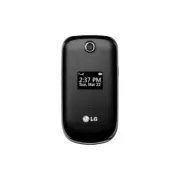
Page 6 - Camera Lens; Lets you take pictures.; Earpiece; Lets you hear the caller and automated prompts.; LCD Screen; Displays messages and status icons. When the phone is turned; Left Selection Key; Performs functions identified on the bottom-left corner of; Phone Overview
5 1 Camera Lens Lets you take pictures. 2 Earpiece Lets you hear the caller and automated prompts. 3 LCD Screen Displays messages and status icons. When the phone is turned on, Power Save mode automatically dims the screen and then darkens it if no keys are pressed. 4 Left Selection Key Performs fun...
Page 8 - Headset Jack; Allows you to plug in an optional 3.5mm headset for convenient,; Volume Keys; Use to adjust the Master Volume in standby mode and the; Charger/Accessory Port; Connects the phone to the charger or other; Camera Key; Use to take photos. Keep it clean for optimal photo quality.
7 4 1 2 3 1 Headset Jack Allows you to plug in an optional 3.5mm headset for convenient, hands-free conversations. 2 Volume Keys Use to adjust the Master Volume in standby mode and the Earpiece Volume during a call. Use to adjust font sizes when viewing messages, entering phone numbers (in standby m...
Page 9 - Menus Overview; Menu Access; While in standby mode, press the Left Selection Key
8 Menus Overview Menu Access While in standby mode, press the Left Selection Key [Menu] to access your phone’s menus. There are two methods of accessing menus and submenus: t Use the Directional Keys to highlight a menu/option and press to select it. t Press the number key on the keypad to activate ...
Page 12 - The Battery; Installing the Battery; Getting Started with Your Phone
11 Getting Started with Your Phone The Battery Installing the Battery 1 Use the fingernail cutout at the bottom of the back cover to lift and remove the cover. 2 Align the battery contacts with the terminals near the top of the battery compartment and insert the battery into the compartment. 3 Align...
Page 13 - Charging the Battery; Use the charger provided with your phone.
12 Getting Started with Your Phone Charging the Battery Use the charger provided with your phone. WARNING: Use only the charger provided with the phone. Using any charger other than the one included with the phone may damage your phone or battery.
Page 14 - Charging with a USB cable; Battery Temperature Protection
13 NOTICE: Please make sure that the 'B' side faces up before inserting a charger or USB cable into the Charger/ Accessory Port of your phone. Plug one end of the charging adapter into the phone’s Charger/Accessory Port and the other end into an electrical outlet.The charge time varies depending upo...
Page 15 - Battery Charge Level; Turning the Phone On
14 Getting Started with Your Phone Battery Charge Level You can find the battery charge level at the top right corner of the LCD screen. When the charge level becomes low, the battery sensor sounds a warning tone, blinks the battery icon, and/or displays a warning message.If the battery charge level...
Page 16 - Making Calls; Correcting Dialing Mistakes; Redialing Calls; Send Key
15 Making Calls 1 Make sure the phone is turned on. 2 Enter the phone number. 3 Press the Send Key to dial the call. 4 Press the Power/End Key to end the call. NOTE: Your phone has a Voice commands feature that also lets you make calls by saying a phone number or contact name. Correcting Dialing Mis...
Page 17 - Receiving Calls; Press the; Screen Icons; Menu
16 Getting Started with Your Phone Receiving Calls 1 When the phone rings or vibrates, you can answer the call by simply opening the flip. NOTE: If the 'Flip open' ( Menu > Settings > Call settings > Answer options) answer option is NOT MARKED, you can: t Open the flip and press the Left Se...
Page 18 - Vibrate mode; Sets the phone to vibrate instead of ringing (; Sounds Off; press the Left Selection Key; Quick Volume Adjustment; Quick Access to Convenient Features
17 Quick Access to Convenient Features Vibrate mode Sets the phone to vibrate instead of ringing ( is displayed). To set Vibrate Mode, open the flip and press and hold . To return to Normal mode, press and hold again. Sounds Off Quickly deactivate your phone's sounds when you're in a place where pho...
Page 19 - Quick Font Resize; Call Waiting
18 Quick Access to Convenient Features Quick Font Resize When you view messages, enter phone numbers, or view sub-menus, press the Volume Keys up or down to quickly adjust the font size. 3 levels (small, normal, large) of font sizes are available. NOTE: Not supported on the Main menu. Call Waiting D...
Page 21 - Text Input; The following key functions are available to help with text entry:; Entering and Editing Information
20 Text Input The following key functions are available to help with text entry: Left Selection Key : Press to change the text input mode. Shift : Press to change capitalization (initial cap, caps lock, lowercase). Next : Press to display other matching words in the database in T9 word mode. Space :...
Page 22 - Contacts in Your Phone’s Memory; Storing Basics; Customizing Individual Entries
21 Contacts in Your Phone’s Memory Storing Basics 1 With the flip open, enter a number (max. 48 digits), then press the Left Selection Key [Save] . 2 Use the Directional Key to highlight Add new contact / Update existing , then press . 3 Use the Directional Key to highlight Mobile 1 / Home / Busines...
Page 23 - Speed Dial; Contacts; Storing a Number with Pauses
22 Contacts in Your Phone’s Memory Speed Dial Allows you to set up your Speed dials. 1 Open the flip and press Left Selection Key [Menu] . 2 Press Contacts . 3 Press Contact list . 4 Use the Directional Key to highlight a Contact entry, then press the Left Selection Key [Edit] . 5 Use the Directiona...
Page 25 - Adding Another Phone Number
24 Contacts in Your Phone’s Memory 7 Enter the additional number(s), then press [Save] to update your contact entry. Adding Another Phone Number From standby mode 1 With the flip open, enter a phone number, then press the Left Selection Key [Save] . 2 Use the Directional Key to highlight Update exis...
Page 26 - Changing Saved Information; Changing the Default Number
25 Changing Saved Information To edit any information you stored, access the Edit Contact screen: 1 Open the flip and press Left Selection Key [Menu] . 2 Press Contacts . 3 Press Contact list . 4 Use the Directional Key to highlight a Contact entry, then press the Left Selection Key [Edit] . 5 Use t...
Page 27 - Deleting
26 Contacts in Your Phone’s Memory Deleting Deleting a Contact Entry 1 Open the flip and press Left Selection Key [Menu] . 2 Press Contacts . 3 Press Contact list . 4 Use the Directional Key to highlight an entry. 5 Press the Right Selection Key [Options] . 6 Press Erase . 7 Press [Yes] to confirm. ...
Page 28 - Speed Dialing; Single Digit Speed dials; , then press and hold
27 Speed Dialing Allows you to make phone calls quickly and easily to numbers stored in Contacts. NOTE: Speed dial 1 is reserved for Voicemail. Single Digit Speed dials Press and hold the speed dial digit. Your phone recalls the phone number from your Contacts, displays it, and dials it for you. Mul...
Page 29 - Prepaid; Using the Phone Menus
28 Prepaid Allows you to access various prepaid services. 1. Add airtime Allows you to add airtime. 1 Open the flip and press Left Selection Key [Menu] . 2 Press Prepaid . 3 Press Add airtime . 4 Enter airtime PIN and press . 5 Read the displayed message, then select Yes or No . 2. Buy airtime Allow...
Page 35 - Messages
34 Using the Phone Menus 6. My vCard Allows you to create, edit, and view your own personal Contact information including name, phone numbers, and email address in one entry. 1 Open the flip and press Left Selection Key [Menu] . 2 Press Contacts . 3 Press My vCard . 4 Press [Edit] to enter your pers...
Page 39 - Viewing Your Inbox
38 Using the Phone Menus 2. Inbox The phone alerts you in up to 3 ways when you receive a new message: t By displaying a notification message on the screen. t By sounding a tone or vibration, if set. t By displaying (The icon will be when you get a high priority message.) Viewing Your Inbox 1 Open t...
Page 43 - Messages settings
42 Using the Phone Menus 1 Enter your phone number and press the Send Key from your phone or dial your wireless phone number from any touch-tone phone. OR Press and hold from your phone, as a speed dial to your voicemail. 2 When the recorded announcement begins, press to interrupt (if applicable). 3...
Page 45 - Erasing messages
44 Using the Phone Menus Erasing messages You can erase messages stored in your inbox, sent, or drafts folders. You can also erase all messages at the same time. 1 Open the flip and press Left Selection Key [Menu] . 2 Press Messages . 3 Press the Right Selection Key [Options] then select one of the ...
Page 48 - Recent call
47 Save to contacts(Contact info)/ Erase/ Lock(Unlock)/ Erase all/ Call timer/ Data counter t Press the Left Selection Key [Message] to send a message to the number. SHORTCUT: To view a quick list of all your recent calls, press the Send Key from standby mode. 5. Call timer Allows you to view the du...
Page 49 - Buy games; Browser; Multimedia
48 Using the Phone Menus Games & apps Allows you to enjoy downloaded games and apps. 1 Open the flip and press Left Selection Key [Menu] . 2 Press Games & apps . 3 Select a game or press Buy games to browse for more. Browser Allows you to access news, sports, weather, and email from your dev...
Page 51 - Preview
50 Using the Phone Menus Preview Allows you to choose the preview screen size. Choose from Actual view / Full screen . 5 Take a picture by pressing [Take] . 6 Press the Left Selection Key [Save] . The picture is stored in My pictures. 2. Record voice Allows you to record voice. 1 Open the flip and p...
Page 55 - Default ringtones
54 Using the Phone Menus 4.2 Default ringtones Allows you to manage your preloaded sounds. 1 Open the flip and press Left Selection Key [Menu] . 2 Press Multimedia . 3 Press Ringtones . 4 Press Default ringtones . 5 Use the Directional Key to highlight a ringtone and press [Play] to play the rington...
Page 56 - Tools; Confirm choices
55 Tools Your phone tools include Voice commands, Calculator, Ez tip calculator, Eco-calculator, Info search, Stopwatch, Notepad, and Unit converter. 1 Open the flip and press Left Selection Key [Menu] . 2 Press Tools . 1. Voice commands This feature provides you with the following options equipped ...
Page 57 - Train voice
56 Using the Phone Menus Train voice This option allows you to train the phone to recognize your voice patterns. Choose from Train words / Train digits . Prompts Allows you to set how you are notified by the voice commands system and the duration in which you can respond. Choose from Mode / Audio pl...
Page 63 - My schedule; t4UBSUEBUF
62 Using the Phone Menus My schedule Allows you to keep your agenda convenient and easy to access. Simply store your appointments and your phone will alert you with a reminder you set. 1. Calendar Allows you to keep your agenda convenient and easy to access. Simply store your appointments and your p...
Page 64 - t5VSOPOPGG; How to delete alarms
63 8 Use the Directional Key to highlight the setting you want, then press . 9 Press [Save] when Calendar information is complete. Editing and Deleting calendar entries 1 From the calendar entry list, press [View] . 2 Press [Edit] to edit the calendar entry or press the Left Selection Key [Erase] to...
Page 65 - Bluetooth
64 Using the Phone Menus 2 Press Erase to delete an alarm or Erase all to delete all alarm entries. 3 Press [Yes] . How to edit alarms 1 From the Alarm Clock list, press [View] and then press [Edit] . Bluetooth Your phone is compatible with devices that support the Headset, Handsfree, Phonebook acce...
Page 68 - Device info; My phone info
67 5 Device info : Shows the device information. NOTE: While in the Bluetooth menu, you can turn the Bluetooth functionality off by pressing the Left Selection Key [Turn off] . Reversely, you can turn it on by pressing the Left Selection Key [Turn on] . When connected with a phone or PC supporting O...
Page 69 - Discovery mode; Supported profiles
68 Using the Phone Menus 6 Press to clear the existing name. 7 Use the keypad to enter a new custom name. 8 Press [Set] to save and exit. Discovery mode Allows you to set whether your device is able to be discovered/found by other Bluetooth ® devices in the area. 1 Open the flip and press Left Selec...
Page 70 - Accessibility
69 5 Press Supported profiles . 6 Choose a Bluetooth profile to view information about it. Accessibility Allows you to set the Accessibility settings. 1 Open the flip and press Left Selection Key [Menu] . 2 Press Accessibility . 1. Readout Allows you to set the Readout settings. 1 Open the flip and ...
Page 71 - Digit dial Readout
70 Using the Phone Menus 1.2 Menu Readout Allows you to set the phone to read out menus. 1 Open the flip and press Left Selection Key [Menu] . 2 Press Accessibility . 3 Press Readout . 4 Press Menu Readout . 5 Use the Directional Key to highlight a setting, then press [Set] . 1.3 Digit dial Readout ...
Page 72 - Passwords Readout
71 1.5 Passwords Readout Allows the phone to read out your passwords. 1 Open the flip and press Left Selection Key [Menu] . 2 Press Accessibility . 3 Press Readout . 4 Press Passwords Readout . 5 Use the Directional Key to highlight a setting, then press [Set] . 1.6 Speech rate Allows you to set the...
Page 73 - Turn off all sounds
72 Using the Phone Menus 3. Large text Allows you to use larger font for menus. 1 Open the flip and press Left Selection Key [Menu] . 2 Press Accessibility . 3 Press Large text . 4 Use the Directional Key to highlight a setting, then press [Set] . 4. Mono audio Allows you to play the same sounds to ...
Page 74 - Settings
73 Settings This menu allows you to set various phone settings and view phone information. 1. Sounds settings Provides options to customize the phone’s sounds. 1.1 Master volume Allows you to quickly set the main Sounds settings for keypad volume, incomingcalls and messages (text, multimedia, and Vo...
Page 82 - Name match for dialing
81 4 Press Clock format . 5 Use the Directional Key to highlight a setting, then press [Set] . NOTE: Press the Left Selection Key [Preview] to preview the selected clock format. 2.8 Name match for dialing Allows you to display names when entering matching phone numbers to dial. 1 Open the flip and p...
Page 83 - Set shortcut keys
82 Using the Phone Menus 3.2 Set shortcut keys Allows you to set shortcuts to phone menus using the down, up, left and right Directional Keys. 3.2.1 Set my shortcuts NOTE: To access these shortcuts, press the Directional Key from standby mode (by default) to display My shortcuts. 1 Open the flip and...
Page 87 - Unlocked
86 Using the Phone Menus 3.6.3 Phone lock setting Keeps your phone from unauthorized use. Once the phone is locked, it's in restricted mode until the lock code is entered. You can still receive phone calls and make emergency calls. You can modify the lock code using Edit codes submenu within the Sec...
Page 91 - Open the flip and press Left Selection Key; Call settings; Press; One touch dial; Use the Directional Key to highlight a setting, then press
90 Using the Phone Menus Menu User Menu Transmission/ Receiving Mode When making communications with a non-TTY terminal TTY full For hearing-/ verbally- impaired Text message transmission, text message receiving Operator required TTY + talk For hearing- impaired Able to talk Voice transmission, text...
Page 95 - Safety; To reduce risk of fire or burns, do not dispose of in fire or water.
94 Safety The highest SAR value for this model phone when tested for use at the ear is 1.18 W/kg and when worn on the body, as described in this user guide, is 0.79 W/kg (body-worn measurements differ among phone models, depending upon available accessories and FCC requirements). While there may be ...
Page 98 - Terminology; Ez tip calculator; Acronyms and Abbreviations; one
97 Glossary Glossary Terminology Ez tip calculator Feature for easy bill calculation using the total cost, tip, and number of people as variables. Voice commands Feature that allows you to perform a wide range of verbal commands by training the phone to recognize your individual speech patterns. Blu...
Page 99 - Glossary; ty
98 Glossary IS 2000 Type of digital signaling. It's the second generation of CDMA digital cellular, an extension of IS-95. Differences between signaling types have to do with pilot signal and links to provide more traffic channels, and control protocols. NAMN umber A ssignment M odule is how the pho...