LG GS390GO - User Manual
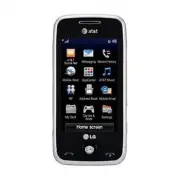
LG GS390GO Cell Phone – User Manual, read for free online in PDF format. We hope this helps you resolve any issues you may have. If you have further questions, please contact us through the contact form.


See user guide for Spanish instructions. Additional charges
may apply. Visit att.com/gophone for more details. Phone
features subject to change without prior notice. All phone
screens are simulated. Product color may vary.
QSG MCDZ0019701
Phone and Feature Guide
•
Mobile Email & Messaging
•
Social Networking
•
AT&T Mobile Music
•
Stereo
Bluetooth®
Capable
•
Camera/Video
LG is a registered trademark of LG Electronics, Inc. microSD™ is a trademark of SanDisk. The
Bluetooth
® word mark and logos
are registered trademarks owned by Bluetooth SIG, Inc. and any use of such marks by LG Electronics MobileComm, U.S.A., Inc.
is under license. Service provided by AT&T Mobility. © 2010 AT&T Intellectual Property. All rights reserved. AT&T, AT&T logo and all
other marks contained herein are trademarks of AT&T Intellectual Property and/or AT&T affiliated companies. All other marks are
proprietary to their respective owners.
Accessories for productivity, convenience, and fashion are available at att.com/wireless.
Vehicle Power Charger
Bluetooth
® Headset
Stereo
Bluetooth
® Headset
Bluetooth
® Solar Speakerphone
Optional Accessories
(back)
Volume Up/
Down Keys
Headset Jack
microSD™
Memory Slot
Camera
Key
Lock/
Unlock
Key
Micro USB
Charging
Port
Send Key
Clear & Back/
Voice Command
Key
Power/End Key
Earpiece
Touch Screen
For more information, visit att.com/devicesupport.
Camera Lens
Microphone
Getting to Know Your Phone
Entertain yourself with the most popular
downloadable games and applications—all
from the AppCenter.
Access AppCenter
1. From the home screen and with the phone unlocked,
tap
.
2. Tap
AppCenter
.
3. Once connected, select the category you want to view
to browse content. Follow instructions to purchase the
desired item.
Access Applications
1. From the home screen and with the phone unlocked,
tap
.
2. Tap
Games & Apps
.
3. Tap
Applications
.
AppCenter
Take your email with you with mobile email. You
can access multiple providers, including AT&T, AOL®,
Yahoo!®, and Windows Live™ email accounts.
1. From the home screen and with the phone unlocked,
tap
, and then tap
Mobile Email
.
2. Tap the name of your provider.
3. Tap the screen name/email/ID field, use the virtual
keyboard to enter your screen name/email/ID, and
tap
OK
.
4. Tap the password field, enter your password, and
tap
OK
.
5. Tap
Sign In
.
6. Tap a message to read it.
7. Tap
Options
for features such as delete, reply,
or forward.
All providers may not be available on all devices. Yahoo! and the Yahoo! logo are trademarks and/or registered
trademarks of Yahoo! Inc. AOL, America Online, and the Triangle Logo are registered trademarks of America Online.
Windows Live and the Windows logo are either registered trademarks or trademarks of Microsoft Corporation in the
United States and/or other countries.
Mobile Email
When you need to communicate privately and quickly,
use text messaging. You can send text messages to
other wireless phones and email addresses.
1. From the home screen and with the phone unlocked,
tap
.
2. Tap
Create new message
.
3. Use the virtual keyboard to enter your message.
4. Tap
Send To
.
5. Tap the name of a contact to select the contact as
a recipient.
6. Tap
Send
.
Text Messaging
Please don’t text and drive.
Snap it. Say it. Share it. Multimedia messaging lets
you share photos, voice messages, and more.
1. From the home screen and with the phone unlocked,
tap
.
2. Tap
Create new message
.
3. Tap
, and then tap
Insert
.
4. Choose to add an existing picture, audio, or video file
or create a new one to include with your message. You
can also add vCards, vCalendars, and contacts.
5. Tap the
Message field
, and then use the virtual
keyboard to add text to your message.
6. Tap
Send To
.
7. Tap the name of a contact to select the contact as
a recipient.
8. Tap
Send
.
Multimedia Messaging
Chat in real time using your favorite instant
messenger provider such as AIM®, Yahoo!®,
or Windows Live™. Log in on the go and stay
connected with your wireless phone.
1. From the home screen and with the phone unlocked,
tap
, and then tap
IM
.
2. Tap a provider name from the list, and then tap
Sign In
.
3. Tap the
Screen Name field
, and then use the virtual
keyboard to enter your screen name/email/ID.
4. Swipe up to scroll down and tap the
Password field
.
5. Enter your password and tap
Sign In
.
6. Tap the name of a contact currently online.
7. Tap the IM field, type your message, and tap
Send IM
.
8. To end the conversation, tap
, tap
End Conversation
,
and tap
Yes
.
Instant Messaging
"Loading the manual" means you need to wait until the file loads and becomes available for online reading. Some manuals are very large, and the time they take to appear depends on your internet speed.


