Page 3 - User Guide; Congratulations on your purchase of the
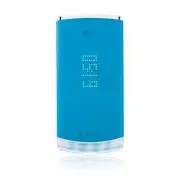
GD570 User Guide Congratulations on your purchase of the advanced and compact GD570 phone by LG, designed to operate with the latest digital mobile communication technology. Some of the contents in this manual may differ from your phone depending on the software of the phone or your service provider...
Page 4 - Contents; Understanding Your
2 LG GD570 | User Guide Contents For Your Safety .................3 Getting Started ............. 39 Understanding Your Phone .............................. 49 Call Functions ................60 Menu Navigation ........... 74 Entering Text .................. 78 Understanding Your Contacts ..............
Page 5 - Safety Information; Violation of the instructions may cause minor or; Do not disassemble or open crush, bend or; For Your Safety
3 Safety Information Please read and observe the following information for safe and proper use of your phone and to prevent damage. Violation of the instructions may cause minor or serious damage to the product. Do not disassemble or open crush, bend or • deform, puncture or shred. Do not modify or ...
Page 6 - Avoid dropping the phone or battery. If the; Charger and Adapter Safety; The charger and adapter are intended for indoor
4 LG GD570 | User Guide For Your Safety explosion, leakage or other hazard. Promptly dispose of used batteries in • accordance with local regulations. Battery usage by children should be supervised. • Avoid dropping the phone or battery. If the • phone or battery is dropped, especially on a hard sur...
Page 7 - Battery Information and Care; Please read the manual of proper installation and
5 Battery Information and Care Please read the manual of proper installation and • removal of the battery.Please read the manual of specified charger • about charging method.Do not damage the power cord by bending, • twisting, or heating. Do not use the plug if it is loose as it may cause electric s...
Page 8 - Never store your phone in temperature less than
6 LG GD570 | User Guide For Your Safety Never store your phone in temperature less than • -4 °F or greater than 122 °F.Charging temperature range is between 32 • °F and 113 °F. Do not charge the battery out of recommended temperature range. Charging out of recommended range might cause the generatin...
Page 9 - Keep batteries away from babies and small
7 Keep batteries away from babies and small • children. If children use the battery, their parents or legal guardians are responsible for supervising and teaching them about the safe handling of batteries and how to use batteries according to the manual with care.If liquid from the battery rubs agai...
Page 10 - General Notice; An emergency call can be made only within a
8 LG GD570 | User Guide For Your Safety General Notice An emergency call can be made only within a • service area. For an emergency call, make sure that you are within a service area and that the phone is turned on. Do not place items containing magnetic • components such as a credit card, phone car...
Page 11 - The data saved in your phone might be deleted; FCC Part 15 Class B Compliance
9 The data saved in your phone might be deleted • due to careless use, repair of the phone, or upgrade of the software. Please backup your important phone numbers. (Ringtones, text messages, voice messages, pictures, and videos could also be deleted.) The manufacturer is not liable for damage due to...
Page 12 - Reorient or relocate the receiving antenna.
10 LG GD570 | User Guide For Your Safety Part 15.21 Any changes or modifications not expressly approved by the manufacturer could void the user’s authority to operate the equipment. Part 15.105 statement This equipment has been tested and found to comply with the limits for a class B digital device,...
Page 13 - Connect the equipment into an outlet on a; FCC RF Exposure Information; Bodily Contact During Operation
11 Connect the equipment into an outlet on a • circuit different from that to which the receiver is connected.Consult the dealer or an experienced radio/TV • technician for help. FCC RF Exposure Information WARNING! Read this information before operating the phone.In August 1996, the Federal Communi...
Page 14 - Vehicle-Mounted External Antenna
12 LG GD570 | User Guide For Your Safety or retracted. Third-party belt-clips, holsters, and similar accessories containing metallic components should not be used. Avoid the use of accessories that cannot maintain 0.79 inches (2 cm) distance between the user’s body and the back of the phone and have...
Page 15 - Your wireless phone, which contains a radio
13 Consumer Information About Radio Frequency Emissions Your wireless phone, which contains a radio transmitter and receiver, emits radio frequency energy during use. The following consumer information addresses commonly asked questions about the health effects of wireless phones. Are wireless phone...
Page 16 - What does “SAR” mean?
14 LG GD570 | User Guide For Your Safety the joint FDA/FCC website at http://www.fda.gov (under “c”in the subject index, select Cell Phones > Research). You can also contact the FDA toll-free at (888) 463-6332 or (888) INFO-FDA. In June 2000, the FDA entered into a cooperative research and develo...
Page 18 - Can I minimize my RF exposure?
16 LG GD570 | User Guide For Your Safety While there may be differences between SAR levels of various phones and at various positions, they all meet the government requirement for safe exposure.The FCC has granted an Equipment Authorization for this model phone with all reported SAR levels evaluated...
Page 19 - Do wireless phones pose any special risks to
17 with wireless phones for convenience and comfort. These systems reduce the absorption of RF energy in the head because the phone, which is the source of the RF emissions, will not be placed against the head. On the other hand, if the phone is mounted against the waist or other part of the body du...
Page 20 - Where can I get further information about RF
18 LG GD570 | User Guide For Your Safety made such a recommendation in December 2000. In this report a group of independent experts noted that no evidence exists that using a cell phone causes brain tumors or other ill effects. [The UK’s] recommendation to limit cell phone use by children was strict...
Page 22 - Your wireless handheld portable phone is a low
20 LG GD570 | User Guide For Your Safety GermanyTelephone: 011 49 1888 333 2156http://www.icnirp.de American National Standards Institute 1819 L Street, N.W., 6th FloorWashington, D.C. 20036Telephone: (202) 293-8020http://www.ansi.org National Council on Radiation Protection and Measurements 7910 Wo...
Page 24 - Antenna Care
22 LG GD570 | User Guide For Your Safety Antenna Care Use only the supplied or an approved replacement antenna. Unauthorized antennas, modifications, or attachments could damage the phone and may violate FCC regulations. Phone Operation NORMAL POSITION: Hold the phone as you would any other telephon...
Page 25 - Hearing Aids
23 These recommendations are consistent with the independent research by and recommendations of Wireless Technology Research.Persons with pacemakers: Should ALWAYS keep the phone more than six • (6) inches from their pacemaker when the phone is turned ON;Should not carry the phone in a breast pocket...
Page 26 - Health Care Facilities
24 LG GD570 | User Guide For Your Safety Health Care Facilities Turn your phone OFF in health care facilities when any regulations posted in these areas instruct you to do so. Hospitals or health care facilities may use equipment that could be sensitive to external RF energy. Vehicles RF signals may...
Page 28 - Do not paint your phone.; FDA; Do wireless phones pose a; Do wireless phones pose a health hazard?
26 LG GD570 | User Guide For Your Safety FDA Consumer Update ● Do not immerse your phone inwater, liquid, or expose to highhumidity. If this happens, turn itoff immediately and remove thebattery. Immediately, take it to anLG Authorized Service Center. ● Do not paint your phone. ● The data saved in y...
Page 29 - What is the FDA’s role concerning the safety; Support needed research into possible biological
27 2. What is the FDA’s role concerning the safety of wireless phones? Under the law, the FDA does not review the safety of radiation-emitting consumer products such as wireless phones before they can be sold, as it does with new drugs or medical devices. However, the agency has authority to take ac...
Page 30 - National Institute for Occupational Safety and
28 LG GD570 | User Guide For Your Safety of the federal agencies that have responsibility for different aspects of RF safety to ensure coordinated efforts at the federal level. The following agencies belong to this working group: National Institute for Occupational Safety and • HealthEnvironmental P...
Page 36 - What has the FDA done to measure the
34 LG GD570 | User Guide For Your Safety you can find your phone’s RF exposure level in the online listing. 8. What has the FDA done to measure the Radio Frequency energy coming from wireless phones? The Institute of Electrical and Electronic Engineers (IEEE) is developing a technical standard for m...
Page 37 - complies with safety guidelines.; What steps can I take to reduce my exposure; The scientific evidence does not show a danger
35 complies with safety guidelines. 9. What steps can I take to reduce my exposure to Radio Frequency energy from my wireless phone? If there is a risk from these products — and at this point we do not know that there is — it is probably very small. But if you are concerned about avoiding even poten...
Page 38 - What about wireless phone interference with
36 LG GD570 | User Guide For Your Safety to users of wireless phones, including children and teenagers. If you want to take steps to lower exposure to Radio Frequency (RF) energy, the measures described above would apply to children and teenagers using wireless phones. Reducing the time of wireless ...
Page 39 - Where can I find additional information?
37 method is now part of a standard sponsored by the Association for the Advancement of Medical Instrumentation (AAMI). The final draft, a joint effort by the FDA, medical device manufacturers, and many other groups, was completed in late 2000. This standard will allow manufacturers to ensure that c...
Page 40 - Give full attention to driving -- driving safely is
38 LG GD570 | User Guide For Your Safety Safety Program(http://www.fcc.gov/oet/rfsafety)International Commission on Non-lonizing Radiation Protection(http://www.icnirp.de)World Health Organization (WHO) International EMF Project(http://www.who.int/emf)National Radiological Protection Board (UK)(http...
Page 41 - If necessary, switch off the phone by holding; Getting Started
39 This section explains how to start using your phone by first configuring your hardware, activating your service, and then setting up your Voicemail. Activating Your Phone When you subscribe to a cellular network, you are provided with a SIM card that is loaded with your subscription details, such...
Page 43 - Important: The SIM card and its contacts; Installing the Memory Card; Ensure the microSD’s gold contact pins face
41 Important: The SIM card and its contacts information can be easily damaged by scratching or bending, so be careful when handling, inserting, or removing the card. Keep all SIM cards out of reach of small children. Note: If the card is not inserted correctly, the phone will not detect the SIM card...
Page 44 - When ejecting a memory card, be careful
Getting Started 42 LG GD570 | User Guide Correct Incorrect Notes: When ejecting a memory card, be careful • not to push the memory card in too hard. A memory card is an optional accessory. •
Page 45 - Installing the Battery; Align the battery’s gold contacts with the gold; WARNING: Do not remove the battery when; the phone is on, as this may damage the phone.
43 Installing the Battery Align the battery’s gold contacts with the gold 1 contacts on the phone’s battery compartment (1). Lightly press down on the battery until it snaps 2 into place (2). Replace the cover by lining up the tabs and then 3 sliding the cover up until it snaps into place.Check that...
Page 46 - Charging a Battery; With the battery installed, unfasten the Headset /; Important: Verify that the handset battery is
Getting Started 44 LG GD570 | User Guide Charging a Battery Your phone is powered by a rechargeable Li-ion battery. A wall charger, which is used for charging the battery, is also included with your phone. Use only approved batteries and chargers. You can use the phone while the battery is charging,...
Page 47 - Plug the adapter into a standard AC wall outlet.; WARNING: You must unplug the Travel
45 Correct Incorrect Plug the adapter into a standard AC wall outlet. 2 Note: For connection to an electrical supply not located in the U.S., you must use an adapter of the proper configuration for the power outlet. Use of the wrong adapter could damage your phone and void your warranty. When chargi...
Page 48 - Low Battery Indicator; PIN Code Request
Getting Started 46 LG GD570 | User Guide Low Battery Indicator When the battery level is low and only a few minutes of talk time remain; a warning tone sounds and the “Low battery” message will be displayed. In this condition, your phone conserves its remaining battery power by dimming the backlight...
Page 49 - Language; Setting Up Your Voicemail; Follow the instructions below to set up Voicemail:
47 Note: The display language is set to English, by default. To change the language, use the Language menu. For more information, refer to “ Language ” on page 116 Setting Up Your Voicemail Follow the instructions below to set up Voicemail: In Idle mode, press and hold the 1 key until the phone dial...
Page 50 - Accessing Your Voicemail; key on the keypad, or by using the
Getting Started 48 LG GD570 | User Guide Accessing Your Voicemail You can access your Voicemail by pressing and holding the key on the keypad, or by using the phone’s Messaging menu’s Voicemail option. To call Voicemail directly: In Idle mode, press and hold the 1 key until the phone dials Voicemail...
Page 51 - Understanding Your Phone; Features of Your Phone; VGA Camera with 4x Digital Zoom
49 Understanding Your Phone This section outlines some key features of your phone. It also displays the screen and the icons that display when the phone is in use. Features of Your Phone Your phone is lightweight, easy-to-use and offers many significant features. The following list outlines a few of...
Page 52 - Open View of Your Phone
Understanding Your Phone 50 LG GD570 | User Guide Open View of Your Phone The following illustration shows the external elements of your phone and the main features. 14 12 13 15 11 10 2 1 3456 7 8 9
Page 53 - key allows you to directly access to your
51 Features Earpiece 1 allows you to hear the other caller and the different tones or sounds offered by your phone.LCD Display 2 shows all the information needed to operate your phone, such as the received signal strength, phone battery level, and time.Left Soft key 3 allows you to select the action...
Page 54 - Microphone
Understanding Your Phone 52 LG GD570 | User Guide Microphone 9 is used during phone calls and allows other callers to hear you clearly when you are speaking to them. It is also used in making voice recordings. Cancel/Clear key 10 deletes characters from the display. While browsing the menus, this ke...
Page 56 - Side Views of Your Phone
Understanding Your Phone 54 LG GD570 | User Guide Side Views of Your Phone The following illustrations show the external keys on your phone. 1 2 3 Volume key(s) 1 allow you to adjust the Ringtone & Alerts volume in idle mode (with the phone open) or adjust the volume during a call or while playi...
Page 57 - Back View of Your Phone; Camera lens; is used to; Viewing the Display Screen
55 Back View of Your Phone The following illustration shows the items on the back side of your phone: 1 Camera lens 1 is used to take pictures. Viewing the Display Screen Your phone’s display screen provides information about your phone’s status and options. The following two sections will help you ...
Page 58 - Icons
Understanding Your Phone 56 LG GD570 | User Guide specified time. The display also shows the date and time as well as other phone status information. The display has three main areas: Icons Content Soft Key functions Icons This list identifies the symbols you’ll see on your phone’s display screen: I...
Page 59 - Ring after Vibrate; Bluetooth headset connected; Flight mode is on; Background music playing
57 Icon Decprition An alarm is setSilence All profile in useMemory card installedCalls are forwarded3G in useEDGE in useRoamingBluetooth is activeCalls are rejectedApplications are running in the backgroundNew voicemail messageNew visual voicemail messageRing & Vibrate Ring after Vibrate Bluetoo...
Page 60 - Backlight; Backlight Timer setting.
Understanding Your Phone 58 LG GD570 | User Guide Backlight A backlight illuminates the internal display and the keypad. When you press any key, the backlight turns on. The backlight turns off when no keys are pressed within a given period of time, depending on the Backlight Timer setting. To specif...
Page 61 - Brightness; Highlight the; My Account; From Idle mode, press
59 Brightness After you set the backlight duration, set the brightness levels. In Idle mode, press 1 Menu g Settings g Display. Highlight the 2 Brightness option and press . Use the left or right Navigation key to select the 3 brightness level and press Set to save retain your new settings. My Accou...
Page 62 - Call Functions; Call Settings; Making a Call
60 LG GD570 | User Guide Call Functions This section describes how to make or answer a call. It also explains the features and functionality associated with making or answering a call. For information on Call Settings, see “ Call Settings ” on page 124. Making a Call In the Idle screen, enter the nu...
Page 63 - To recall any of these numbers:
61 To clear the whole display, press and hold • . Ending a Call When you want to finish your call, briefly press . Redialing the Last Number The phone stores the numbers of the calls you’ve recently dialed, received, or missed (if the caller was identified). To recall any of these numbers: In Idle m...
Page 64 - Edit Contact; : Allows you to send an Audio; Making a Call from the Contacts; Understanding Your Contacts; Adjusting the Call Volume
Call Functions 62 LG GD570 | User Guide Edit Contact • : Allows you to edit the contact. Audio Postcard • : Allows you to send an Audio postcard.Delete • : Allows you to delete the highlighted call log.Delete All • : Allows you to delete the all of the call logs. To dial the highlighted number, pres...
Page 65 - Answering a Call; Accept soft key to answer the; Call Logs; Menu
63 Answering a Call When somebody calls you, the phone will ring and display information about the caller.If available, the caller’s phone number, or name if stored in Contacts, will be displayed. Press 1 or the Accept soft key to answer the incoming call. Note: To mute the ringtone, press the Silen...
Page 66 - All Calls; Press the left or right navigation key highlight
Call Functions 64 LG GD570 | User Guide All Calls This menu lets you view the 100 most recent calls you received, dialed, and missed.The name or number, if already stored in your Contacts, is displayed with the number of occurrences for each number. Note: While you are in Call Logs, you may use the ...
Page 67 - Note: With the call details displayed, press the; at any time to exit the; Dialed Calls
65 Press the up or down Navigation key to scroll 3 through the missed calls. Press 4 to view the displayed number. Note: With the call details displayed, press the Options soft key to use Send Message, Save Number, Edit Number, Audio Postcard or Delete. Tip: You can press at any time to exit the Mis...
Page 68 - Vibrating Mode; until the; Options During a Call
Call Functions 66 LG GD570 | User Guide Vibrating Mode Vibrating Mode is convenient when you wish to be notified of incoming calls, but want to keep the phone from making any noise; like when in a theater, for example.From Idle mode, press and hold until the “Vibrating Mode On” message appears and t...
Page 69 - Call Waiting; Accept soft key or
67 Switching off the Microphone (Mute) During a call, you can temporarily switch your phone’s microphone off, so that the other person cannot hear you. Press B Mute soft key during a call. The other person will not be able to hear you. The Mute icon will be displayed at the top left of the screen.To...
Page 70 - Putting a Call on Hold; To place a call on hold:
Call Functions 68 LG GD570 | User Guide Press the 2 Options soft key, highlight Swap Calls and press to switch between the two calls. Press the 3 Options soft key, highlight End Call and press . Then, highlight Held Call to end the call on hold, then press Press 4 to end the current or remaining cal...
Page 71 - Using the Speakerphone; Spk. Off soft key to turn the
69 When you have both an active call and a call on hold, you may switch between the two calls. To switch between the two calls: During the call, press the 1 Options soft key, highlight Swap Calls, and press . The active call is placed on hold and the other • call is activated. Press 2 to disconnect ...
Page 72 - Muting or Sending Key Tones; During a call, press the; Options soft key, and; select; Disable Tones to turn the key tones off.; To turn them back on, press the; Send Tones to turn the key tones on.
Call Functions 70 LG GD570 | User Guide Muting or Sending Key Tones During a call, these options allow you to turn the key tones off or on. If the Disable Tones option is selected, your phone does not transmit the DTMF (Dual Tone Multi-Frequency) tones when keys are pressed. To turn the DTMF key ton...
Page 73 - Searching for a Number in Address Book; Address Book and press
71 Searching for a Number in Address Book You can search for a number in Contacts during a call. During a call, press the 1 Options soft key. Highlight 2 Address Book and press . With the Address Book entries displayed:Enter the name that you wish to find in the 3 textbox located above the entries. ...
Page 74 - Making a Conference Call; Setting up a Conference Call; Having a Private Conversation With One
Call Functions 72 LG GD570 | User Guide Making a Conference Call A conference call is a network service that allows up to six people (yourself included) to take part simultaneously in a multi-party conference call.For further details about subscribing to this service, contact T-Mobile customer servi...
Page 76 - Menu Navigation; From Idle mode, press the; Menu soft key to access the; you can access them by pressing the
74 LG GD570 | User Guide Menu Navigation This section explains the menu navigation for your phone. Menu Navigation You can access the phone’s range of functions to suit your needs using menus and sub-menus. Menus and sub-menus can be accessed using the Navigation keys or by using shortcuts. Accessin...
Page 77 - Selecting Functions and Options; Soft Keys; Press the left
75 Selecting Functions and Options Your phone offers a set of functions that allow you to customize it. These functions are arranged in menus and submenus, accessed using the navigation key and the two soft keys. Each menu and sub-menu allows you to view and alter the settings of a particular functi...
Page 78 - Navigating Menus and Options
Menu Navigation 76 LG GD570 | User Guide Navigating Menus and Options To view the various methods to make selections on your phone, options available are to: Press the appropriate soft key. • Press • to select the function displayed or the highlighted option.Press the Navigation key to view the next...
Page 79 - Using Shortcuts; Menu soft key to
77 Using Shortcuts The menu items, such as menus, sub-menus, and options, are numbered and can be accessed quickly by using their shortcut numbers. For the main menus, you can access any one of them by pressing the number keys (1 to 9), according to their location on the screen.Example: Accessing th...
Page 80 - Entering Text; Changing the Text Input Mode; Your phone has the following text input modes:; • : this mode allows you to enter words with
78 LG GD570 | User Guide Entering Text This section outlines how to select the desired text input mode for entering characters with your phone. This section also describes how to use the T9 predictive text system to reduce the number of key strokes needed for entering text. Changing the Text Input M...
Page 82 - Using T9 Mode; To enter a word in T9 mode:
Entering Text 80 LG GD570 | User Guide When the Text input mode you need is selected, 3 enter text in the text message box using the selected text input mode. Using T9 Mode T9 is a predictive text input mode that allows you to enter words faster. This text input mode is based on a built-in dictionar...
Page 84 - Using Symbol Mode; Right soft key to select Sym.; Using Number Mode
Entering Text 82 LG GD570 | User Guide Tip:You can move the cursor by using the Navigation keys. To delete letters press . Press and hold to clear the entered text. Using Symbol Mode Symbol mode enables you to insert symbols and punctuation marks into text. To display a list of symbols, press the Ri...
Page 85 - Using ABC Mode
83 Using ABC Mode To use ABC mode, use the 2 to 9 keys to enter your text. When entering text, press the key labeled with the 1 letter you want: Once for the first letter • Twice for the second letter, and so on • Select the other letters in the same way. 2 Press • to enter periods, hyphens, apostro...
Page 86 - Storing a Number in the Phone’s Memory; Select
84 LG GD570 | User Guide Understanding Your Contacts This section explains how to use and manage your Contacts. You can save phone numbers to your phone’s memory or to your SIM card. Storing a Number in the Phone’s Memory The default storage location for saving phone numbers to your Contacts is your...
Page 87 - First Name text box.
85 Enter a first name in the 3 First Name text box. Go to the next text box by pressing the down Navigation key. For further details about how to enter characters, see “ Using ABC Mode ” on page 83. Enter a last name in the 4 Last Name text box. Highlight a field with the Navigation key, and then 5 ...
Page 89 - Storing a Number in the SIM Card
87 Press 6 to Save. The information is saved to your phone and located in the Contacts list.Press 7 to return to the Idle screen. Storing a Number in the SIM Card The default storage location for saving phone numbers to your Contacts is your phone’s built-in memory. To save a number to your SIM card...
Page 90 - Yes soft key to confirm; Finding Contacts Entry; Once a contact is saved, it is easy to locate it.; Enter the first few letters of the name in the text
Understanding Your Contacts 88 LG GD570 | User Guide Delete from SIM: The selected Contacts will be deleted from your SIM card.Select the desired contacts and press the right 3 soft key to copy/delete.If necessary, press the 4 Yes soft key to confirm your selection. Finding Contacts Entry Once a con...
Page 92 - My Profile
Understanding Your Contacts 90 LG GD570 | User Guide My Profile • : allows you to view your Voice Line information.Text Entry Mode • : allows you to select the Text Entry Mode for Contact Search.Text Entry Settings • : allows you to select the following settings: Text Entry Language (English, França...
Page 93 - Set Speed Dial; : allows you to assign a speed; Call soft key or; to dial the selected; Message soft key to send a text; Dialing a Number from Contacts
91 Set Speed Dial • : allows you to assign a speed dial key number to the selected Contacts entry.Set as Primary Number • : allows you to assign the selected number as the primary phone number when you dial the contact.Send Contact Info via • : allows you to send the selected contact entry via Text ...
Page 94 - Creating and Editing a Caller Group; To create a new group:
Understanding Your Contacts 92 LG GD570 | User Guide Creating and Editing a Caller Group To create a new group: From Idle mode, press 1 Menu g Contacts g Groups.Press the 2 New soft key in the Groups screen. Enter a name for the new group in the 3 Group Name field.Highlight the fields you want to ed...
Page 95 - Open; Groups and scroll through the list with the; Speed Dialing
93 To edit a group: Open 1 Groups and scroll through the list with the Navigation key.Highlight the group and press 2 Options g Edit Group.Modify the group and press the 3 Save soft key to save. Speed Dialing Once you have stored phone numbers from your Contact list, you can set up to 8 speed dial e...
Page 96 - Setting Up Speed Dial Entries; Deleting all of the Contact Entries
Understanding Your Contacts 94 LG GD570 | User Guide Setting Up Speed Dial Entries From Idle mode, press 1 Menu g Contacts g Speed Dial.Use the Navigation key to select the speed- 2 dialing number and press the Assign soft key. Highlight a contact entry number from the list 3 and press the Assign so...
Page 97 - Mobile Backup
95 Mobile Backup You can view the information for your Last sync, also about Mobile Backup. From Idle mode, press 1 Menu g Contacts g Mobile Backup. My Name Card (My Info) My Info allows you to view and edit your personal Contact information including name, phone numbers, and email address in one en...
Page 98 - Messages; Types of Messages
96 LG GD570 | User Guide Messages This section describes how to send or receive different types of messages. It also explains the features and functionality associated with messaging. Types of Messages Your phone provides the following message types: Text Messages • Multimedia Message • Audio Postca...
Page 99 - Create Text Messages; Creating a Simple Text Message; Options soft key when you finish
97 Create Text Messages Short Message Service (SMS) allows you to send and receive short text messages to and from other mobile phones.The Message icon displays on the notification bar when you have received a new text message. When the memory is full, you will be notified by your phone. You must fr...
Page 100 - Text Entry Mode
Messages 98 LG GD570 | User Guide Text Entry Mode • : allows you to select the text mode between T9, ABC, and 123 mode.Text Entry Settings • : allows you to select the following settings: Text Entry Language (English, Français, and Español), T9 Word Candidate, T9 Next Word Prediction, and T9 Diction...
Page 101 - Create Multimedia Messages; Creating and Sending a Multimedia Message; Press the; Down; until the multimedia file icon you want highlights.
99 Create Multimedia Messages This menu allows you to use the Multimedia Message Service (MMS).Multimedia Messaging is a messaging service that provides delivery of personal picture messages from phone to phone or from phone to email.Using the Multimedia Messaging feature, your phone can receive and...
Page 102 - Options soft key to enter a phone; Conversations
Messages 100 LG GD570 | User Guide Press 4 to use and add the multimedia file. The following options are available: Add Sound, Record Sound, Add Picture, Camera, and Add Video.Press the 5 Send To soft key. Enter the first few letters of the name in the text 6 field to select a contact and select the...
Page 104 - Viewing a Multimedia Message from the Inbox; Voicemail
Messages 102 LG GD570 | User Guide Viewing a Multimedia Message from the Inbox Highlight a retrieved multimedia message from 1 the list and press View. While viewing the multimedia message, you 2 may choose the some options by pressing the Options soft key. Viewing an Audio Postcard from the Inbox S...
Page 105 - Email; Setting up your email
103 Email You can stay in touch on the move using email on your phone. It’s quick and simple to set up using a E-mail Setup Wizard. Note: Before using this feature, you need to subscribe to a Dataplan service. For further details, contact T-Mobile customer service. Setting up your email From Idle mo...
Page 106 - Retrieving your email; Audio Postcard
Messages 104 LG GD570 | User Guide Retrieving your email You can automatically or manually check your account for new email.See ‘ Setting up your email ’ to check automatically. From Idle mode, press 1 Menu g Messaging g Email. Audio Postcard In this menu you can select a frame, take a picture, reco...
Page 108 - Using the Instant Messenger Options
Messages 106 LG GD570 | User Guide With all of the appropriate fields filled in, press 5 the Sign in soft key. Follow the on-screen instructions to read, reply 6 to, compose, send, and manage your Instant Messaging account. Using the Instant Messenger Options After selecting an Instant Messaging ser...
Page 109 - Drafts; Message Settings
107 Drafts This message folder stores messages that you may want to edit or send at a later time. From Idle mode, press the 1 Menu g Messaging g Drafts. Note: Press the left or right Navigation keys to scroll to Undelivered and Conversations. Select a message from the list and press the 2 Edit soft ...
Page 110 - Message Alert
Messages 108 LG GD570 | User Guide Message Alert • : Allows you to change the Sounds, Alert Type, Reminder for your received message notifications.Signature • : Allows you to create or edit a signature.Text Message • : Allows you set or view settings for Text Templates, Msg Center No., Subject, Deli...
Page 111 - Sound Settings; Browse HiFi Ringers®; Changing Your Settings
109 This section explains the sound and phone settings for your phone. It includes such settings as: display, security, memory, and any extra settings available with your phone. Sound Settings You can customize various sound settings. Browse HiFi Ringers® Using the Browse HiFi Ringers option, you ca...
Page 112 - Volume; . Use the Navigation key to; Set soft; : the phone rings using the ringtone
Changing Your Settings 110 LG GD570 | User Guide Volume This menu allows you to adjust the Ringtone & Alerts, Call, Multimedia and Keypad volumes to one of the 7 levels or to Silent All mode or Vibrate All mode.Use the Up or Down Volume key to to adjust the ring volume in standby mode (with the ...
Page 114 - Display Settings; : allows you to choose a photo from; Color Theme
Changing Your Settings 112 LG GD570 | User Guide Display Settings In this menu, you can change various settings for the display or backlight.From Idle mode, press Menu g Settings g Display. Browse Wallpapers It allows you to download additional wallpapers using the browser. Wallpaper This menu allow...
Page 115 - Main Menu Style; Circle style
113 Secret Lighting This menu allows you to change the top-edge lighting style and color. Fonts This menu allows you to change the type or size of the fonts for the Dialpad and Menu & Lists. Brightness This menu allows you to adjust the display brightness to see it better in different lighting c...
Page 116 - Bluetooth®; About Bluetooth; This option allows you to turn Bluetooth
Changing Your Settings 114 LG GD570 | User Guide Bluetooth® About Bluetooth Bluetooth is a short-range wireless communications technology capable of exchanging information over a distance of about 30 feet without requiring a physical connection.Unlike infrared, you don’t need to line up the devices ...
Page 117 - : The Bluetooth headset can be used; Faves; Time and Date
115 describe the services supported by individual devices. See the Supported Services sub-menu for more information.Various profiles are available, including (but not limited to): Headset • : The Bluetooth headset can be used for both outgoing and incoming calls.Handsfree • : The Bluetooth device (e...
Page 118 - The following options are available:; Set Time; : allows you to select whether your; On; : the phone automatically updates the; Off; : you need to manually set the time and; Languages
Changing Your Settings 116 LG GD570 | User Guide The following options are available: Set Time • : allows you to change the date. Date Format • : allows you to select ddd, MMM DD, MM/DD/YYYY, DD/MM/YYYY, or YYYY/MM/DD format.Set Time • : allows you to change the hour, minute, am/pm, and daylight sav...
Page 119 - Change Codes
117 Set Flight Mode Flight Mode allows you to use many of your phone’s features, such as Games, Voice recorder, etc., when you are in an airplane or in any other area where wireless connectivity is prohibited. When your phone is in Flight Mode, it cannot send or receive any calls or access online in...
Page 120 - • : You must enter the PIN each time the; Fixed Dial Number; : You can only call phone numbers
Changing Your Settings 118 LG GD570 | User Guide PIN Code RequestWhen the PIN Code Request feature is enabled, you must enter your PIN each time you switch on the phone. Consequently, any person who does not have your PIN cannot use your phone without your approval. Note: Before enabling or disablin...
Page 122 - Auto Rotation; settings are returned to default values.
Changing Your Settings 120 LG GD570 | User Guide PIN2 This feature allows you to change your current PIN2 to a new one. You must first enter the current PIN2 (obtained from T-Mobile) before you can specify a new one. Once you have entered a new PIN2, you are asked to confirm it by entering it again....
Page 123 - on the memory card will be deleted.; Connection; USB Connection Mode
121 Master Clear • g Phone: Only the phone settings are returned to default values and all data is deleted.Master Clear • g Memory Card: Only all the data on the memory card will be deleted. My Account This option provides you with account-specific information such as your current status, current ac...
Page 124 - Using your phone as a mass storage device (Mass
Changing Your Settings 122 LG GD570 | User Guide Using your phone as a mass storage device (Mass Storage)Your phone can only be used as a mass storage device if you have a memory card inserted. From Idle mode, press the 1 Menu soft key to access the main Menu.Press 2 for Settings. Press 3 for Connec...
Page 125 - : You are connected to the first
123 Network Selection The Network Selection feature enables you to automatically or manually select the network used when roaming outside of your home area. Note: You can select a network other than your home network only if there is a valid roaming agreement between the two. Network Selection Autom...
Page 127 - : Allows you to answer an incoming call; Flip Open; : Allows you to answer an incoming; Minute Minder
125 Answer Mode The Answer Mode menu allows you to select how your phone answers incoming calls. Any Key • : Allows you to answer an incoming call by pressing any key on your phone, except the volume keys.Send Key Only • : Allows you to answer an incoming call by pressing the Accept soft key. Flip O...
Page 128 - TTY
Changing Your Settings 126 LG GD570 | User Guide TTY A TTY (also known as a TDD or Text Telephone) is a telecommunications device that allows people who are deaf, hard of hearing, or who have speech or language disabilities, to communicate by telephone. Your phone is compatible with select TTY devic...
Page 129 - Application Settings; for; Application Settings and press
127 Application Settings From Idle mode, press the 1 Menu soft key to access the main Menu.Press 2 for Settings. Press 3 for Application Settings and press . Online Album The following options are available: Flickr, Kodak, Photobucket, and Snapfish. Messaging The following options are available: Mes...
Page 130 - Memory; Software Update
Changing Your Settings 128 LG GD570 | User Guide Memory From Idle mode, press the 1 Menu soft key to access the main Menu.Press 2 for Settings. Press 3 for Memory and press . Set Storage Defaults The following options are available: All, Camera, Download, Bluetooth, and Voice Recorder. Check Memory ...
Page 131 - web2go and press; Home; web2go Browsing
129 This section outlines the browsing features available on your phone. For more information, contact T-Mobile. web2go Your phone is equipped with a browser that provides wireless access and navigation to the Web.To access the browser via the menu, follow these steps: From Idle mode, press the 1 Me...
Page 132 - Enter URL; Bookmarks; Saved Pages
web2go Browsing 130 LG GD570 | User Guide Enter URL This menu allows you to manually enter the URL address of a web site that you wish to access. Note: For further details about how to enter characters, see “ Entering Text ” on page 78. Bookmarks This menu stores up to 50 URL addresses.To store a UR...
Page 134 - Voice Command; Organizer
132 LG GD570 | User Guide The Organizer allows you to set alarms, schedule appointments, view the calendar, create tasks, perform simple math calculations, check world time, perform unit conversions, set a timer, and use a stopwatch. From Idle mode, press the 1 Menu soft key to access the main Menu....
Page 135 - Follow-up Commands Available; Yes; : Return to the main Voice Command; Exit
133 Call <Name or Number> This function is activated only when the user says the command “Call” followed by the name stored in the address book or say the phone number. Please note that interfering noise might cause a problem displaying candidates.Additionally, the user has the option to selec...
Page 136 - : You will no longer receive voice
Organizer 134 LG GD570 | User Guide Follow-up Commands Available • Yes - : Make the phone call. No - : Moves to the next result. Cancel - : Return to the main Voice Command menu. Exit - : Terminate Voice Command. Next - : Moves to the next result. Messages This command is activated when the user say...
Page 137 - Telenav GPS Navigator
135 Voice Command is activated. Best Match • 1 Match - : The most likely match will be displayed when finding a number from the address book. 4 Matches - : The four most likely matched names will be displayed when finding a name from the address book. Sensitivity • High/Medium/Low - Spk. On Mode • A...
Page 138 - Telenav GPS Navigator and press; Maps and Info; Access to Google Maps; Alarm Clock
Organizer 136 LG GD570 | User Guide Press 3 for Telenav GPS Navigator and press . Maps and Info Access to Google Maps You can use Google navigation services from the Organizer menu. Select Google Maps to launch the application.The GPS position your phone is providing will be processed. This service ...
Page 139 - Calendar; Adding an event to your calendar
137 to sound.Press the Down Navigation key to highlight the 3 Repeat option.Choose whether you would like your alarm to 4 sound Once, Daily, Mon ~ Fri, Sat ~ Sun, Except Holiday, or Select Weekday.Press the Down Navigation key to highlight the 5 Alarm Tone option to select a sound for your alarm. To...
Page 140 - Notepad
Organizer 138 LG GD570 | User Guide Press 3 for Calendar and press . Highlight the date you would like to add an event 4 to.Press the 5 New soft key. Check the date and enter the time you would like 6 your event to begin.For 7 Duration, enter the time your event finishes. If you would like to add a ...
Page 141 - Options; Calculator
139 Type your memo, followed by 5 Save. Your memo will appear on screen next time you 6 open the Memo application. TIP: You can edit an existing memo. Highlight the one you want to edit and press the Options soft key, followed by Edit. Calculator With this feature, you can use the phone as a calcula...
Page 142 - World Clock
Organizer 140 LG GD570 | User Guide Press 7 to view the result. Repeat steps 1 to 6 as many times as required. 8 World Clock This feature allows you to assign two separate time zones to your phone. You can set the first setting to your home city and then use the second setting to check other city ti...
Page 144 - Down Navigation key to move to the; Unit Converter
Organizer 142 LG GD570 | User Guide The 6 Tip($) field value is calculated according to the values entered.Use the 7 Down Navigation key to move to the Split field to change the number of people contributing to the tip amount.The 8 You Owe field displays what each individual is to pay. Unit Converte...
Page 145 - Using the Camera; Note: Do not take photos of people without their; Do not take photos in places where cameras are; Taking and Sending a Photo; Camera
143 This section explains how to use the camera on your phone. You can take photographs by using the built-in camera functionality. Using the Camera Using the camera module in your phone, you can take photos of people or events while on the move. Additionally, you can send these photos to other peop...
Page 146 - Configuring Camera; My Album Online
Camera 144 LG GD570 | User Guide Note: When you take a photo in direct sunlight or in bright conditions, shadows may display in the photo. Press the 1 Camera key on the right side of the phone. to activate the camera. – or – From Idle mode, press the Menu soft key to access the main Menu.Press 2 for...
Page 147 - Add Voice; Viewing Photos; Configuring Camera Options; On-Screen Icons in Camera Mode
145 Add Voice • : allows you to record a voice note to attach to this photo.Delete • : Allows you to delete the picture. – or – Configure the picture options. For more 8 information, refer to “ Viewing Photos ” on page 147. Configuring Camera Options On-Screen Icons in Camera Mode In Capture mode (p...
Page 148 - Settings Options in Camera Mode
Camera 146 LG GD570 | User Guide Settings Options in Camera Mode Preview OptionsYou can take a photo in various modes. Once you change the mode, the corresponding indicator displays at the top left of the display. Image Size • : Allows you to set the image size to either: 2M(1600x1200), 1M(960x1280)...
Page 150 - Options soft key, the following
Camera 148 LG GD570 | User Guide If you press the 5 Options soft key, the following options are available: Use As • : Allows you to save this photo as Wallpaper or a Picture IDSend • : Allows you to send this photo as a Picture Message, Audio Postcard, Bluetooth, or to your Online Album.Print via Bl...
Page 152 - My Album; Recording a Video
Camera 150 LG GD570 | User Guide My Album My Album is a private online picture album that you can use to store and share pictures, videos, voice messages, and text. Use the following procedures to access My Album. Note: When accessing My Album, charges may apply. The feature is not activated until y...
Page 153 - Configuring Camcorder Options
151 – or – From Idle mode, press the Menu soft key to access the main Menu.Press 2 for Media. Press 3 for Video and press . Use the Navigation key to select Record Video. Adjust the image by aiming the camcorder at the 4 subject.Prior to recording a video, press the 5 Settings soft key to set the Vi...
Page 156 - Playing Back Videos
Camera 154 LG GD570 | User Guide Playing Back Videos To access your videos: From Idle mode, press the 1 Menu soft key to access the main Menu.Press 2 for Media. Press 3 for Video and press . When you access this menu, your phone displays the videos in Thumbnail view, which shows them as small images...
Page 158 - Media; Media and press; Photos
156 LG GD570 | User Guide Media You can store multimedia files in your phone’s memory so you have easy access to all your pictures, sounds, videos and games. You can also save your files to a memory card. Using a memory card allows you to free up space in your phone’s memoryTo access the Media menu ...
Page 159 - Music Player and press; From here, you can access a number of folders:
157 Press 3 for Music Player and press . From here, you can access a number of folders: All Songs - Contains all the songs you have on your phone except the pre-loaded default music.Playlists - Contains all the playlists you have created.Artists - Browse through your music collection by artist.Album...
Page 160 - Transferring music onto your phone
Media 158 LG GD570 | User Guide Transferring music onto your phone The easiest way to transfer music onto your phone is via Bluetooth or the data cable. Make sure both devices have Bluetooth switched 1 on and are connected to each other.Select the music file on the other device and 2 select send via...
Page 161 - Creating a playlist
159 Press the 6 Right Navigation key to skip to the next song.Press the 7 Left Navigation key to go back to the previous song. WARNING: To play music player in best condition, there should be 2MB space in your phone. There may be more space than 2MB according to the memory saved on Memory card. Crea...
Page 162 - Sounds
Media 160 LG GD570 | User Guide Sounds The Sounds folder contains Downloaded sounds, Default sounds and Voice recordings.From here you can manage or send sounds or set them as ringtones. Videos The Video folder shows a list of videos you have downloaded or recorded on your phone. YouTube You can wat...
Page 163 - Images; Images and press; Select the files you wish to view.; Wallpapers
161 Images In this menu, you can view the list of images including default images pre-loaded onto your phone, images you have downloaded or downloaded from the web server or received in messages. You can set an image as the current background image. From Idle mode, press the 1 Menu soft key to acces...
Page 164 - Use the Navigation keys to select
Media 162 LG GD570 | User Guide My Album My Album is a private online picture album that you can use to store and send pictures, videos, voice messages, and text.Use the following procedures to access My Album. Note: When accessing My Album, charges may apply. The feature is not activated until you ...
Page 165 - Faves Icons; press the; Menu soft key to access the main; Other Files
163 Faves Icons This menu allows you to personalize your favorite numbers with downloadable icon types.Important!: These icons are only available is you subscribe to myFaves. Call your customer service representative for additional details. press the 1 Menu soft key to access the main Menu.Press 2 f...
Page 166 - Faves GalleryTM; Add a Fave; From the Idle screen, press; Note: You can also select Get; Enter the contact’s information, if
164 LG GD570 | User Guide Faves Faves Gallery™ Faves Gallery provides you easy access to cut through the clutter of communications from many people and effortlessly communicate with the people who matter most. You can add up to 20 Faves contacts to the Faves Gallery, either from selecting from your ...
Page 168 - Arrange a Fave
Faves 166 LG GD570 | User Guide Arrange a Fave From the Idle screen, press 1 to open Faves Gallery.Press the 2 Right or Left Navigation key to scroll through your Faves, then press to select the Fave.Press the 3 Options soft key. Select 4 Arrange Fave. Press the 5 Right or Left Navigation key to arr...
Page 170 - Charger; Accessories
168 LG GD570 | User Guide There are a variety of accessories available for your mobile phone, which may be sold separately. You can select these options according to your personal communication requirements. Consult your local dealer for availability. (Items described below may be optional.)Battery ...
Page 171 - Trouble Shooting
169 This chapter lists some problems that you might encounter while using your phone. Some problems require that you call your service provider, but most of problems you encounter are easy to correct yourself. Message Possible causes Possible Corrective measures Insert SIM There is no SIM card in th...
Page 173 - Limited Warranty Statement
Limited Warranty Statement 1. WHAT THIS WARRANTY COVERS : LG offers you a limited warranty that the enclosed subscriber unit and its enclosed accessories will be free from defects in material and workman- ship, according to the following terms and conditions: (1) The limited warranty for the product...