Page 3 - Table of Contents; Chapter 1
Table of Contents Chapter 1 Installation Preparing to Install the Driver ........................................................................................................ 1-1Selecting an Installation Method .........................................................................................
Page 6 - Chapter 10 Profiles; Glossary
Configuring Status Monitor ............................................................................................................ 9-8 Setting Status Monitor Preferences ......................................................................................... 9-9 EMF Spooling .....................
Page 7 - Installation; Preparing to Install the Driver
1 Installation A printer driver is an application that manages communication between a printerand your computer. Once installed, the printer driver settings must beconfigured in the printer Properties and Printing Preferences . Note: In Windows operating systems, you must be logged in with administr...
Page 8 - Installing Utilities; Installing in Express Mode
Installation Installing in Express Mode on page 1-2 Custom Installation Installing in Custom Mode with a USB Connection on page 1-4 Installing in Custom Mode with a Network Connection on page 1-5 Installing in Custom Mode with a Parallel Connection on page 1-6 Note: KPrint installs a client port mon...
Page 10 - Custom Installation; Installing in Custom Mode with a USB Connection
Installation Custom Installation Custom Mode is an option to install utilities. You can specify the printer port, fonts, and the utilities you want to install. Printer drivers that ship with Windows operating systems are called minidrivers.The minidriver is available separately for PCL and KPDL and ...
Page 11 - Hardware Installation; Continue Anyway; Installing in Custom Mode with a Network Connection
Installation 9 On the Confirm Settings page, click Install if the settings are correct. Click Back to correct the settings. Note: If the Hardware Installation warning dialog box appears, click Continue Anyway . 10 The Installation Completed page appears displaying the following driver options. Print...
Page 12 - Continue; Installing in Custom Mode with a Parallel Connection
Installation 6 On the Printer Settings page, you can assign a name for the printing system. You can also choose to share this printer with others or set this printer as thedefault printer. Make your selections, and then click Next . 7 On the Confirm Settings page, click Install if the settings are c...
Page 13 - Optional Printer Components; Installing Optional Printer Components
Installation 4 On the Printer Port page, select the local port connected to your printing system. Click Next . 5 On the Custom Installation page, select the driver and software packages you want to install from the Driver and Utility tabs, and clear those not intended for installation. Click Next . ...
Page 14 - Adding a Printer Driver Through the Wizard; Installing a Printer Driver in Windows 7 and Windows Vista; Installing a Printer Driver in Windows XP and Windows 2000
Installation 4 On all Select pages, choose your components, and click Next . 5 On the Confirm Settings page, if the displayed settings are correct, click Install . Click Back to correct any settings. 6 The Printer Components Installation Completed page appears. Click Finish . When you have completed...
Page 15 - Printer Driver Settings Access; Changing the Default Driver Settings
Installation 4 When the Completing the Add Printer Wizard page appears, installation of the printer driver is now complete. To close the Add Printer Wizard , click Finish . If prompted, restart your computer. Printer Driver Settings Access The printer driver software can be accessed from the Print d...
Page 16 - Device Settings; Accessing the Device Settings Tab
2 Device Settings In the Device Settings tab, you can select installed printing system options so the associated features can be used with the printer driver. You can also matchthe memory setting in the driver with the memory installed in your printingsystem, which lets the driver manage font downlo...
Page 17 - Device Options; Setting Device Options
Device Settings Device Options Optional devices extend the capabilities of your printing system for source andjob storage. In a client/server environment, this feature is unavailable to a client logged in asa restricted user. Setting Device Options You can set the printer driver to match the optiona...
Page 18 - Auto Configure; On; Security; Enabling Auto Configuration; Memory
Device Settings Auto Configure Auto Configure detects the devices installed on the printing system if it is connected over a network. Auto Configure can detect printing system devices such as input devices, output devices, RAM disk size, and hard disk size. Whenyour computer is connected to the prin...
Page 19 - Setting the Memory; RAM Disk; Setting RAM Disk; Administrator Settings
Device Settings Setting the Memory By default, the Memory setting matches the standard memory in the printing system. If optional memory is installed, set the memory in the printer driver tomatch the total amount of memory. 1 Install optional DIMM memory in the printing system. 2 In Device Settings ...
Page 20 - Job Accounting; Job Accounting Options
Device Settings Job Accounting Job accounting gives an administrator the ability to control usage of a printing system. With Job accounting, you can assign account IDs (identification numbers) to users or departments, a specific account ID, or make account IDinput mandatory for printing. After accou...
Page 21 - Use specific account ID; Prompt for account ID; Show Quick Print Tab; Setting the Administrator Password
Device Settings The remaining Job accounting options become available when you create an account ID list. Note: If you select the Use specific account ID or Prompt for account ID option, proceed to step 6. 4 Select Account ID List to create and manage account ID lists. 5 Select from the remaining Jo...
Page 22 - Clearing the Administrator Password; SNMP; SNMPv3 Options
Device Settings 2 In the Password dialog box, enter a password, using at least 4 and no more than 16 characters. Reenter the password in Confirm password and click OK . Clearing the Administrator Password 1 In the Device Settings tab, click Administrator . 2 In the Enter Password dialog box, type th...
Page 23 - Selecting SNMP Settings; User Settings; Identification; Setting User Identification
Device Settings DES This option uses the Data Encryption Standard for encryption. DES turns cleartext into ciphertext via an encryption algorithm. It encrypts and decryptsdata using 8-byte blocks and a 56-bit key. AES This option uses the Advanced Encryption Standard for encryption. AES is a symmetr...
Page 24 - Units; Selecting a Unit of Measurement; Language Preference; Setting Language Preference; PDF; Output to
Device Settings You can type up to 31 characters in the User name and Department text boxes. Units You can set Inches or Millimeters as the unit of measurement. This is used for the following settings: Custom page size setting in the Page Sizes dialog box in the Basic tab. Spacing setting in the Wat...
Page 25 - PDL Options; PCL XL; Selecting PDL Options
Device Settings PDL Options The PDL options, available in the PDL Settings dialog box, are accessed in Device Settings . PCL XL The most recent version of HP PCL and PCL 6. This PDL includes PCL 5efeatures. PCL XL lacks backward compatibility with earlier PCL versions,though it is enhanced over PCL ...
Page 26 - PDL; PDF Options
Device Settings 3 Settings is available when the PDL is set to KPDL or PDF . If you select KPDL as the PDL, you can click Settings to open the KPDL Settings dialog box. Select the Allow data passthrough check box to reduce errors when printing complex jobs from applications that usePostScript format...
Page 27 - Print and Save Settings
Device Settings Encryption provides password protection so that a document cannot be openedor altered by unauthorized users 40 Bit This encryption option provides low level security for a PDF document. It issupported for earlier versions of Adobe Acrobat and Adobe Reader 3.0 - 4.x. 128 Bit This encr...
Page 28 - XPS Driver; Media Source Enumeration; Setting Media Sources
Device Settings 3 Click Settings . 4 In the PDF Settings dialog box, select Print and save . 5 Click Settings , and select from print and save options. See the PDF Options topic for details. 6 Click OK in all dialog boxes. 7 Open and print the document. 8 Name and save the PDF file. XPS Driver For W...
Page 29 - Disable Face-Up Reverse Page Order; Ignore Application Collation; Selecting Printer Driver Collation; Combine Source and Media Type Lists; Creating a Combined Source List
Device Settings 2 From the Media source enumeration list, select the paper supply method. The current value is listed in the Enumerated value box. 3 Type an Enumerated value for the media source, and click Apply . To align settings with a different driver, this value should align with those in the o...
Page 30 - Output to PDF
Device Settings Removing a Plug-in You can remove an installed plug-in from the driver. If removed, the plug-infeatures do not appear in the driver interface. Note: To remove the Output to PDF module, PDF must not be selected as the PDL. 1 In the Device Settings tab, click the Kyocera logo to open t...
Page 31 - Quick Print; Quick Print Options; Specifying Print Options
3 Quick Print In the Quick Print tab, you can apply basic print settings to print jobs. Any Quick Print settings can be saved as a group, called a profile, and applied to any print job. Profiles support common printing tasks. The Administrator can set the view of the Quick Print tab through the Inst...
Page 32 - Collate
Quick Print Collate This icon changes the ordering of the printed pages. The page orderingsequence can either be 123, 123, 123, or 111, 222, 333, and so on. You canalso reverse the order of the printed pages by selecting the Reverse check box. ( Reverse is available when Printer default is not selec...
Page 33 - Multiple Pages per Sheet; Profile Options; Selecting Profiles
Quick Print Multiple Pages per Sheet Multiple pages per sheet prints several pages on a single sheet of paper for the purpose of reviewing the document and conserving paper. The size andreadability of the multiple pages decrease as the number of pages per sheet isincreased. You can set the arrangeme...
Page 34 - Factory Default; Editing a Profile
Quick Print 5 Click Apply to use the selected profile for the current print job, or click OK to close the dialog box. Note: To reset the printer driver to default settings, select the Factory Default profile, and click Apply . This clears the settings of a selected profile. Editing a Profile The Edi...
Page 35 - Exporting a Profile
Quick Print Exporting a Profile The Export button lets you export a copy of a profile from your printer driver for use in other printer drivers. The Factory Default profile cannot be exported. 1 Click Profiles . 2 In the Select profile section, select the profile to be exported, and click Export . 3...
Page 36 - Basic; Basic Paper Settings
4 Basic In the Basic tab, you can specify the most commonly used printer driver settings. Basic Paper Settings The Basic tab contains several settings for the most commonly used printing tasks. Print size This setting sets the size of the area that the printer prints to, regardless ofthe actual pape...
Page 37 - Source and Media Types; Print Size and Page Size
Basic Copies This setting specifies the number of copies to print. For collating multiplecopies, select Collate . If Reverse is selected, the printed pages appear in reverse order. Reverse is available when Printer default is not selected under Destination in the Basic tab. Reverse can be disabled i...
Page 38 - Creating a Custom Page Size; Duplex Printing
Basic Creating a Custom Page Size To use custom page sizes, they must be created and added to the Print size list. The driver supports a maximum of twenty custom sizes. 1 In the Basic tab, click Page Sizes . 2 Click New . 3 A default custom name appears in the Name box. Type a name for your custom p...
Page 39 - Flip on long edge; Printing in Duplex Mode
Basic Flip on long edge Flip on short edge Printing in Duplex Mode 1 In the Basic tab, select Print on both sides . 2 Select either Flip on long edge or Flip on short edge . 3 Click OK to return to the Print dialog box. 4 Click OK to begin printing. Collate Collate specifies the order in which the p...
Page 40 - Printing Collated Documents; EcoPrint; Displaying Version Information
Basic The printer driver automatically overrides the application's Collate setting and uses the printer driver setting. You can use the application's Collate setting by clearing the Ignore application collation check box in the Compatibility Settings dialog box accessed from the Device Settings tab....
Page 41 - Layout; Booklet; Printing a Booklet
5 Layout In the Layout tab, you can arrange document data on printed pages without affecting the original document. Booklet Booklet prints a two-page layout on both sides of each sheet of paper. You can fold and bind the booklet in the center. Folded booklets are half the size of theselected paper. ...
Page 42 - Printing Multiple Pages per Sheet; Poster
Layout 2 Click OK to return to the Print dialog box. 3 Click OK to begin printing. Multiple Pages per Sheet Multiple pages per sheet prints several pages on a single sheet of paper for the purpose of reviewing the document and conserving paper. The size andreadability of the multiple pages decrease ...
Page 43 - Printing a Poster; Scaling; Setting Scaling on the Page
Layout This selection duplicates the edges of document data on adjoining sheets.Poster appearance is improved when the edges overlap slightly. Select thecheck box, then type or select a value between 0.00 and 1.20 inches (0.0and 30.4 mm). This option reduces the final poster size slightly. Print cro...
Page 44 - Creating a Gutter; Gutter; Orientation; Duplex mode
Layout 1 In the Layout tab, select Scaling . 2 Type or select a percentage between 20 to 500. Scaling adjusts proportionately the height and width of the page. A lower percentage reduces the page and a higher percentage enlarges the page. 3 Click OK to return to the Print dialog box. 4 Click OK to b...
Page 45 - Imaging; Print Quality and Custom Quality; Selecting Print Quality
6 Imaging In the Imaging tab, you can manage print quality and grayscale settings. Print Quality and Custom Quality Print quality lets you set the resolution for the print job. Resolution is a measurement, in dots per linear inch (dpi), that describes the sharpness andclarity of printed text and ima...
Page 46 - Selecting EcoPrint; Fonts; Font Settings
Imaging Selecting EcoPrint EcoPrint changes toner saturation in the printed job, making the entire print image, including text and graphics, appear lighter. The amount of toner variesbased upon your printing system model and the type of data printed (text,graphics, or both). EcoPrint is also availab...
Page 47 - Note: GDI compatible mode; Substitute with device; Selecting Font Settings; Setting Font Substitution; Disable Device Fonts; Disabling Device Fonts
Imaging Download as bitmaps Downloading fonts as bitmaps provides more detail, however it creates largefile sizes. This is best suited for print jobs with user-defined fonts, very smallfonts (point size 1-4), or Asian fonts. Substitute with device fonts System fonts and device fonts are automaticall...
Page 48 - Graphics; Selecting Graphics Settings
Imaging 1 In the Imaging tab, click Fonts . 2 In the Fonts Settings dialog box, select the Disable device fonts check box. 3 Click OK to save your settings. Graphics Graphics are pictorial representations of information. Graphics can be functional(charts, diagrams) or artistic (drawings, photographs...
Page 49 - Optimization Settings; Setting the Halftone Screen
Imaging In the Imaging tab, click Graphics to open the Graphics settings dialog box and access the Inversion options . The settings are available when KPDL or XPS is selected as the PDL. Reverse image This setting prints images like a photo negative, reversing black and whiteareas of the image. Mirr...
Page 50 - Adjusting Grayscale
Imaging 2 Clear the Use printer's default screens check box. 3 Set the available options to the desired values: Ink Lists the halftone screens available. For black and white printers, this optionappears unavailable and is permanently set to Black . Frequency Displays the number of rows of dots per i...
Page 51 - Contrast; OK; Selecting Text and Graphics Effects; Print text as black
Imaging 3 Drag the Contrast slider right or left to increase or decrease the proportion of light to dark in the graphic images of the print job. A high contrast setting decreases the grayscale spectrum, making light grayslighter and dark grays darker. A low contrast setting increases the grayscalesp...
Page 52 - Publishing; Cover Mode; Printing Covers
7 Publishing In the Publishing tab, you can create covers, inserts, and add transparencies for a print job. The features on this tab are available only when PCL XL or KPDL is selected as the PDL. Cover Mode Cover mode is a feature for adding cover pages for the front and back of your document. You c...
Page 53 - Cover Mode Options; Check Box Selection
Publishing 4 Click OK to return to the Print dialog box. 5 Click OK to start printing. Cover Mode Options Check Box Selection Cover Insertion Type Front Inserts a blank front cover. Front Prints on the outside surface of thefront cover. Front outside Front Prints on the inside surface of the frontco...
Page 56 - Choosing Cover Media; Page Insert; Printing Page Inserts
Publishing Check Box Selection Cover Insertion Type Prints on both sides of the front and Front and back back covers. Front outside Front inside Back inside Back outside Choosing Cover Media To select media for the cover, follow these steps: 1 In the Media for cover list, select the media type or so...
Page 57 - Page Insertion Options
Publishing 5 From the Media for page list, select the media type of the inserted page or the source paper cassette. 6 Click OK to return to the Print dialog box. 7 Click OK to start printing. Page Insertion Options Check Box Selection Page Insertion Type Page insert Inserts a blank page. Page insert...
Page 58 - Transparency Interleaving; Interleaving Transparencies
Publishing Check Box Selection Page Insertion Type Prints on both sides of the inserted Page insert page. Print onto front Print onto back Transparency Interleaving Transparency interleaving inserts a backing sheet between printed transparencies. The backing sheet, also known as an interleaf, helps ...
Page 60 - Custom Box; Storing a Job in a Custom Box
Job Quick copy Hard disk No When sent from the When printingcomputer system is turned offor hard disk is full Proof and hold Hard disk or RAM No One copy when job When printing disk is sent; remaining system is turned off copies later Private print Hard disk or RAM Yes When access code When printing...
Page 61 - Quick Copy; User; Job name; Overwrite job name; Printing a Quick Copy Job; Proof and Hold
Job job is canceled. You will be prompted to contact an administrator to establishprinting permissions. Quick Copy Quick copy is a Job storage (e-MPS) option that prints all copies of a print job and stores the job temporarily on the hard disk for reprinting later. This feature isavailable when a ha...
Page 62 - Printing a Proof and Hold Job; Private Print; Storing a Private Print Job
Job Warning: A print job can replace a job on the hard disk having the same User name and Job name . To prevent this, select Use job name + date and time under Overwrite job name . Printing a Proof and Hold Job Proof and hold lets you print one copy of a multicopy job to proof before printing the re...
Page 63 - Job Storage; Storing a Job Storage Job; Job Name; Don’t Use Application Name
Job Job Storage Job storage is a Job storage (e-MPS) option that lets you store a print job permanently on the hard disk for printing later. You also have the option ofprotecting the print job from unauthorized printing by using an Access code . This feature is available when a hard disk is installe...
Page 64 - Overwrite Job Name
Job Overwrite Job Name Overwrite job name is an option to ensure that a saved print job is not replaced in printing system memory by a new job having the same Job name . If a user sends two print jobs with the same User name and Job name , the second job replaces the first job without any prompt. To...
Page 65 - Advanced; Selecting a Prologue/Epilogue File; Add; Editing a Prologue/Epilogue File; Edit
9 Advanced In the Advanced tab, you can choose special features that extend the capabilities of the printing system. Prologue/Epilogue The Prologue/Epilogue feature enables a user to insert a command file at the beginning of a print job or at the end. The command file, prepared in a texteditor, util...
Page 66 - Deleting a Prologue/Epilogue File; Start of the page
Advanced 2 Make your changes to the file. 3 Save the file, and exit Microsoft Notepad. Note: Editing and saving a command file overwrites the contents of the existing local or network file. Deleting a Prologue/Epilogue File 1 In the Prologue/Epilogue dialog box, select a Prologue/Epilogue file name ...
Page 67 - Watermark; Adding or Editing a Watermark
Advanced The command file is inserted as the first page of the print job. The documentstarts printing on the second page. End of the print job The command file is inserted as the last page of the print job, which printsafter the last page of the document. Start of the page The command file is insert...
Page 68 - Selecting Pages for Watermark
Advanced 6 Select the color of the watermark from the list. The options available are blackand shades of gray. 7 Select the watermark Count , to a maximum of 20. In the Spacing spin box, select the distance between two or more watermarks in tenths of an inch or inmillimeters. 8 Select the Position o...
Page 69 - Security Watermark; Adding or Editing a Security Watermark
Advanced First page only This option prints the watermark on the first document page. All pages except first page This option prints the watermark on all pages after the first page. Only on specified pages This option prints the watermark on page numbers typed in the box. Print onto front outside co...
Page 71 - Adjusting Security Watermark Calibration
Advanced Adjusting Security Watermark Calibration For a security watermark to be effective, it must be nearly invisible in a printedpage and clearly visible in a photocopied page. Because printing systems anddriver settings can vary, you must adjust the calibration before printing asecurity watermar...
Page 72 - Locking the Security Watermark Settings; Configuring Status Monitor
Advanced Only on specified pages This option prints the security watermark on the page numbers typed in thetext box. Print onto front outside cover This option prints the security watermark on the front cover. This option isavailable when Cover mode is selected in the Publishing tab. If Cover mode a...
Page 73 - Status Monitor; Hide the status monitor; Setting Status Monitor Preferences
Advanced 4 Move the pointer over the Status Monitor image to display balloon-style status messages containing information about printing system activity and the printerport. 5 To display a list of options, right-click the Status Monitor icon in the system tray. Hide the status monitor/Show the statu...
Page 74 - EMF Spooling; Allow data passthrough; KPDL Settings; Selecting EMF Spooling
Advanced Printing Printing completed 6 In the Sound Notification tab you can also add sound or speech to your chosen alert. To add a sound file: Clear the Use Text to speech check box. The sound file text box becomes available. Type the location of a sound file(.WAV), or browse to find a file locate...
Page 75 - Enable Client Profile; Enable client profile
Advanced Enable Client Profile Client profile refers to profile settings saved on a client computer. You have thechoice to use your local profiles or the server profiles. This feature is intendedfor use on the client side (PC side) in a client-server environment. Clear the Enable client profile chec...
Page 76 - Saving a Profile
10 Profiles In Profiles , you can save printer driver settings as a profile. You can select multiple options in the Quick Print tab and Printing Preferences , save them to a profile, and use all of them at once when you apply the profile. A maximum of26 profiles can be established in one driver, inc...
Page 85 - KYOCERA MITA Corporation
KYOCERA MITA Corporation Headquarters: 2-28, 1-chome, Tamatsukuri, Chuo-ku Osaka 540-8585, Japan Telephone: (06) 6764-3555 http://www.kyoceramita.com Kyocera Mita Australia Pty, LTD. Level 3, 6-10 Talavera Road, North Ryde, N.S.W. 2113 Australia Telephone: (02) 9888.9999 Kyocera Mita Singapore PTE, ...


 Kyocera FS-1120D Manual
 Kyocera FS-1320D Manual
 Kyocera FS-1370DN Manual
 Kyocera FS-2020D Manual
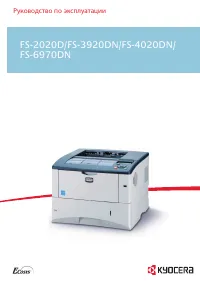 Kyocera FS-3920DN Manual
 Kyocera FS-4020DN Manual
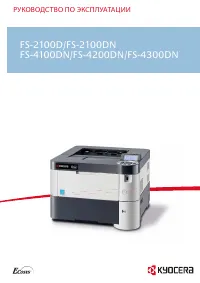 Kyocera FS-4100DN User Manual
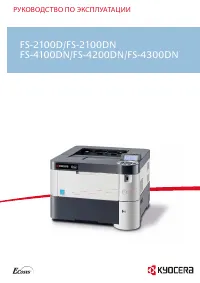 Kyocera FS-4200DN Manual
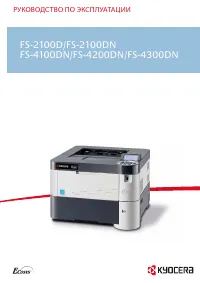 Kyocera FS-4300DN User Manual
 Kyocera FS-9130DN Manual
 Kyocera FS-9530DN Manual
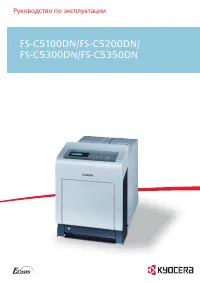 Kyocera FS-C5350DN Manual
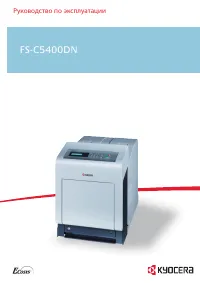 Kyocera FS-C5400DN Manual
 Kyocera FS-C8520MFP Manual
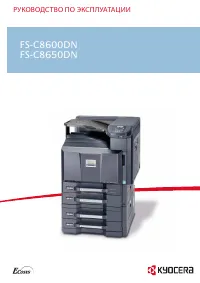 Kyocera FS-C8600DN User Manual
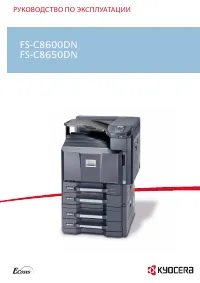 Kyocera FS-C8650DN User Manual
