Page 2 - In the box you will find
69-2715ES—01 ii In the box you will find • Thermostat • Wallplate (attached to thermostat) • Screws and anchors • Coin cell battery (inside the back of the thermostat) • Quick Start Guide • Thermostat ID Card • Wire labels • User Guide
Page 3 - Welcome
Welcome Congratulations on your purchase of a Honeywell Wi-Fi touchscreen programmable thermostat. When registered to Honeywell’s Total Connect Comfort Solutions, you can remotely monitor and control the heating and cooling system in your home or business— you can stay connected to your comfort syst...
Page 4 - Do not place your old thermostat in the trash if it contains
69-2715ES—01 2 This thermostat works on 24 volt systems. It will NOT work on 120/240 volt systems. This thermostat contains a Lithium battery which may contain Perchlorate material.Perchlorate Material—special handling may apply.See www.dtsc.ca.gov/hazardouswaste/perchlorate MERCURY NOTICE: Do not p...
Page 5 - Table of contents
69-2715ES—01 3 About your new thermostat Home screen quick reference ..................... 5Message center messages ......................... 6Preset energy-saving schedules ................. 8 Installation Installing your thermostat .......................... 10Connecting to your Wi-Fi network .......
Page 6 - Features of your Wi-Fi thermostat; Your new thermostat provides:
69-2715ES—01 4 Features of your Wi-Fi thermostat With your new thermostat, you can: • Connect to the Internet to monitor and control your heating/cooling system • View and change your heating/cooling system settings • View and set temperature and schedules • Receive alerts via email and get automati...
Page 7 - Home screen quick reference
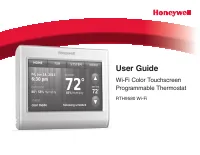
5 69-2715ES—01 Home screen quick reference Once your Wi-Fi thermostat is installed, it will display the home screen. Portions of this display will change depending on how you are viewing it. To change settings, simply press the appropriate area lightly with your finger. Unless you change the lightin...
Page 8 - Message center messages
69-2715ES—01 6 Message center messages The Message Center at the top of the screen communicates Wi-Fi connection and registration status. It also displays the MAC ID and MAC CRC for registering the thermostat at mytotalconnectcomfort.com Displayed before you begin Wi-Fi setup. Displayed while connec...
Page 10 - Preset energy-saving schedules; Default Heat Settings; WAKE
69-2715ES—01 8 Preset energy-saving schedules This thermostat is pre-set with energy-saving program settings for four time periods. Using the default settings can reduce your heating/cooling expenses by as much as 33% if used as directed. Savings may vary depending on geographic region and usage. De...
Page 11 - Setting up your thermostat; you may want to watch a brief installation video. Use the QR Code
9 69-2715ES—01 Setting up your thermostat Setting up your Wi-Fi programmable touchscreen thermostat is easy. It is preprogrammed and ready to go as soon as it is installed and registered. Install your thermostat.Connect it to your home wireless network.Register online for remote access. Before you b...
Page 12 - Installing your thermostat; You might need the following tools to install this thermostat:
69-2715ES—01 10 Installing your thermostat You might need the following tools to install this thermostat: • No. 2 Phillips screwdriver • Small pocket screwdriver • Pencil • Level (optional) • Drill and bits (3/16” for drywall, 7/32” for plaster) (optional) • Hammer (optional) • Electrical tape (opti...
Page 13 - Remove old thermostat.
11 69-2715ES—01 C C MCR33823 If you have an older thermostat with a sealed mercury tube, turn to page 2 for proper disposal instructions. Terminal designation Installing your thermostat 2 Remove old thermostat. Remove the old thermostat while leaving the wallplate and wiring in place. Take a picture...
Page 14 - If no tag matches a
69-2715ES—01 12 Installing your thermostat 3 Label wires. Use the supplied sticky tags to label each wire as you disconnect it. Label wires according to the old thermostat terminal designations, not by wire color. Note: If no tag matches a wire terminal label, write the terminal label on a blank tag...
Page 15 - Separate Wi-Fi thermostat and its
13 69-2715ES—01 M31538 Installing your thermostat 4 Remove wallplate. Remove the old wallplate from the wall after all wires have been labeled and disconnected. 5 Separate Wi-Fi thermostat and its wallplate. On your new thermostat, grasp the finger holds on the top and bottom of the wallplate with o...
Page 16 - Wallplate
69-2715ES—01 14 Installing your thermostat 6 Mount wallplate for Wi-Fi thermostat. Mount your new wallplate using screws and anchors included with the thermostat. If necessary: Drill 3/16-in holes for drywall. Drill 7/32-in holes for plaster. M31543 Y2 W2 K RC R W Y G C RC R O/B Y G C HEAT PUMP CONV...
Page 17 - Wiring; For; conventional; system, see page 17. See “Glossary” on page 65 for
15 69-2715ES—01 Note: The Wi-Fi thermostat requires a C wire to operate. The C, or common, wire brings 24 VAC power to the thermostat. Many older mechanical or battery operated thermostats do not require a C wire. If you don’t have a C wire, try: • Looking for an unused wire that is pushed into the ...
Page 18 - b Loosen screws, insert wires into holes; and; wires
69-2715ES—01 16 Y2 W2 K RC R W Y G C RC R O/B Y G C R W G C Y HEAT PUMP CONVENTIONAL L E/AUX K MCR31541 Installing your thermostat Wiring (conventional system) 7A Connect wires. Wire the Wi-Fi thermostat to your conventional system.a Match the labels on the wires to the terminal labels. You must hav...
Page 20 - Use this if your wire labels don’t match the terminal labels.
69-2715ES—01 18 Installing your thermostat Y2 W2 K Y2 W2 RC R W Y G C RC R W Y G C 1 2 3 CONVENTIONAL Metal Jumper Alternate wiring (conventional system) Use this if your wire labels don’t match the terminal labels. Note: You must have a C wire or equivalent. See page 15. See key to 1 – 3 on page 19...
Page 21 - only; Alternate wiring key (conventional system)
19 69-2715ES—01 Installing your thermostat Remove metal jumper connecting R and RC only if you must connect both R and RC . If your old thermostat had both R and RH wires, remove metal jumper. Connect the R wire to the RC terminal, and the RH wire to the R terminal. Do not use K terminal. Alternate ...
Page 22 - See key to
69-2715ES—01 20 Installing your thermostat Alternate wiring (heat pump system only) Use this if your wire labels don’t match the terminal labels. Note: You must have a C wire or equivalent. See page 15. RC R O/B Y G C L E/AUX K Y2 RC R W Y G C 1 2 3 3 4 7 6 5 HEAT PUMP Metal Jumper AUX See key to 1 ...
Page 23 - Alternate wiring key (heat pump system only)
21 69-2715ES—01 Installing your thermostat Alternate wiring key (heat pump system only) Leave metal jumper between R and RC terminals in place. If your old thermostat had both V and VR wires, check wifithermostat.com for help. If your old thermostat had separate O and B wires, attach the B wire to t...
Page 24 - Thermostat interior
69-2715ES—01 22 M31542 Installing your thermostat 8 Install battery. Insert the coin cell battery (included), observing the correct polarity. Thermostat interior
Page 25 - Attach thermostat to wallplate.; Thermostat
23 69-2715ES—01 Installing your thermostat 9 Attach thermostat to wallplate. Align the thermostat to the wallplate and then snap into place. Thermostat Wallplate M31543 Y2 W2 K RC R W Y G C RC R O/B Y G C HEAT PUMP CONVENTIONAL L AUX /E K
Page 26 - 0 Switch heating/cooling system ON
69-2715ES—01 24 Installing your thermostat 10 Switch heating/cooling system ON Switch power back to ON for your heating/cooling system at the breaker box or the system switch. M31544 or
Page 27 - 1 Set date and time.; Touch; Day
25 69-2715ES—01 Installing your thermostat 11 Set date and time. Touch s or t buttons to change displayed time and date. Press and hold a button to quickly change a setting. Day Time Month Year
Page 28 - 2 Determine your heating/cooling system type.; is conventional single stage, continue to
69-2715ES—01 26 Installing your thermostat 12 Determine your heating/cooling system type. If your system type is conventional single stage, continue to “Connecting to your Wi-Fi network” on page 27. If your system is: • Conventional multistage heat and cool• Heat pump without backup heat• Heat pump ...
Page 29 - Connecting to your Wi-Fi network; Smartphone
27 69-2715ES—01 Connecting to your Wi-Fi network To complete this process, you must have a wireless device connected to your home wireless network. Any of these device types will work: • Laptop (recommended) • Tablet (recommended) • Smartphone If you get stuck... at any point in this procedure, rest...
Page 30 - If you are asked to specify a home, public, or; Home Network
69-2715ES—01 28 The message at the top of your thermostat must say Wi-Fi SETUP.1 Connect to your thermostat. 1a On your laptop, tablet or smartphone, view the list of available networks. 1b Connect to the network called NewThermostat_123456 (the number will vary). Note: If you are asked to specify a...
Page 31 - Join your home network.; a To access the Thermostat Wi-Fi Setup page,; Connect; c Complete instructions for joining the network.
29 69-2715ES—01 Connecting to your Wi-Fi network 2 Join your home network. 2a To access the Thermostat Wi-Fi Setup page, open a web browser on your wireless device. The browser should automatically direct you to the correct page; if it does not, go to http://192.168.1.1. 2b On the Thermostat Wi-Fi S...
Page 33 - Make sure your thermostat is connected.; Then you will see; YOU ARE ALMOST
31 69-2715ES—01 Connecting to your Wi-Fi network MXXX21 MORE Inside MXXX22 MORE Inside 3 Make sure your thermostat is connected. Notice the thermostat message center. It will display CONNECTING... for up to 30 seconds, then CONNECTION SUCCESSFUL for one minute. Then you will see YOU ARE ALMOST DONE!...
Page 34 - Registering your thermostat online
69-2715ES—01 32 Registering your thermostat online To view and set your Wi-Fi thermostat remotely, you must have a Total Connect Comfort account. Use the following steps.1 Open the Total Connect Comfort web site. In an Internet browser, on your wireless device, open the Total Connect Comfort web sit...
Page 35 - Login or create an account.; – or –; Create An Account; Check your email; for an activation; Follow activation instructions; in the
33 69-2715ES—01 Registering your thermostat online 2 Login or create an account. If you have an account, click Login – or – click Create An Account 2a Follow the instructions on the screen.2b Check your email for an activation message from My Total Connect Comfort. 2c Follow activation instructions ...
Page 38 - iPhone
69-2715ES—01 36 Registering your thermostat online Your thermostat will display wireless signal strength.You can now control your thermostat from anywhere through your laptop, tablet, or smartphone. Total Connect Comfort free app is available for Apple ® iPhone ® , iPad ® and iPod touch ® devices at...
Page 39 - CLOCK; Setting the clock
37 69-2715ES—01 MCR31552 MORE 1 Press CLOCK to display setting arrows. 2 Press s or t to adjust the time. (You can advance the time more quickly by holding the s or t buttons.) 3 Press DONE to save and exit (or press CANCEL to exit without changing the time). Note: You should never need to adjust th...
Page 40 - ON; Fan runs only when the heating or; Setting the fan
69-2715ES—01 38 1 Press FAN to select fan operation. 2 Press FAN again to select ON or AUTO (toggle to re-select). The selected option blinks. 3 Press DONE to save setting. Your selection appears under FAN . ON : Fan is always on. AUTO : Fan runs only when the heating or cooling system is on. MORE I...
Page 41 - Selecting system mode; AUTO; Possible system modes:; HEAT; Controls only the heating system.; COOL; Controls only the cooling system.; OFF; Selects heating or cooling; EM HEAT
39 69-2715ES—01 Selecting system mode Note: The AUTO and EM HEAT system settings may not appear, depending on how your thermostat was installed. 1 Press SYSTEM to display options. 2 Press SYSTEM again to select an option. You may need to press two or three times to make a selection—the selected opti...
Page 42 - Adjusting program schedules
69-2715ES—01 40 MORE SLEEP SLEEP MCR3155 5 Adjusting program schedules 1 Press SCHED , then EDIT . Screen displays day buttons at top. 2 Press day buttons ( MON – SUN ) to select days. 3 Press s or t to set Wake time for selected day(s). 4 Press s or t to set Heat and Cool temperature for this time ...
Page 43 - Overriding schedules temporarily; Hold Until; CANCEL
41 69-2715ES—01 Overriding schedules temporarily 1 On the home screen, press s or t to immediately adjust the temperature. 2 Adjust the time to when you want the hold to end (the default is the end of the current period). The new setting will be maintained until the time shown under Hold Until . Whe...
Page 44 - Overriding schedules permanently; Press; HOLD; to permanently adjust the; )to cancel “Hold” and resume
69-2715ES—01 42 Overriding schedules permanently 1 Press HOLD to permanently adjust the temperature. This will turn off the program schedule. 2 Whatever temperature you set will be maintained 24 hours a day until you manually change it or press CANCEL (or SCHED )to cancel “Hold” and resume the progr...
Page 45 - Setting vacation hold; twice
43 69-2715ES—01 Setting vacation hold Use this function to suspend the program schedule while you are away for an extended period.1 Press s or t to set the temperature. 2 Press s or t to set the time of day you want the schedule to resume on the day you return. 3 Press HOLD twice . Hold Until appear...
Page 46 - Setting filter reminder intervals
69-2715ES—01 44 Setting filter reminder intervals MCR31559 SLEEP FILTER DAYS CHANGE FILTER Inside RESET MORE If activated during installation, the filter reminder alerts you with a message above the time when it is time to replace your filter.Press RESET after changing the filter, to restart the tim...
Page 47 - Cleaning the screen; SCREEN
45 69-2715ES—01 Cleaning the screen MORE MCR31560 1 Press SCREEN to lock the screen for cleaning. The screen will remain locked for 30 seconds so you can clean the screen without changing any settings. 2 After 30 seconds, press DONE to resume normal operation, or press SCREEN again if you require mo...
Page 48 - Unregistering thermostat; If you remove the thermostat from your
69-2715ES—01 46 Unregistering thermostat If you remove the thermostat from your Total Connect Comfort website account (for example, you’re moving and leaving the thermostat behind), the message center will scroll UNREGISTERED FROM TOTAL CONNECT for 3 minutes.After that, it will alternate displaying ...
Page 50 - Smart Response Technology; before
69-2715ES—01 48 Smart Response Technology This feature allows the thermostat to “learn” how long the heating/cooling system takes to reach programmed temperature settings, so the temperature is reached at the time you set.For example: Set the Wake time to 6:00 am, and the temperature to 70°. The hea...
Page 51 - Compressor protection
49 69-2715ES—01 Compressor protection This feature forces the compressor to wait a few minutes before restarting, to prevent equipment damage. During the wait time, the message “Wait” is displayed on screen.
Page 52 - Auto changeover; When the system is set to; System setting function 0300
69-2715ES—01 50 Auto changeover This feature is used in climates where both air conditioning and heating are used on the same day. When the system is set to AUTO , the thermostat automatically selects heating or cooling depending on the indoor temperature.Heat and cool settings must be at least 3 de...
Page 53 - Setting functions and options; st; DONE
51 69-2715ES—01 Setting functions and options You can change options for a number of system functions. Available functions depend on the type of system you have. The functions, designated with four-digit numbers, along with available options are described on pages 52–58.This thermostat is pre-set fo...
Page 54 - System setup; Function
69-2715ES—01 52 System setup How do I set my thermostat name? (See page 51 for instructions.) Function Settings & Options 0112 Device Name This name will identify the thermostat when you view it remotely.If you register multiple thermostats, give each one a different name. 52 = Thermostat 1 Base...
Page 61 - Frequently asked questions; Q Will my thermostat still work if I lose my Wi-Fi connection?
59 69-2715ES—01 Frequently asked questions : Q Will my thermostat still work if I lose my Wi-Fi connection? : A Yes, the thermostat will operate your heating and/or cooling system with or without Wi-Fi. : Q How do I find the password to my router? : A Contact the manufacturer of the router or check ...
Page 62 - Q Where can I find my MAC ID and MAC CRC codes?
69-2715ES—01 60 : Q Where can I find my MAC ID and MAC CRC codes? : A The MAC ID and MAC CRC will show in the message center of the thermostat. The numbers are also included on a card packed with the thermostat or on the back of the thermostat (visible when removed from wallplate). Each thermostat h...
Page 63 - Q Is there a way to extend the signal strength?
61 69-2715ES—01 Frequently asked questions : Q I registered on the Total Connect Comfort website but was unable to login using my new account. : A Check your email and ensure that you received an activation email. Follow the instructions to activate your account and then login to the website. : Q I ...
Page 64 - Troubleshooting
69-2715ES—01 62 If you have difficulty with your thermostat, please try the following suggestions. Most problems can be corrected quickly and easily. Display is blank • Check circuit breaker and reset if necessary. • Make sure power switch at heating and cooling system is on. • Make sure furnace doo...
Page 65 - Red light is on
63 69-2715ES—01 Troubleshooting Heat pump issues cool air in heat mode, or warm air in cool mode • Check Function 0190: Heat Pump Changeover Valve to make sure it is properly configured for your system (see page 55). Button on lower right of screen is blank • This button will remain blank unless the...
Page 67 - Glossary; C wire; QR Code
65 69-2715ES—01 Glossary C wire The “C” or common wire brings 24 VAC power to the thermostat from the heating/cooling system. Some older mechanical or battery operated thermostats may not have this wire connection. It is necessary for establishing a Wi-Fi connection to your home network. Heat Pump h...
Page 68 - Regulatory information
69-2715ES—01 66 Regulatory information FCC Compliance Statement (Part 15.19) (USA only) This device complies with Part 15 of the FCC Rules. Operation is subject to the following two conditions: 1 This device may not cause harmful interference, and 2 This device must accept any interference received,...
Page 70 - -year limited warranty
69-2715ES—01 68 1-year limited warranty Honeywell warrants this product, excluding battery, to be free from defects in the workmanship or materials, under normal use and service, for a period of one (1) year from the date of purchase by the consumer. If at any time during the warranty period the pro...
Page 72 - Automation and Control Systems
Automation and Control Systems Honeywell International Inc. 1985 Douglas Drive North Golden Valley, MN 55422 http://wifithermostat.com ® U.S. Registered Trademark.Apple, iPhone, iPad, iPod touch and iTunes are trademarks of Apple Inc. All other trademarks are the property of their respective owners....



 Honeywell RTH7500 Manual
 Honeywell RTH7500D Manual
 Honeywell RTH7500D1007 Manual
 Honeywell RTH7600 Manual
 Honeywell RTH8500 Manual
 Honeywell RTH8500D Manual
 Honeywell RTH8580WF1007 W User Manual
 Honeywell RTH9580 Manual
 Honeywell RTH9580WF User Manual
 Honeywell S Manual
 Honeywell S7999B Manual
 Honeywell S8600 Manual